Latest Updates
How to Add Nofollow Links in WordPress
How to Add Nofollow Links in WordPress Links are one of the most important elements of any website. They help users navigate between pages and allow search engines to discover and understand content. However,…
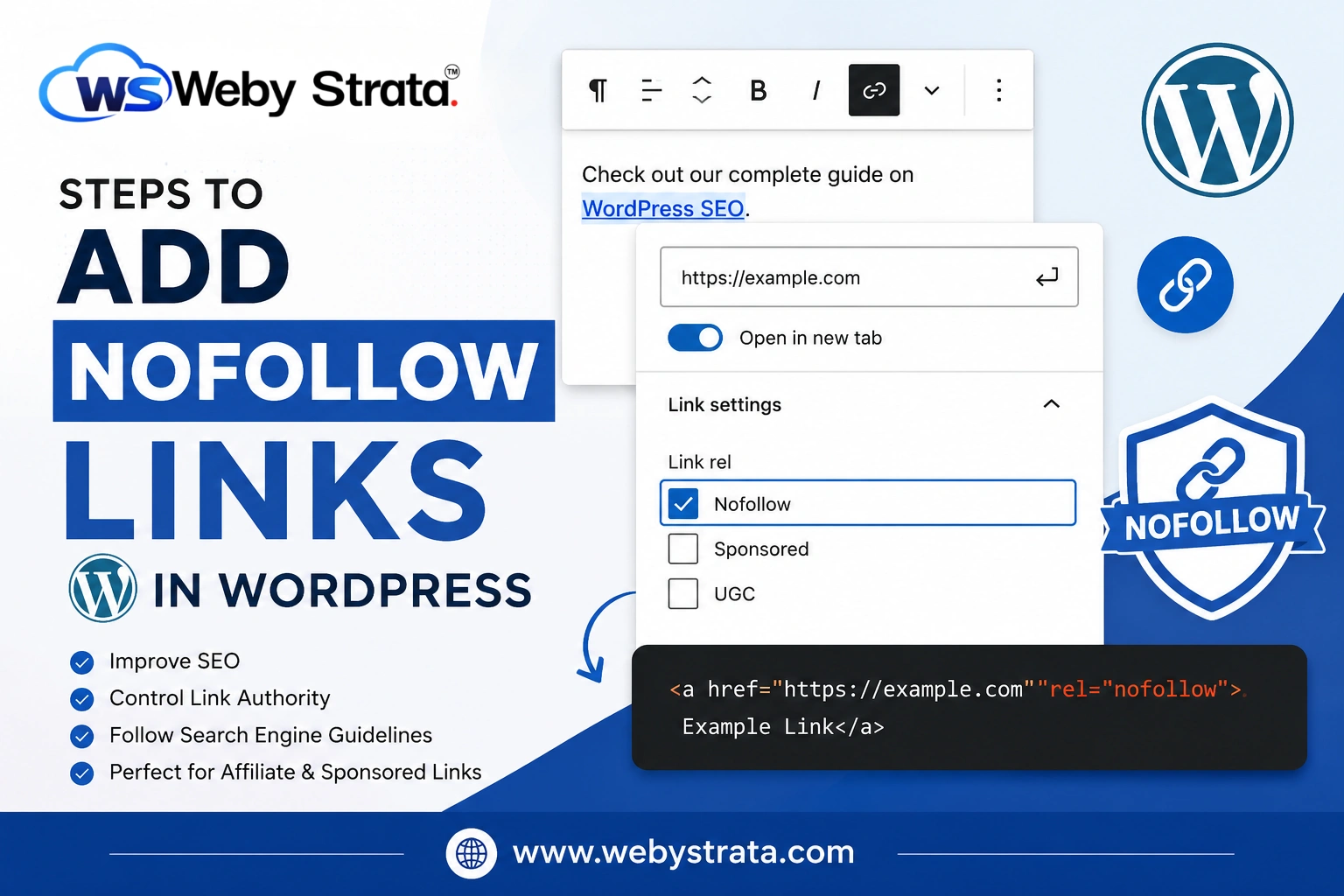
How to Add Nofollow Links in WordPress
Links are one of the most important elements of any website. They help users navigate between pages and allow search engines to discover and understand content. However, not every external link on your website should pass SEO value to another website. This is where nofollow links become useful.
Nofollow links allow website owners to control how search engines interact with outbound links. By adding a nofollow attribute to a link, you can tell search engines not to pass ranking authority, also known as link equity, to the destination page.
Whether you are linking to affiliate products, sponsored content, advertisements, or third-party resources, knowing how to Add Nofollow Links in WordPress can help protect your website’s SEO and ensure compliance with search engine guidelines.
In this guide, we’ll explain what nofollow links are, why they are important, and how you can easily add them in WordPress using the built-in editor.
What Is a Nofollow Link?
A nofollow link is a hyperlink that contains the following HTML attribute:
rel="nofollow"
When search engines encounter this attribute, they understand that the website owner does not want to transfer ranking authority to the linked page.
For example:
<a href="https://example.com" rel="nofollow">Visit Example</a>
This tells search engines to recognize the link but not use it as a ranking signal.
Nofollow links are commonly used for:
- Affiliate links
- Sponsored content
- Paid advertisements
- User-generated content
- External websites that you do not fully endorse
Using nofollow attributes correctly helps maintain a healthy linking strategy and reduces SEO risks.
Steps to Add Nofollow Links in WordPress
Modern WordPress installations often provide nofollow options directly within the editor, especially when popular SEO plugins are installed.
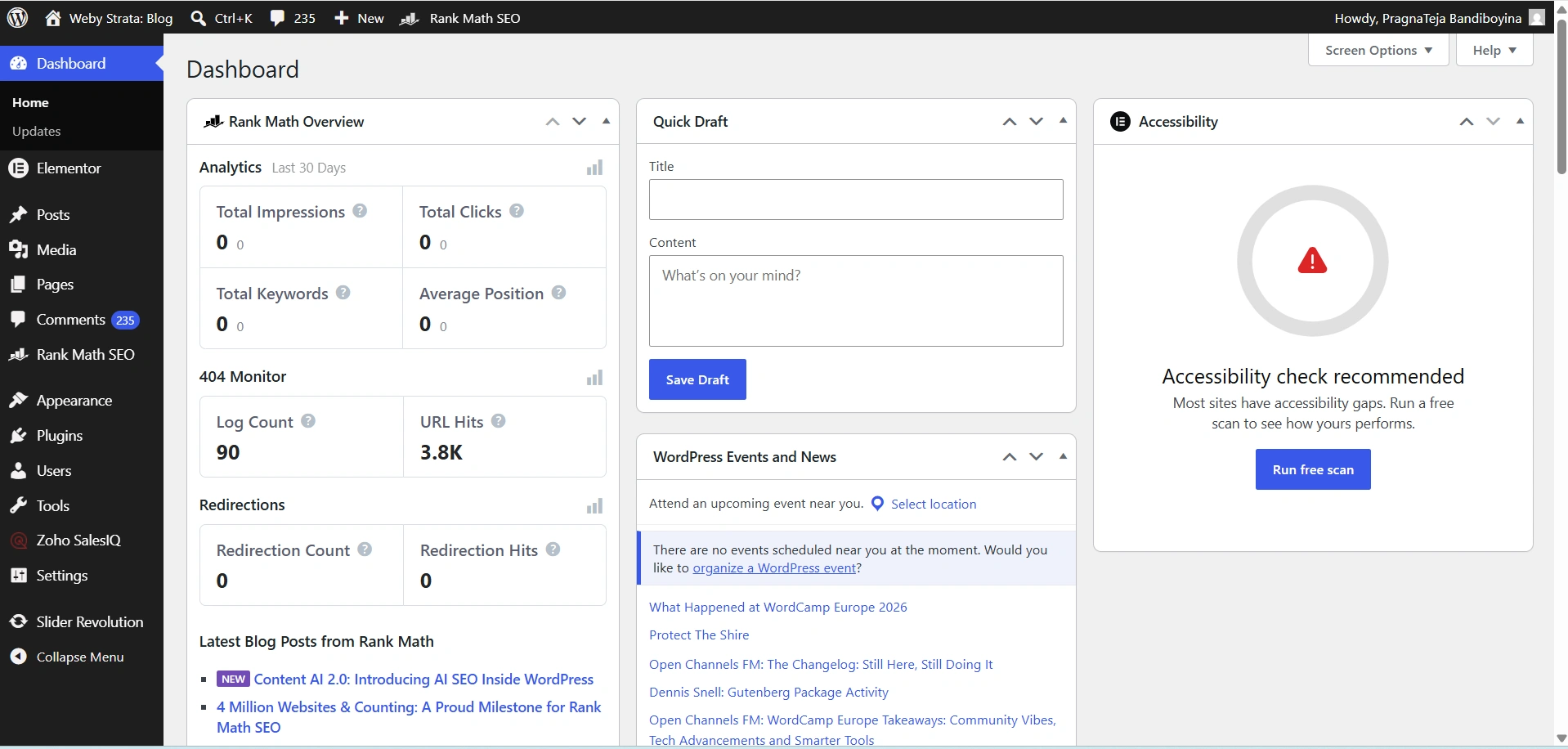
Step 1: Log in to Your WordPress Dashboard
Begin by accessing your WordPress administration area.
Open your web browser and visit:
https://yourdomain.com/wp-admin
Enter your administrator username and password, then click Log In.
Once logged in, you will be redirected to the WordPress Dashboard.
Step 2: Open a Post or Page
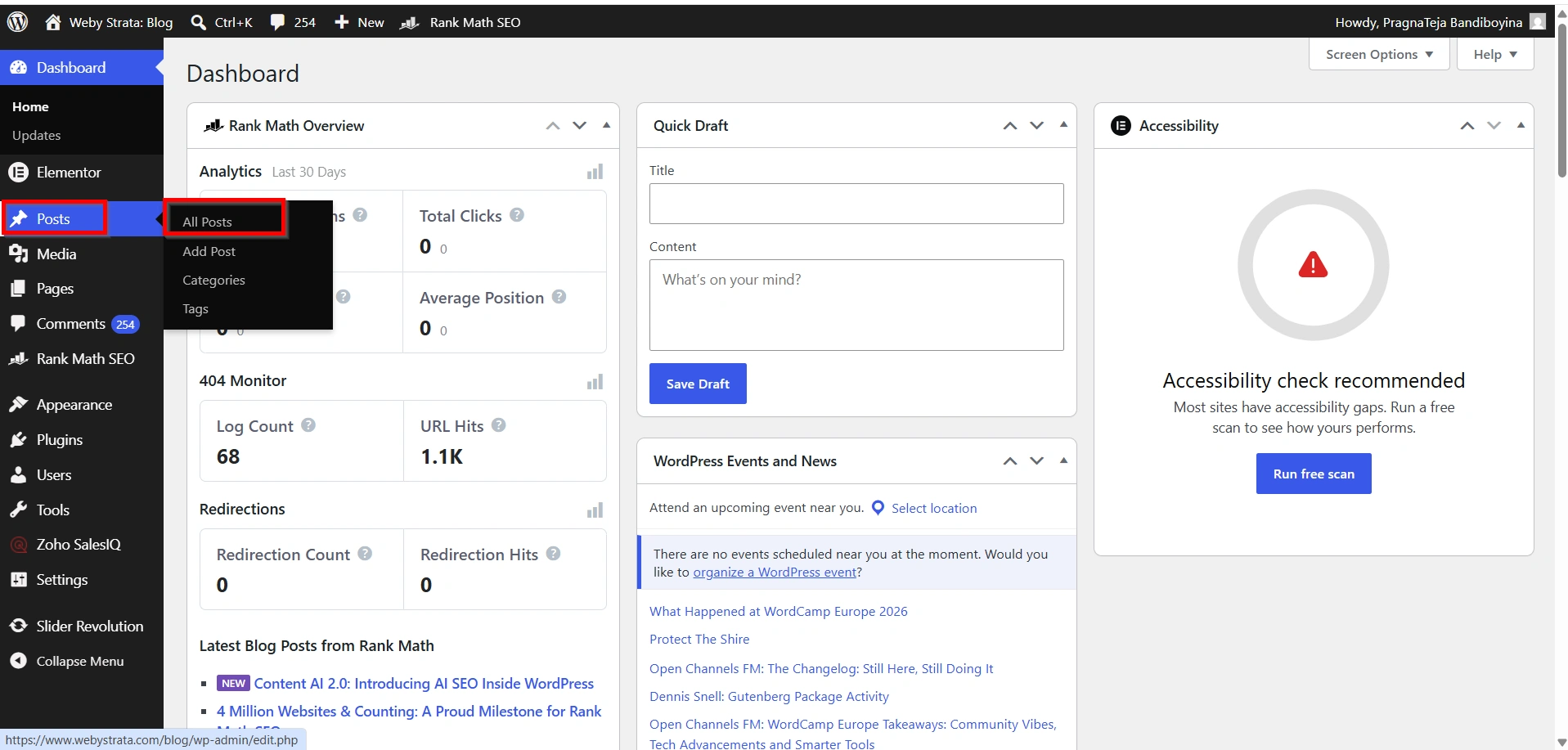
Navigate to:
Posts → All Posts
or
Pages → All Pages
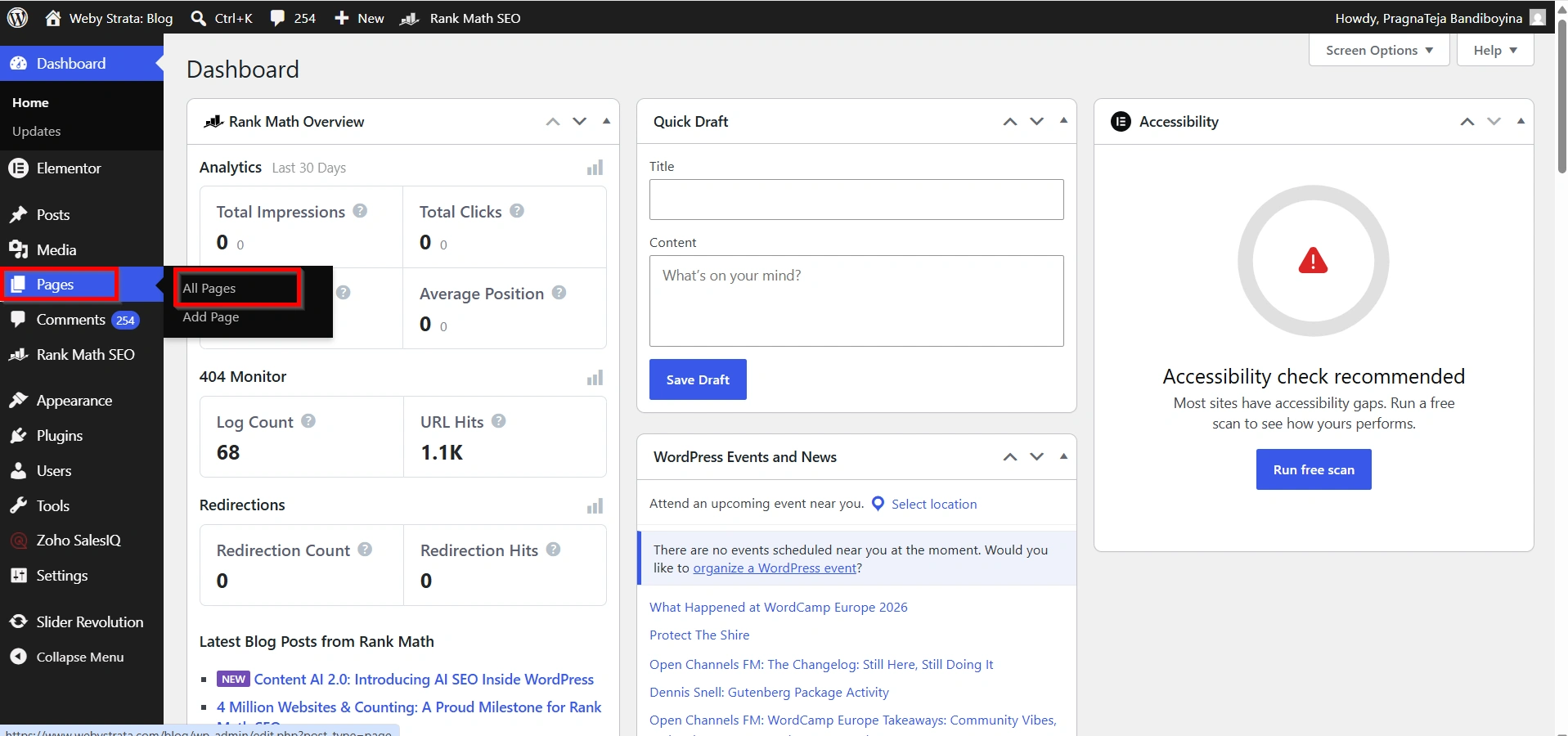
Open the content where you want to add or modify a hyperlink.
Step 3: Create or Edit a Link
Highlight the text that should contain the hyperlink.
Click the Link icon from the editor toolbar and enter the destination URL.
If the link already exists, click on it to edit its settings.
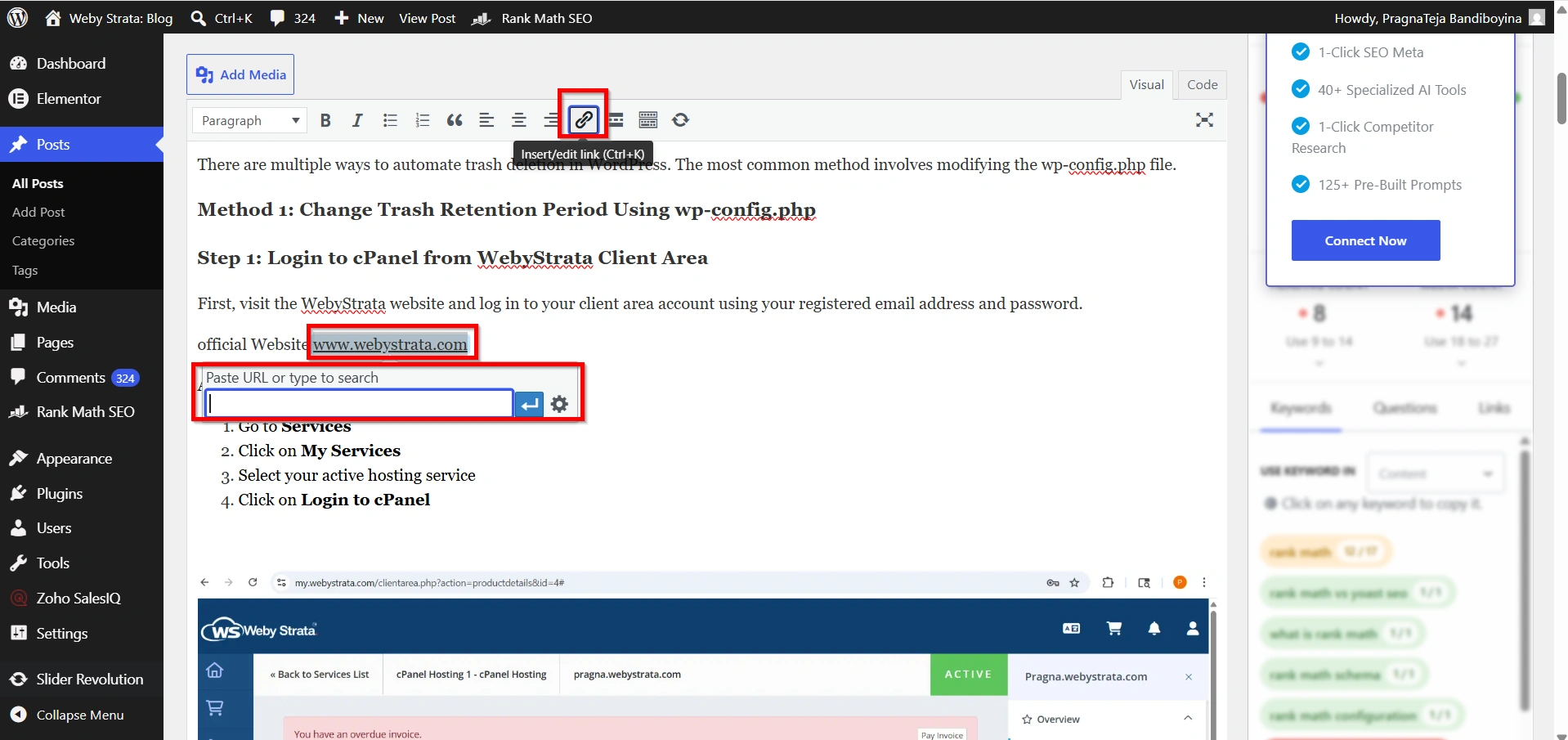
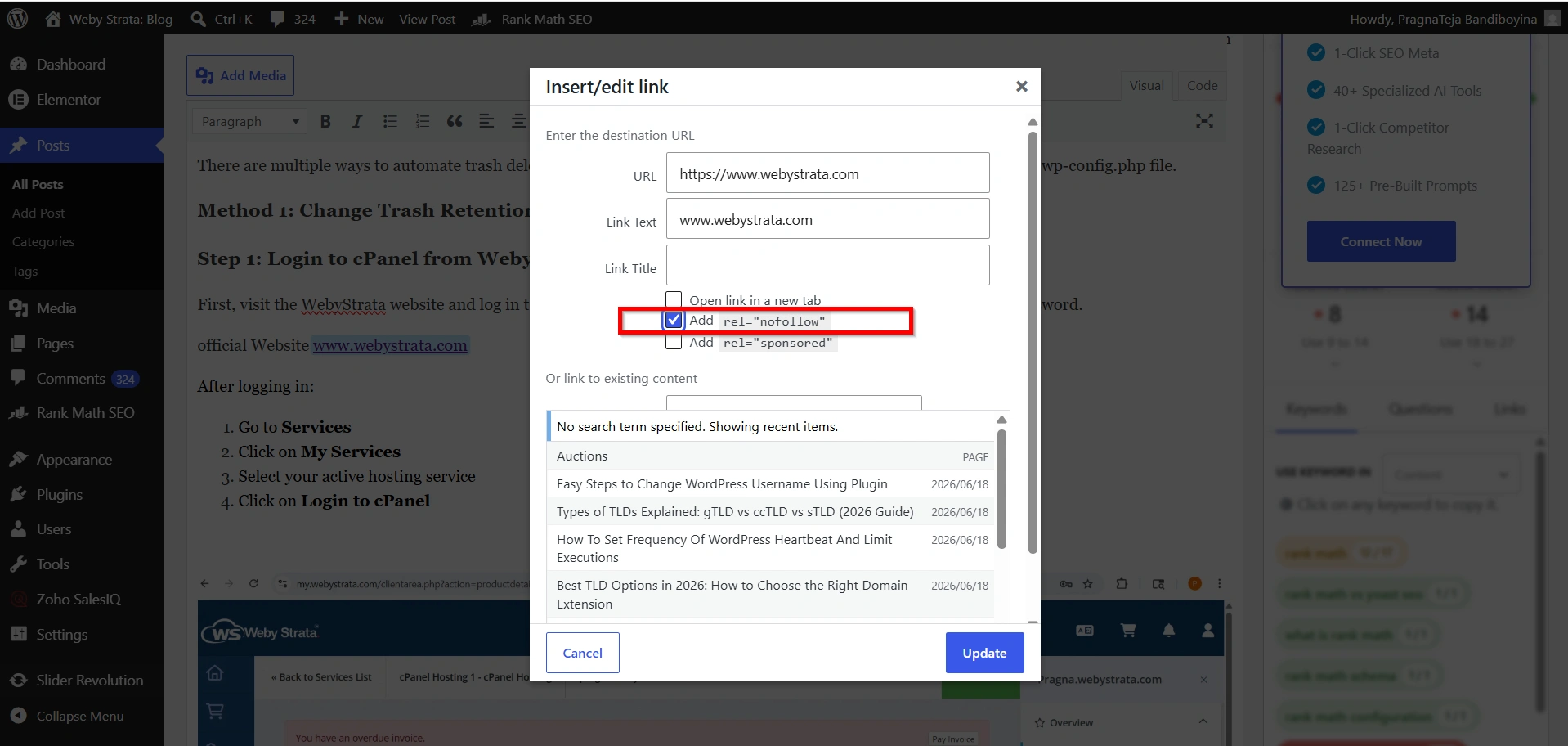
Step 4: Open Link Settings
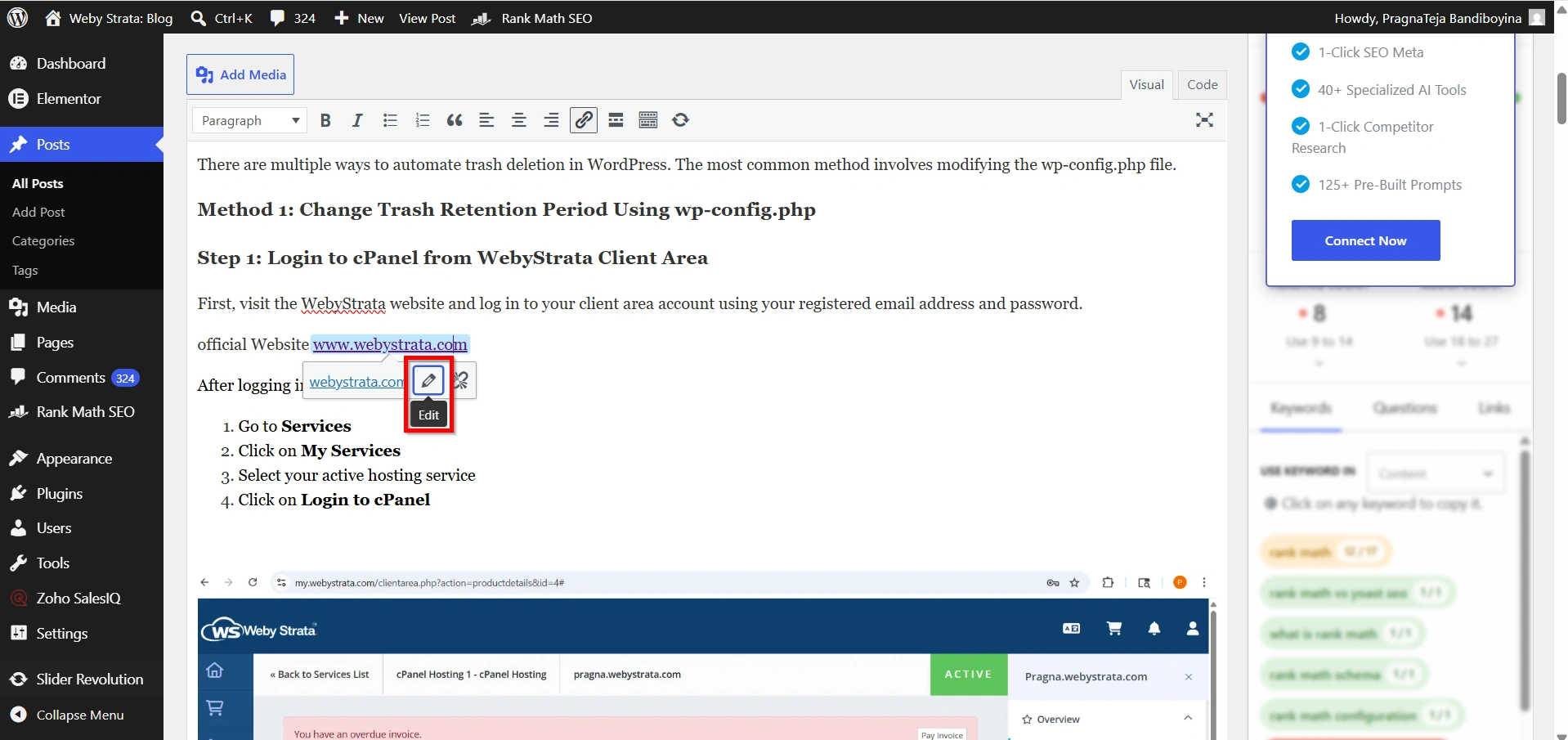
After creating the link:
- Click the linked text.
- Click the Edit icon.
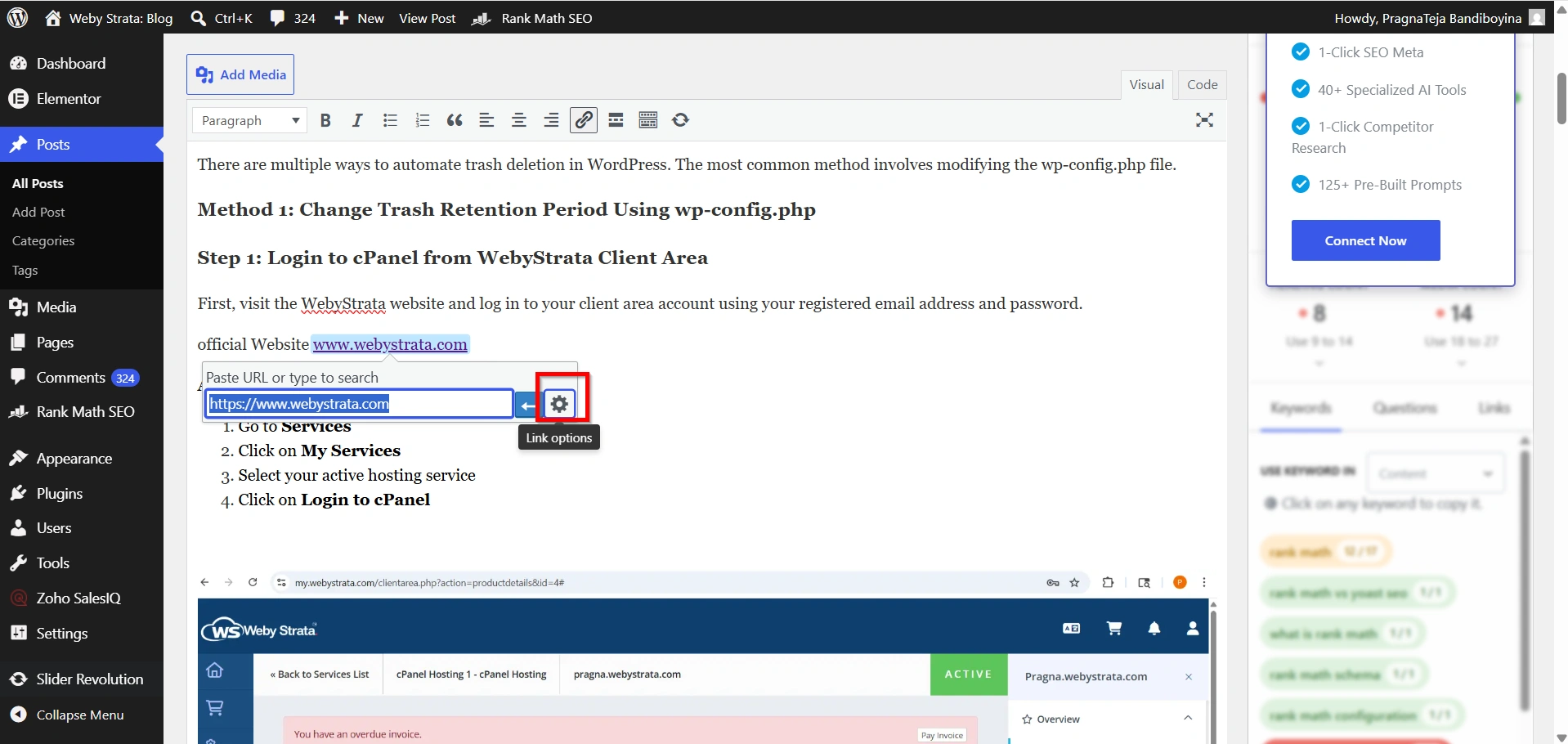
3. Select the Settings icon.
4. Open the advanced link settings.
Depending on your WordPress setup, you may see options such as:
- Nofollow
- Sponsored
- UGC (User Generated Content)
These options help you define how search engines should treat the link.
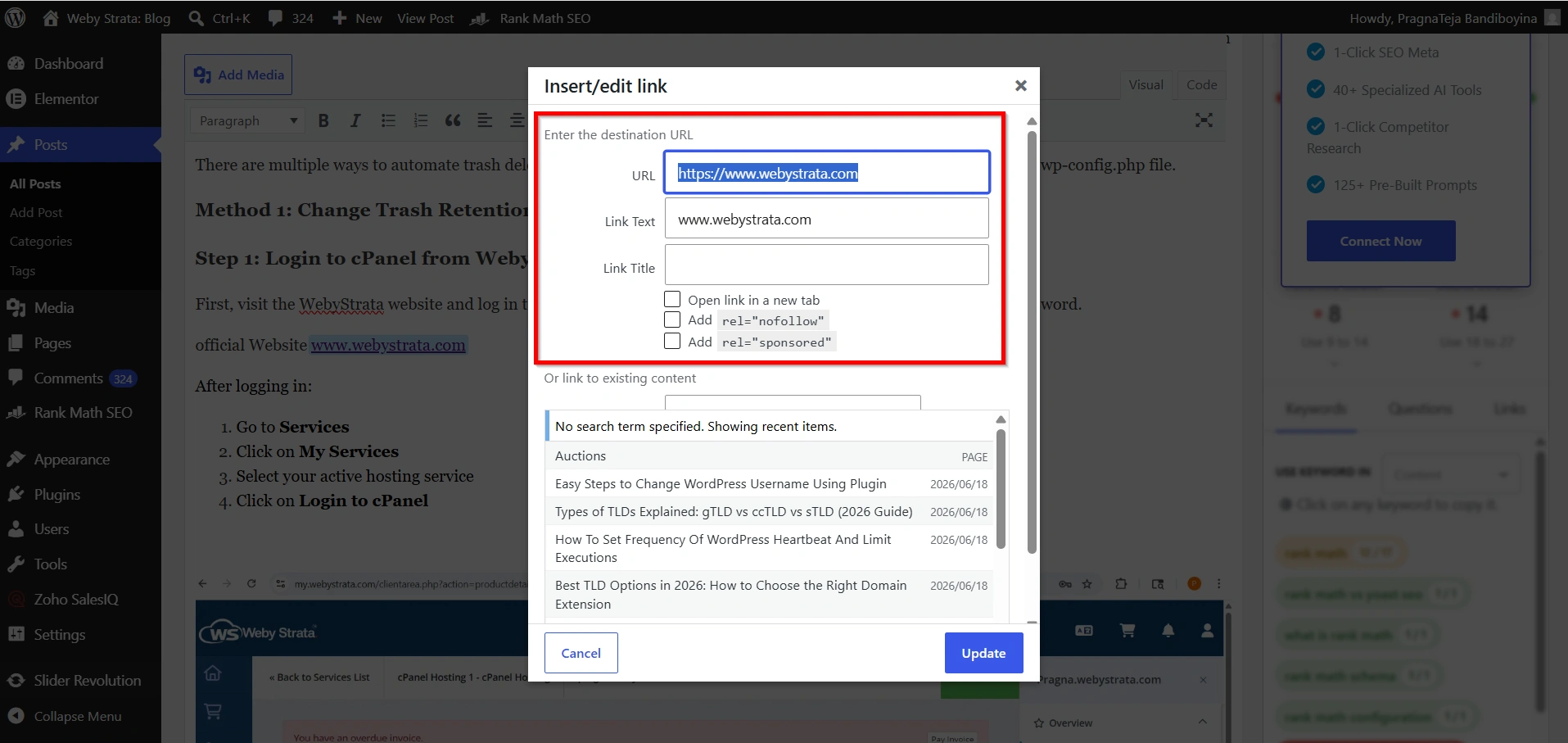
Step 5: Enable Nofollow
Check the Nofollow option and save the changes.
WordPress will automatically add the appropriate attribute to the hyperlink.
This is the simplest way to Add Nofollow Links in WordPress without manually editing code.
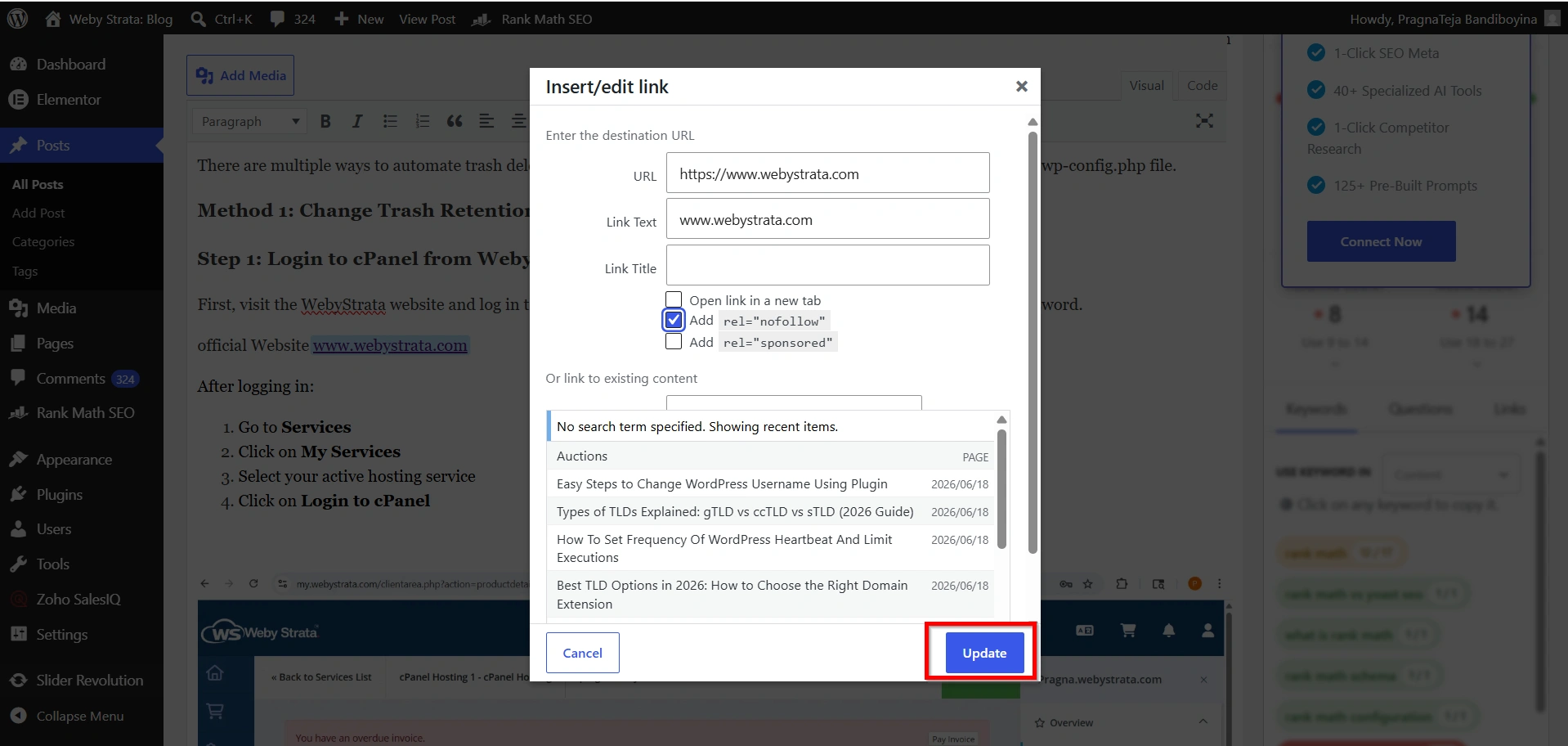
Step 6: Update the Page
Click Update or Publish to save your changes.
Your nofollow link is now active and search engines will recognize the attribute when crawling your page.
How to Verify a Nofollow Link
After adding a nofollow attribute, it’s a good idea to verify that it has been applied correctly.
Step 1
Visit the published page on your website.
Step 2
Right-click anywhere on the page.
Step 3
Select View Page Source.
Step 4
Use your browser’s search feature (Ctrl + F) to find the hyperlink.
You should see code similar to:
<a href="https://example.com" rel="nofollow">Example Website</a>
If the rel=”nofollow” attribute is present, the link has been configured successfully.
When Should You Use Nofollow Links?
Not every external link needs to be nofollow. However, there are several situations where using nofollow is strongly recommended.
- Affiliate Marketing Links
- Sponsored Blog Posts
- Advertisement Links
- User-Generated Content
- Untrusted External Websites
Why Add Nofollow Links in WordPress?
There are several reasons why website owners choose to Add Nofollow Links in WordPress.
- Maintain SEO Best Practices
- Prevent Passing Link Equity
- Protect Website Authority
- Useful for Affiliate Marketing
- Better Control Over External Links
Benefits of Nofollow Links
- Better SEO Management
- Compliance with Search Engine Guidelines
- Affiliate Link Protection
- Reduced SEO Risk
- Easy Link Control
Conclusion
Knowing how to Add Nofollow Links in WordPress is an important skill for website owners, bloggers, marketers, and businesses. When you Add Nofollow Links in WordPress, you help maintain SEO best practices, prevent unnecessary transfer of link equity, and comply with search engine guidelines. By following the steps outlined in this guide, you can confidently Add Nofollow Links in WordPress and manage external links more effectively while protecting your website’s long-term SEO performance.
Related Articles


