Latest Updates
Enable or Disable Pingbacks and Trackbacks in WordPress
Enable or Disable Pingbacks and Trackbacks in WordPress WordPress includes several built-in communication features that help websites interact with one another. Among these features are Pingbacks and Trackbacks, which notify website owners when another…
Enable or Disable Pingbacks and Trackbacks in WordPress
WordPress includes several built-in communication features that help websites interact with one another. Among these features are Pingbacks and Trackbacks, which notify website owners when another website links to their content. These notifications can help bloggers discover who is referencing their articles and encourage discussions across different websites.
Although pingbacks and trackbacks were once widely used in the blogging community, many website owners today choose to disable them due to spam and security concerns. Understanding how these features work will help you decide whether to keep them enabled or turn them off entirely.
In this guide, we’ll explain what pingbacks and trackbacks are, how they differ, their advantages and disadvantages, and how to enable or disable them in WordPress.
What Are Pingbacks and Trackbacks?
Pingbacks and trackbacks are link notification systems designed to create communication between websites.
When another website links to your content, WordPress can send or receive a notification informing both websites about the connection.
These notifications often appear in the comments section of a post if they are approved by the site administrator.
What Is a Pingback?
A pingback is an automatic notification generated when one WordPress website links to another WordPress website.
For example:
- Website A publishes an article.
- The article contains a link to Website B.
- WordPress automatically sends a pingback notification to Website B.
- Website B receives the notification and may display it in the comments section after approval.
The entire process happens automatically without any manual action required.
What Is a Trackback?
A trackback serves a similar purpose but works differently.
Instead of being automatic, trackbacks require manual submission.
For example:
- Website A writes a post referencing Website B.
- The author copies the trackback URL from Website B.
- The trackback is manually sent when publishing the post.
- Website B receives the notification and can approve it.
Trackbacks were originally developed before pingbacks and are generally more vulnerable to spam.
Steps to Enable or Disable Pingbacks and Trackbacks in WordPress
How to Enable Pingbacks and Trackbacks in WordPress
If you want WordPress to notify other websites and receive notifications when your content is linked, follow these steps.
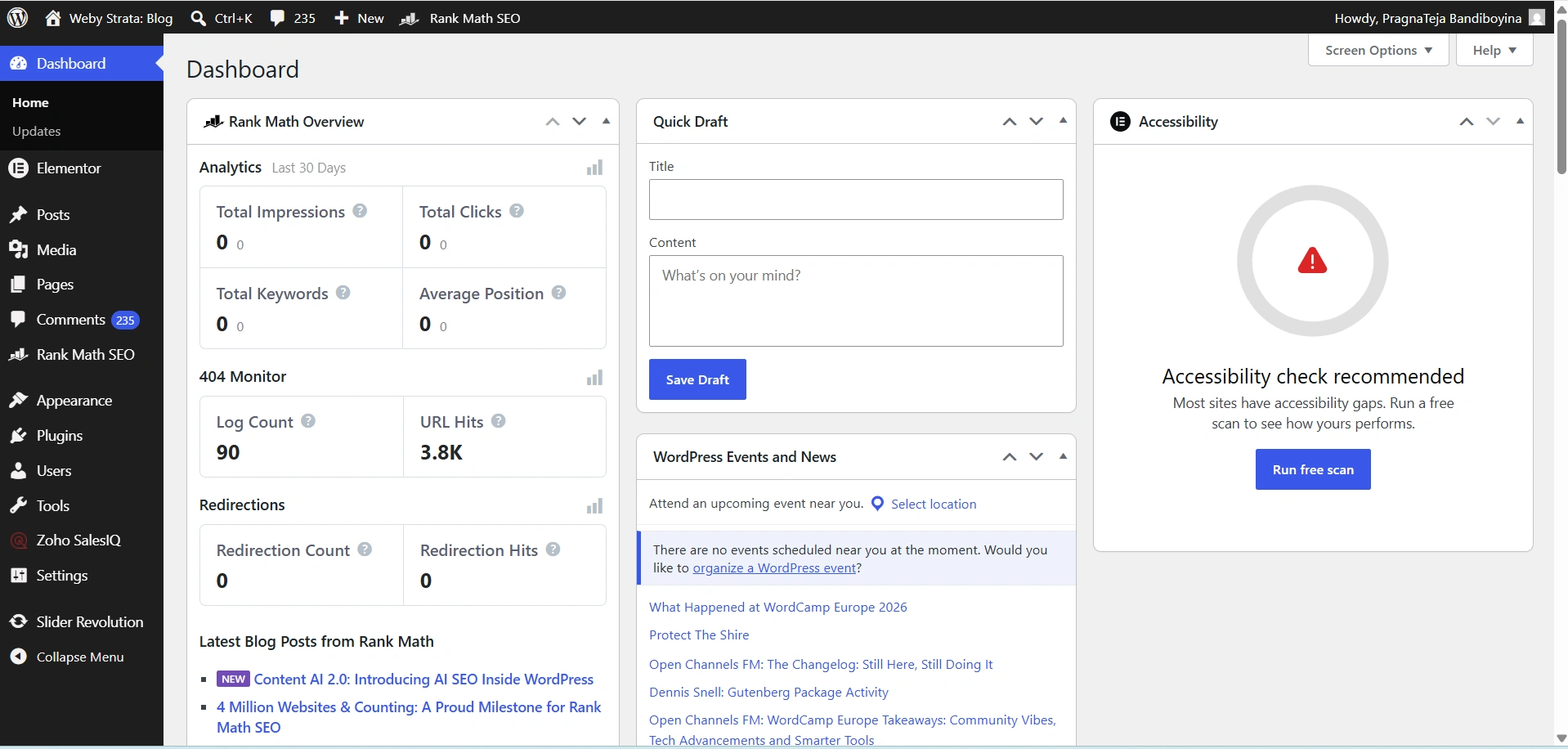
Step 1: Log In to WordPress
Access your WordPress Admin Dashboard using an administrator account.
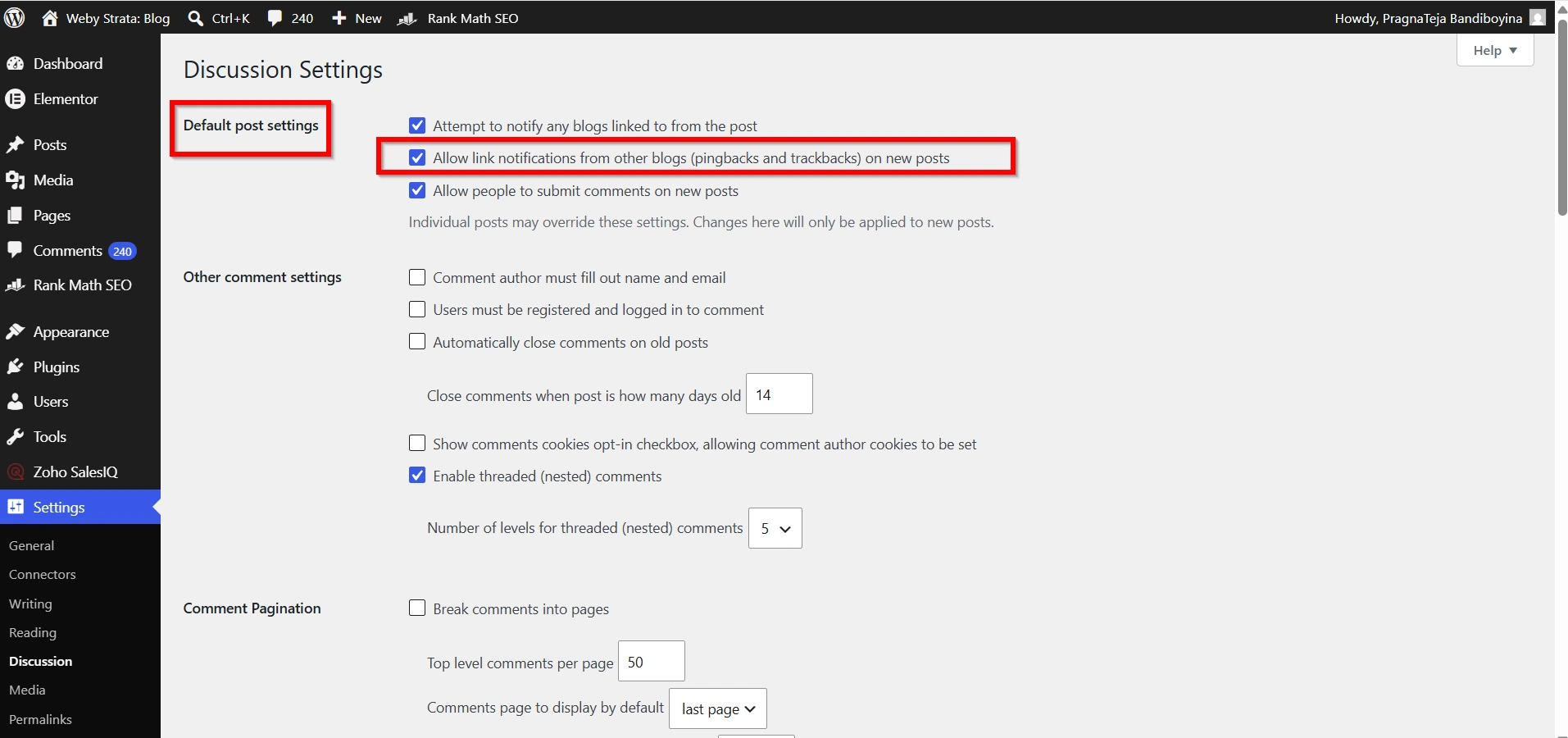
Step 2: Open Discussion Settings
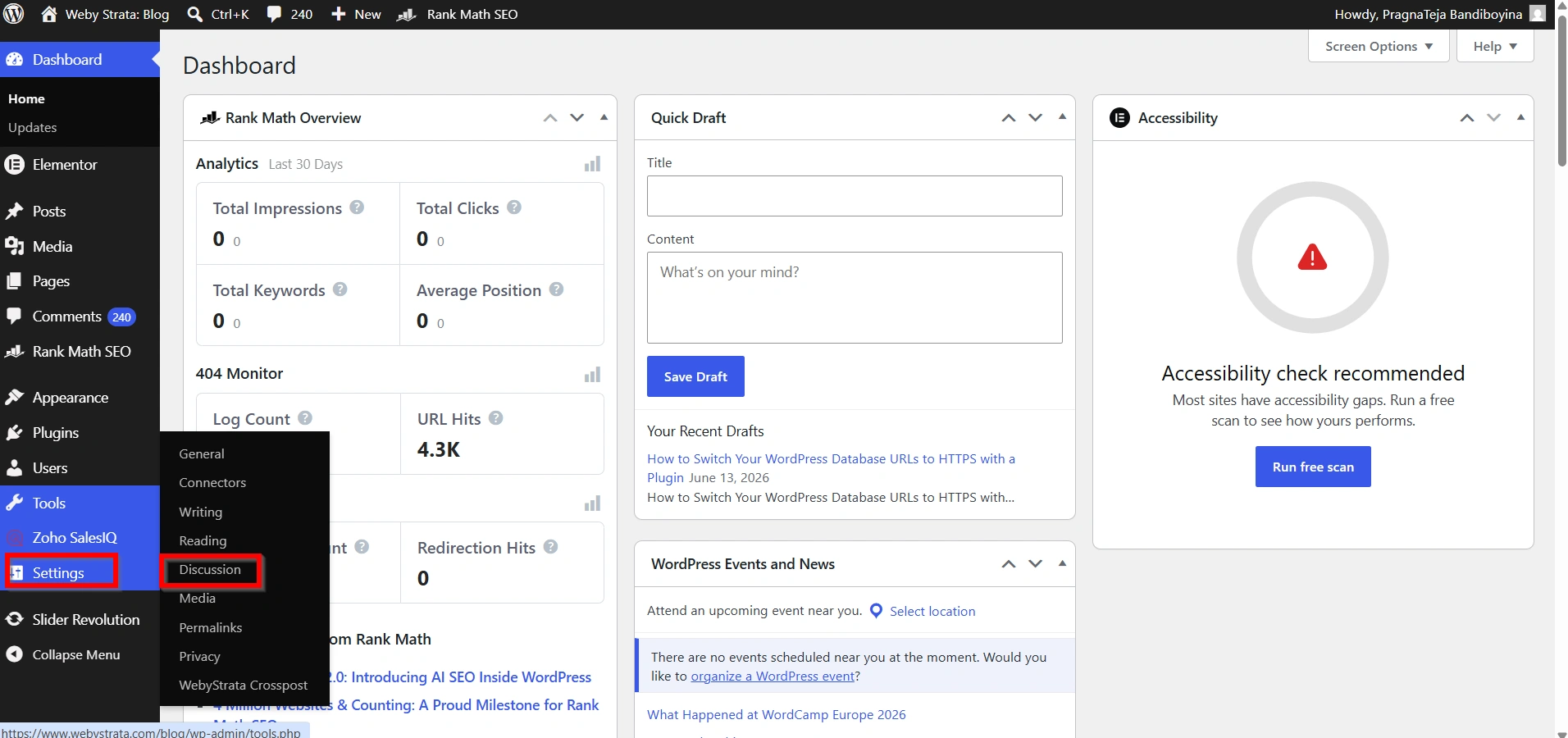
From the left navigation menu, go to:
Settings → Discussion
The Discussion Settings page contains all comment-related options.
Step 3: Locate Default Article Settings
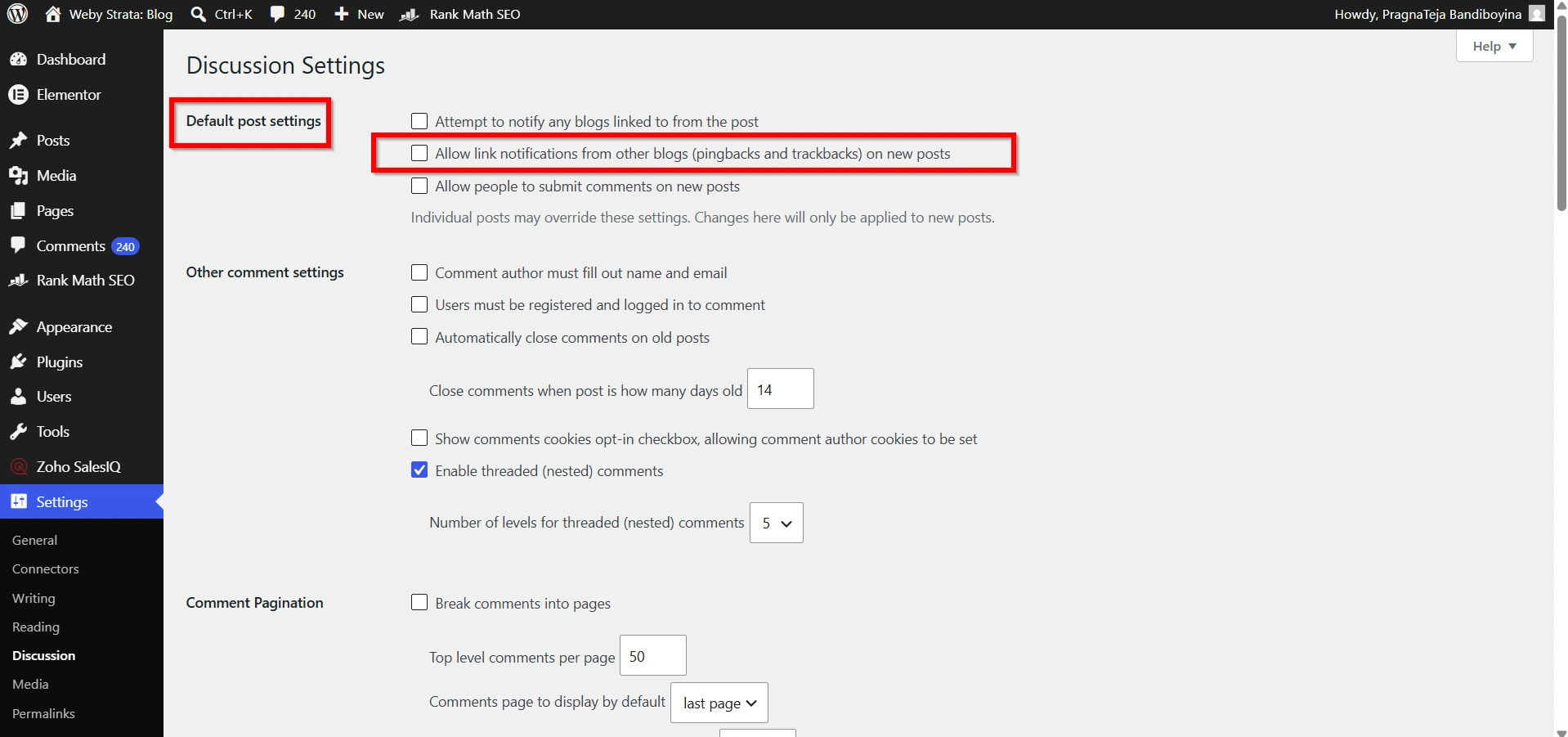
Under the Default article settings section, find the option:
Allow link notifications from other blogs (pingbacks and trackbacks) on new articles
Step 4: Enable Notifications
To enable pingbacks and trackbacks:
- Check the box next to Allow link notifications from other blogs (pingbacks and trackbacks) on new articles.
- Review your settings.
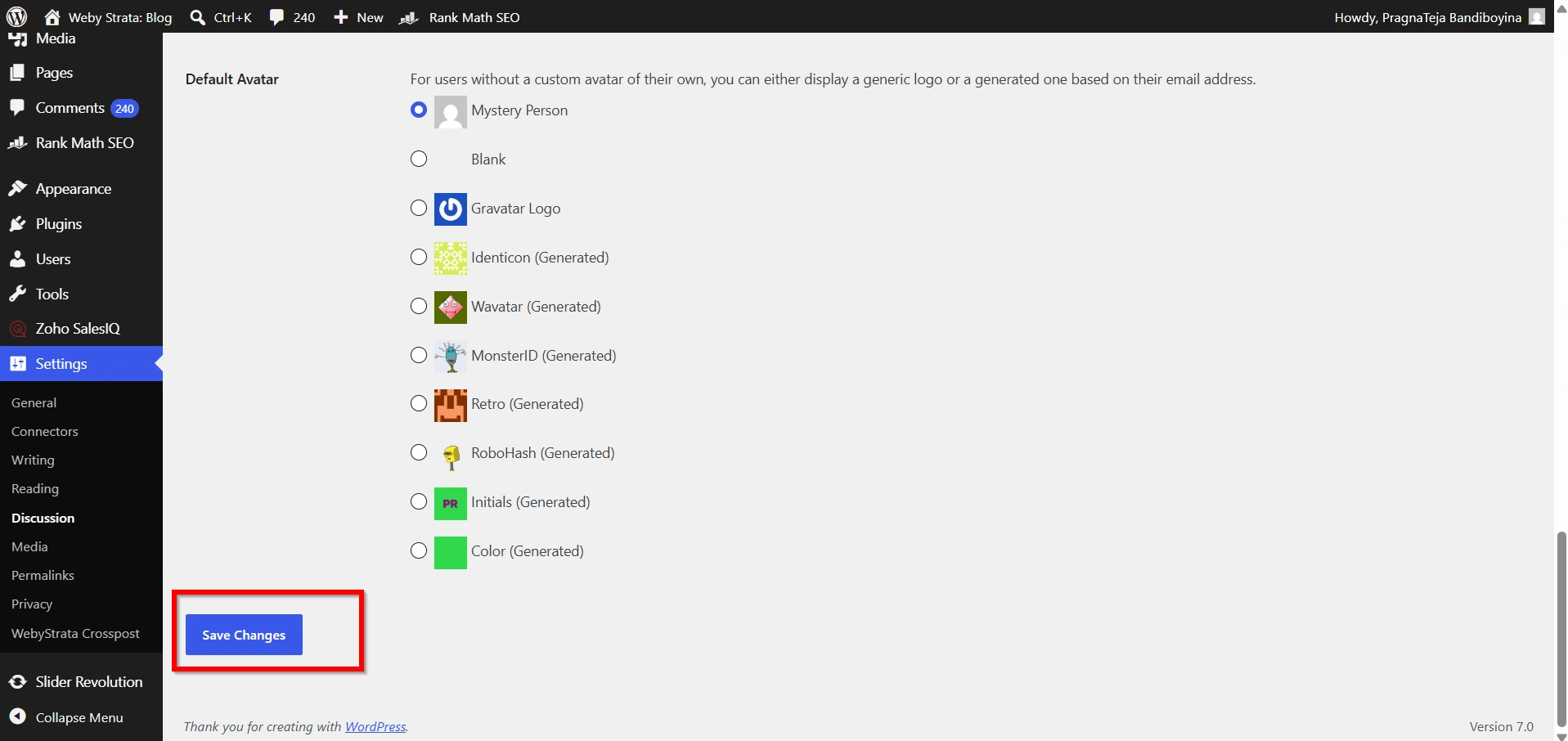
3. Click Save Changes.
WordPress will now accept pingbacks and trackbacks on newly published content.
How to Disable Pingbacks and Trackbacks in WordPress
Most website owners choose to disable these notifications to reduce spam and simplify comment management.
Step 1: Go to Discussion Settings
Navigate to:
Settings → Discussion
Step 2: Disable Notifications
Locate the option:
Allow link notifications from other blogs (pingbacks and trackbacks) on new articles
Uncheck the box.
Step 3: Save Changes
Click Save Changes at the bottom of the page.
WordPress will stop accepting pingbacks and trackbacks on future posts.
Best Practices
To get the most from pingbacks and trackbacks while minimizing issues, consider these recommendations:
- Enable Comment Moderation
- Use Anti-Spam Tools
- Keep WordPress Updated
- Monitor Website Activity
- Disable If Unnecessary
Benefits of Using Pingbacks and Trackbacks
Some website owners still find value in enabling these features.
1. Discover Incoming Links
2. Build Blogging Relationships
3. Increase Content Visibility
4. Encourage Discussion
5. Monitor Content Mentions
Conclusion
Pingbacks and trackbacks are WordPress features designed to notify websites when content is linked between blogs. While they can help build connections, discover backlinks, and encourage discussions, they are also commonly associated with spam and increased moderation requirements.
For most modern websites, disabling pingbacks and trackbacks is often the preferred choice due to security, performance, and management benefits. However, if you participate in an active blogging community and value website-to-website communication, enabling them may still provide useful functionality.
Fortunately, WordPress makes it easy to enable or disable pingbacks and trackbacks through the Discussion Settings page, allowing you to configure your website according to your specific needs.
For more WordPress tutorials and step-by-step guides,
visit our WordPress knowledge base: www.webystrata.com/blog/category/wordpress/
Related Articles


