Latest Updates
How To Automatically Delete Trash In WordPress
How To Automatically Delete Trash In WordPress Automatically Delete Trash In WordPress is an effective way to keep your website database clean and optimized. By default, WordPress stores deleted posts, pages, and comments in…
How To Automatically Delete Trash In WordPress
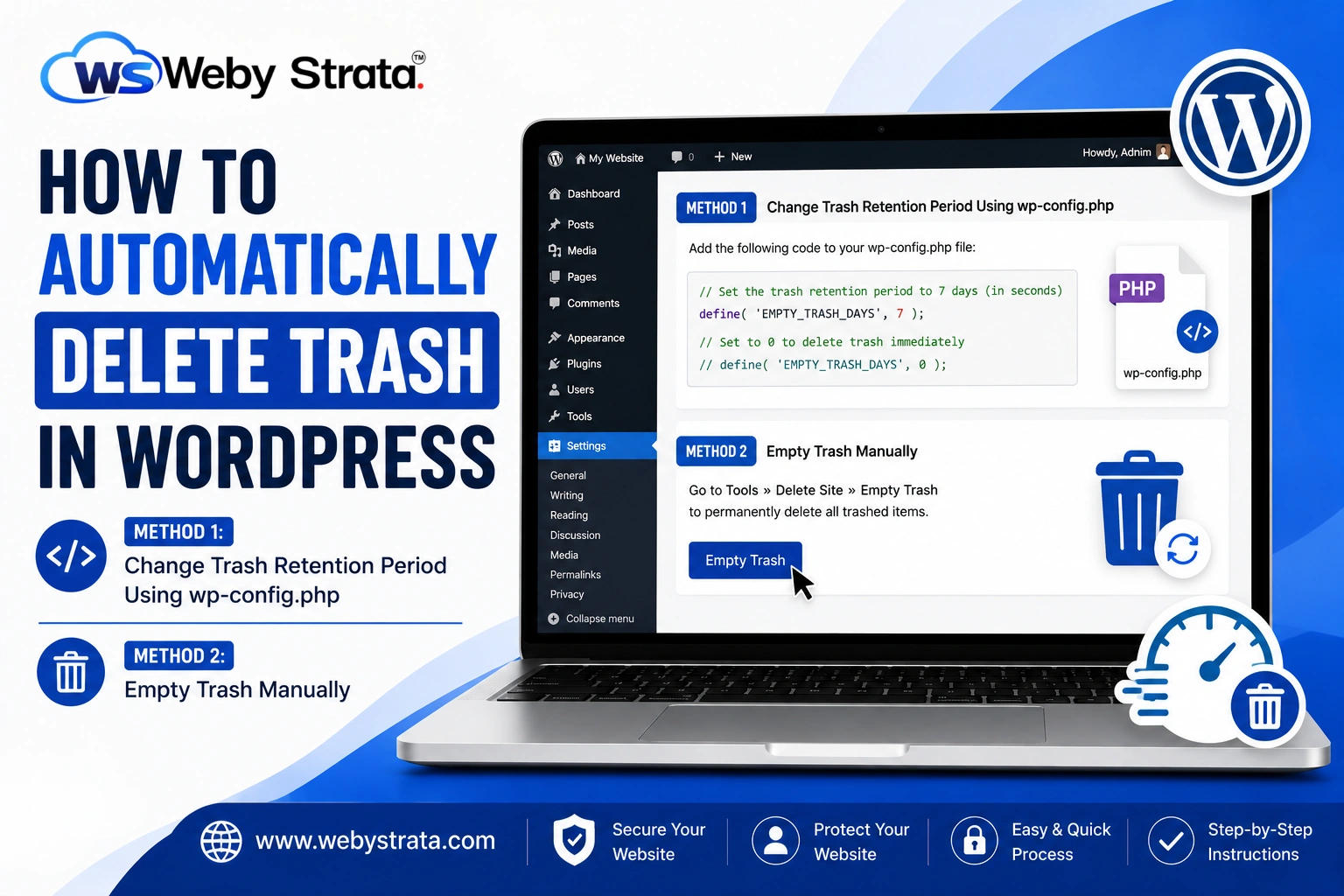
Automatically Delete Trash In WordPress is an effective way to keep your website database clean and optimized. By default, WordPress stores deleted posts, pages, and comments in the Trash folder for 30 days before removing them permanently. While this feature helps recover accidentally deleted content, it can also increase database size over time. Learning how to Automatically Delete Trash In WordPress can help improve website performance, reduce database clutter, and save valuable hosting resources. In this guide, we’ll show you how to Automatically Delete Trash In WordPress using simple methods that require minimal technical knowledge.
What Is The WordPress Trash Feature?
The Trash feature in WordPress acts similarly to the Recycle Bin on a computer. When you delete a post, page, comment, or other supported content, WordPress does not remove it permanently right away. Instead, it moves the item to the Trash folder.
This allows website administrators to recover content if it was deleted accidentally. After the default retention period of 30 days, WordPress permanently deletes the item automatically.
Although this feature is helpful, websites with frequent content updates may accumulate a large amount of trash data that serves no purpose. In such cases, adjusting the trash retention period can help maintain a cleaner and more efficient website.
How To Automatically Delete Trash In WordPress
There are multiple ways to automate trash deletion in WordPress. The most common method involves modifying the wp-config.php file.
Method 1: Change Trash Retention Period Using wp-config.php
Step 1: Login to cPanel from WebyStrata Client Area
First, visit the WebyStrata website and log in to your client area account using your registered email address and password.
official Website www.webystrata.com
After logging in:
- Go to Services
- Click on My Services
- Select your active hosting service
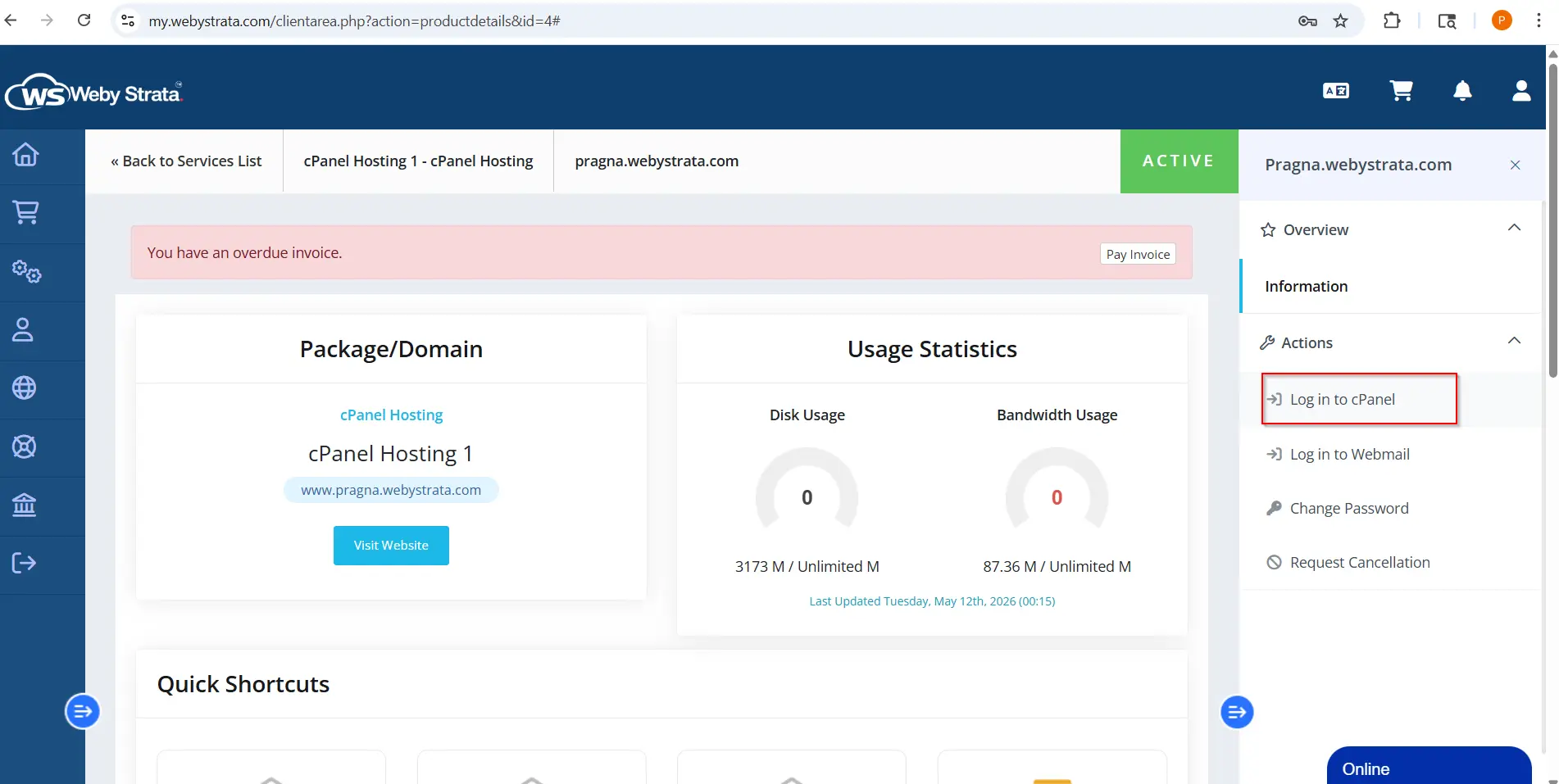
- Click on Login to cPanel
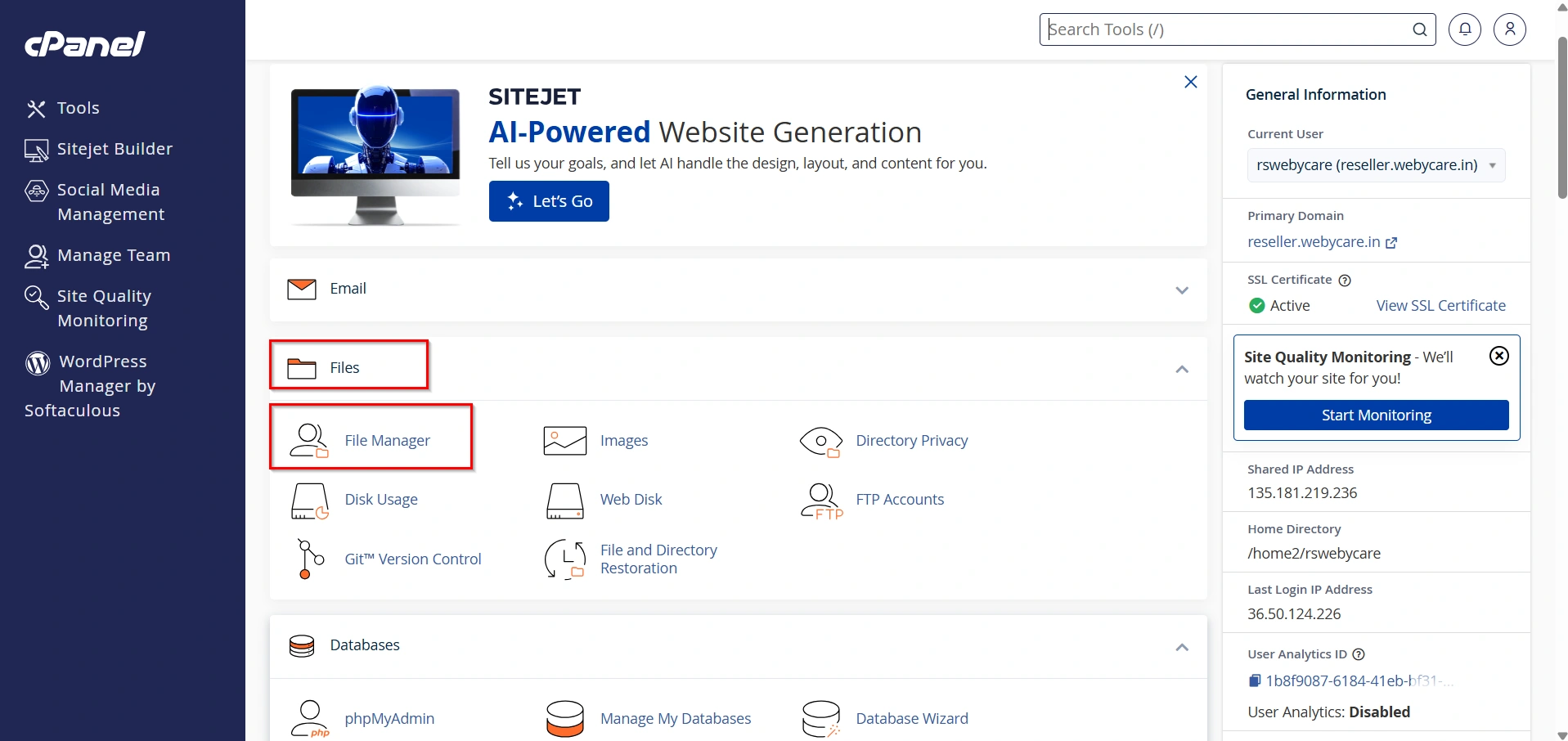
- Under Tools Select Files → File Manager.
- Navigate to:
public_html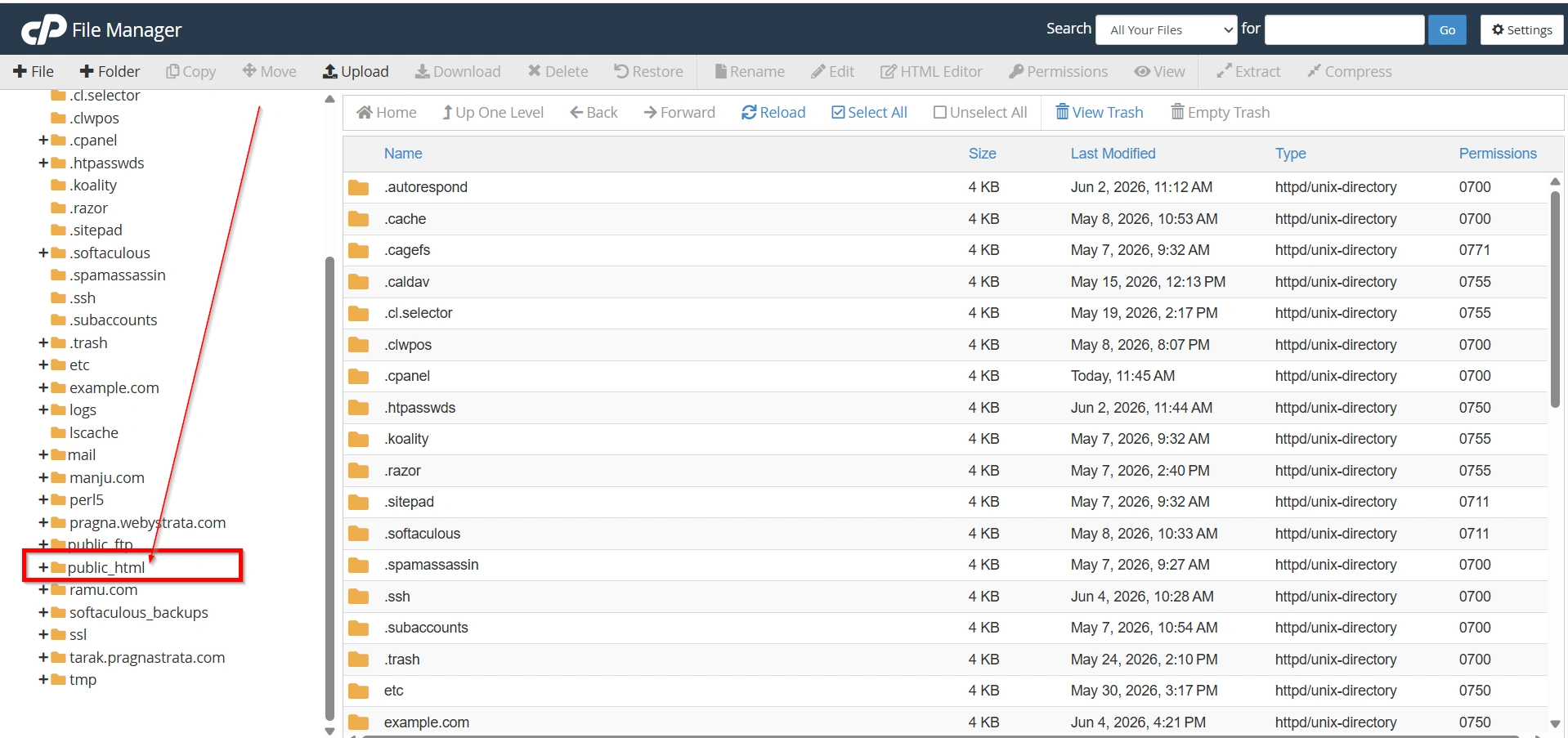
Locate the file named:
wp-config.php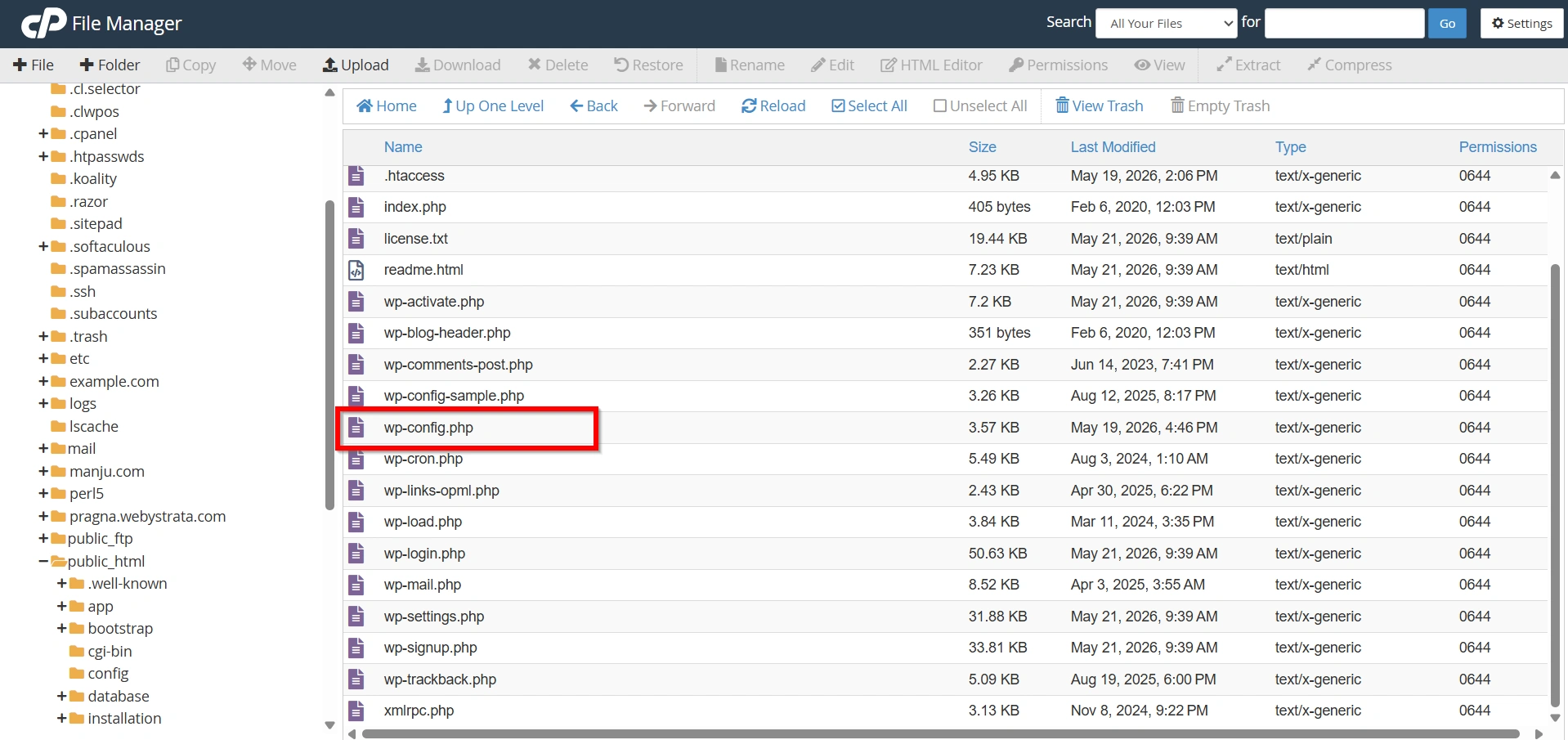
Step 2: Edit The wp-config.php File
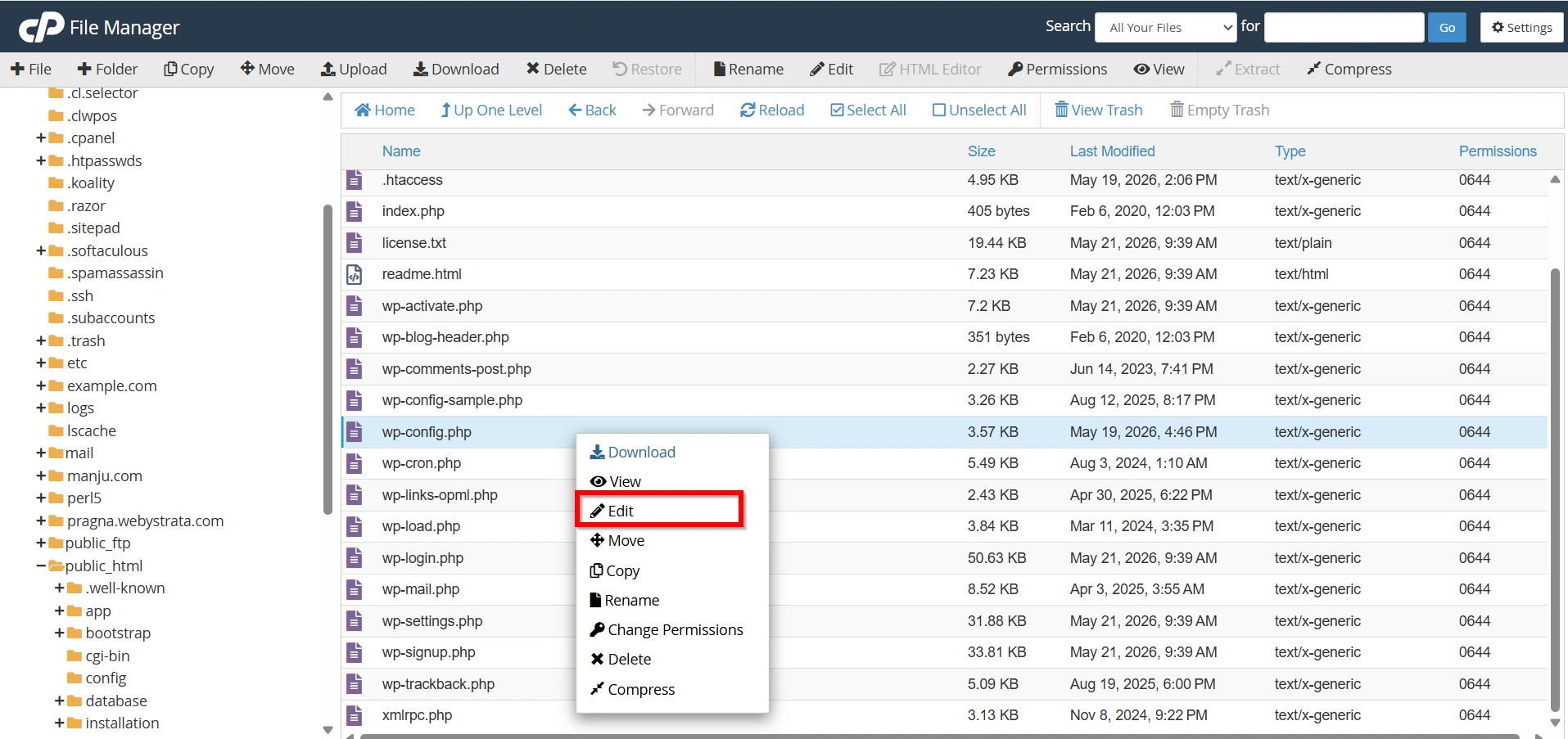
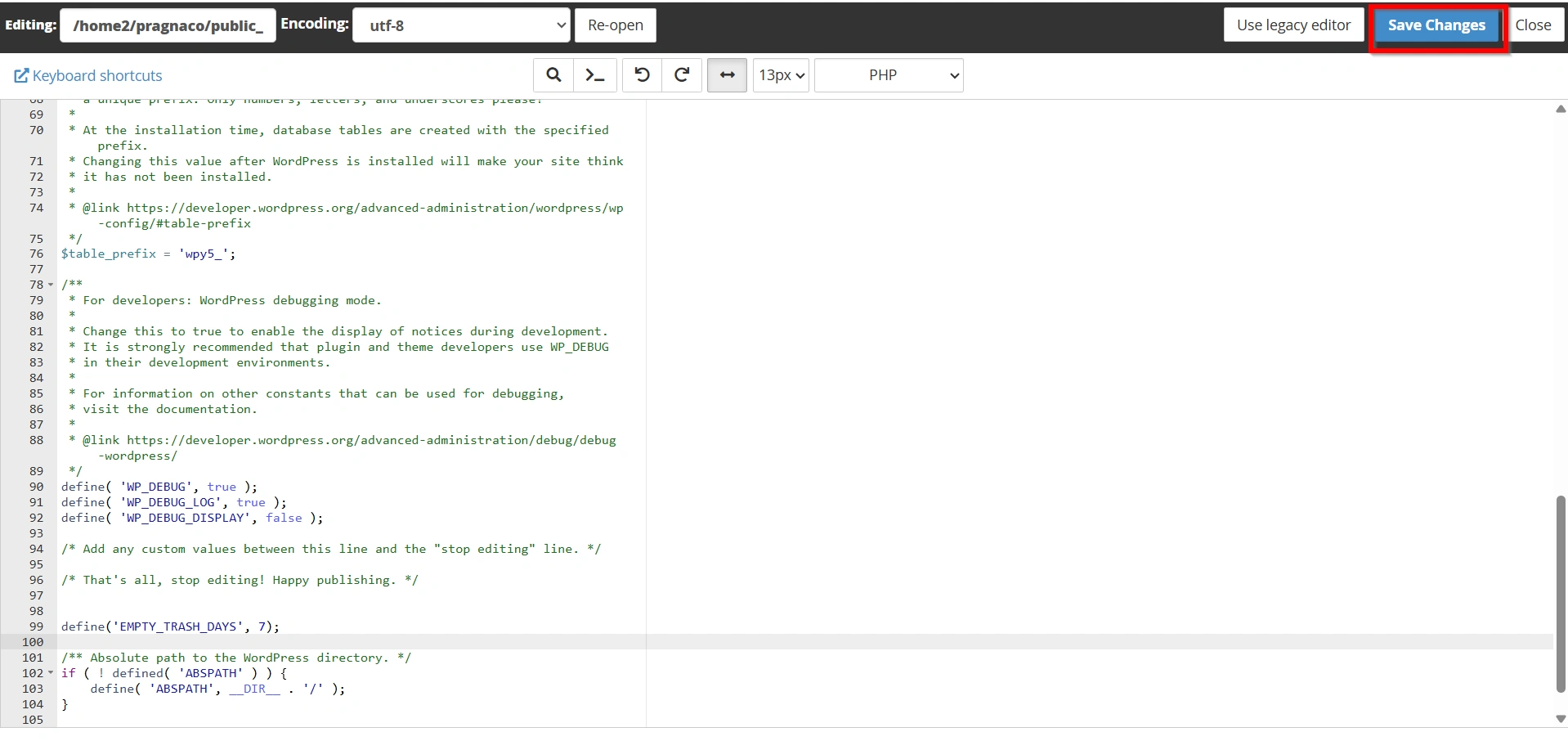
- Right-click the file and choose Edit.
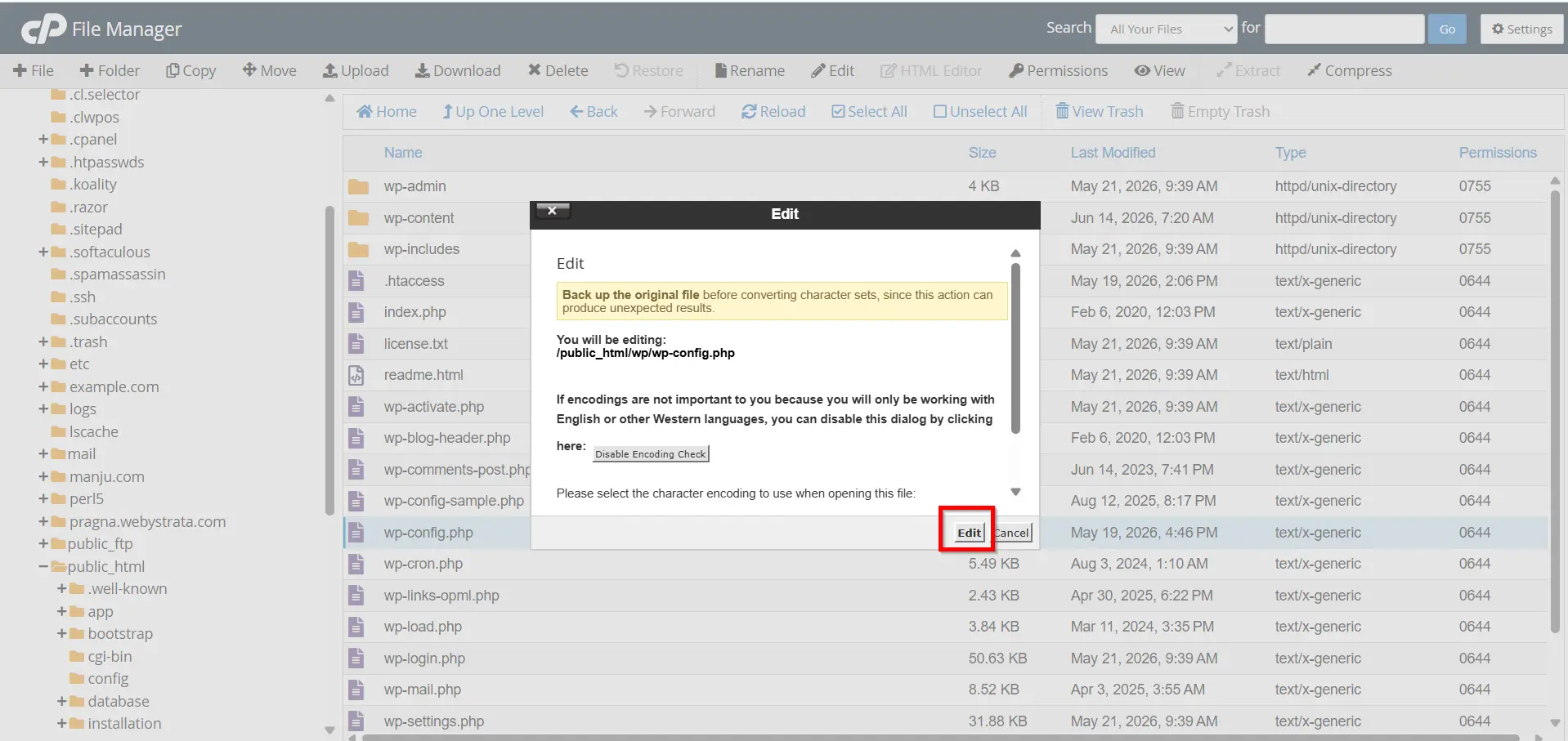
- Again Click Edit
Find the following line:
/* That's all, stop editing! Happy publishing. */
Just above it, add:
define('EMPTY_TRASH_DAYS', 7);
This setting tells WordPress to permanently delete trash items after 7 days instead of the default 30 days.
Common Examples
Delete trash after 1 day:
define('EMPTY_TRASH_DAYS', 1);
Delete trash after 14 days:
define('EMPTY_TRASH_DAYS', 14);
Delete trash after 30 days:
define('EMPTY_TRASH_DAYS', 30);
Disable Trash completely:
define('EMPTY_TRASH_DAYS', 0);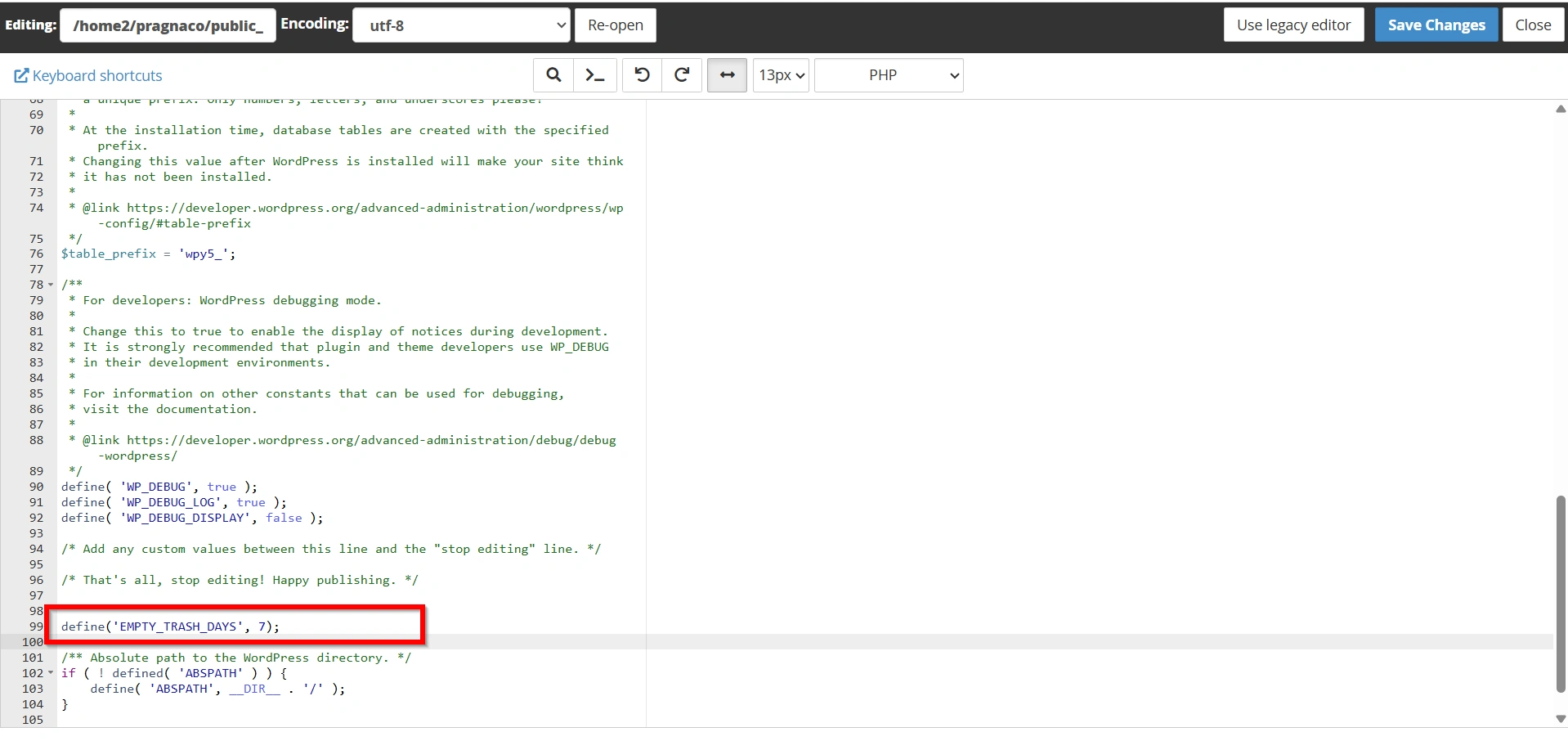
- Save the file after making your changes by Clicking Save Changes
Method 2: Empty Trash Manually
If your website doesn’t generate much deleted content, you may prefer to clear the Trash manually.
Delete Posts From Trash
- Go to Posts → Trash.
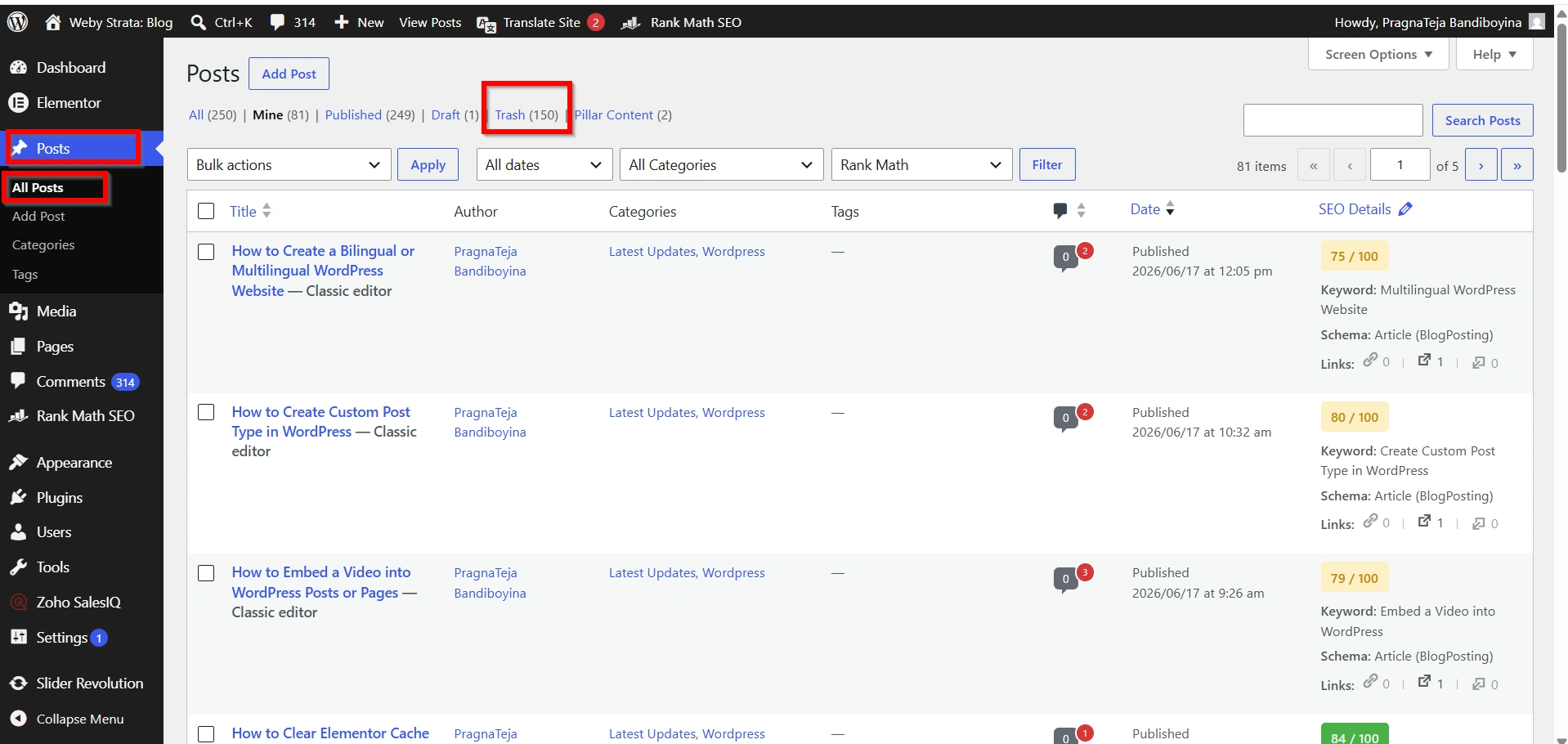
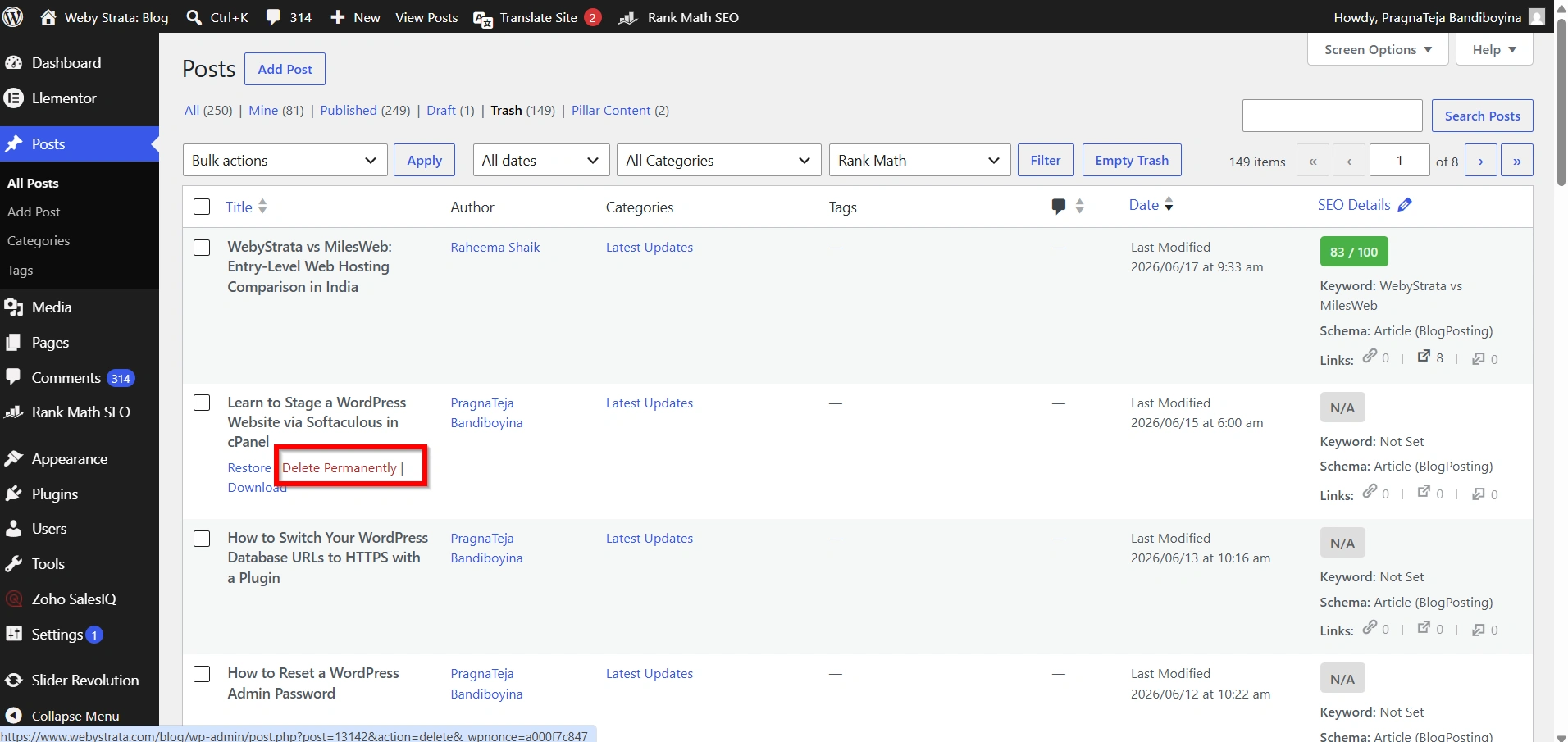
2. Select the items you want to remove.
3. Click Delete Permanently.
While manual deletion works well for smaller websites, automation is generally more efficient for websites with frequent content updates.
Best Practices Before Enabling Automatic Trash Deletion
Before changing WordPress trash settings, keep these recommendations in mind:
- Create Regular Backups
- Choose A Suitable Retention Period
- Monitor Website Performance
- Test Changes Carefully
Benefits Of Automatically Delete Trash In WordPress
1. Improves Website Performance
2. Saves Hosting Storage Space
3. Keeps The Database Organized
4. Reduces Manual Maintenance
5. Improves Backup Efficiency
Conclusion
Knowing how to Automatically Delete Trash In WordPress is an important part of WordPress maintenance. Whether you use the wp-config.php method or a cleanup plugin, configuring WordPress to Automatically Delete Trash In WordPress helps improve performance, save storage space, and maintain a healthy database. By choosing to Automatically Delete Trash In WordPress, you can reduce unnecessary clutter and ensure your website remains fast, secure, and optimized for long-term growth. If you regularly manage content, implementing a solution to Automatically Delete Trash In WordPress is highly recommended.
Related Articles


