cPanel
How to Backup Your Database with cPanel Backup Tool
How to Backup Your Database with cPanel Backup Tool Website data is one of the most valuable assets for any online business. Whether you run a blog, eCommerce store, business website, or web application,…
How to Backup Your Database with cPanel Backup Tool
Website data is one of the most valuable assets for any online business. Whether you run a blog, eCommerce store, business website, or web application, your database contains critical information such as user accounts, customer records, product details, website settings, and content. Losing this data can lead to downtime, lost revenue, and a poor user experience.
To prevent data loss, website owners should regularly create database backups. Fortunately, cPanel provides a built-in Backup Tool that allows you to download and store database backups quickly and securely. With regular backups, you can restore your website data whenever necessary and minimize the impact of unexpected issues.
In this guide, you’ll learn how to backup your database using the cPanel Backup Tool and understand why regular backups are essential for website security and recovery.
What is the cPanel Backup Tool?
The cPanel Backup Tool is a feature that enables users to create backups of their hosting account data. It provides options to download:
- Full account backups
- Home directory backups
- Email forwarders and filters
- MySQL database backups
The tool simplifies data protection by allowing users to download copies of important files and databases directly from their hosting control panel.
Prerequisites
Before proceeding, ensure that:
- You have access to your cPanel account.
- Your hosting package supports backups.
- Sufficient disk space is available for backup generation.
- You know which database you want to back up.
So let’s see how to Backup the Database
A database backup is an essential task when recovering lost data, fixing database corruption, migrating a website, or reverting unwanted changes. cPanel makes the restoration process simple through phpMyAdmin, allowing you to import a previously saved database backup in just a few steps.
Before you begin, make sure you have a valid database backup file (usually in .sql or .sql.gz format) and that you know which database you want to restore.
Step 1: Login to cPanel from Client Area
First, visit the WebyStrata website and log in to your client area account using your registered email address and password.
official Website www.webystrata.com
After logging in:
- Go to Services
- Click on My Services
- Select your active hosting service
- Click on Login to cPanel

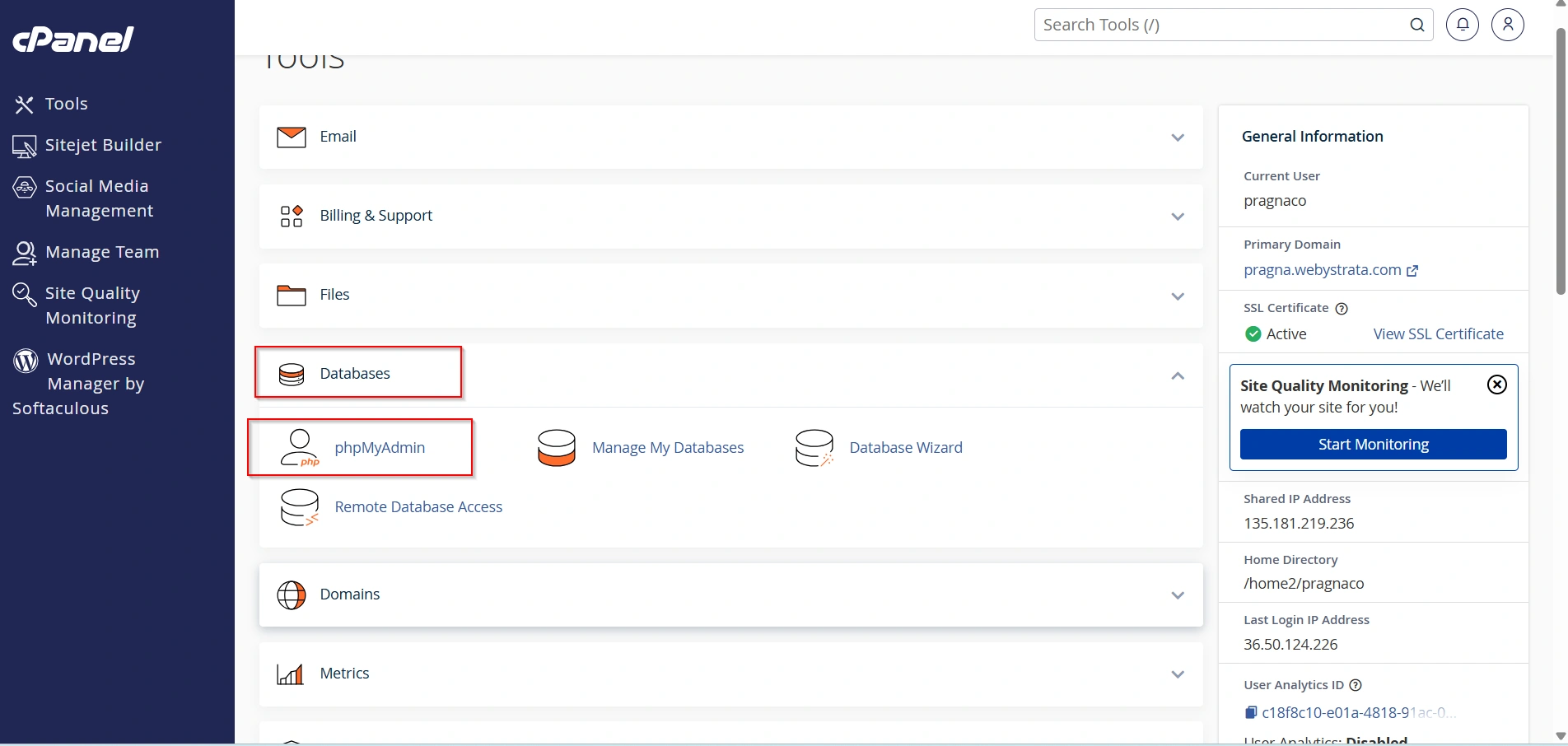
Step 2: Open phpMyAdmin
Navigate to the Databases section and click phpMyAdmin. This tool allows you to manage and restore MySQL databases directly from your browser.
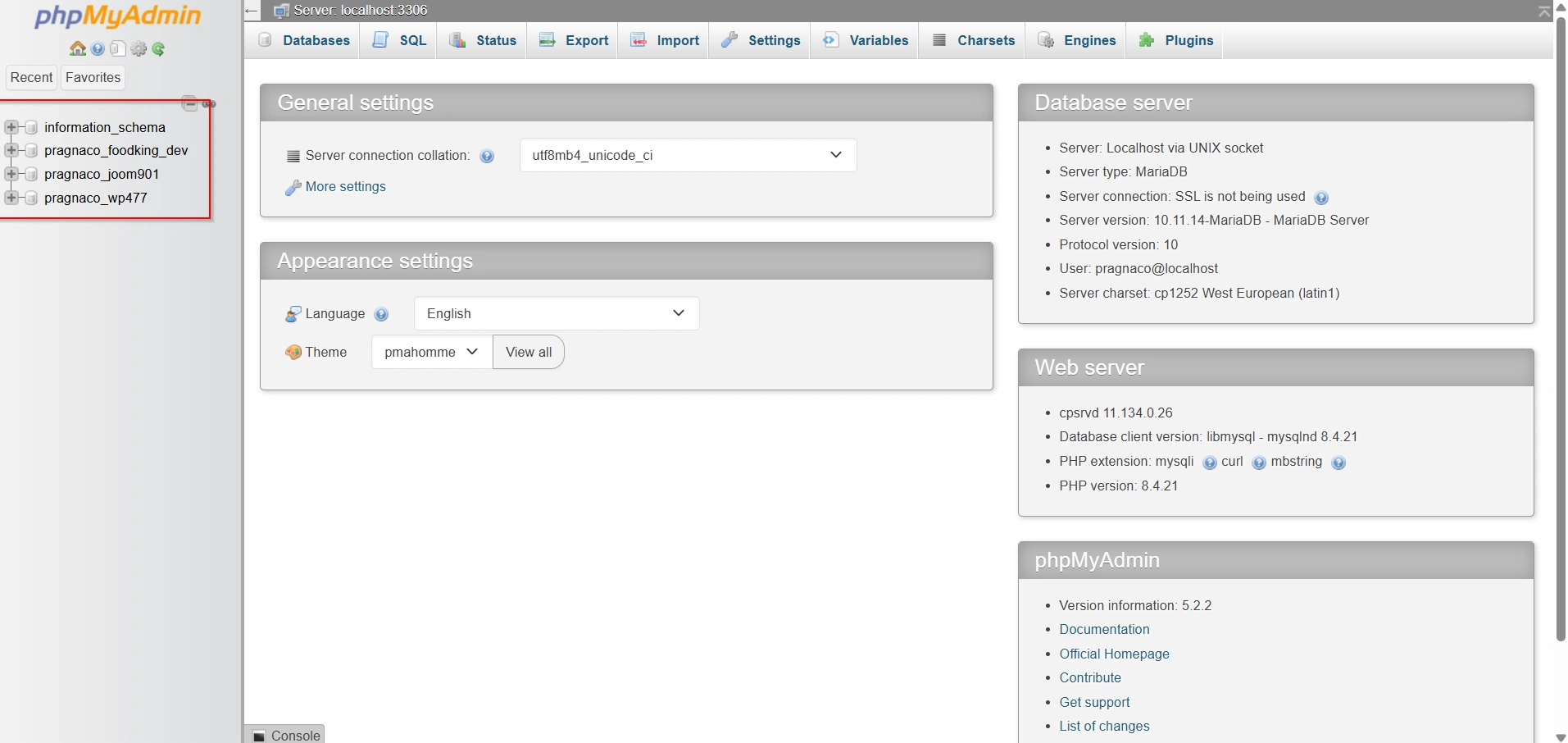
Step 3: Select the Target Database
From the left-hand panel in phpMyAdmin, locate and select the database where you want to restore the backup.
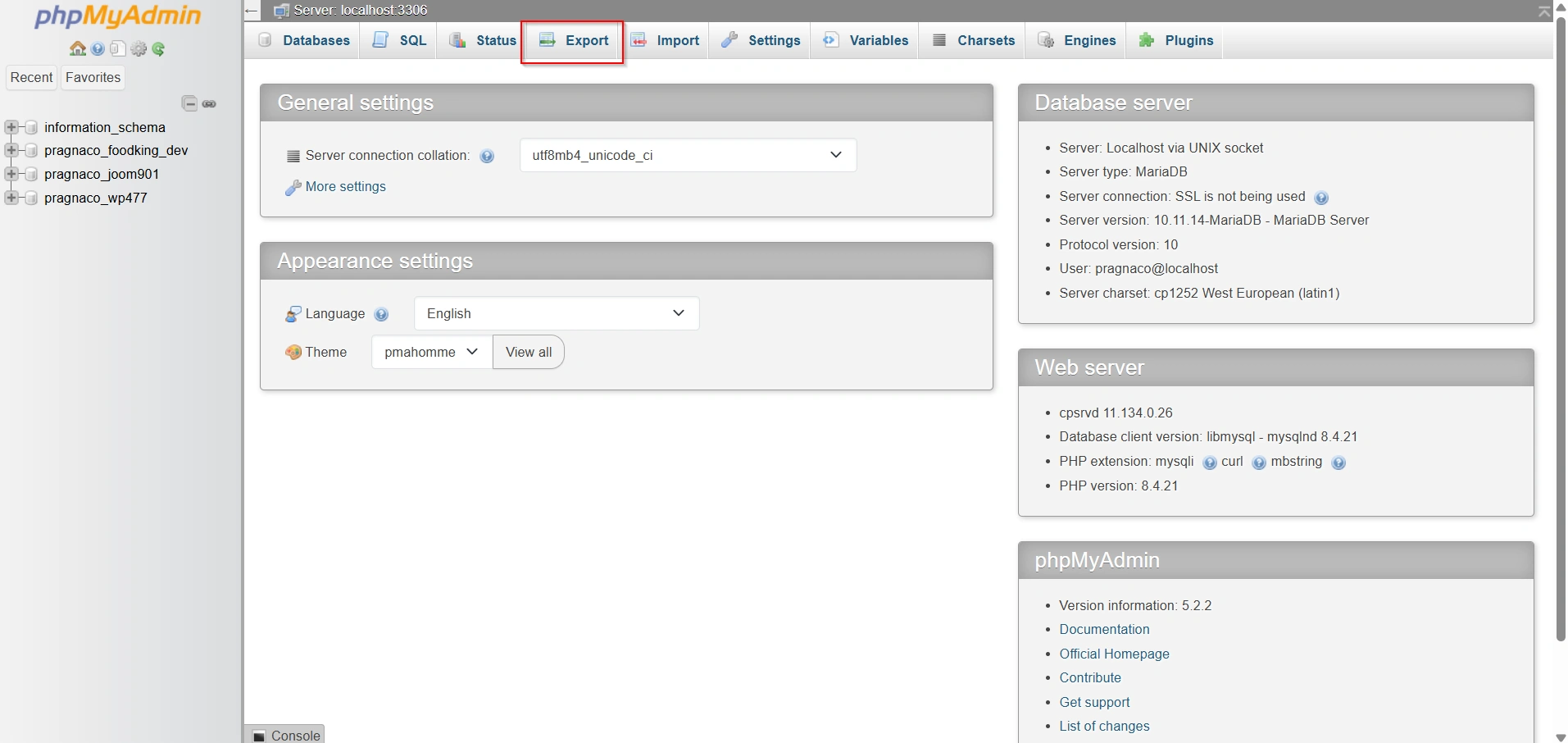
Step 4: Click Export
Once the database is selected, click the Export tab located in the top navigation menu.
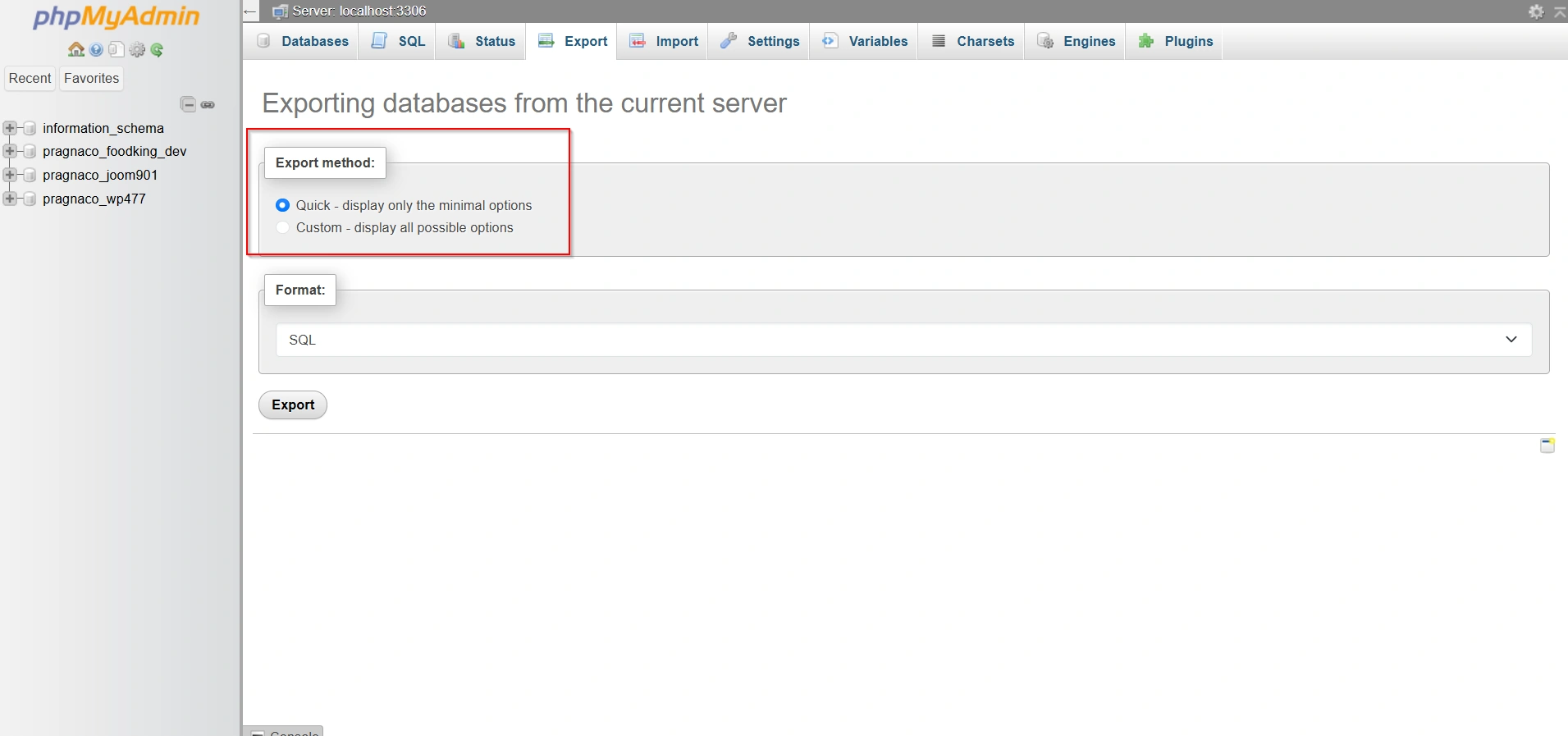
Step 5: Choose Export Method
Select Quick for a standard backup or Custom if you want to configure additional export settings.
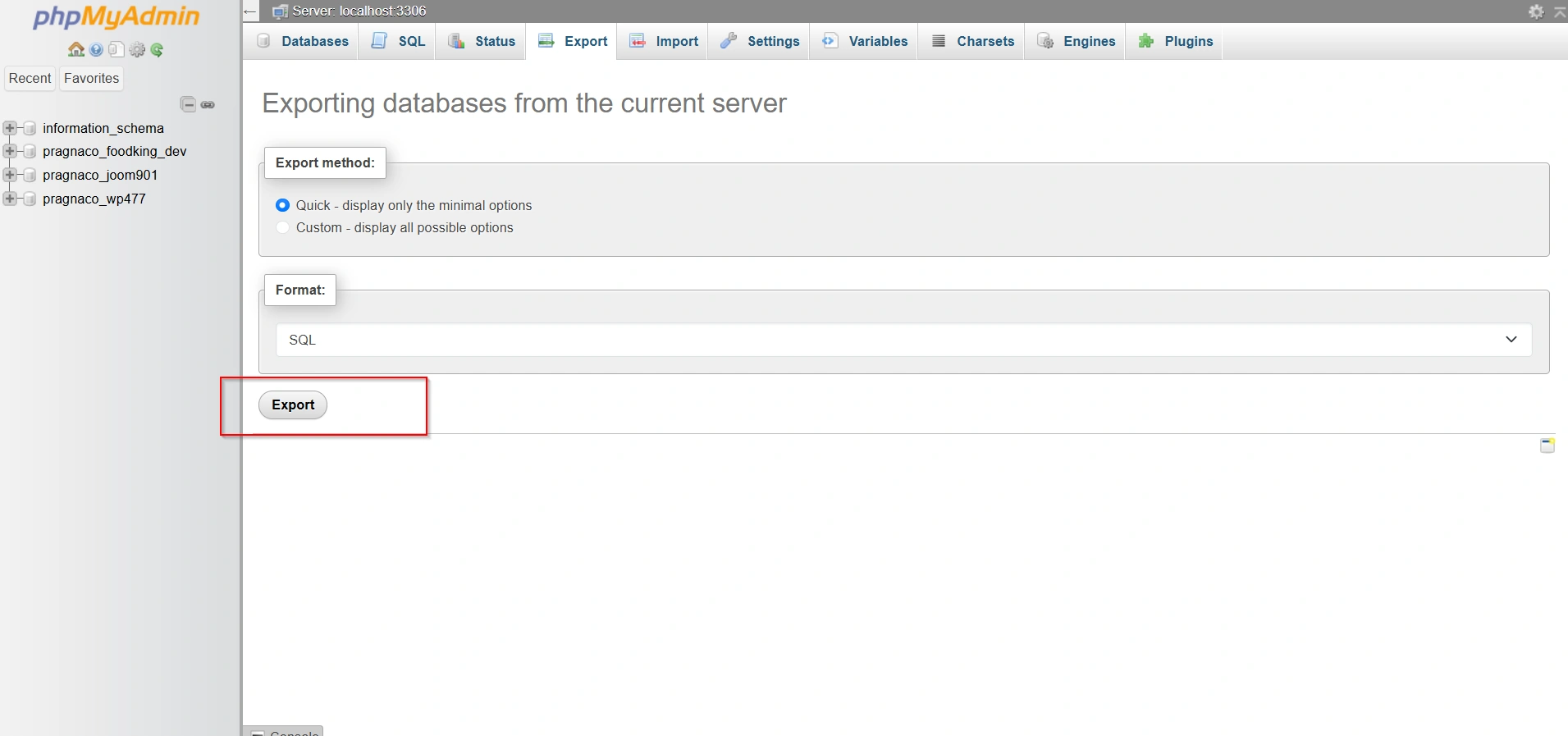
Step 6: Download the Backup
Click Export to generate and download the database backup file to your computer. Save the file in a secure location for future use.
When Should You Backup Your Database?
Consider creating a backup:
- Before website updates
- Before server migrations
- Before plugin installations
- Before database modifications
- After major website changes
- As part of a routine maintenance schedule
Many website administrators perform daily, weekly, or monthly backups depending on website activity.
Why Database Backups Are Important
Regular database backups help protect your website from a variety of issues, including:
- Accidental Data Deletion
- Website Errors and Updates
- Server Failures
- Malware and Security Incidents
- Website Migration
Benefits of Using cPanel Backup Tool
The cPanel Backup Tool offers several advantages:
- Easy-to-use interface
- No advanced technical knowledge required
- Fast database downloads
- Secure backup creation
- Reliable disaster recovery solution
- Quick access to database backups
- Supports multiple databases
Conclusion
Creating regular database backups is one of the most important website maintenance tasks. The cPanel Backup Tool provides a simple and efficient way to download MySQL database backups directly from your hosting control panel. By maintaining routine backups and storing them securely, you can protect your website from data loss, reduce downtime, and ensure quick recovery when unexpected issues occur.
Implementing a consistent backup strategy today can save significant time and effort in the future while keeping your website data safe and accessible.
Related Articles


