Latest Updates
How to Change a Domain Document Root in cPanel
How to Change a Domain Document Root in cPanel Managing multiple websites from a single hosting account is one of the most useful features of cPanel. Addon domains and subdomains allow you to host…
How to Change a Domain Document Root in cPanel
Managing multiple websites from a single hosting account is one of the most useful features of cPanel. Addon domains and subdomains allow you to host additional websites without purchasing separate hosting accounts. However, there may be situations where you need to change the document root of an addon domain or subdomain.
The document root is the directory where the website files for a domain or subdomain are stored. By changing the document root, you can point the domain to a different folder, organize your websites more effectively, or deploy a new website without changing the domain name.
This guide explains what a document root is, why you might need to change it, and how to update it safely in cPanel.
What Is a Document Root?
A document root is the folder on your hosting account that contains the files displayed when visitors access your website.
For example:
- Main domain:
/public_html - Addon domain:
/public_html/example.com - Subdomain:
/public_html/blog
When someone visits your website, the web server loads files from the assigned document root directory.
Before You Begin
Before changing the document root:
- Create a full backup of your website files.
- Verify that the new directory contains the correct website files.
- Ensure file permissions are properly configured.
- Note the current document root in case you need to revert changes.
How to Change a Domain Document Root in cPanel
Step 1: Login to cPanel from Client Area
First, visit the WebyStrata website and log in to your client area account using your registered email address and password.
official Website www.webystrata.com
After logging in:
- Go to Services
- Click on My Services
- Select your active hosting service
- Click on Login to cPanel

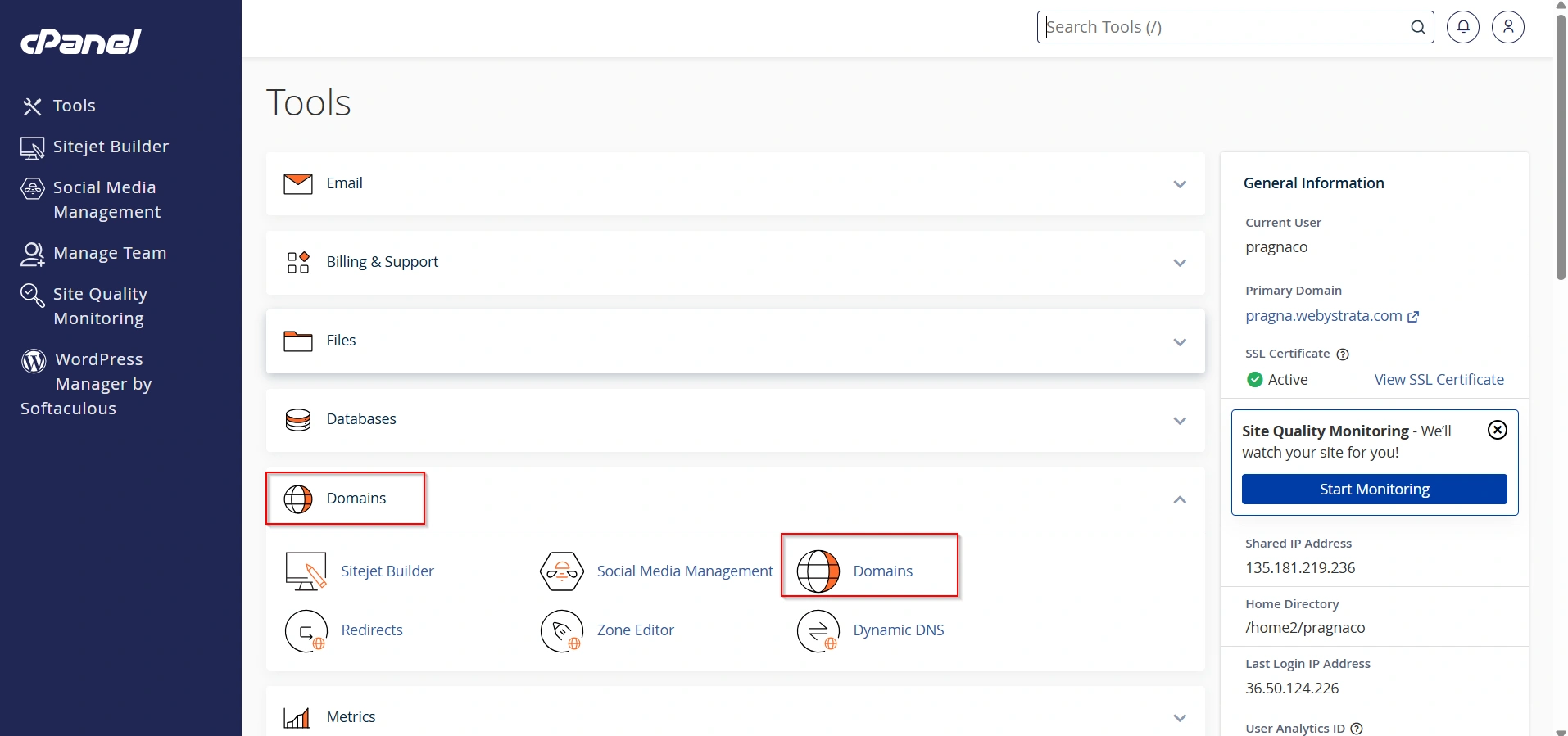
Step 2: Open the Domains Section
Locate the Domains section and click Domains.
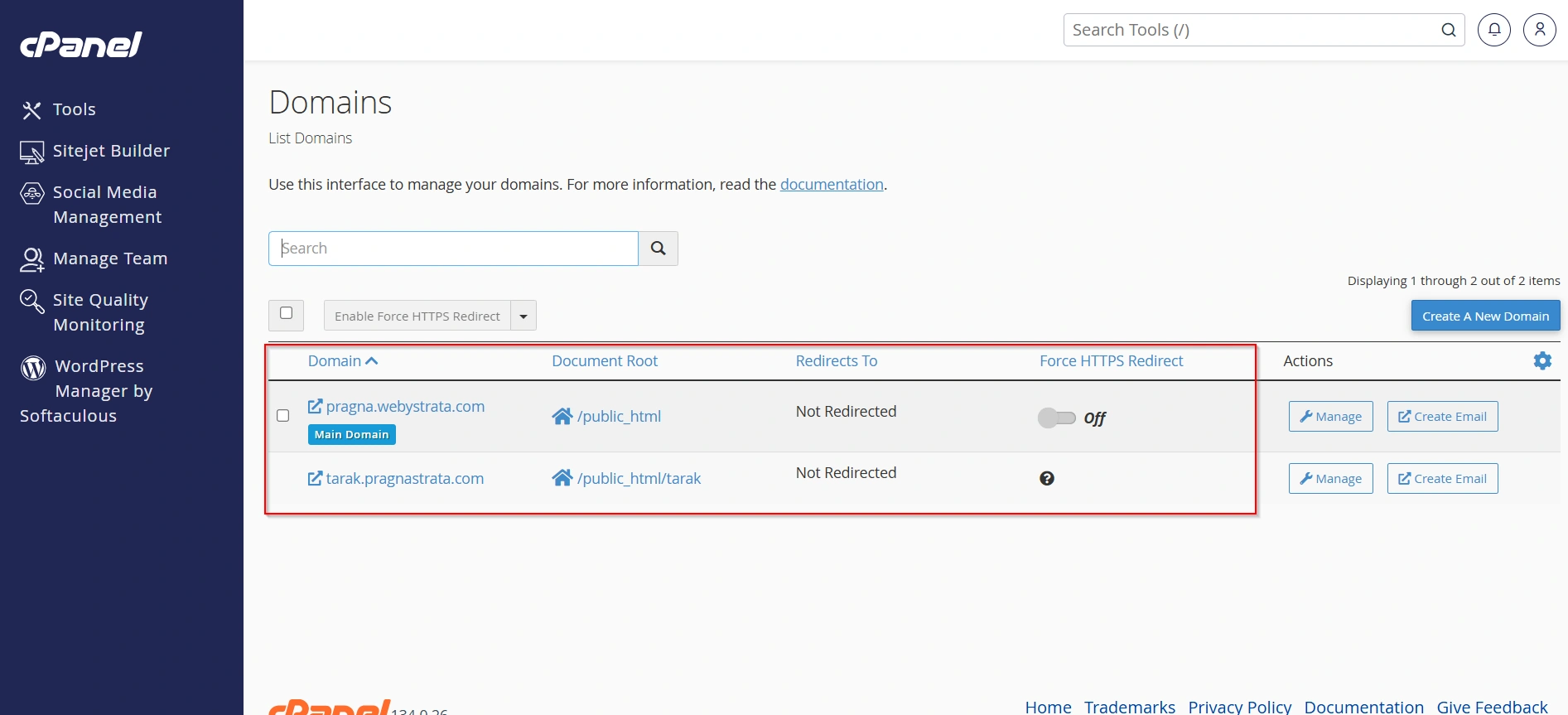
Step 3: Find the Addon Domain
A list of your domains will appear. Locate the addon domain whose document root you want to change.
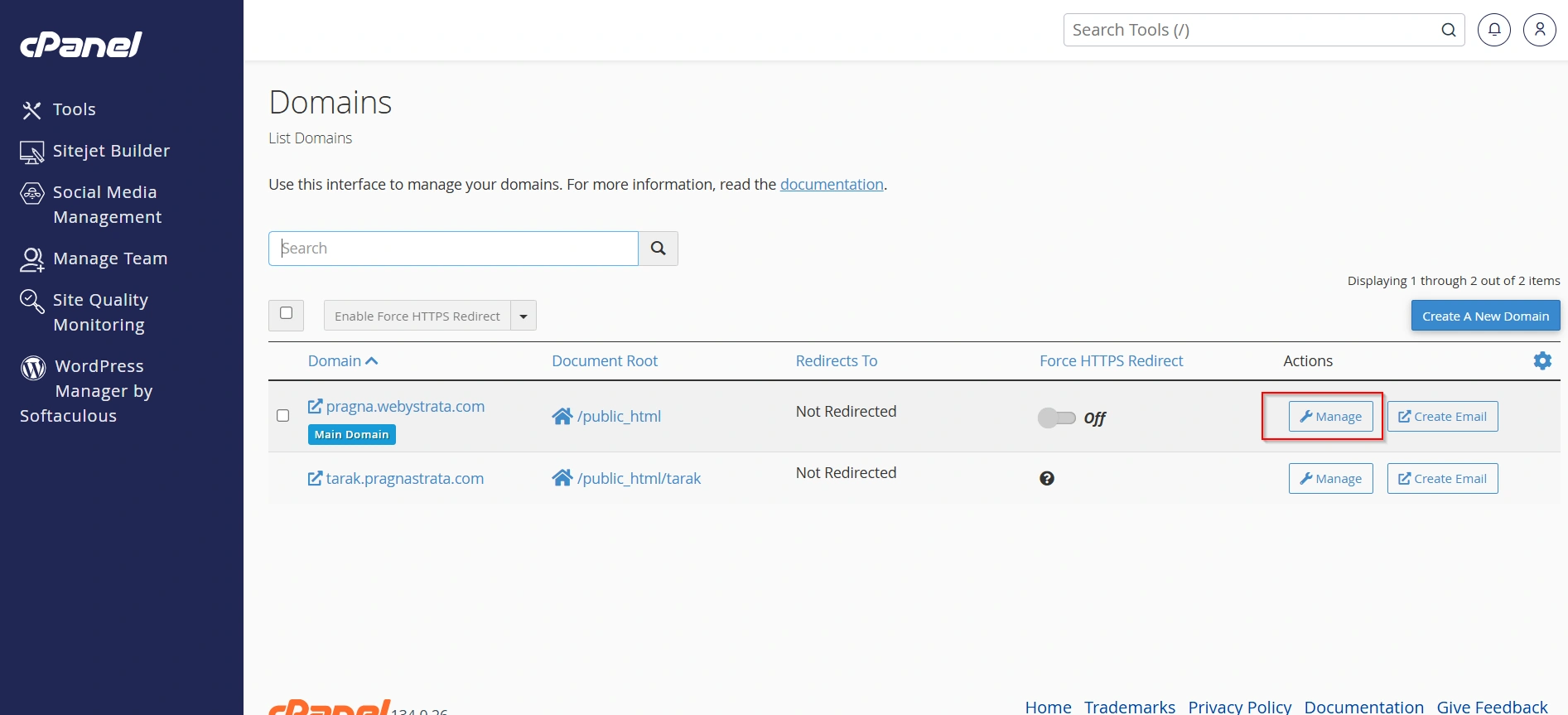
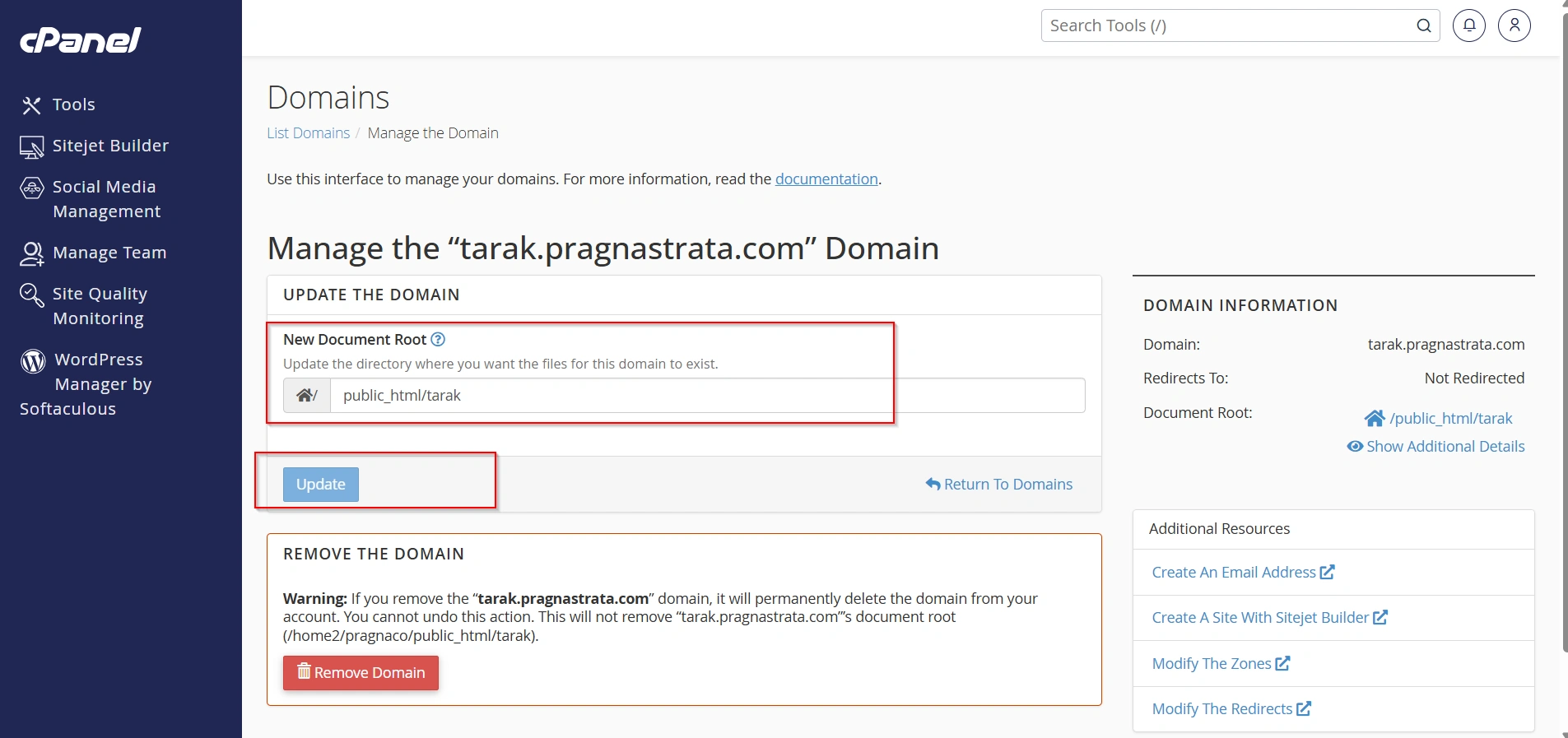
Step 4: Modify the Document Root
Click the Manage button next to the addon domain.
Step 5: Save Changes
- Find the Document Root field and enter the new directory path where the website files are stored.
Example:
/public_html/newsite- Click Update or Save to apply the new document root settings.
Step 6: Verify the Website
Visit the domain in your browser and confirm that the website loads correctly from the new directory.
Why to Change the Document Root?
There are several reasons why website owners change document roots:
- Reorganize website files.
- Move a website to a new directory.
- Launch a redesigned version of a website.
- Improve website management.
- Separate websites into dedicated folders.
- Configure staging and production environments.
Benefits of Using Separate Document Roots
- Better Organization of Website Files – Each domain or subdomain has its own dedicated folder, making files easier to manage.
- Enhanced Security – Isolating websites reduces the risk of one compromised site affecting other websites on the same hosting account.
- Simplified Backups and Migrations – Individual websites can be backed up, restored, or migrated without impacting other domains.
- Easier Website Maintenance – Updates, troubleshooting, and configuration changes can be performed independently for each website.
- Reduced Risk of Accidental File Modification – Separate directories help prevent files from being overwritten, deleted, or modified unintentionally.
- Faster Troubleshooting – Isolating website files helps diagnose issues such as broken links, configuration errors, or application conflicts more efficiently.
Conclusion
Changing the document root of an addon domain or subdomain in cPanel is a straight-forward process that helps you better organize and manage your websites. By updating the document root, you can point a domain or subdomain to a new folder without changing its URL. Always create a backup before making modifications and test the website thoroughly after applying the changes to ensure everything works correctly.
Related Articles