Latest Updates
How to Change the Language for WordPress
How to Change the Language for WordPress WordPress is one of the most popular content management systems in the world, powering millions of websites across different countries and regions. One of the reasons for…
How to Change the Language for WordPress
WordPress is one of the most popular content management systems in the world, powering millions of websites across different countries and regions. One of the reasons for its popularity is its support for multiple languages. Whether you want to manage your website in your native language or create a more comfortable experience for administrators, WordPress makes it easy to change the language settings without modifying any code.
If you’re running a website for a local audience or working with a multilingual team, changing the WordPress language can improve usability and simplify website management. In this guide, you’ll learn how to change the language for WordPress, the benefits of doing so, and how to troubleshoot common issues that may occur during the process.
Prerequisites
Before changing the language in WordPress, ensure that:
- You have administrator access to the WordPress dashboard.
- Your WordPress installation is updated to the latest version.
- You have created a recent website backup.
- Your hosting account has an active internet connection for downloading language files if required.
What Happens When You Change the Language?
Many users wonder whether changing the language affects website content. The answer is no.
Changing the WordPress language only affects:
- Dashboard menus
- Administrative settings
- System notifications
- Default WordPress messages
- Built-in themes and plugin translations (if available)
It does not automatically translate:
- Existing blog posts
- Website pages
- Images
- Product descriptions
- Custom content
If you need a multilingual website, you may need a dedicated translation plugin.
Steps to Change the Language for WordPress
This is the most common method and changes the language for the entire website administration area.
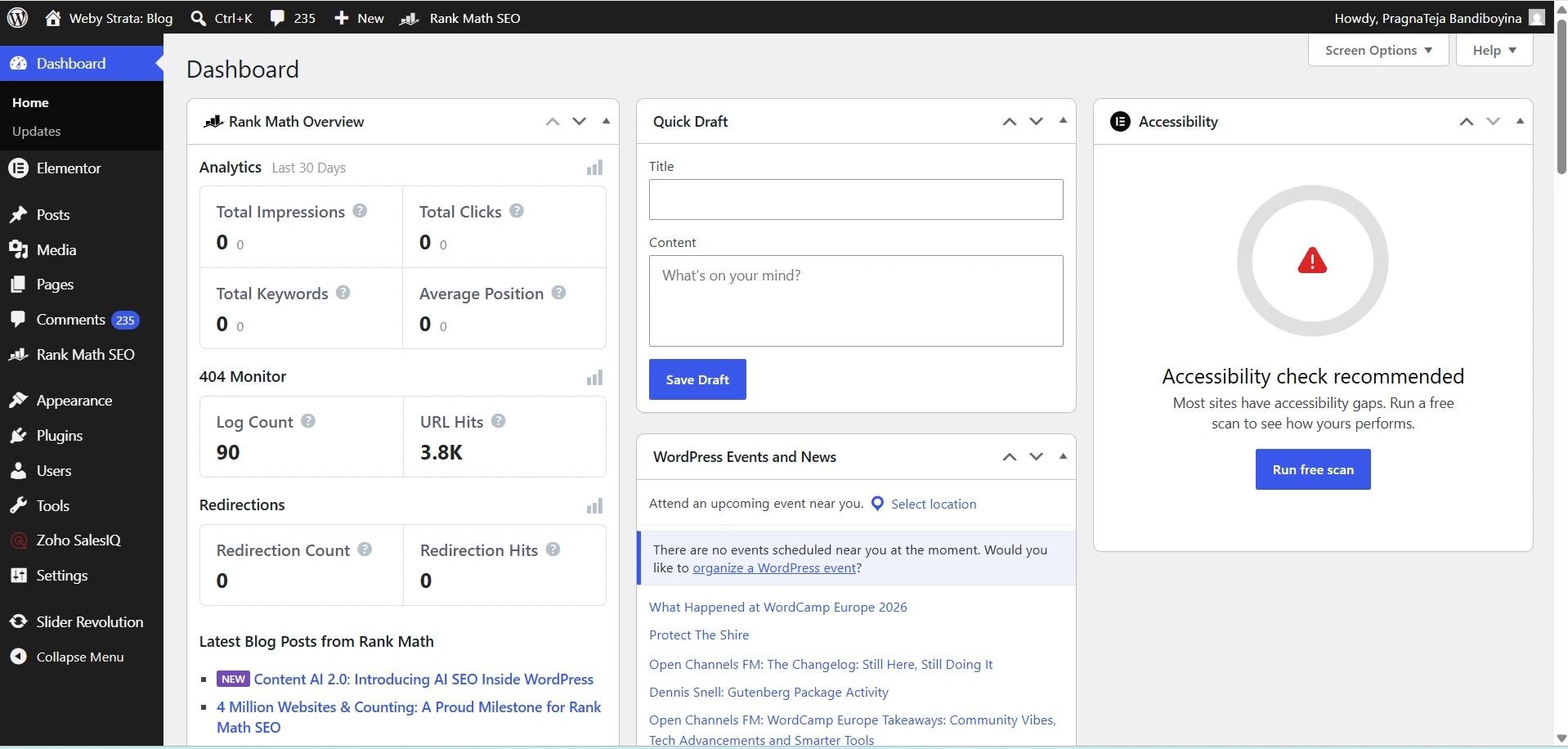
Step 1: Log In to WordPress
Open your preferred browser and navigate to your WordPress login page.
Example:
https://yourdomain.com/wp-admin
Enter your username and password, then click Log In.
Step 2: Open General Settings
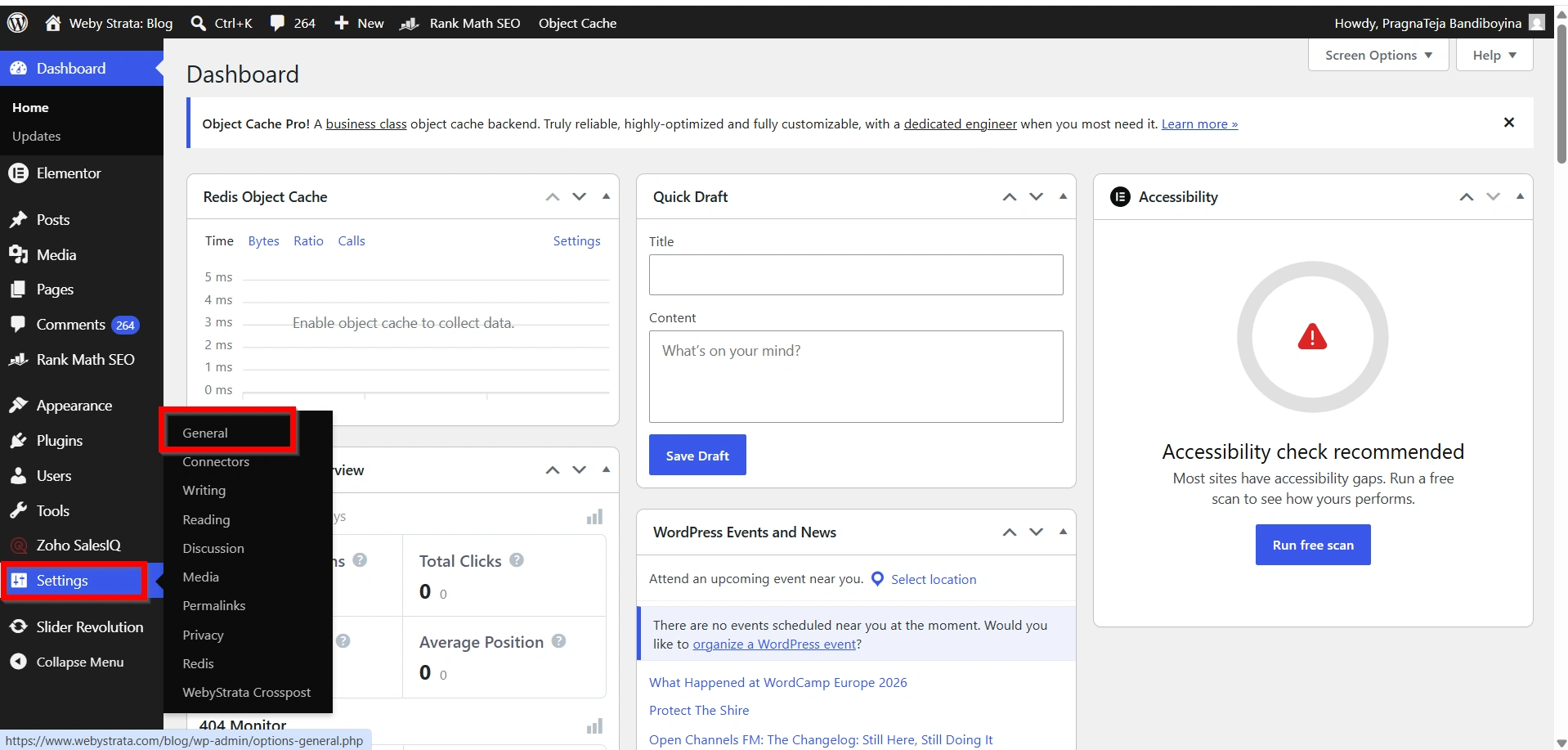
After logging in:
- Locate the left-hand navigation menu.
- Click Settings.
- Select General.
The General Settings page contains various configuration options for your website, including language preferences.
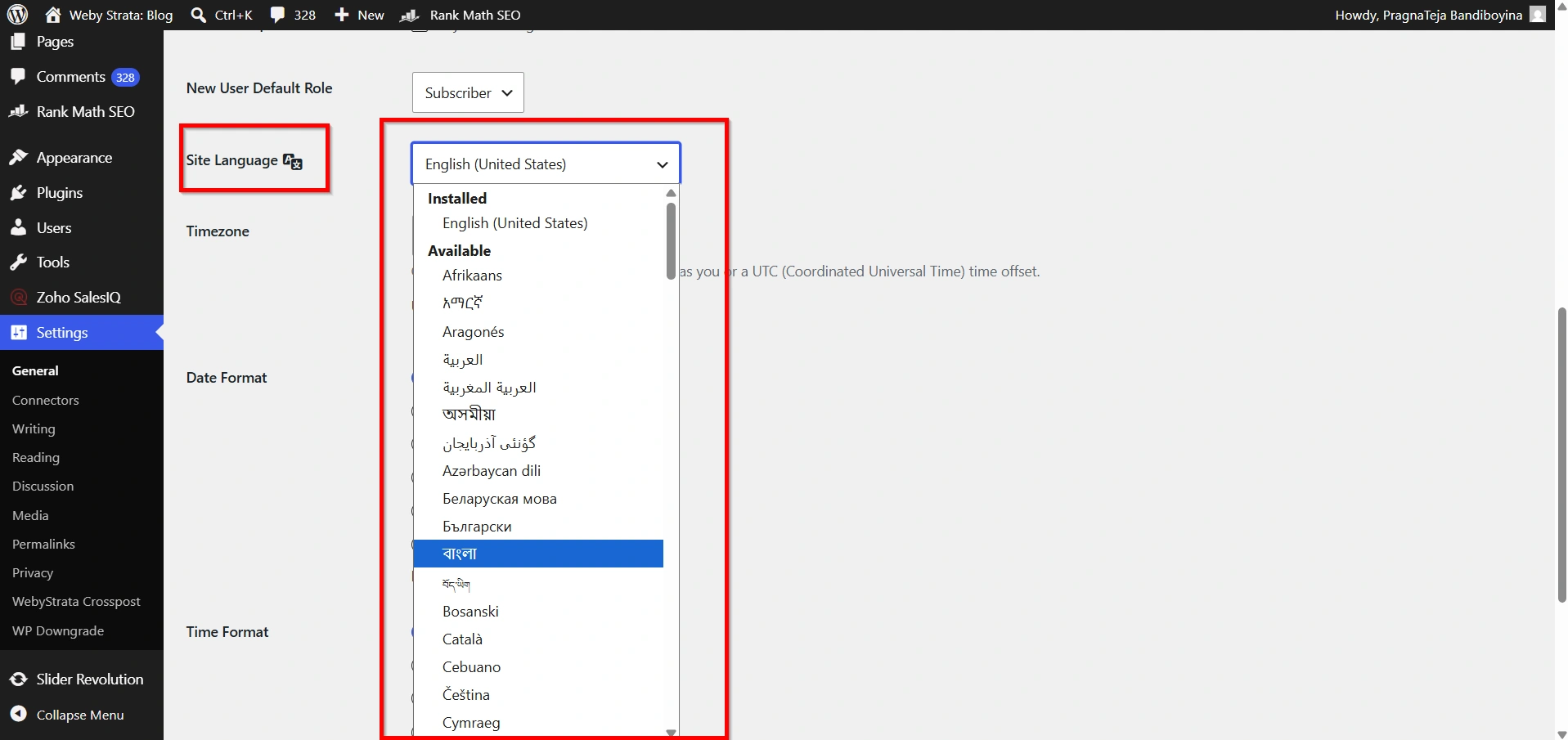
Step 3: Locate the Site Language Option
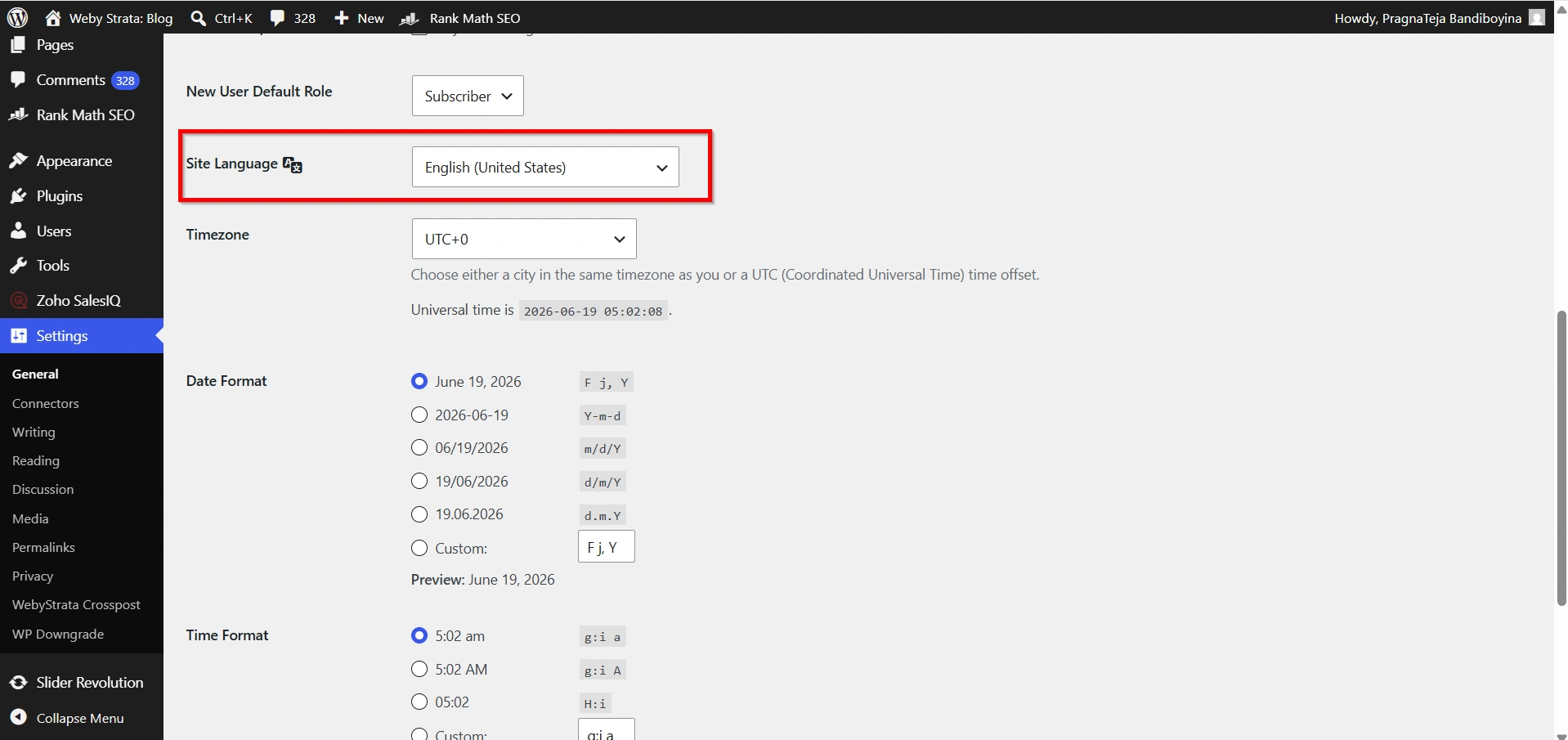
Scroll down through the settings page until you find the Site Language section.
This option determines the language used throughout the WordPress administrative interface.
Step 4: Select Your Preferred Language
Click the dropdown menu under Site Language.
You will see a list of available languages, including:
- English (United States)
- English (United Kingdom)
- Spanish
- French
- German
- Italian
- Portuguese
- Dutch
- Japanese
- Chinese
- Hindi
- Telugu
- Arabic
- Russian
Select the language you want to use for your WordPress dashboard.
Step 5: Save Changes
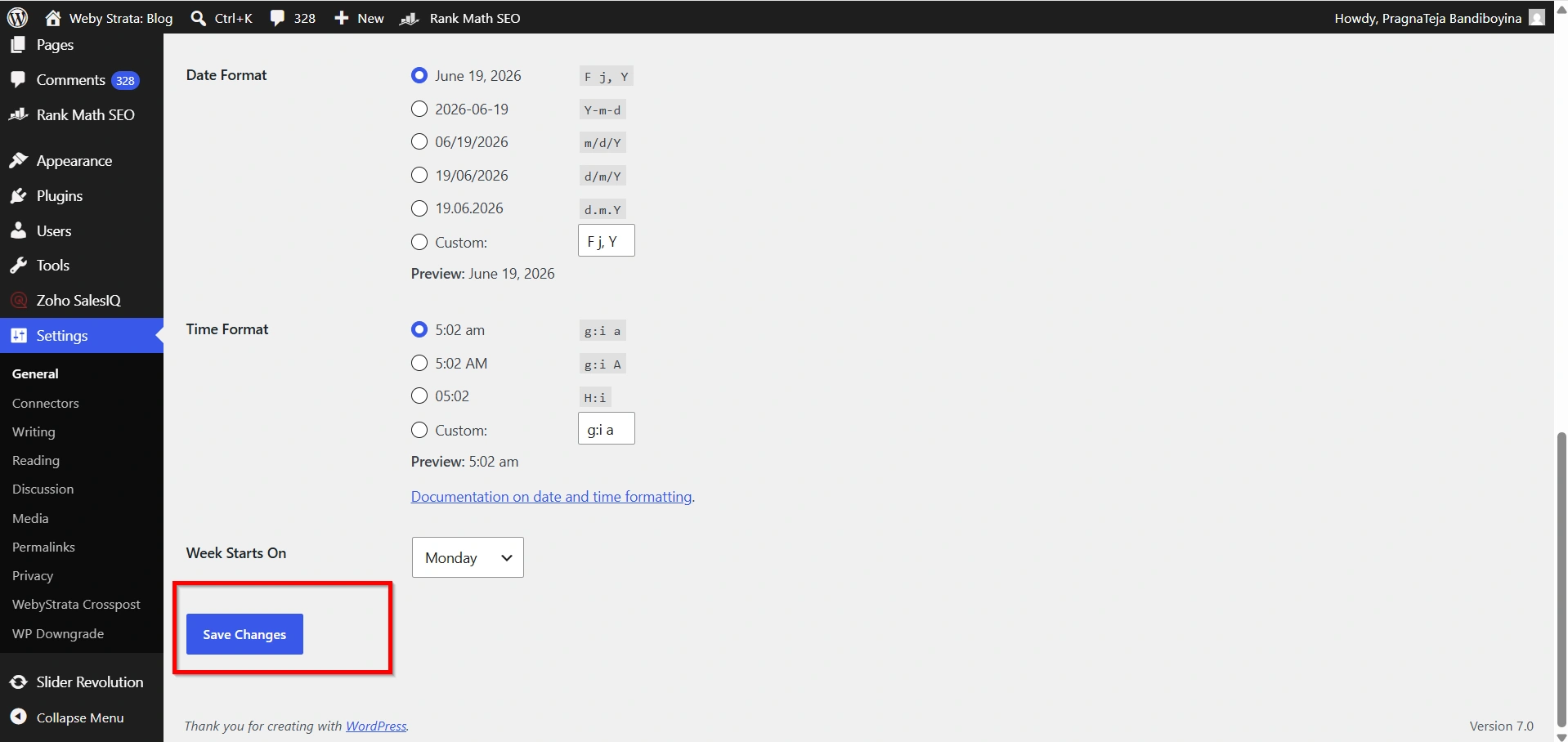
Scroll to the bottom of the page and click Save Changes.
WordPress will automatically download the required language files if they are not already installed.
Step 6: Verify the Language Change
Refresh your dashboard after saving.
You should notice that:
- Menu items appear in the selected language.
- Dashboard notifications are translated.
- WordPress settings pages display localized text.
- Default system messages use the selected language.
Your WordPress language has now been successfully changed.
Steps to Change Language for Individual Users
If multiple users manage your website, each user can select their own dashboard language without affecting others.
Step 1: Access Your Profile
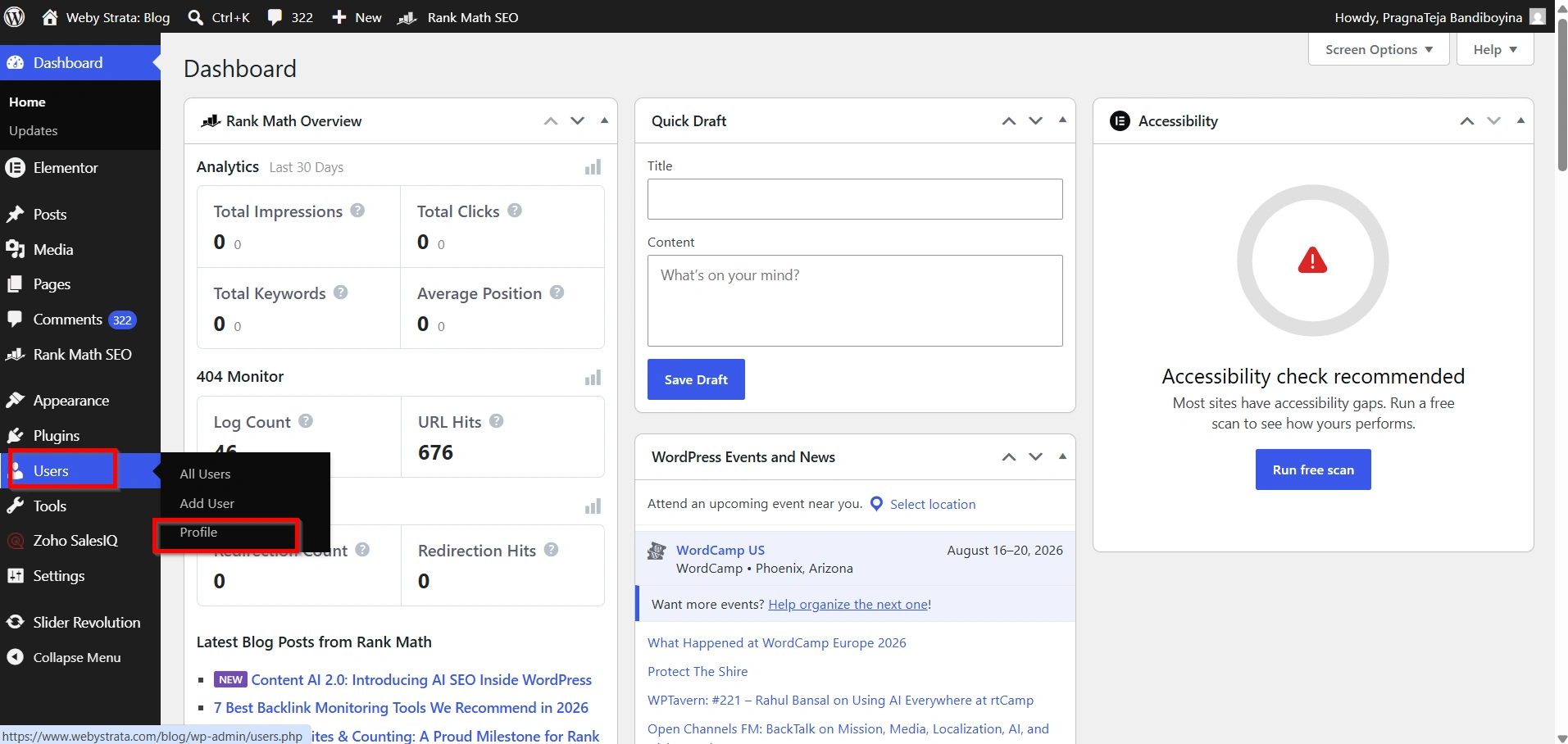
In the WordPress dashboard:
- Click Users.
- Select Profile.
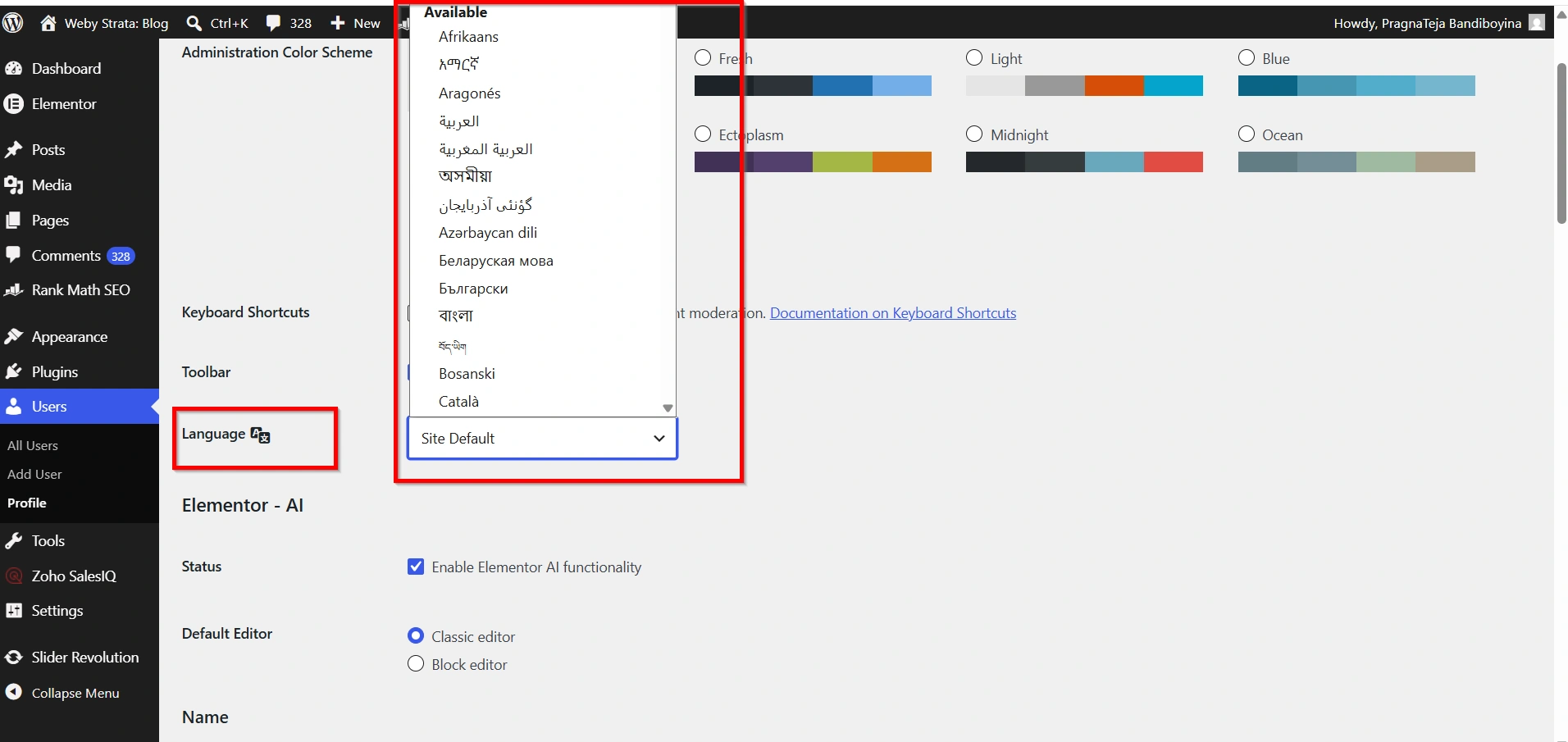
Step 2: Find the Language Setting
Scroll down until you locate the Language dropdown field.
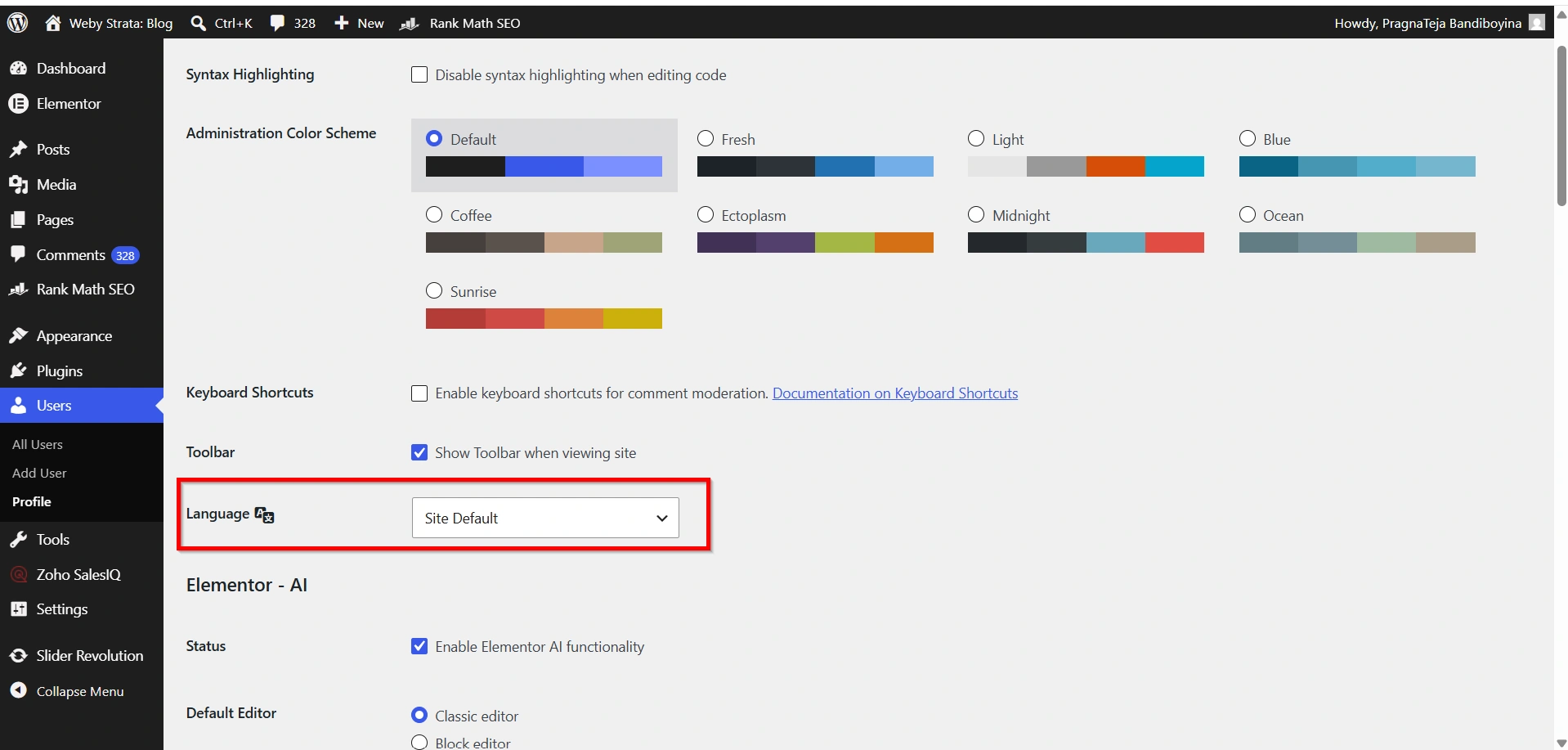
Step 3: Select a Preferred Language
Choose your desired language from the available list.
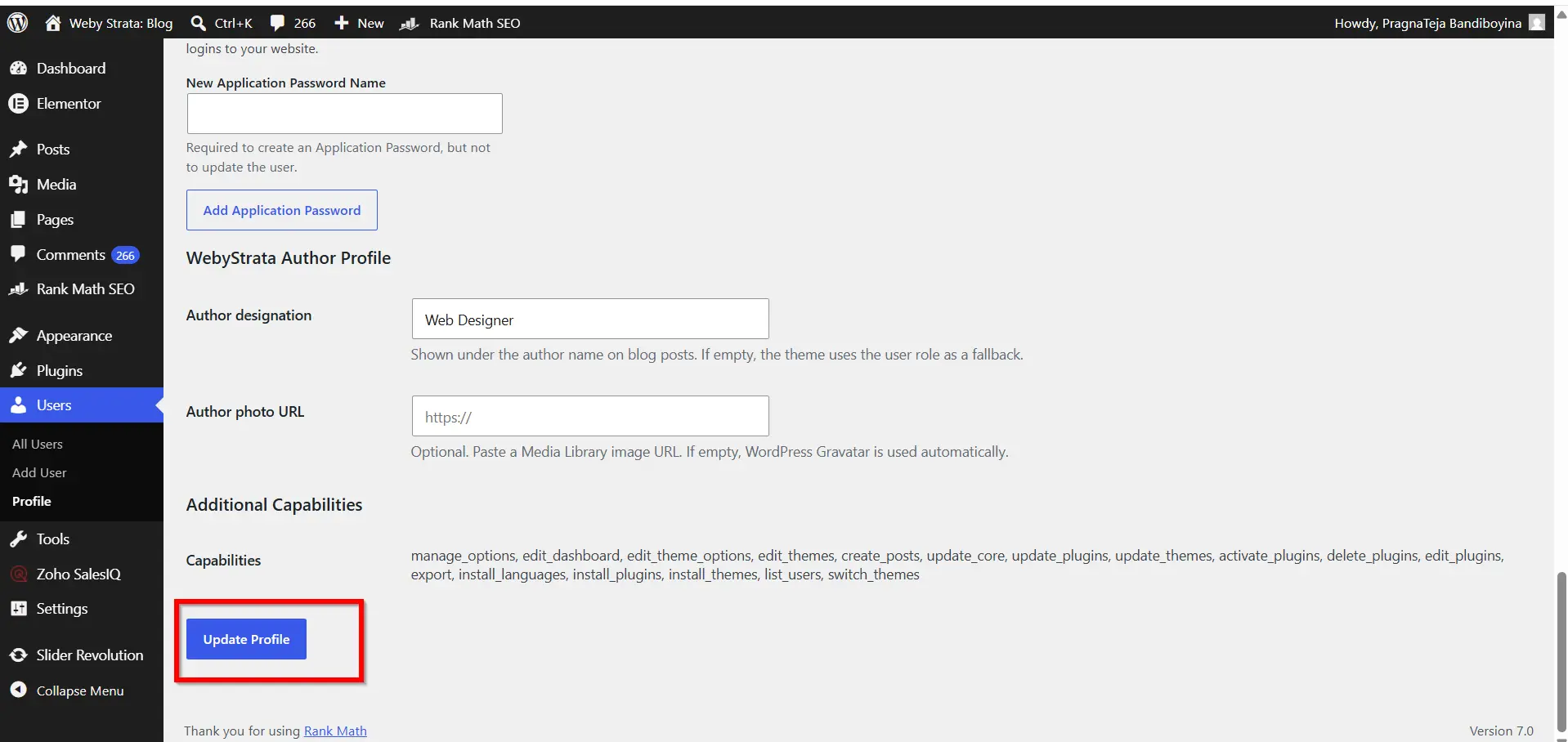
Step 4: Update Your Profile
Click Update Profile to save the changes.
The selected language will only apply to your account while other users continue using their own language preferences.
Why Website Owners Frequently Change the Language for WordPress
Many website owners decide to Change the Language for WordPress when expanding their online presence to different regions. Since WordPress is used globally, administrators often prefer managing their websites in their native language rather than English. The ability to Change the WordPress Language helps users understand settings, menus, and notifications more easily.
Another reason to Change the Language for WordPress is team collaboration. If multiple administrators are managing the website, selecting a familiar language can improve efficiency and reduce mistakes. Businesses operating internationally often Change the Language for WordPress settings to accommodate local teams and website managers.
Benefits of Changing the WordPress Language
- Improved User Experience
- Better Team Collaboration
- Easier Learning Curve
- Increased Productivity
- Global Accessibility
Conclusion
WordPress provides a simple and effective way to change the language of your website dashboard. Whether you’re managing a local business website, an international blog, or a multilingual team, changing the WordPress language can make administration more convenient and user-friendly.
By navigating to the General Settings page and selecting your preferred language, you can quickly customize the WordPress experience to suit your needs. Individual users can also choose their own language preferences, making WordPress a flexible platform for teams working across different regions and languages.
With built-in multilingual support and an easy setup process, changing the WordPress language is one of the simplest ways to personalize and improve your website management experience.
Related Articles


