Latest Updates
How to Change the WordPress Password
How to Change the WordPress Password Keeping your WordPress website secure should always be a top priority. One of the simplest yet most effective security measures is regularly updating your WordPress password. Whether you…
How to Change the WordPress Password
Keeping your WordPress website secure should always be a top priority. One of the simplest yet most effective security measures is regularly updating your WordPress password. Whether you want to strengthen your account security, replace an old password, or respond to a potential security concern, changing your WordPress password is a straightforward process.
In this guide, you’ll learn how to change your WordPress password through the WordPress dashboard and discover some best practices for creating strong and secure passwords.
Prerequisites
Before proceeding, ensure that:
- You have access to your WordPress admin dashboard.
- You know your current username and password.
- You have administrator privileges or permission to edit your user profile.
Step-by-Step Guide to Change the WordPress Password
Step 1: Log in to the WordPress Dashboard
Open your web browser and navigate to your WordPress login page.
The login URL is typically:
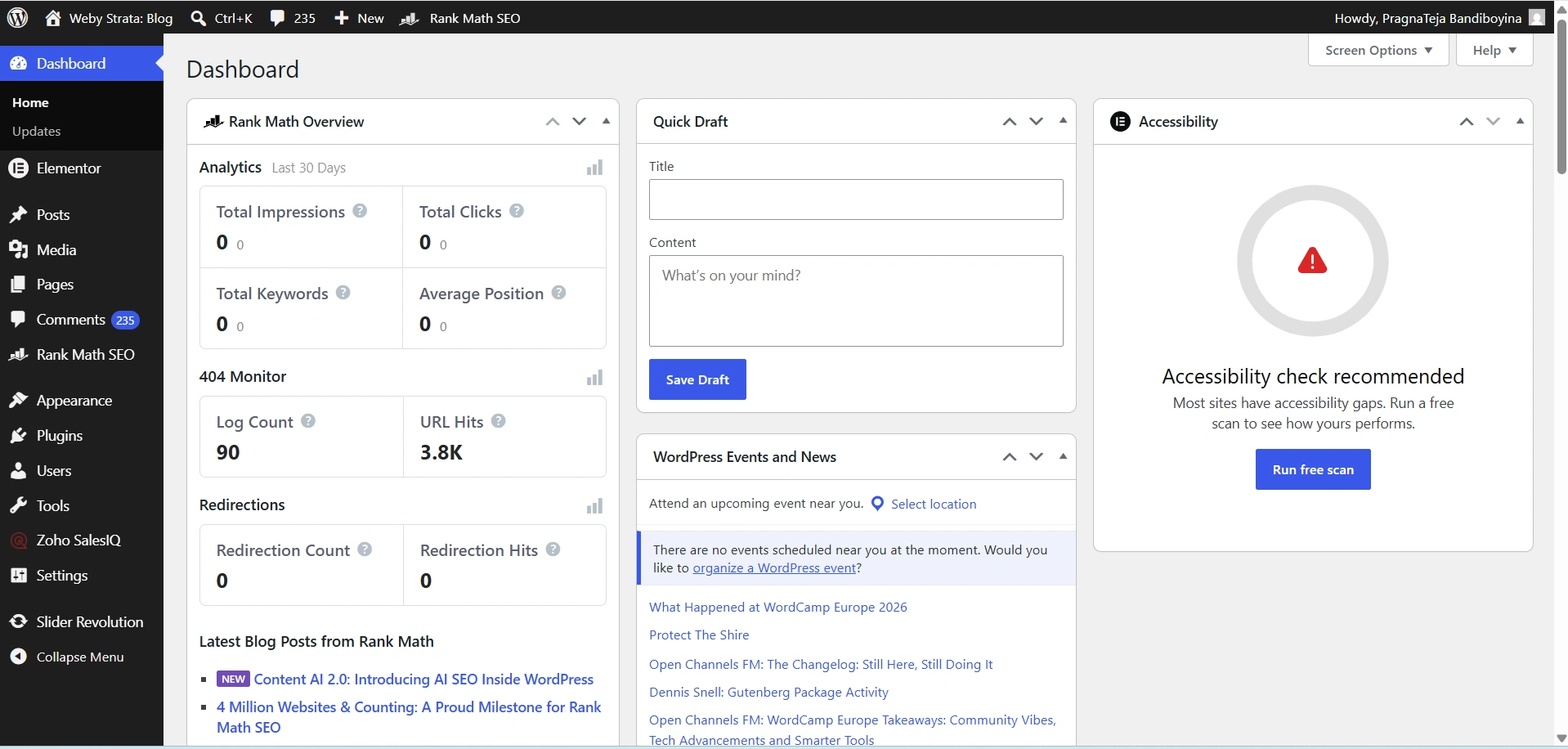
Enter your username or email address along with your current password and click Log In.
After successful authentication, you will be directed to the WordPress Admin Dashboard.
Step 2: Navigate to Your User Profile
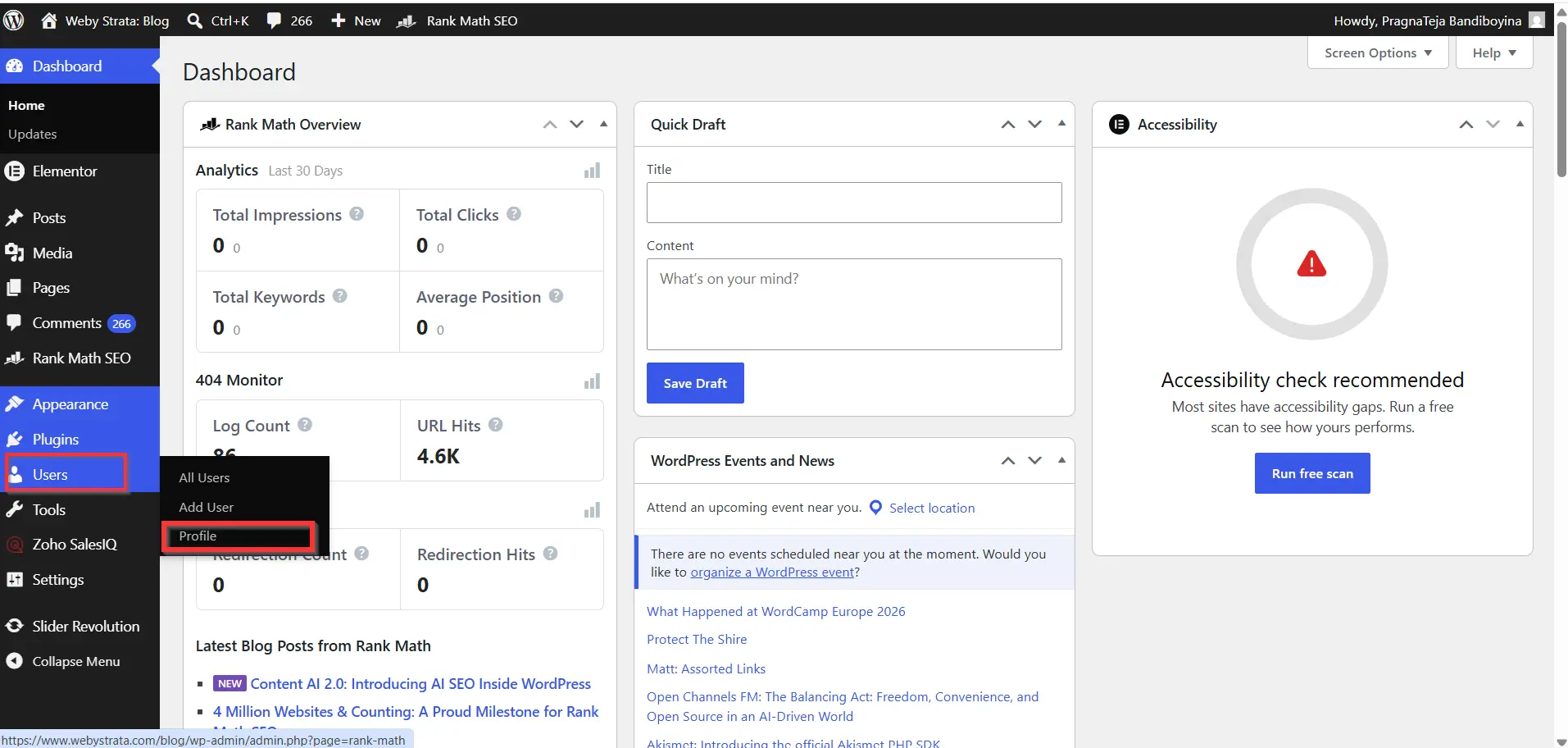
From the left-hand menu, locate the Users section.
Click Users and then select Profile.
The Profile page contains all the personal settings associated with your account, including your display name, email address, and password management options.
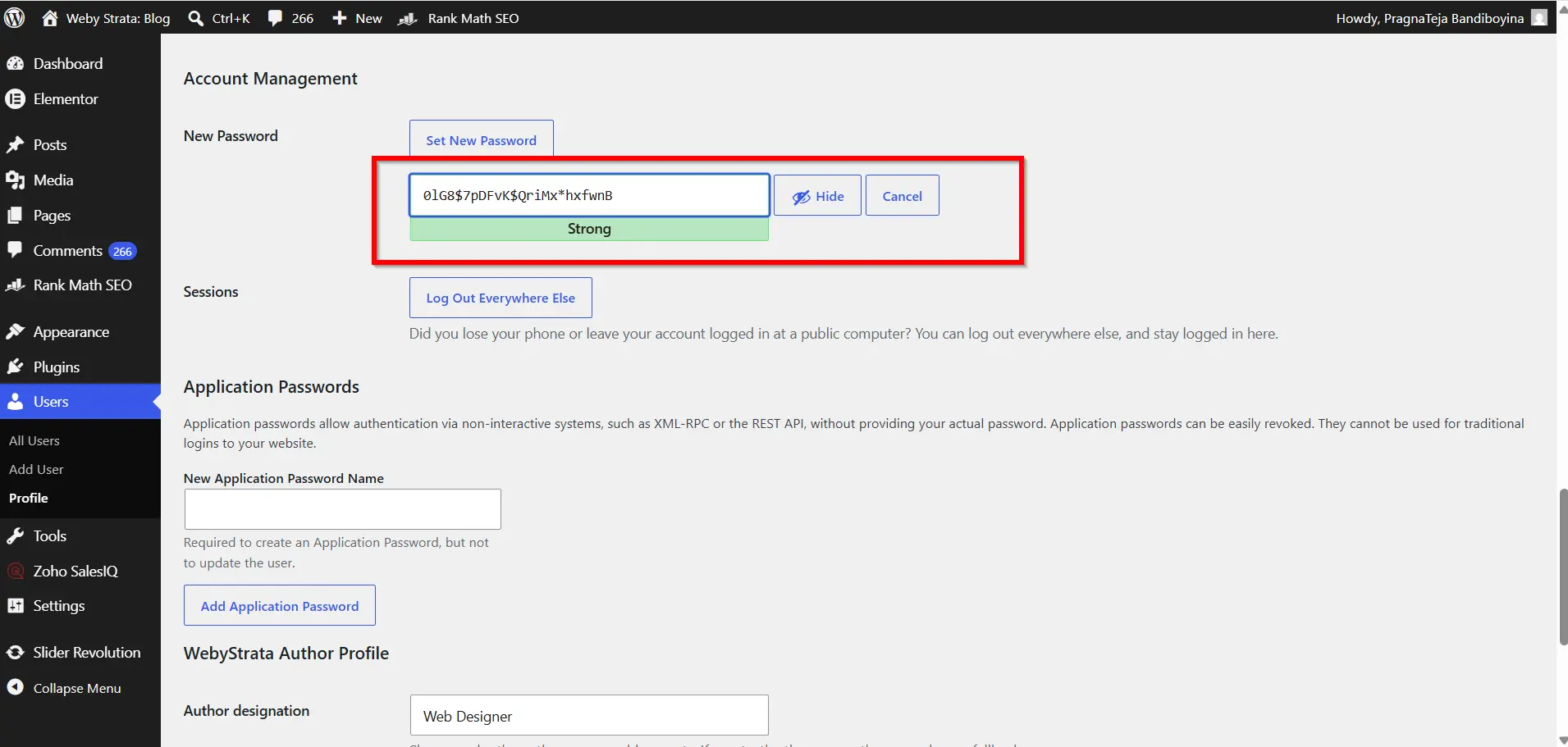
Step 3: Locate the Account Management Section
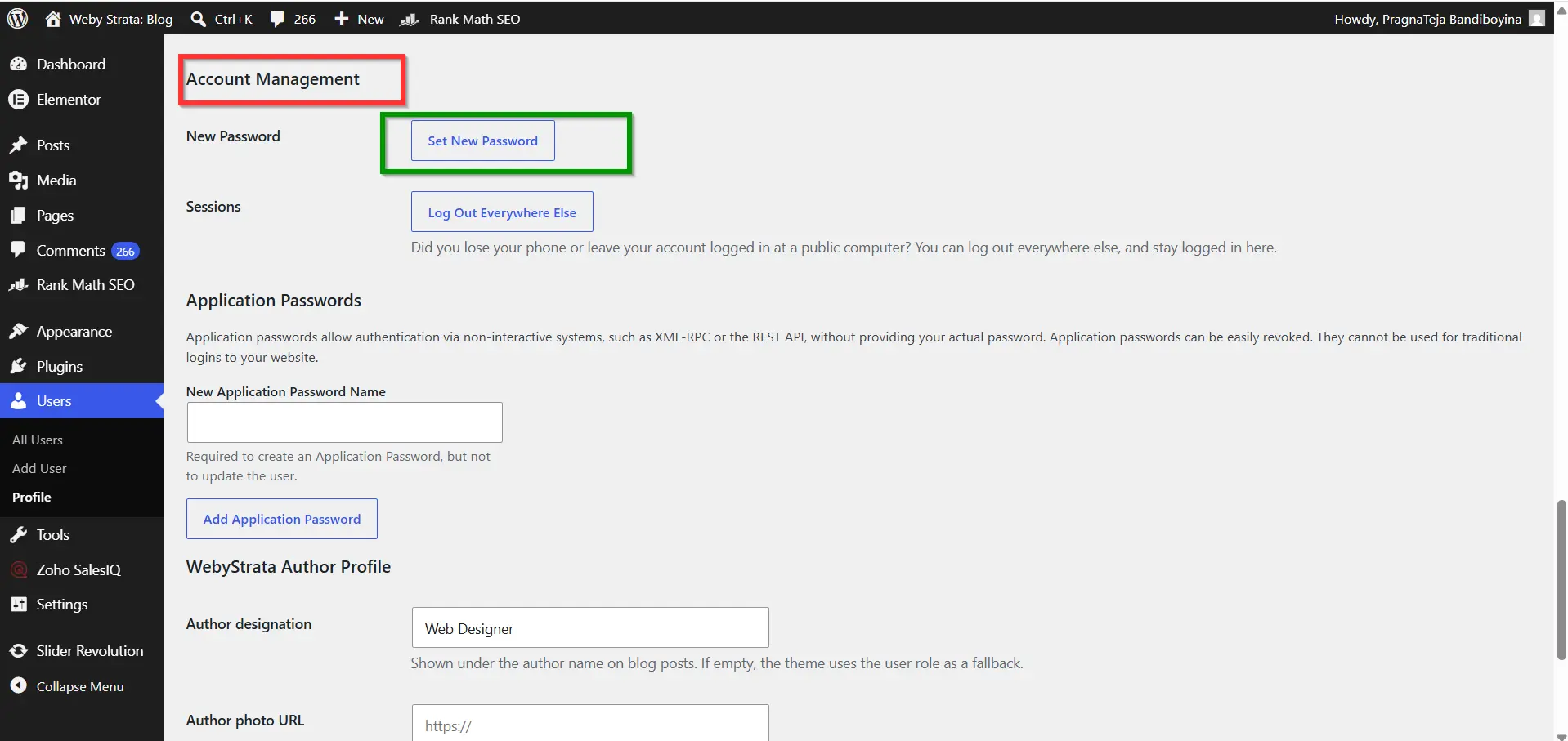
Scroll down through the Profile page until you reach the Account Management section.
This section allows you to manage security-related settings for your WordPress account.
You will notice a button labeled Set New Password.
Step 4: Generate a New Password
Click the Set New Password button.
WordPress automatically generates a strong password that contains a mix of:
- Uppercase letters
- Lowercase letters
- Numbers
- Special characters
You can use the automatically generated password or replace it with your own custom password.
If you choose to create your own password, make sure it is unique and difficult to guess.
Step 5: Check Password Strength
As you enter your password, WordPress evaluates its strength.
The strength indicator typically displays:
- Weak
- Medium
- Strong
Always aim for a Strong rating to maximize account security.
Avoid passwords that contain:
- Your name
- Company name
- Website name
- Birth dates
- Common words
- Simple number sequences
Strong passwords are significantly more difficult for attackers to crack.
Step 6: Save the Changes
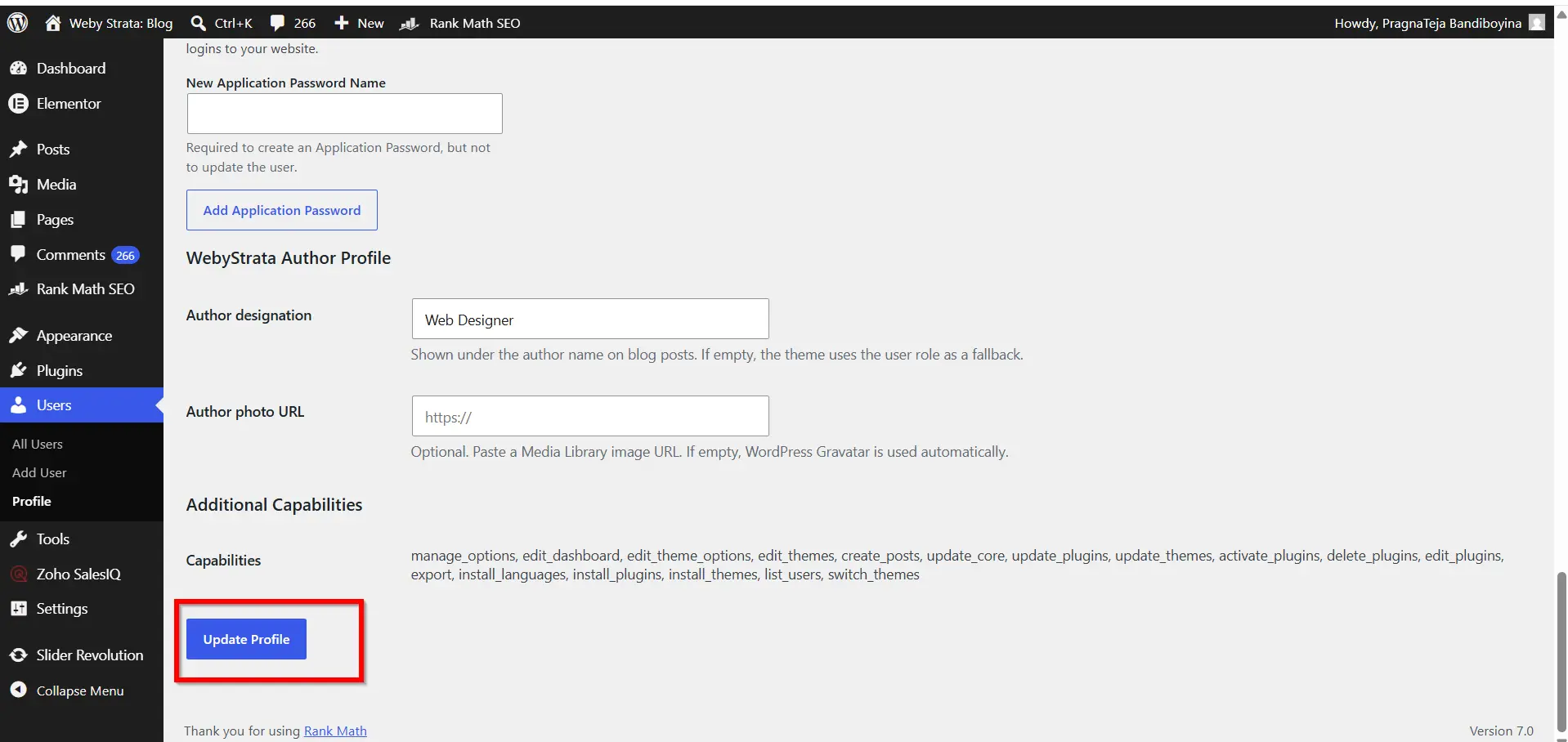
Once you’re satisfied with the new password, scroll to the bottom of the page.
Click the Update Profile button.
WordPress will save the changes and display a confirmation message indicating that your profile has been updated successfully.
Your new password becomes active immediately.
Step 7: Verify the New Password
To confirm the password change:
- Log out of the WordPress dashboard.
- Visit the login page again.
- Enter your username and newly created password.
- Click Log In.
If you can access the dashboard successfully, the password update was completed correctly.
Why Should You Change Your WordPress Password?
Your WordPress administrator account provides complete access to your website’s content, settings, themes, plugins, and user accounts. If an unauthorized user gains access to your password, they could potentially compromise your website.
Changing your password periodically helps:
- Protect your website from unauthorized access.
- Reduce the risk of brute-force attacks.
- Secure sensitive website data.
- Prevent account misuse.
- Improve overall website security.
If you suspect your password has been exposed or shared accidentally, you should change it immediately.
Benefits of Changing Your WordPress Password
- Improves Website Security
- Prevents Unauthorized Logins
- Protects Sensitive Data
- Reduces the Risk of Brute-Force Attacks
- Secures Administrator Accounts
- Supports Better Security Practices
- Provides Peace of Mind
Conclusion
Changing your WordPress password is a simple process that can significantly improve your website’s security. By accessing your user profile, generating a strong password, and updating your account settings, you can help protect your website from unauthorized access and cyber threats.
Regularly reviewing and updating your login credentials, along with implementing additional security measures, will help ensure that your WordPress website remains secure and reliable for both administrators and visitors.
Related Articles


