Latest Updates
Easy Steps to Change WordPress Username Using Plugin
Easy Steps to Change WordPress Username Using Plugin Your WordPress username is one of the most important credentials associated with your website. It is used to log in to the WordPress dashboard and manage…
Easy Steps to Change WordPress Username Using Plugin
Your WordPress username is one of the most important credentials associated with your website. It is used to log in to the WordPress dashboard and manage website content, plugins, themes, and settings. However, many website owners choose a username during installation and later discover that WordPress does not provide a built-in option to change it.
If you want to Change WordPress Username Using Plugin, you’re in the right place. Many WordPress users create a username during installation and later realize they need to update it for security, branding, or account management purposes. Unfortunately, WordPress does not allow you to change usernames directly from the dashboard. The easiest way to Change WordPress Username Using Plugin is by installing a dedicated username management plugin that handles the process safely and efficiently.
Whether you want to replace the default “admin” username or simply update your login credentials, learning how to Change WordPress Username Using Plugin can improve both security and usability.
Why Change WordPress Username Using Plugin?
There are several reasons website owners choose to Change WordPress Username Using Plugin instead of creating a new administrator account or editing the database manually.
- Improve Website Security
- Rebranding Purposes
- Correct Mistakes
- Better User Management
Why Use a Plugin?
WordPress does not allow direct username changes from the dashboard. Traditionally, users had to:
- Create a new administrator account.
- Transfer content ownership.
- Delete the old account.
Or edit database records manually through phpMyAdmin.
Using a plugin eliminates these complicated steps and provides a safe, user-friendly solution.
Before You Begin
Before making any changes to your WordPress website, follow these recommendations:
- Create a full website backup.
- Ensure you have administrator privileges.
- Update WordPress to the latest version.
- Verify plugin compatibility with your WordPress version.
A backup ensures you can restore your website if anything unexpected occurs.
Change WordPress Username Using Plugin
This is the easiest and most beginner-friendly method.
Step 1: Log in to Your WordPress Dashboard
Begin by accessing your WordPress administration area.
Open your web browser and visit:
https://yourdomain.com/wp-admin
Enter your administrator username and password, then click Log In.
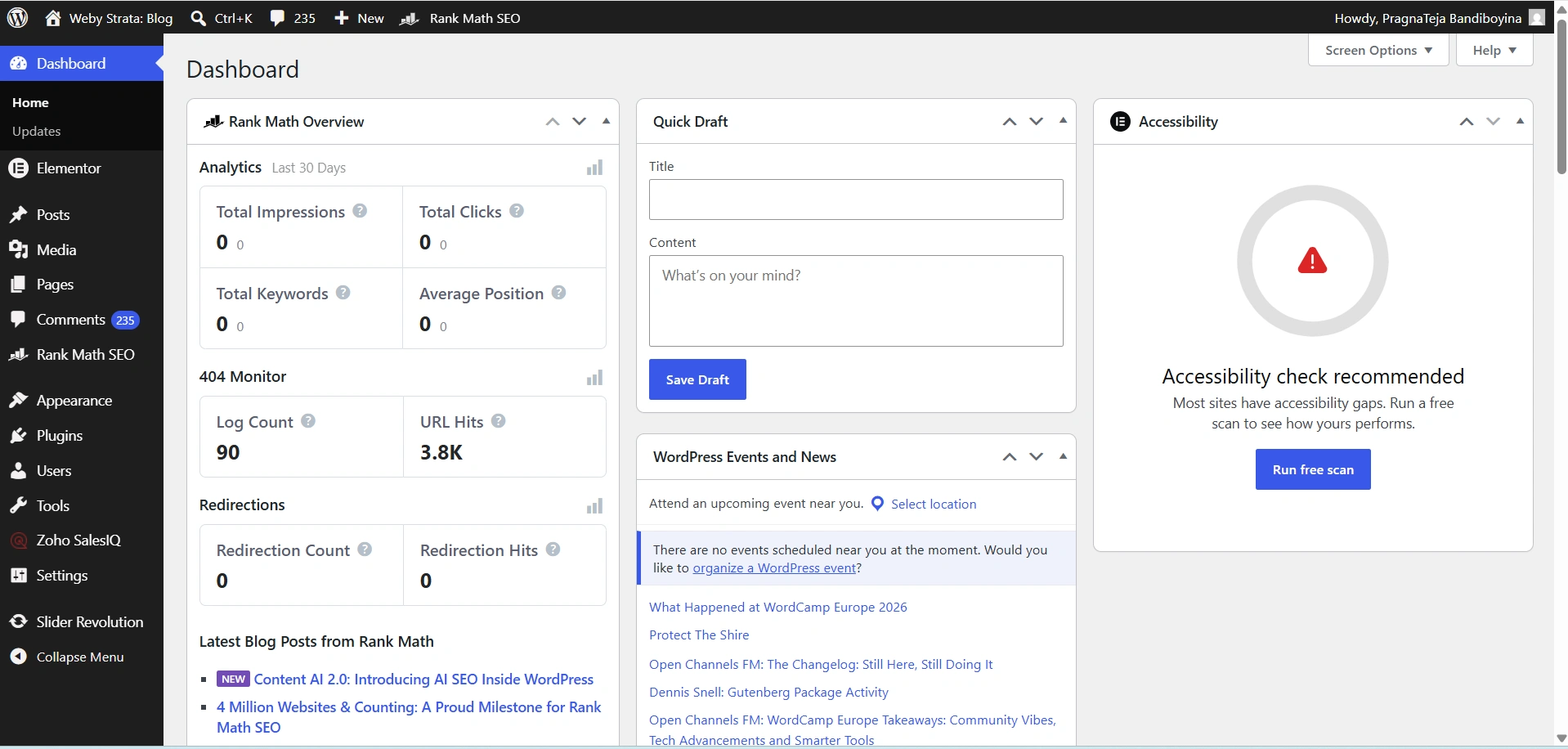
Once logged in, you will be redirected to the WordPress Dashboard.
Step 2: Install a Username Change Plugin
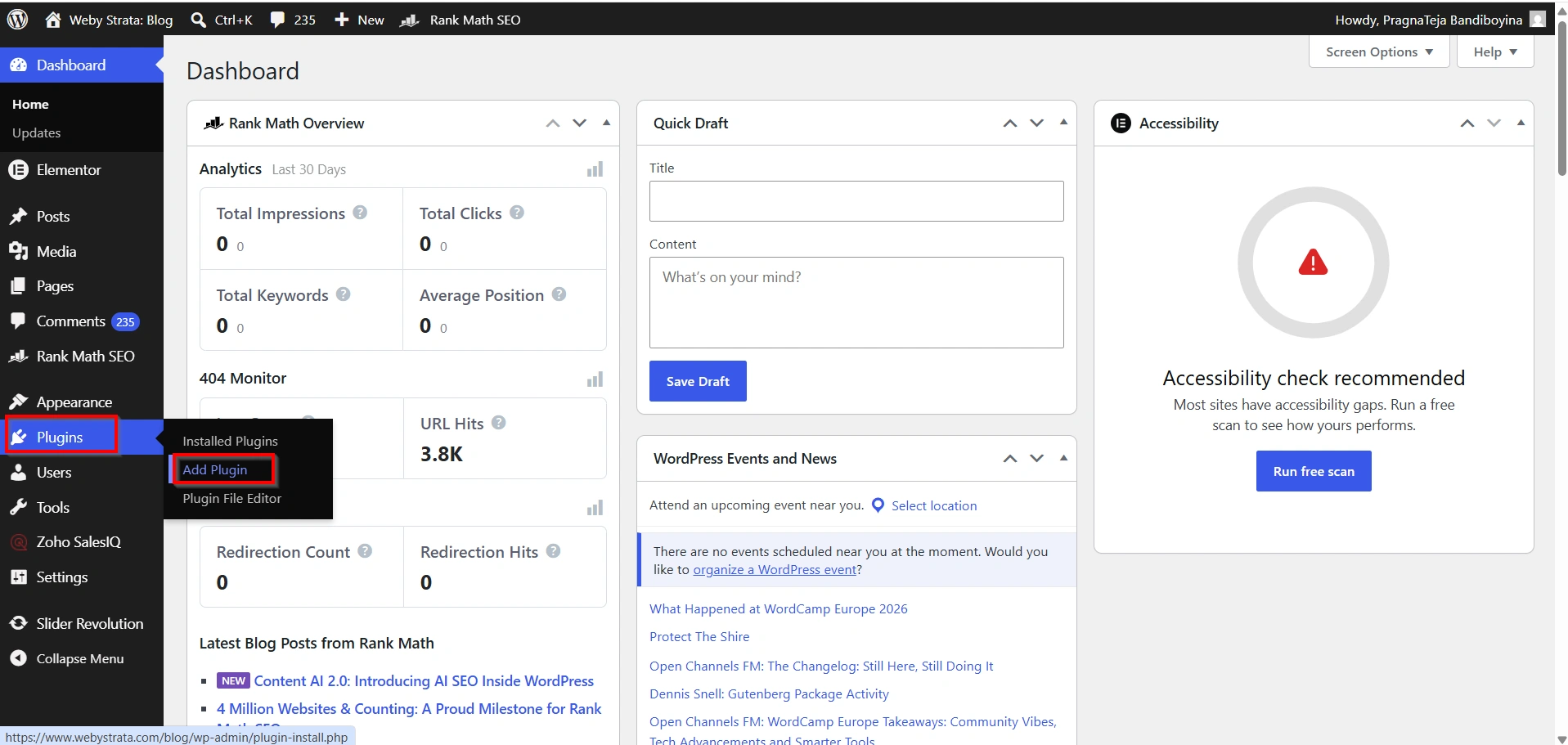
From the WordPress dashboard:
- Navigate to Plugins → Add New.
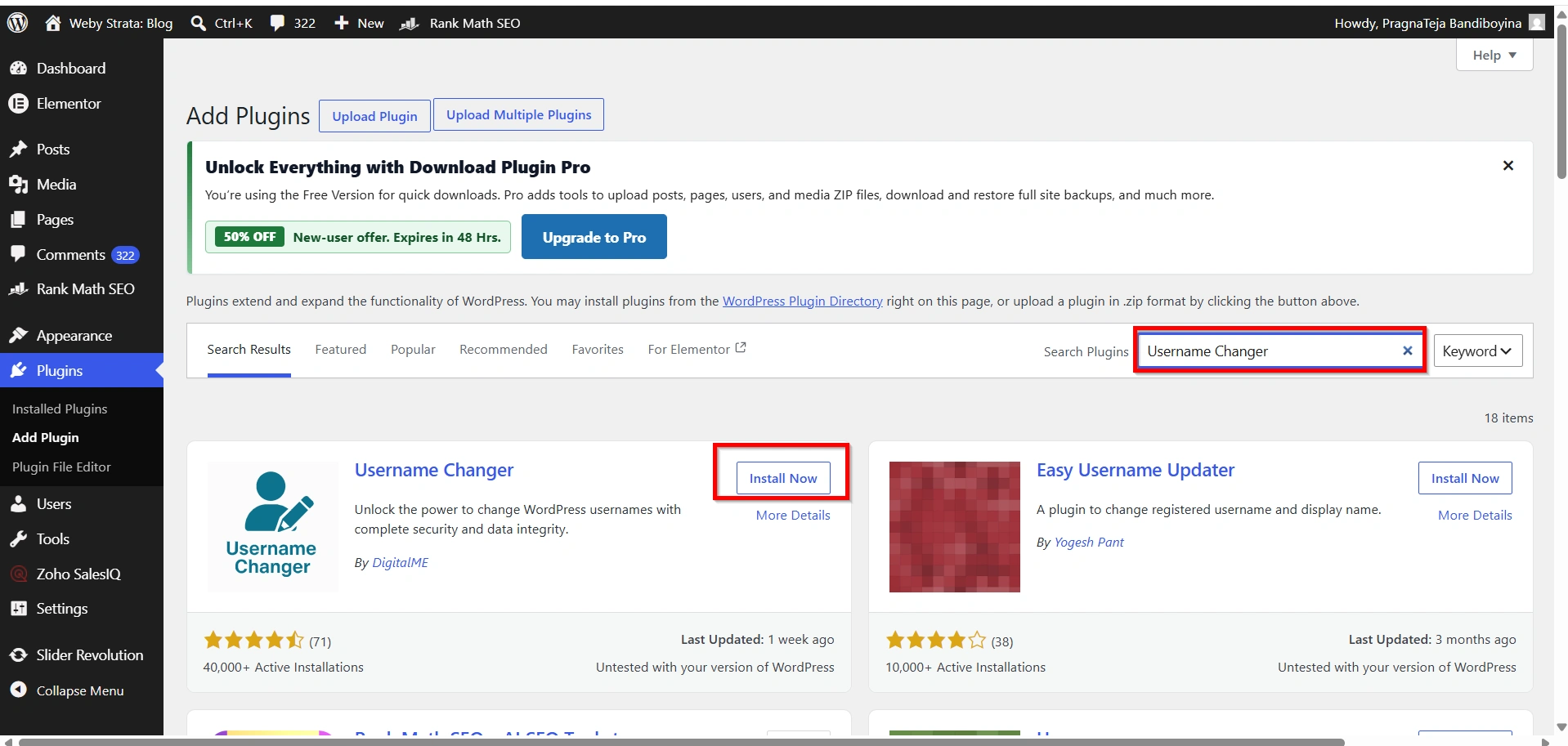
2. Search for a username-changing plugin such as Username Changer.
3. Click Install Now.
4. After installation, click Activate.
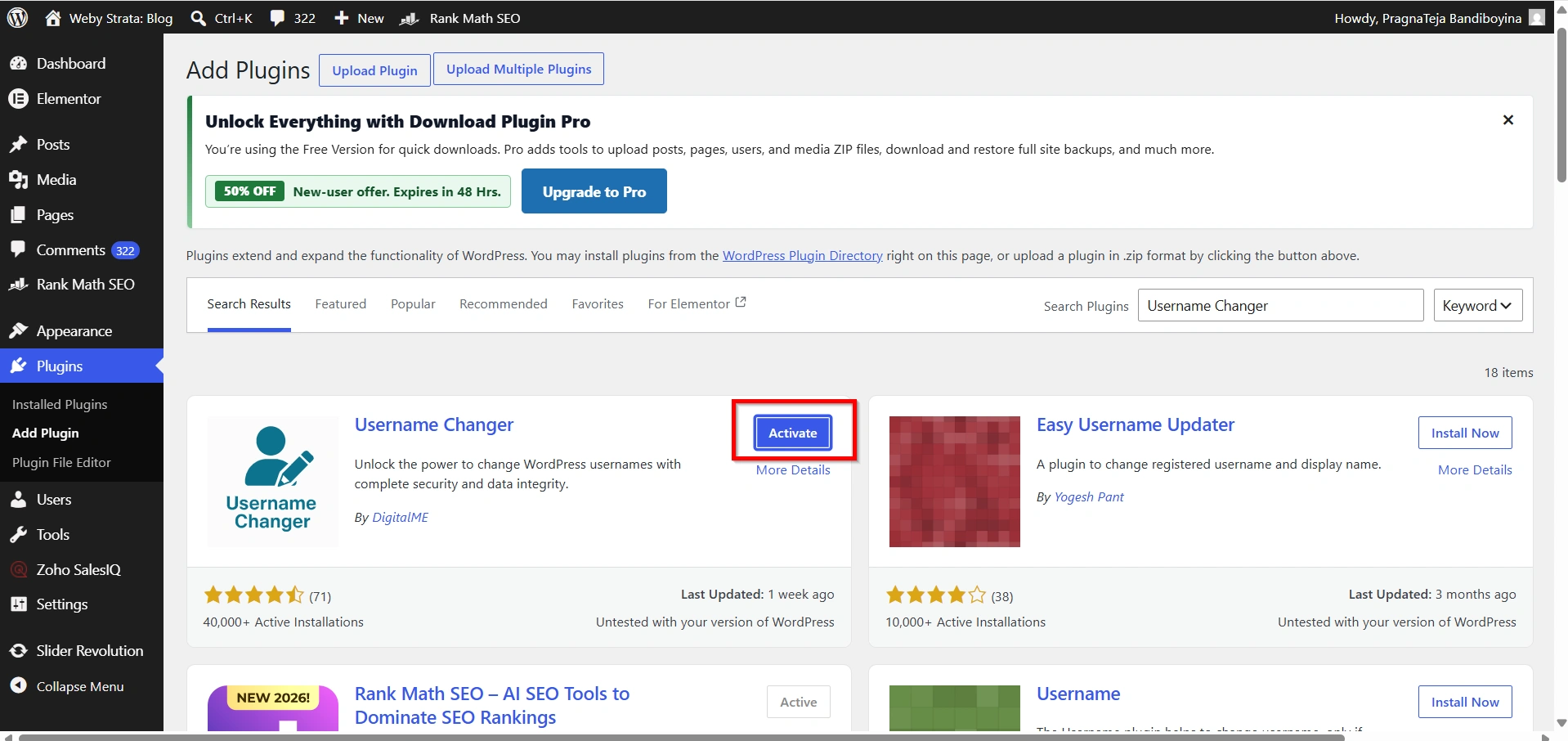
The plugin will extend WordPress functionality and allow username modifications directly from the dashboard.
Step 3: Open Your Profile Page
After activating the plugin:
- Go to Users → Profile.
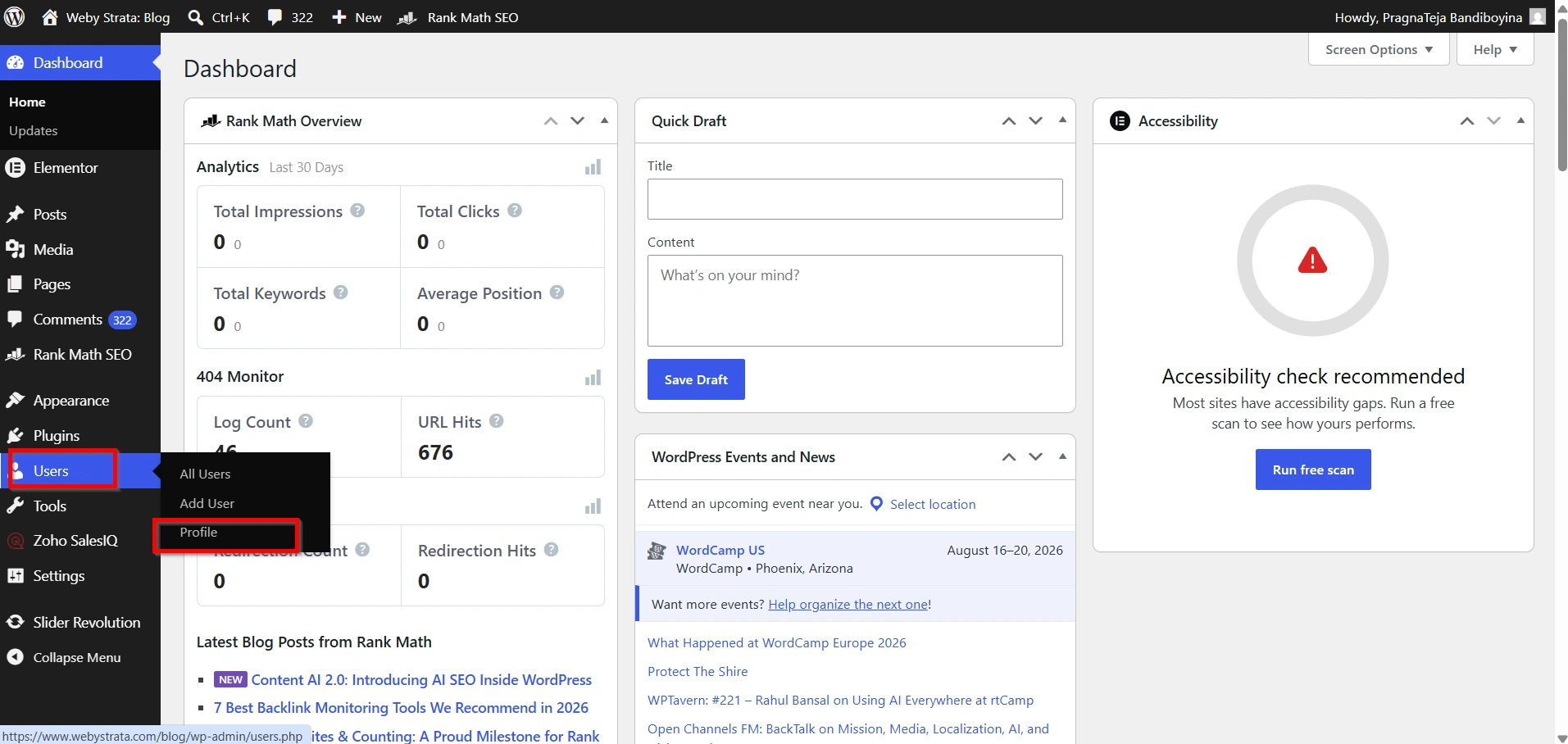
2. Scroll through the profile settings.
3. Locate the option labeled Change Username or a similar setting.
The exact location may vary depending on the plugin you install.
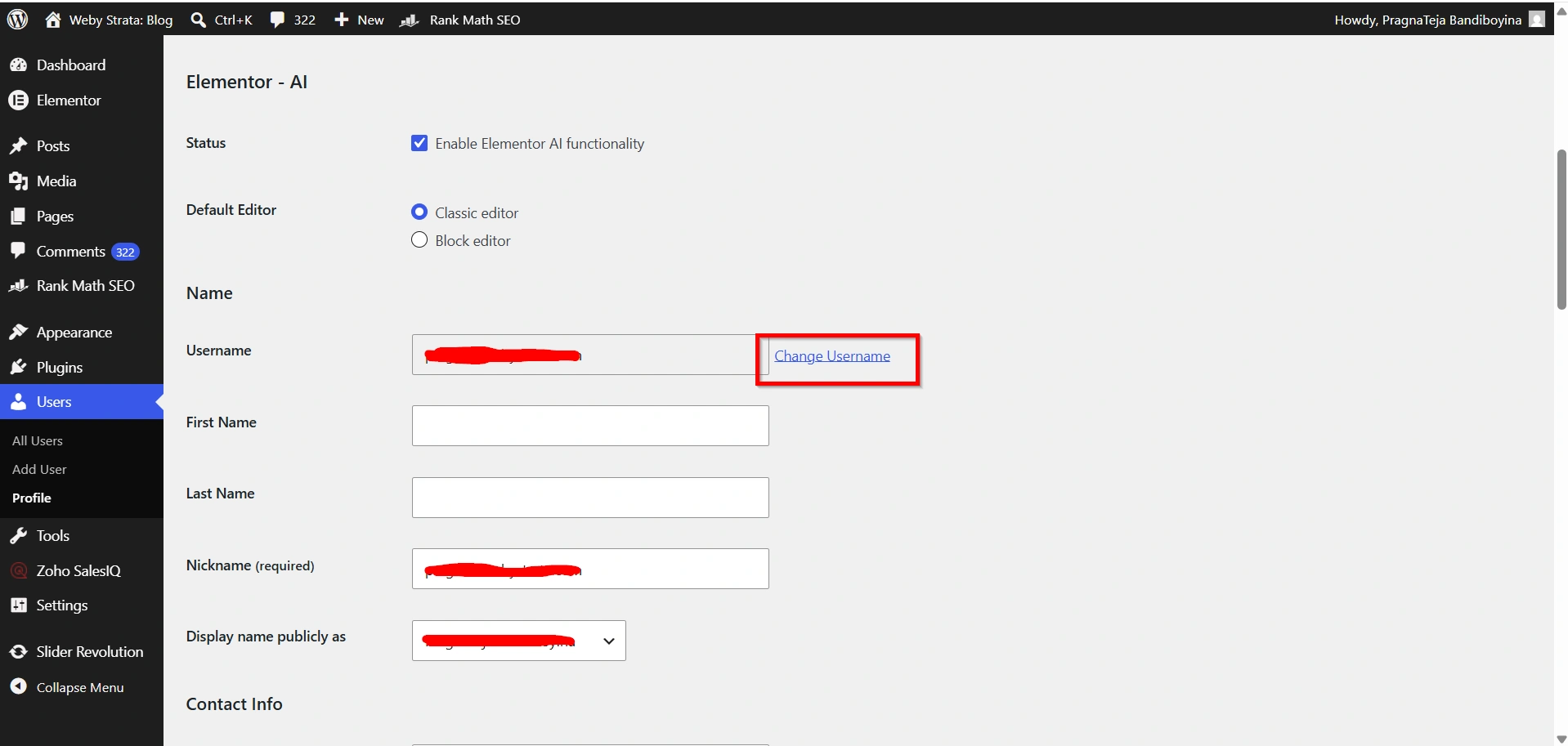
Step 4: Enter Your New Username
Click the username editing option and enter your preferred username.
When selecting a new username:
- Avoid generic names such as admin.
- Use a professional and memorable username.
- Keep it relevant to your brand or role.
- Avoid unnecessary symbols and special characters.
Take a moment to verify the spelling before saving.
- Click Save Username.
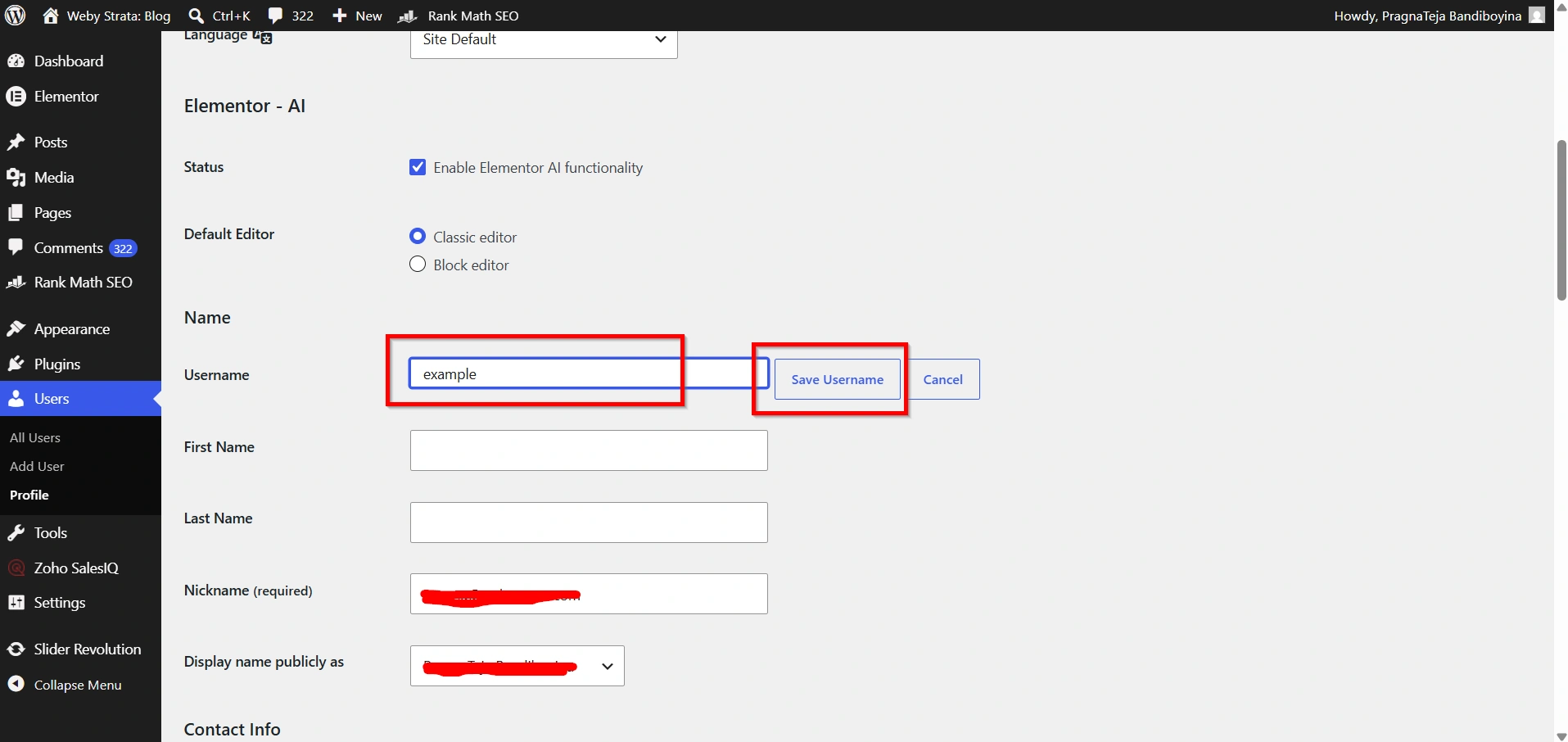
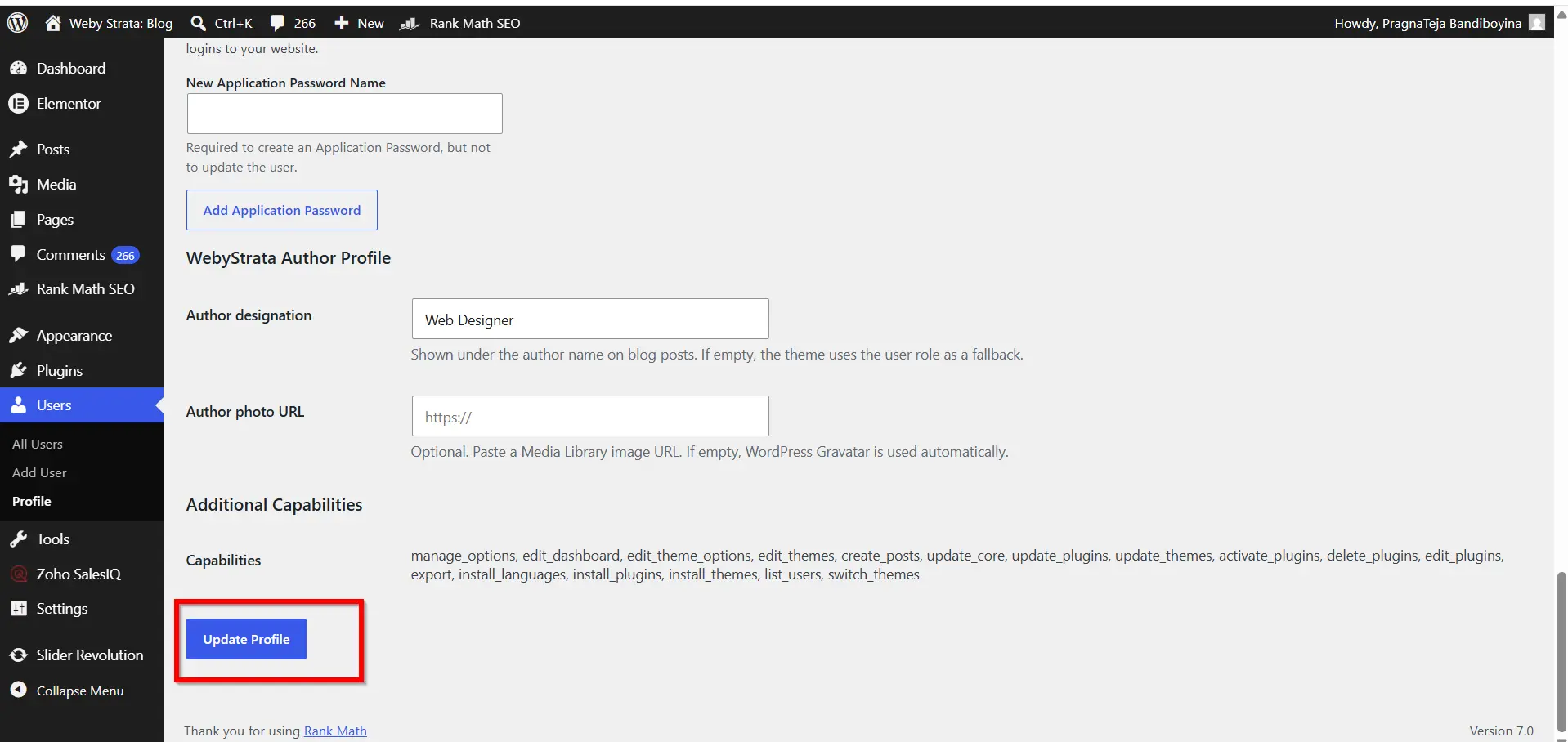
Step 5: Save Your Changes
Once you have entered the new username:
- Click Update Profile.
- Wait for the success confirmation message.
The plugin will automatically update your username in the WordPress database.
Step 6: Log Out and Test the New Username
To ensure everything is working properly:
- Log out of WordPress.
- Return to the login page.
- Enter the new username and your existing password.
- Log in again.
If the login is successful, your username has been changed successfully.
Benefits of Changing a WordPress Username Using a Plugin
If your website still uses a generic username such as “admin,” now is a great time to Change WordPress Username Using Plugin and strengthen your website security. Many website owners prefer to Change WordPress Username Using Plugin because it requires only a few clicks and avoids the complexity of manual database modifications.
- Quick and Easy
- No Database Editing Required
- Reduced Risk of Errors
- Retains Existing Content
- Beginner-Friendly Solution
Conclusion
Changing a WordPress username may seem difficult because WordPress does not include a built-in username editing feature. Fortunately, a username-changing plugin provides a simple, secure, and efficient solution.
By installing a trusted plugin, you can update your username within minutes without editing the database or creating a new administrator account. This approach helps improve website security, supports branding efforts, and makes account management easier.
If your website still uses a default username such as “admin,” now is the perfect time to update it. Combined with a strong password and proper security measures, a customized username can help keep your WordPress website safer and more professional.
Related Articles


