cPanel
How to Check Website Traffic Statistics Using cPanel
How to Check Website Traffic Statistics Using cPanel Website traffic statistics provide valuable insights into how visitors interact with your website. By monitoring visitor counts, page views, traffic sources, bandwidth consumption, and user behavior,…
How to Check Website Traffic Statistics Using cPanel
Website traffic statistics provide valuable insights into how visitors interact with your website. By monitoring visitor counts, page views, traffic sources, bandwidth consumption, and user behavior, website owners can make informed decisions to improve performance, user experience, and search engine rankings.
Whether you manage a personal blog, business website, online store, or corporate portal, regularly reviewing website traffic statistics can help identify growth opportunities and potential issues before they impact your visitors.
In this guide, you will learn how to check website traffic statistics using cPanel and how to interpret the data to improve your website’s overall performance.
Why Website Traffic Statistics Matter
Understanding your website traffic is essential for maintaining a successful online presence. Traffic reports help you:
- Measure website growth over time.
- Track visitor engagement.
- Identify popular content.
- Analyze marketing campaign effectiveness.
- Monitor bandwidth consumption.
- Detect unusual traffic spikes.
- Improve search engine optimization strategies.
- Understand audience demographics and behavior.
By regularly reviewing website traffic statistics, you can make data-driven decisions that contribute to the long-term success of your website.
AWStats
AWStats is one of the most comprehensive traffic analysis tools available in cPanel. It generates detailed reports based on server log files and provides information about:
- Unique visitors
- Total visits
- Hits
- Bandwidth usage
- Visitor countries
- Browsers
- Operating systems
- Referring websites
- Search keywords
- Most visited pages
How to Check Website Traffic Statistics Using cPanel
Step 1: Login to cPanel from Client Area
First, visit the WebyStrata website and log in to your client area account using your registered email address and password.
official Website www.webystrata.com
After logging in:
- Go to Services
- Click on My Services
- Select your active hosting service
- Click on Login to cPanel

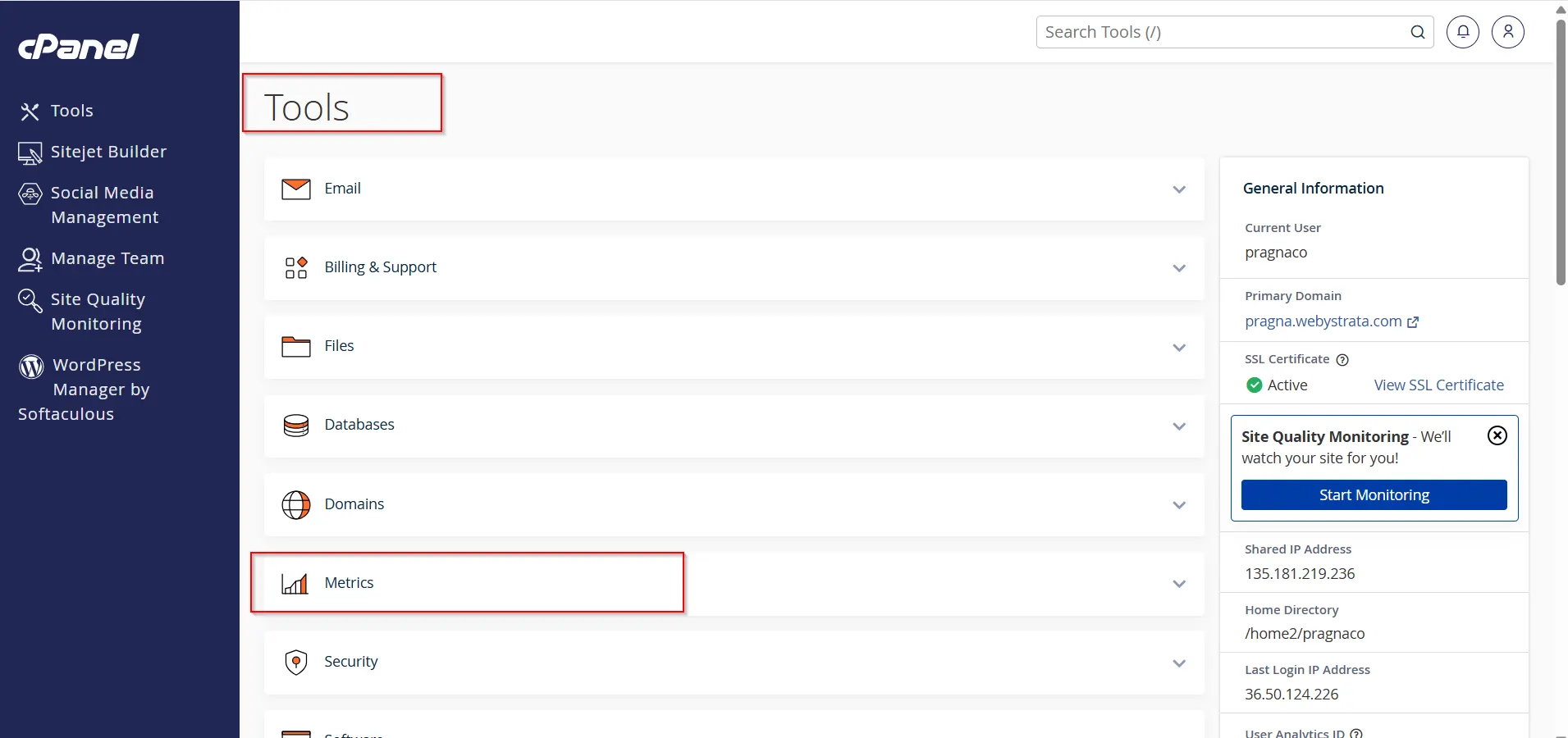
Step 2: Locate the Metrics Section
- Scroll down to the Metrics section on the cPanel home page.
- Here you will find several tools that provide website traffic and visitor information.
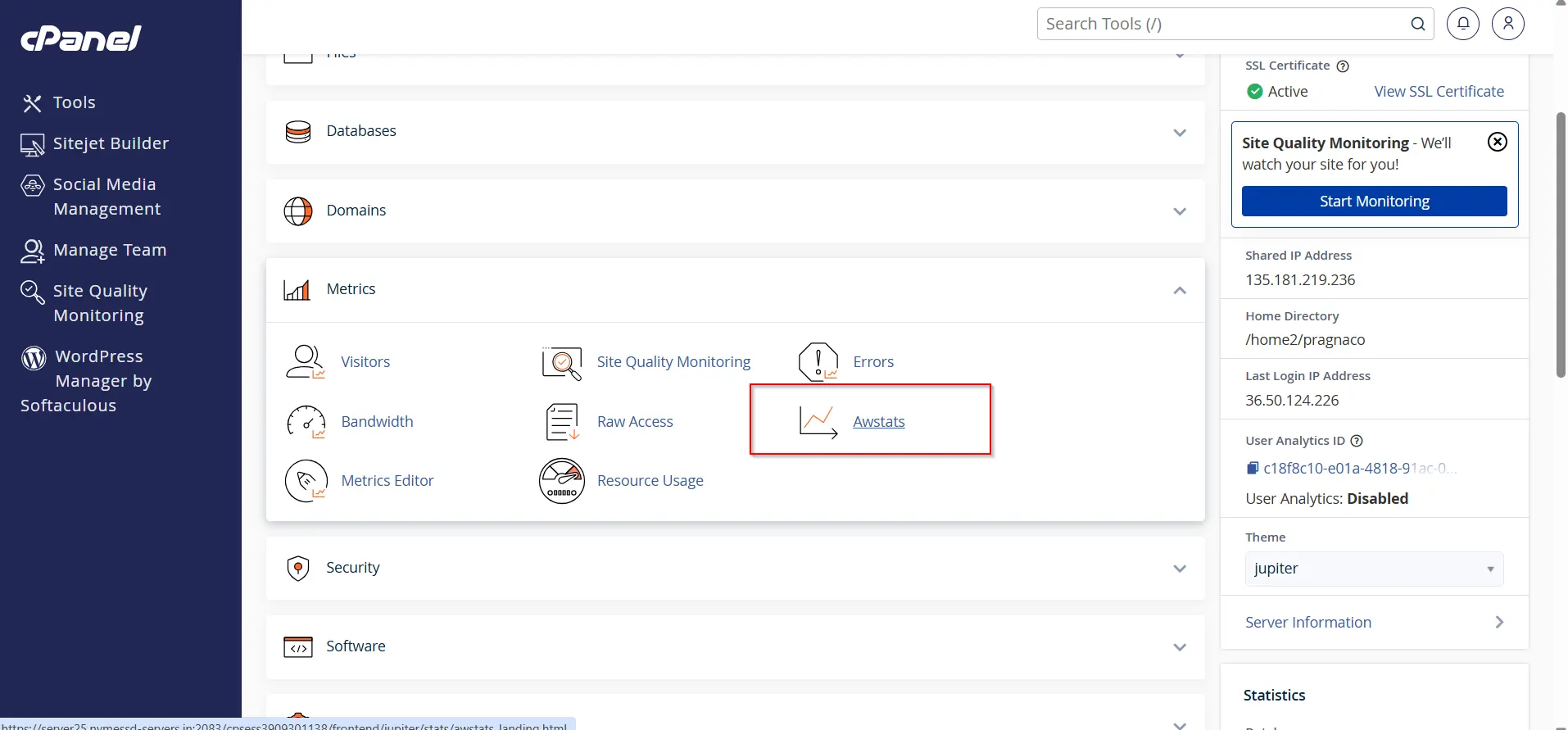
Step 3: Open AWStats
- Click AWStats under the Metrics section.
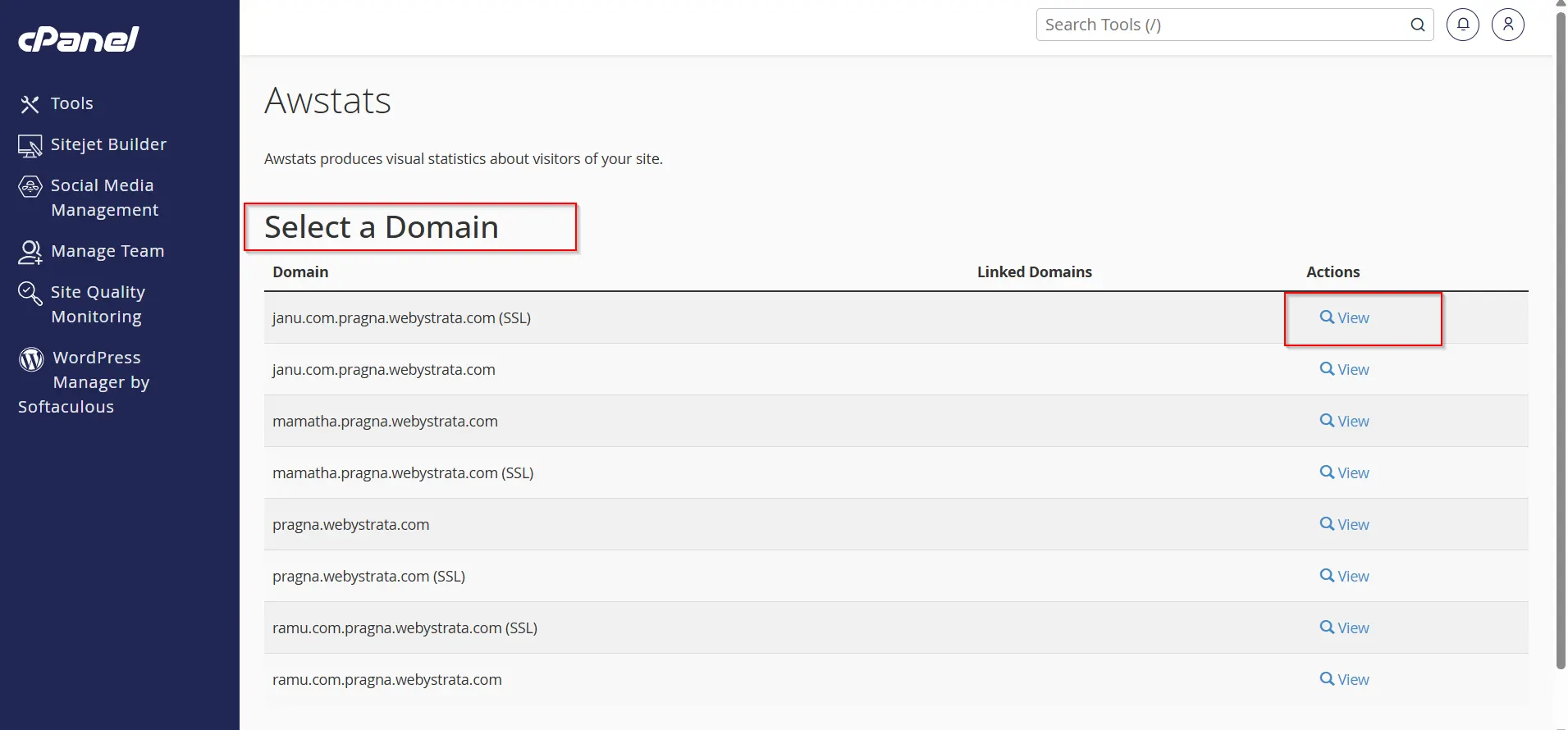
2. Select the domain you want to analyze.
3. AWStats will generate a detailed traffic report.
Step 4: Review Website Traffic Data
AWStats provides various statistics, including:
- Total visits
- Unique visitors
- Number of pages viewed
- Hits received
- Bandwidth usage
- Visitor countries
- Operating systems used
- Web browsers used
- Referring websites
- Search engine keywords
- Most visited pages
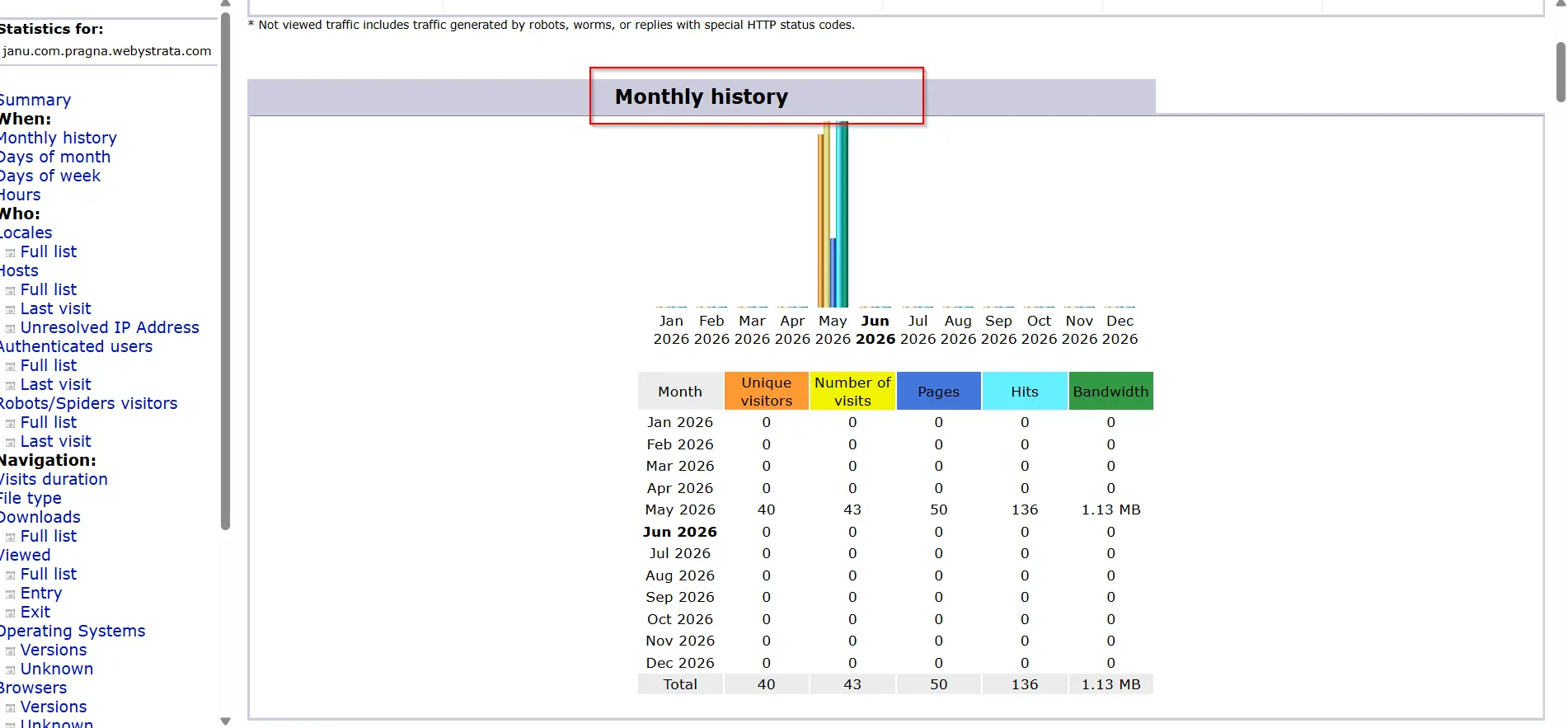
Step 5: Analyze Monthly Statistics
- Scroll through the AWStats report.
- View traffic summaries by month.
- Compare visitor trends over different periods.
- Identify peak traffic days and months.
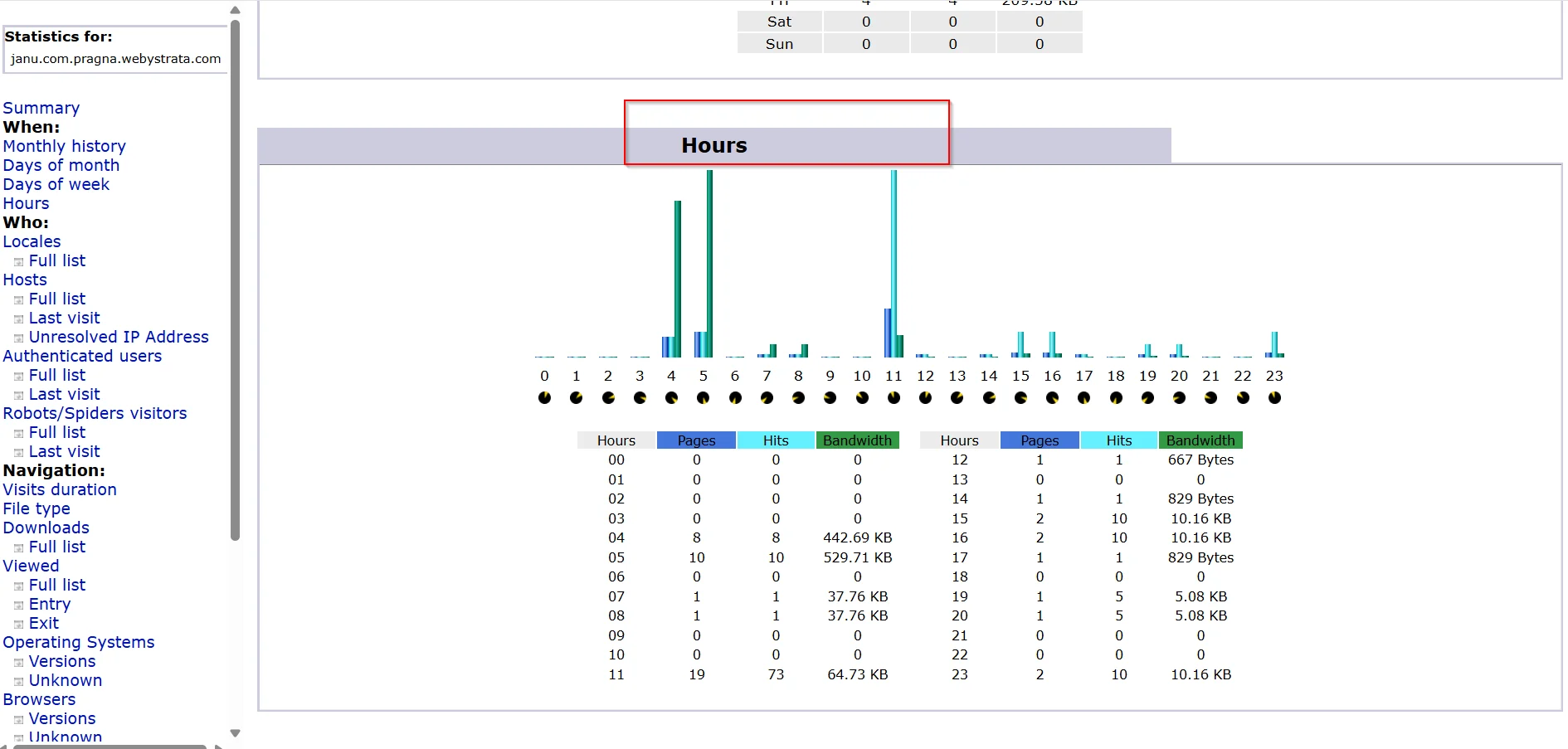
Step 6: Check Daily and Hourly Visitor Activity
- In AWStats, locate the Days of Month section.
- Review daily traffic numbers.
- Open the Hours section.
- Analyze the hours when visitors are most active on your website.
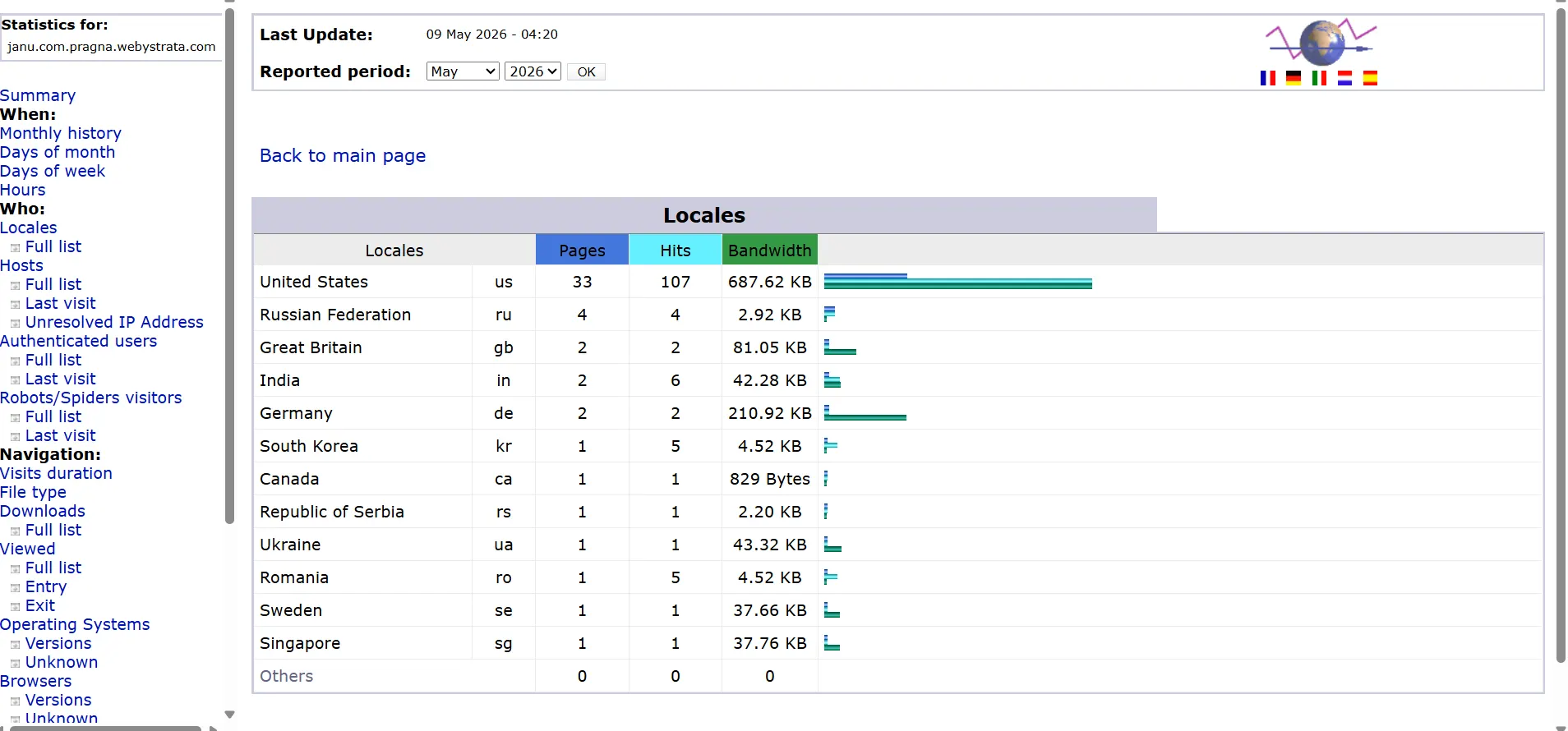
Step 7: Check Visitor Locations
Locate the Countries section.
View the countries from which your visitors originate.
Use geographic data to better target your audience.
Understanding Key Website Traffic Metrics
Unique Visitors
Visits
Page Views
Hits
Bandwidth Usage
Benefits of Monitoring Website Traffic Regularly
Regular traffic analysis helps website owners:
Improve User Experience
Enhance SEO Performance
Increase Conversion Rates
Improve Website Security
Plan Resource Allocation
Common Traffic Analysis Mistakes to Avoid
Many website owners make the following mistakes:
- Focusing only on total visitors.
- Ignoring visitor behavior.
- Overlooking referral sources.
- Not monitoring bandwidth usage.
- Failing to compare historical data.
- Ignoring geographic reports.
- Neglecting mobile user trends.
Avoiding these mistakes leads to more accurate website performance analysis.
Tips for Increasing Website Traffic
After analyzing your traffic reports, consider these strategies:
- Publish high-quality content regularly.
- Optimize pages for SEO.
- Improve website loading speed.
- Build quality backlinks.
- Promote content on social media.
- Enhance user experience.
- Target long-tail keywords.
- Update outdated content.
Conclusion
Checking website traffic statistics using cPanel is a simple yet powerful way to understand your website’s performance. With tools like AWStats, Webalizer, and Raw Access Logs, you can monitor visitor activity, track bandwidth usage, analyze traffic sources, and identify opportunities for growth. By regularly reviewing these reports and acting on the insights they provide, you can improve user experience, strengthen your SEO strategy, and ensure your website continues to grow successfully over time.
Related Articles


