cPanel
How to Compress And Extract Web Files Using File Manager in cPanel
cPanel File Manager allows you to easily compress and extract website files directly from your hosting account without using external software. You can perform both compression and extract directly inside cPanel File Manager. How…
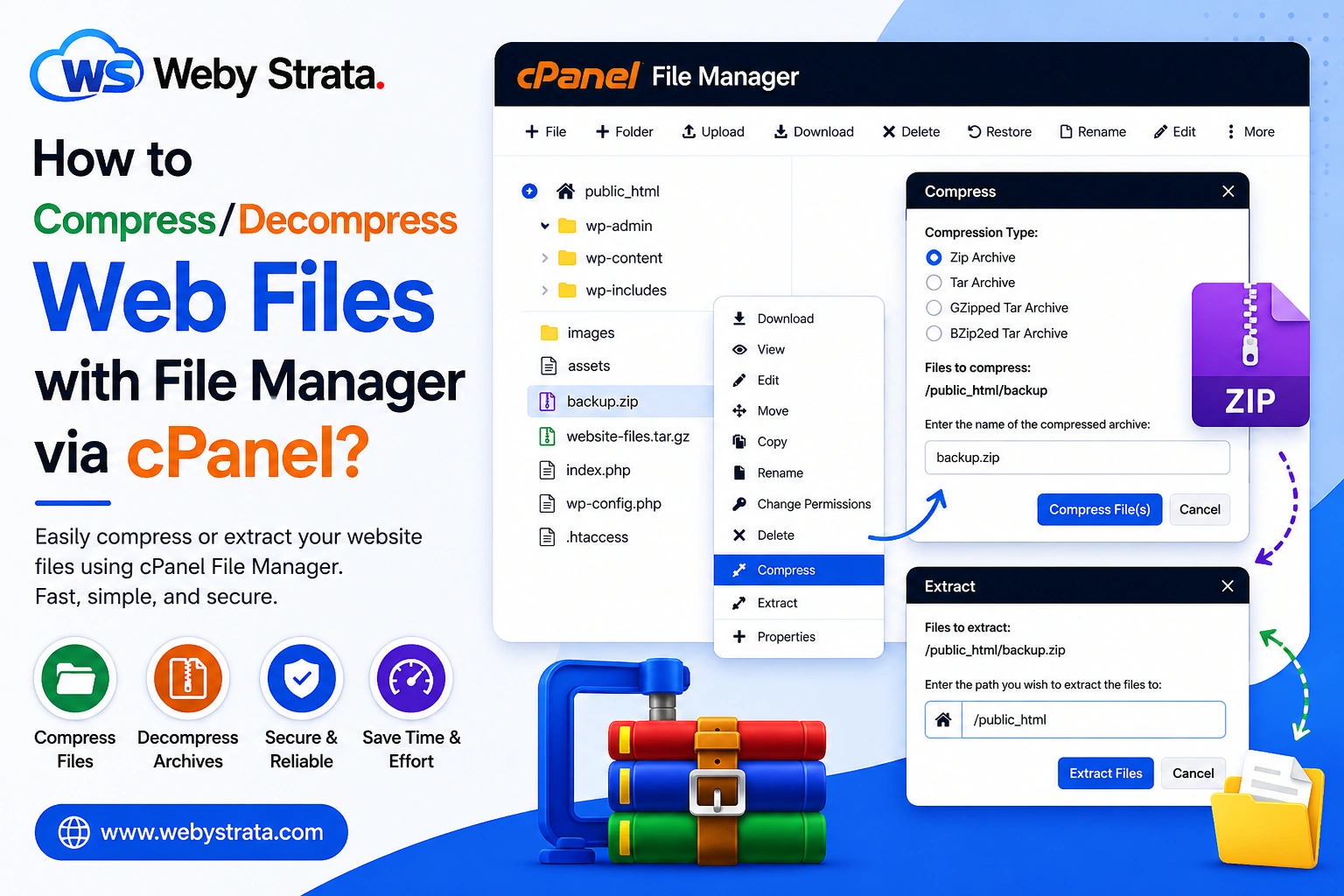
cPanel File Manager allows you to easily compress and extract website files directly from your hosting account without using external software.
You can perform both compression and extract directly inside cPanel File Manager.
How to Compress Web Files in cPanel
1. Log in to Your cPanel Account
Access your hosting cPanel using your username and password.
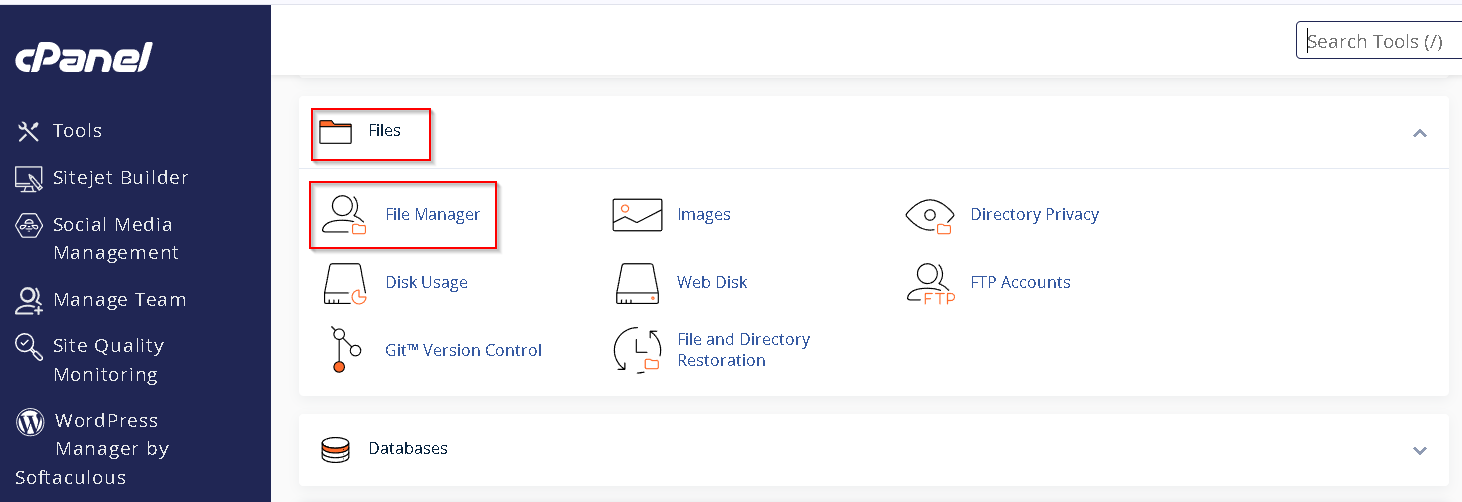
2. Open File Manager
- Go to the FILES section.
- Click on File Manager.
The File Manager interface will open in a new browser tab.
3. Select the File or Folder
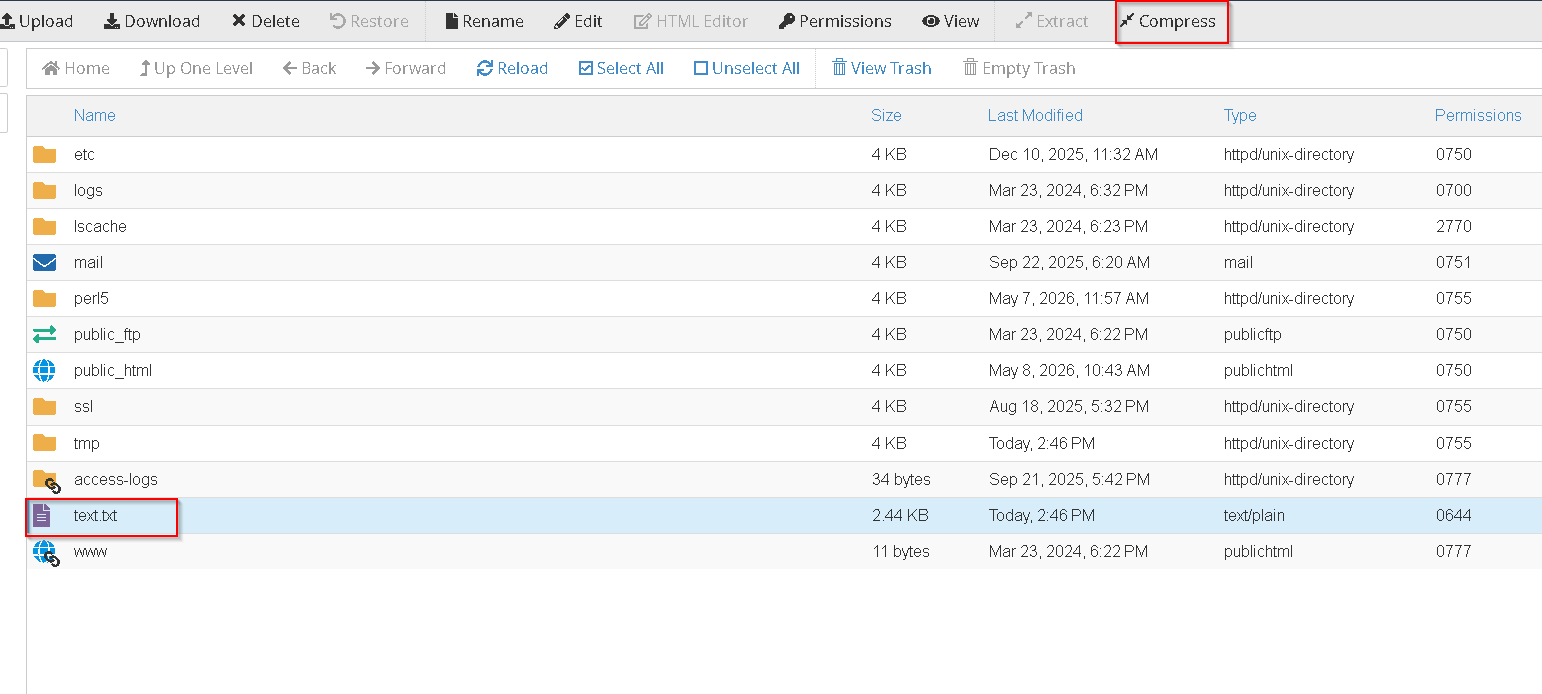
- Locate the file or folder you want to compress.
- Right-click on it.
- Click Compress.
A compression popup window will appear.
4. Choose Compression Type
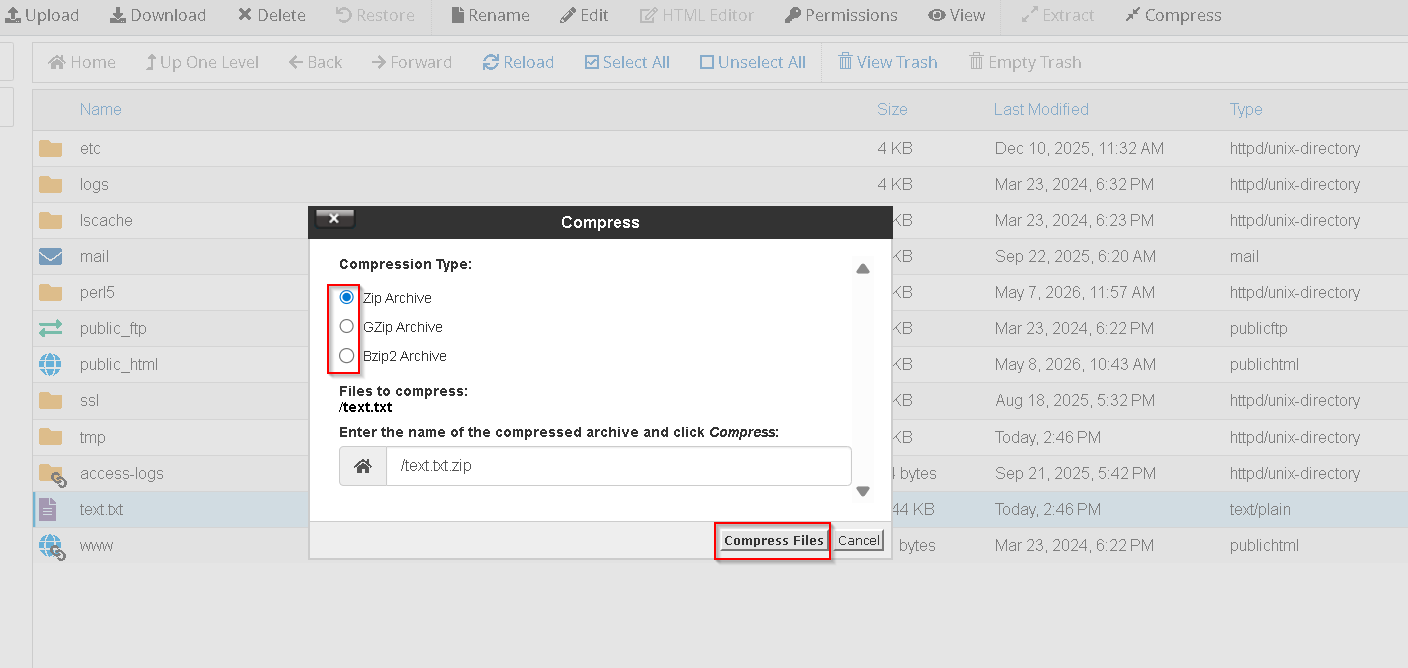
Select your preferred compression format:
- Zip Archive
- Tar Archive
- GZiped Tar Archive
- BZip2ed Tar Archive
You can also rename the compressed file in the provided text box.
5. Start Compression
- Click the Compress File(s) button.
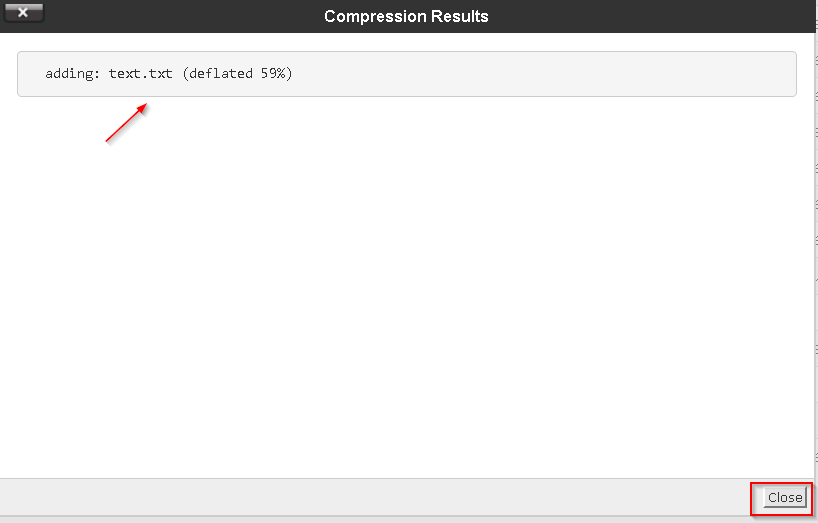
A new popup window will display the compression results.
- Click Close after completion.
The compressed file will now appear in your File Manager directory.
How to Extract Web Files in cPanel
1. Log in to Your cPanel Account
Access cPanel with your hosting credentials.
2. Open File Manager
- Go to the FILES section.
Click File Manager.
3. Select the Compressed File
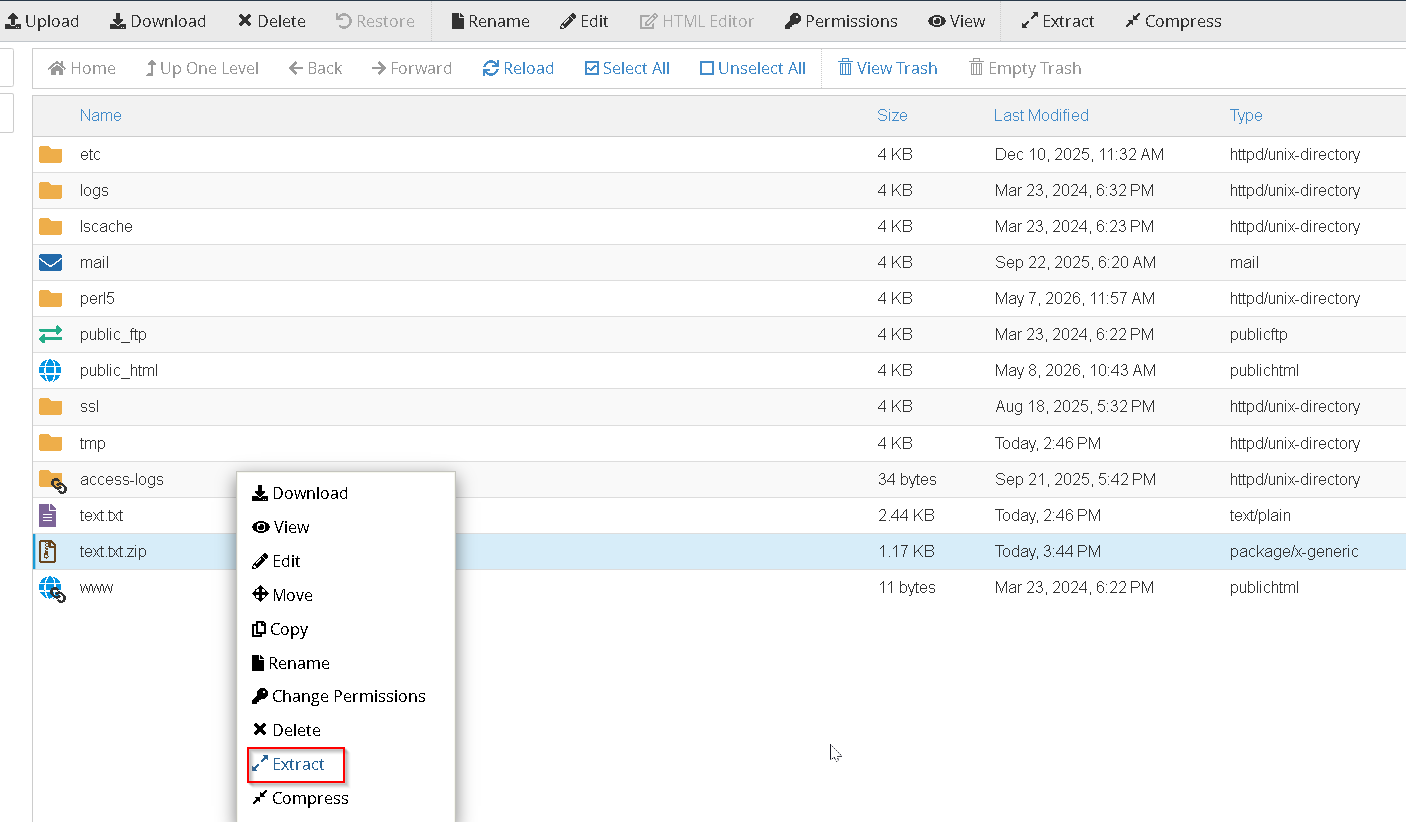
- Right-click on the ZIP or archive file.
- Click Extract.
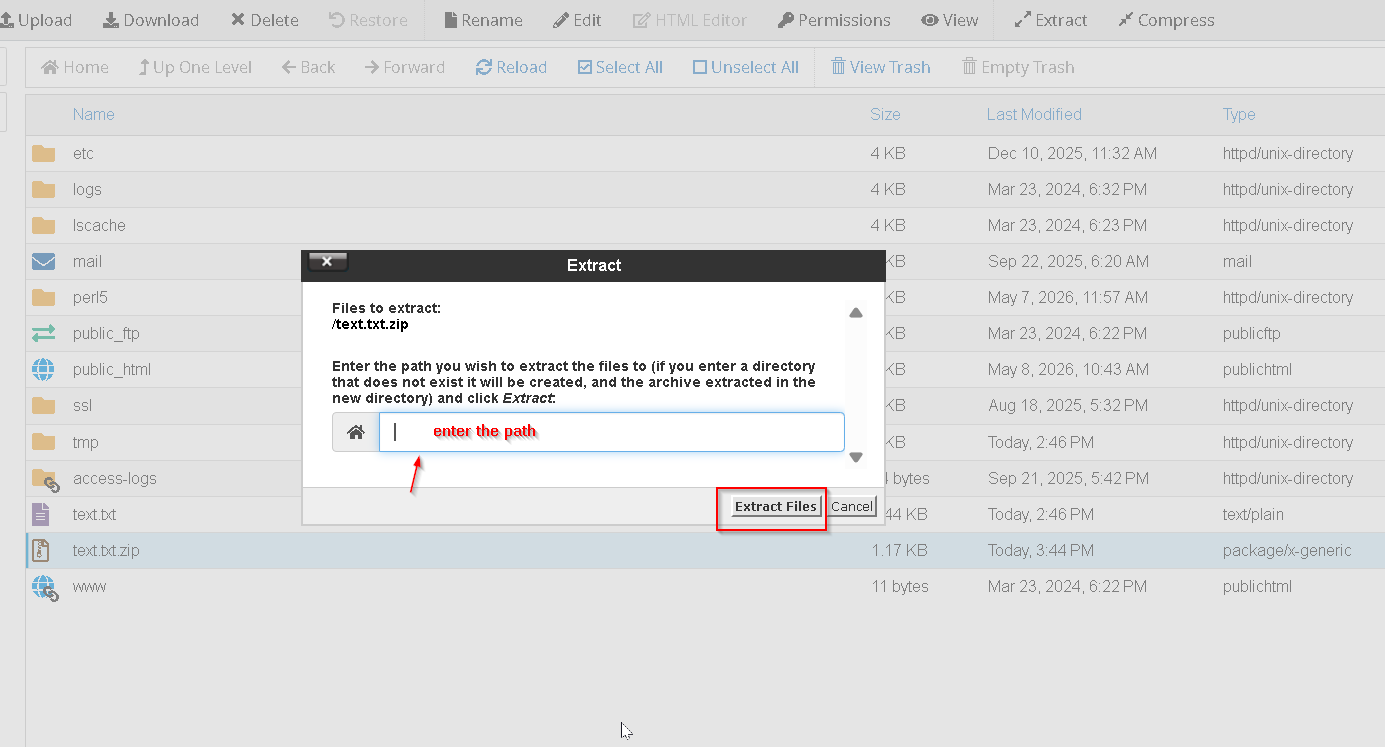
The extraction window will appear.
4. Choose Extraction Path
- Enter the destination path where you want the files extracted.
- Click Extract Files.
5. View Extraction Results
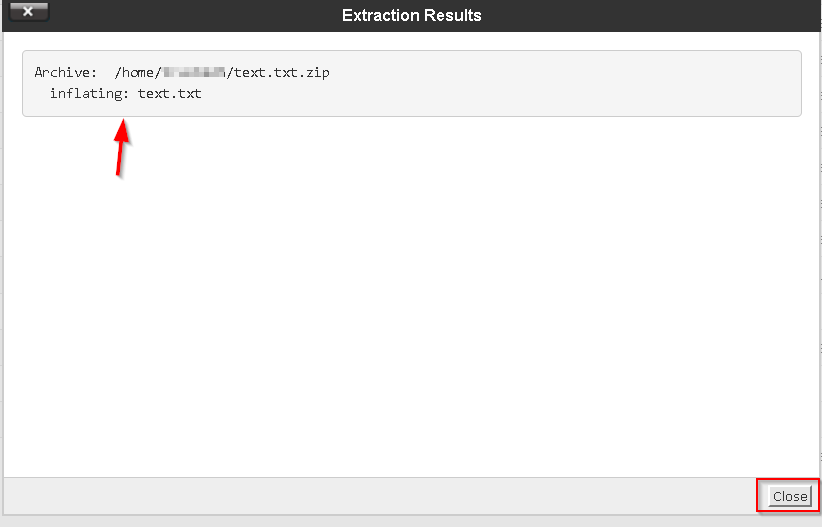
A results window will display the extracted files summary.
- Click Close once the process completes.
Your files will now be extracted into the selected directory.
Related Articles