Latest Updates
How to Configure Invoice Settings in WHMCS
How to Configure Invoice Settings in WHMCS Invoice management is one of the most important aspects of running a successful hosting or service-based business. WHMCS provides a powerful invoicing system that automates billing, payment…
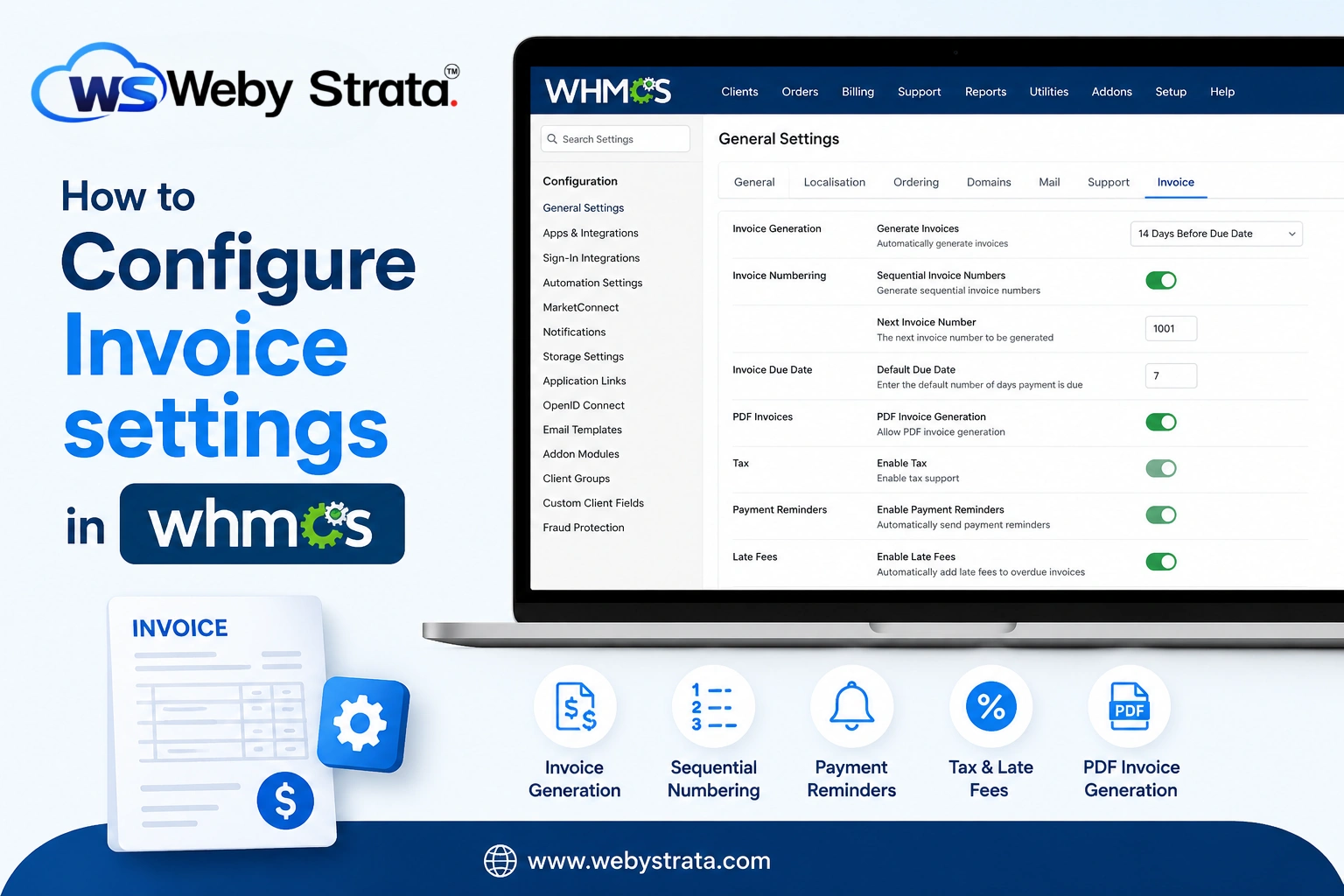
How to Configure Invoice Settings in WHMCS
Invoice management is one of the most important aspects of running a successful hosting or service-based business. WHMCS provides a powerful invoicing system that automates billing, payment collection, tax calculations, and client notifications. Properly configuring Invoice Settings in WHMCS helps ensure accurate billing, timely payments, and a professional experience for your customers.
Whether you are launching a new WHMCS installation or optimizing an existing setup, understanding how to configure Invoice Settings in WHMCS is essential for maintaining efficient financial operations and reducing manual administrative work.
What Are Invoice Settings in WHMCS?
Invoice Settings in WHMCS control how invoices are generated, numbered, delivered, taxed, and managed throughout the client lifecycle. These settings allow administrators to customize billing processes according to their business requirements.
The invoicing system works closely with products, services, domains, payment gateways, taxes, and automation settings, making it one of the core components of WHMCS.
Proper configuration ensures that clients receive invoices on time, payments are tracked accurately, and billing records remain organized.
Why Configure Invoice Settings in WHMCS?
Configuring Invoice Settings in WHMCS provides several benefits:
- Automates invoice generation
- Reduces billing errors
- Improves cash flow management
- Enables professional invoice numbering
- Simplifies tax management
- Supports multiple payment gateways
- Improves customer communication
- Reduces manual workload
- Maintains accurate financial records
Businesses that properly configure Invoice Settings in WHMCS often experience faster payment collection and fewer billing-related support requests.
How to Access Invoice Settings in WHMCS
Follow these steps to access invoice-related settings:
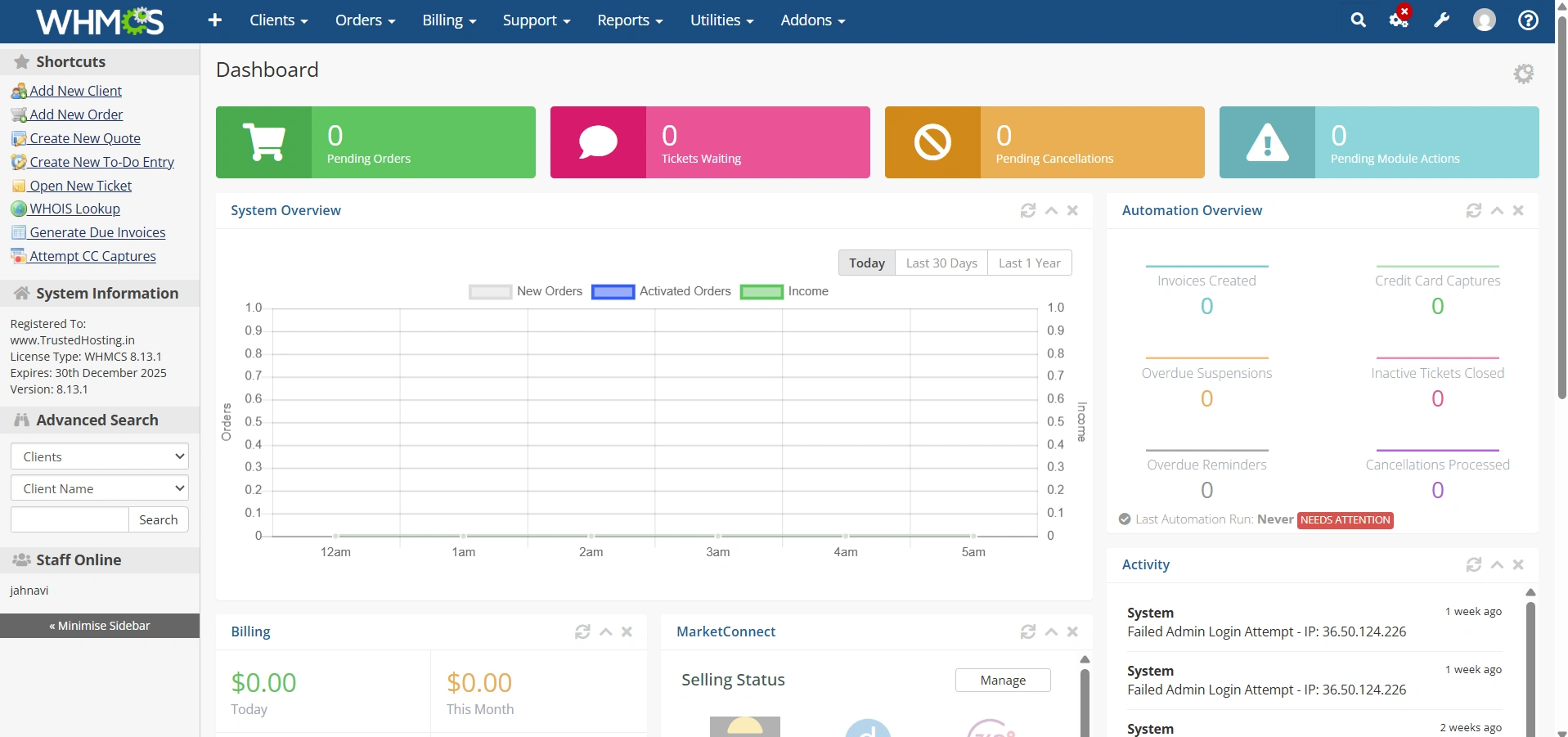
Step 1: Login to WHMCS Admin Area
Access your WHMCS administrator dashboard using your admin credentials.
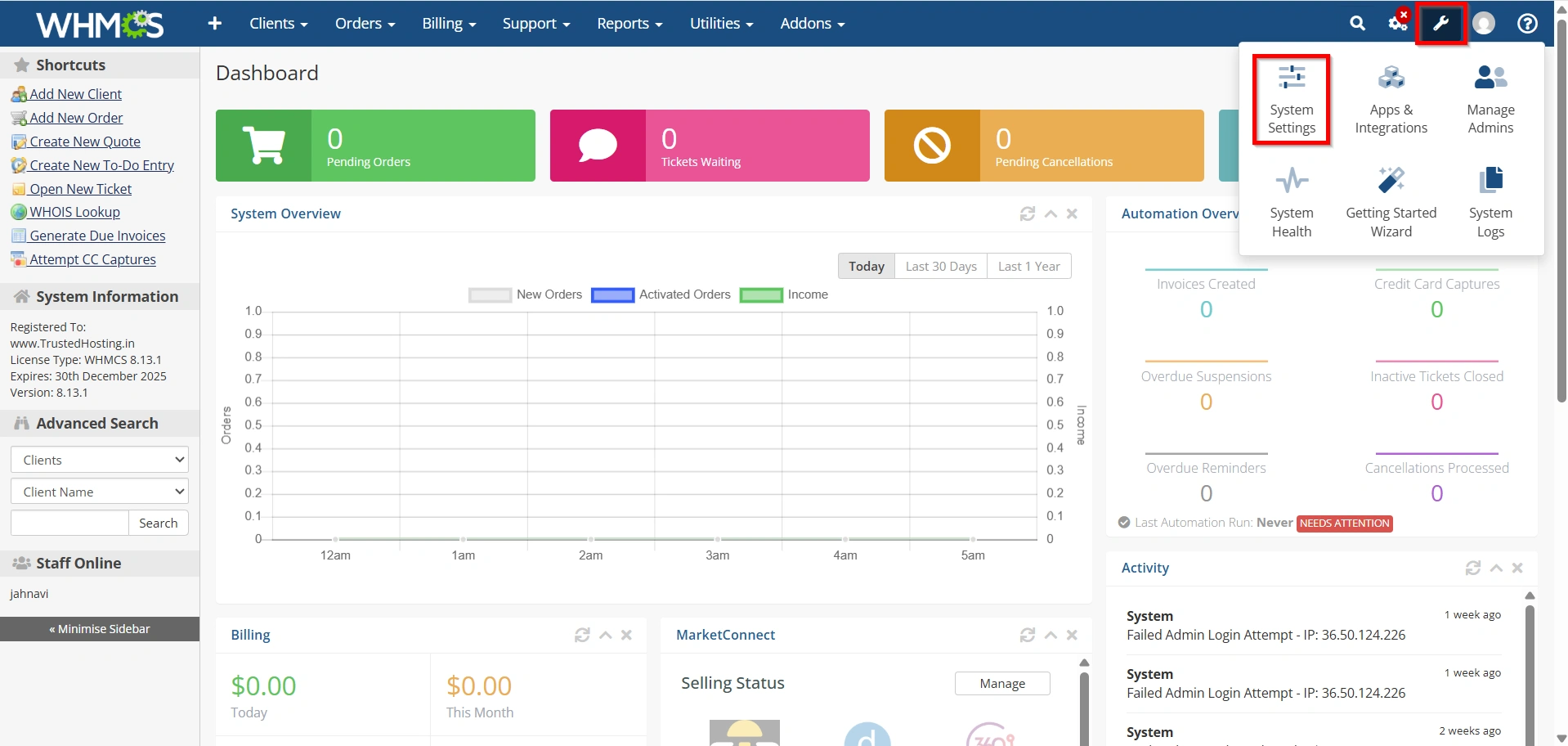
Step 2: Open General Settings
Navigate to:
Configuration → System Settings
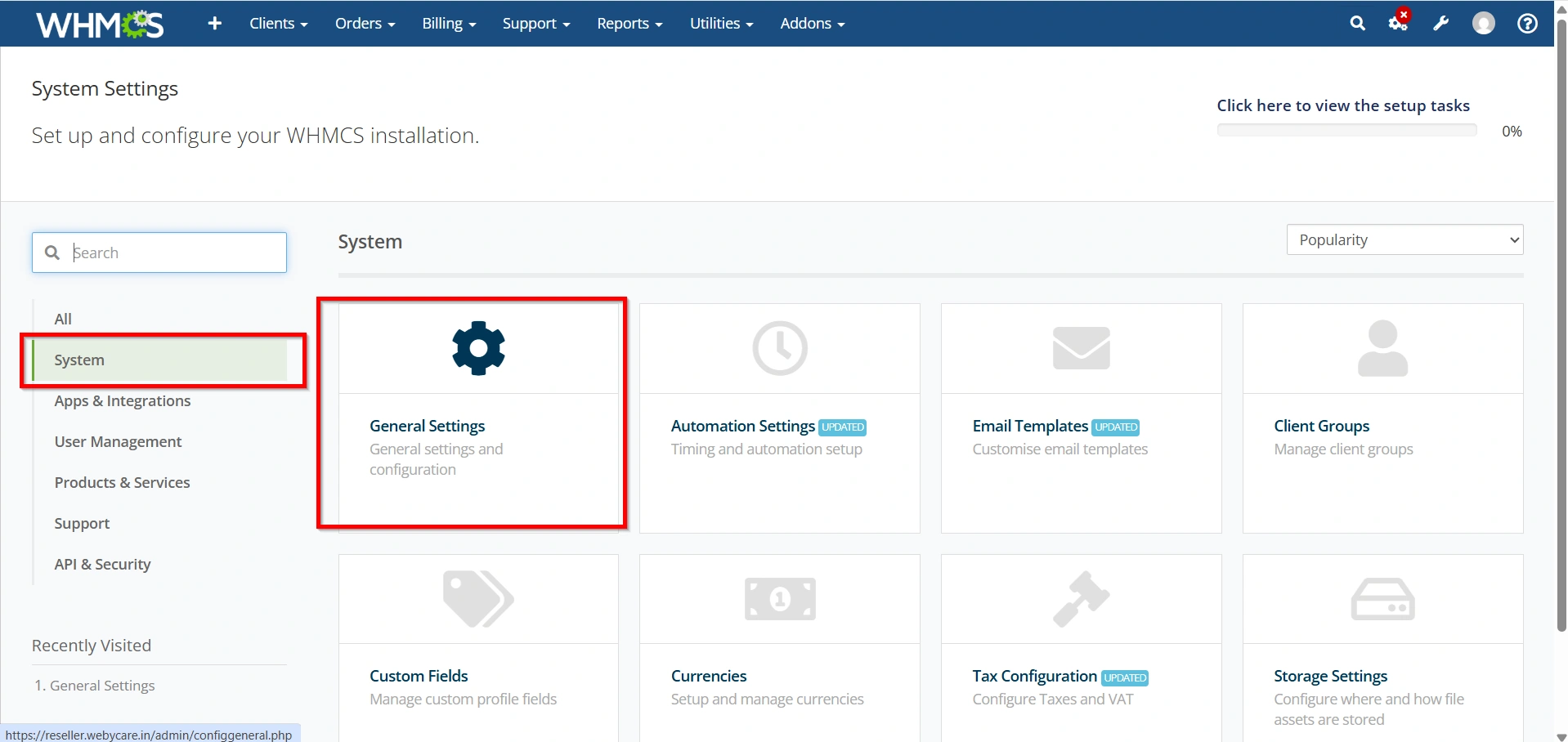
- Select System → General Settings
Step 3: Select the Invoices Tab
Click the Invoices tab to access invoice configuration options.
Here you can configure invoice numbering, payment reminders, tax handling, invoice generation timing, and additional billing preferences.
Configure Invoice Generation Settings
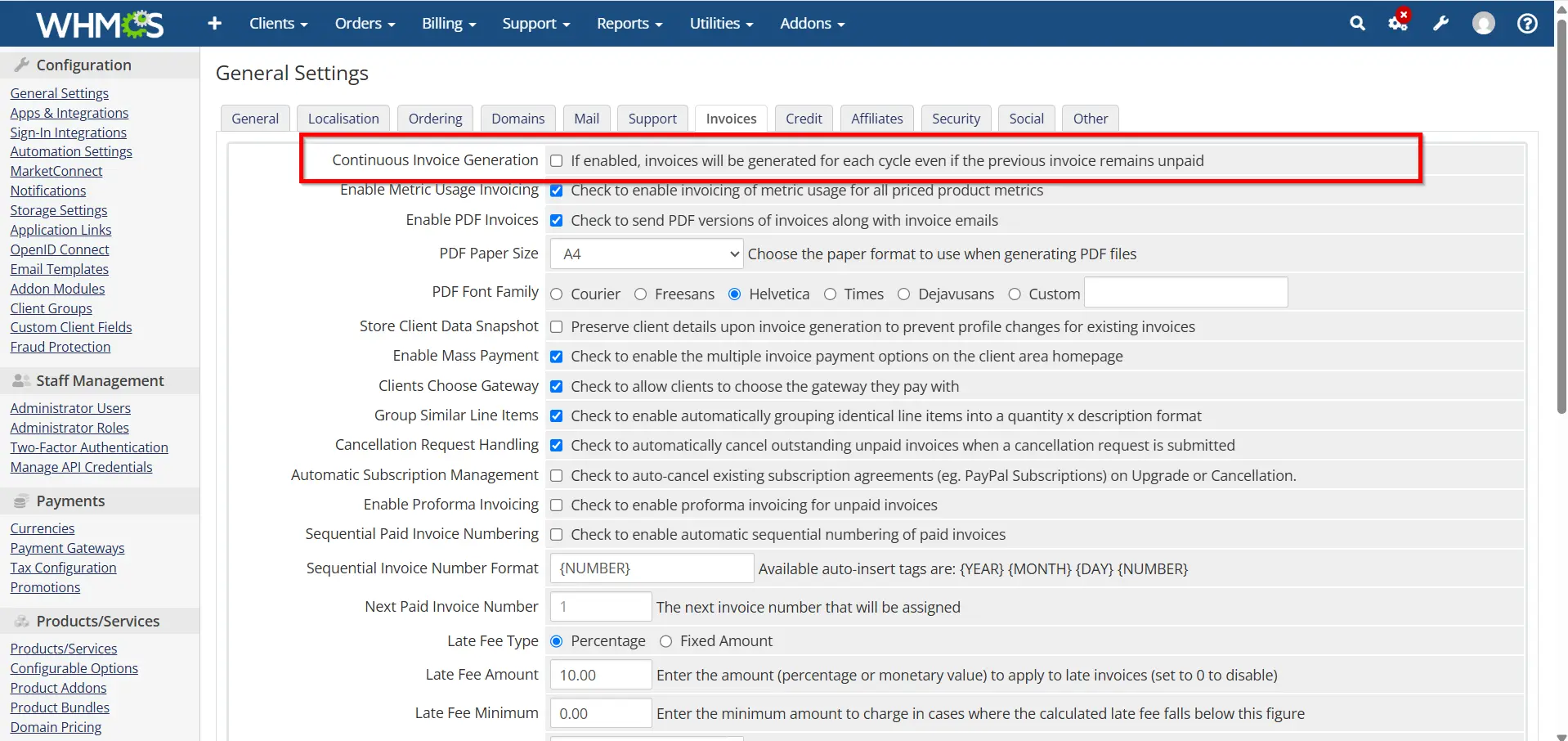
WHMCS automatically generates invoices before services become due.
Steps to Configure Invoice Generation
- Open Invoice Settings.
- Locate the invoice generation options.
- Specify how many days before the due date invoices should be created.
- Save the settings.
Recommended Values
- Shared Hosting: 14 Days
- VPS Hosting: 14–21 Days
- Dedicated Servers: 21–30 Days
- Enterprise Services: 30 Days
Generating invoices in advance gives clients sufficient time to review and pay their invoices before service renewal dates.
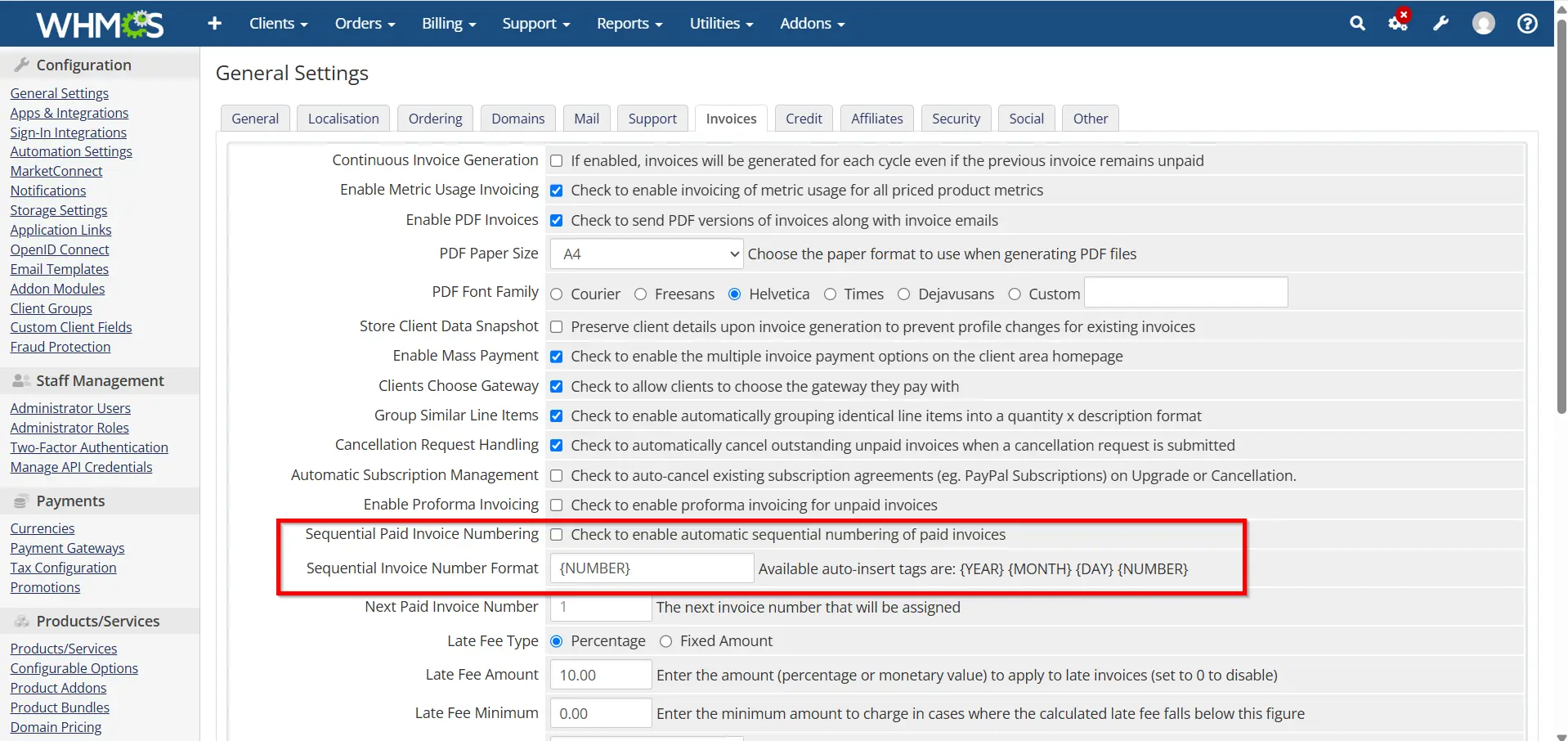
Configure Sequential Invoice Numbers
Sequential invoice numbering improves record keeping and accounting accuracy.
Steps
- Locate the invoice numbering section.
- Enable sequential invoice numbering.
- Define the starting invoice number.
- Save the configuration.
Benefits
- Professional invoice appearance
- Easier accounting reconciliation
- Better auditing and compliance
- Organized financial records
Many businesses use sequential numbering to maintain consistency across their billing operations.
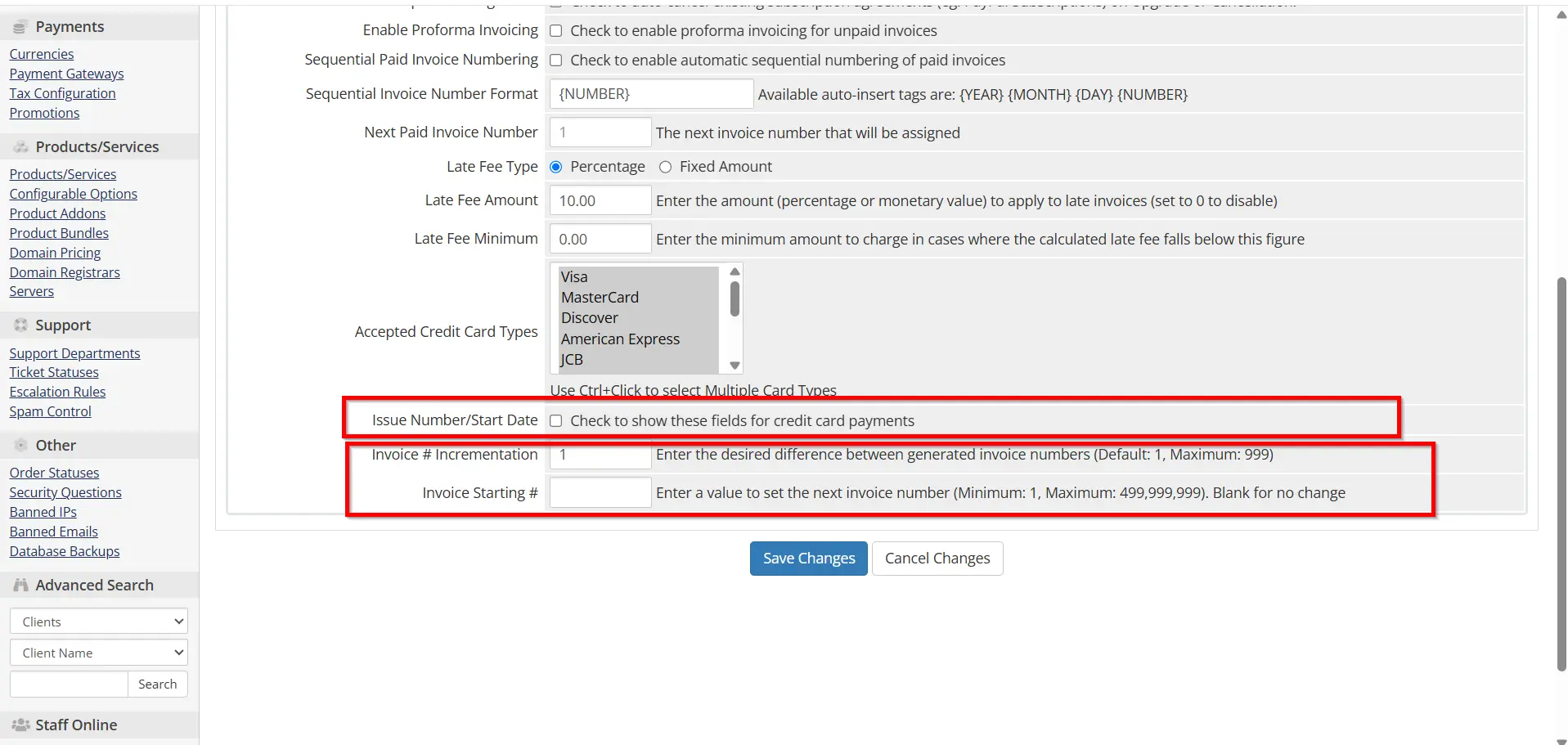
Configure Invoice Due Dates
Invoice due dates determine when clients are expected to submit payment.
Steps
- Navigate to invoice due date settings.
- Define payment terms.
- Configure renewal invoice timing.
- Save the changes.
Setting realistic due dates helps improve customer satisfaction while maintaining healthy cash flow.
Configure Late Fee Settings
Late fees can encourage timely payments and compensate for delayed collections.
Steps
- Open Automation Settings.
- Find the Late Fee Configuration section.
- Enable late fees.
- Specify the fee amount or percentage.
- Set a grace period.
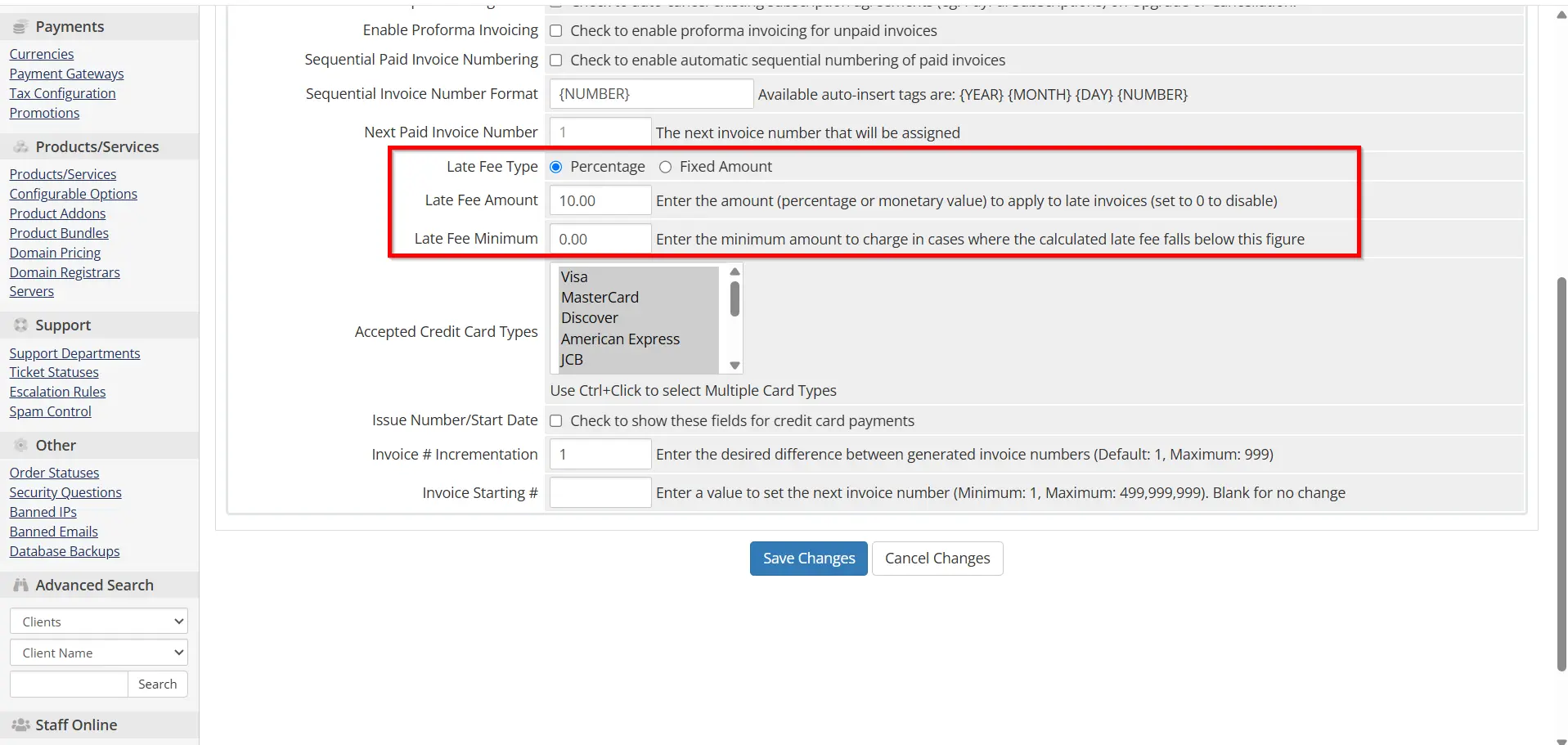
6. Save changes.
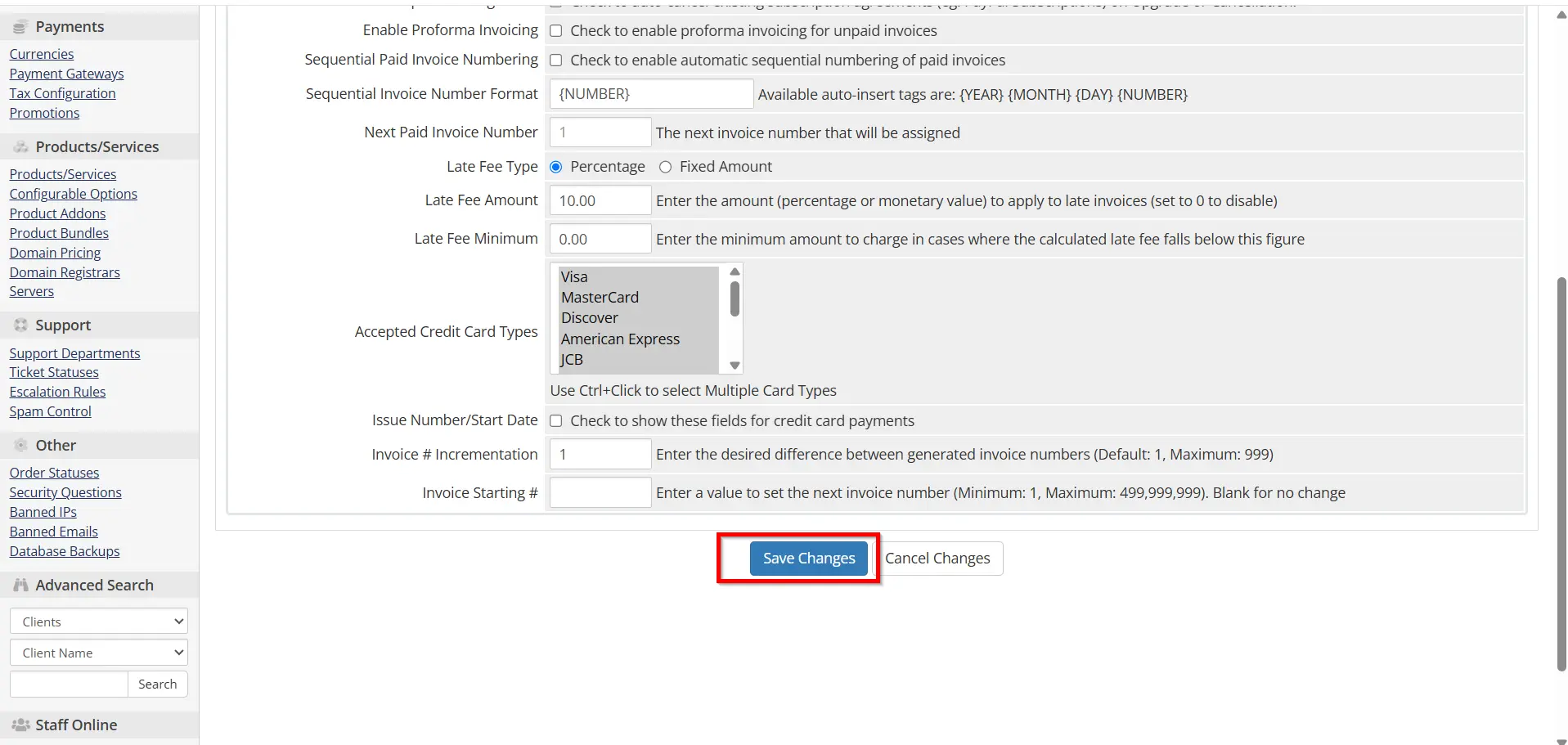
Example Configuration
- Grace Period: 3 Days
- Fixed Late Fee: ₹100
- Percentage Fee: 5%
Late fees should be communicated clearly within your terms of service and invoice documentation.
Enable PDF Invoice Generation
WHMCS automatically generates downloadable PDF invoices for clients.
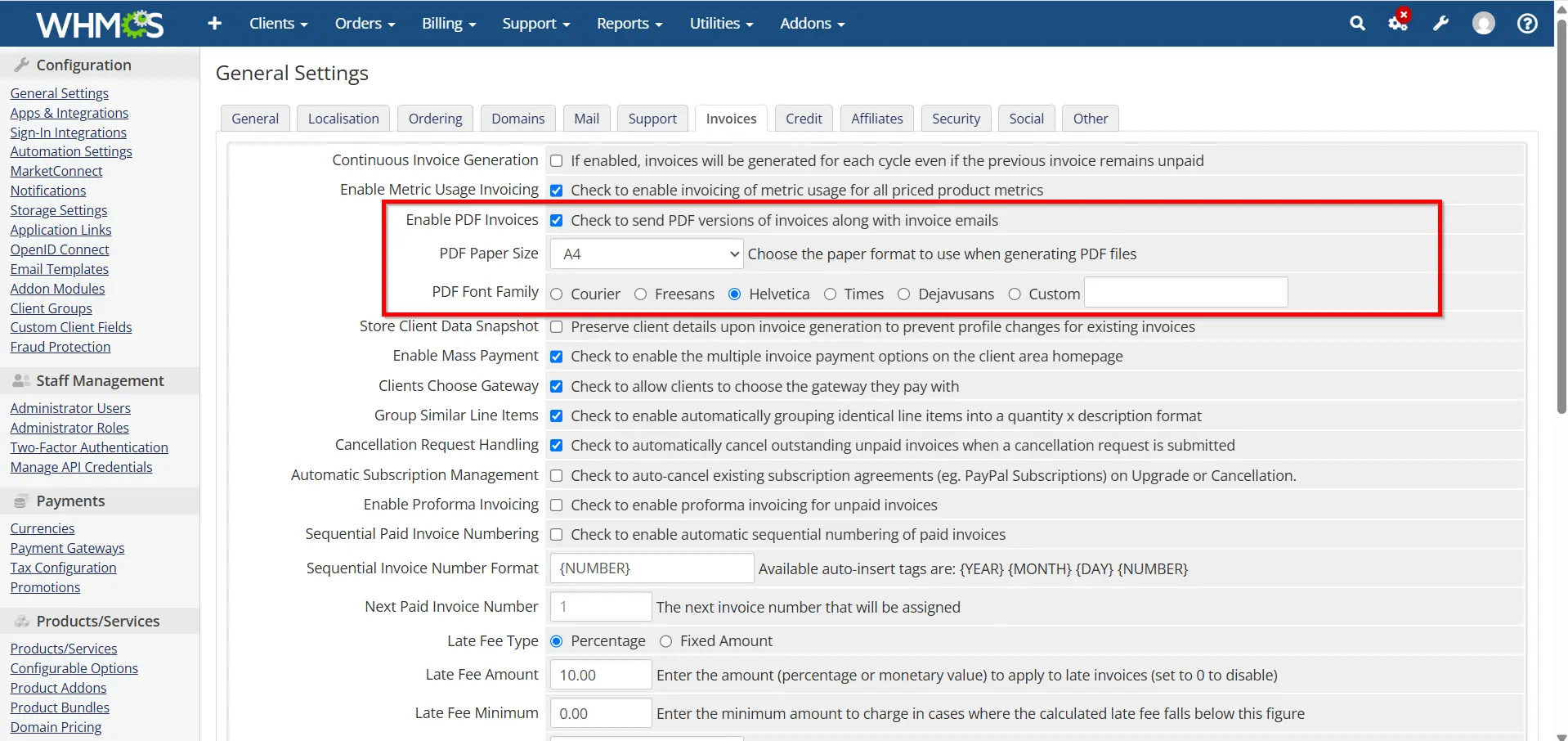
Benefits of PDF Invoices
- Professional presentation
- Easy record keeping
- Printable format
- Simplified accounting
- Better client experience
Customization Options
You can customize:
- Company logo
- Business information
- Contact details
- Tax registration numbers
- Invoice footer text
- Payment instructions
Branded invoices create a more professional appearance and strengthen customer trust.
Test Your Invoice Configuration
Before relying on automated invoicing, perform several tests.
Testing Checklist
- Generate a sample invoice
- Verify invoice numbering
- Check due dates
- Confirm tax calculations
- Test payment links
- Review PDF formatting
- Send a test invoice email
- Verify reminder schedules
Testing ensures all Invoice Settings in WHMCS are functioning correctly before invoices reach real customers.
Best Practices for Invoice Settings in WHMCS
To maximize efficiency, follow these best practices:
- Use sequential invoice numbering.
- Generate invoices at least 14 days before due dates.
- Enable automated payment reminders.
- Configure taxes correctly.
- Regularly review invoice templates.
- Test billing automation after updates.
- Keep payment instructions clear.
- Use professional branding on invoices.
- Monitor overdue payments regularly.
- Review billing reports monthly.
These practices help maintain accurate billing processes and improve customer satisfaction.
Conclusion
Properly configuring Invoice Settings in WHMCS is essential for efficient billing, accurate record keeping, and professional client communication. By setting up invoice generation schedules, tax rules, payment reminders, PDF invoices, and sequential numbering, you can create a reliable and automated billing system that supports business growth.
Taking the time to optimize Invoice Settings in WHMCS will reduce manual administration, improve payment collection rates, and provide a smoother experience for both administrators and clients.
Related Articles


