cPanel
How to Configure Remote MySQL Access in cPanel
How to Configure Remote MySQL Access in cPanel Managing databases efficiently is essential for website owners, developers, and businesses. While most websites access their databases locally, there are situations where you may need to…
How to Configure Remote MySQL Access in cPanel
Managing databases efficiently is essential for website owners, developers, and businesses. While most websites access their databases locally, there are situations where you may need to connect to a MySQL database from a remote server or application. This is where Remote MySQL Access in cPanel becomes useful.
In this guide, you’ll learn what Remote MySQL Access is, why it’s important, and how to configure it securely using cPanel.
What is Remote MySQL Access?
Remote MySQL Access allows external servers, applications, or devices to connect to a MySQL database hosted on your web hosting account. By default, MySQL databases only accept connections from the local server for security reasons.
When Remote MySQL Access is enabled, authorized external hosts can connect to your database using valid credentials.
Prerequisites
Before configuring Remote MySQL Access, ensure you have:
- Access to your cPanel account
- A MySQL database
- A MySQL database user
- The IP address of the remote server or device
- Database connection credentials
How to Configure Remote MySQL Access in cPanel
Follow these steps to allow remote connections to your MySQL database.
Step 1: Login to cPanel from Client Area
First, visit the WebyStrata website and log in to your client area account using your registered email address and password.
official Website www.webystrata.com
After logging in:
- Go to Services
- Click on My Services
- Select your active hosting service
- Click on Login to cPanel

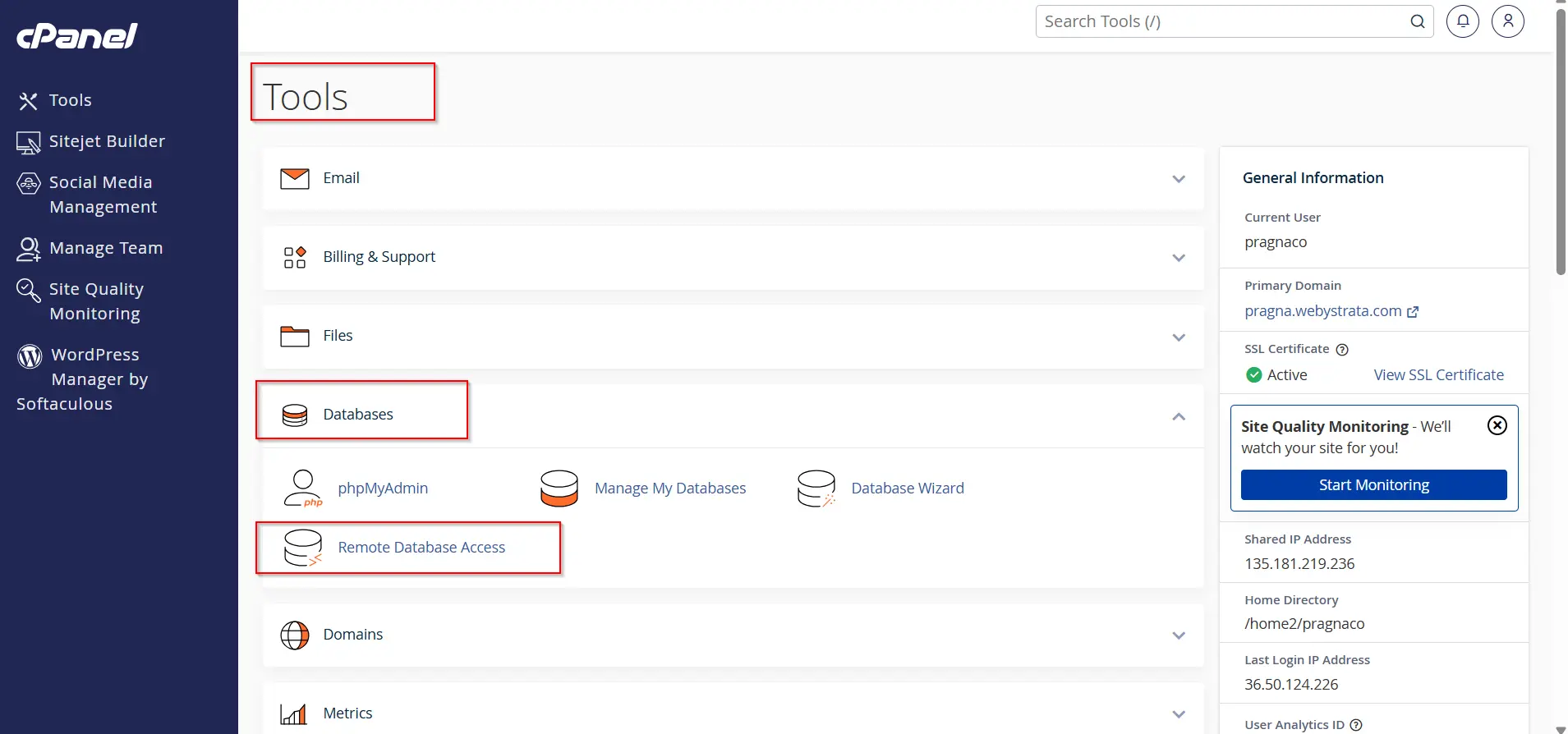
Step 2: Open Remote MySQL Section
- Scroll down to the Databases section
- Click on Remote MySQL
This feature is provided inside cPanel.
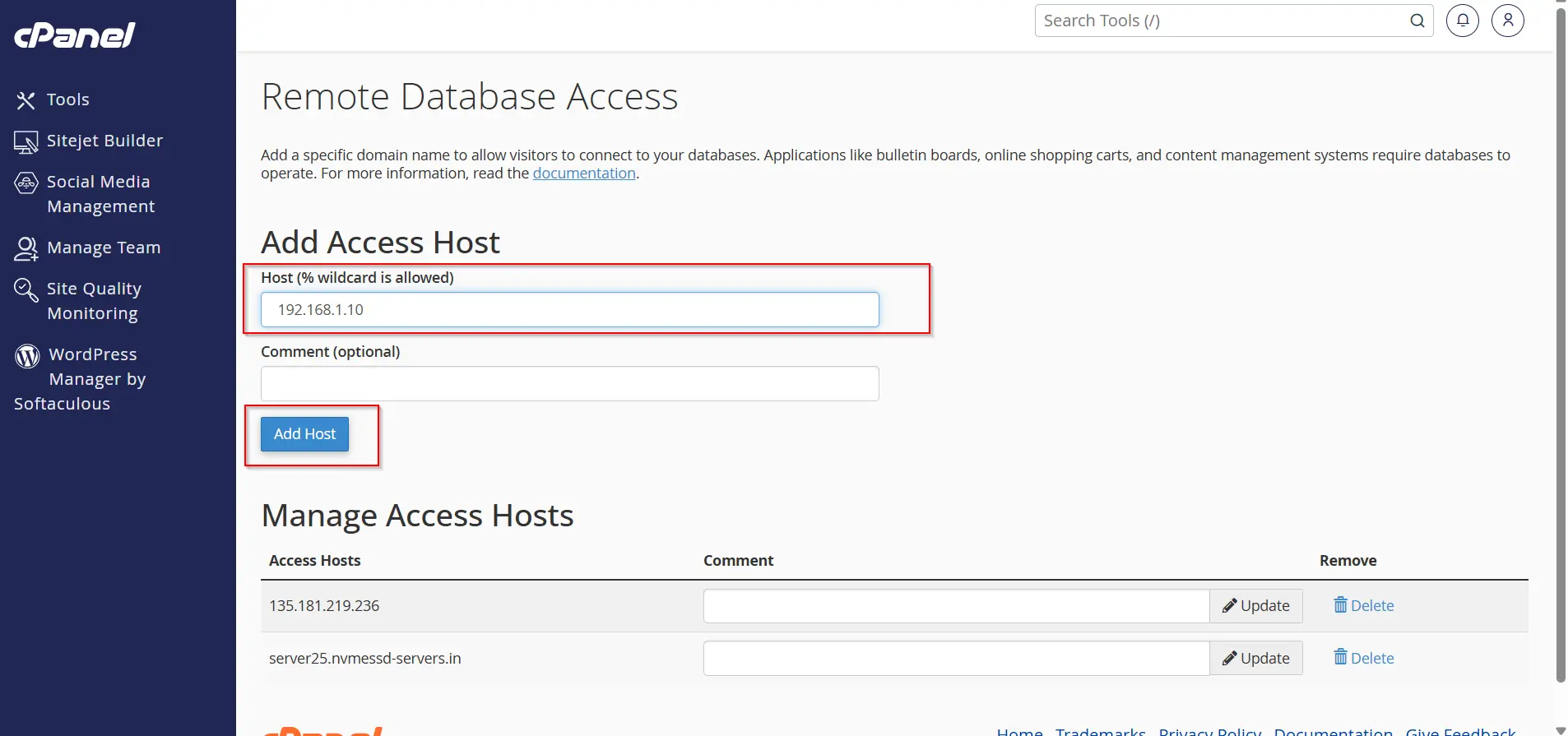
Step 3: Add Remote Host
You will see a field called Host (% wildcard allowed).
Enter the IP address of the remote server or application.
Example:
192.168.1.10Then click Add Host.
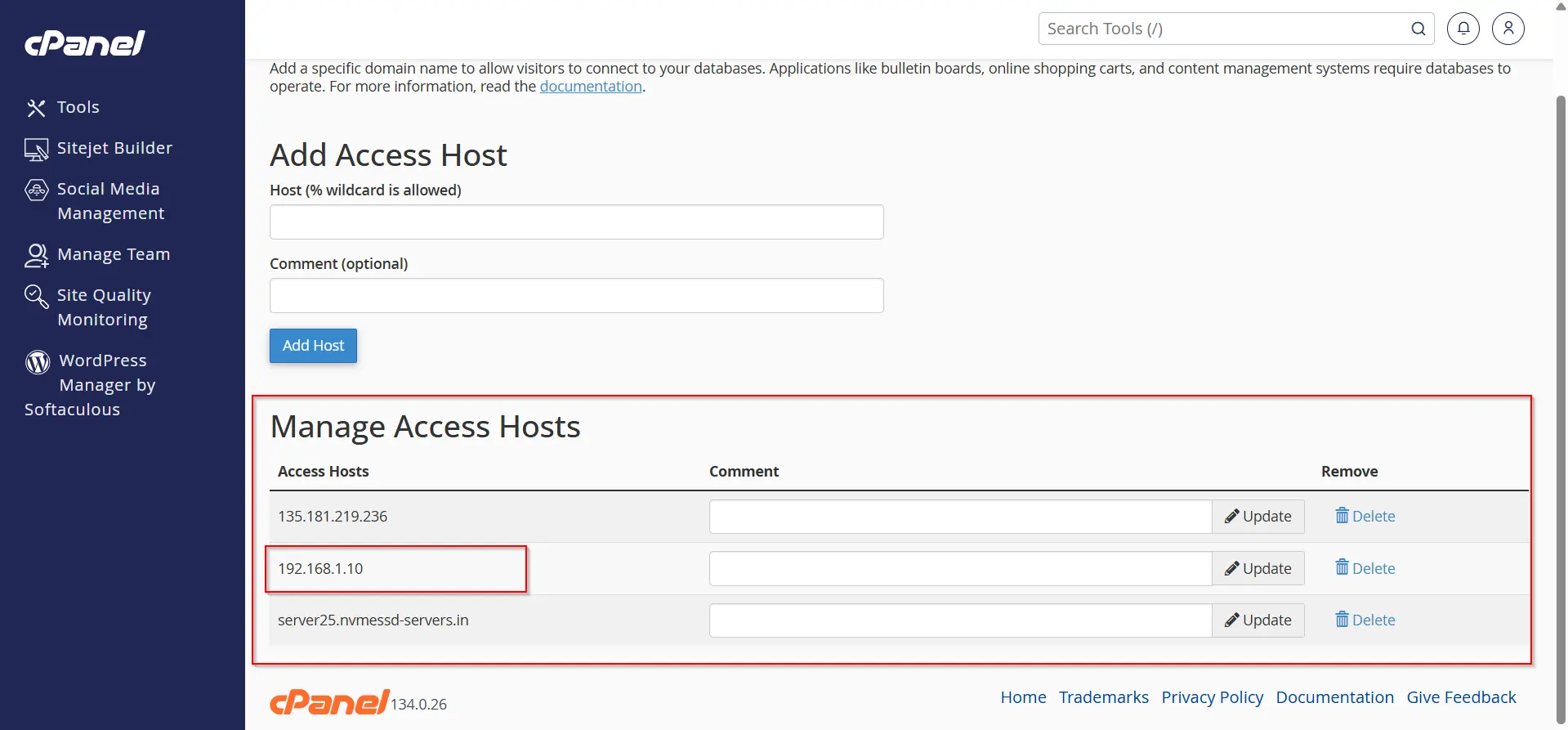
Step 4: Verify Host Added
After adding, the IP will appear in the list of allowed hosts.
This means the server is now permitted to connect to your MySQL database.
Step 5: Connect to Your Database Remotely
After enabling remote host access, you can connect to your MySQL database using any MySQL client application.
Use the following database credentials:
- Database Host: Your server hostname or IP address
- Database Name: Your MySQL database name
- Username: Your MySQL database username
- Password: Your MySQL database password
- Port: 3306 (default MySQL port)
Popular MySQL client applications include:
- MySQL Workbench
- phpMyAdmin (if available remotely)
- DBeaver
- HeidiSQL
- Navicat
Once the correct credentials are entered, you should be able to access and manage your database remotely.
Steps to Remove host access
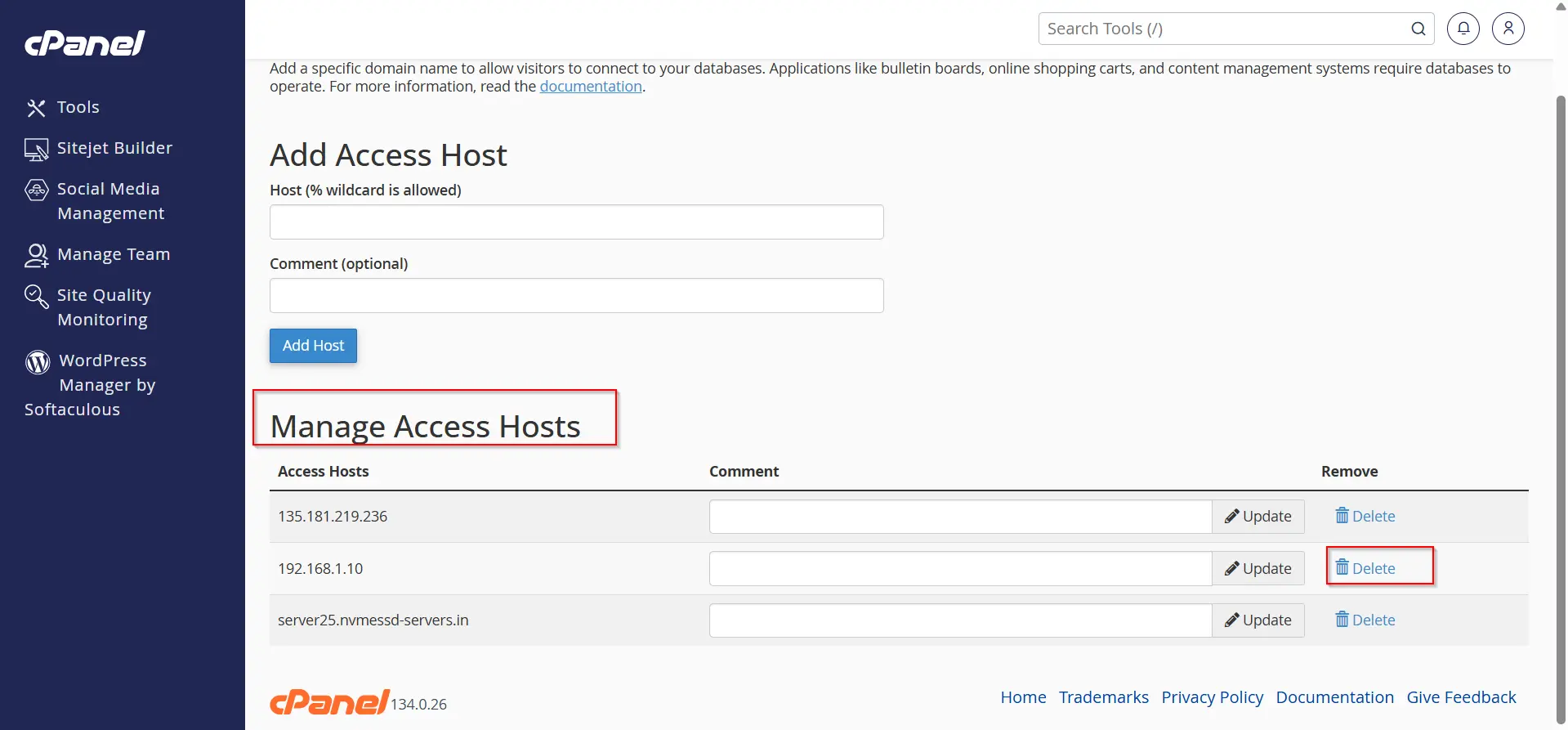
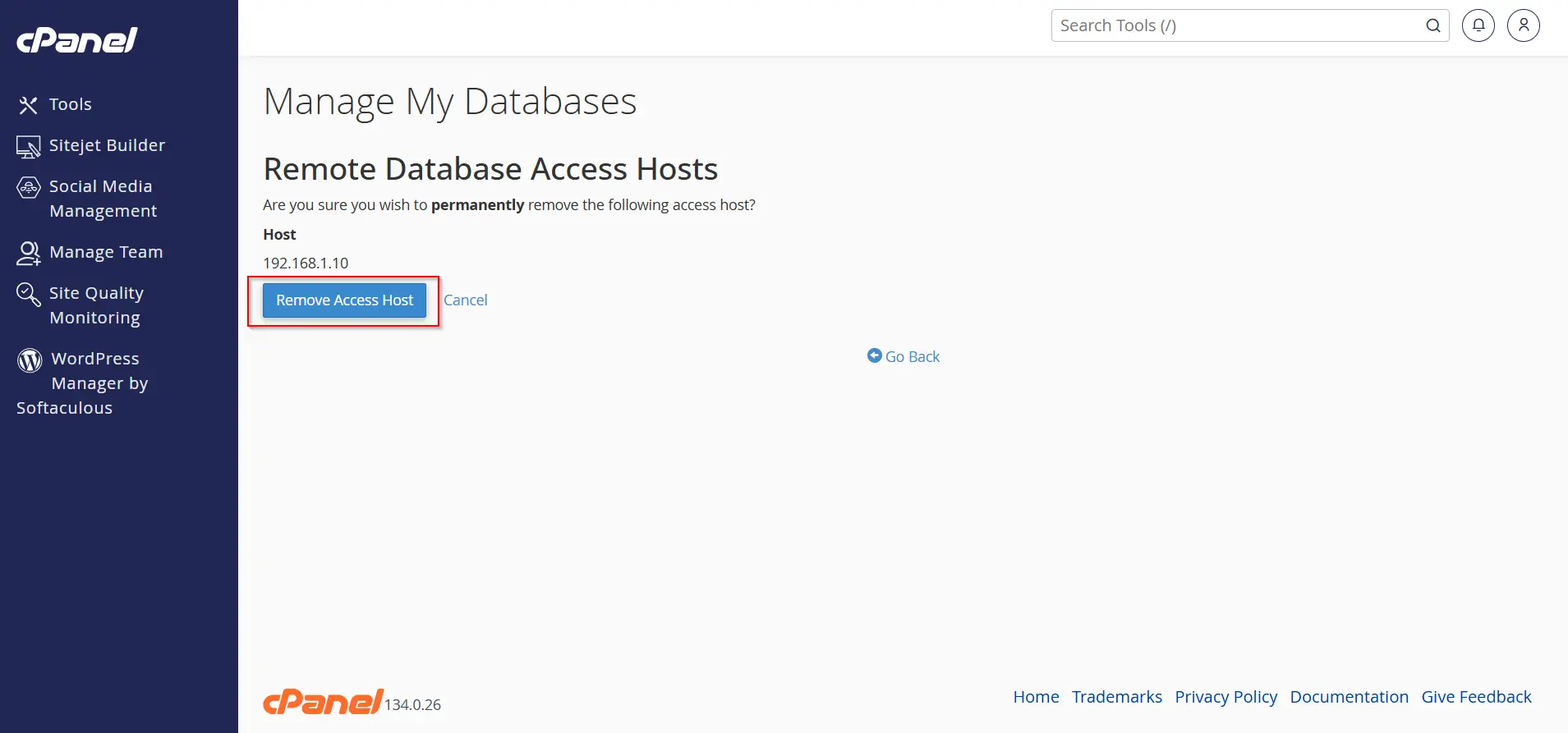
When you don’t want a host to access your MySQL databases remotely, you can remove them by performing following steps :
1. Log in to cPanel.
2. On the cPanel home screen in the Databases section, click on Remote MySQL.
3. Under the Manage Access Hosts option, identify the host for which you want to remove the access, and then click on Delete.
4. Click on Remote Access Host. cPanel will remove the host.
When Should You Use Remote MySQL Access?
Remote MySQL Access is useful when:
- Managing databases from a local computer
- Connecting external applications
- Developing across multiple servers
- Integrating cloud services
- Supporting distributed applications
However, if your application and database reside on the same server, local connections are generally faster and more secure.
Benefits of Remote MySQL Access
Enabling Remote MySQL Access provides several advantages:
Improved Flexibility
Easier Database Management
Application Integration
Development and Testing
Conclusion
Configuring Remote MySQL Access in cPanel is a straightforward process that enables secure communication between external applications and your MySQL databases. By carefully authorizing trusted hosts and following security best practices, you can manage and access your databases from virtually anywhere.
Whether you’re a developer, system administrator, or website owner, understanding how to configure Remote MySQL Access can significantly improve your workflow and database management capabilities.
Related Articles


