Latest Updates
How to Configure WordPress Permalink Structure
How to Configure WordPress Permalink Structure The permalink structure of a WordPress website plays a crucial role in both user experience and search engine optimization (SEO). While WordPress works perfectly with its default URL…
How to Configure WordPress Permalink Structure
The permalink structure of a WordPress website plays a crucial role in both user experience and search engine optimization (SEO). While WordPress works perfectly with its default URL format, customizing permalinks can make your website URLs cleaner, easier to understand, and more search-engine friendly.
Whether you’re launching a new blog, managing a business website, or running an eCommerce store, configuring the right permalink structure is one of the first WordPress settings you should review.
In this guide, you’ll learn what WordPress permalinks are, why they matter, the different permalink options available, and how to configure them correctly.
What Is a WordPress Permalink?
A permalink, short for “permanent link,” is the URL assigned to a specific page, post, category, or piece of content on your website. As the name suggests, a permalink is intended to remain unchanged over time, allowing users and search engines to consistently access the same content.
By default, WordPress generates URLs using a simple structure like:
https://example.com/?p=123
Although this format works, it does not provide any information about the content of the page.
A customized permalink might look like:
https://example.com/how-to-configure-wordpress-permalink-structure
This URL is more descriptive, easier to remember, and much more useful for SEO.
Understanding WordPress Permalink Options
WordPress offers several built-in permalink structures that can be selected from the dashboard.
Plain
Example:
https://example.com/?p=123
This is the default WordPress format. It uses the post ID to generate URLs.
Advantages:
- Simple and functional
Disadvantages:
- Not SEO-friendly
- Difficult for users to understand
- Less attractive when shared
Day and Name
Example:
https://example.com/2026/06/13/sample-post/
This format includes the publication date and post title.
Best for:
- News websites
- Daily publications
- Time-sensitive content
Month and Name
Example:
https://example.com/2026/06/sample-post/
This structure includes the year and month along with the post title.
Best for:
- Blogs
- Magazine-style websites
Numeric
Example:
https://example.com/archives/123
This format uses archive IDs rather than descriptive content names.
Best for:
- Special archive systems
Post Name
Example:
https://example.com/sample-post/
This is the most commonly recommended permalink structure.
Benefits:
- SEO-friendly
- Easy to read
- Easy to share
- Professional appearance
Custom Structure
WordPress also allows complete customization.
Some common tags include:
%postname%%category%%year%%monthnum%%day%%author%
Example custom structure:
/%category%/%postname%/
Result:
https://example.com/tutorials/wordpress-permalinks
How to Configure WordPress Permalink Structure
Follow these simple steps to customize your website URLs.
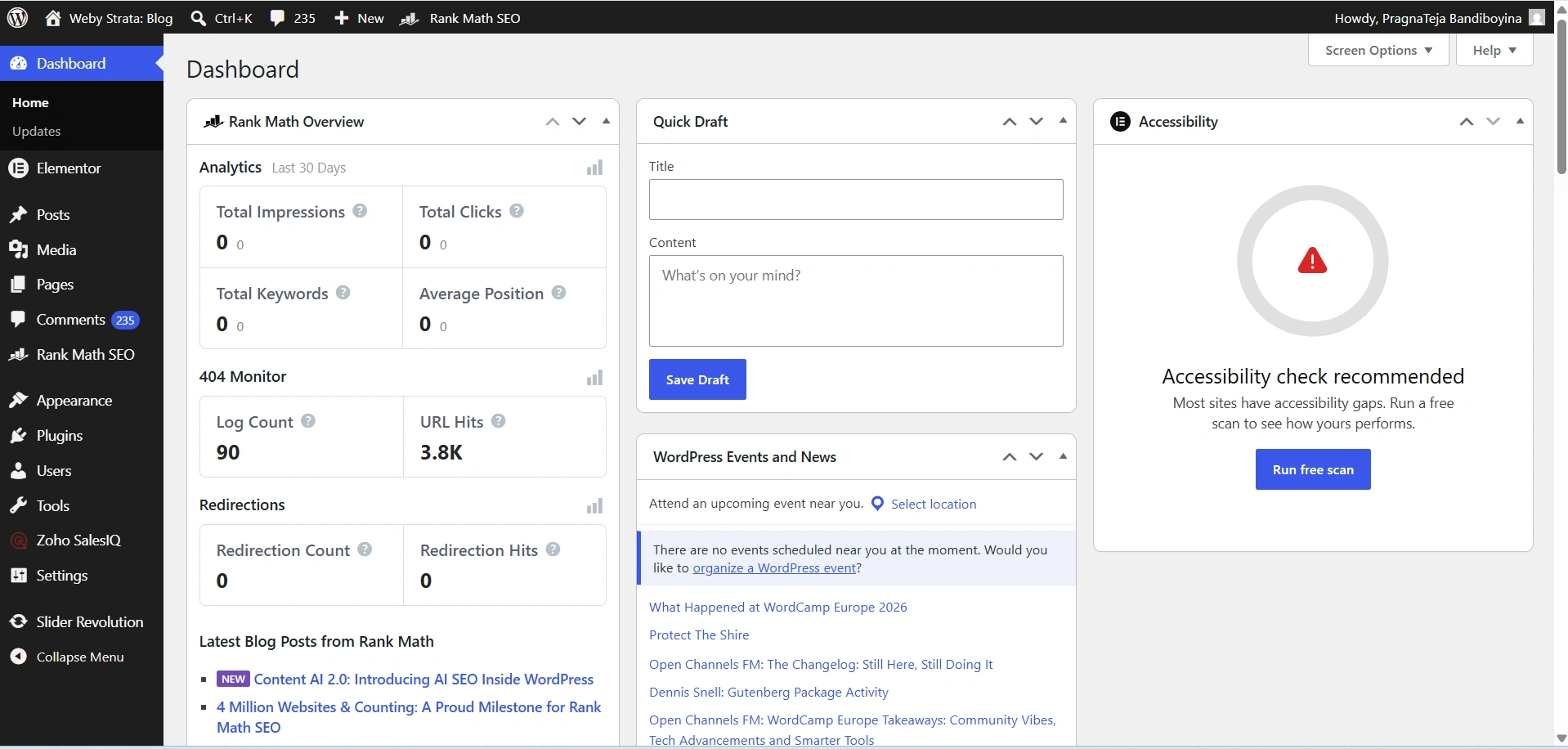
Step 1: Log In to WordPress
Access your WordPress dashboard using an administrator account.
Step 2: Open Permalink Settings
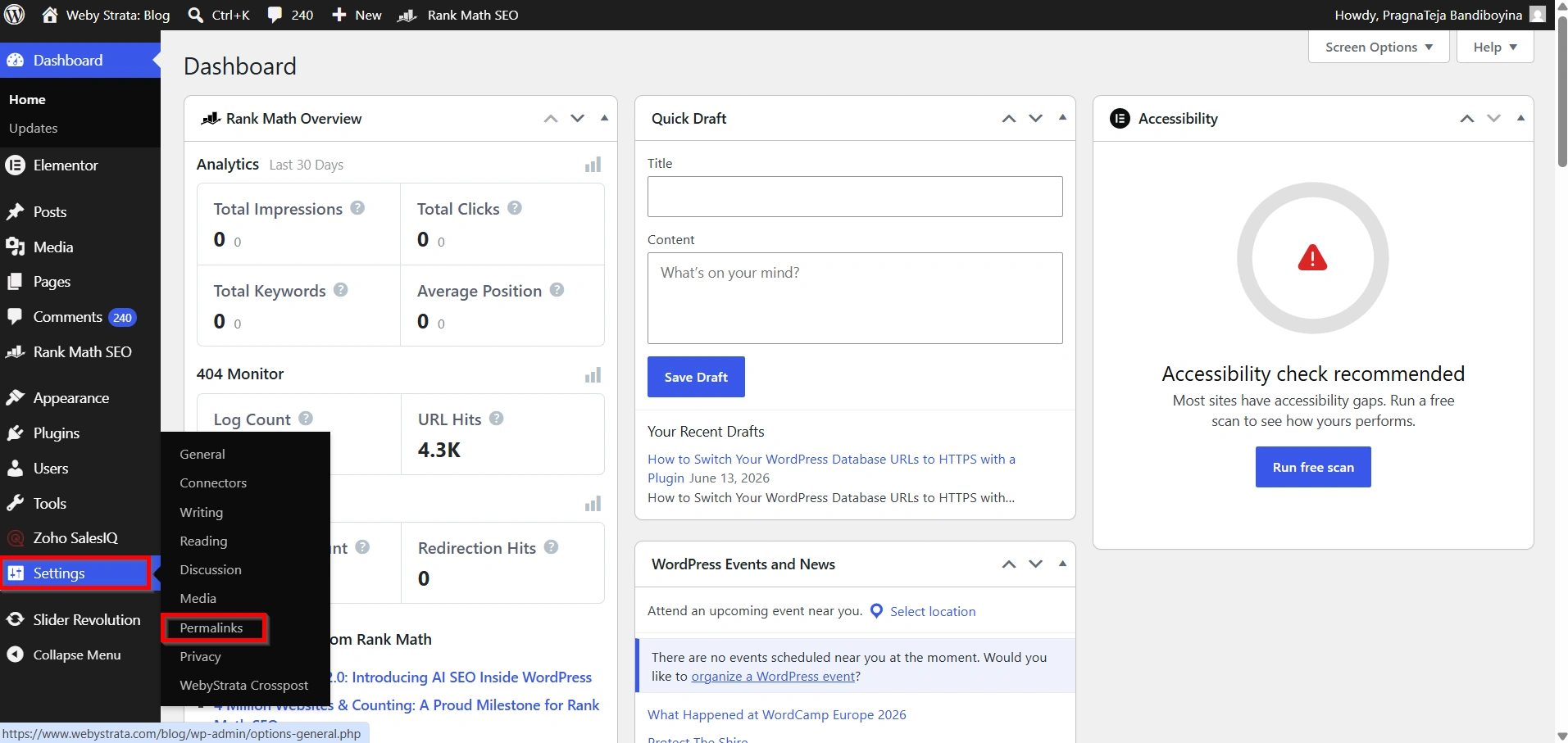
From the left navigation menu:
Settings → Permalinks
The Permalink Settings page will open.
Step 3: Choose a Permalink Structure
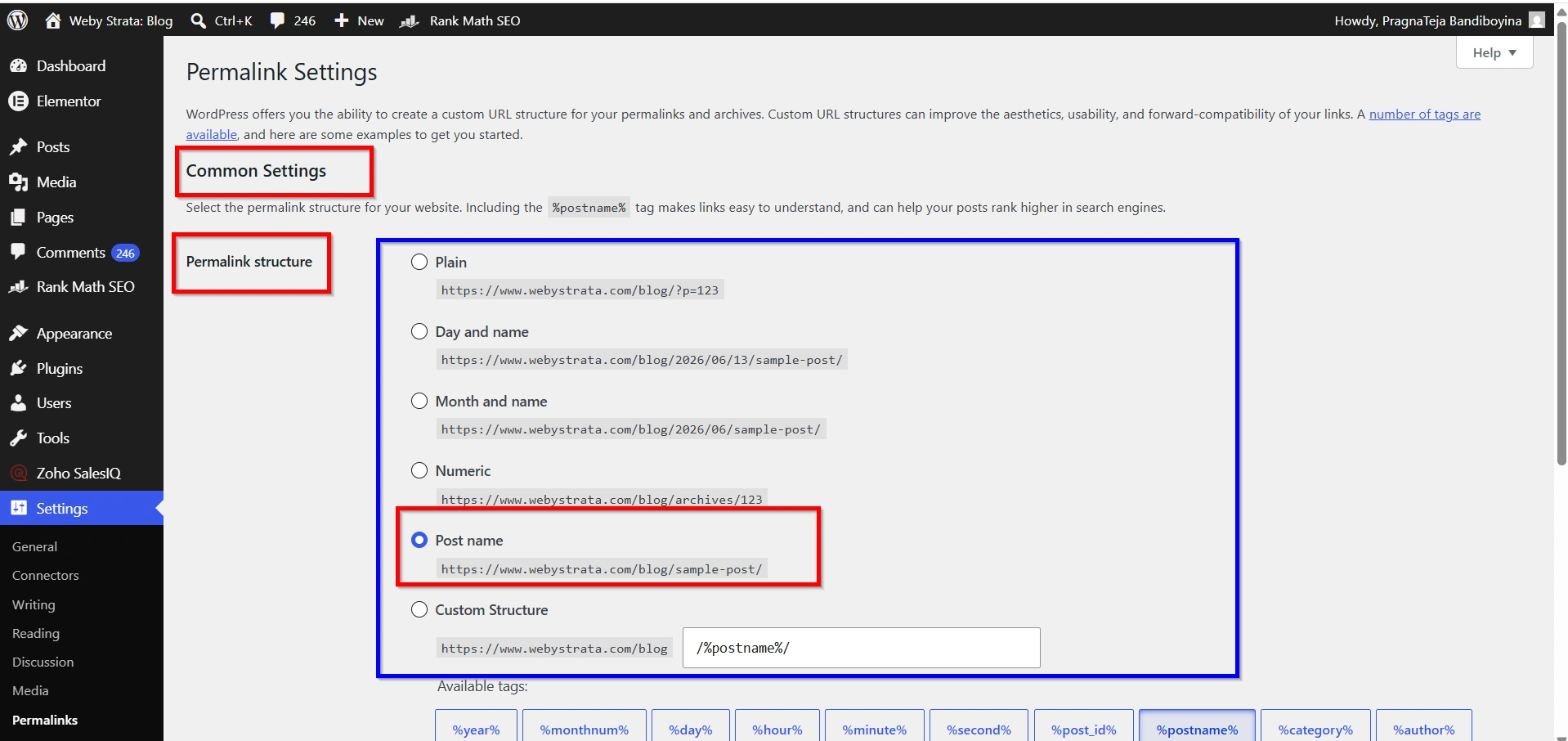
Under the Common Settings section, select your preferred URL format.
Available options include:
- Plain
- Day and Name
- Month and Name
- Numeric
- Post Name
- Custom Structure
For most websites, the Post Name option is the best choice.
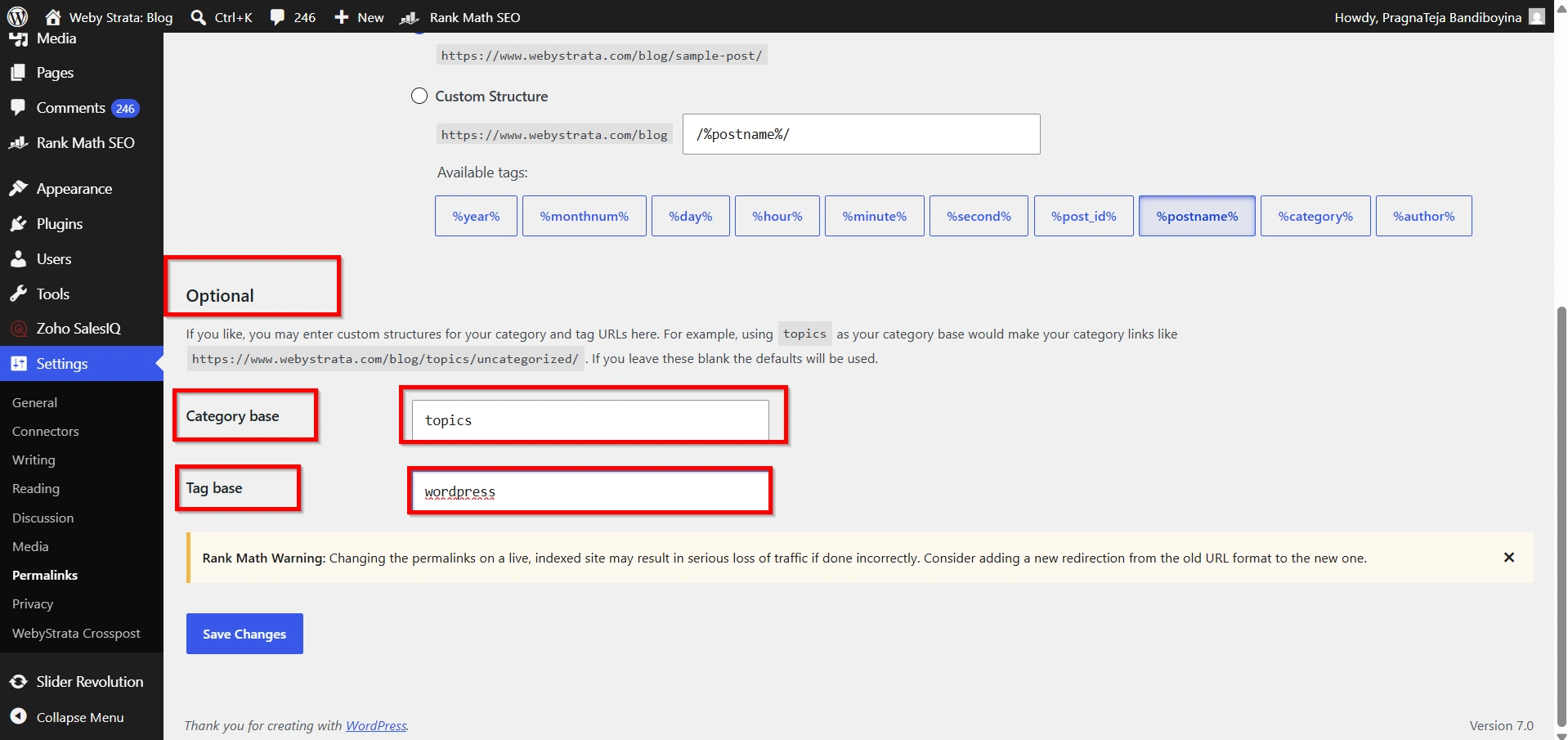
Step 4: Configure Optional Settings
Scroll down to the Optional section.
Here you can customize category and tag URLs.
Category Base
By default:
https://example.com/category/tutorials
You can replace “category” with a custom word such as:
https://example.com/topics/tutorials
Simply enter:
topics
in the Category Base field.
Tag Base
By default:
https://example.com/tag/wordpress
You can customize this to:
https://example.com/labels/wordpress
Enter:
labels
in the Tag Base field.
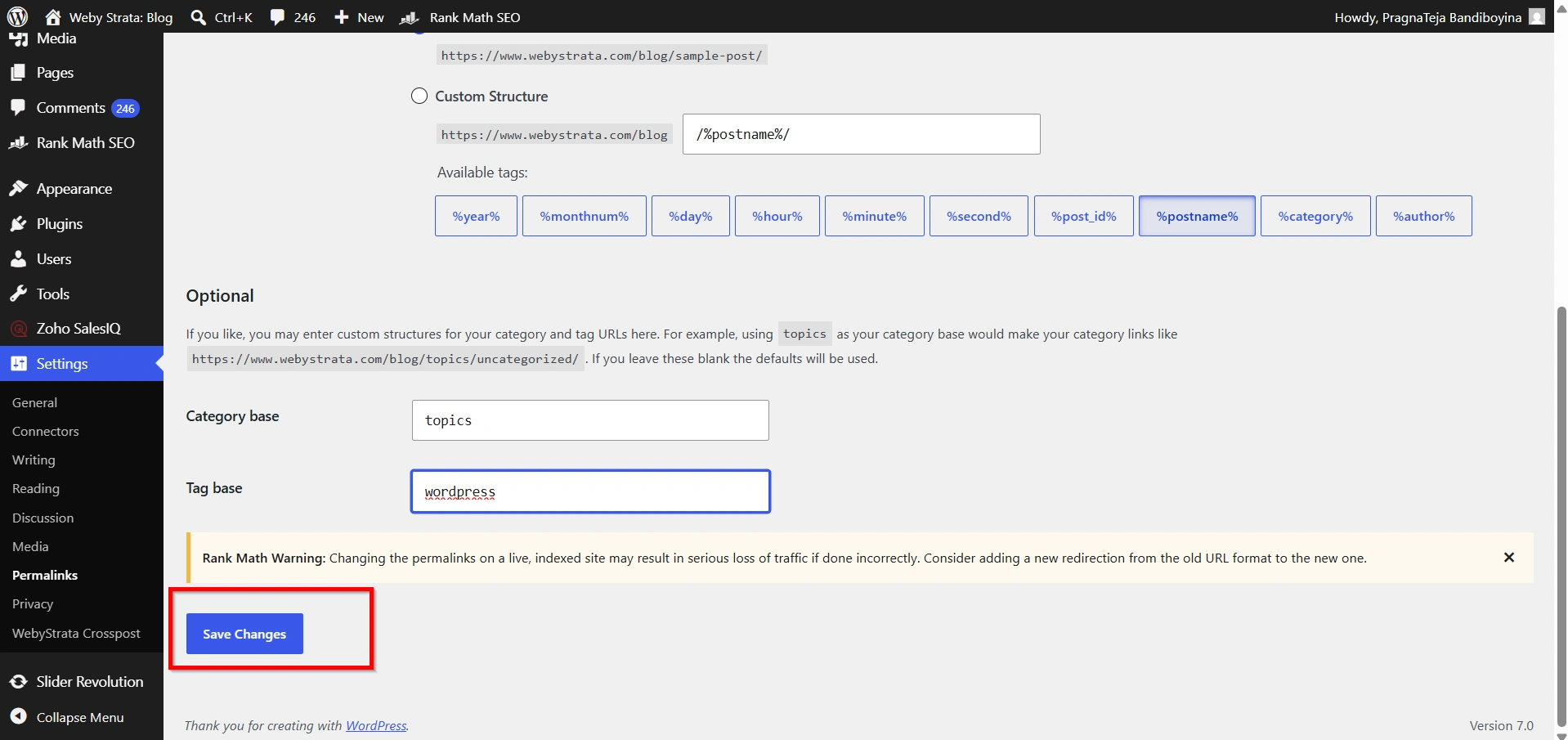
Step 5: Save Changes
Click the Save Changes button.
WordPress will immediately update your permalink settings.
What Happens When You Change Permalinks?
Changing permalinks on a brand-new website is generally safe.
However, if your website is already established and indexed by search engines, changing URLs can affect:
- Existing search rankings
- Bookmarked links
- External backlinks
- Social media shares
To prevent issues, consider implementing 301 redirects from old URLs to new ones.
Why Are Permalinks Important?
Permalinks are more than just web addresses. They affect how users interact with your website and how search engines interpret your content.
- Improved SEO
- Better User Experience
- Easier Sharing
- Professional Appearance
- Better Website Organization
Benefits of Using SEO-Friendly Permalinks
A properly configured permalink structure offers several advantages:
- Better search engine rankings
- Increased click-through rates
- Improved user experience
- Easier content sharing
- More professional-looking URLs
These benefits make permalink optimization one of the simplest yet most effective WordPress improvements.
Conclusion
Configuring the WordPress permalink structure is an important step in building a professional and SEO-friendly website. While the default permalink format works, it lacks readability and search engine optimization benefits.
By selecting a descriptive structure such as Post Name, you can create cleaner URLs that improve navigation, enhance user experience, and help search engines better understand your content. Whether you’re launching a new website or optimizing an existing one, spending a few minutes configuring your permalink settings can provide long-term benefits for your site’s performance and visibility.
For more WordPress tutorials and step-by-step guides,
visit our WordPress knowledge base: www.webystrata.com/blog/category/wordpress/
Related Articles


