Latest Updates
How to Connect WHM to WHMCS
How to Connect WHM to WHMCS Managing a web hosting business involves handling customer accounts, hosting packages, billing, and server administration. Performing these tasks manually can be time-consuming and prone to errors. Fortunately, integrating…
How to Connect WHM to WHMCS
Managing a web hosting business involves handling customer accounts, hosting packages, billing, and server administration. Performing these tasks manually can be time-consuming and prone to errors. Fortunately, integrating WHM (Web Host Manager) with WHMCS can automate many of these processes, allowing hosting providers and resellers to manage their services more efficiently.
In this guide, you’ll learn how to connect WHM to WHMCS and discover the benefits of automating your hosting operations.
What Is WHMCS?
WHMCS (Web Host Manager Complete Solution) is a powerful billing and automation platform designed specifically for web hosting companies. It automates recurring billing, account provisioning, support ticket management, domain registrations, and many other hosting-related tasks.
When connected to WHM, WHMCS can automatically create, suspend, terminate, and manage cPanel hosting accounts based on customer orders and billing status.
Prerequisites
Before connecting WHM to WHMCS, ensure you have:
- A working WHM server
- Administrator access to WHMCS
- WHM login credentials or API Token
- Server hostname or IP address
- SSL-enabled WHM access
Having these details ready will help streamline the setup process.
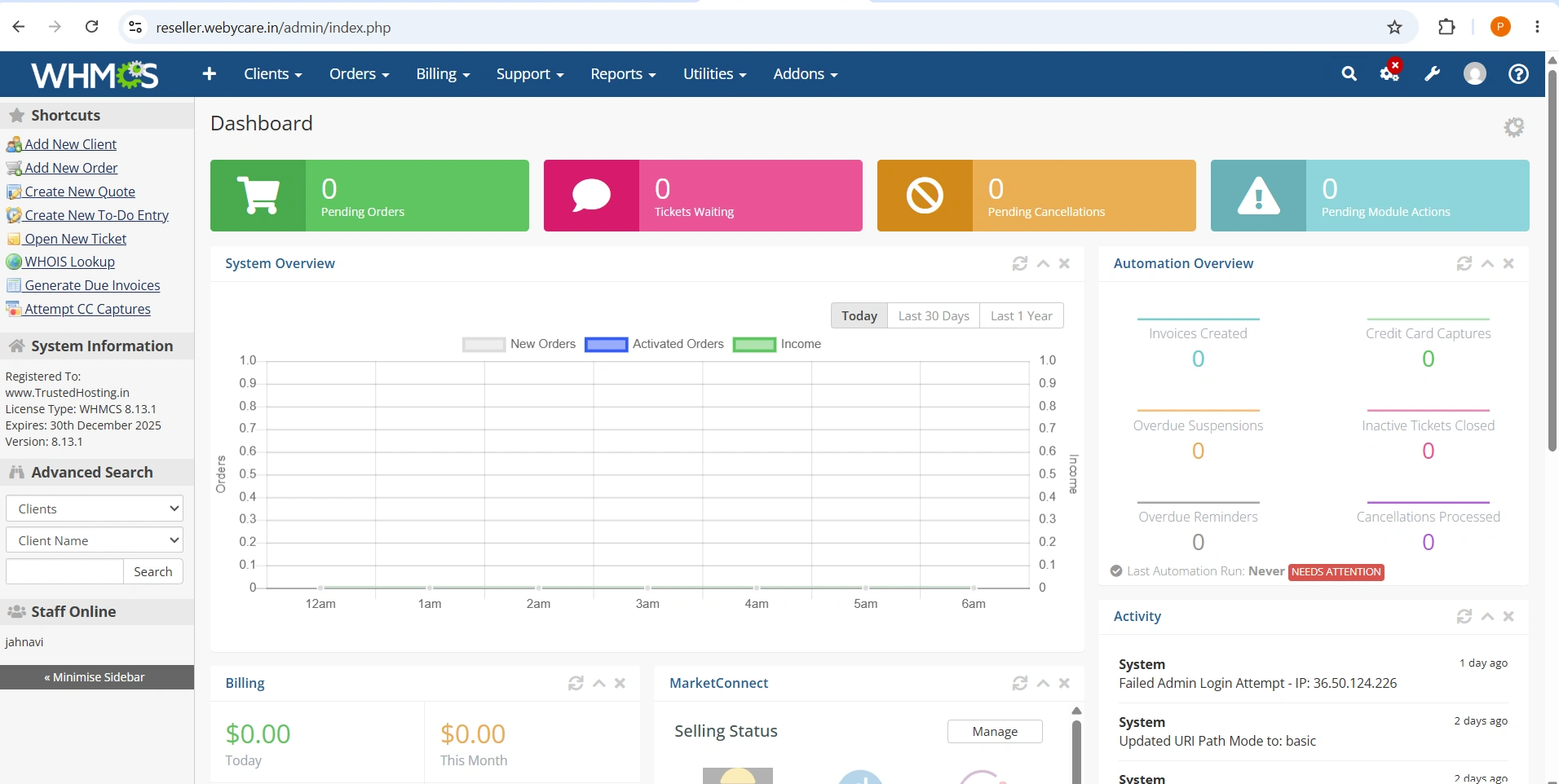
Step 1: Log in to WHMCS
Begin by logging in to your WHMCS Admin Area.
Step 2: Navigate to the Servers Section
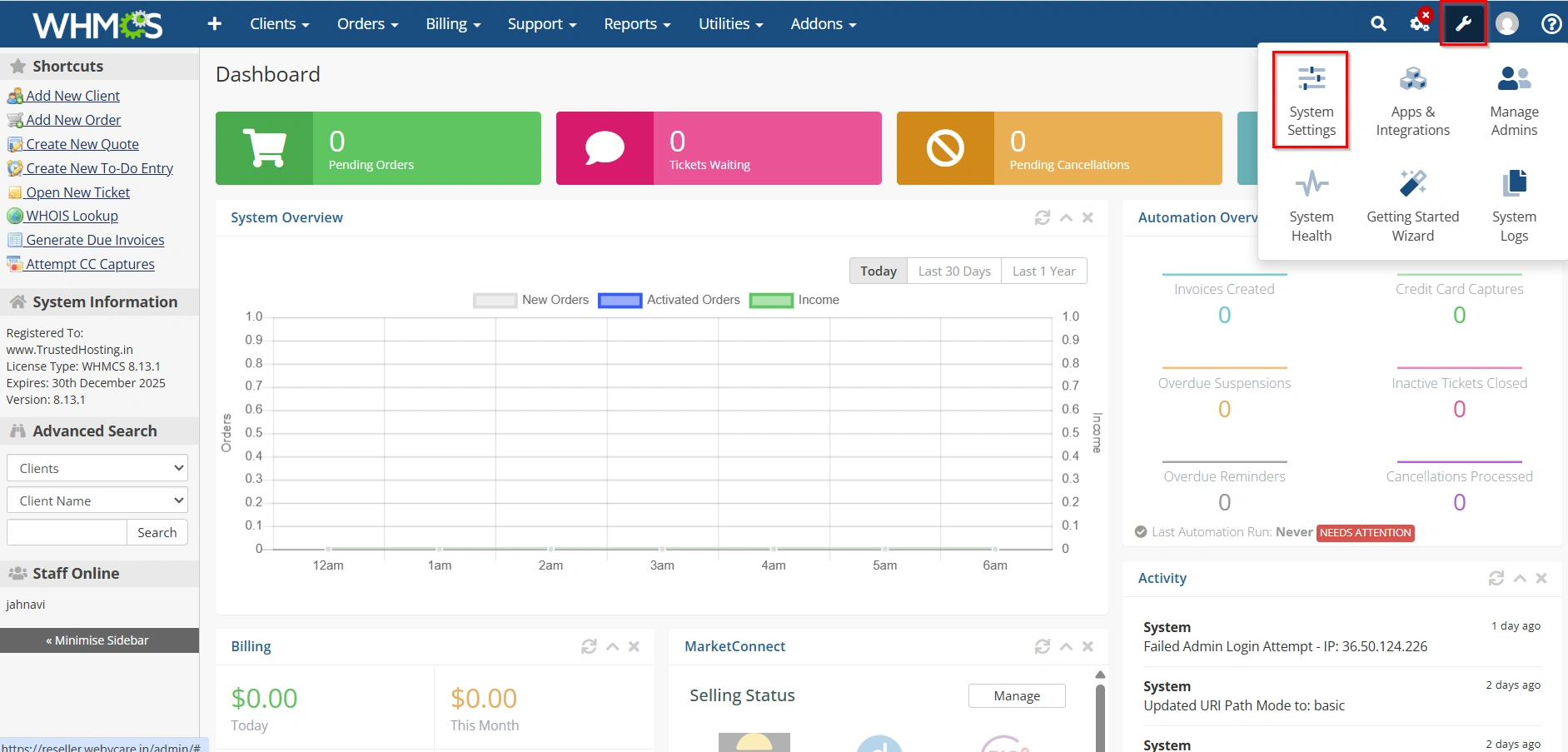
Once logged in, navigate to:
Setup Icon → System settings
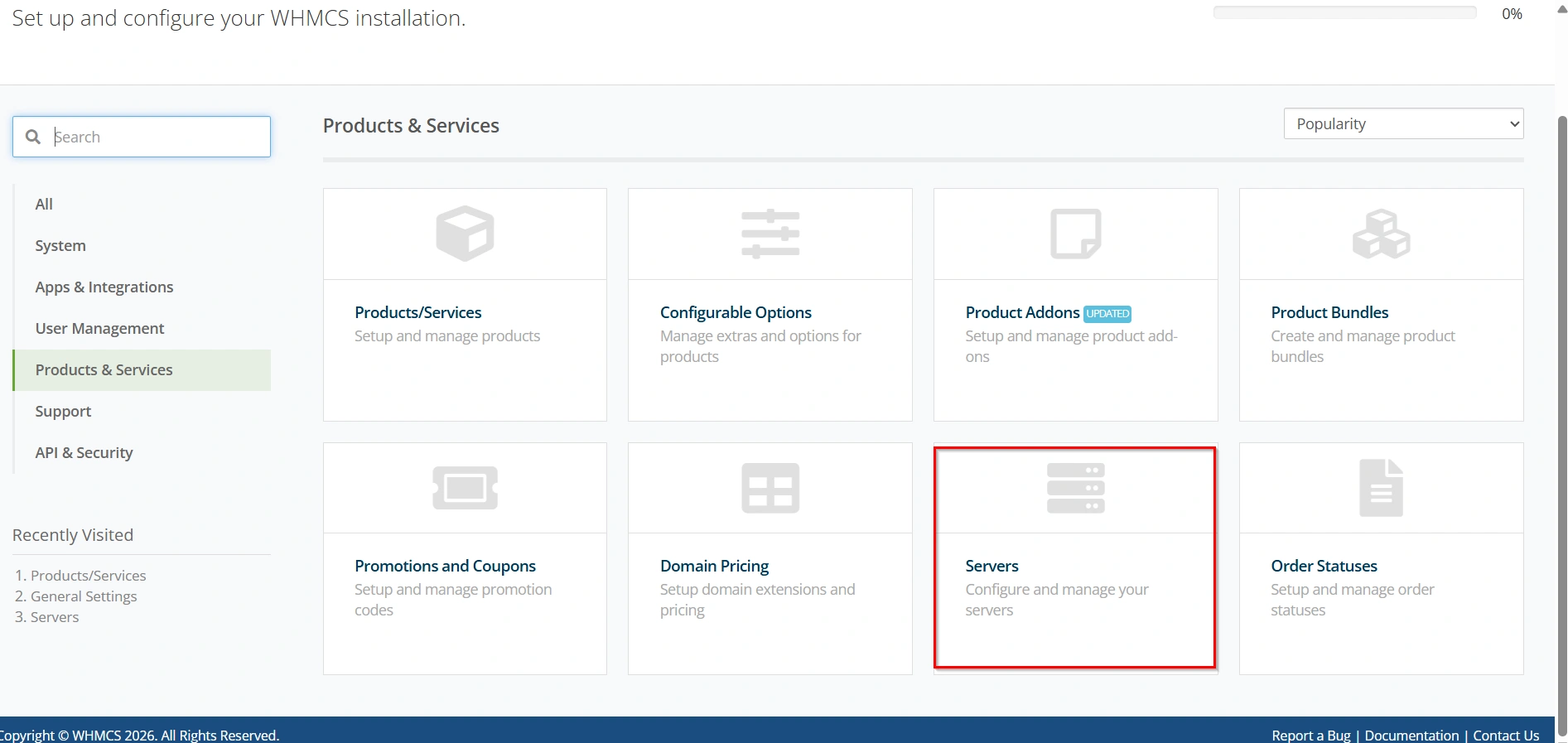
This section allows you to configure and manage all hosting servers connected to WHMCS.
- Click on Servers
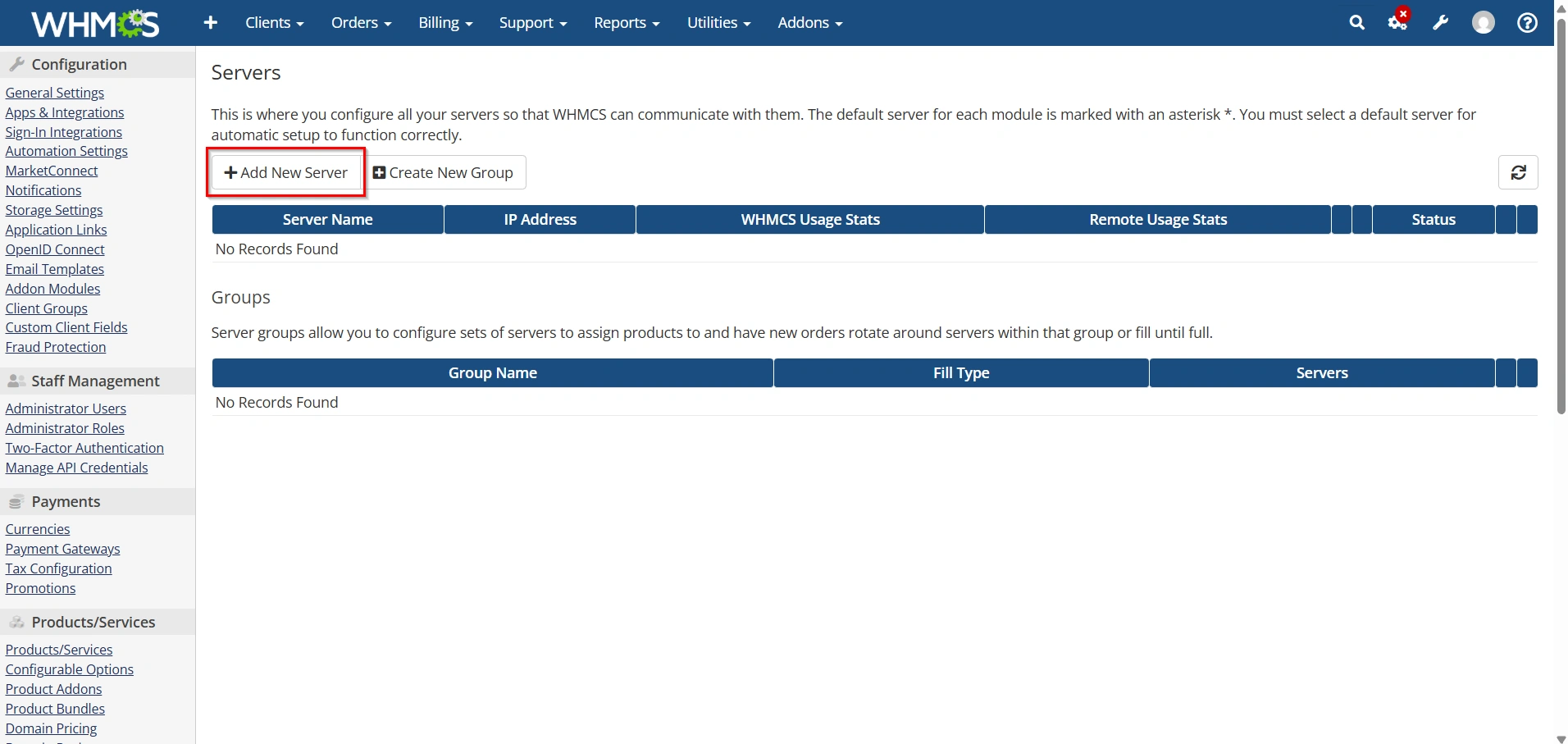
Step 3: Add a New Server
Click the Add New Server button.
You will be redirected to the server configuration page where you can enter the details of your WHM server.
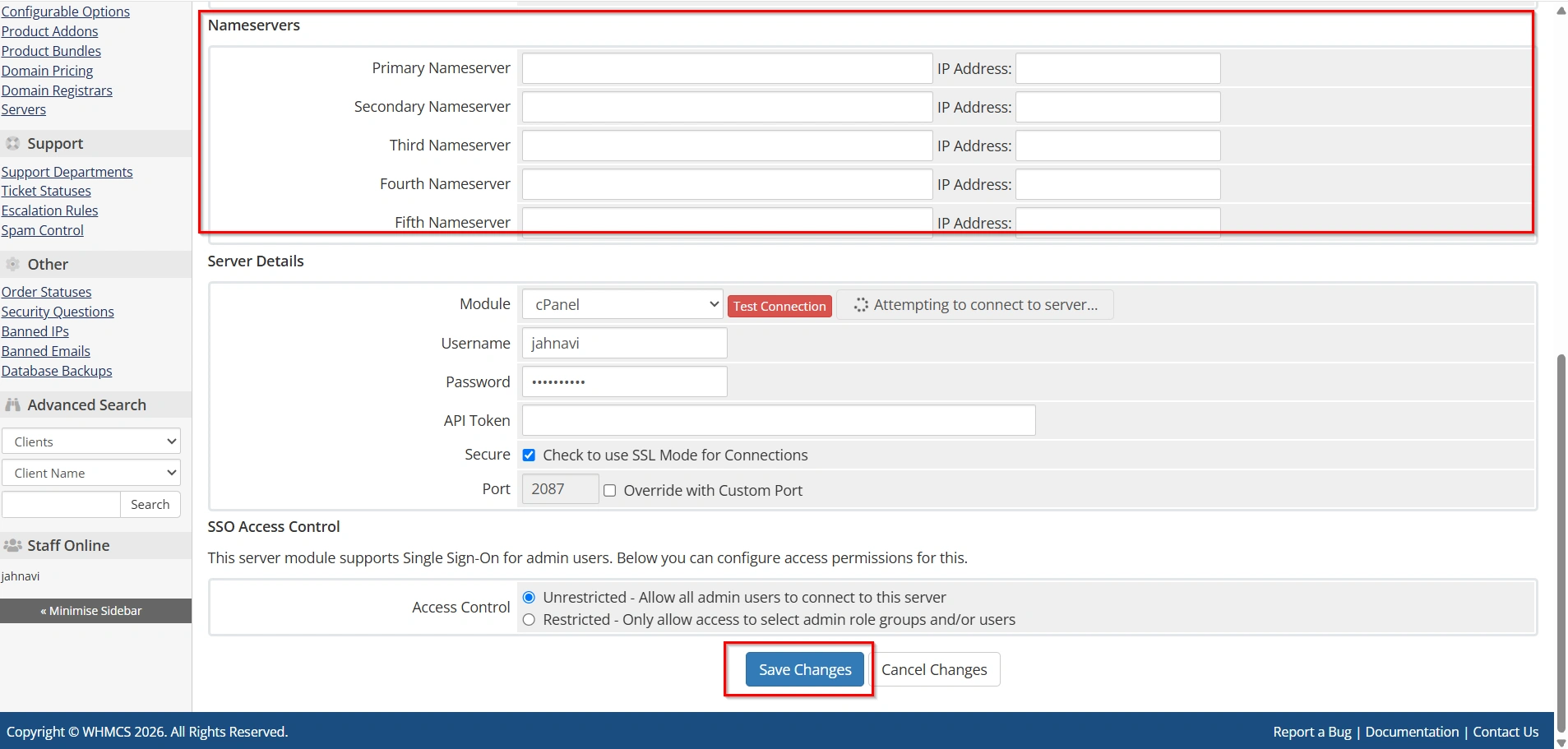
Step 4: Configure the Server Details
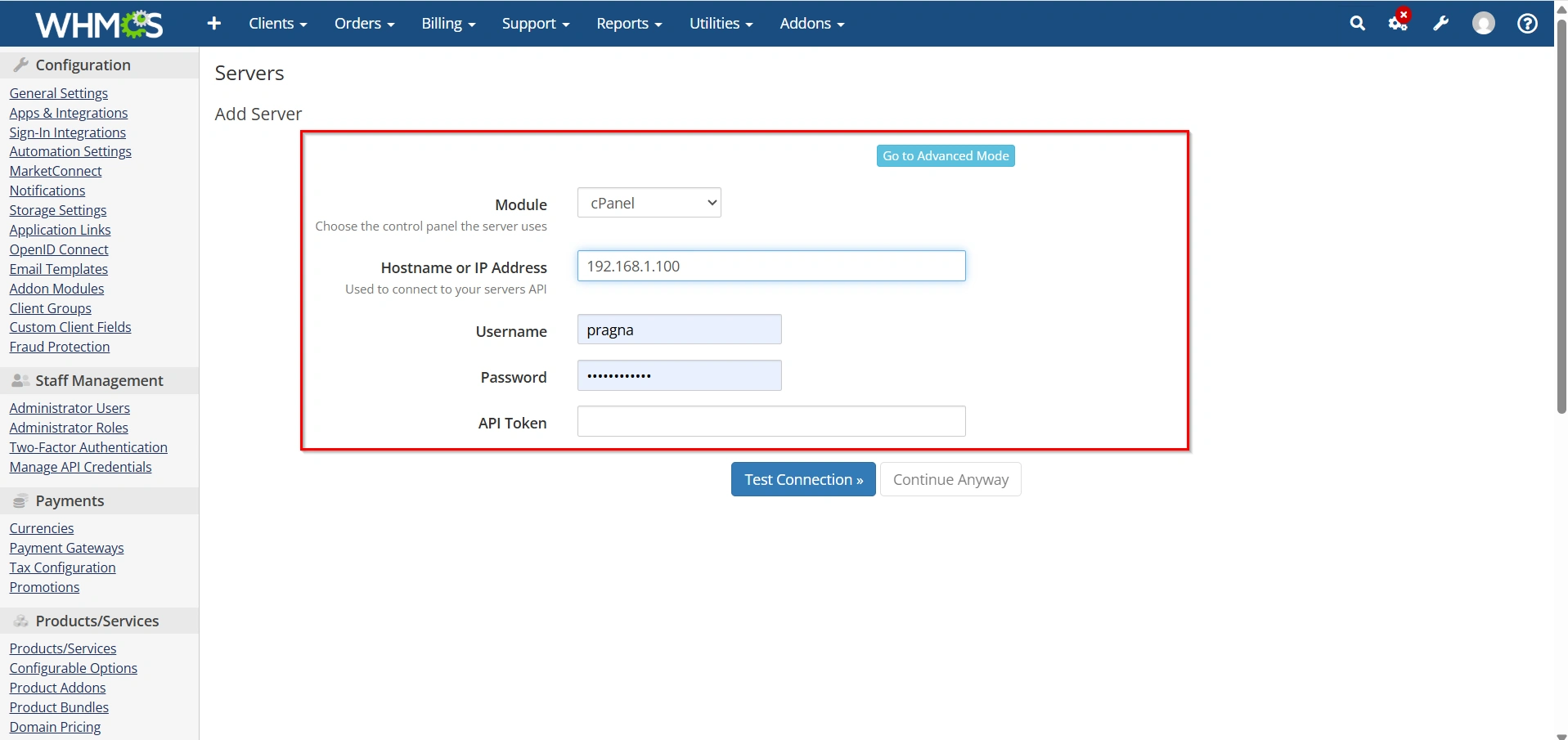
Fill in the required information carefully.
Module
Under the Module dropdown menu, select:
cPanel
This enables WHMCS to communicate with your WHM server using the cPanel server module.
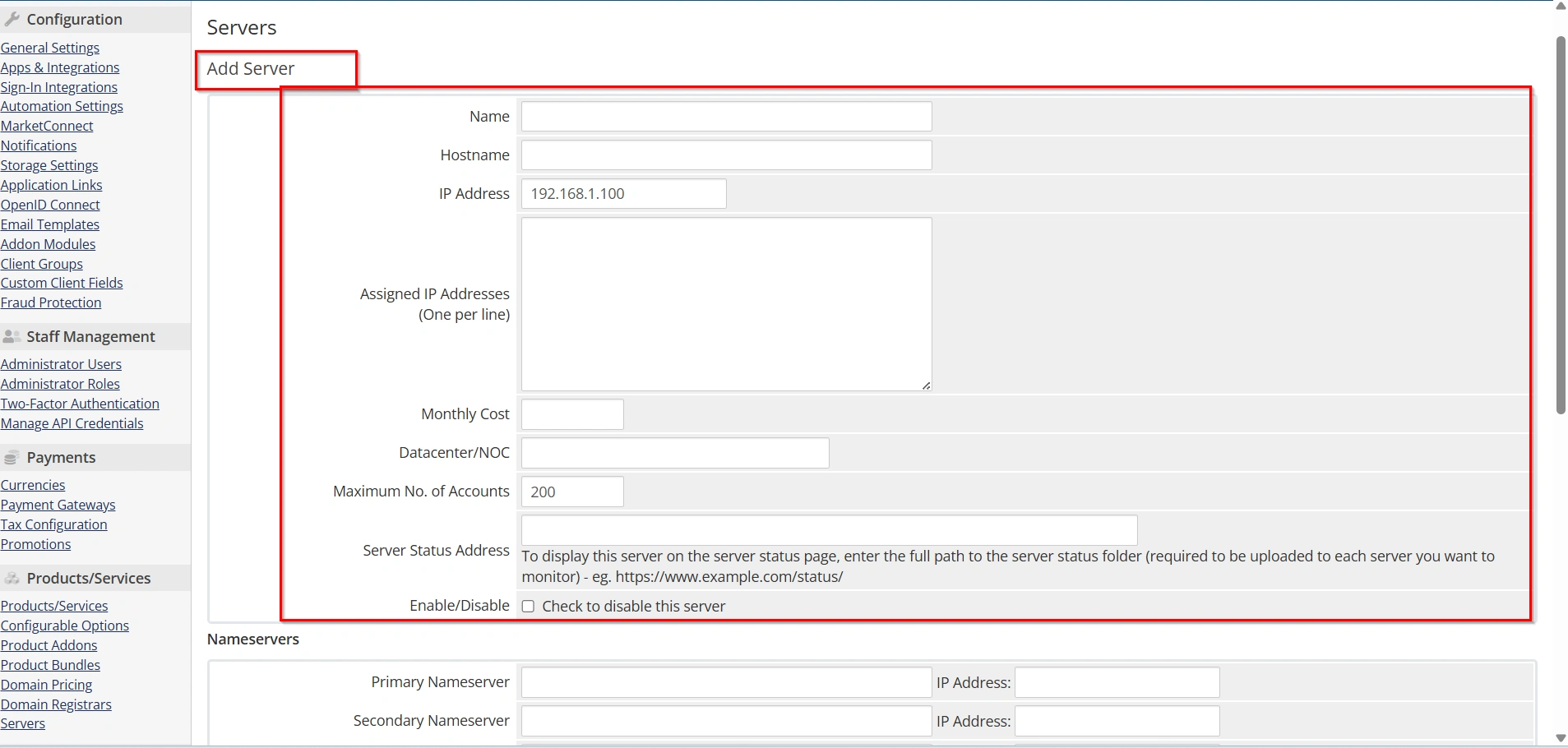
Name
Enter a descriptive name for your server.
Example:
- Main Hosting Server
- Production Server
- Shared Hosting Node 1
Hostname or IP Address
Enter either:
- Server hostname (recommended)
- Server IP address
Example hostname:
server.yourdomain.com
The hostname is generally preferred because it works better with SSL certificates and provides greater flexibility if the server IP changes.
Username
Enter your WHM username.
Examples:
- root
- reseller username
If you are operating a dedicated server, the root account is commonly used.
Password or API Token
WHMCS supports two authentication methods:
Password Authentication
Enter the WHM account password.
API Token Authentication
Generate an API Token from WHM and paste it into WHMCS.
Using an API Token is the recommended method because it provides enhanced security and better access control.
Step 5: Test the Connection
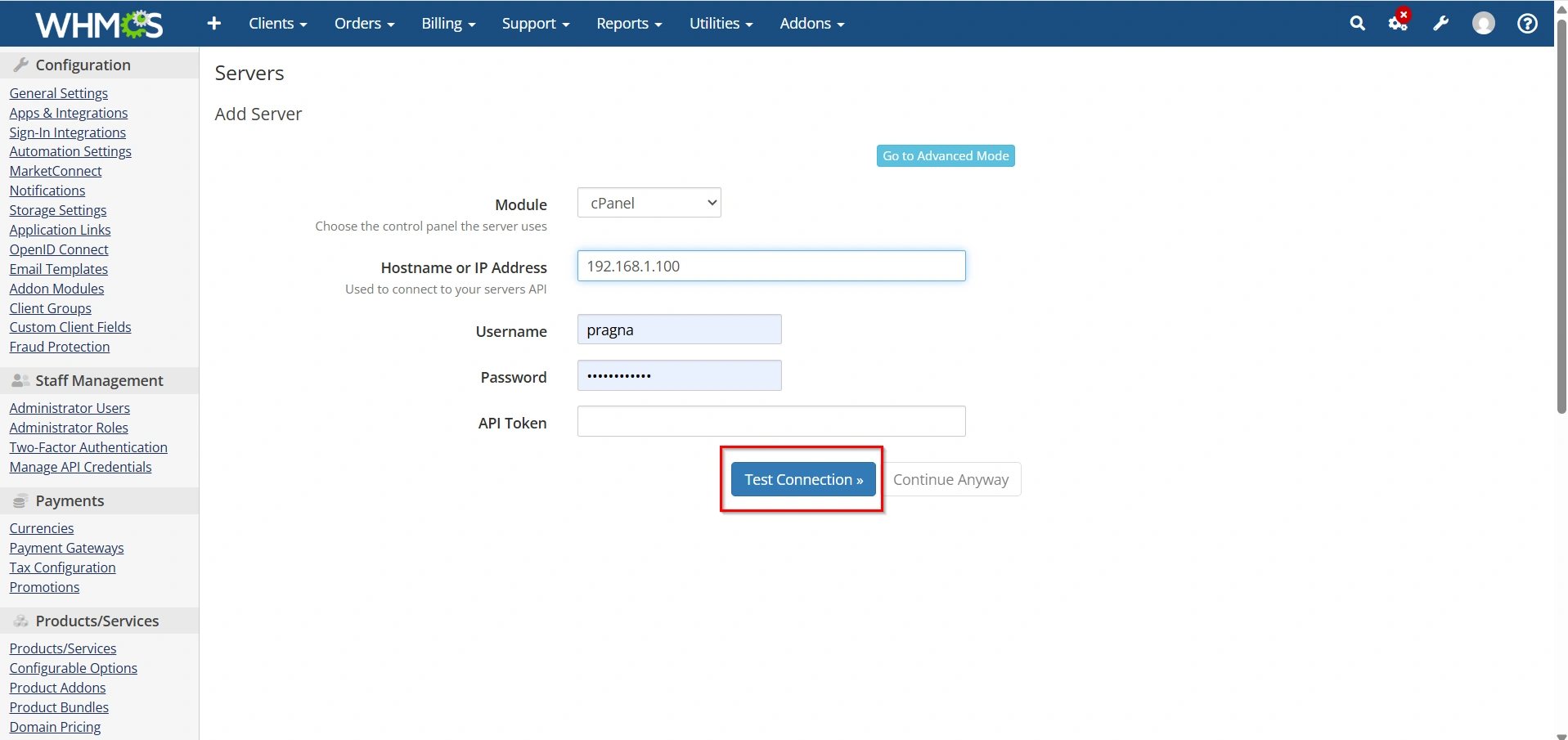
After entering the required information, click the Test Connection button.
WHMCS will attempt to establish communication with your WHM server.
If the connection is successful, you will receive a confirmation message.
If the connection fails, verify:
- Hostname accuracy
- Username credentials
- Password or API Token validity
- Firewall configuration
- SSL settings
- WHM access port (2087)
Correct any issues and test the connection again.
Step 6: Save the Server Configuration
Once the connection test succeeds, click Save Changes.
Your WHM server is now successfully connected to WHMCS.
From this point forward, WHMCS can communicate directly with WHM and perform automated hosting management tasks.
Why to Connect WHM to WHMCS?
Connecting WHM to WHMCS offers several advantages:
- Automatic cPanel account creation
- Faster customer onboarding
- Reduced manual administration
- Simplified hosting management
- Automated billing synchronization
- One-click access to hosting accounts
- Improved operational efficiency
For hosting providers and resellers, this integration is essential for scaling services while maintaining a seamless customer experience.
Key Benefits of Connecting WHM to WHMCS
1. Automated Account Provisioning
WHMCS automatically creates hosting accounts when orders are accepted. This saves time and eliminates manual setup errors.
2. Simplified Hosting Management
Administrators can manage hosting accounts directly from WHMCS without logging into WHM separately.
3. Faster Customer Experience
Customers receive instant access to their hosting accounts, improving satisfaction and reducing support requests.
4. Billing and Hosting Synchronization
WHMCS keeps hosting services synchronized with billing status. Overdue accounts can be suspended automatically and reactivated after payment.
5. Scalability
Whether managing ten accounts or thousands, automation helps hosting providers grow without increasing administrative workload.
Conclusion
Connecting WHM to WHMCS is one of the most important steps for automating a web hosting business. By integrating these platforms, hosting providers can automate cPanel account creation, synchronize billing with hosting services, reduce manual administrative tasks, and improve the overall customer experience.
Whether you’re a reseller, hosting startup, or established provider, taking the time to connect WHM to WHMCS will help streamline your operations, increase efficiency, and support long-term business growth.
For more WHM management tutorials and step-by-step guides, visit our WHM knowledge base: www.webystrata.com/blog/category/whm-panel/
Related Articles


