cPanel
How to Create and Manage Cron Jobs in cPanel
How to Create and Manage Cron Jobs in cPanel Managing repetitive website and server tasks manually can consume a significant amount of time. cPanel provides a powerful automation feature called Cron Jobs that helps…
How to Create and Manage Cron Jobs in cPanel
Managing repetitive website and server tasks manually can consume a significant amount of time. cPanel provides a powerful automation feature called Cron Jobs that helps users schedule commands and scripts to run automatically at specific intervals.
Cron Jobs are widely used in website hosting environments for automating backups, running scheduled scripts, managing WordPress tasks, sending automated emails, clearing cache files, and performing regular maintenance operations.
Whether you are a website owner, developer, or hosting administrator, understanding how Cron Jobs work can greatly improve website efficiency and reduce manual workload.
In this article, we will explain what Cron Jobs are, how to access them in cPanel, create and manage Cron Jobs, understand scheduling formats, use common commands, and explore their practical applications in website management.
What are Cron Jobs?
A Cron Job is a Linux-based task scheduler that automatically runs commands or scripts at predefined times and intervals. Cron Jobs help automate repetitive tasks without requiring manual execution.
Instead of performing the same task repeatedly, users can configure Cron Jobs to execute scripts automatically based on:
- Minutes
- Hours
- Days
- Weeks
- Months
Cron Jobs are commonly used for:
- Running automated backups
- Sending scheduled email reports
- Executing WordPress maintenance tasks
- Clearing temporary files
- Running API scripts
- Managing scheduled website operations
How to Access Cron Jobs in cPanel
Follow these simple steps to access Cron Jobs inside cPanel.
Step 1: Login to cPanel from Client Area
First, visit the WebyStrata website and log in to your client area account using your registered email address and password.
official Website www.webystrata.com
After logging in:
- Go to Services
- Click on My Services
- Select your active hosting service
- Click on Login to cPanel

Step 2: Open the Cron Jobs Section
After logging in:
- Scroll to the Advanced section
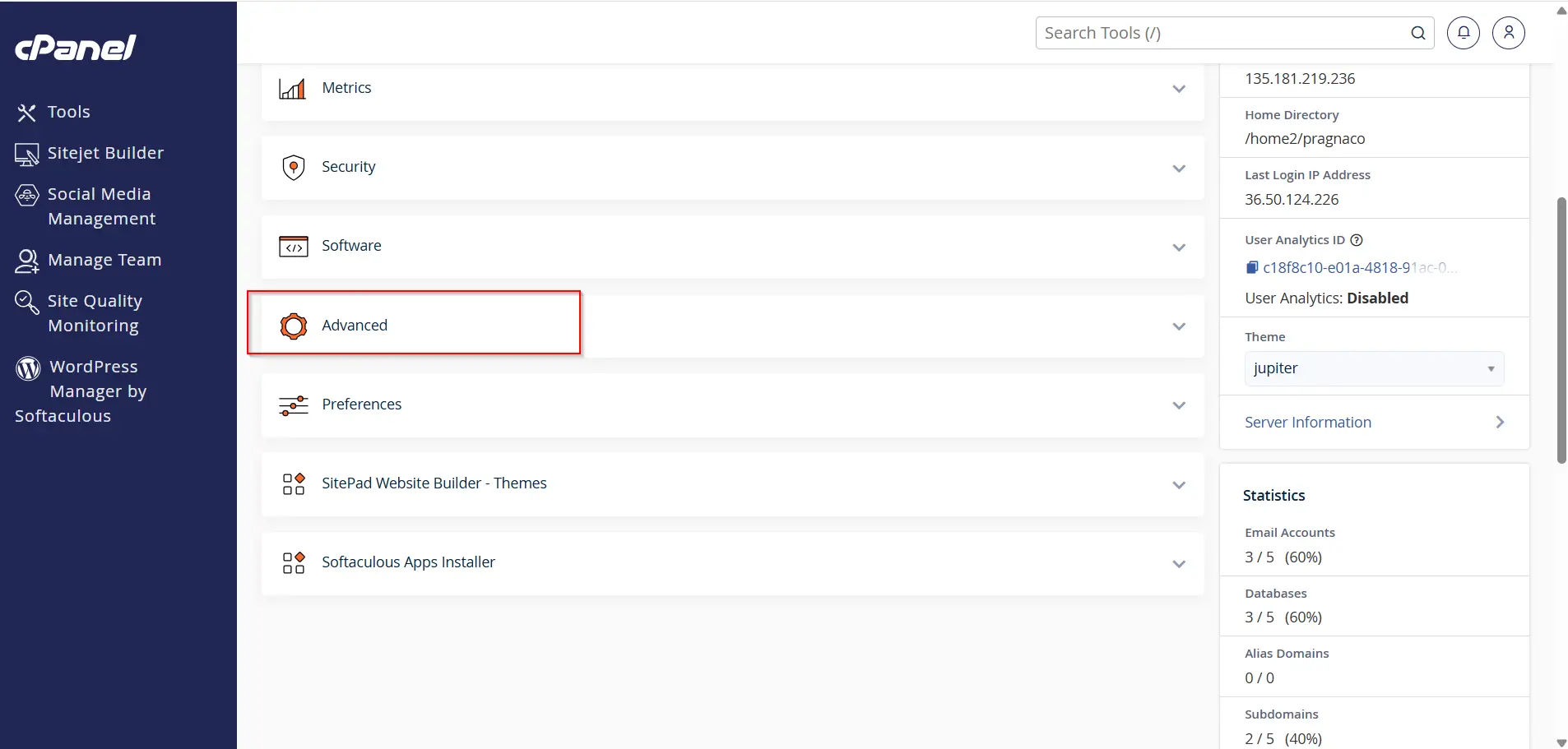
2.Click on Cron Jobs
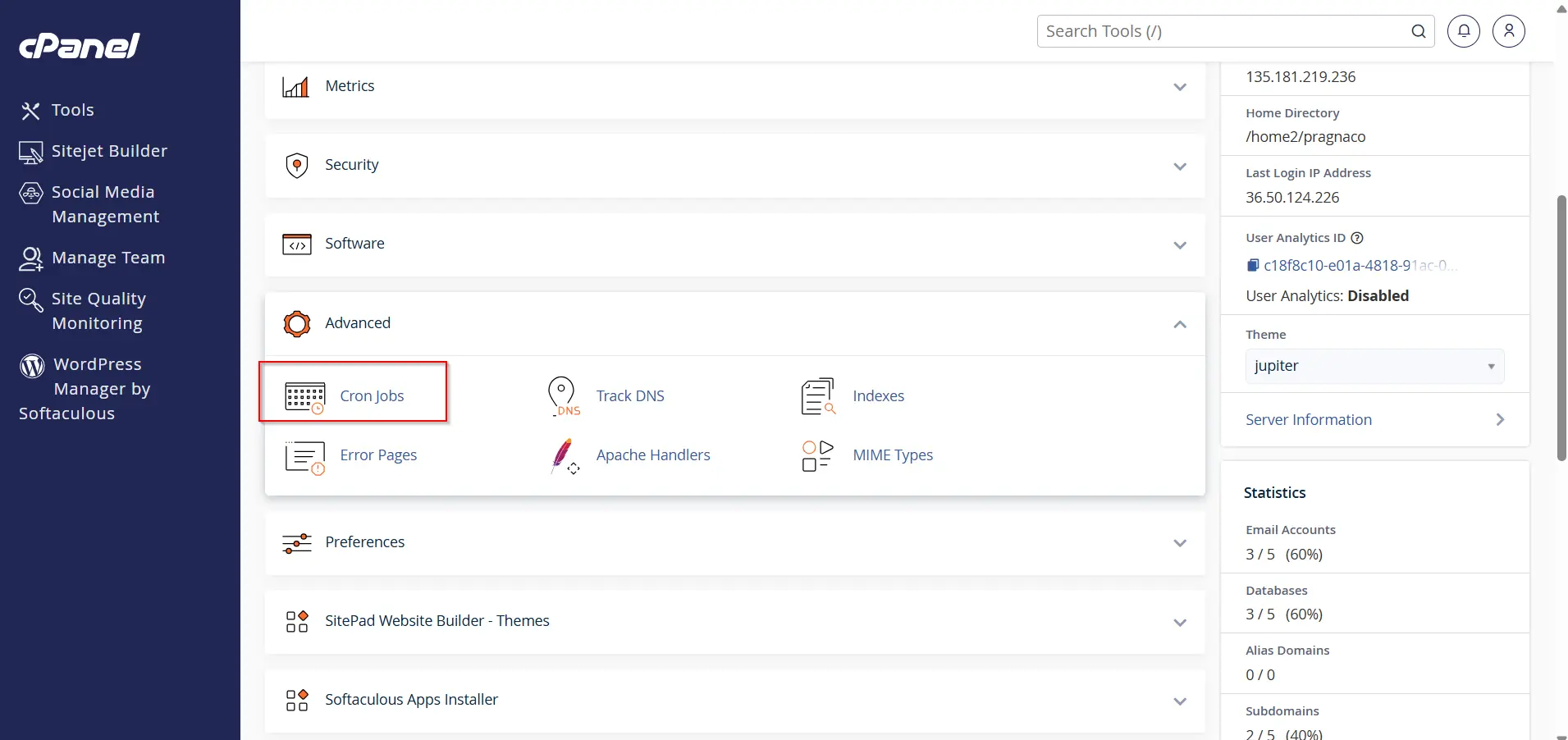
The Cron Jobs management interface will open.
Understanding Cron Job Email Notifications
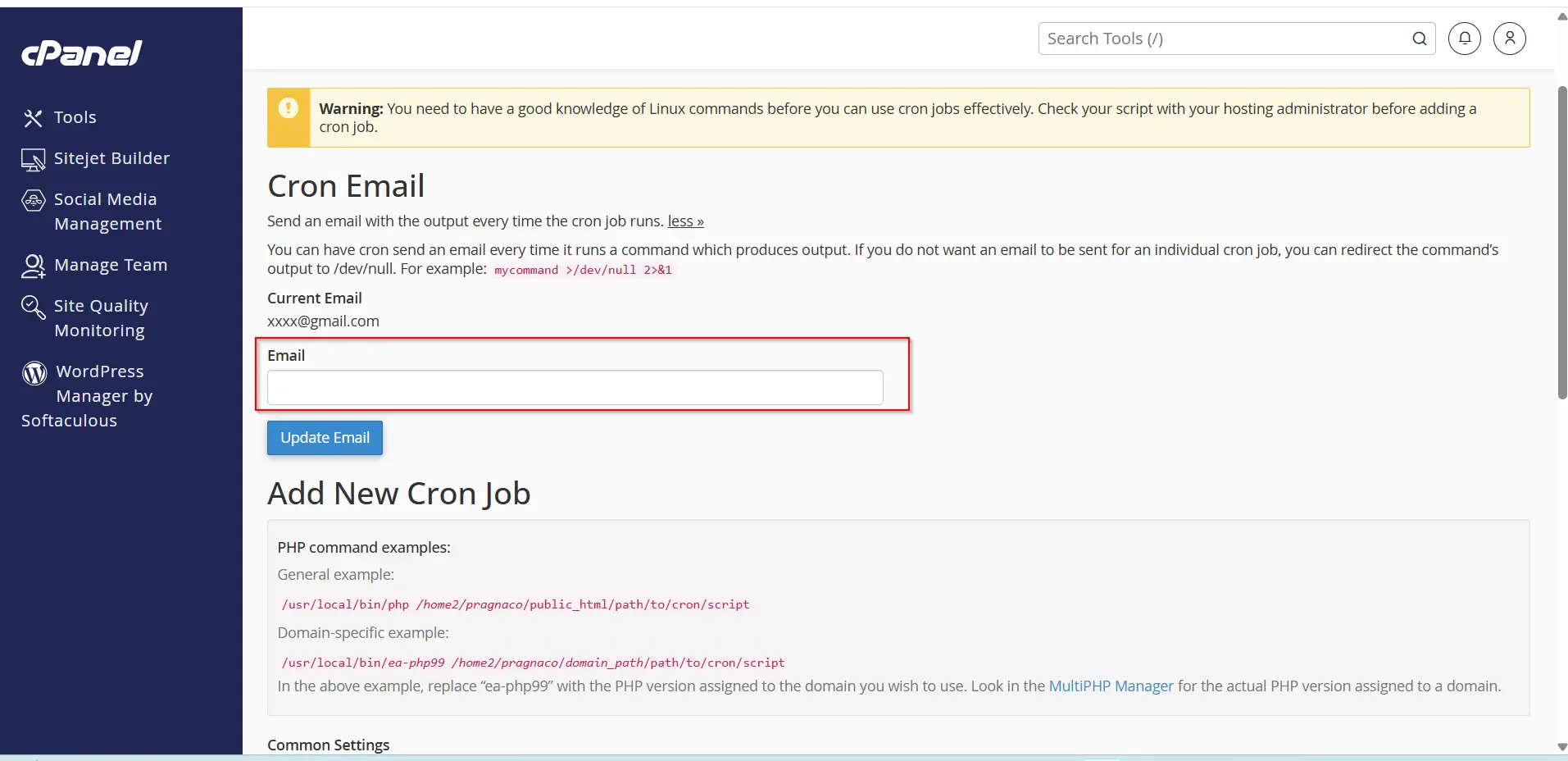
Before creating a Cron Job, cPanel may request an email address.
This email address is used for:
- Execution reports
- Output logs
- Error notifications
- Task status messages
Users can:
- Enter an email address to receive notifications
- Or disable notifications if unnecessary
How to Create a Cron Job in cPanel
Creating a Cron Job involves selecting a schedule and entering a command.
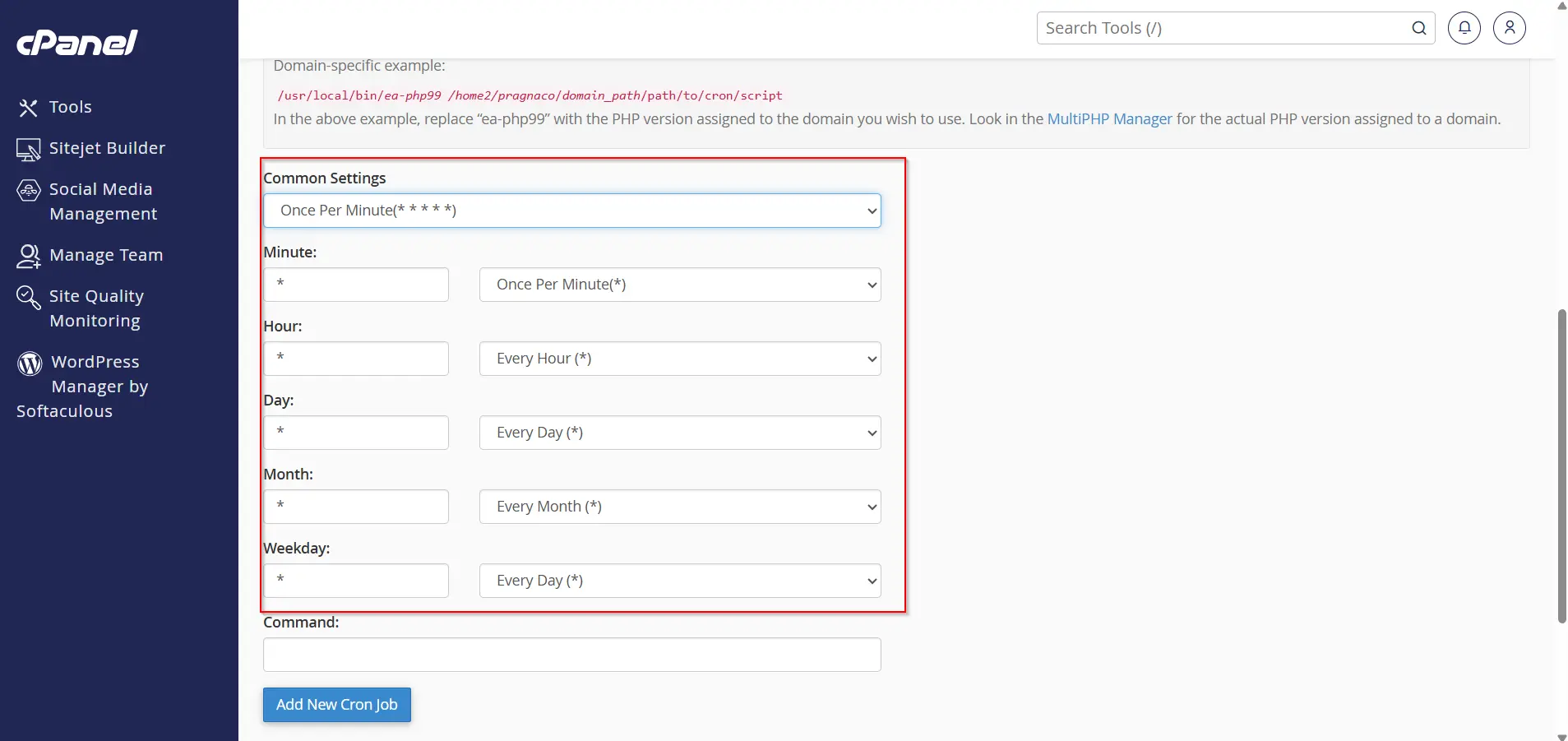
Step 1: Choose the Execution Schedule
Under Add New Cron Job, select the timing interval.
Common scheduling examples:
- Once every minute
- Every 5 minutes
- Once every hour
- Once daily
- Once weekly
You can either:
- Use predefined common settings
- Or manually configure schedule values
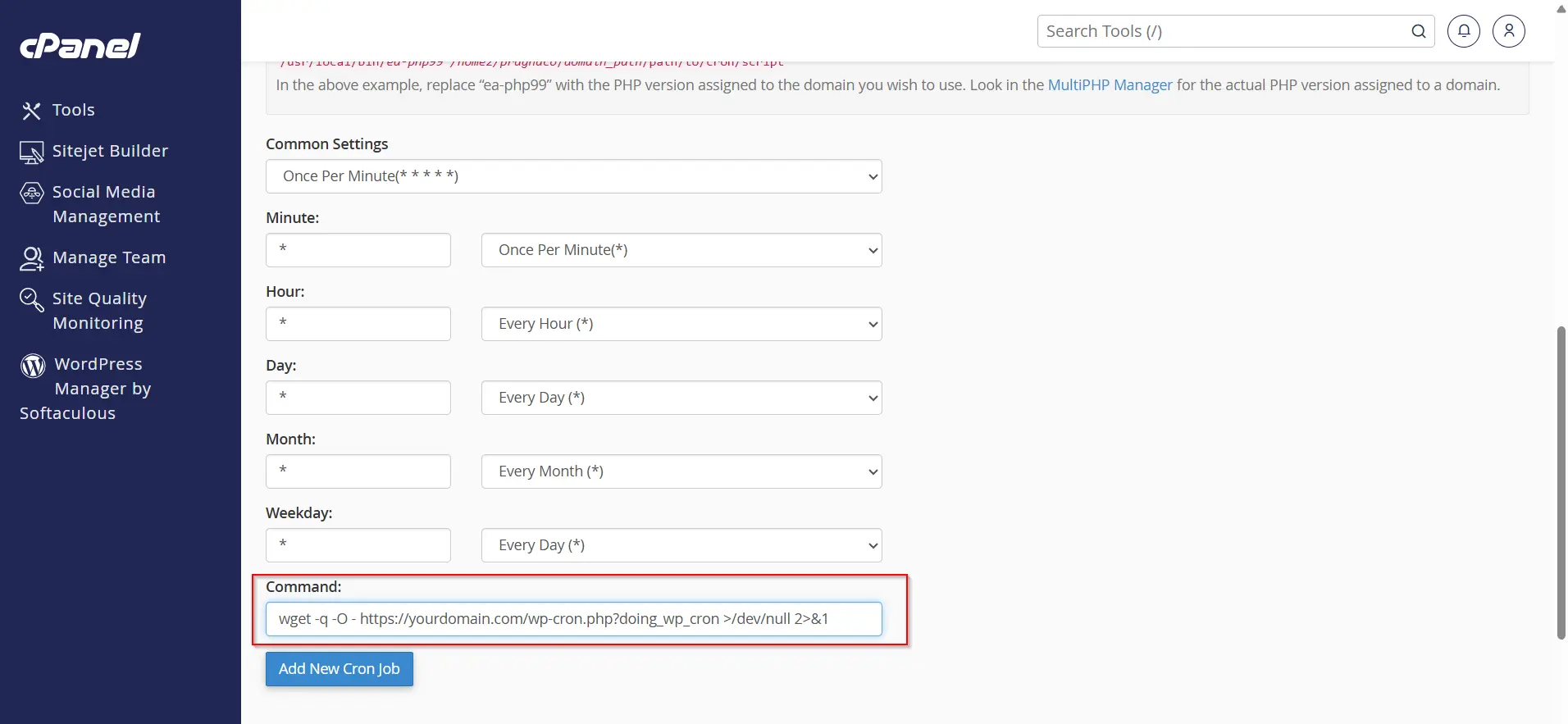
Step 2: Enter the Command
In the Command field, enter the script or command to execute.
Example PHP Script:
/usr/local/bin/php /home/username/public_html/cron.php
This command runs a PHP script automatically.
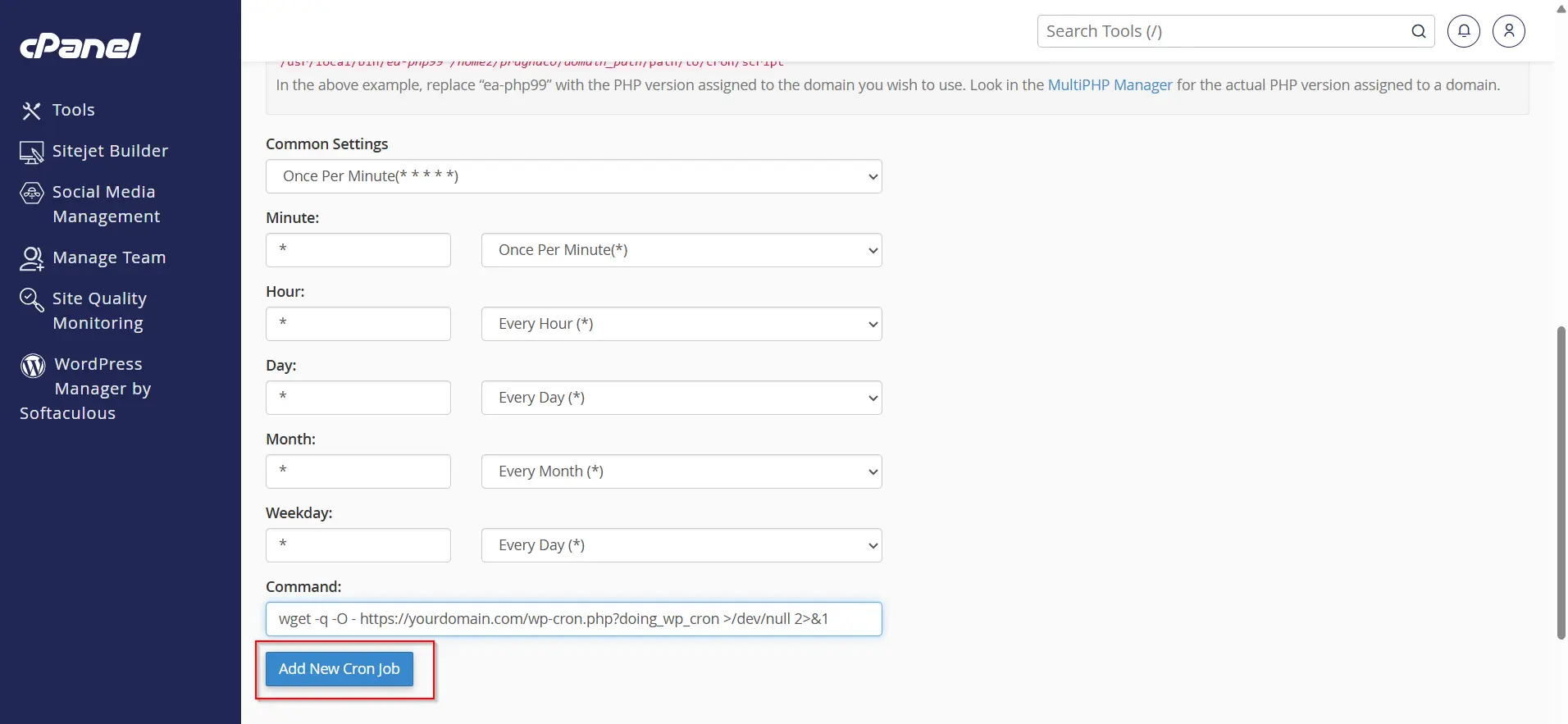
Step 3: Create the Cron Job
After entering the command:
- Click Add New Cron Job
- The Cron Job will now run automatically according to the selected schedule
How Cron Jobs Actually Work
Cron Jobs work based on two components:
- Schedule timing
- Script logic
The Cron Job itself only executes the script automatically.
The script determines:
- What to check
- What actions to perform
- Whether emails should be sent
Example Workflow
Suppose:
- A Cron Job runs every 5 minutes
- The script checks for WordPress updates
If updates are detected:
- An email notification can be sent
If no updates are found:
- The script exits without action
Workflow:
Cron Job → Runs Script → Script Checks Conditions → Action Performed
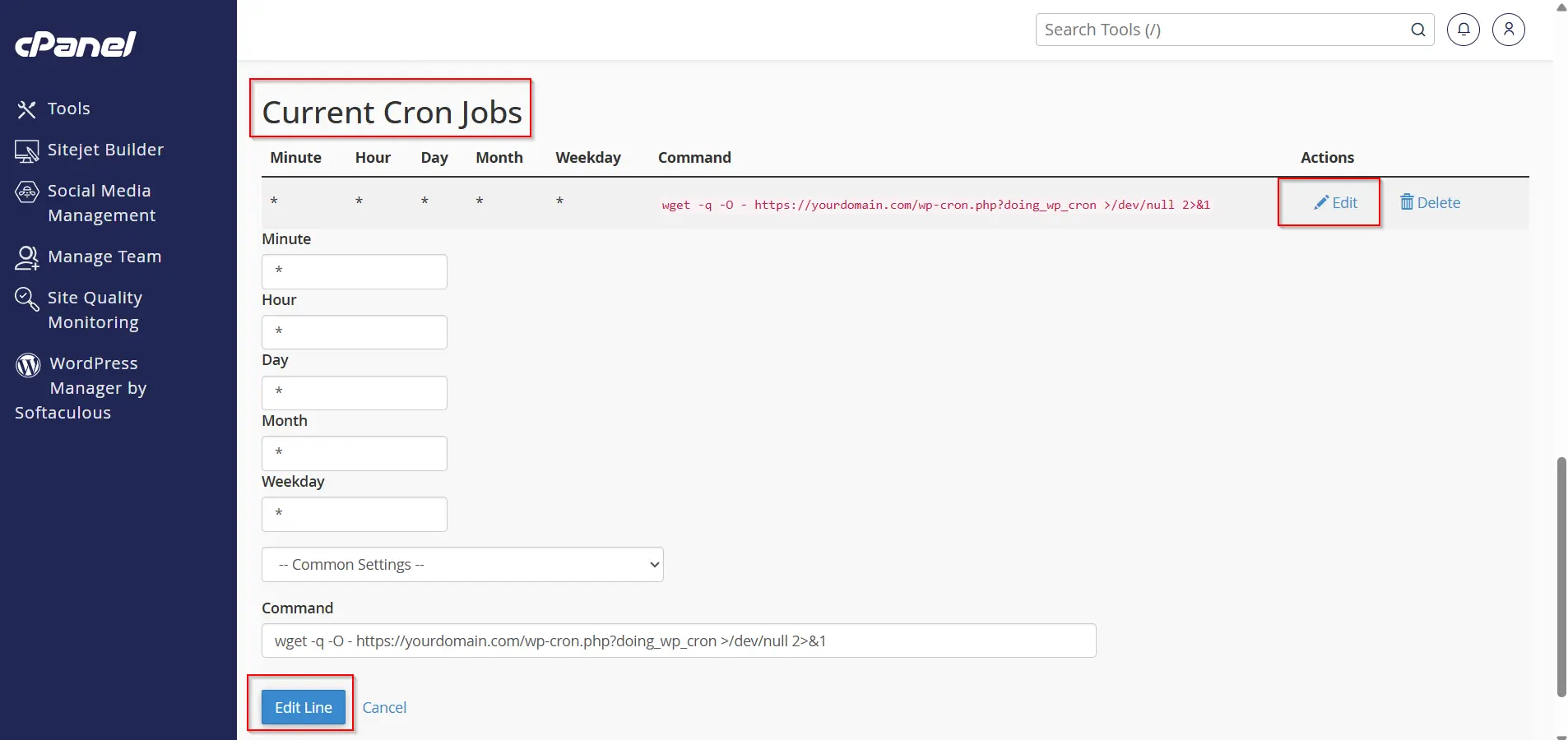
How to Edit Existing Cron Jobs
To modify a Cron Job:
- Locate the Cron Job under Current Cron Jobs
- Click Edit
- Update timing or command
- Click on Edit line
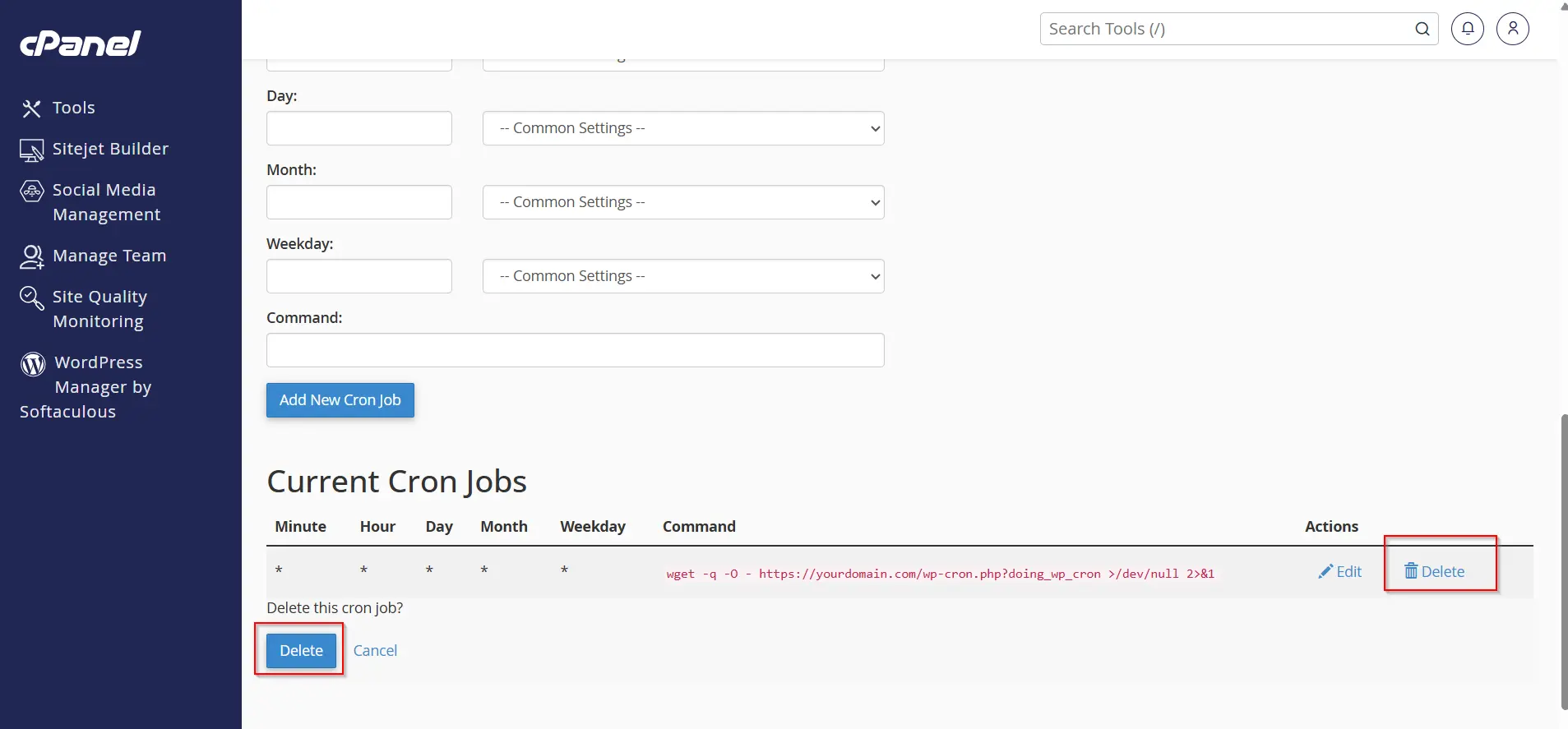
How to Delete a Cron Job
To remove a scheduled task:
- Go to Current Cron Jobs
- Find the Cron Job
- Click Delete
The Cron Job will be permanently removed from the schedule.
Why are Cron Jobs Important?
Cron Jobs play an important role in website automation and server management. They help websites perform background operations automatically and improve overall efficiency.
Benefits of Cron Jobs
1. Automation of Repetitive Tasks
2. Improved Website Management
3. Time Saving
4. Better Server Efficiency
5. Reliable Task Execution
Conclusion
Cron Jobs in cPanel are a powerful automation feature that helps users schedule scripts and repetitive tasks efficiently. From website maintenance and automated backups to WordPress scheduling and email automation, Cron Jobs simplify server management and improve workflow efficiency.
By understanding how to create, manage, and optimize Cron Jobs in cPanel, website owners and developers can automate important operations, reduce manual effort, and maintain better website performance.
Related Articles