Latest Updates
How to Create Invoice Emails in WHMCS
How to Create Invoice Emails in WHMCS Creating professional invoice emails is essential for maintaining clear communication with your clients. Whether you want to send branded billing notifications or automate invoice-related messages, learning how…
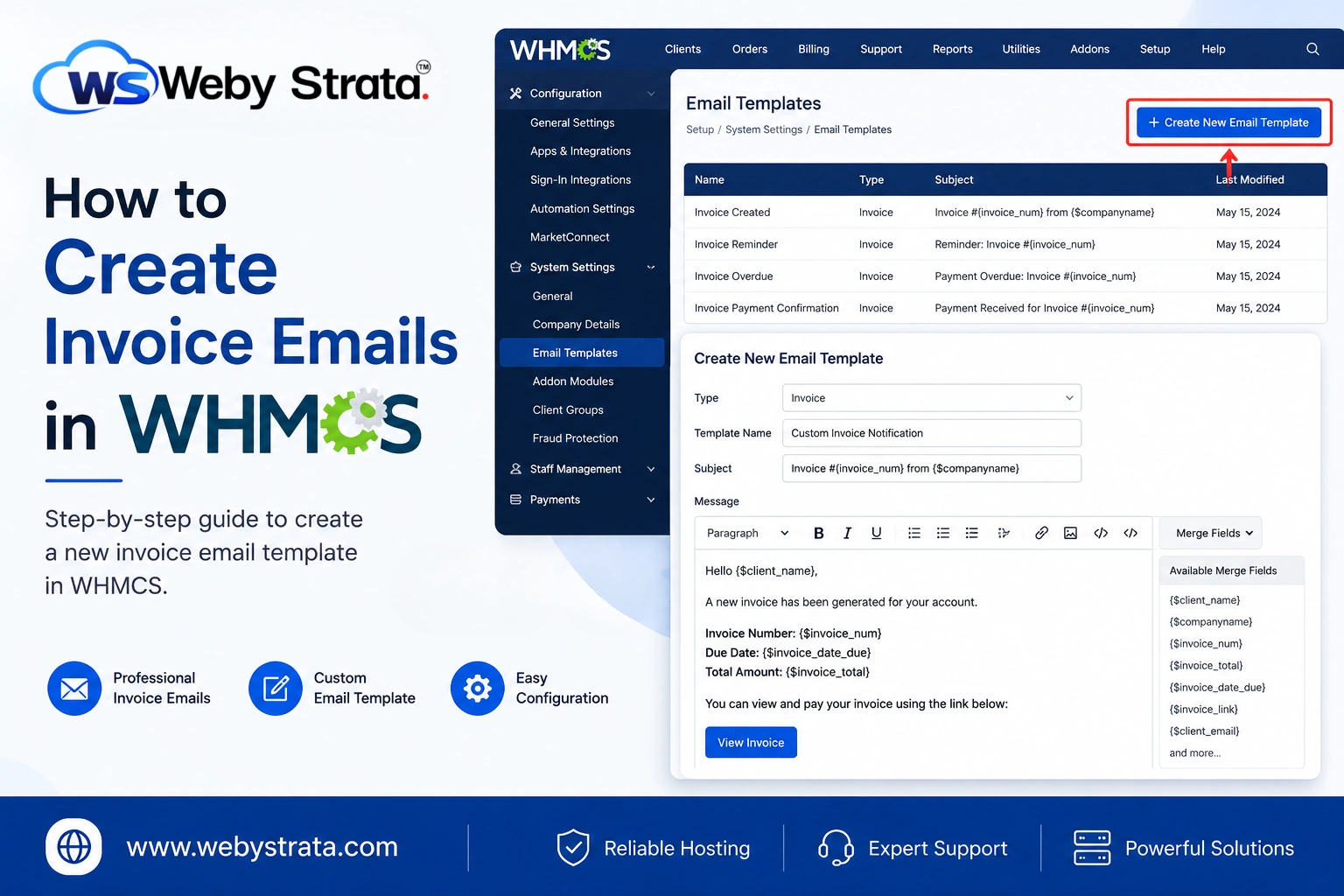
How to Create Invoice Emails in WHMCS
Creating professional invoice emails is essential for maintaining clear communication with your clients. Whether you want to send branded billing notifications or automate invoice-related messages, learning how to Create Invoice Emails in WHMCS gives you greater flexibility and control over customer communications. Instead of modifying the default templates, WHMCS allows administrators to create entirely new invoice email templates that can be used for custom workflows, promotions, or specific billing scenarios. In this guide, you’ll learn how to Create Invoice Emails in WHMCS from scratch, configure the template with dynamic merge fields, and design professional invoice emails that match your company’s branding.
Why Create Invoice Emails in WHMCS?
Instead of editing the default invoice templates, creating a new template offers several advantages:
- Preserves the original WHMCS email templates.
- Allows testing without affecting live emails.
- Supports custom branding and layouts.
- Enables specialized invoice notifications.
- Works with custom automation and third-party modules.
- Simplifies template management for different customer groups.
Prerequisites
Before you begin, ensure that:
- WHMCS is installed and accessible.
- You have administrator privileges.
- Email sending is configured in WHMCS.
- You understand the purpose of the custom invoice email.
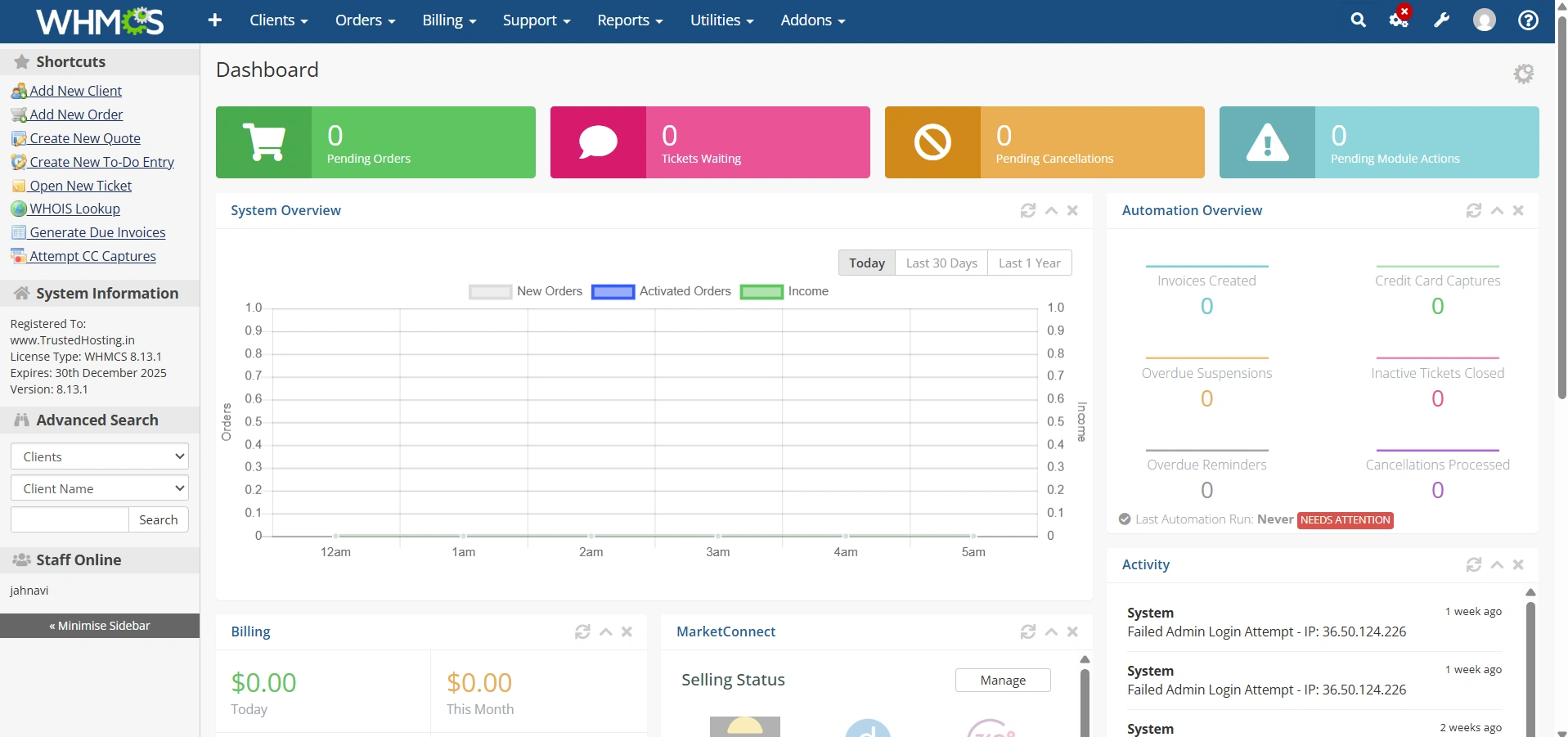
Step 1: Log in to the WHMCS Admin Area
Access your WHMCS administration panel using your administrator credentials.
After logging in, you’ll have access to all configuration settings, including email templates.
Step 2: Navigate to Email Templates
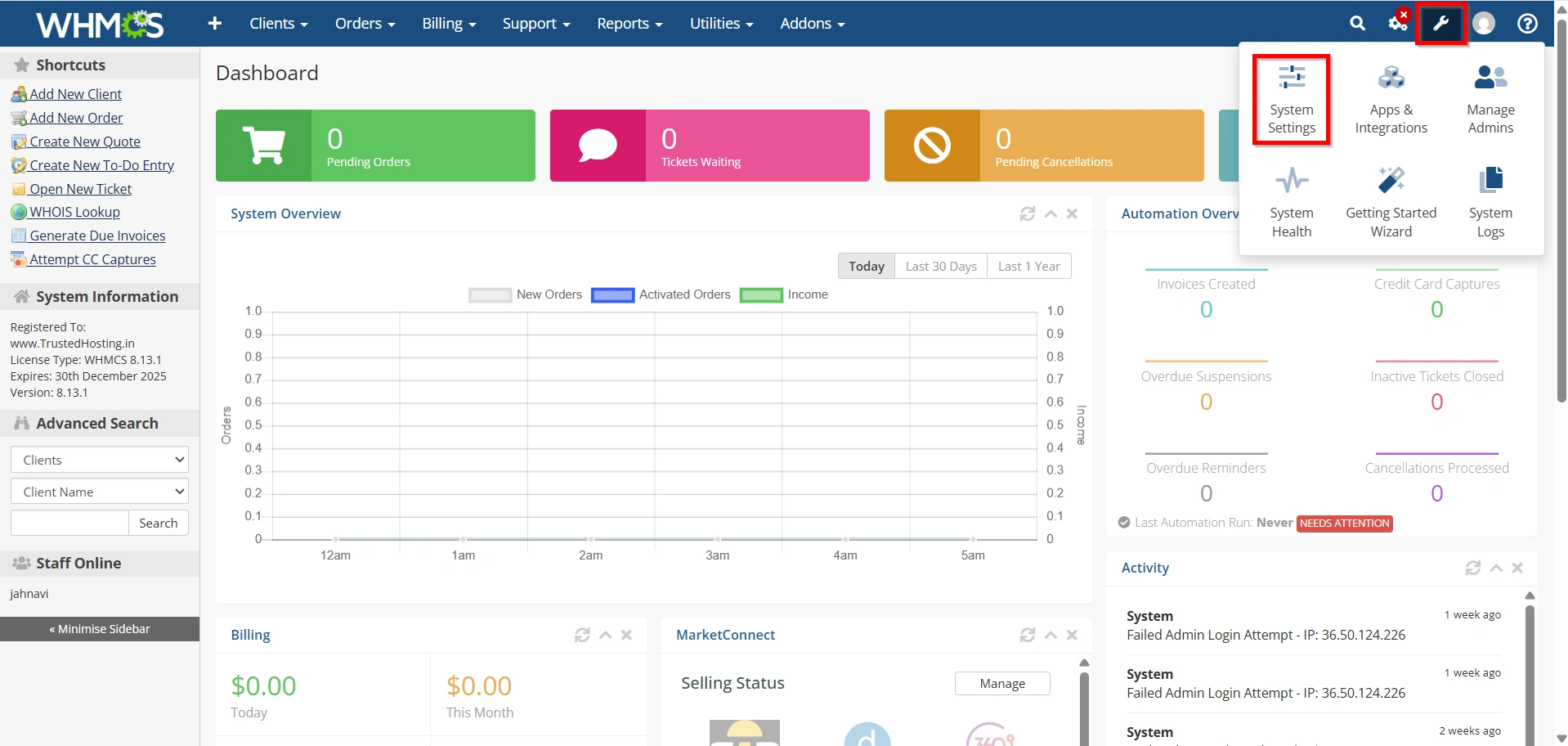
From the WHMCS admin dashboard:
- Navigate to Configuration Icon → System Settings
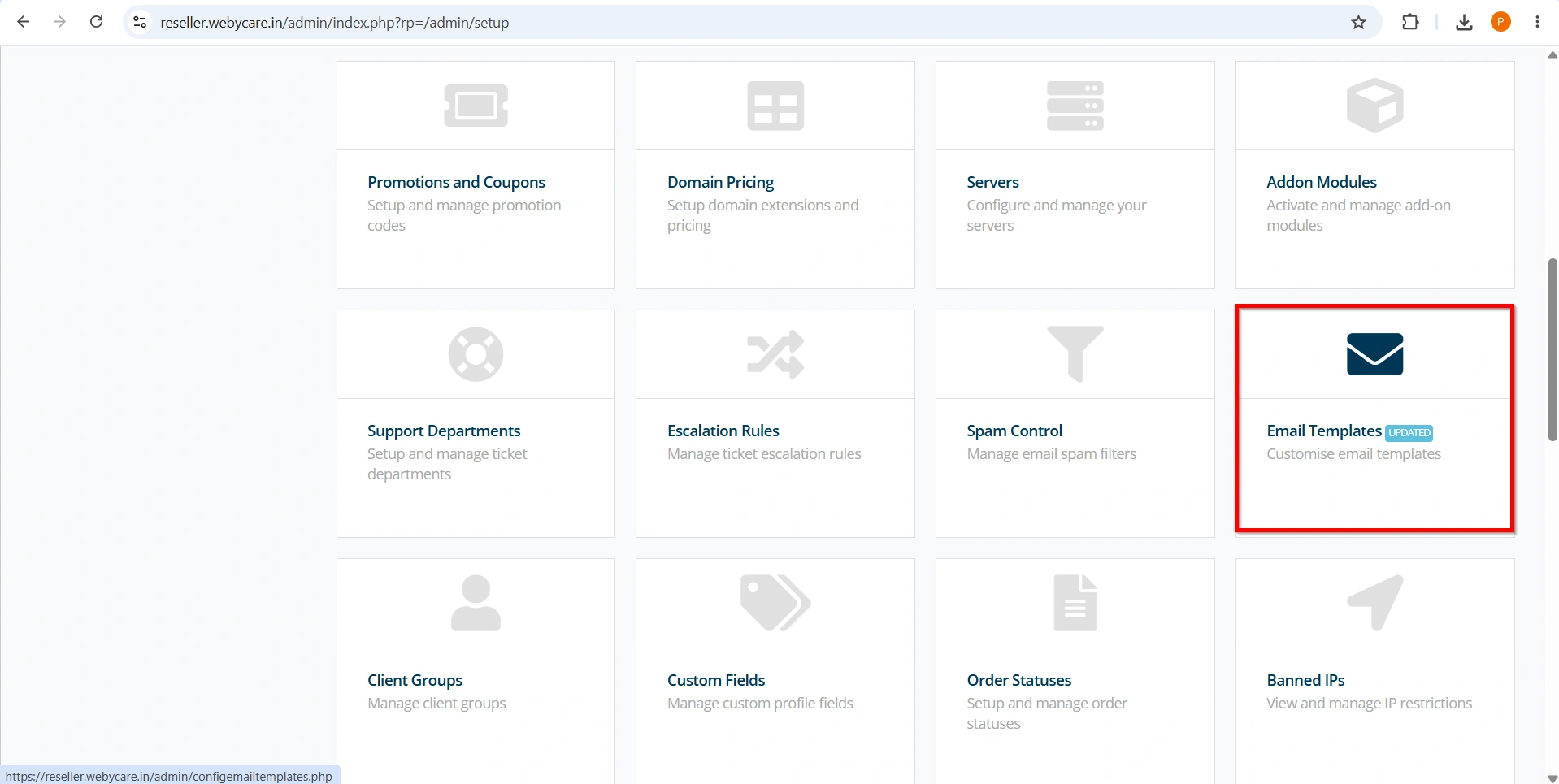
- Select Email Templates.
This section contains all system email templates used by WHMCS.
Step 3: Create New Email Template
In the Email Templates page:
- Click Create New Email Template.
- A form will appear requesting template details.
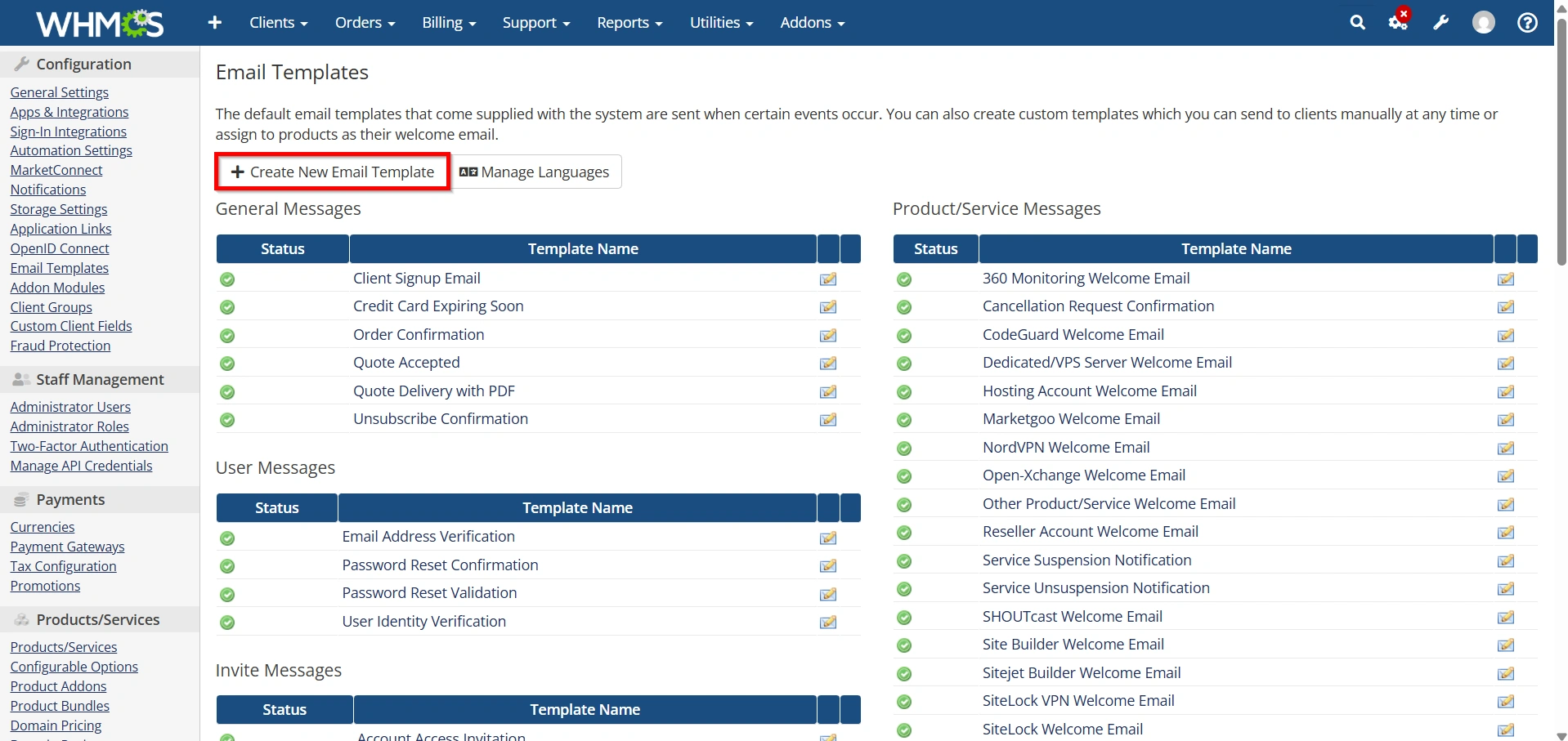
You will need to provide:
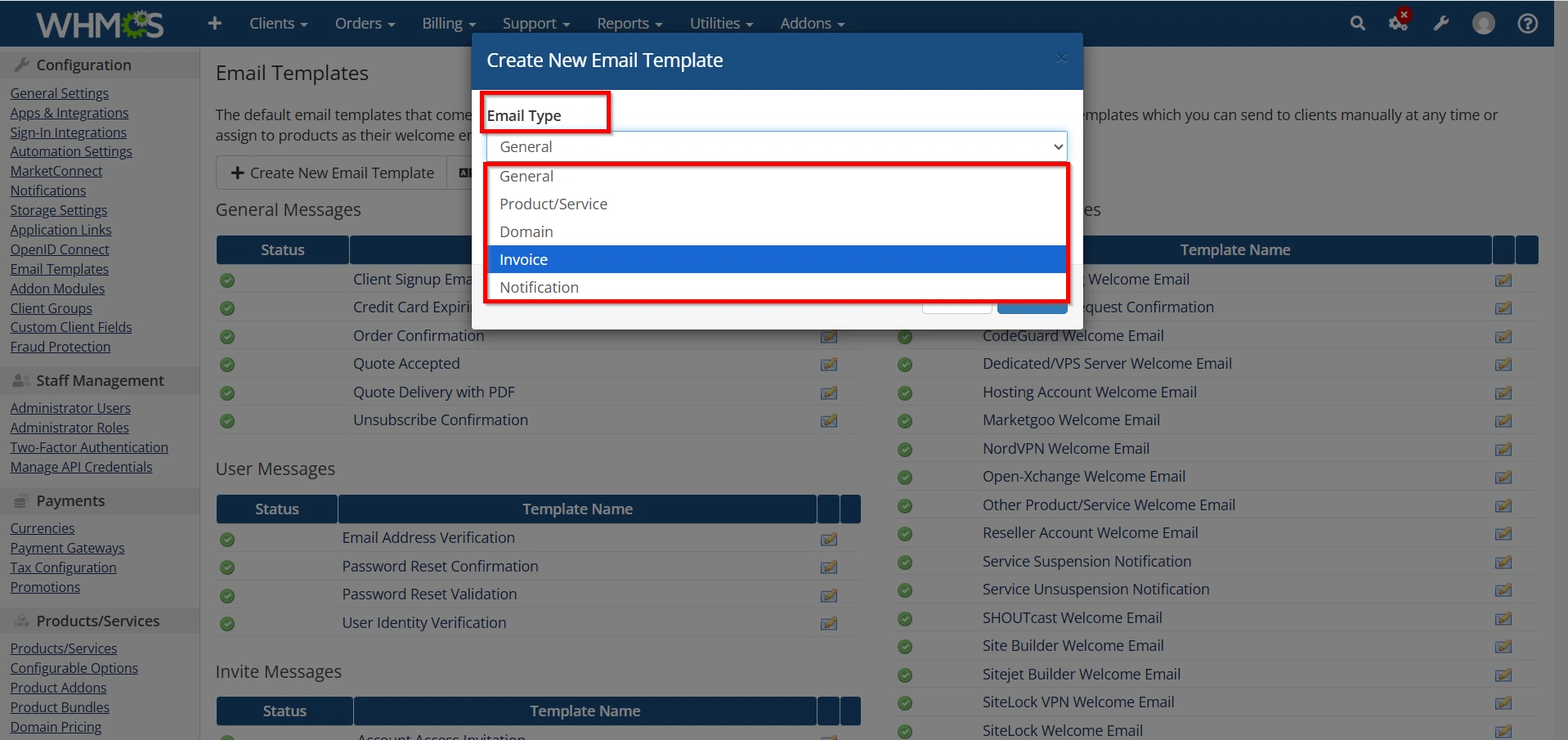
Email Type
Choose:
Invoice
This ensures the template can use invoice-related merge fields and variables.
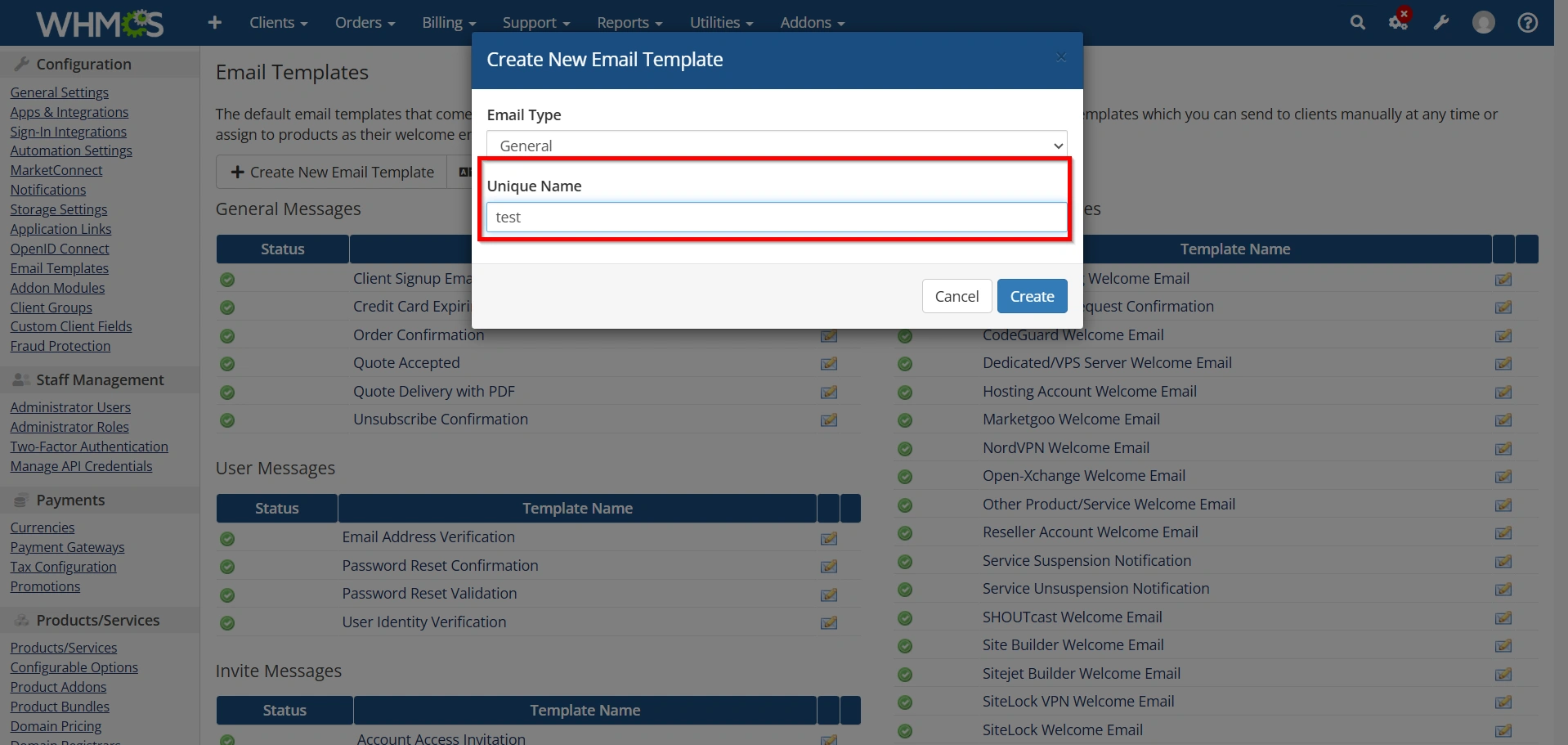
Template Name
Enter a unique name such as:
- Custom Invoice Notification
- Premium Invoice Reminder
- Special Billing Notice
- Invoice Follow-Up Email
The template name helps administrators identify the template later.
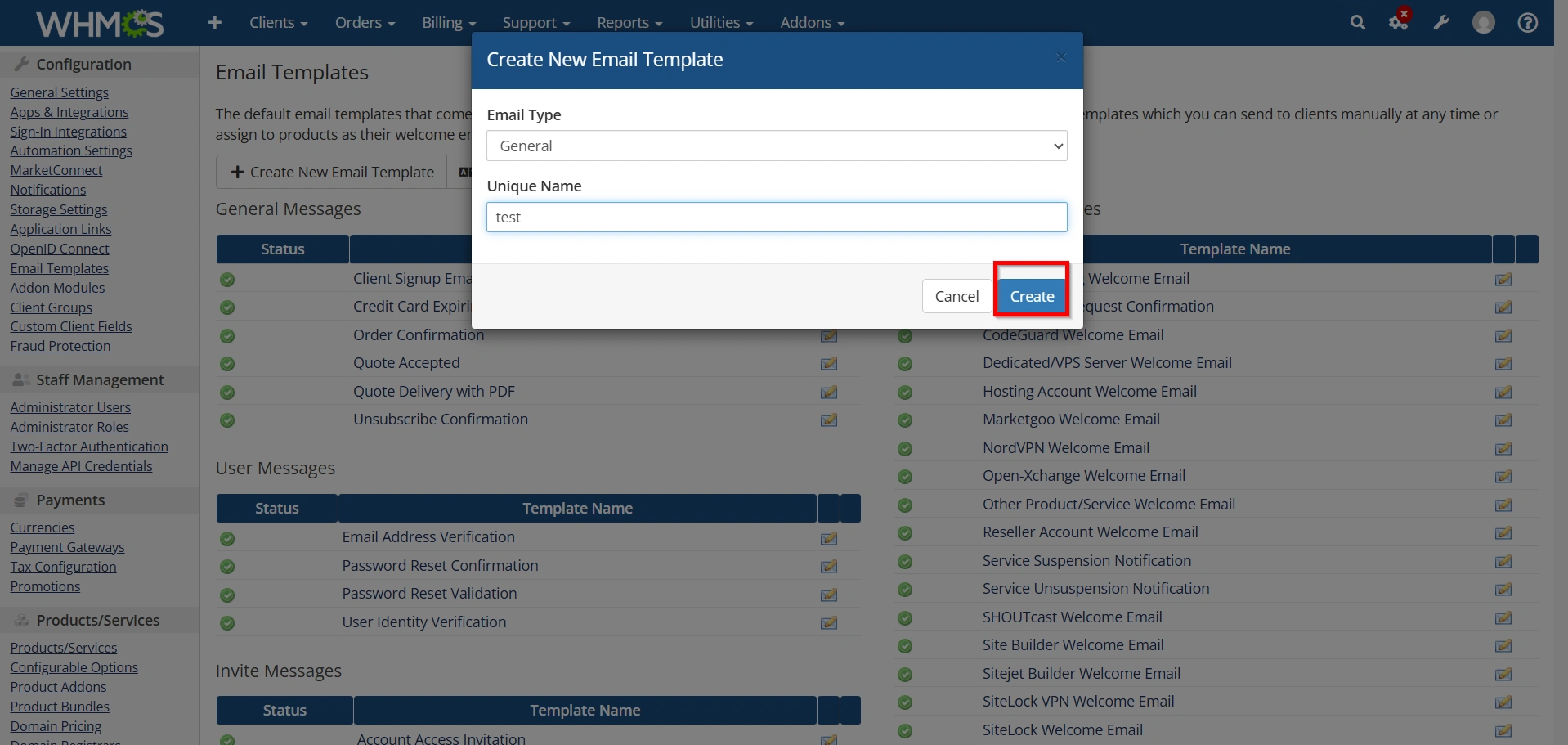
- Click Create.
Step 4: Configure the Email Subject
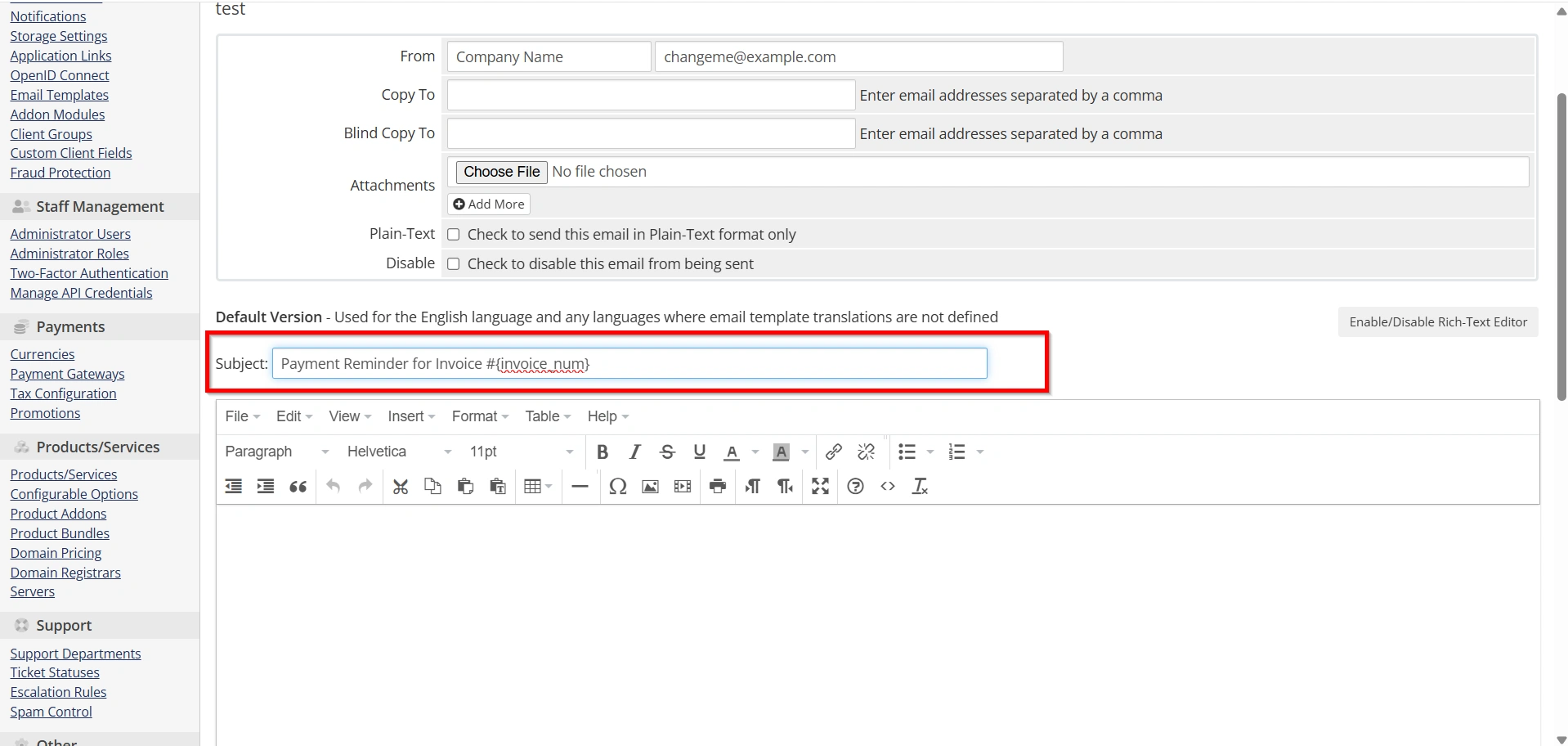
Create a clear and professional subject line.
Example:
Invoice #{invoice_num} from {$companyname}
Alternative examples:
Your Invoice is Ready - {$companyname}
Payment Reminder for Invoice #{invoice_num}
Using merge fields allows dynamic information to be inserted automatically.
Step 5: Design the Email Body
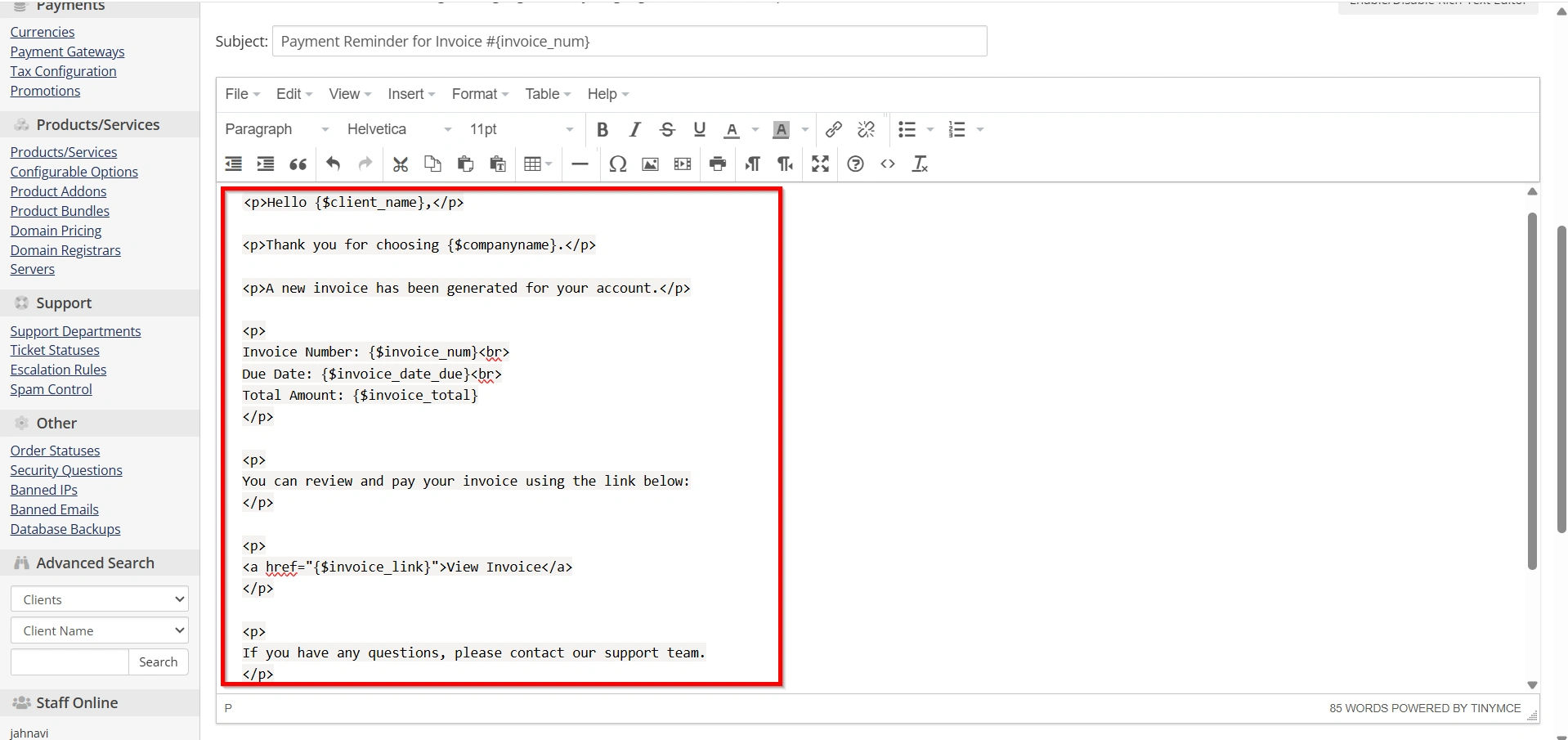
In the Message field, create the content for your invoice email.
Example:
<p>Hello {$client_name},</p>

<p>Thank you for choosing {$companyname}.</p>

<p>A new invoice has been generated for your account.</p>

<p>
Invoice Number: {$invoice_num}<br>
Due Date: {$invoice_date_due}<br>
Total Amount: {$invoice_total}
</p>

<p>
You can review and pay your invoice using the link below:
</p>

<p>
<a href="{$invoice_link}">View Invoice</a>
</p>

<p>
If you have any questions, please contact our support team.
</p>

<p>
Regards,<br>
{$companyname}
</p>
This creates a professional invoice notification while maintaining dynamic invoice information.
Step 6: Insert Available Merge Fields
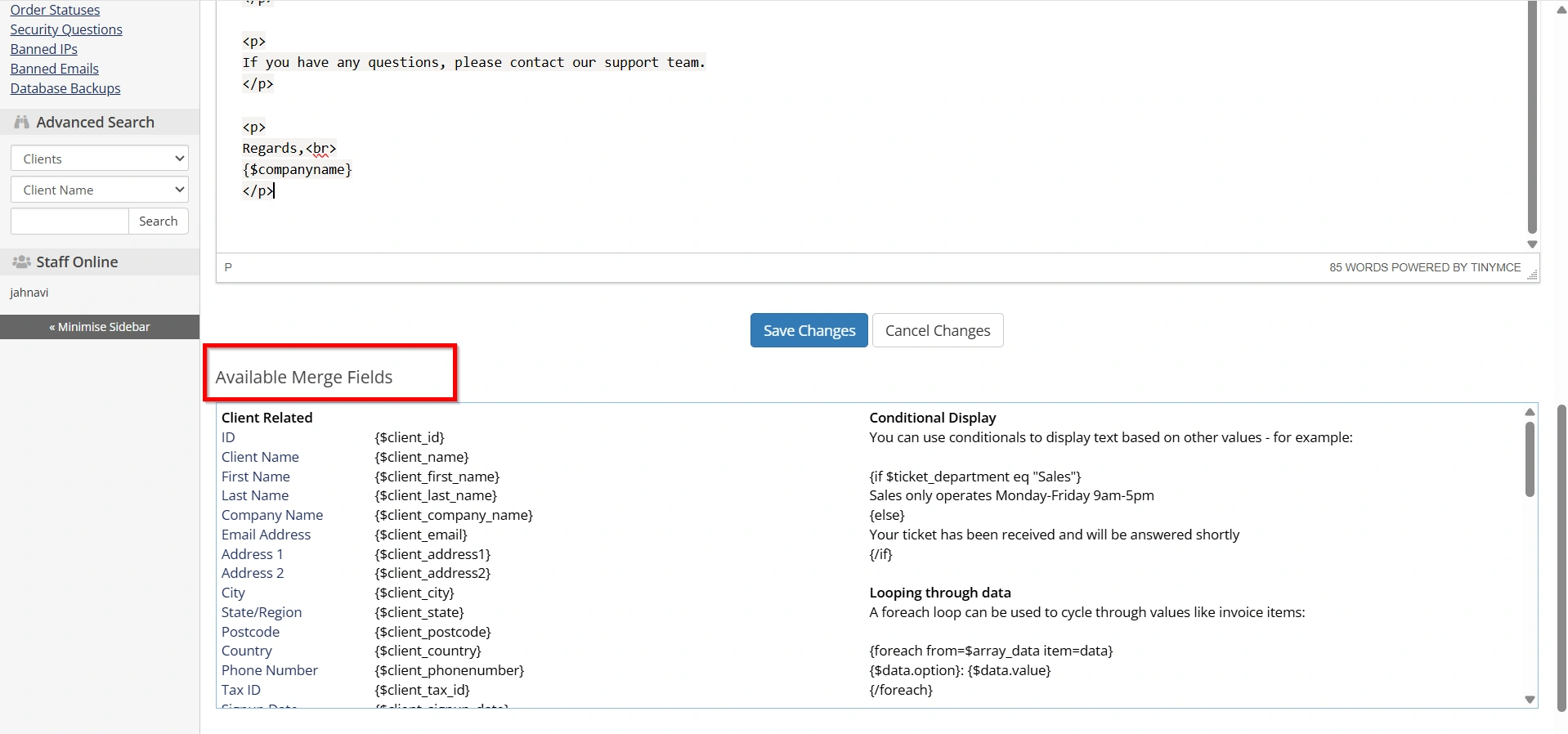
WHMCS provides numerous merge fields for invoice templates.
Common invoice variables include:
| Merge Field | Purpose |
|---|---|
| {$client_name} | Client Name |
| {$companyname} | Company Name |
| {$invoice_num} | Invoice Number |
| {$invoice_total} | Invoice Total |
| {$invoice_date_due} | Due Date |
| {$invoice_link} | Invoice URL |
| {$client_email} | Client Email |
To view available variables:
- Click the Available Merge Fields section.
- Browse invoice-related variables.
- Insert the required placeholders into your template.
Step 7: Add Company Branding
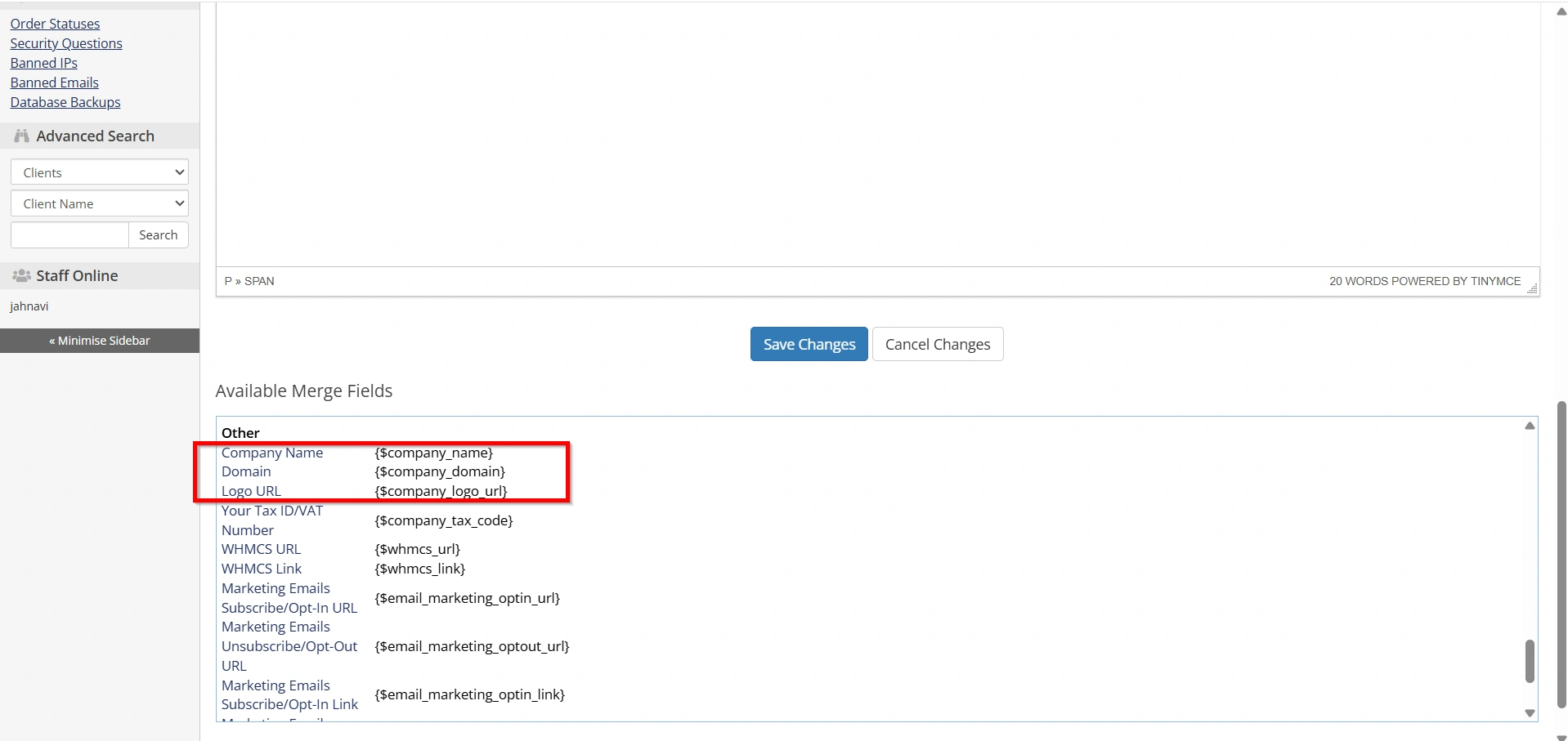
To create a professional appearance, include:
- Company logo
- Brand colors
- Contact information
- Social media links
- Website URL
You can use HTML formatting to customize the layout and improve readability.
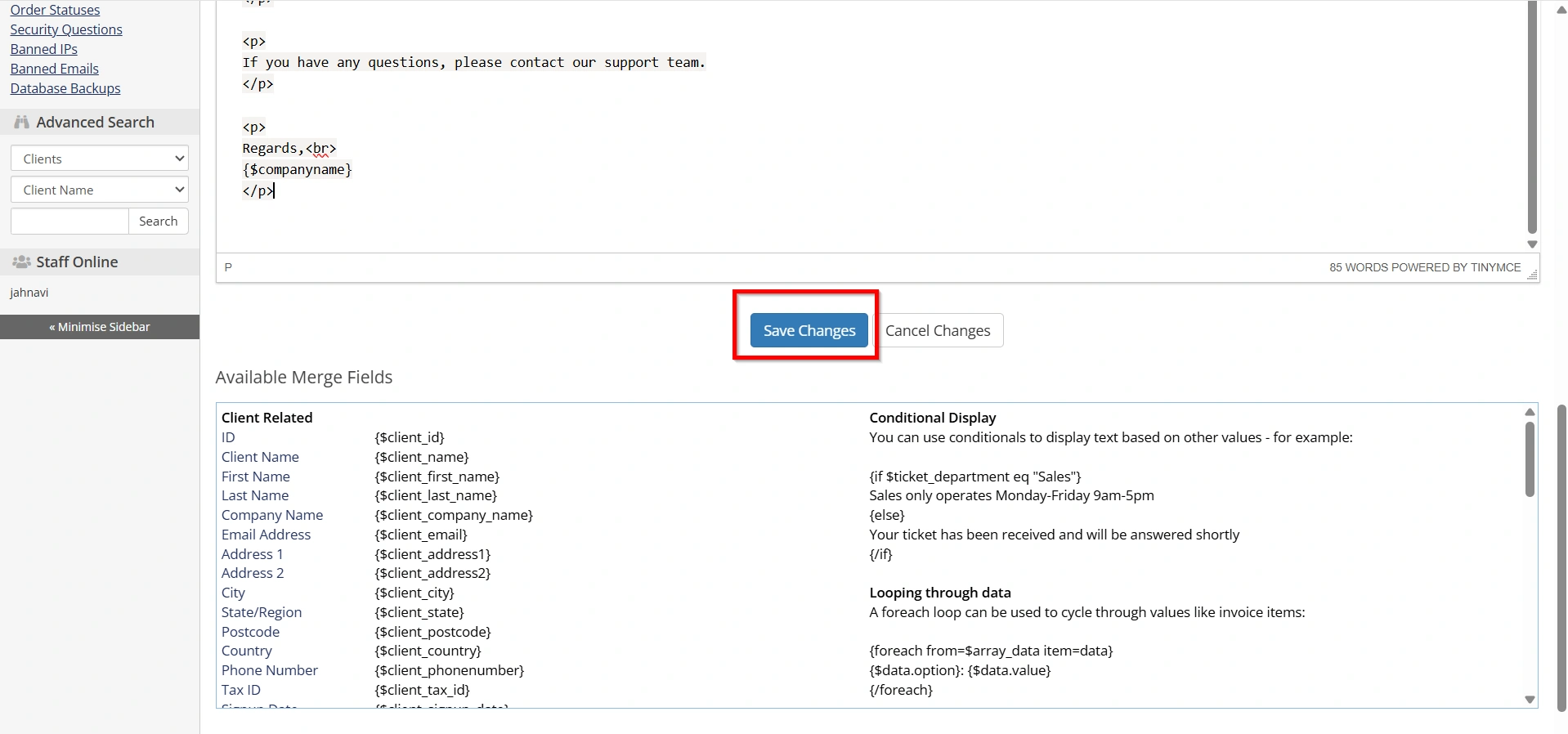
Step 8: Save the Template
After completing the subject and message content:
- Review the template carefully.
- Click Save Changes.
Your new invoice email template is now stored in WHMCS.
Step 9: Test the Template
Before using the template in production:
- Open the newly created template.
- Use WHMCS testing options if available.
- Send a test email to yourself.
- Verify:
- Subject line formatting
- Merge field output
- Links
- Mobile responsiveness
- Branding consistency
Testing helps identify formatting issues before customers receive the email.
Step 10: Use the Template in Automation or Custom Workflows
Since this is a newly created template, WHMCS will not automatically replace the default invoice emails.
You can use the template with:
- Custom hooks
- Automation workflows
- Third-party modules
- API integrations
- Custom billing processes
This approach allows the default invoice emails to remain untouched while your custom template serves a specific purpose.
Best Practices
When creating a new invoice email template in WHMCS:
- Use clear and professional language.
- Keep the email concise.
- Include payment instructions.
- Test merge fields thoroughly.
- Ensure mobile-friendly formatting.
- Maintain consistent branding.
- Avoid removing essential invoice information.
Conclusion
Knowing how to Create Invoice Emails in WHMCS is a valuable skill for any hosting provider or online business using WHMCS. By creating a new invoice email template instead of editing the default one, you preserve the original templates while building customized billing communications for your customers. Following the steps in this guide will help you Create Invoice Emails in WHMCS that are professional, branded, and suitable for automated billing workflows. As your business grows, taking the time to Create Invoice Emails in WHMCS can improve customer engagement, streamline billing notifications, and enhance your overall client experience.
Related Articles


