Latest Updates
How to Create New Email Template in WHMCS
How to Create New Email Template in WHMCS Email communication plays a crucial role in customer engagement and service management. Whether you're running a web hosting company, domain registration business, SaaS platform, or any…
How to Create New Email Template in WHMCS
Email communication plays a crucial role in customer engagement and service management. Whether you’re running a web hosting company, domain registration business, SaaS platform, or any online service, keeping clients informed through professional emails is essential. WHMCS provides a powerful email template system that allows businesses to automate communication with customers. While WHMCS comes with several built-in templates, there are many situations where you may need to Create New Email Template in WHMCS to support custom business requirements.
In this guide, you’ll learn everything you need to know to Create New Email Template in WHMCS, including the benefits, setup process, customization options, and best practices for professional email communication.
What Is an Email Template in WHMCS?
An email template is a predefined message format used by WHMCS to send automated emails to clients and administrators. These templates can contain dynamic merge fields that automatically pull information such as customer names, service details, invoice information, support ticket data, and more.
When you Create New Email Template in WHMCS, you gain full control over the content, design, and purpose of the email. This allows you to tailor communications specifically to your business processes and customer expectations.
Creating a new template gives you flexibility to:
- Send custom notifications
- Create marketing emails
- Automate business-specific communications
- Notify clients about maintenance schedules
- Send onboarding instructions
- Create personalized service-related emails
Prerequisites
Before creating a new email template, ensure that:
- WHMCS is installed and operational
- You have administrator access
- Email settings are configured correctly
- SMTP or mail configuration is working properly
Step-by-Step Guide to Create New Email Template in WHMCS
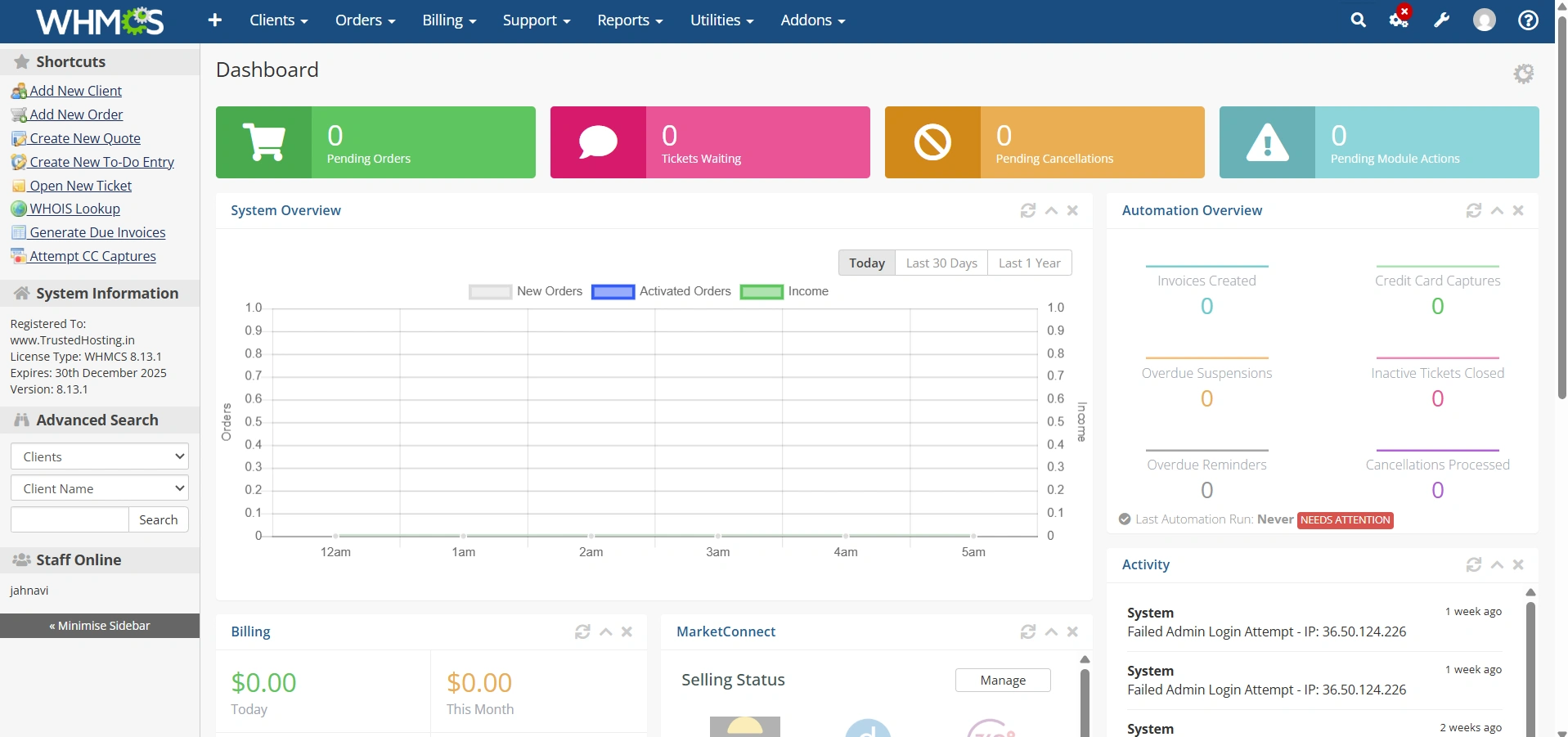
Step 1: Log in to the WHMCS Admin Area
Log in to your WHMCS administrator dashboard.
Step 2: Navigate to Email Templates
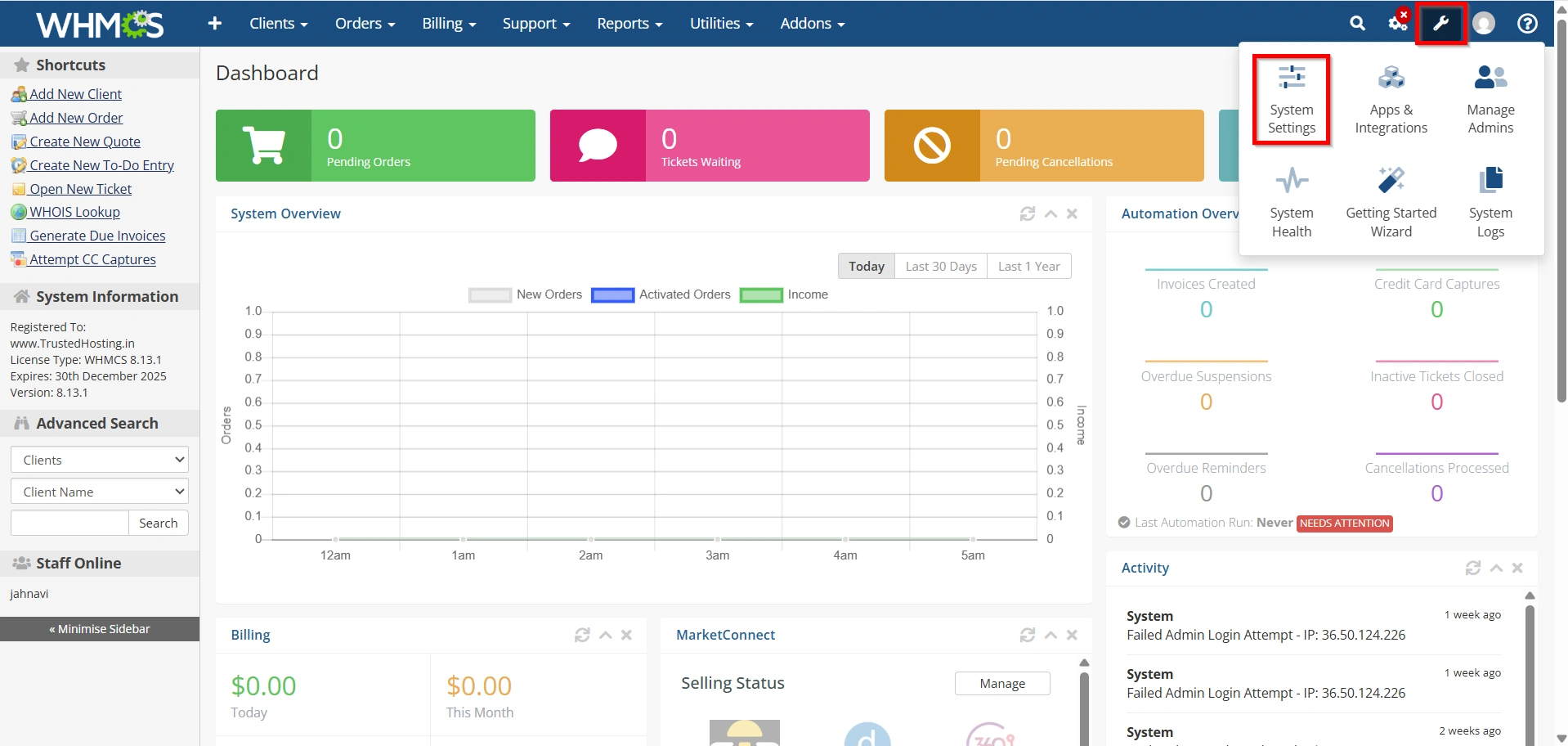
From the WHMCS Admin Dashboard:
- Navigate to Configuration Icon → System Settings
- Under All Settings ,
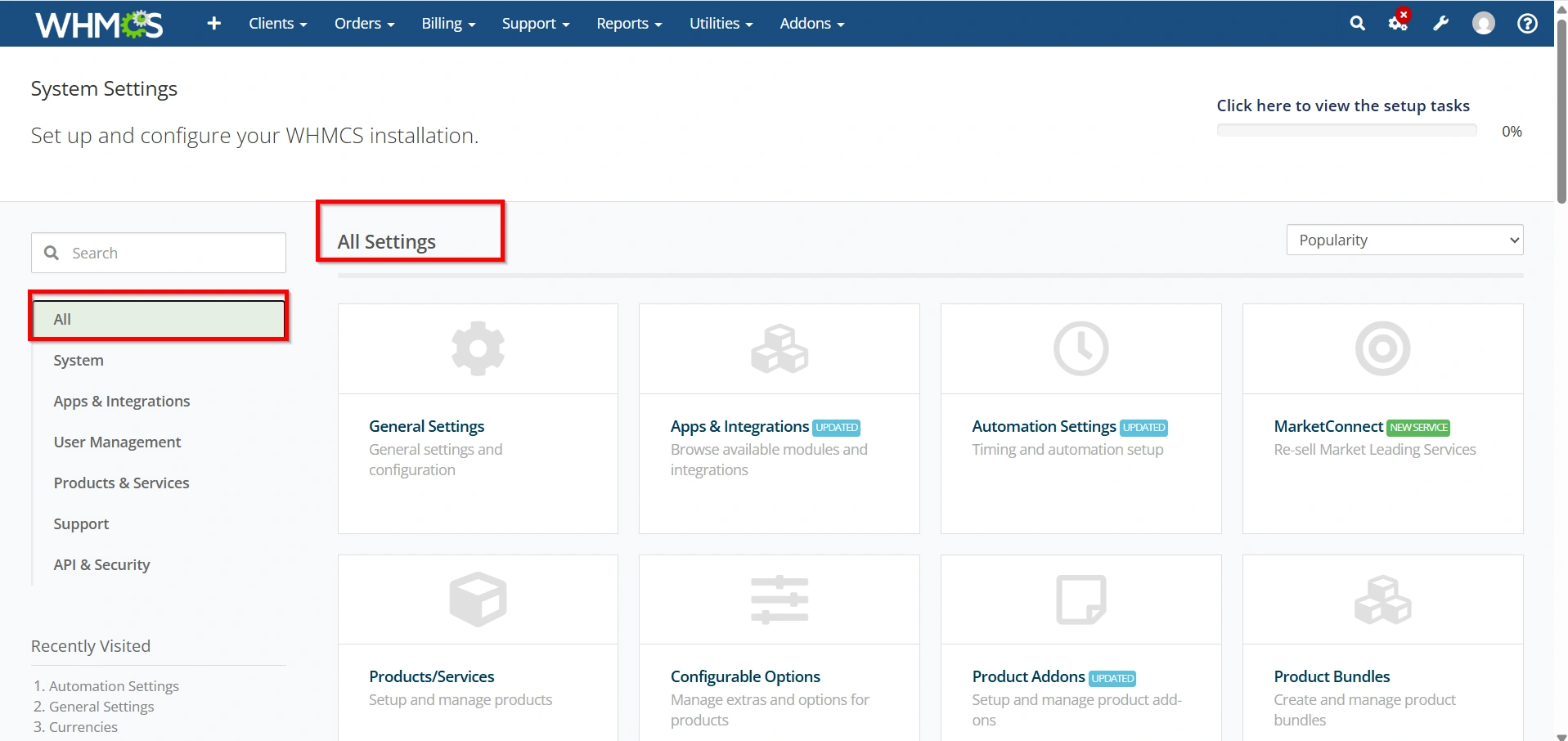
- Select Email Templates
This section contains all existing email templates used by WHMCS.
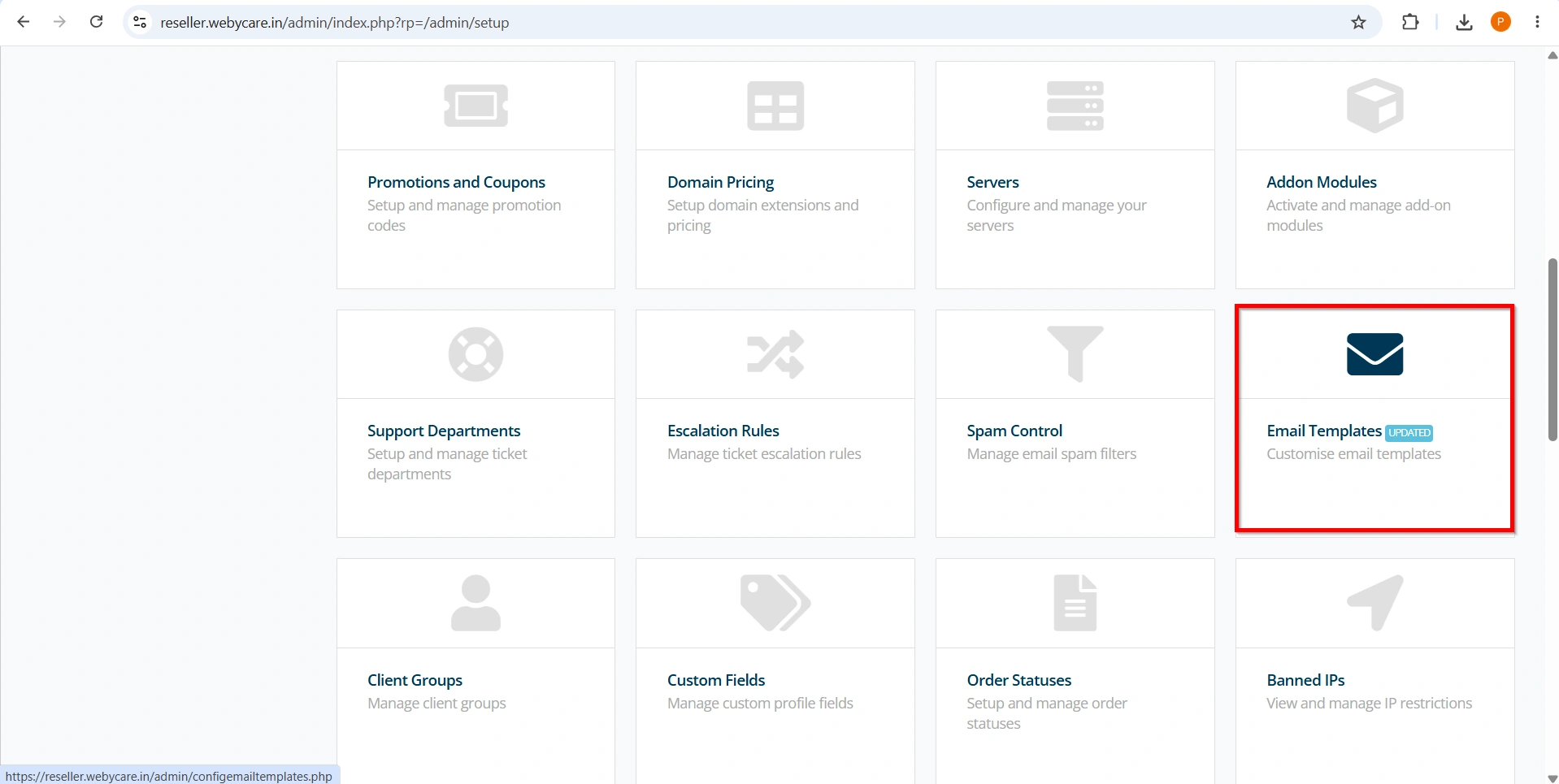
Step 3: Create a New Email Template
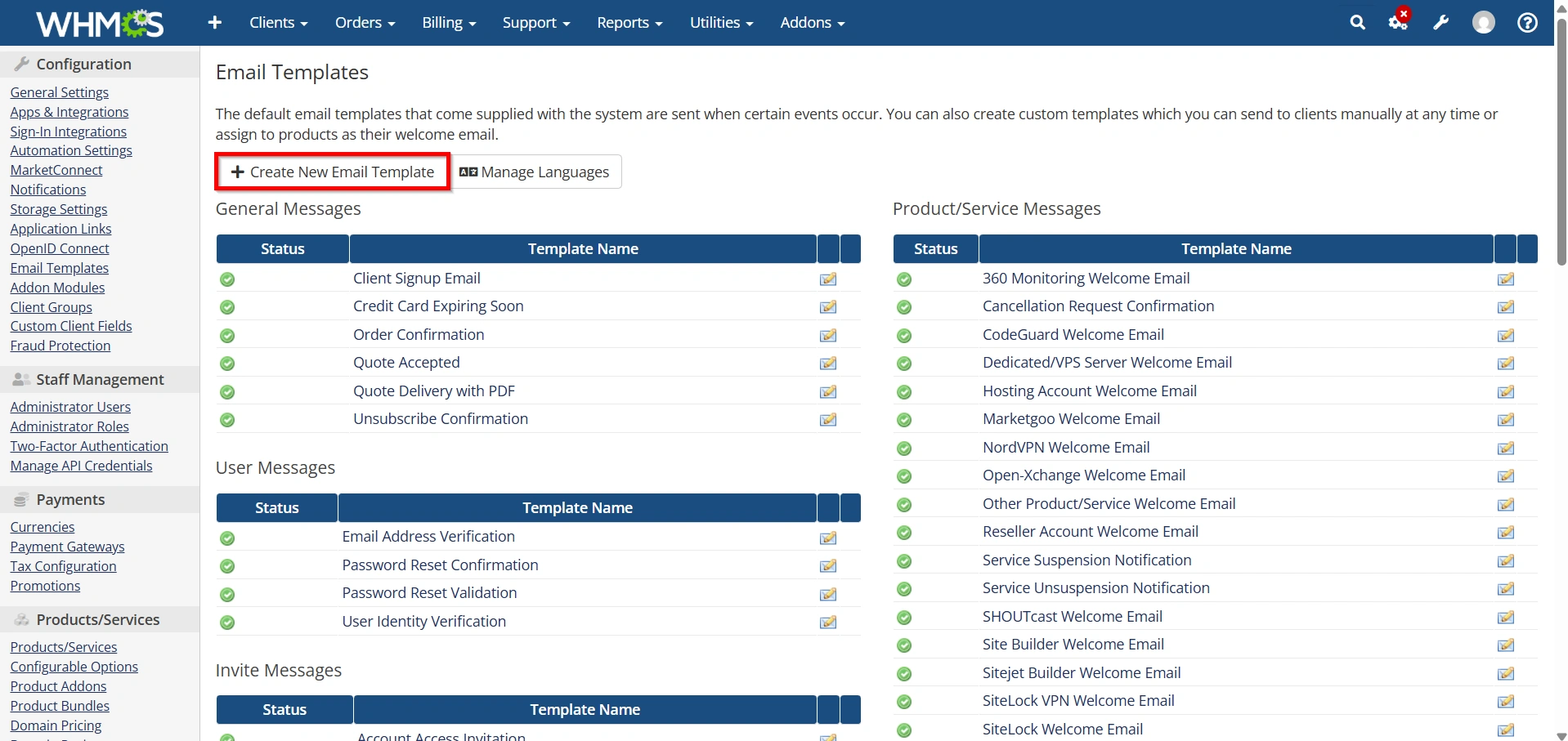
On the Email Templates page:
- Click Create New Email Template
- A new template creation form will appear
WHMCS allows you to create custom templates from scratch.
Step 4: Select Email Type and Template Name
Email Type
Choose the appropriate email type based on your requirement.
Common categories include:
- General
- Product/Service
- Invoice
- Support
- Domain
- Affiliate
For a custom notification, selecting General is usually recommended.
Template Name
Provide a descriptive name.
Examples:
- Welcome Email Custom
- Hosting Upgrade Notification
- Maintenance Announcement
- Service Activation Guide
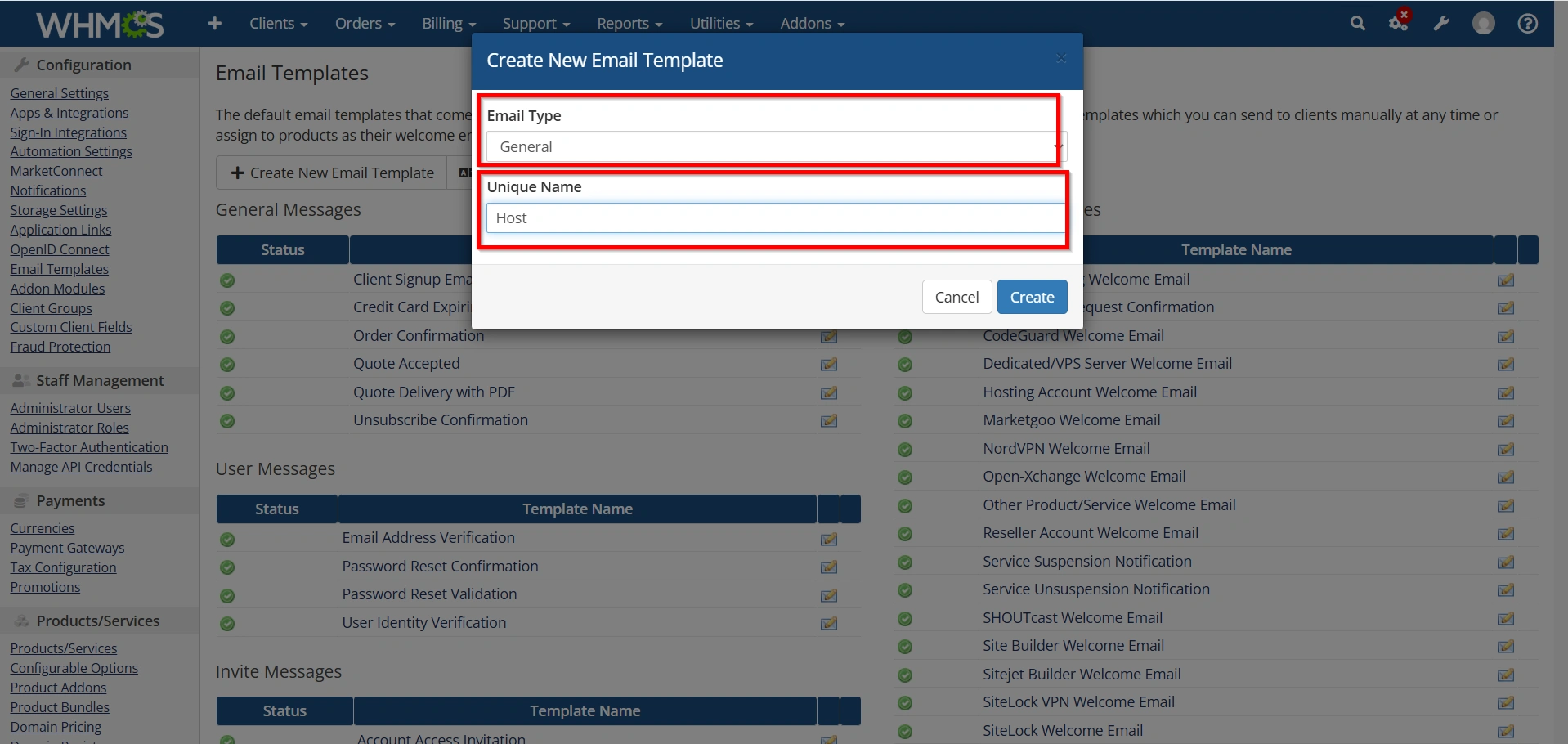
- Click Create.
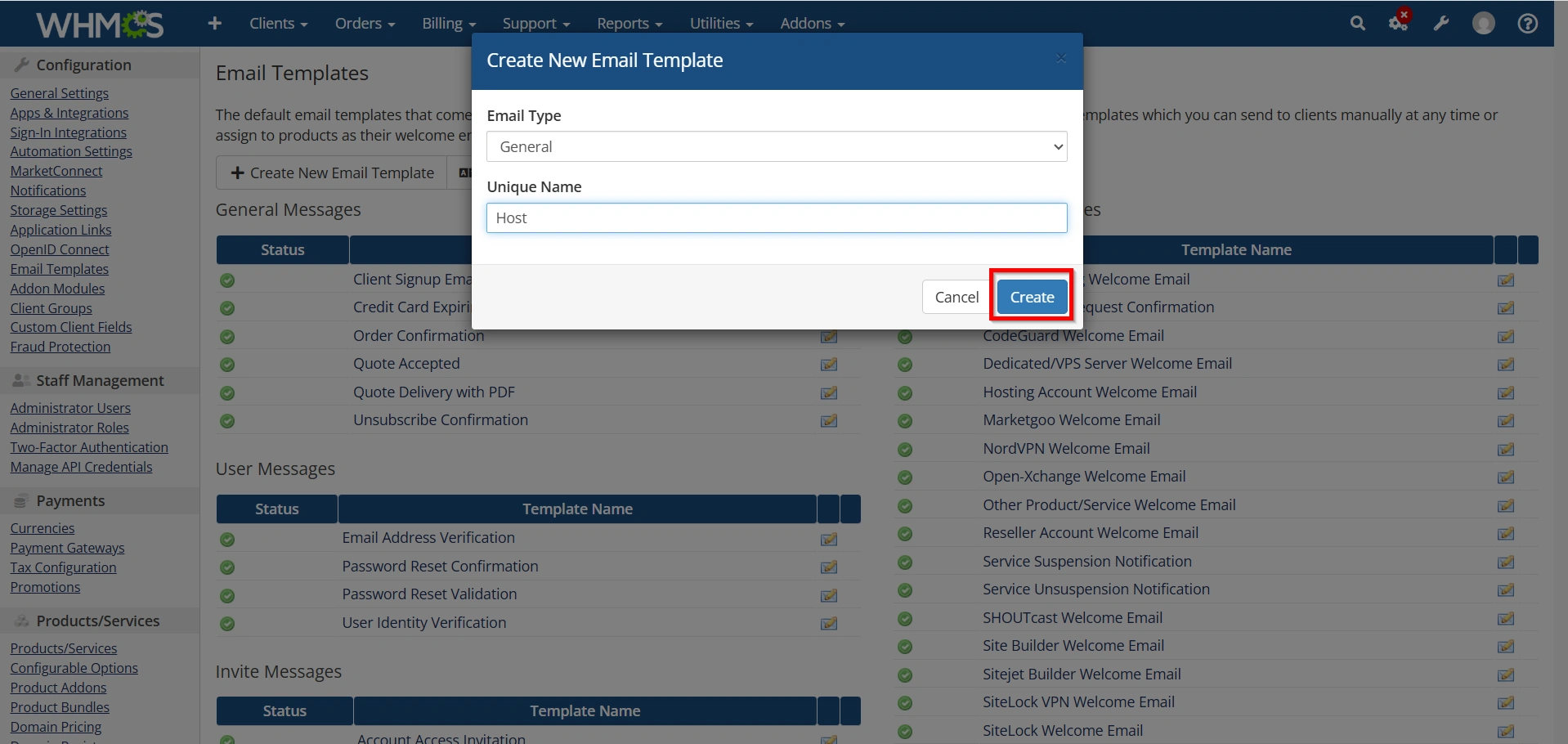
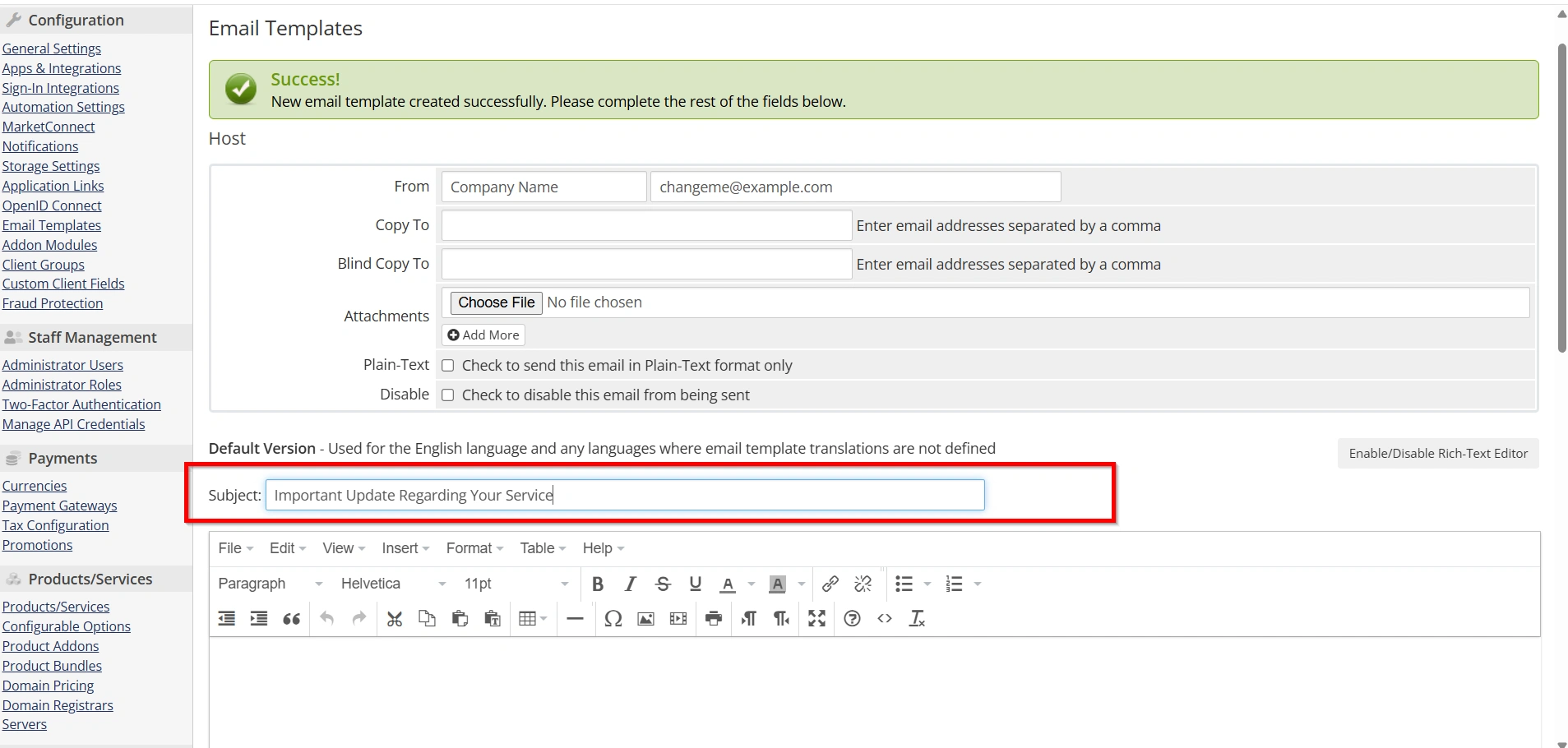
Step 5: Enter Template Information
Fill in the required fields.
Email Subject
Create a professional subject line.
Example:
Welcome to {$companyname}
or
Important Update Regarding Your Service
The subject line can include merge fields.
Step 6: Design the Email Content
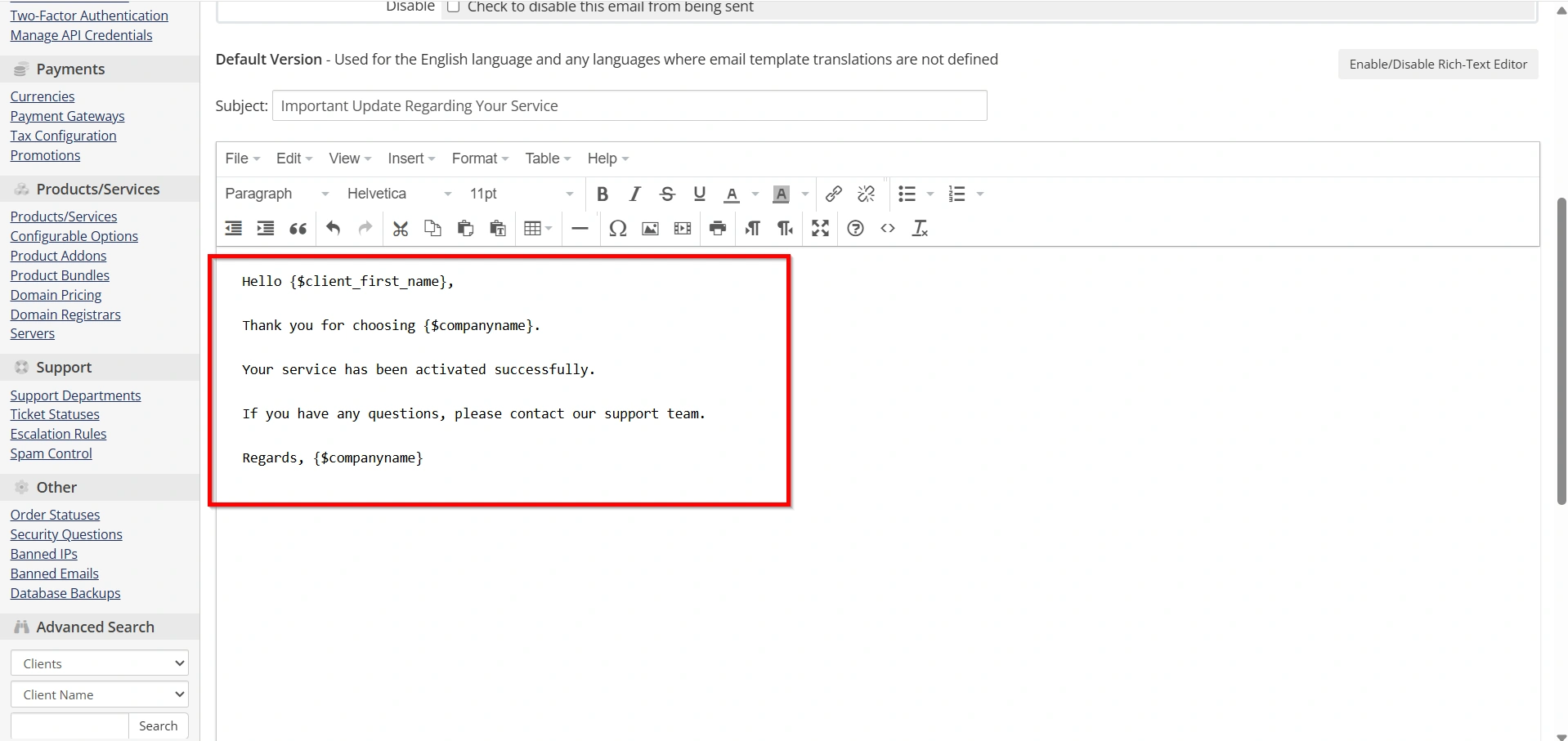
In the Message field, enter your email content.
Example:
Hello {$client_first_name},

Thank you for choosing {$companyname}.

Your service has been activated successfully.

If you have any questions, please contact our support team.

Regards,
{$companyname}
You can create either:
- Plain Text Emails
- HTML Emails
HTML emails provide better formatting and branding opportunities.
Using Merge Fields
One of the most useful features when creating a new Email Template in WHMCS is merge fields.
Merge fields dynamically insert information into emails.
Common examples include:
| Merge Field | Description |
|---|---|
| {$client_name} | Client Full Name |
| {$client_first_name} | First Name |
| {$client_email} | Email Address |
| {$companyname} | Company Name |
| {$signature} | Email Signature |
Example:
Dear {$client_first_name},

Welcome to {$companyname}.
WHMCS automatically replaces these values when sending the email.
Step 7: Enable HTML Mode (Optional)
If you want a professionally designed email:
- Enable HTML mode
- Add HTML content
- Include styling and branding
Example elements:
- Company logo
- Headers
- Buttons
- Contact information
- Social media links
HTML emails often provide higher engagement and better visual presentation.
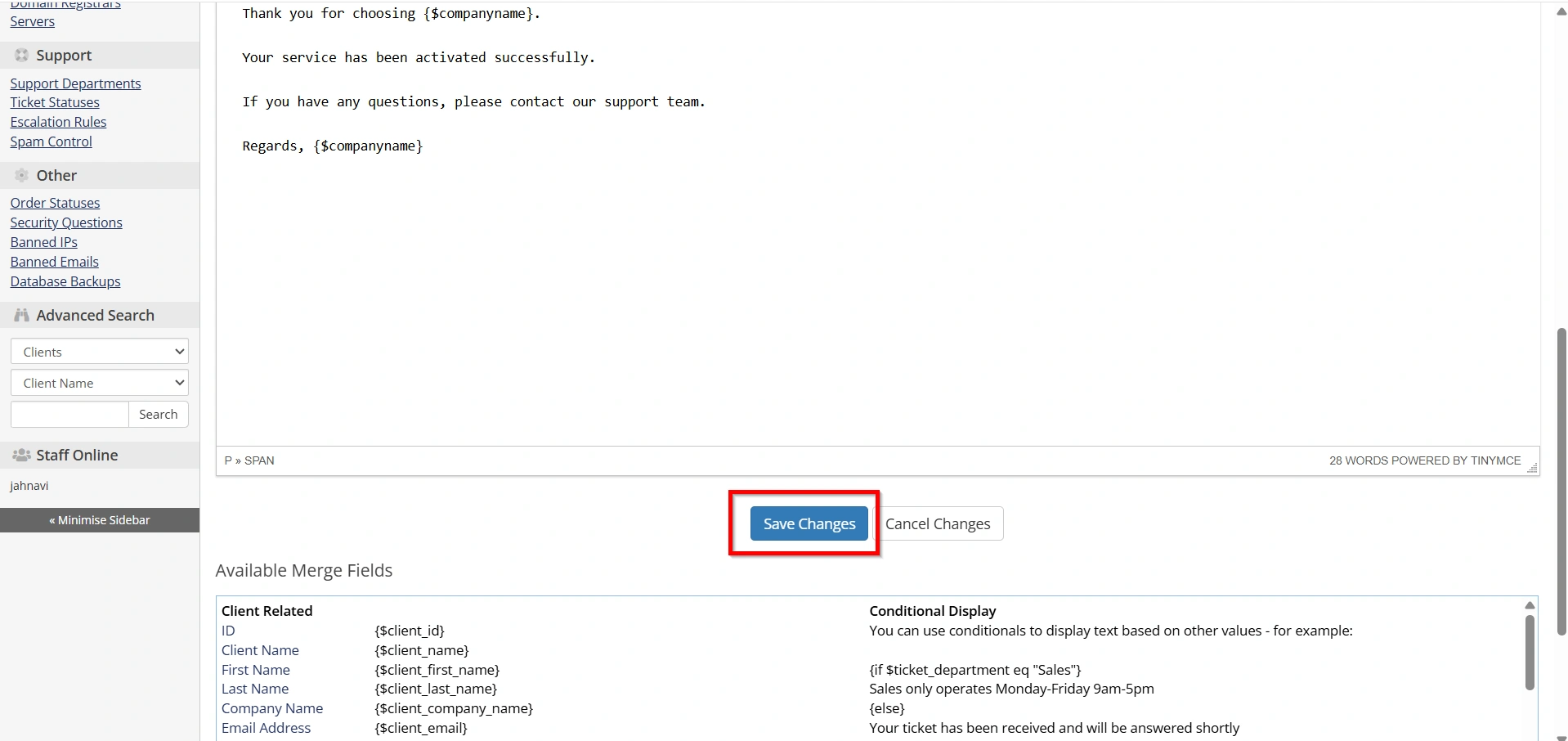
Step 8: Save the Template
After completing the template:
- Review the subject
- Check merge fields
- Verify formatting
- Click Save Changes
Your new Email Template in WHMCS is now ready for use.
Testing Your Email Template
Before using the template in production:
- Check Merge Fields
- Review Formatting
- Send Test Emails
- Verify Links
Best Practices for Email Template Creation
- Keep Messages Clear
- Use Personalized Greetings
- Maintain Brand Consistency
- Avoid Excessive Formatting
- Include Contact Information
- Test Before Deployment
Common Use Cases for Custom Email Templates
Businesses often create new Email Templates in WHMCS for:
- Welcome messages
- Service activation notices
- Maintenance alerts
- Promotional campaigns
- Upgrade recommendations
- Renewal reminders
- Customer feedback requests
- Custom support notifications
These templates help streamline communication and improve customer engagement.
Benefits of Creating Custom Email Templates
Before learning how to create a new Email Template in WHMCS, let’s look at some advantages:
- Better Client Communication
- Consistent Branding
- Automation
- Personalized Messaging
- Improved Customer Experience
Conclusion
Learning how to Create New Email Template in WHMCS is an important skill for any WHMCS administrator. Custom email templates allow businesses to improve customer communication, automate repetitive tasks, strengthen branding, and provide a better overall client experience. Whether you’re sending onboarding instructions, maintenance notifications, promotional offers, or service updates, the ability to Create New Email Template in WHMCS gives you complete control over how your business communicates with customers.
By following the steps outlined in this guide, you can confidently Create New Email Template in WHMCS, customize its content using merge fields, and deliver professional emails that enhance customer satisfaction while supporting your business growth.
Related Articles


