cPanel
How To Create Custom Email Filters In cPanel
How To Create Custom Email Filters In cPanel Managing emails manually can quickly become difficult when your inbox receives hundreds of messages every day. Spam emails, promotional newsletters, support requests, client inquiries, and automated…

How To Create Custom Email Filters In cPanel
Managing emails manually can quickly become difficult when your inbox receives hundreds of messages every day. Spam emails, promotional newsletters, support requests, client inquiries, and automated notifications can clutter your mailbox and reduce productivity. Fortunately, cPanel provides a powerful feature called Email Filters that helps automate email management.
With custom email filters in cPanel, you can automatically sort, redirect, delete, or organize emails based on specific conditions. This feature is especially useful for businesses, website owners, support teams, and anyone who manages multiple email accounts.
In this guide, you will learn everything about creating custom email filters in cPanel, including how they work, their benefits, step-by-step setup instructions, practical examples, and best practices.
What Are Custom Email Filters in cPanel?
Custom email filters in cPanel are automated rules that process incoming emails based on predefined conditions. These filters can perform actions automatically whenever an email matches specific criteria.
For example, you can create filters to:
- Move emails from a specific sender into a folder
- Delete spam emails automatically
- Forward support emails to another department
- Flag urgent messages
- Redirect billing-related emails
- Filter messages containing certain keywords
Instead of manually organizing emails, filters help automate the entire process.
Types of Email Filters in cPanel
cPanel generally provides two types of email filters.
Account-Level Filters
These filters apply only to a specific email account.
Example:
Global Email Filters
These filters apply to all email accounts under your hosting account.
Example:
- Blocking spam emails for every mailbox
How To Create Email Filters in cPanel
Step 1: Login to cPanel from Client Area
First, visit the WebyStrata website and log in to your client area account using your registered email address and password.
official Website www.webystrata.com
After logging in:
- Go to Services
- Click on My Services
- Select your active hosting service
- Click on Login to cPanel

Step 2: Open Email Filters
Inside cPanel:
- Go to Email
- Click Email Filters
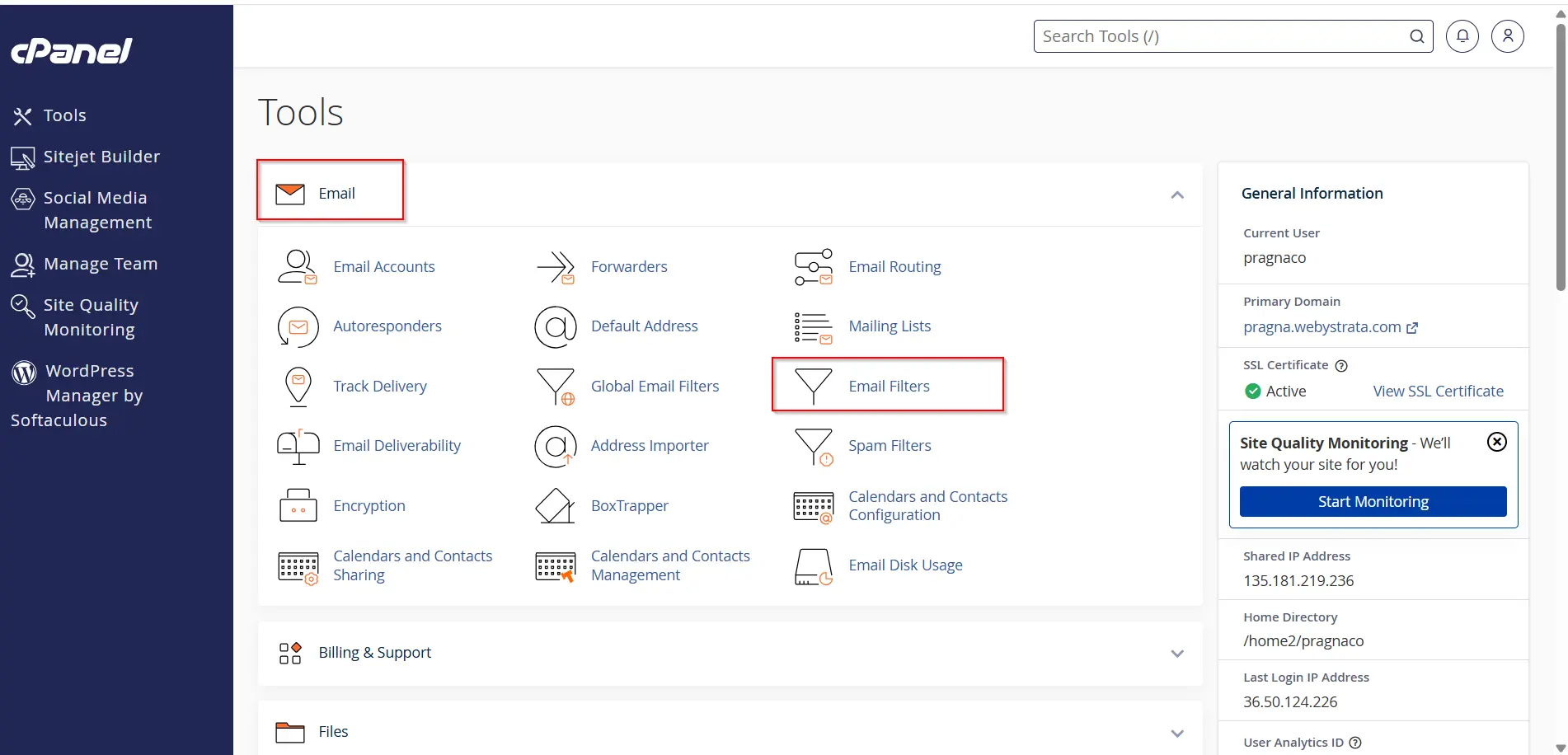
- Select the email account you want to manage
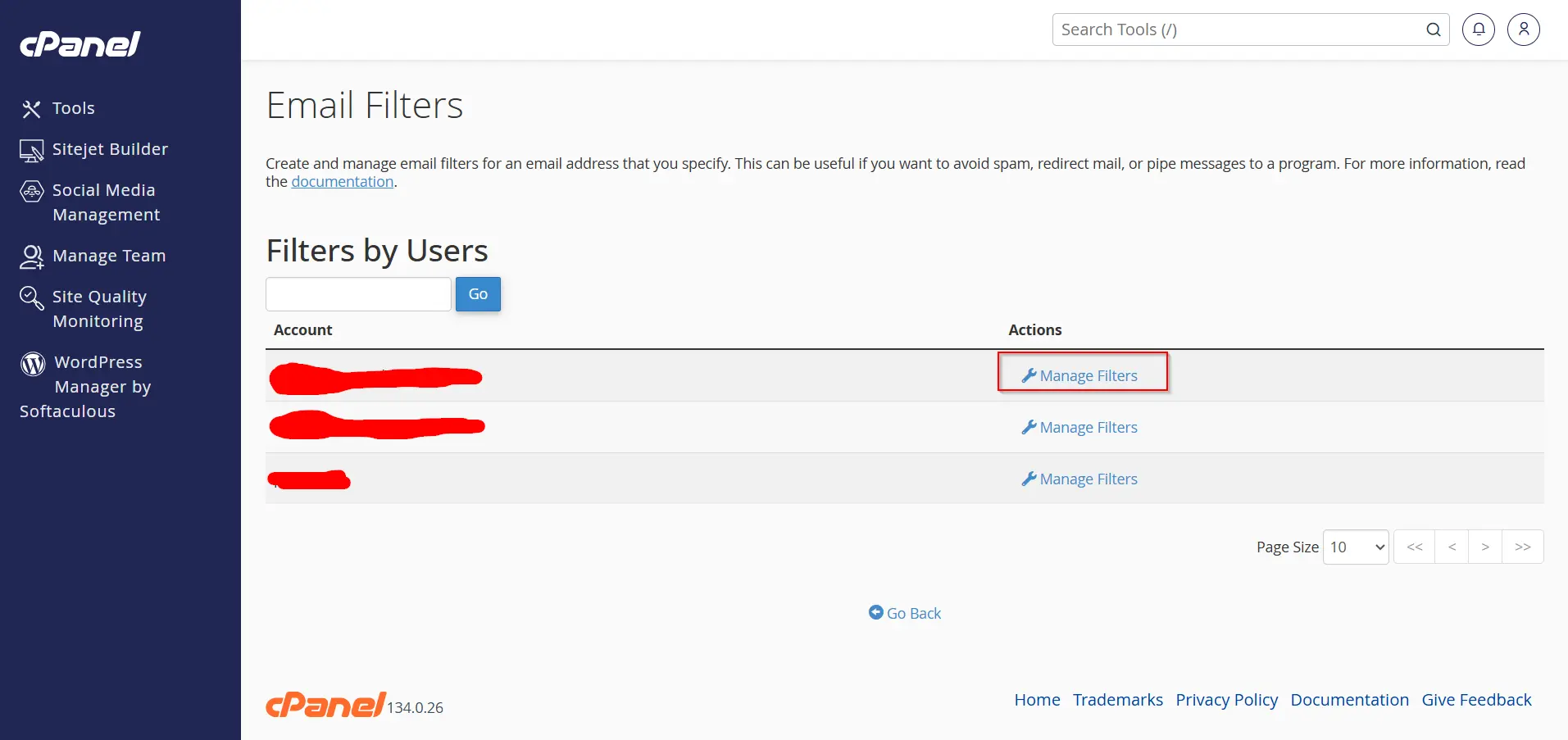
Step 3: Click “Create a New Filter”
You will find the option labeled:
- Create a New Filter
Click it to begin creating your custom rule.
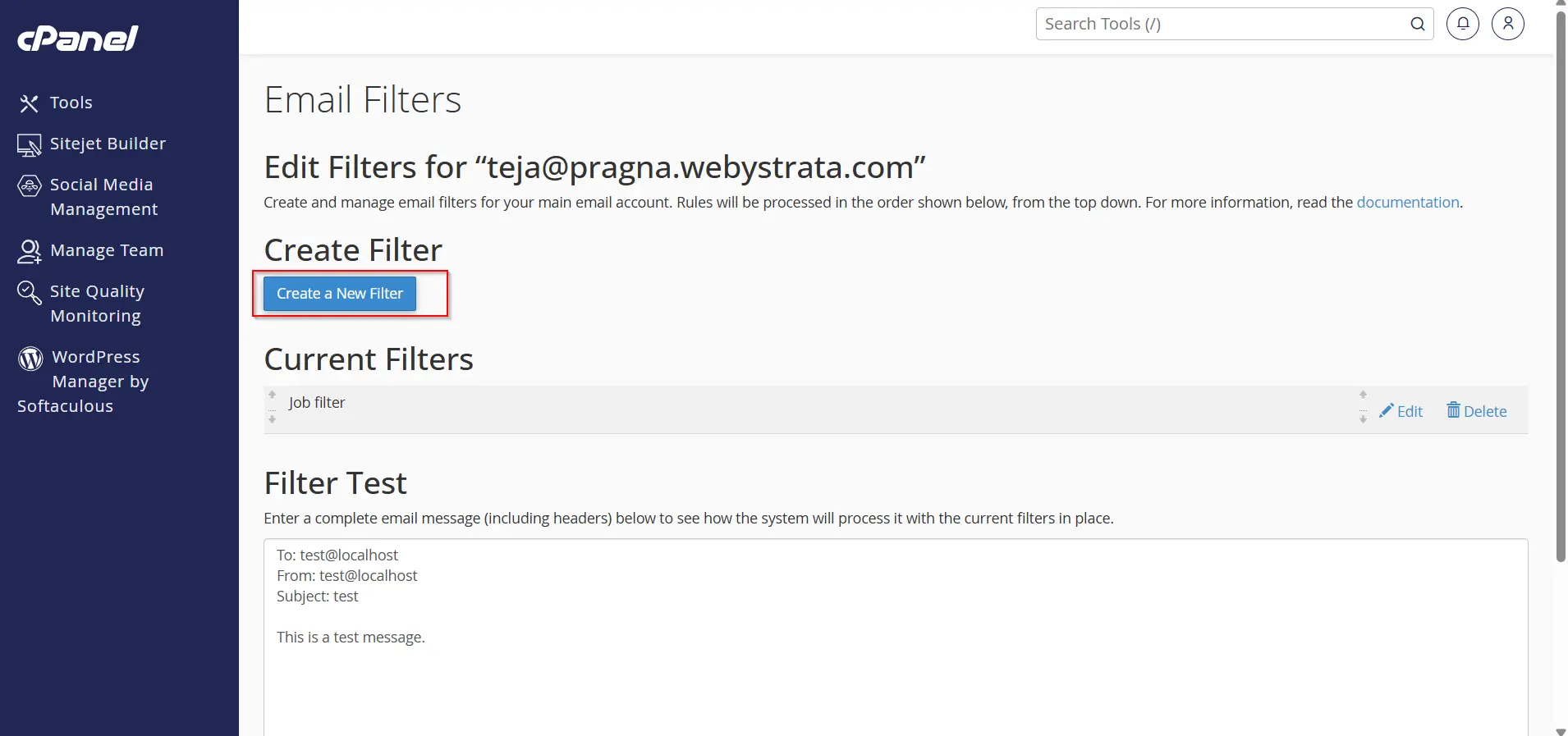
Step 4: Enter Filter Name
Provide a name for your filter.
Examples:
- Spam Blocker
- Client Emails
- Billing Requests
- Newsletter Filter
Using descriptive names helps you manage filters easily later.
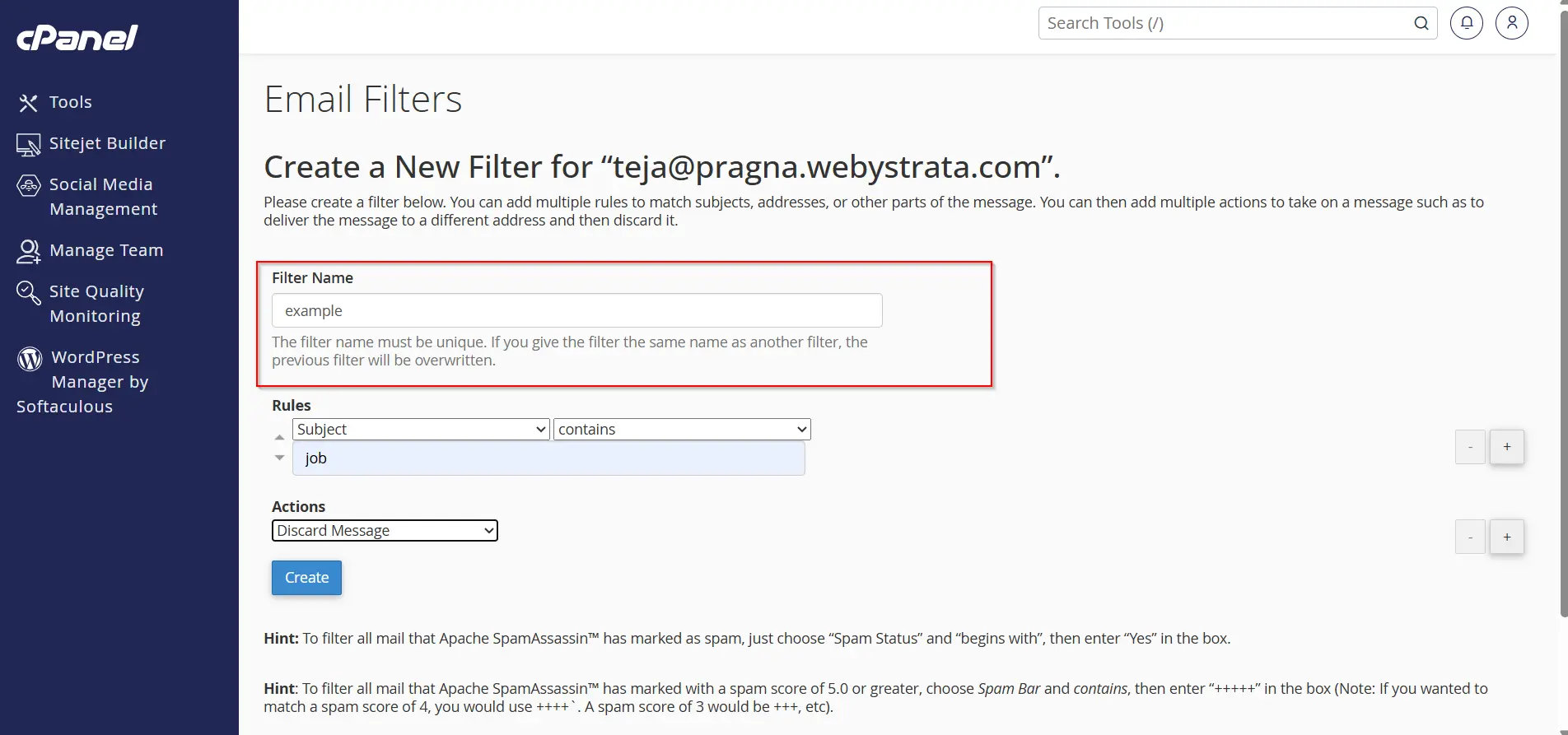
Step 5: Set Filter Rules
Now you need to define the conditions.
Common filtering conditions include:
- From
- Subject
- To
- Body
- Any Header
- Contains
- Equals
- Begins With
- Ends With
Example
Condition:
- From contains “marketing”
This means emails from marketing-related senders will match the rule.
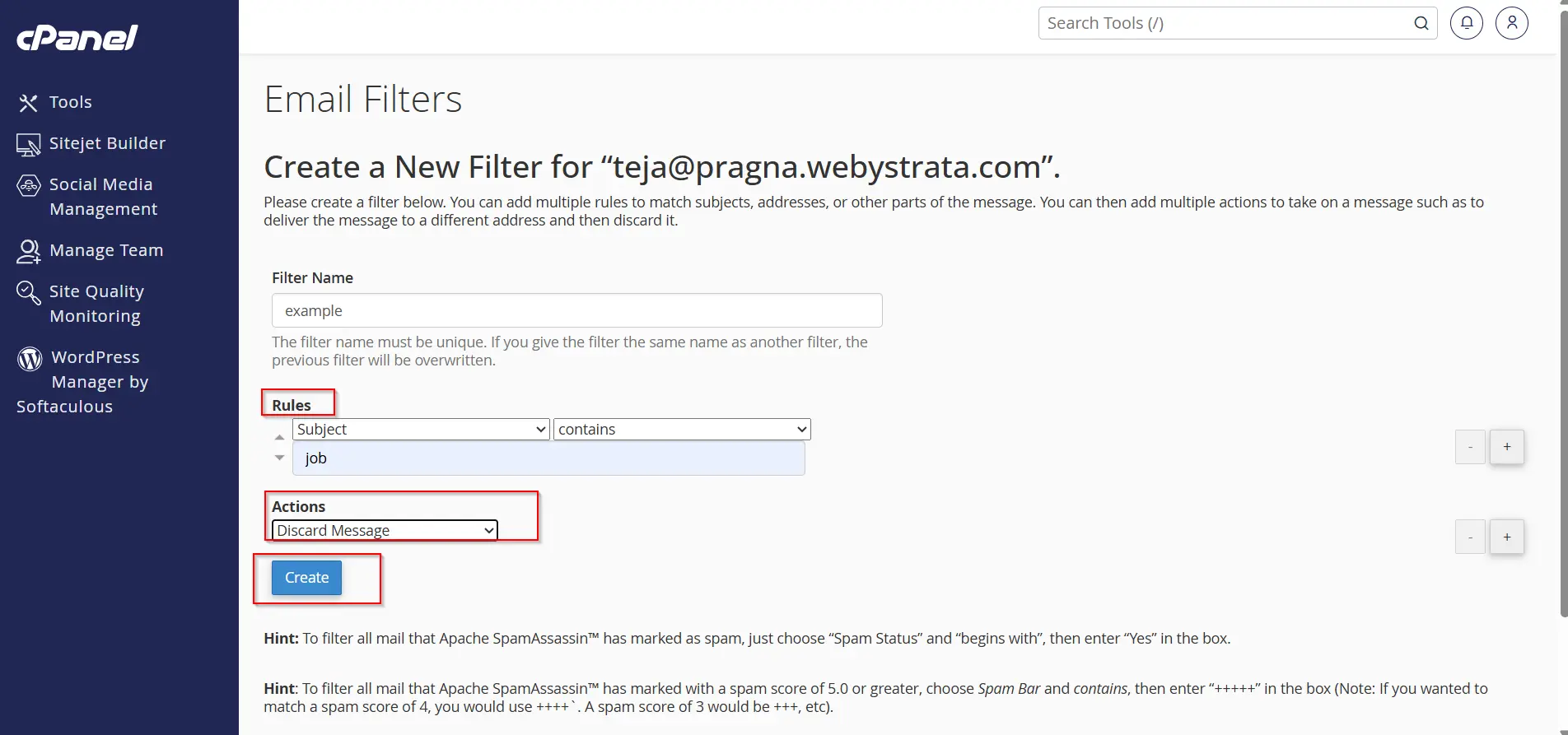
Common Email Filter Actions
After defining conditions, choose what action cPanel should perform.
Deliver to Folder
Automatically move emails into a specific folder.
Redirect to Email
Forward matched emails to another email address.
Discard Message
Delete unwanted emails automatically.
Fail With Message
Reject emails with a custom response.
Pipe to Program
Send emails to scripts or applications.
Mark as Important
Flag high-priority emails.
- After selecting and Rules and Actions
- Click on Create
How To Create Global Email Filters in cPanel
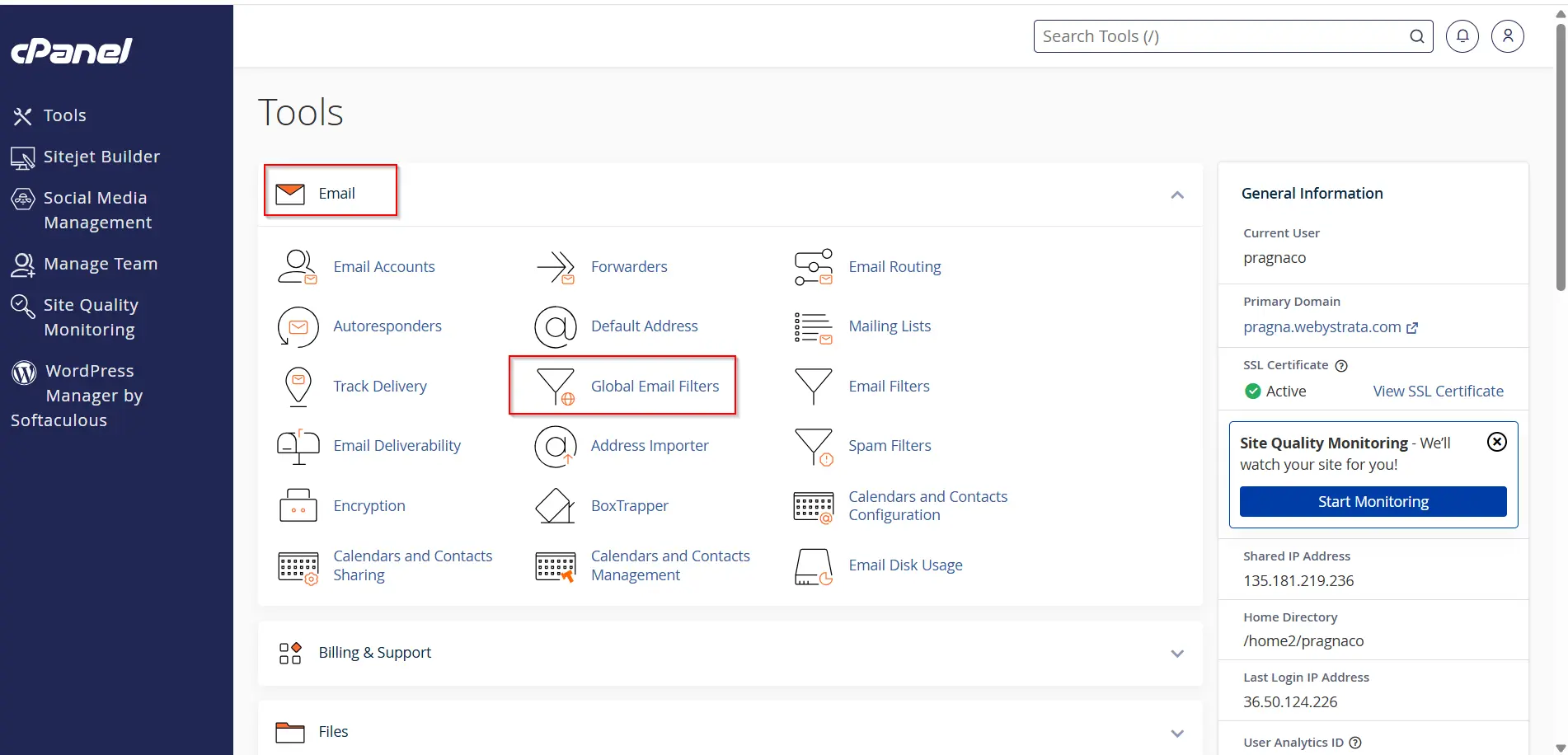
Global filters work similarly but apply to every email account under your hosting.
Steps
- Open cPanel
- Click Global Email Filters
3. Click Create a New Filter
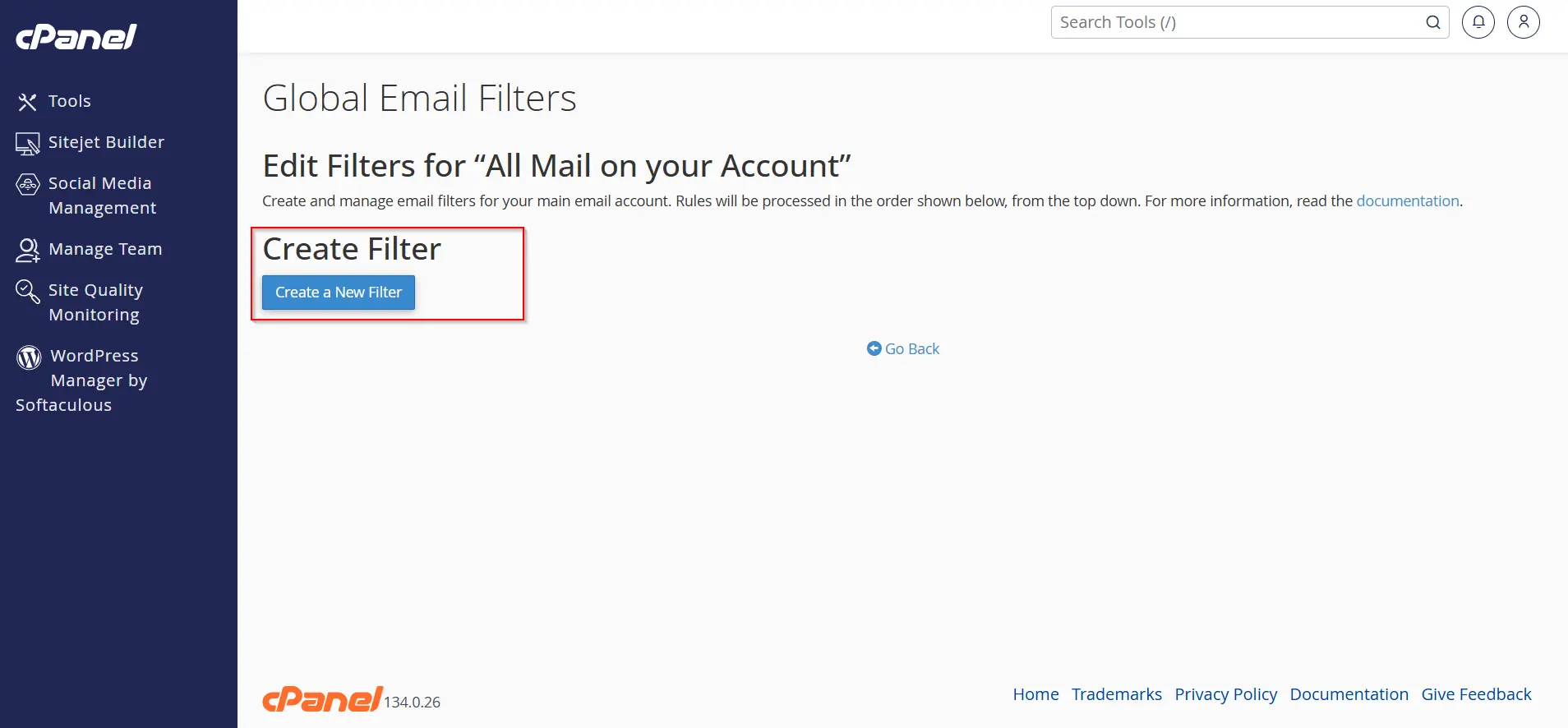
4. Configure rules and actions
5. Click on Create
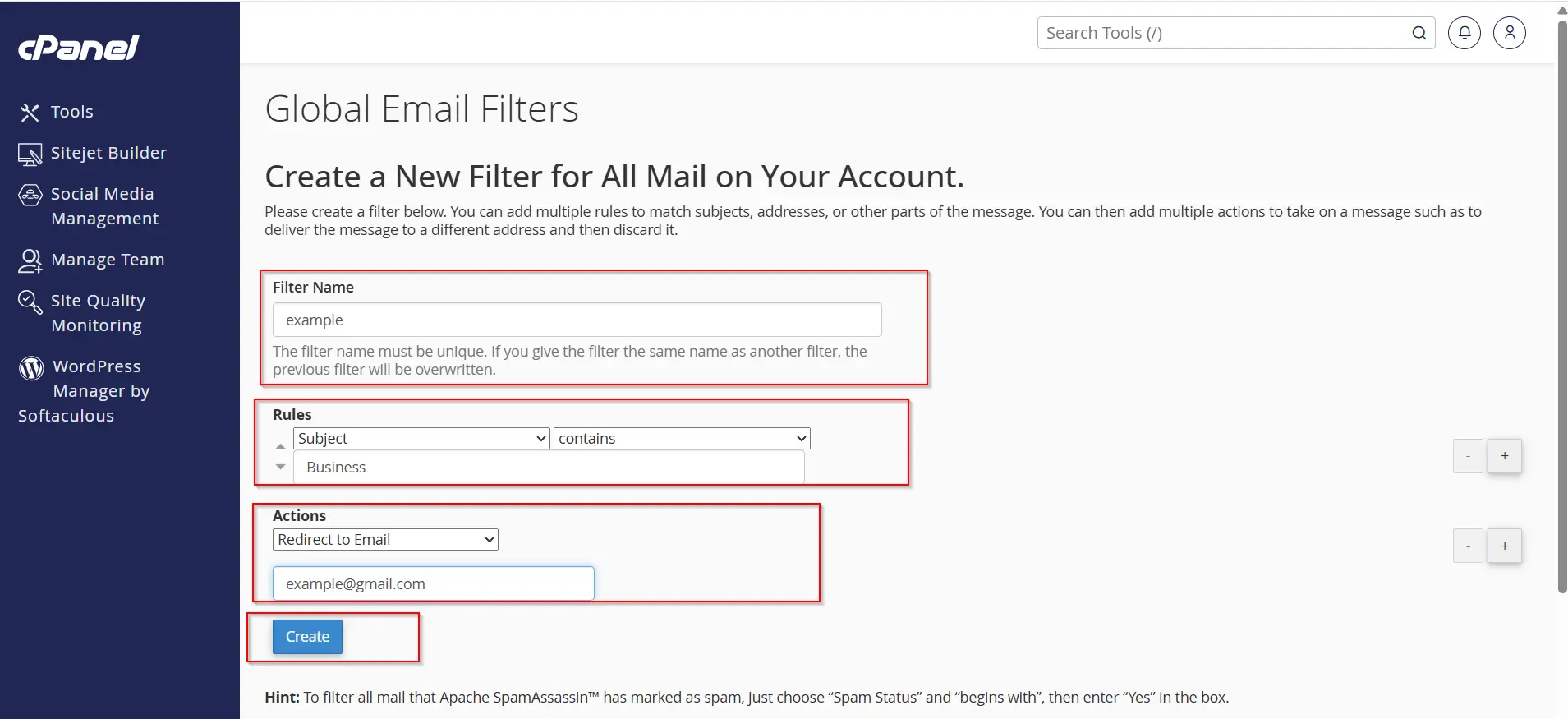
This is useful for blocking domain-wide spam or handling company-wide email policies.
Why Businesses Should Use Email Filters
Businesses receive large volumes of emails daily. Without automation, inboxes become cluttered and inefficient.
Custom email filters help businesses:
- Improve customer support
- Reduce response time
- Eliminate spam
- Organize departments
- Increase productivity
- Maintain cleaner communication systems
For hosting companies, agencies, freelancers, and eCommerce stores, email filtering is essential.
Benefits of Using Email Filters in cPanel
- Better Email Organization
- Reduced Spam
- Improved Productivity
- Automated Workflow
- Cleaner Inbox
Conclusion
Custom email filters in cPanel provide a powerful and efficient way to automate email management. Whether you want to block spam, organize client emails, forward support tickets, or prioritize important messages, email filters can significantly improve productivity and inbox organization.
By learning how to create custom email filters in cPanel, you can reduce manual work, maintain a clean inbox, and streamline communication for personal or business use.
If you manage multiple email accounts or run a business website, implementing email filters is one of the best ways to improve email efficiency and workflow automation.
Related Articles