Latest Updates
Discover the Steps to Duplicate WordPress Pages or Posts
Discover the Steps to Duplicate WordPress Pages or Posts Managing a WordPress website often involves creating pages and posts that share a similar layout, structure, or design. Whether you're building service pages, landing pages,…
Discover the Steps to Duplicate WordPress Pages or Posts
Managing a WordPress website often involves creating pages and posts that share a similar layout, structure, or design. Whether you’re building service pages, landing pages, product descriptions, or blog articles, recreating content from scratch every time can be time-consuming.
Fortunately, WordPress allows you to duplicate existing pages and posts, making content creation faster and more efficient. By creating a copy of an existing page or post, you can preserve formatting, layouts, images, and settings while only modifying the content that needs to be changed.
In this guide, you’ll learn how to duplicate WordPress pages or posts using one of the easiest and most popular methods available: the Duplicate Post plugin.
What Is the Duplicate Post Plugin?
The Duplicate Post plugin is one of the most widely used WordPress plugins for cloning pages and posts. It allows you to create an exact copy of your content with just a few clicks.
The plugin duplicates:
- Page or post title
- Content and formatting
- Featured images
- Categories and tags
- Custom fields
- SEO-related data
- Page settings
- Menu order
- Author information
This means you can create a new page based on an existing one without losing any important settings or formatting.
How to Duplicate WordPress Pages or Posts
Follow the steps below to quickly duplicate content on your WordPress website.
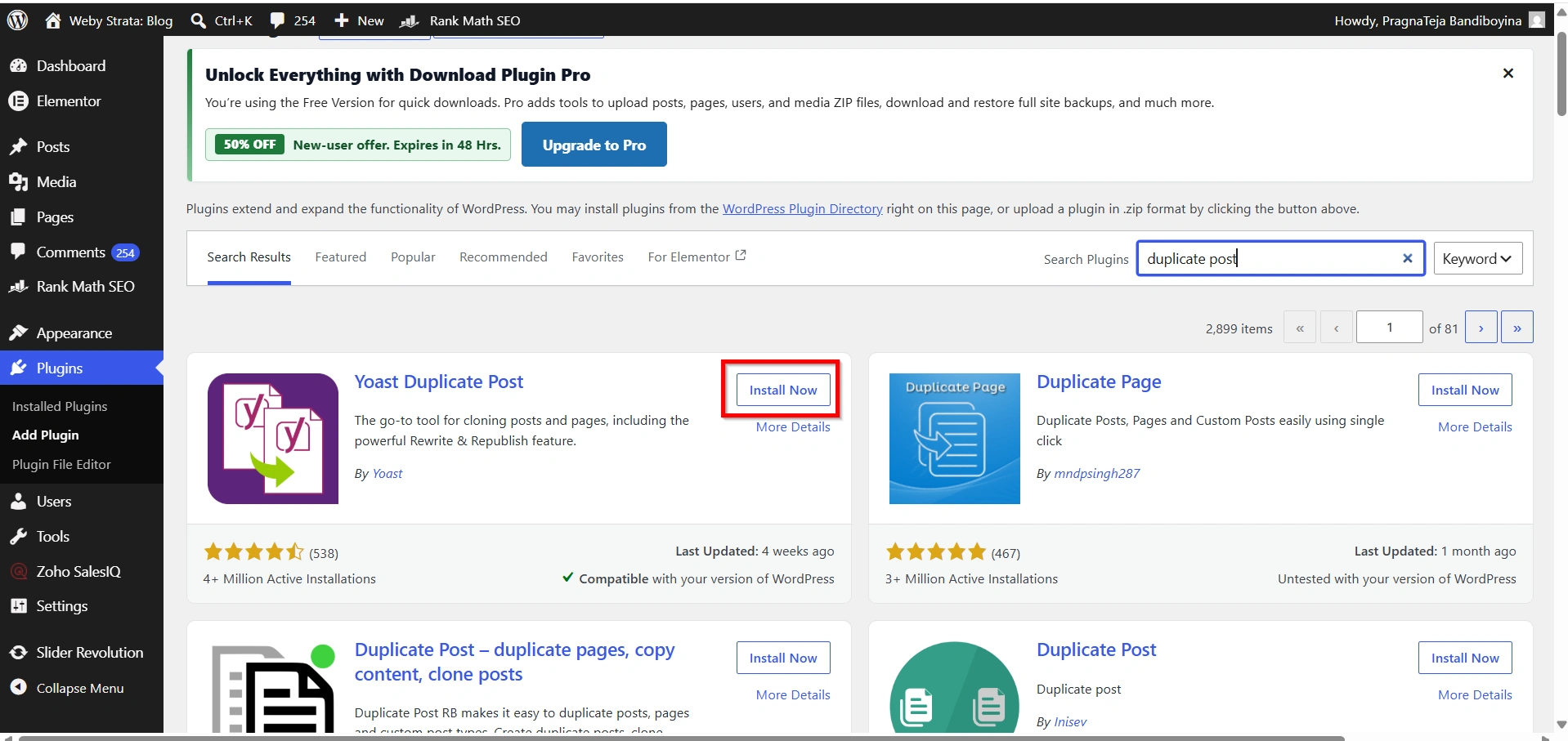
Step 1: Install the Duplicate Post Plugin
First, you need to install and activate the plugin.
- Log in to your WordPress Admin Dashboard.
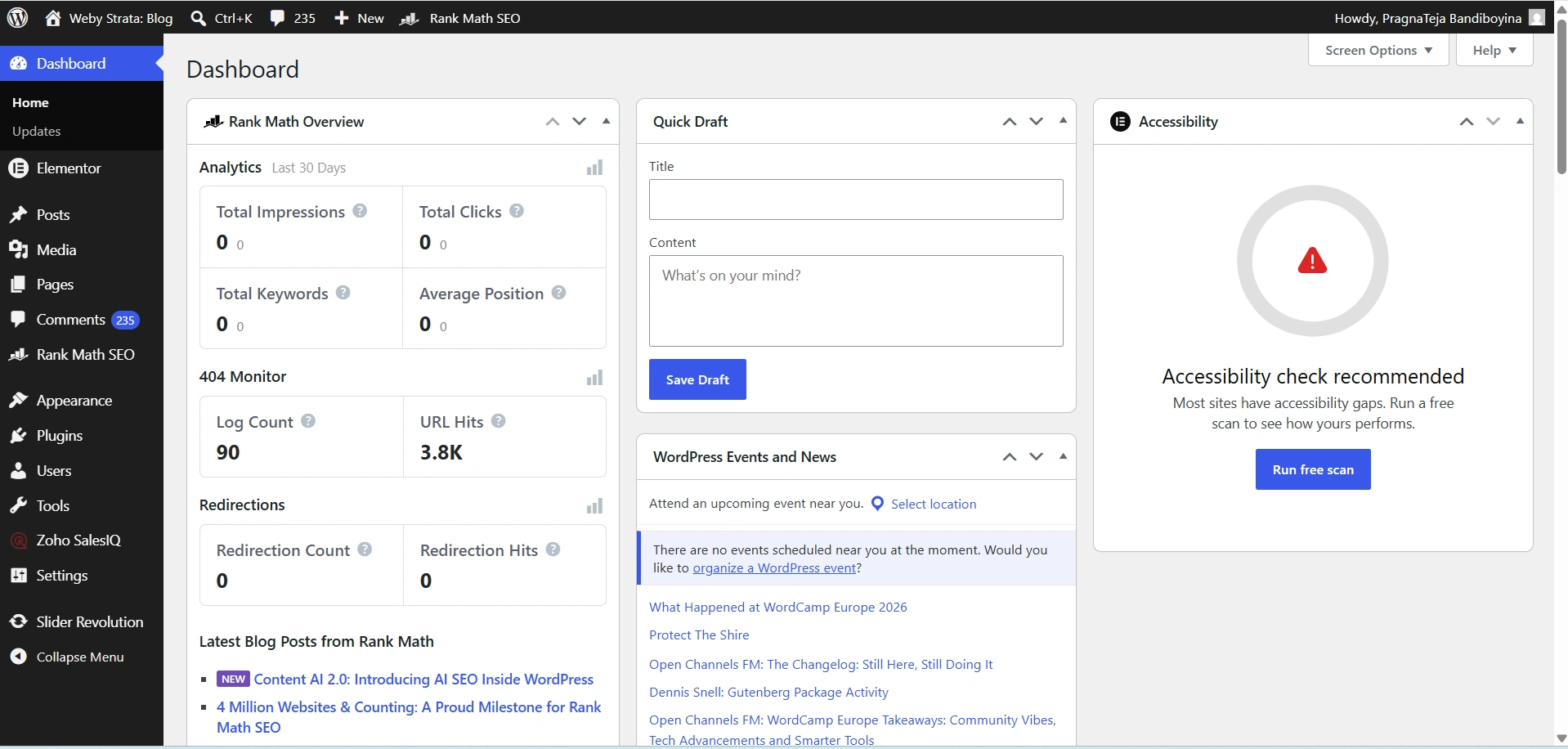
2. Navigate to Plugins → Add New.
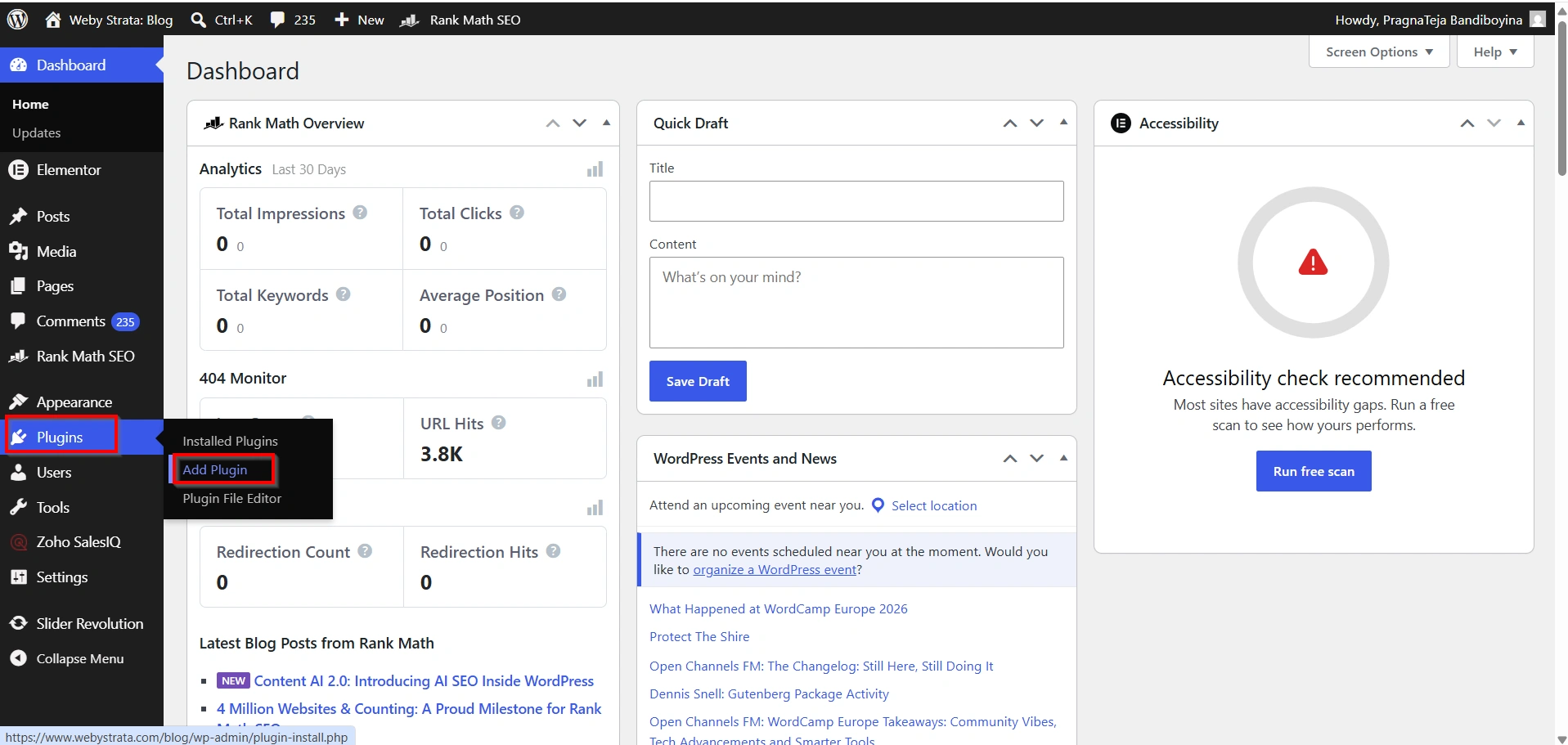
3. In the search box, type Duplicate Post.
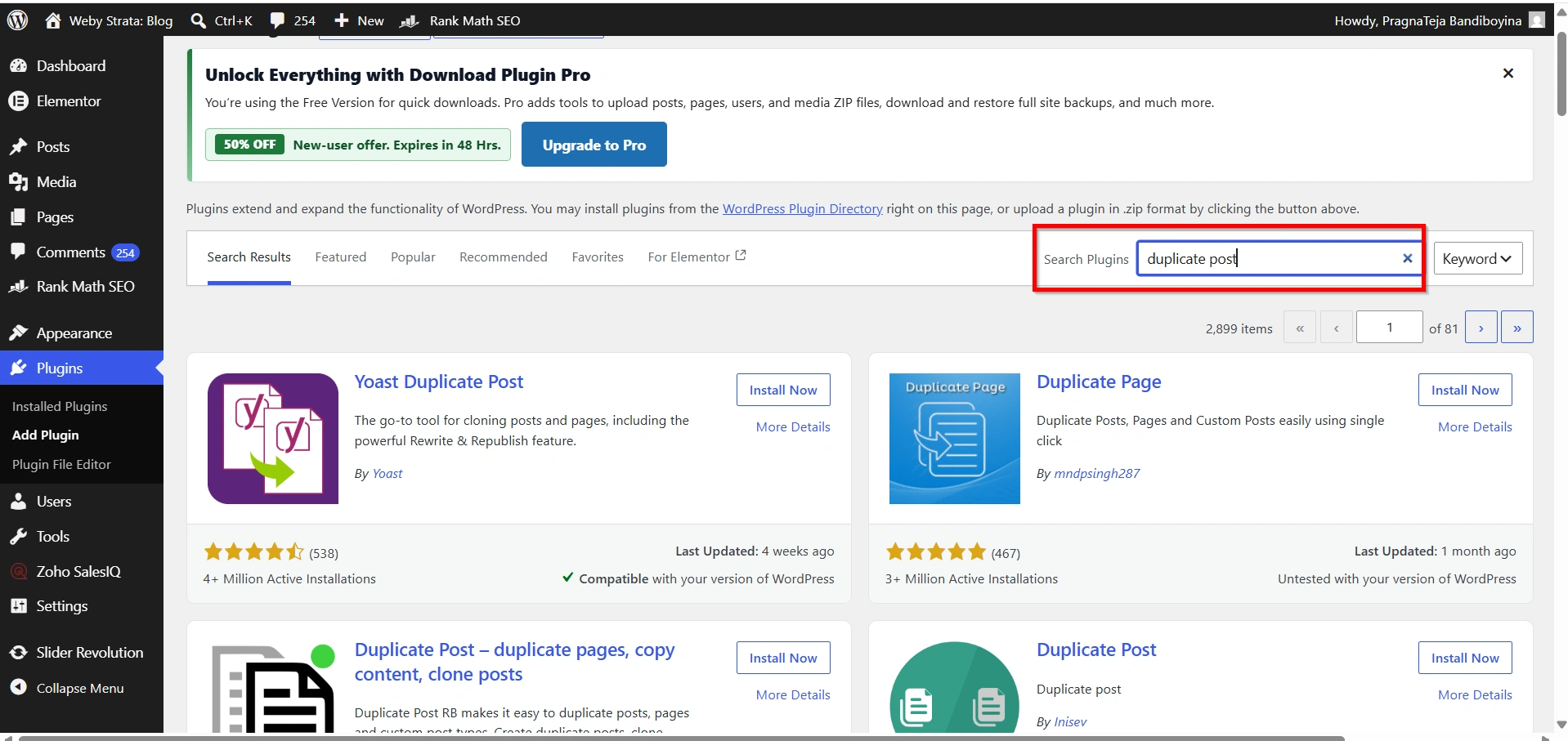
4. Locate the plugin in the search results.
5.Click Install Now.
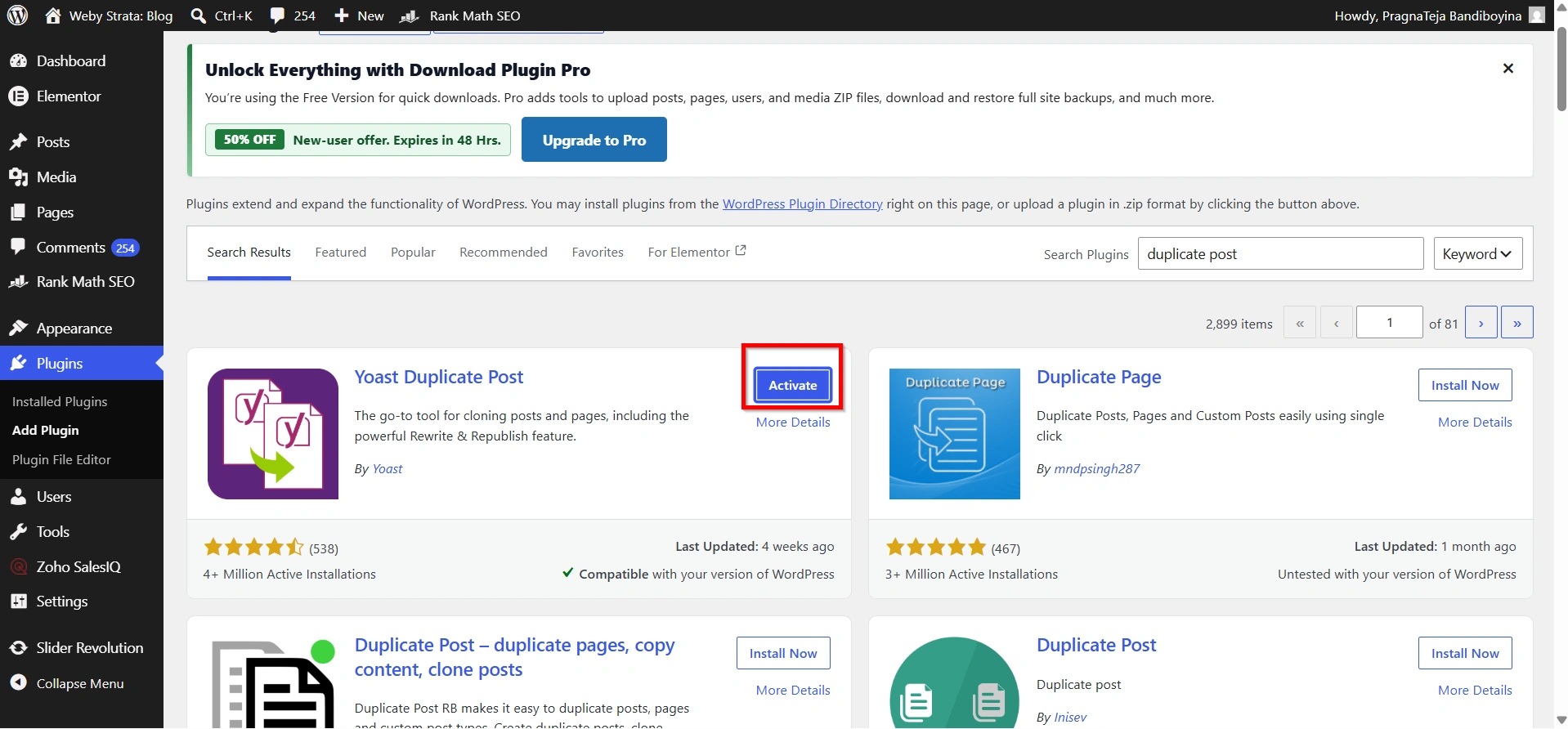
6. After installation, click Activate.
Once activated, the plugin automatically adds duplication options to your posts and pages.
Step 2: Navigate to Posts or Pages
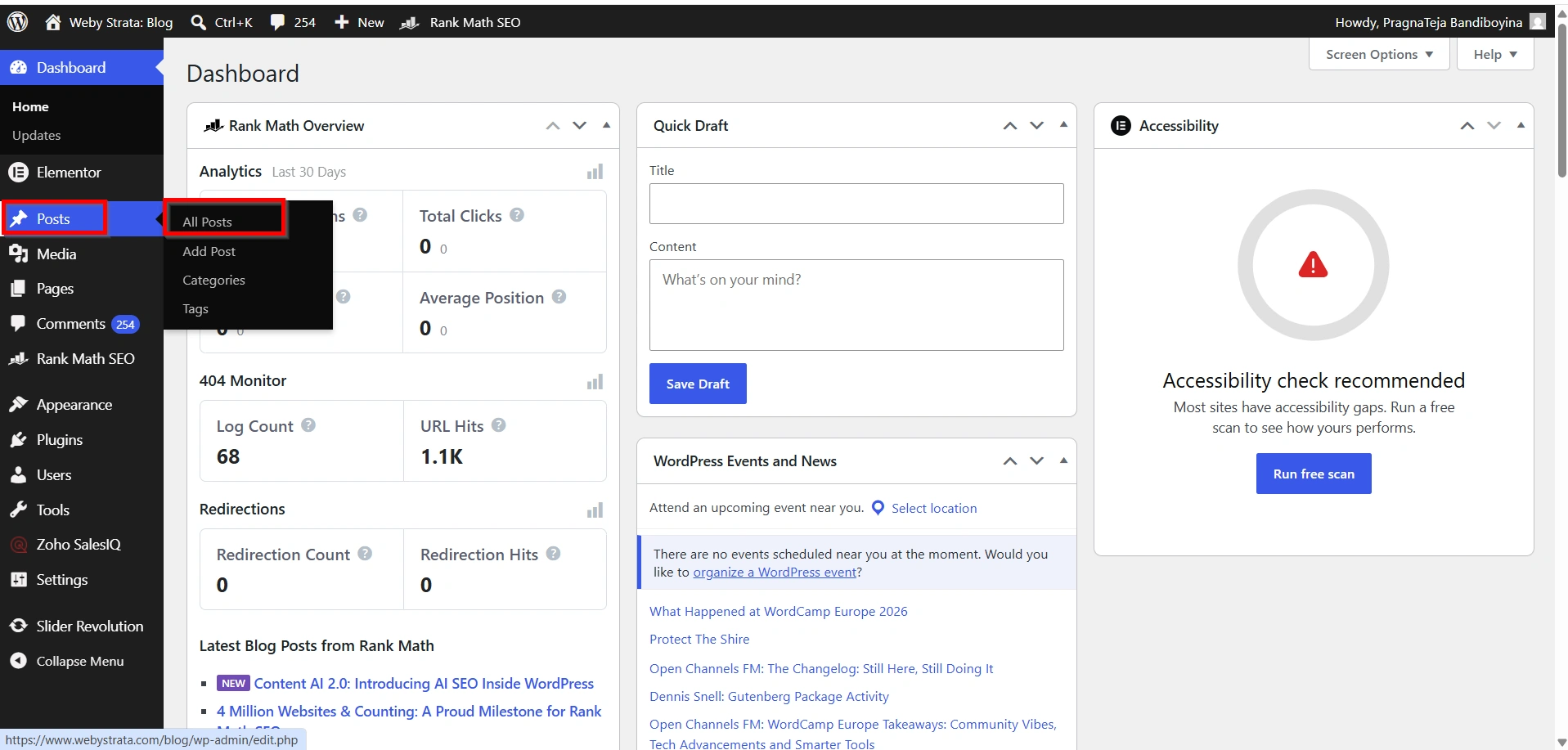
Depending on the type of content you want to duplicate:
- Go to Posts → All Posts to duplicate a blog post.
- Go to Pages → All Pages to duplicate a page.
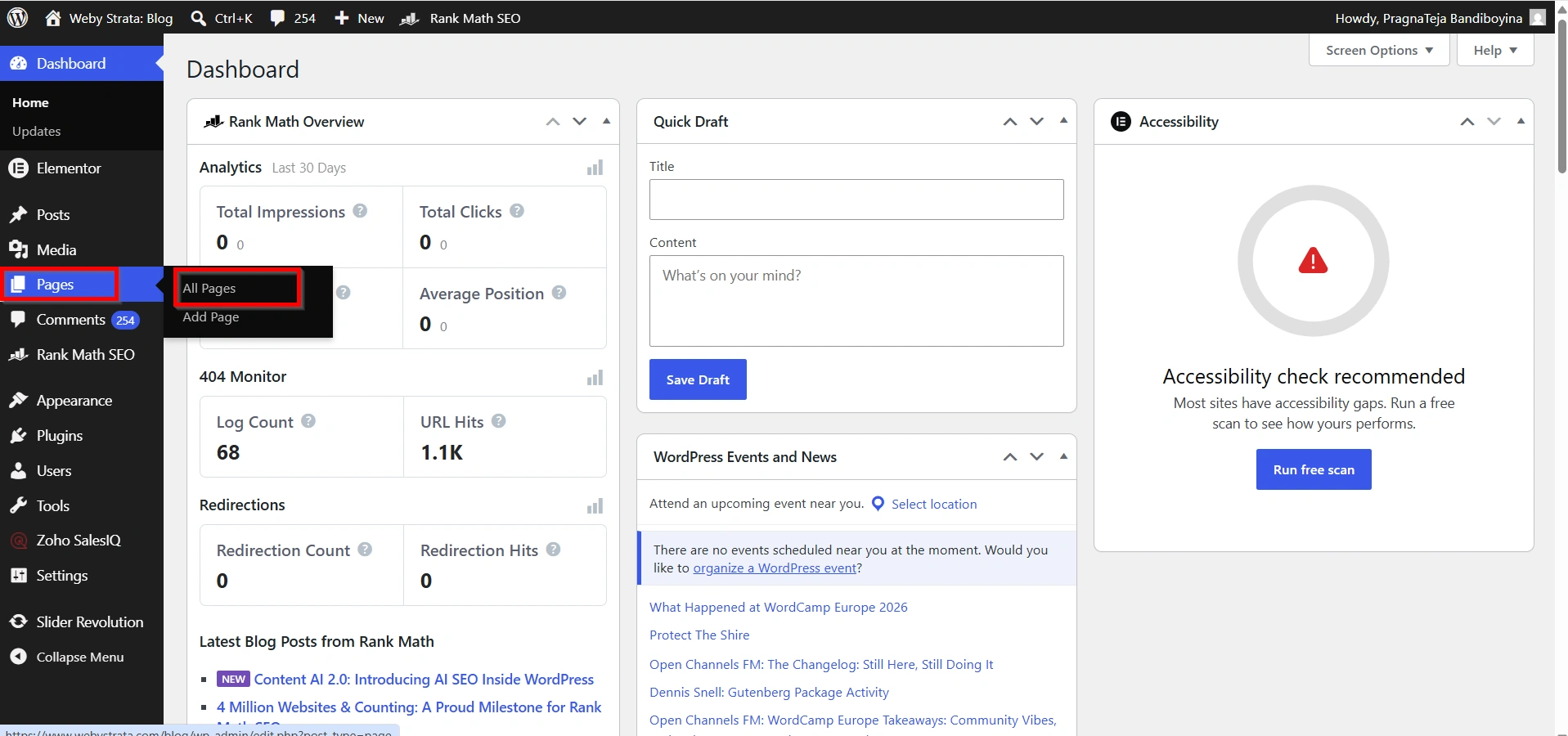
You will see a list of all your existing content.
Step 3: Choose the Content to Duplicate
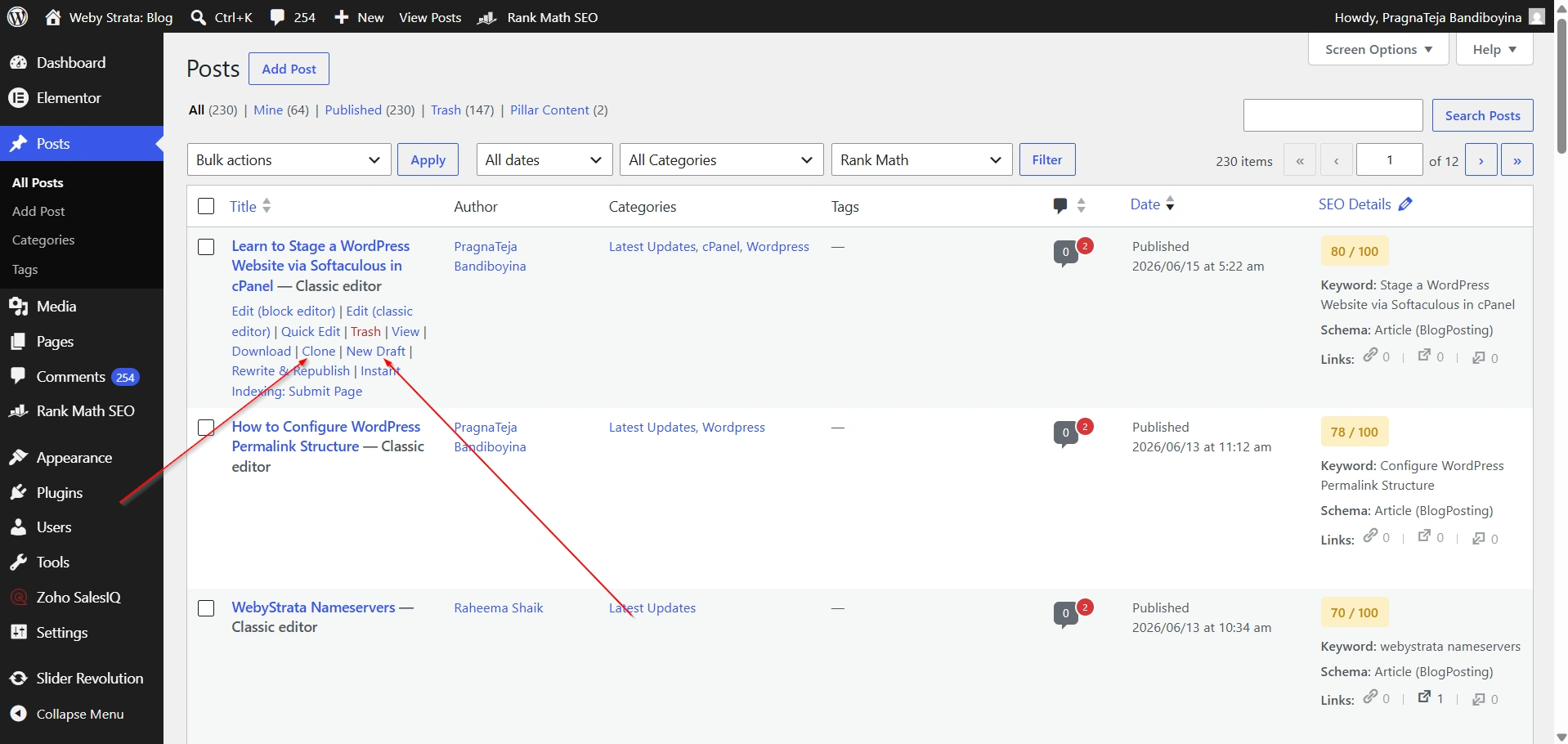
Hover your mouse over the page or post you wish to copy.
You will notice new options added by the plugin:
- Clone
- New Draft
These options make duplication quick and simple.
Step 4: Understand the Difference Between Clone and New Draft
Before selecting an option, it’s important to understand how they work.
Clone
The Clone option instantly creates a duplicate of the selected page or post.
The duplicate remains in the content list and can be edited later.
New Draft
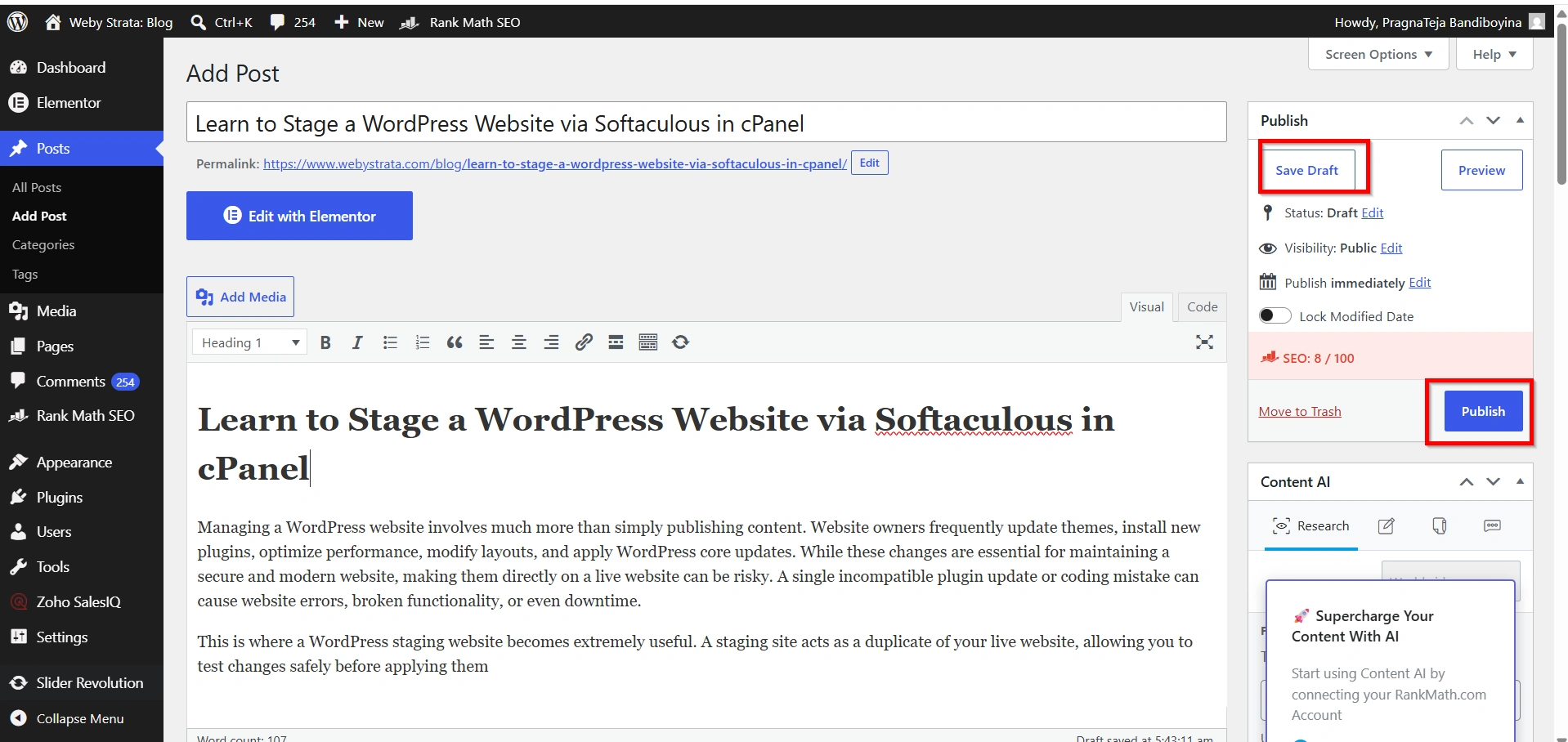
The New Draft option creates a duplicate and immediately opens it in the WordPress editor.
This option is useful when you want to start editing the copied version right away.
Step 5: Edit the Duplicated Content
Once the copy is created:
- Open the duplicated page or post.
- Change the title.
- Update the content as needed.
- Replace images if necessary.
- Modify SEO settings and metadata.
- Save to draft or publish the content.
The original page remains unchanged, allowing you to safely make edits to the duplicate.
Why Duplicate WordPress Pages or Posts?
Duplicating content is a useful feature for website owners, bloggers, developers, and content managers. Instead of rebuilding pages manually, you can use an existing page as a template and customize it for a new purpose.
Some common scenarios where duplication is helpful include:
- Creating multiple service pages with the same design.
- Building landing pages for different marketing campaigns.
- Reusing blog post layouts.
- Testing new content before publishing.
- Creating backup copies before making major edits.
- Maintaining consistency across website pages.
By duplicating content, you can significantly reduce the time required to create new pages and ensure a consistent user experience throughout your website.
Benefits of Using the Duplicate Post Plugin
Before we dive into the steps, let’s look at some advantages of using this plugin.
1. Saves Time
2. Maintains Consistency
3. Reduces Errors
4. Ideal for Templates
5. Beginner-Friendly
Conclusion
Duplicating WordPress pages and posts is a simple yet powerful way to improve productivity and streamline website management. Using the Duplicate Post plugin, you can create exact copies of your content in just a few clicks, preserving layouts, formatting, images, and settings.
Whether you’re building landing pages, creating service pages, or using templates for blog posts, duplicating content can save valuable time while ensuring consistency across your website. By following the steps outlined in this guide and applying best practices after duplication, you can efficiently manage your WordPress content and focus on creating a better experience for your visitors.
Related Articles


