Latest Updates
How to Edit Profile in WordPress
How to Edit Profile in WordPress Managing your WordPress profile is an important part of maintaining your website account. Whether you are a website administrator, editor, author, or contributor, keeping your profile information up…
How to Edit Profile in WordPress
Managing your WordPress profile is an important part of maintaining your website account. Whether you are a website administrator, editor, author, or contributor, keeping your profile information up to date helps improve security, communication, and your professional presence on the website.
WordPress provides a dedicated profile section where users can update personal details, change passwords, modify dashboard preferences, and add biographical information. These settings allow you to customize your experience while ensuring that your account information remains accurate.
In this guide, you will learn how to edit your profile in WordPress and discover the benefits of keeping your profile updated.
Prerequisites
Before proceeding, ensure that:
- You have a valid WordPress user account.
- You know your login credentials.
- You have sufficient permissions to access your profile settings.
Steps to Edit Profile in WordPress
Step 1: Log In to the WordPress Dashboard
Begin by accessing your WordPress administration area.
Open your browser and visit:
https://yourdomain.com/wp-admin
Enter your username and password, then click Log In.
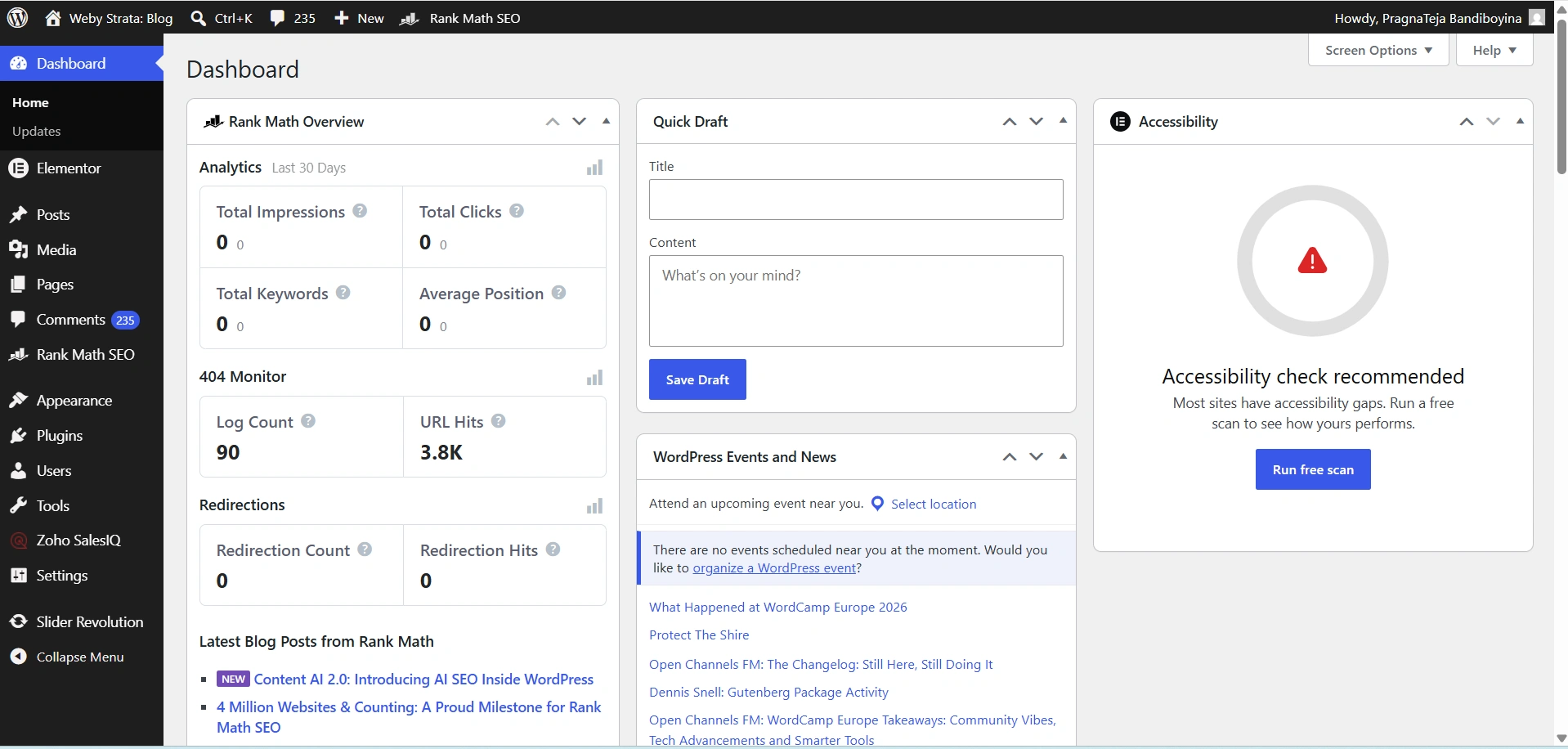
Once authenticated, you will be redirected to the WordPress Dashboard.
Step 2: Navigate to Your Profile Settings
After logging in, locate the left-hand navigation menu.
Follow these steps:
- Click Users.
- Select Profile.
The Profile page will open, displaying all available user settings and account information.
This section allows you to customize your WordPress account according to your preferences.
Step 3: Configure Personal Options
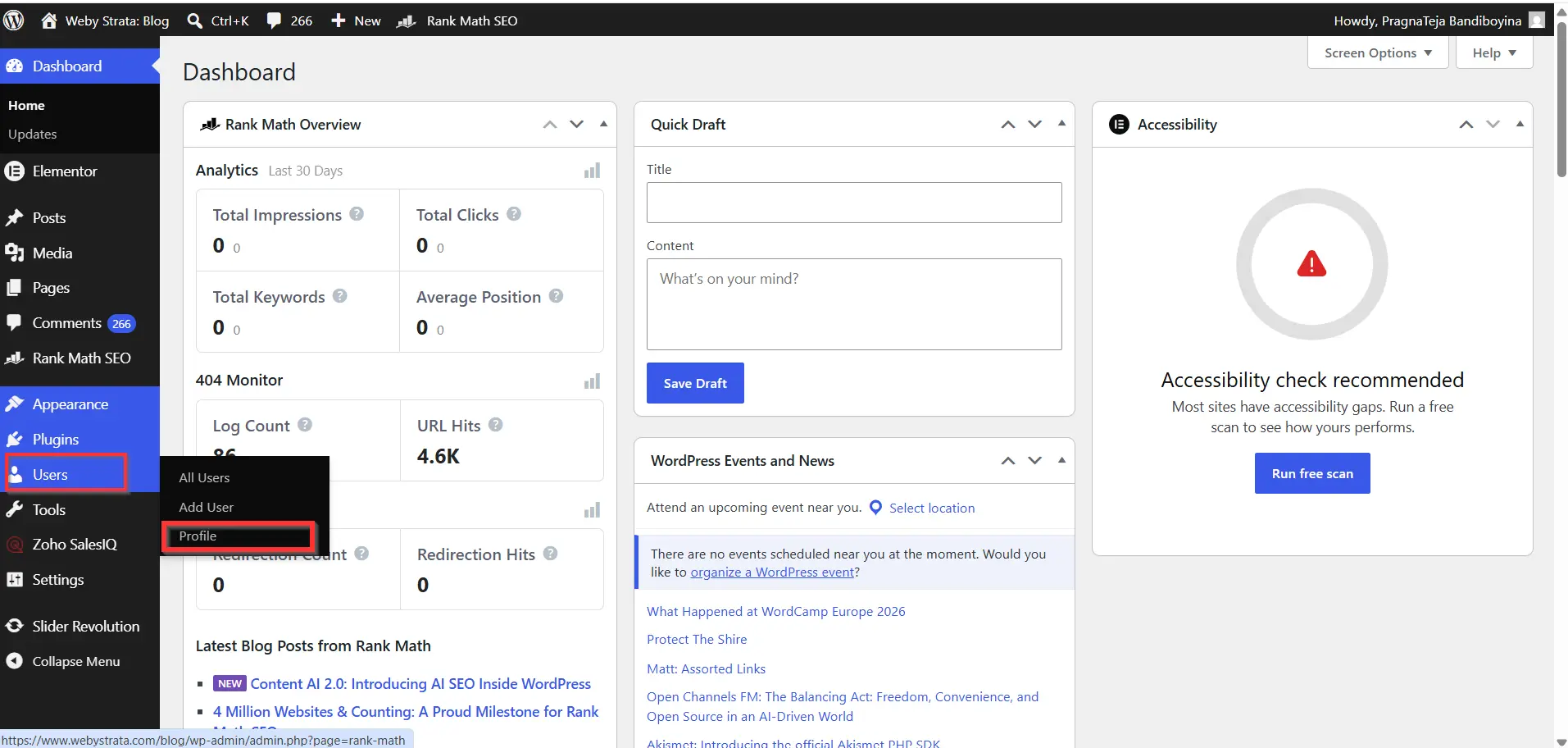
At the top of the profile page, you will find several personal preference settings.
These options may include:
Visual Editor
You can choose whether to use the visual editor when writing posts and pages.
The visual editor provides a user-friendly interface for content creation without requiring HTML knowledge.
Admin Color Scheme
WordPress allows you to customize the appearance of the dashboard by selecting different color schemes.
Choose the one that provides the best visibility and comfort for your workflow.
Toolbar Settings
You can enable or disable the WordPress toolbar that appears while browsing your website when logged in.
These settings personalize your dashboard experience and make website management more efficient.
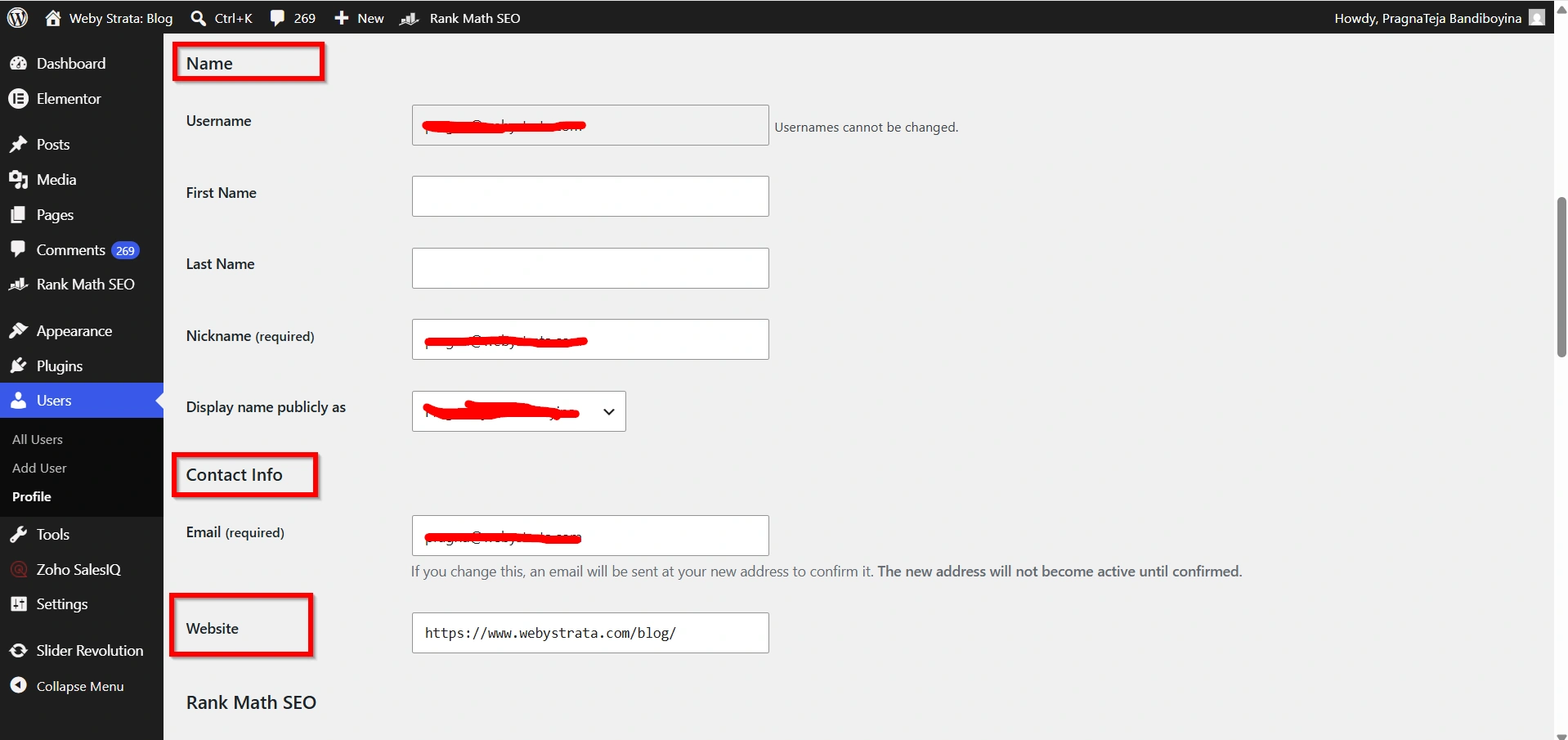
Step 4: Update Personal Information
Scroll down to the Name section.
Here you can update:
- First Name
- Last Name
- Nickname
- Display Name
The display name is particularly important because it determines how your name appears on blog posts and author pages.
Next, review the Contact Information section.
You can update:
- Email Address
- Website URL
Make sure your email address remains active since WordPress uses it for notifications, password resets, and account-related communications.
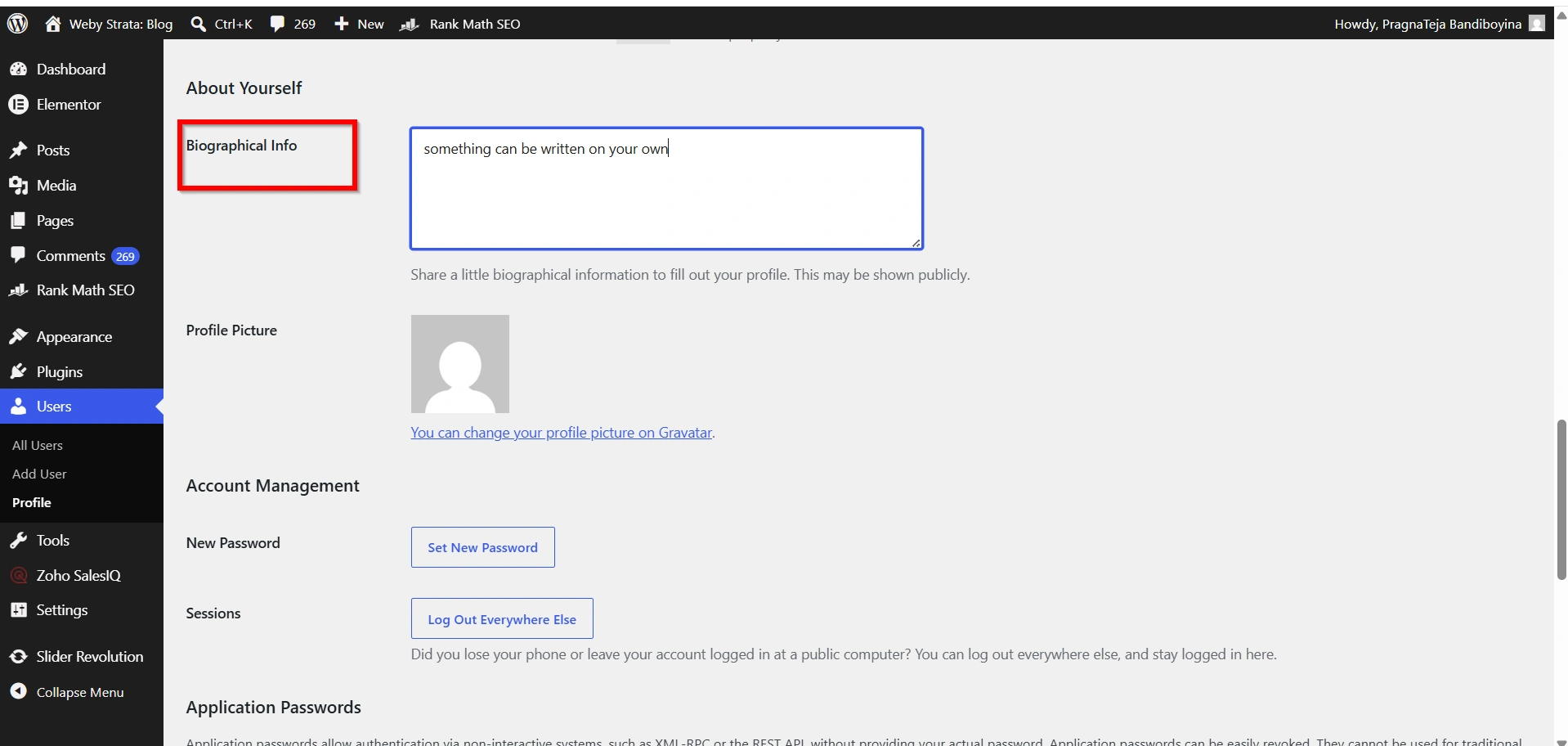
Step 5: Add Biographical Information
The Biographical Info section allows you to provide information about yourself.
This content may appear:
- On author archive pages
- Under blog posts
- In author boxes
- Across themes that support author profiles
A professional biography can include:
- Your role or job title
- Areas of expertise
- Professional experience
- Business information
- Personal introduction
For bloggers and content creators, a detailed author bio helps establish authority and credibility with readers.
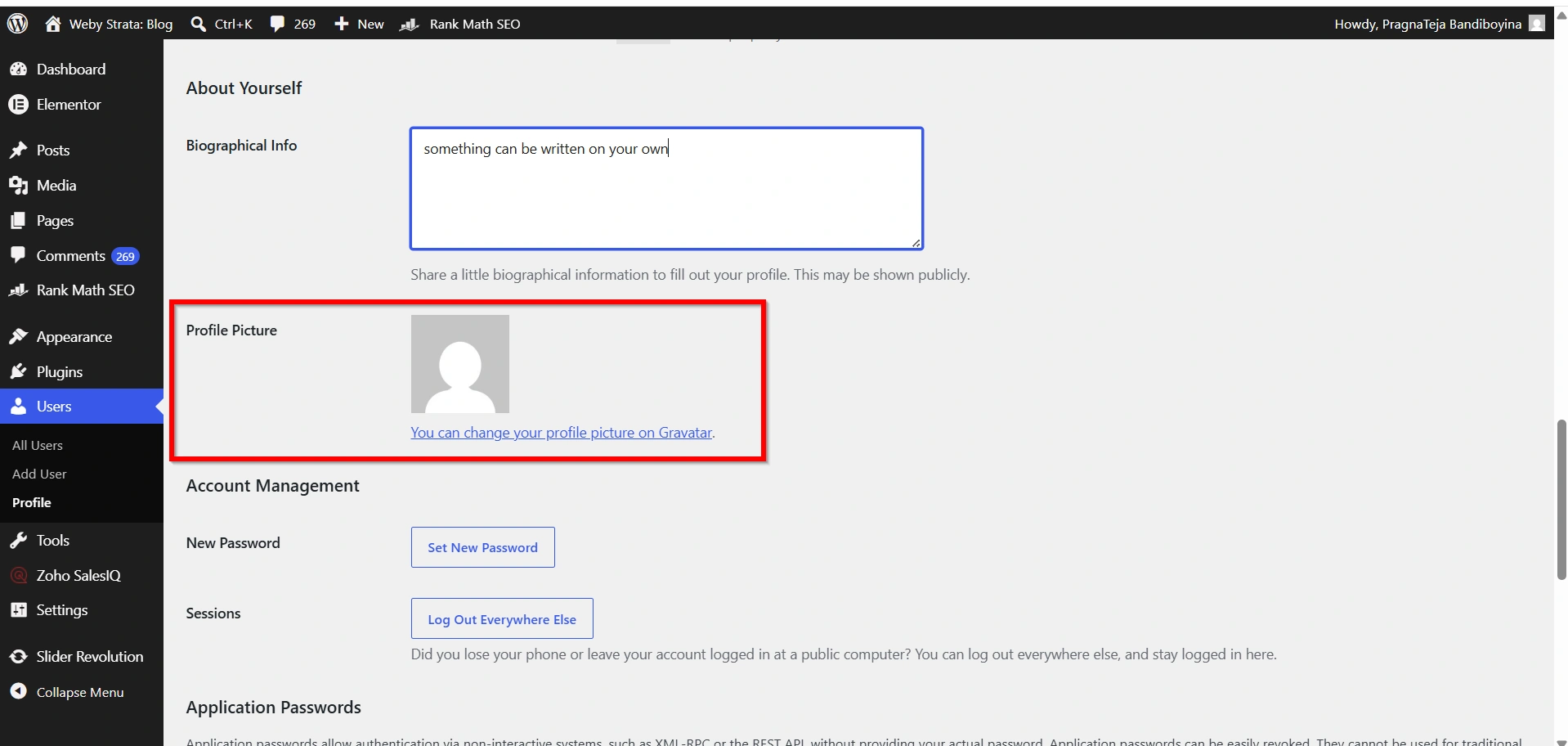
Step 6: Update Your Profile Picture
WordPress commonly uses Gravatar to display user profile images.
If your website supports Gravatar integration, your profile picture is linked to the email address associated with your account.
A professional profile image can help:
- Improve brand recognition
- Build trust with visitors
- Create a more professional online presence
Using a clear and professional image is recommended for business websites and blogs.
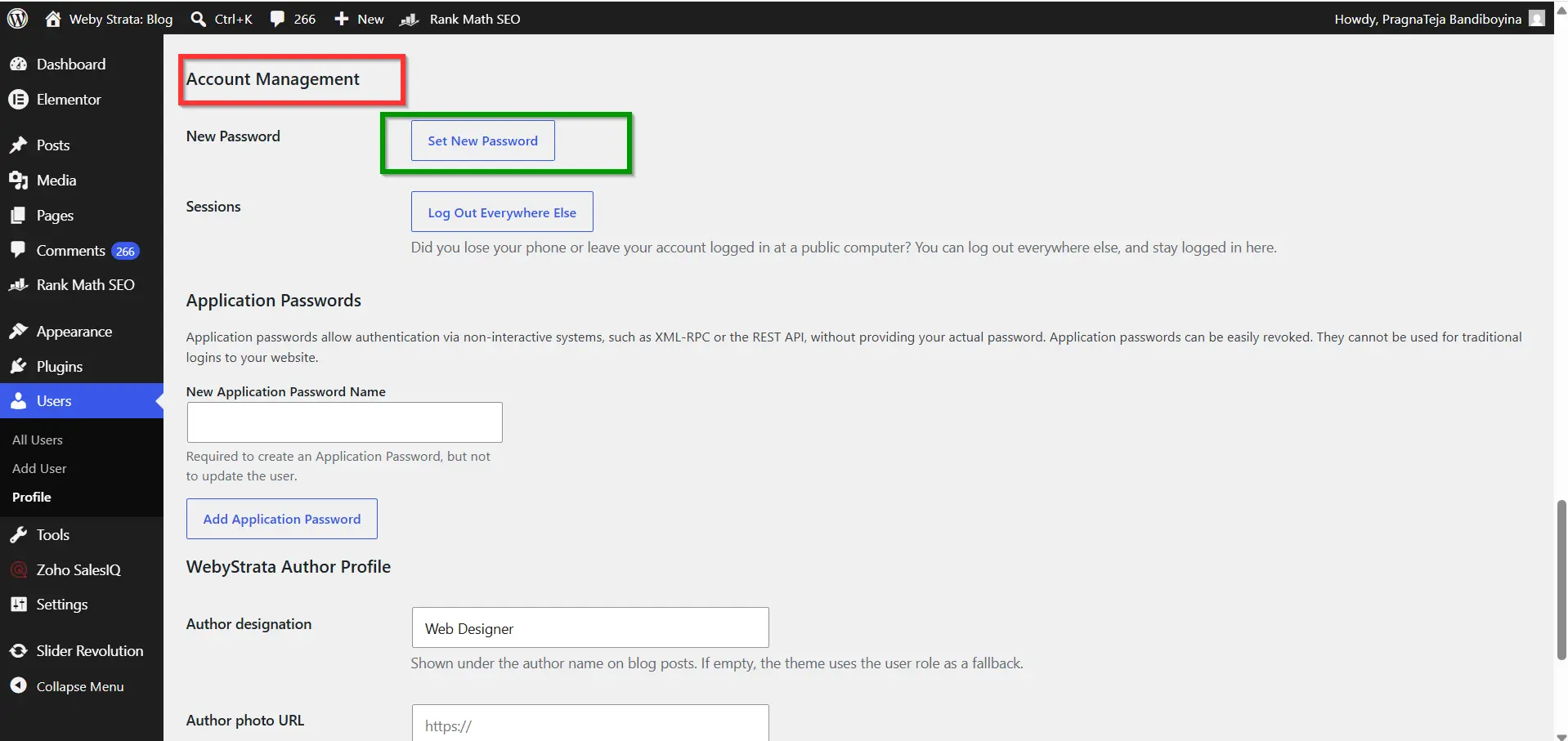
Step 7: Change Your Password (Optional)
Account security should always be a priority.
To update your password:
- Scroll to the Account Management section.
- Click Set New Password.
- Enter a strong password.
- Save the new credentials securely.
A strong password should contain:
- Uppercase letters
- Lowercase letters
- Numbers
- Special characters
Regular password updates reduce the risk of unauthorized access to your website.
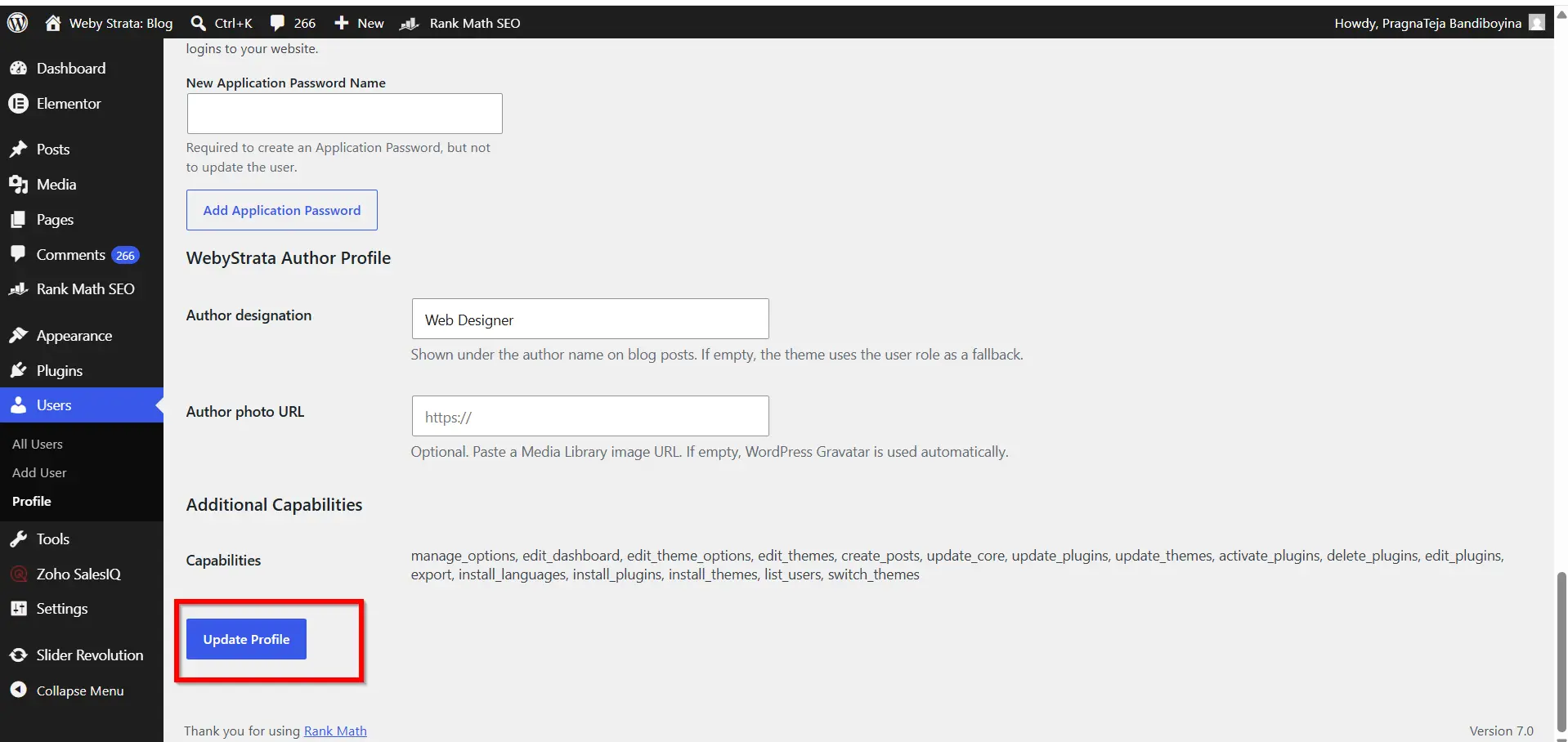
Step 8: Save Your Changes
After reviewing and updating your information, scroll to the bottom of the page.
Click Update Profile.
WordPress will immediately save your changes and display a confirmation message indicating that your profile has been updated successfully.
Your new settings will take effect right away.
Benefits of Editing Your WordPress Profile
1. Maintains Accurate Information
2. Improves Website Security
3. Enhances Professionalism
4. Strengthens Author Credibility
5. Improves User Experience
6. Supports Better Communication
7. Increases Brand Recognition
8. Helps Team Collaboration
Why to Edit Your WordPress Profile?
Your WordPress profile contains important information associated with your account. Updating it regularly helps ensure that visitors, administrators, and other users see the correct details about you.
Some common reasons to edit a WordPress profile include:
- Updating your name or email address
- Changing your password for better security
- Adding an author biography
- Customizing dashboard preferences
- Updating your website URL
- Improving your professional appearance
Keeping your profile current is a simple task that can significantly improve your WordPress experience.
Conclusion
Editing your profile in WordPress is a simple yet essential task that helps keep your account secure, professional, and up to date. By updating personal information, customizing dashboard preferences, adding a biography, and maintaining strong passwords, you can improve both your user experience and your website’s credibility.
Whether you manage a personal blog, business website, or multi-author platform, regularly reviewing your WordPress profile ensures that your account information remains accurate and secure. Taking a few minutes to update your profile can contribute significantly to better website administration and a more professional online presence.
Related Articles


