Latest Updates
How to Generate a CSR in WHM
How to Generate a CSR in WHM SSL certificates have become an essential part of modern website security. Whether you operate a business website, an eCommerce store, a blog, or a customer portal, protecting…
How to Generate a CSR in WHM
SSL certificates have become an essential part of modern website security. Whether you operate a business website, an eCommerce store, a blog, or a customer portal, protecting data transmitted between your website and visitors is crucial. Before an SSL certificate can be issued, you must first generate a Certificate Signing Request (CSR).
WHM (Web Host Manager) provides an easy way to create a CSR directly from the server management interface. Once generated, the CSR can be submitted to a Certificate Authority (CA) to obtain an SSL certificate for your domain.
In this guide, we will explain what a CSR is, why it is required, and how to generate a CSR in WHM step by step.
What Is a CSR?
A Certificate Signing Request (CSR) is an encrypted block of text that contains information about your website, domain, and organization. It is generated along with a private key and submitted to a Certificate Authority when requesting an SSL certificate.
The CSR contains information such as:
- Domain name
- Company or organization name
- Department or organizational unit
- City or locality
- State or province
- Country code
- Email address
- Public encryption key
The Certificate Authority uses this information to validate your request and issue the SSL certificate.
Why Is a CSR Important?
A CSR is an essential component of the SSL certificate issuance process. Without a CSR, a Certificate Authority cannot create a certificate that matches your domain and private key.
Key benefits of generating a CSR include:
- Secure SSL Certificate Issuance
- Identity Verification
- Encrypted Communication
- Improved Website Trust
- Better Search Engine Rankings
Prerequisites
Before generating a CSR in WHM, make sure you have:
- Access to WHM
- A registered domain name
- Accurate organization details
- Administrative access to manage SSL certificates
- A Certificate Authority from which you plan to obtain the SSL certificate
Steps to Generate a CSR in WHM
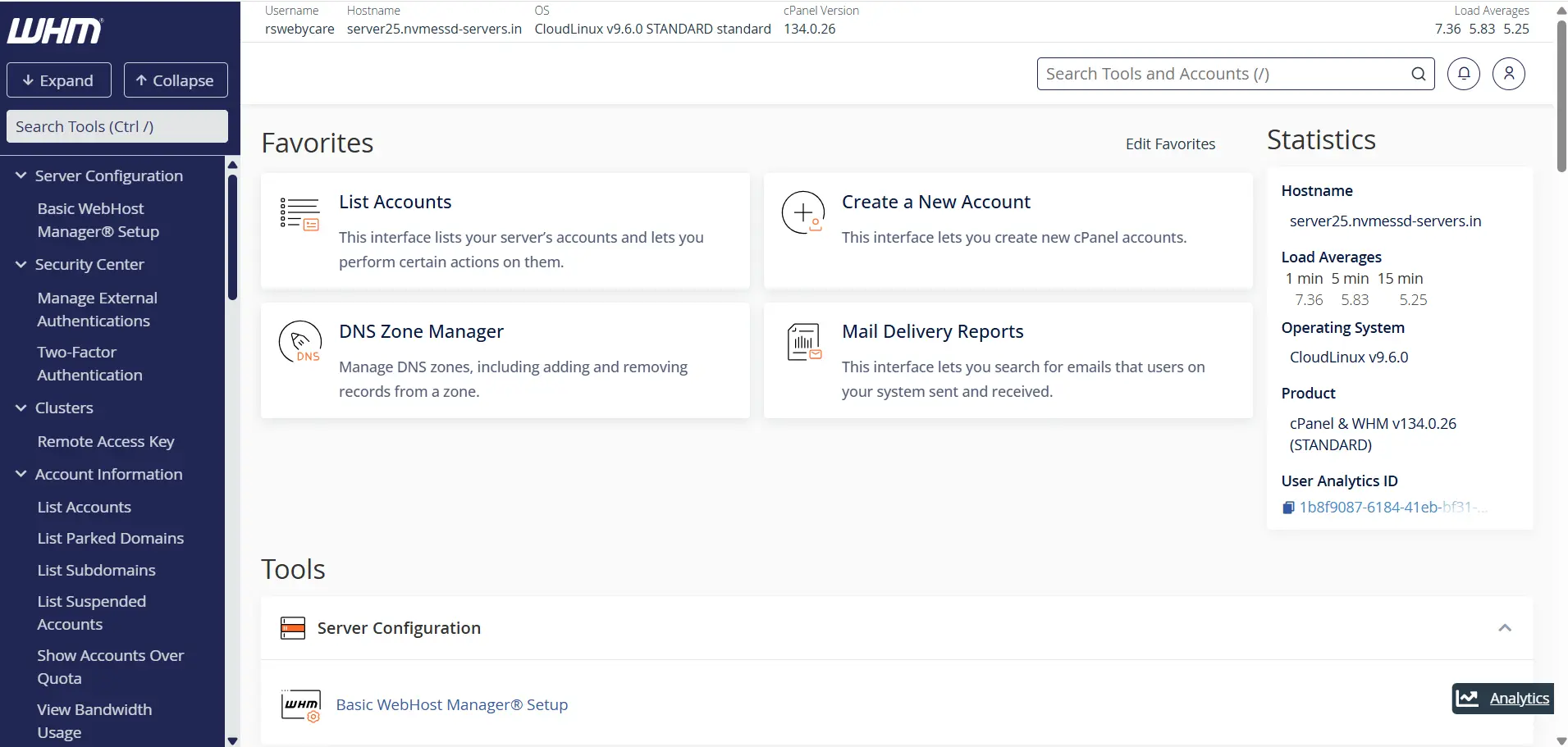
Step 1: Log in to WHM
Start by accessing your WHM dashboard.
Common WHM login URLs include:
Enter your WHM username and password to log in.
Once authenticated, you will be directed to the WHM home page where all server management tools are available.
Step 2: Search for SSL/TLS Functions
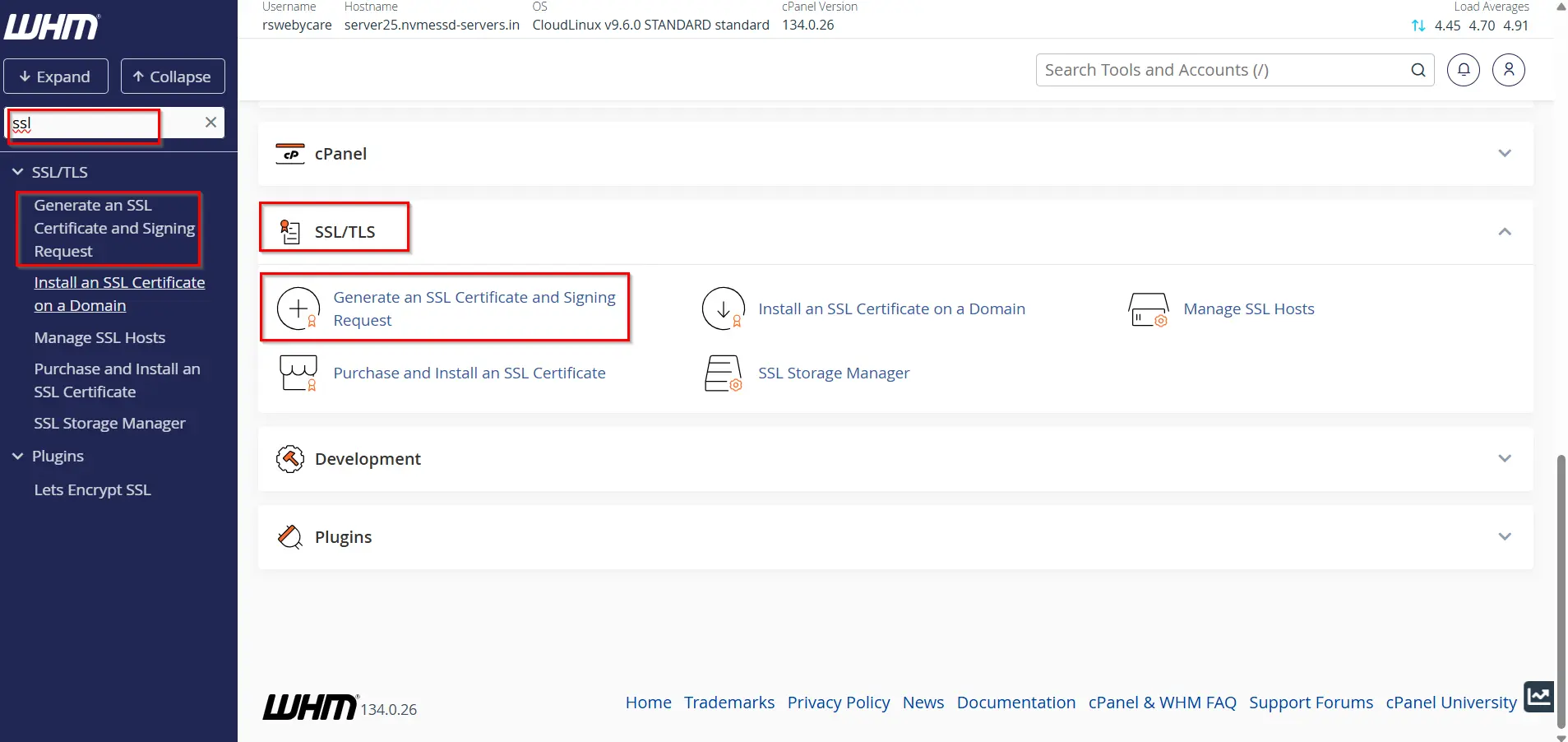
In the WHM search bar located on the left side:
- Type “SSL”.
- Locate the SSL/TLS section.
- Click on Generate an SSL Certificate and Signing Request.
This tool allows you to create both the CSR and the private key required for SSL installation.
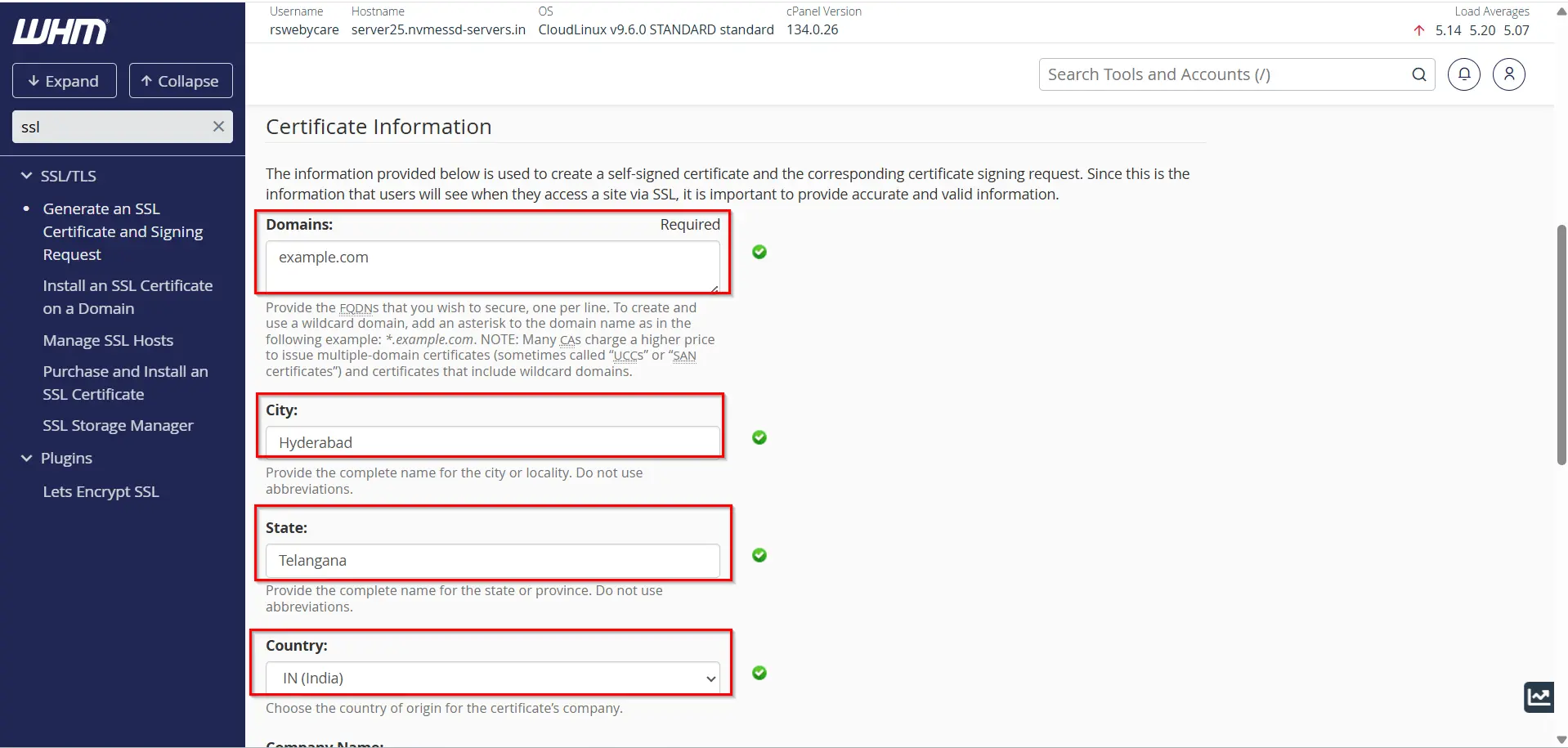
Step 3: Enter Domain Information
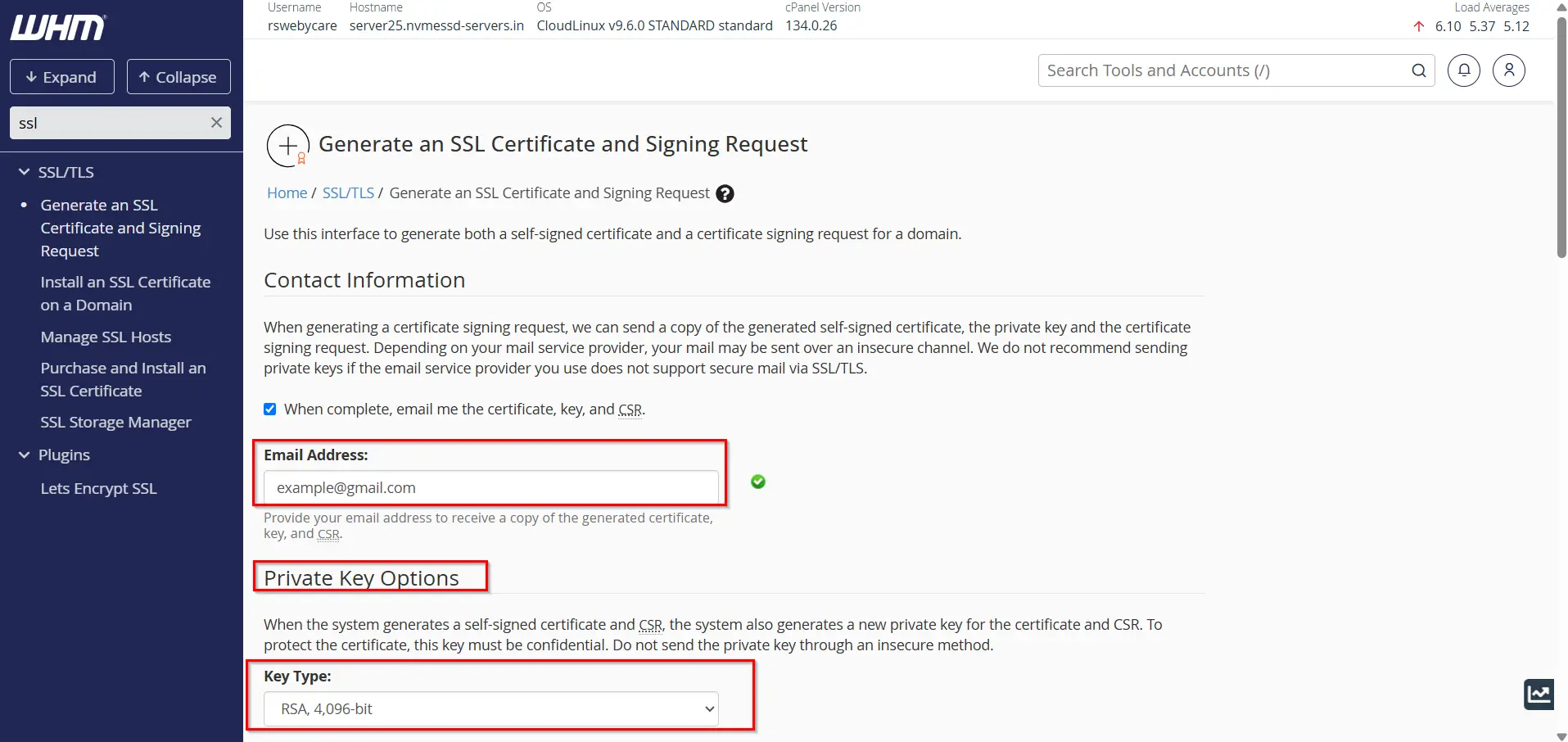
You will be presented with a form requiring information about the website and organization.
Email Address
Enter a valid email address that can be used for SSL-related communications.
- Example:example@gmail.com
Private Key Options
- Key Type
Domain Name
Enter the fully qualified domain name (FQDN).
Examples:
- example.com
- www.example.com
For wildcard SSL certificates:
- *.example.com
Ensure the domain name matches exactly what will be secured by the SSL certificate.
City or Locality
Enter the city where your business or organization is located.
Example:
- Hyderabad
- Mumbai
- New York
State or Province
Provide the full state or province name.
Examples:
- Andhra Pradesh
- Telangana
- California
Country
Select the appropriate two-letter country code.
Examples:
- IN for India
- US for United States
- UK for United Kingdom
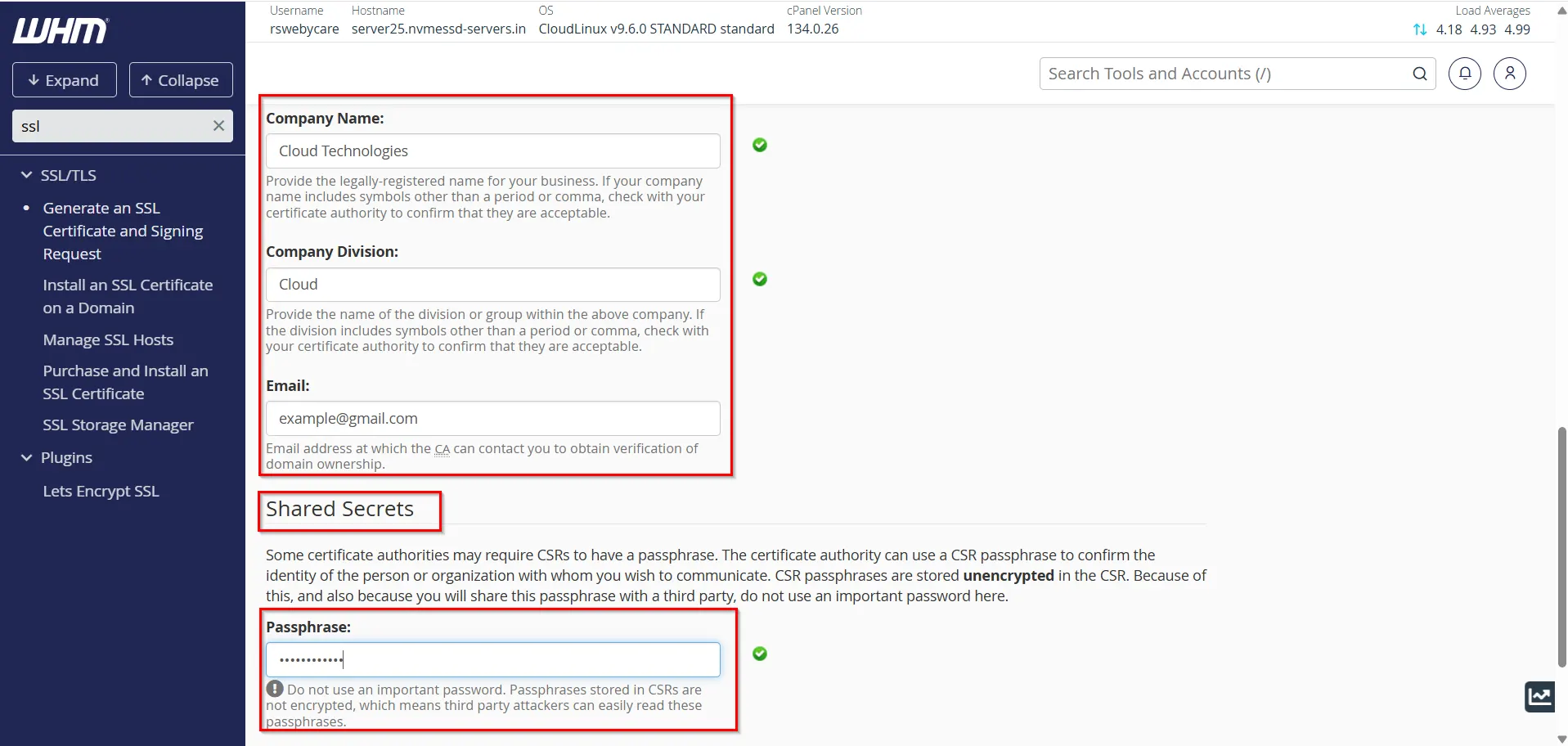
Company Name
Enter your registered company or organization name.
Example:
- Cloud Technologies
Company Division
Specify the department responsible for managing the certificate.
Examples:
- IT Department
- Web Hosting Division
- Technical Support
Email Address
Enter a valid email address that can be used for SSL-related communications.
Shared Secrets
- passphrase
Step 4: Generate the CSR
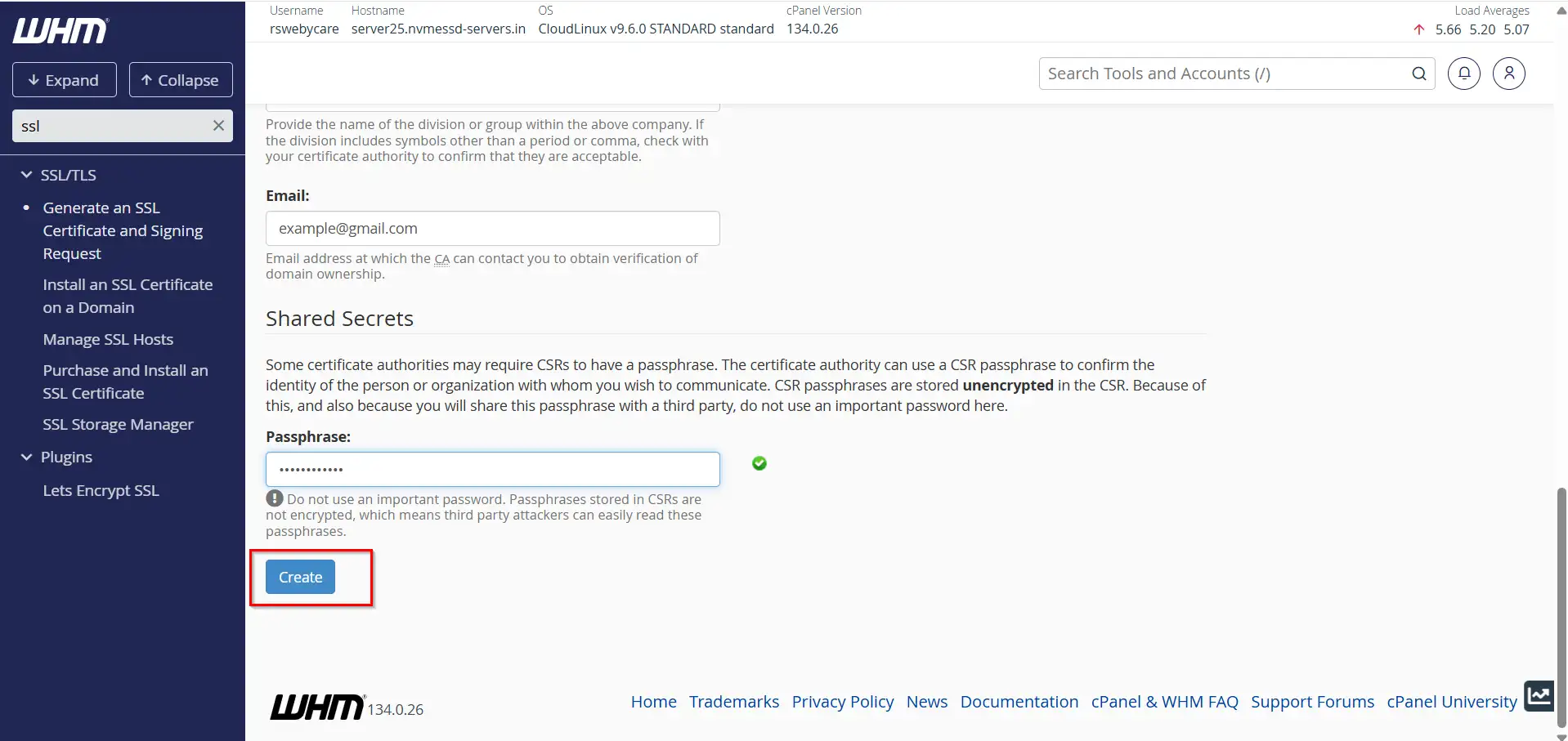
After entering all required information:
- Review the details carefully.
- Click the Create or Generate button.
WHM will automatically generate:
- Certificate Signing Request (CSR)
- Private Key
The CSR and private key will be displayed on the screen.
Understanding the Generated CSR
The generated CSR will look similar to this:
—–BEGIN CERTIFICATE REQUEST—–
MIIC…
—–END CERTIFICATE REQUEST—–
This encrypted text block contains your public key and organizational information.
Copy the entire CSR exactly as displayed, including the BEGIN and END lines.
You will need to provide this CSR to your SSL certificate provider.
Save the Private Key Securely
Along with the CSR, WHM generates a private key.
The private key is extremely important because:
- It is required for SSL installation.
- It proves ownership of the certificate.
- It enables encrypted communication.
Best practices include:
- Store it securely.
- Keep backup copies.
- Never share it publicly.
- Restrict access to authorized administrators.
If the private key is lost, you may need to generate a new CSR and request certificate reissuance.
Submit the CSR to Your Certificate Authority
Once the CSR has been generated:
- Purchase or request an SSL certificate.
- Log in to your Certificate Authority account.
- Paste the CSR into the certificate request form.
- Complete domain validation.
- Submit the request.
After verification, the Certificate Authority will issue your SSL certificate.
Installing the SSL Certificate
After receiving the SSL certificate:
- Return to WHM.
- Search for Install an SSL Certificate on a Domain.
- Select the appropriate domain.
- Paste the certificate contents.
- Complete the installation.
Your website will then begin serving content over HTTPS.
Common CSR Generation Mistakes
- Incorrect Domain Name
- Using Inaccurate Company Information
- Losing the Private Key
- Using the Wrong Country Code
- Copying an Incomplete CSR
Benefits of Generating CSR Through WHM
Using WHM to generate a CSR offers several advantages:
- User-friendly interface
- Automatic private key generation
- Secure key management
- Compatibility with major Certificate Authorities
- Simplified SSL deployment process
- Faster certificate issuance
Conclusion
Generating a CSR in WHM is the first and most important step toward securing your website with an SSL certificate. The process is straightforward and provides the necessary information required by Certificate Authorities to issue trusted SSL certificates.
By accurately completing the CSR form, securely storing the private key, and following proper SSL installation procedures, website owners can establish secure HTTPS connections, protect user data, and build trust with visitors.
Whether you are securing a personal blog, business website, or eCommerce platform, learning how to generate a CSR in WHM is a valuable skill for maintaining a secure hosting environment.
For more WHM management tutorials and step-by-step guides,
visit our WHM knowledge base: www.webystrata.com/blog/category/whm-panel/
Related Articles


