Latest Updates
How to Add and Delete CNAME Records in cPanel
CNAME records are commonly used in DNS management to point one domain or subdomain to another domain name. They help simplify domain management and reduce the need for multiple DNS record updates. For example:…
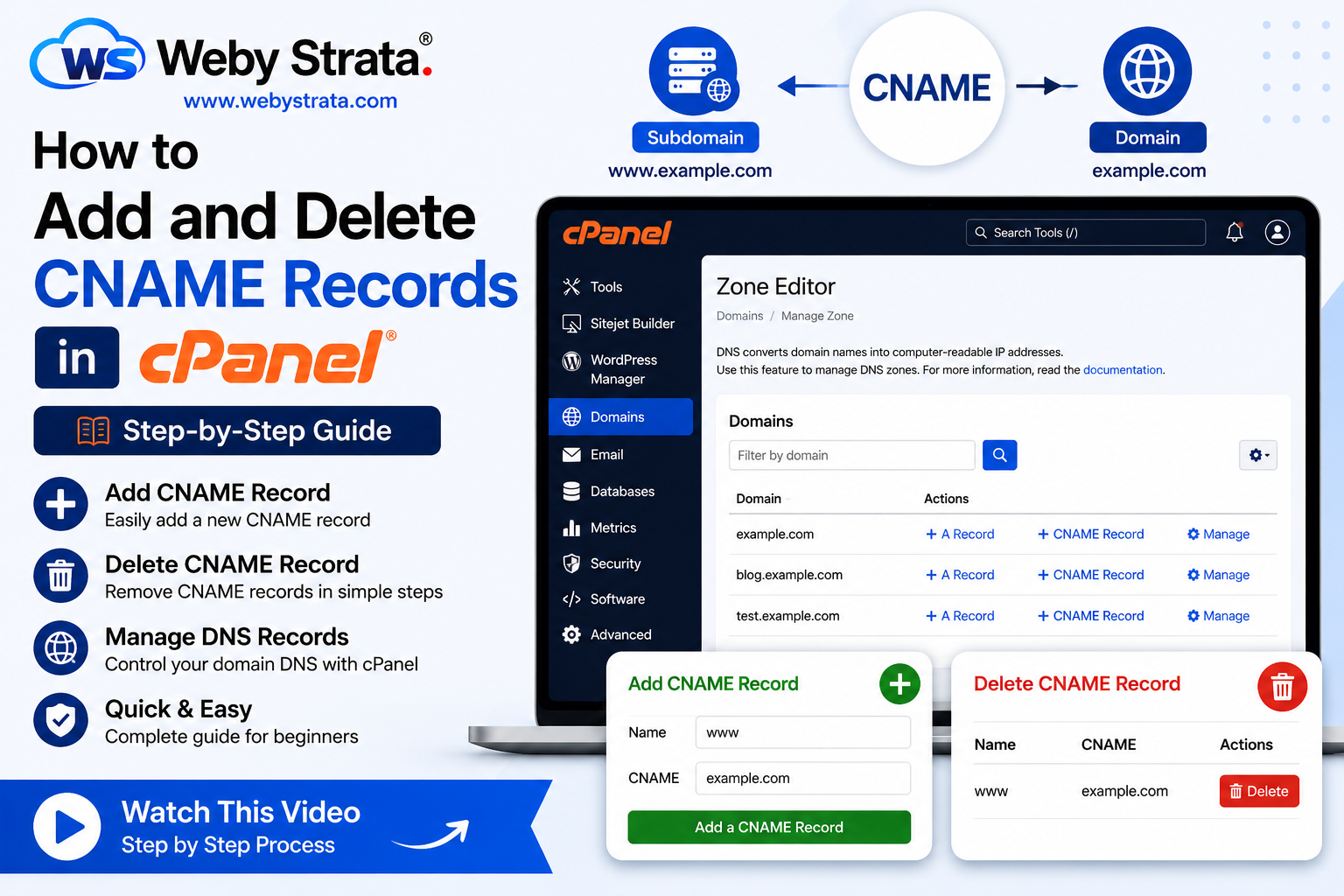
CNAME records are commonly used in DNS management to point one domain or subdomain to another domain name. They help simplify domain management and reduce the need for multiple DNS record updates.
For example:
- example.com
- www.example.com
Instead of creating separate A records for both domains, you can:
- Point example.com to the server IP using an A record
- Point www.example.com to example.com using a CNAME record
This way, if the server IP changes, you only need to update the A record once.
In this tutorial, we will explain how to add and delete CNAME records in cPanel.
What is a CNAME Record?
CNAME stands for Canonical Name.
A CNAME record is used to map one domain or subdomain to another domain name.
Example:
- blog.example.com → example.com
Steps to Add a CNAME Record in cPanel
Step 1: Login to Your cPanel Account
Login to your cPanel account using your username and password.
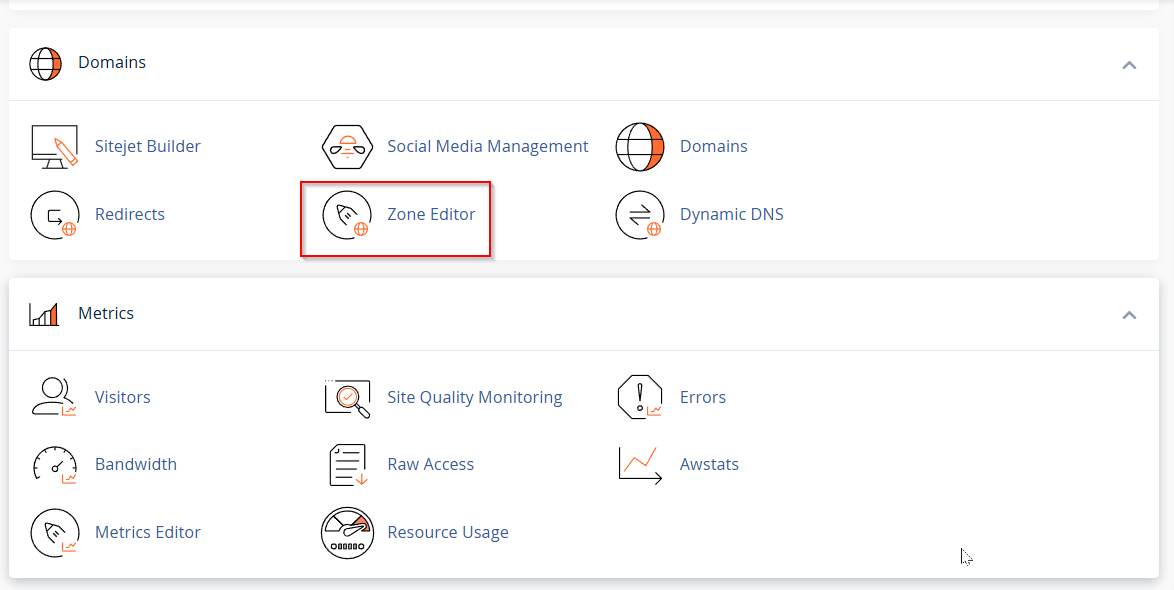
Step 2: Open Zone Editor
Inside cPanel:
- Go to the Domains section
- Click on Zone Editor
The Zone Editor allows you to manage DNS records for your domains.
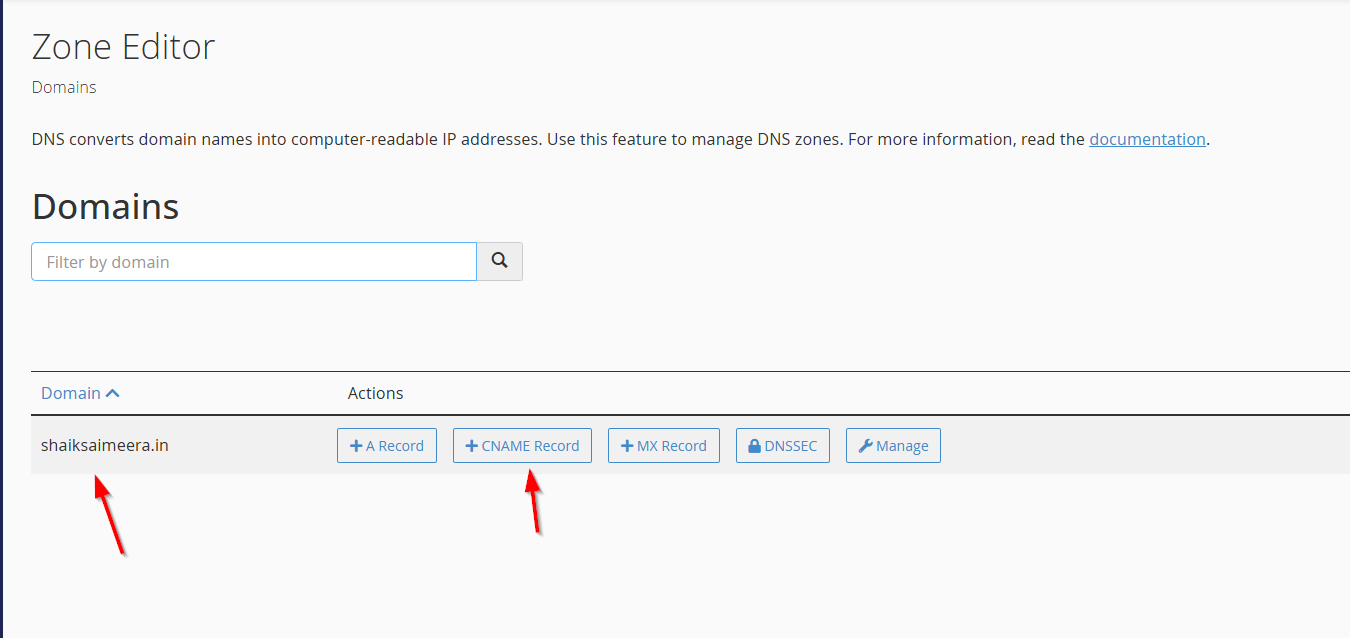
Step 3: Select the Domain
Locate the domain where you want to add the CNAME record.
Click on:
- CNAME Record
beside the selected domain.
Step 4: Enter CNAME Record Details
A new window will appear for adding the CNAME record.
Enter:
- Name
- CNAME target/domain
Example:
- Name: www
- CNAME: example.com
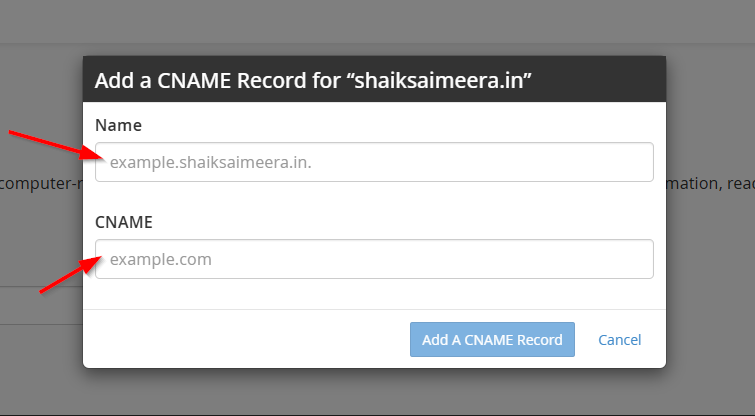
After entering the details, click on: Add a CNAME Record
The new CNAME record will now be added successfully.
Steps to Delete a CNAME Record in cPanel
Step 1: Login to cPanel
Login to your cPanel hosting account.
Step 2: Open Zone Editor
Go to: Domains → Zone Editor
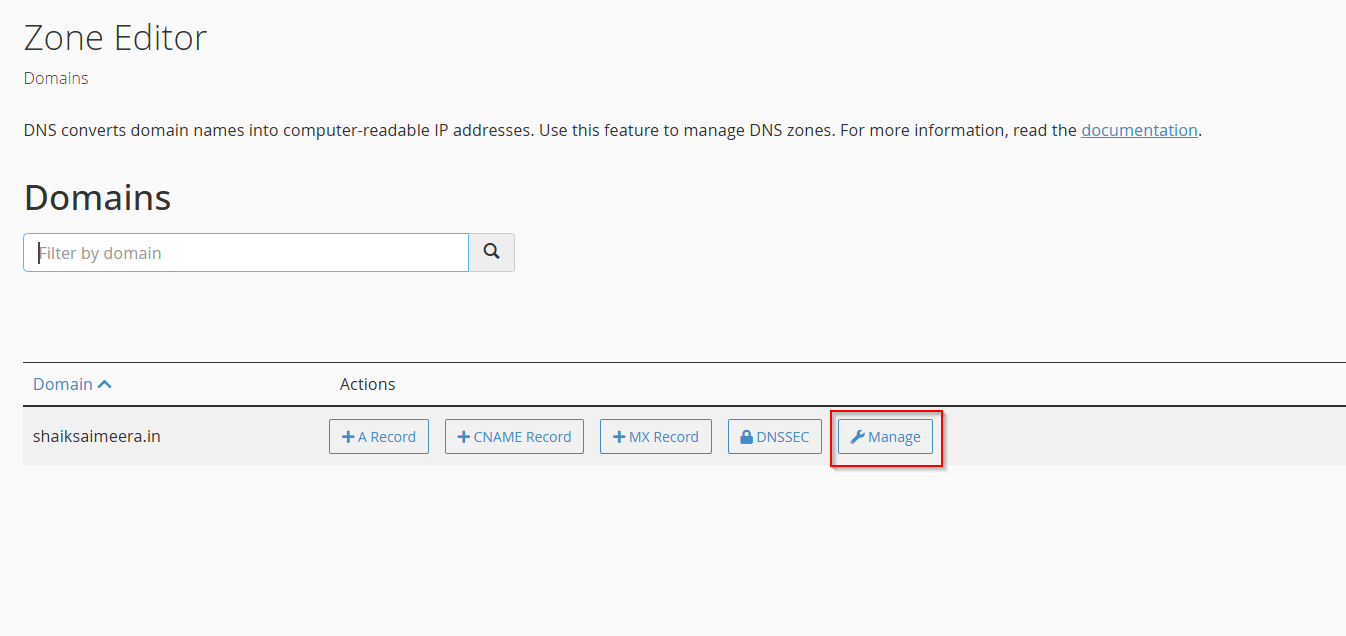
Step 3: Click on Manage
Locate the domain where the CNAME record exists.
Click on: Manage
This will open the DNS management page for the domain.
 Step 4: Filter CNAME Records
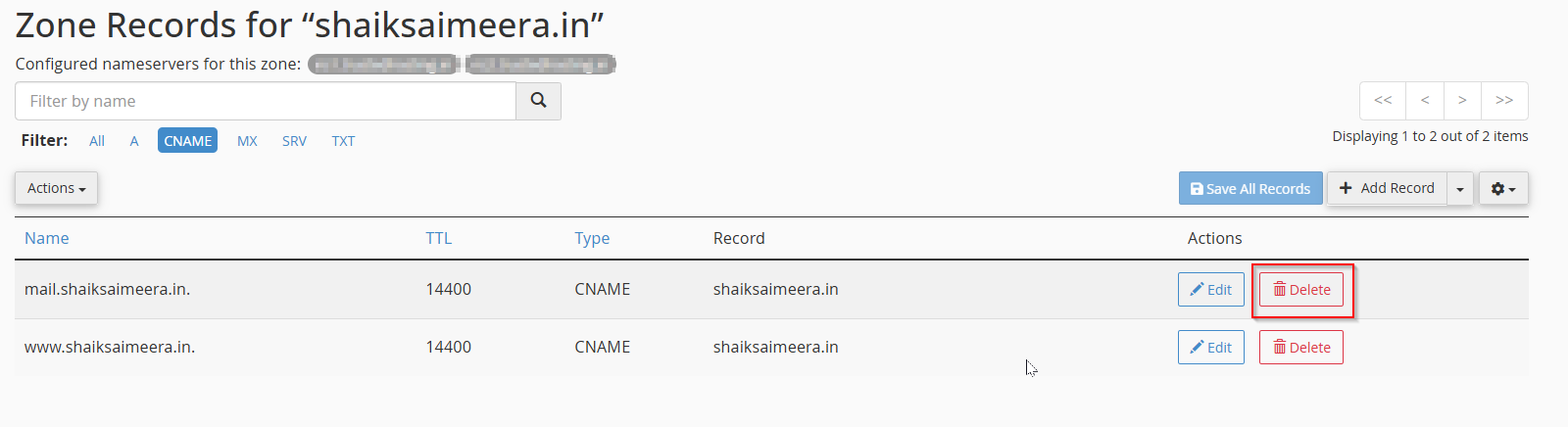
Inside the Manage Zone page:
- Click on CNAME
- View the list of available CNAME records
You will now see all CNAME records configured for the domain.
Step 5: Delete the CNAME Record
Locate the CNAME record you want to remove.
Click on: Delete
cPanel will ask for confirmation before deleting the record.
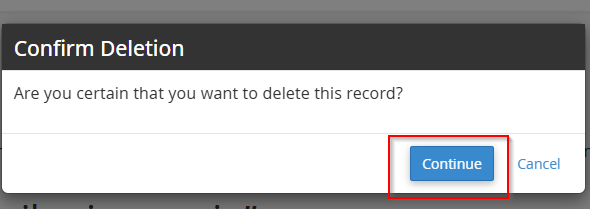
Click on: Continue
The CNAME record will now be deleted successfully.
Related Articles