cPanel
How to Change PHP Version in cPanel
How to Change PHP Version in cPanel Managing the correct PHP version is important for website speed, security, and compatibility. If your website is running on an outdated PHP version, you may experience plugin…

How to Change PHP Version in cPanel
Managing the correct PHP version is important for website speed, security, and compatibility. If your website is running on an outdated PHP version, you may experience plugin errors, slow loading speeds, or security vulnerabilities. Fortunately, cPanel makes it very easy to update or switch your PHP version within a few clicks.
In this guide, you will learn how to change PHP version in cPanel step by step. This tutorial is perfect for WordPress users, beginners, developers, and website owners who want better performance and compatibility for their websites.
What is PHP?
PHP is a server-side scripting language used to build dynamic websites and web applications. Popular platforms like WordPress, Joomla, Drupal, Magento, and many custom websites depend on PHP to function properly.
Every website hosted on a server runs on a specific PHP version. Hosting providers regularly add newer PHP versions that provide:
- Better security
- Faster website performance
- Improved compatibility
- Lower resource usage
- New features and functions
Keeping your PHP version updated is considered a best practice for website management.
How to Change PHP Version in cPanel
Follow the simple steps below to update your PHP version.
Step 1: Login to cPanel from Client Area
First, login to your client area account using WebyStrata Official Account
After logging in:
- Go to Services
- Click on My Services
- Select your active hosting service
- Click on Login to cPanel
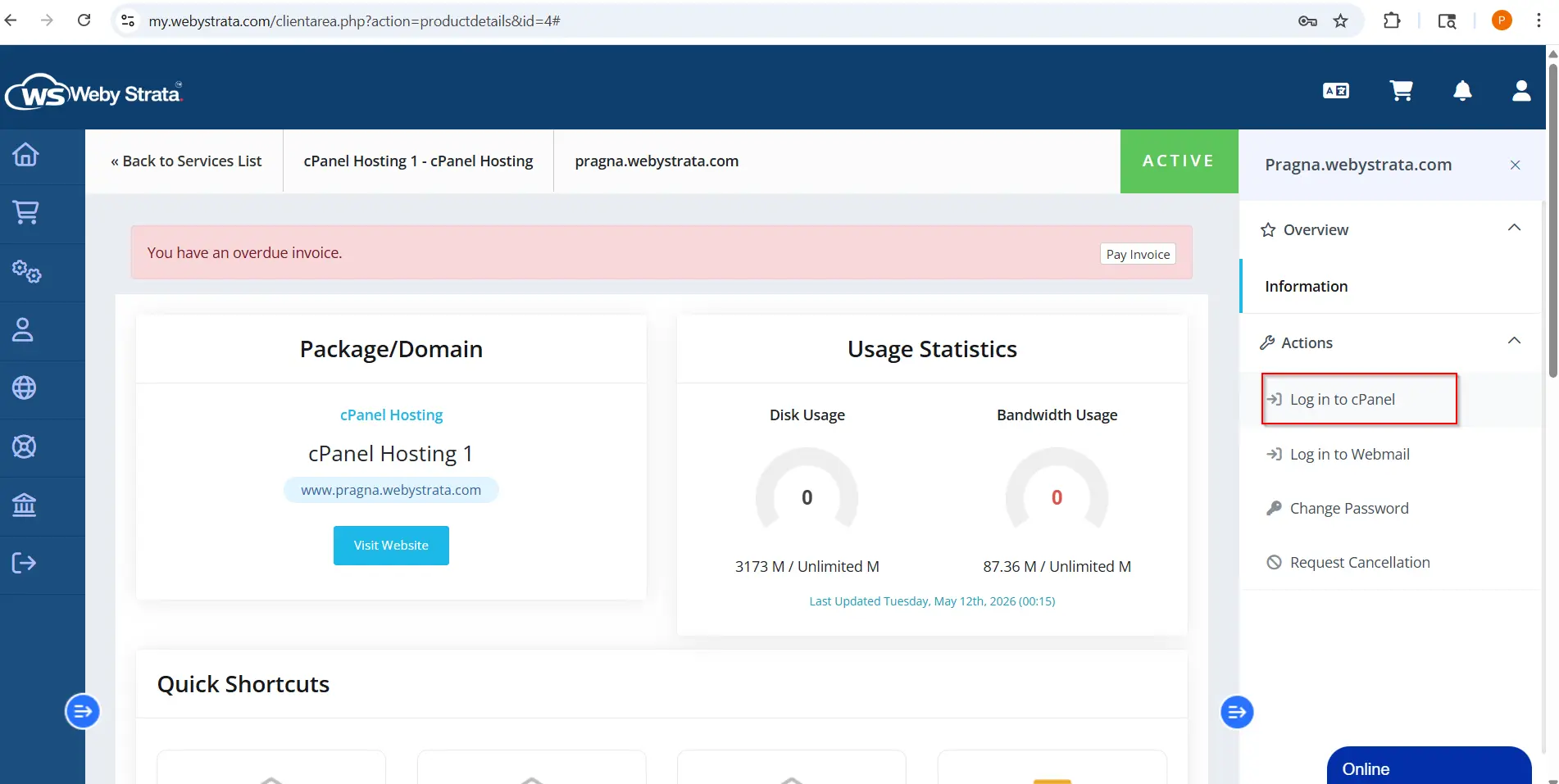
Step 2: Open Select PHP Version
After logging into cPanel:
- Scroll down to the Software section.
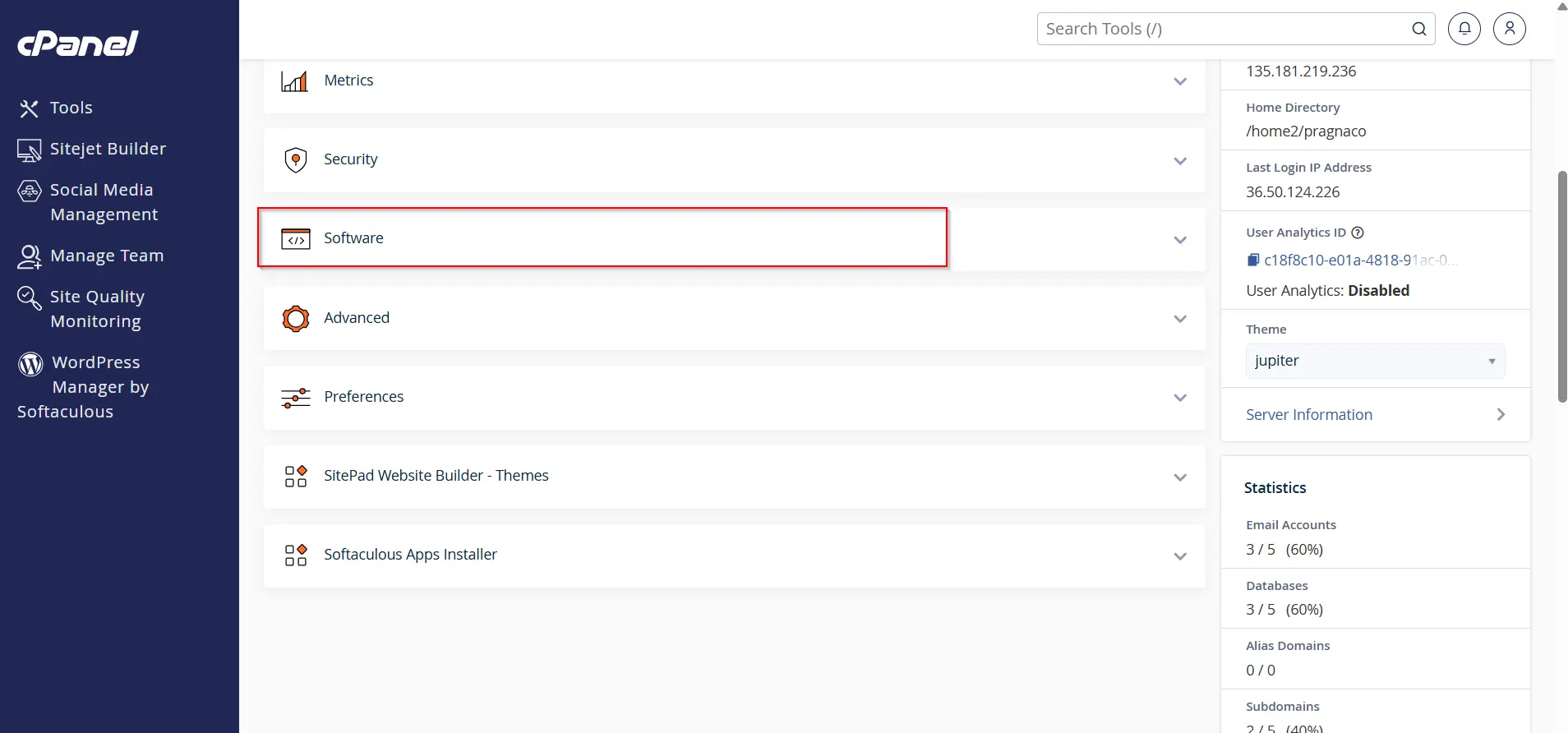
2.Click on MultiPHP Manager

Step 3: Select Your Website Domain
If your hosting account contains multiple domains:
- Choose the domain you want to update.
- Make sure you select the correct website before changing the version.

Step 4: Choose a New PHP Version
You will now see a dropdown menu displaying available PHP versions.
Examples:
- PHP 7.4
- PHP 8.0
- PHP 8.1
- PHP 8.2
- PHP 8.3
Select your preferred PHP version from the list.

Step 5: Apply the Changes
After selecting the version:
- Click on Set as Current or Apply.
- Wait a few seconds for the update process to complete.
The PHP version for your website will now be updated successfully.

Step 6: Verify the PHP Version
To confirm the update:
- Refresh the page
- Check the active PHP version
Alternative Method (If MultiPHP Manager is Not Available)
Some hosting providers use Select PHP Version option:
- Go to Software
- Select PHP version
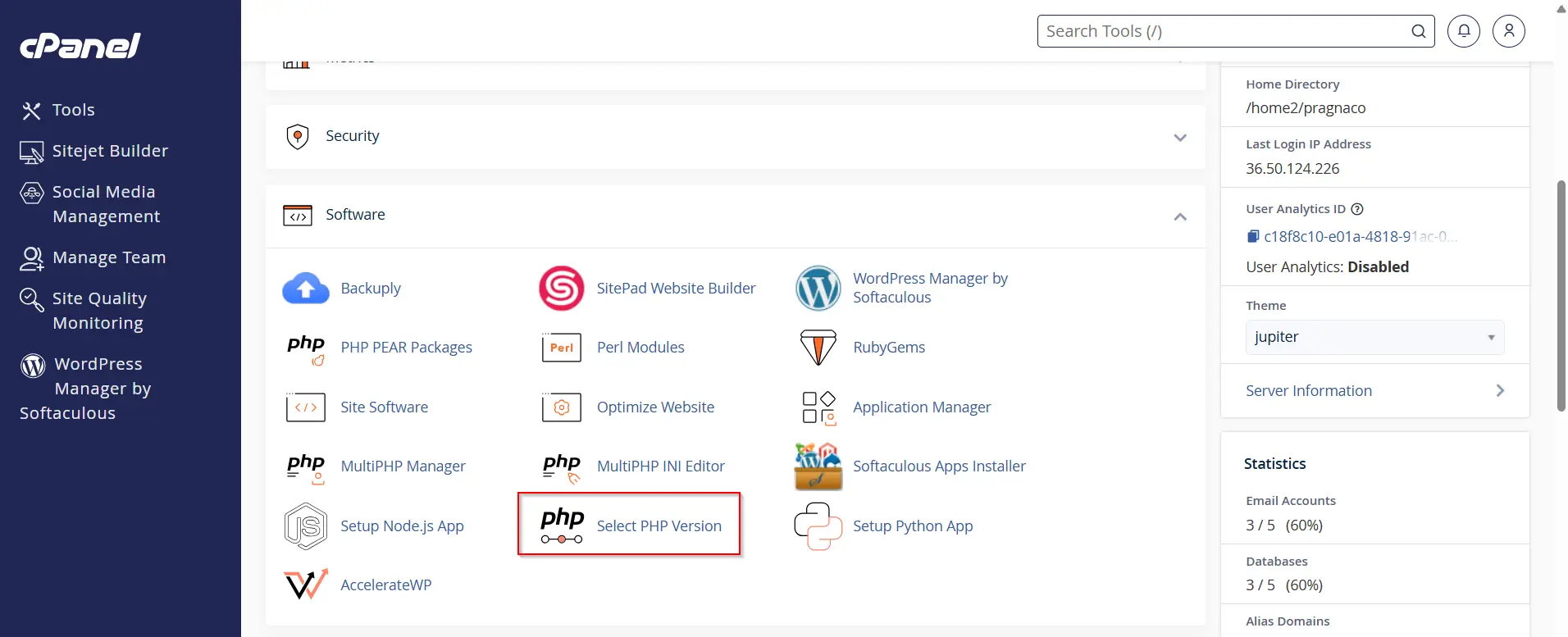
- select the domain
- Choose PHP version from dropdown
- Click Set as current and click Apply

Recommended PHP Versions for WordPress
For best performance and security, WordPress websites should use modern PHP versions.
Generally recommended:
- PHP 8.1
- PHP 8.2
- PHP 8.3
Avoid using outdated versions like:
- PHP 5.6
- PHP 7.0
- PHP 7.1
Older versions may no longer receive security updates.
Common Errors After Updating PHP
Sometimes websites may show issues after changing the PHP version. Most problems are caused by outdated plugins or themes.
White Screen Error
This usually happens due to incompatible themes or plugins.
Solution:
- Disable plugins one by one
- Switch to a default WordPress theme
- Enable debug mode
Plugin Compatibility Issues
Some plugins may not support newer PHP versions.
Solution:
- Update plugins
- Replace outdated plugins
- Contact plugin developers
Website Not Loading Properly
This can happen due to old custom code.
Solution:
- Restore backup
- Revert to previous PHP version
- Fix deprecated PHP functions
How to Revert PHP Version
If your website has compatibility issues:
- Go back to Select PHP Version
- Choose the older PHP version
- Apply the changes
This allows you to restore website functionality quickly.
Benefits of Using Latest PHP Version
Updating to the latest PHP version provides many advantages.
Faster Website Loading
Modern PHP versions execute scripts more efficiently and improve website speed.
Improved Website Security
Latest versions include security patches and vulnerability fixes.
Better SEO Performance
Faster websites can improve user experience and search engine rankings.
Lower Server Resource Usage
Optimized PHP versions use less memory and CPU resources.
Improved WordPress Performance
WordPress performs significantly better on updated PHP versions.
Best Practices for PHP Management
To keep your website stable and secure:
- Keep WordPress updated
- Regularly update plugins and themes
- Remove unused plugins
- Use supported PHP versions
- Backup your website before updates
- Test changes on staging websites if possible
Conclusion
Learning how to change PHP version in cPanel is an important skill for every website owner. Updating your PHP version helps improve speed, security, and compatibility while reducing website issues.
Using cPanel’s PHP Selector makes the process simple even for beginners. By keeping your PHP version updated, you ensure your WordPress website runs efficiently and securely.
Related Articles