cPanel
How to Clone Your WordPress Website via Softaculous in cPanel
How to Clone Your WordPress Website via Softaculous in cPanel Managing a WordPress website often involves making updates, testing new plugins, redesigning pages, or troubleshooting issues. Making these changes directly on a live website…
How to Clone Your WordPress Website via Softaculous in cPanel
Managing a WordPress website often involves making updates, testing new plugins, redesigning pages, or troubleshooting issues. Making these changes directly on a live website can be risky because a mistake could result in downtime, broken functionality, or a poor user experience.
Fortunately, Softaculous in cPanel provides a simple way to clone your WordPress website. Cloning creates an exact copy of your website that can be used for testing, development, staging, or migration purposes without affecting your live website.
In this guide, we’ll walk you through the process of cloning a WordPress website using Softaculous and explain why website cloning is an essential practice for website owners and developers.
What Is WordPress Website Cloning?
WordPress website cloning is the process of creating an identical copy of an existing WordPress installation. The cloned website contains all the elements of the original site, including:
- WordPress core files
- Themes
- Plugins
- Media files and images
- Posts and pages
- User accounts
- Website settings
- Database content
The cloned website operates independently from the original website, allowing you to safely test changes before implementing them on your live site.
Prerequisites Before Cloning
Before you begin, make sure you have:
- Access to cPanel
- Softaculous installed on your hosting account
- An active WordPress website
- Sufficient disk space
- A subdomain, addon domain, or folder for the cloned installation
For example:
Live Website:
yourdomain.com
Clone Website:
staging.yourdomain.com
or
yourdomain.com/testing
How to Clone Your WordPress Website via Softaculous
Follow the steps below carefully.
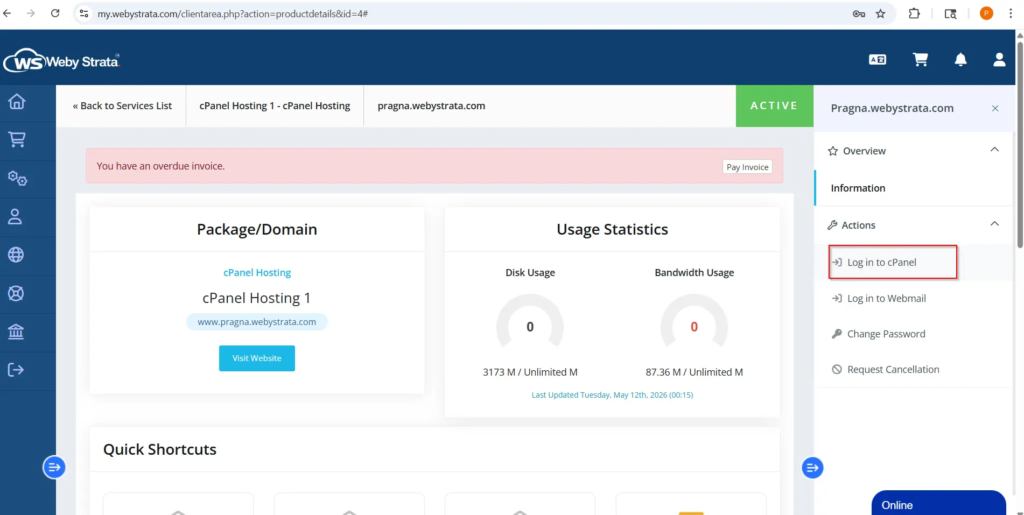
Step 1: Login to cPanel from WebyStrata Client Area
First, visit the WebyStrata website and log in to your client area account using your registered email address and password.
official Website www.webystrata.com
After logging in:
- Go to Services
- Click on My Services
- Select your active hosting service
- Click on Login to cPanel
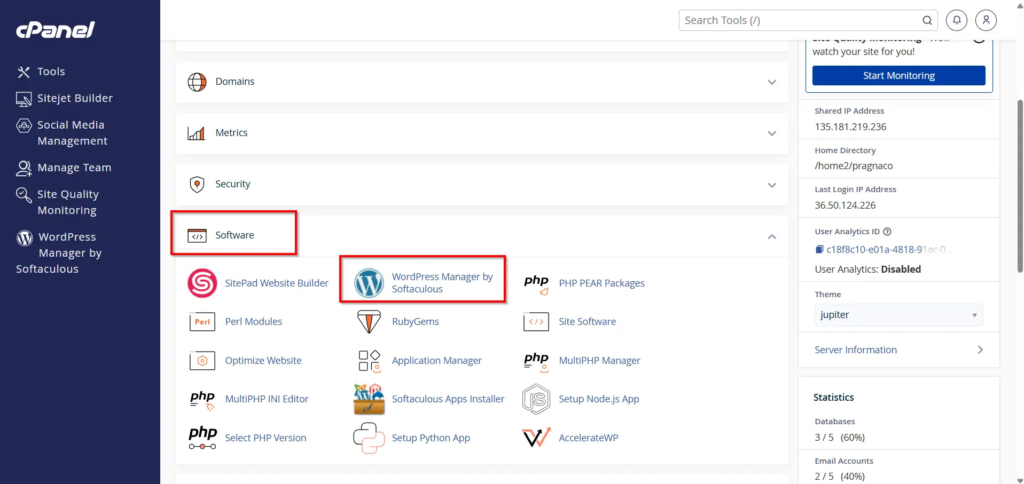
Step 2: Open WordPress Manager by Softaculous
Under the Software section, click WordPress Manager by Softaculous
This tool allows you to manage all WordPress installations under your hosting account.
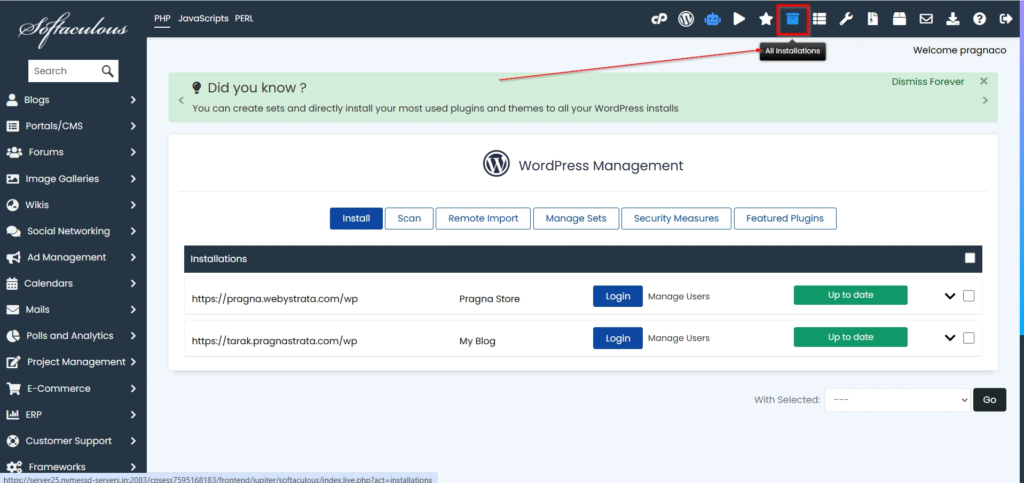
Step 3: Access All Installations
Inside Softaculous, click on All Installations
You will see a list of all WordPress websites currently installed on your hosting account.
Review the list and locate the website you wish to clone.
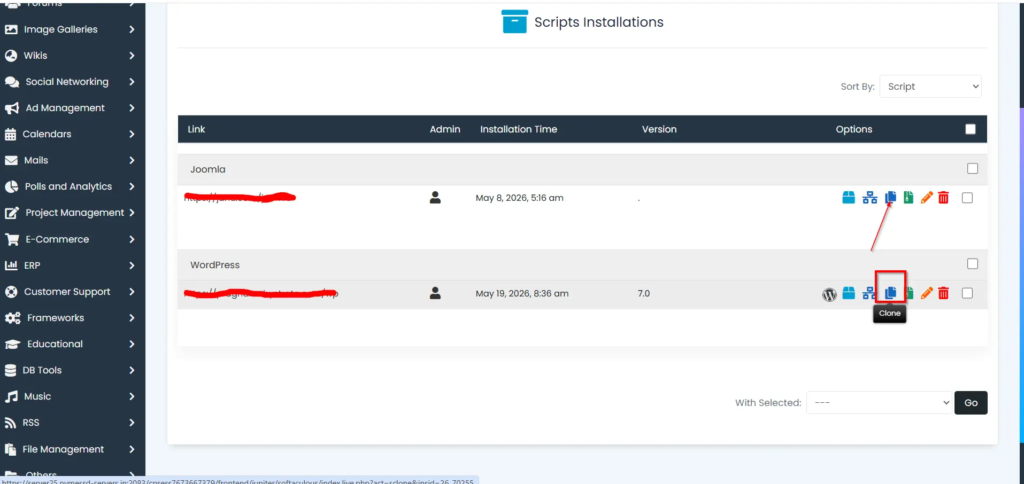
Step 4: Select the Clone Option
Next to the WordPress installation, click the Clone icon.
Softaculous will open the cloning configuration page where you’ll define the destination of the cloned website.
Step 5: Configure Clone Settings
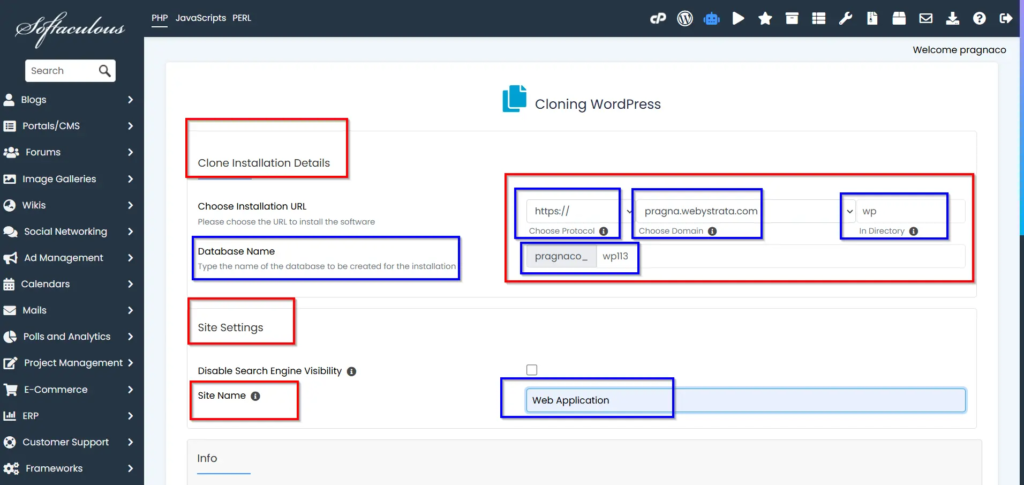
You will now need to specify where the cloned website should be created.
Configure the following settings:
Choose Protocol
Select:
- HTTP
- HTTPS
HTTPS is recommended if your website uses SSL.
Choose Directory
If cloning into a subfolder, specify the directory name.
Example:
testing
Result:
yourdomain.com/testing
Database Settings
Softaculous will automatically create a new database for the cloned website. You can customize the database name if required.
Site Name
Enter a custom site name such as:
- Staging Website
- Development Copy
- Test Environment
Double-check all details before proceeding.
Step 6: Start the Cloning Process
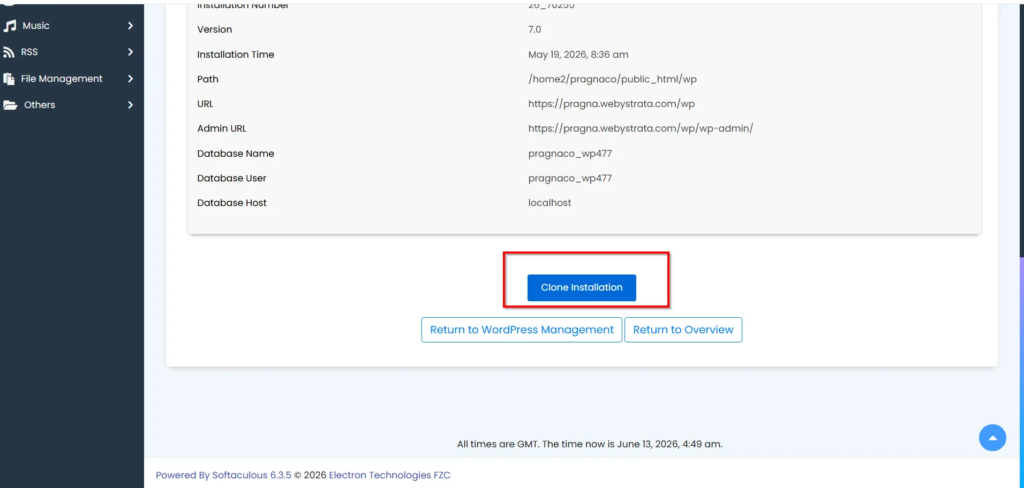
Click the Clone Installation button.
Softaculous will begin copying:
- WordPress files
- Database tables
- Plugins
- Themes
- Media uploads
- Configuration settings
The process may take several minutes depending on the size of your website.
Avoid closing your browser during the cloning process.
Step 7: Verify the Cloned Website
After cloning is completed successfully, Softaculous will display the URL of the cloned website.
Open the cloned website and verify:
- Homepage loads correctly
- Images display properly
- Plugins are functioning
- Menus work correctly
- Forms submit successfully
- WordPress login works
Since the clone is an exact copy, your administrator login credentials usually remain the same.
Best Practices After Cloning
Once the cloning process is complete, consider performing these additional steps.
- Update the Site Title
- Prevent Search Engine Indexing
- Discourage search engines from indexing this site
- Disable Email Notifications
- Restrict Public Access
Common Issues During Cloning
- Insufficient Disk Space
- Existing Directory Conflict
- Database Creation Errors
- Mixed Content Warnings
Why Clone a WordPress Website?
Website cloning is useful in many situations. Instead of experimenting on a live website, you can work on a duplicate version and verify everything works correctly before publishing changes.
Common reasons to clone a WordPress website include:
- Testing plugin updates
- Installing new themes
- Redesigning website layouts
- Troubleshooting website errors
- Developing custom features
- Creating a staging environment
- Migrating websites to a new server
- Training or learning WordPress administration
When Should You Clone a Website?
You should consider cloning your WordPress website whenever you need to:
- Update WordPress core files
- Test plugin compatibility
- Install new themes
- Make design changes
- Troubleshoot issues
- Develop custom functionality
- Perform website migrations
A cloned website provides a safe environment where mistakes won’t affect your live visitors.
Benefits of Cloning a WordPress Website
1. Safe Testing Environment
2. Easier Website Redesign
3. Faster Troubleshooting
4. Improved Development Workflow
5. Reduced Downtime Risk
6. Backup and Recovery Support
Conclusion
Cloning a WordPress website via Softaculous in cPanel is one of the easiest and most effective ways to create a staging or development environment. With just a few clicks, you can duplicate your entire website, including files, databases, plugins, themes, and settings.
Whether you’re testing updates, redesigning your website, troubleshooting issues, or preparing for a migration, website cloning helps protect your live website from unnecessary risks. By following the steps outlined above, you can confidently create and manage cloned WordPress installations whenever needed.
Related Articles


