Latest Updates
How to Configure WHMCS Automation Settings
How to Configure WHMCS Automation Settings Managing a web hosting business involves many repetitive administrative tasks, including generating invoices, sending payment reminders, suspending overdue accounts, processing domain renewals, and handling customer notifications. Performing these…
How to Configure WHMCS Automation Settings
Managing a web hosting business involves many repetitive administrative tasks, including generating invoices, sending payment reminders, suspending overdue accounts, processing domain renewals, and handling customer notifications. Performing these tasks manually can be time-consuming and increase the risk of human error. Fortunately, WHMCS Automation Settings allow hosting providers to automate these essential operations and streamline their daily workflow.
WHMCS Automation Settings are designed to help businesses save time, improve efficiency, and ensure that critical tasks are performed consistently. By properly configuring automation, you can focus more on growing your business while WHMCS handles routine administrative processes in the background.
In this guide, we will explain everything you need to know about configuring WHMCS Automation Settings and how each automation feature can benefit your hosting business.
What Are WHMCS Automation Settings?
WHMCS Automation Settings control how WHMCS automatically performs various billing, hosting, domain, and support-related tasks. These settings work in conjunction with the WHMCS Cron Job, which runs scheduled tasks at predefined intervals.
Once configured correctly, WHMCS can automatically:
- Generate recurring invoices
- Send payment reminder emails
- Process credit card payments
- Suspend overdue hosting accounts
- Unsuspend services after payment
- Terminate long-overdue services
- Send domain renewal notices
- Synchronize domain information
- Manage support ticket automation
- Process affiliate commissions
Automation significantly reduces manual intervention while ensuring customers receive timely notifications and services remain properly managed.
Why Are WHMCS Automation Settings Important?
Properly configured WHMCS Automation Settings offer several advantages:
- Reduced Administrative Work
- Improved Cash Flow
- Better Customer Experience
- Increased Operational Efficiency
- Consistent Service Management
Accessing WHMCS Automation Settings
To access Automation Settings in WHMCS:
- Log in to your WHMCS Admin Area.
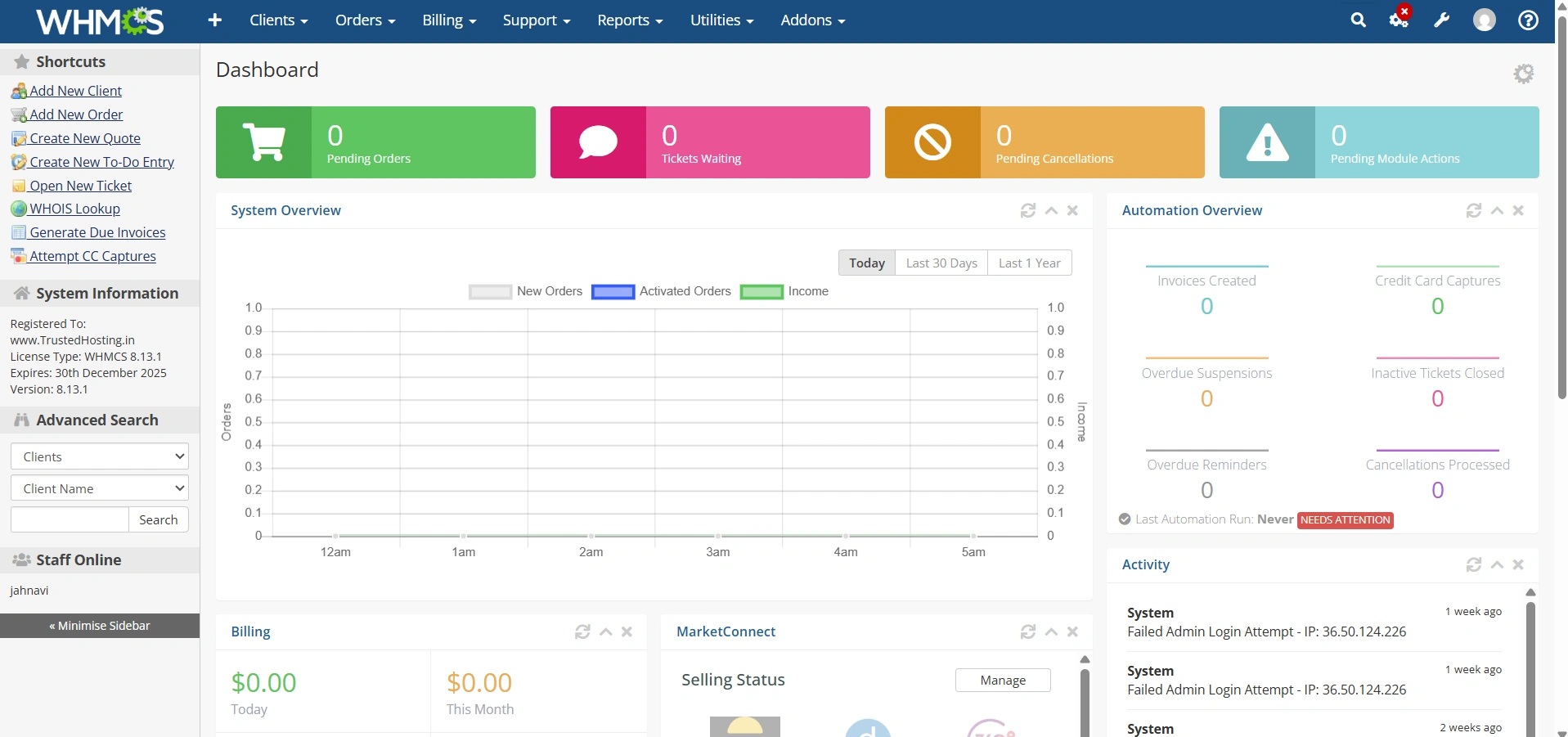
2. Navigate to Configuration Icon.
3. Select System Settings.
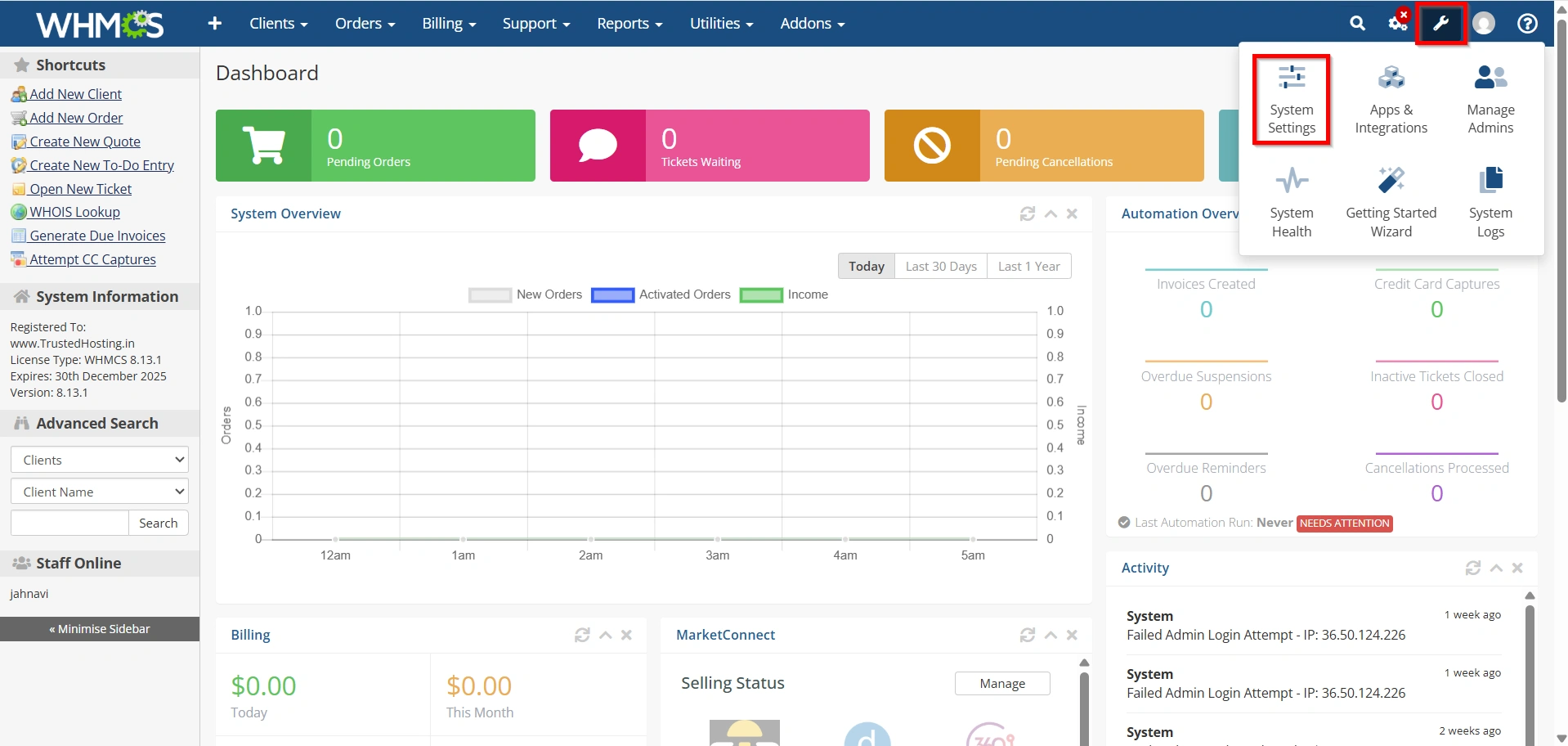
4. Click Automation Settings.
You will be presented with multiple sections that control different aspects of automation.
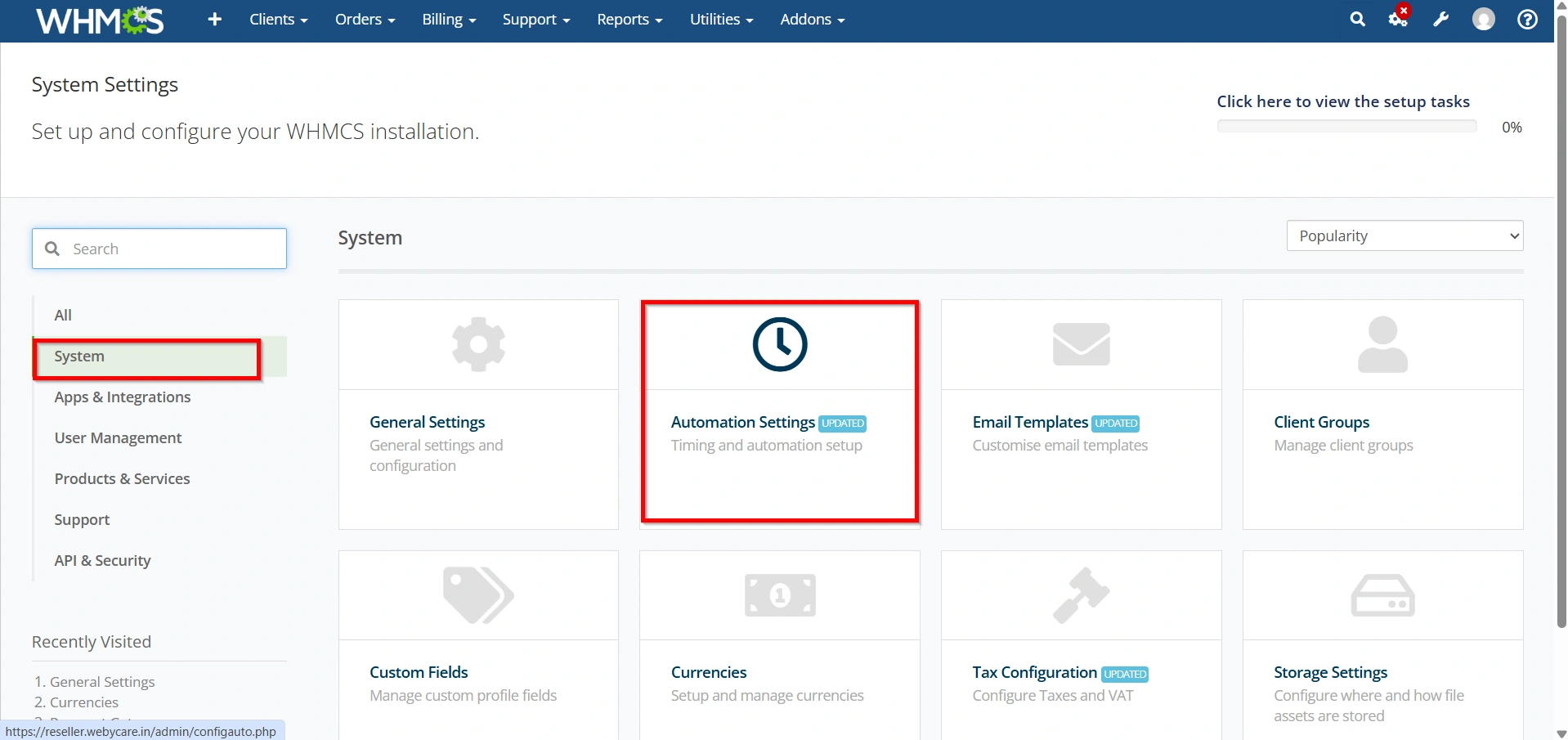
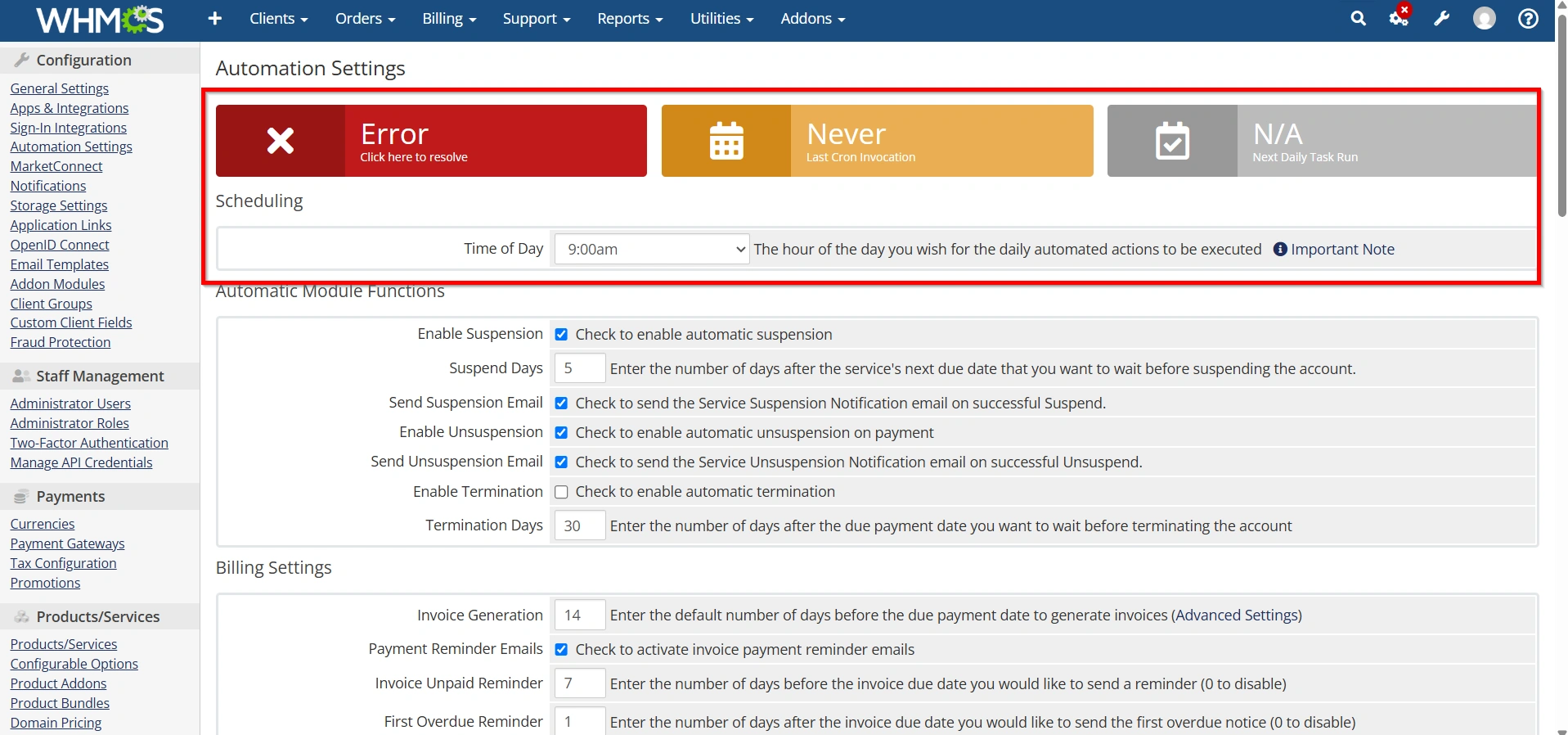
Step 1: Configure Automation Status
The Automation Status section displays information about:
- Last Cron Run
- Next Cron Run
- Cron Command
- Automation Task Status
Verify that your cron job is configured correctly on the server, as WHMCS automation depends on cron execution.
Step 2: Configure Billing Settings
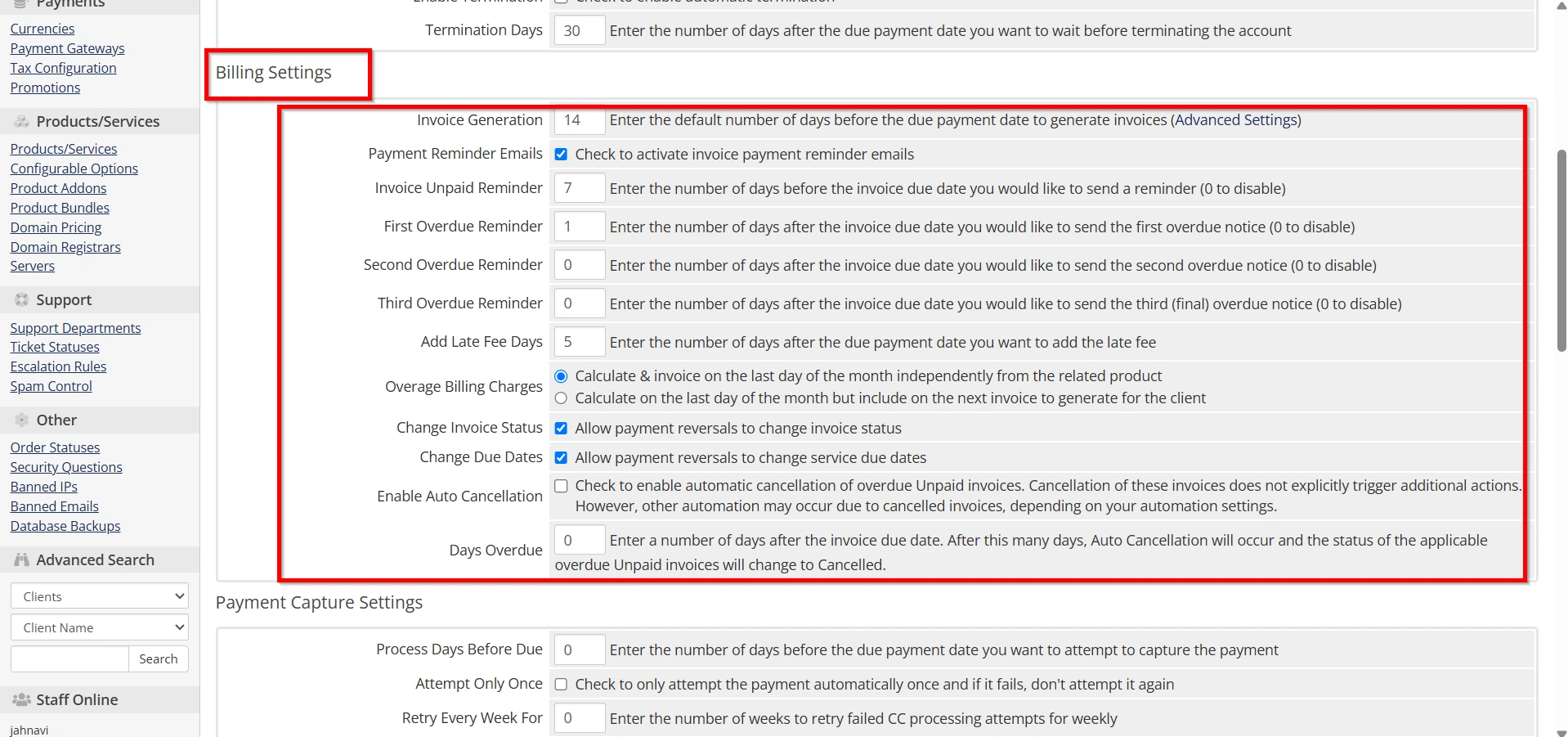
The Billing Settings section controls automated invoice generation and payment reminders.
Invoice Generation
Set how many days before the due date invoices should be generated.
Example:
- Generate invoices 14 days before the due date.
Payment Reminder Notices
Configure reminder emails for:
- First Overdue Notice
- Second Overdue Notice
- Third Overdue Notice
These reminders help reduce late payments and improve collection rates.
Step 3: Configure Suspension Settings
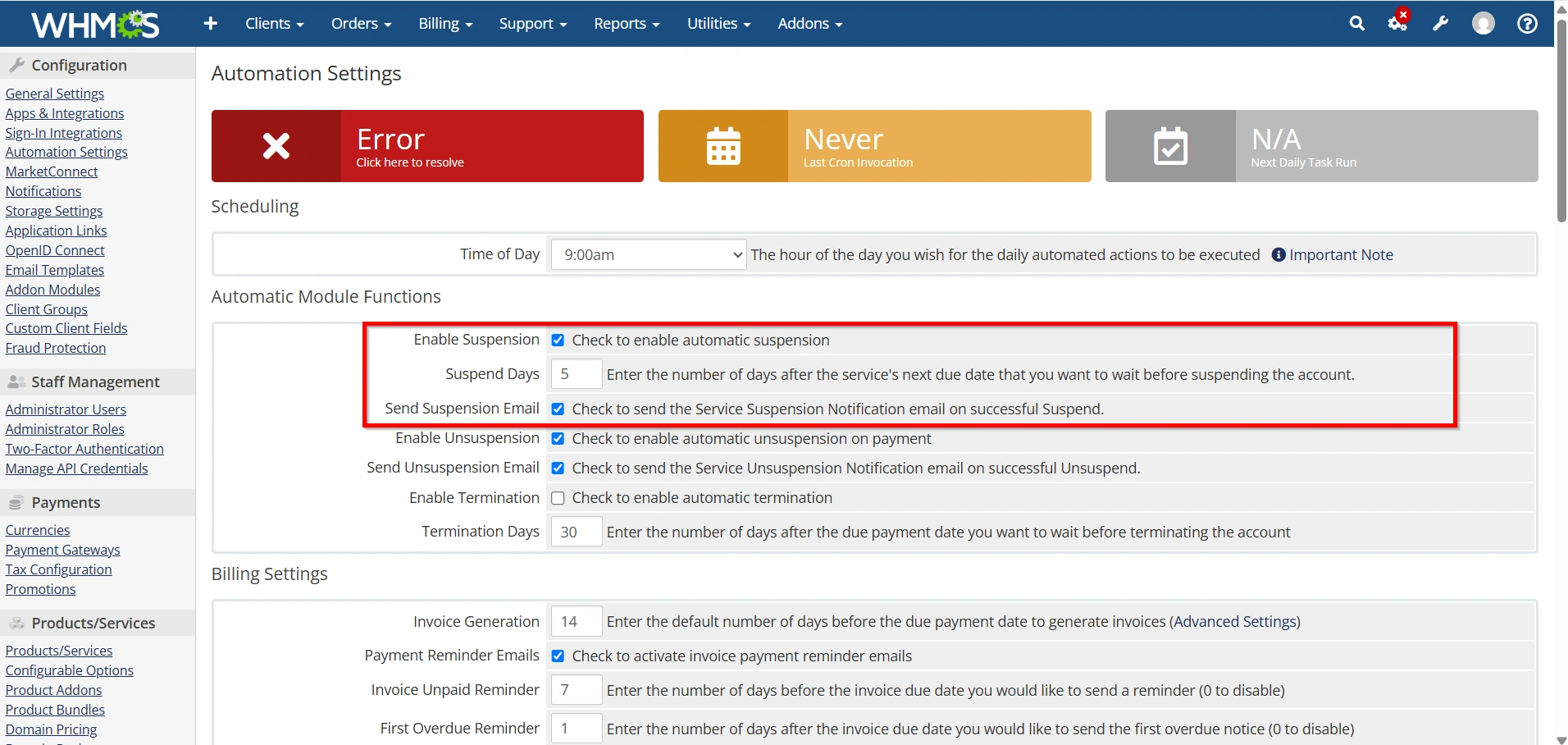
WHMCS can automatically suspend hosting accounts for unpaid invoices.
Suspend Days
Specify the number of days after an invoice becomes overdue before suspension occurs.
Example:
- Suspend accounts 3 days after the due date.
Suspension Notification
Enable suspension emails to notify clients when their services are suspended.
Step 4: Configure Unsuspension Settings
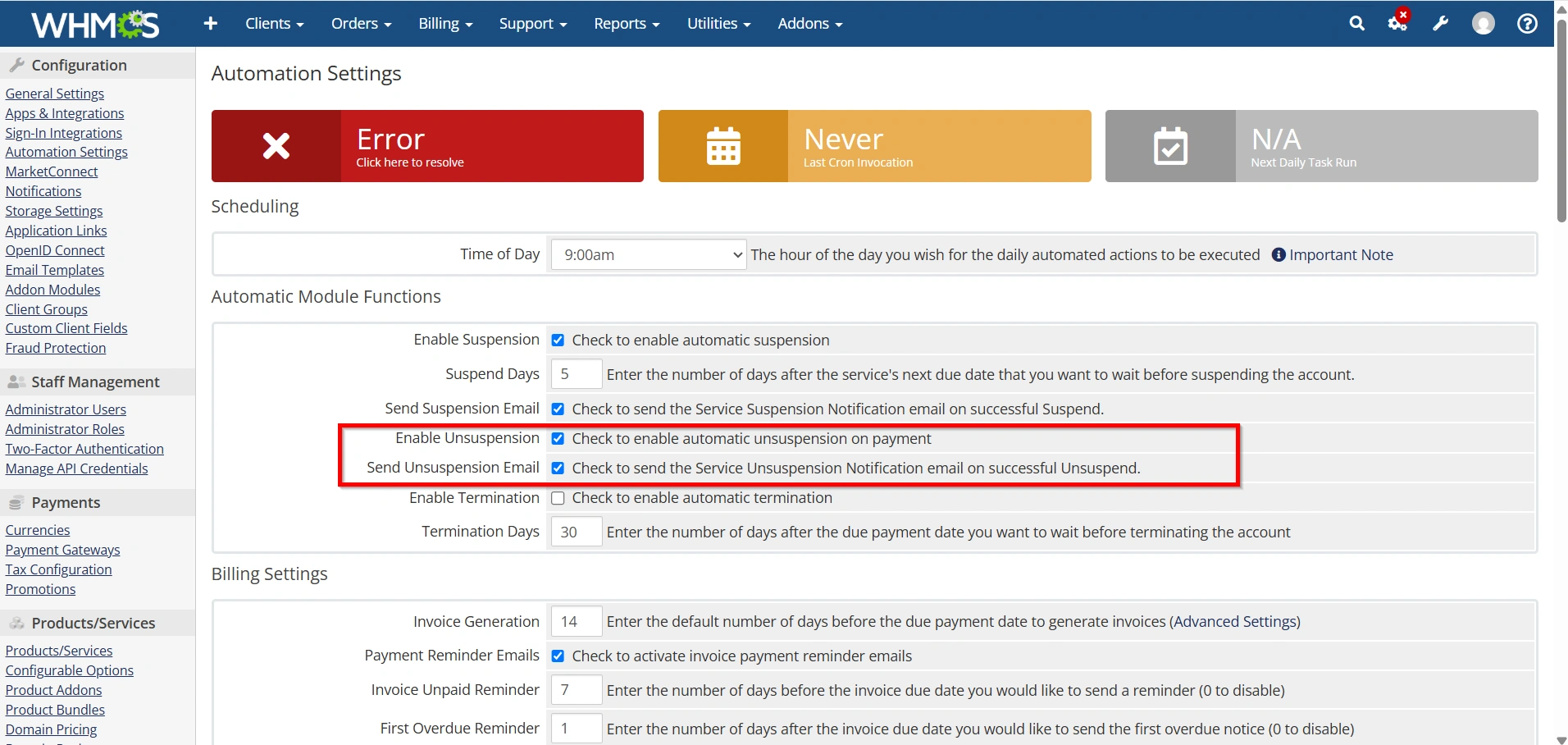
When a client pays an overdue invoice, WHMCS can automatically restore the suspended service.
Benefits include:
- Faster service restoration
- Reduced support requests
- Improved customer satisfaction
Enable automatic unsuspension for supported hosting modules.
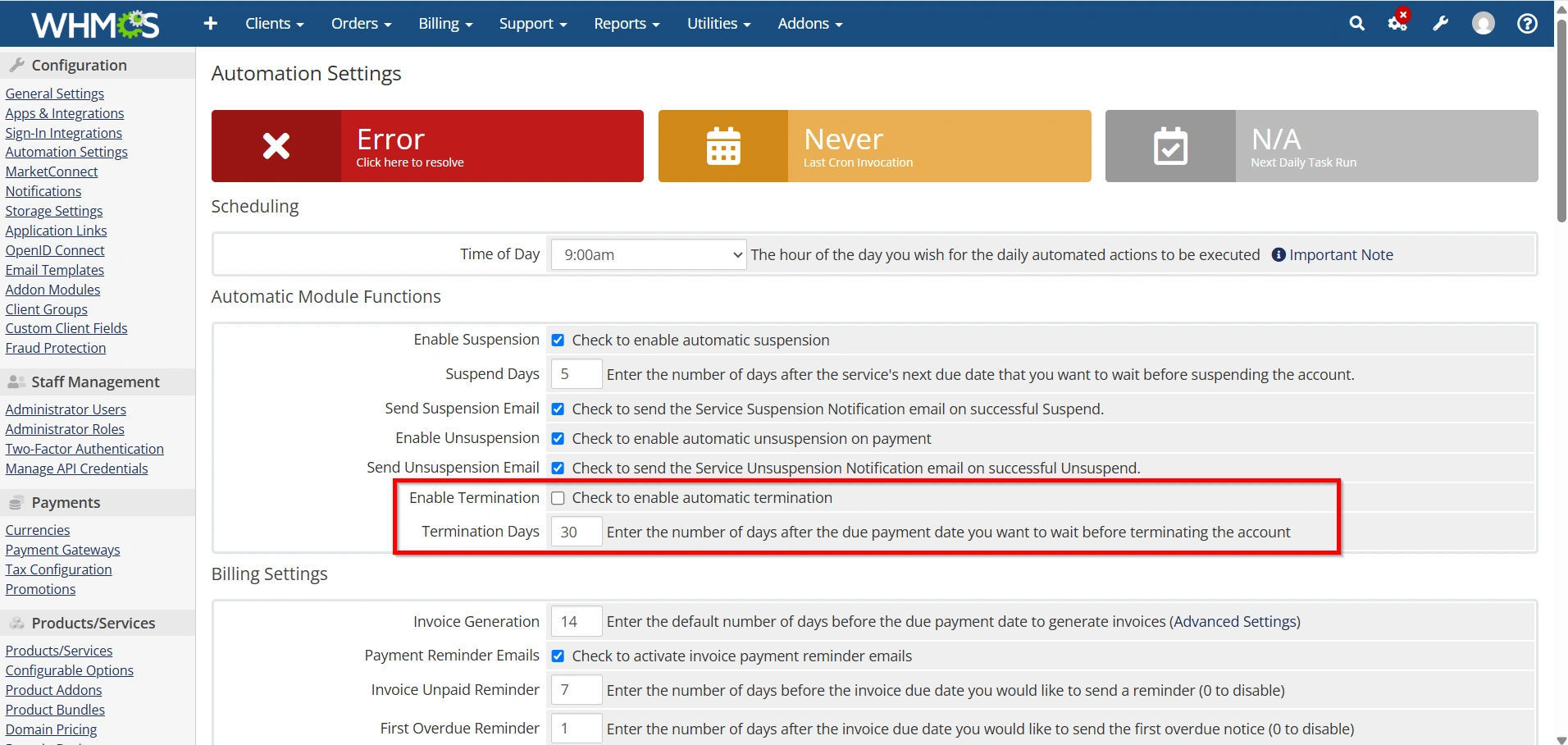
Step 5: Configure Termination Settings
For long-overdue accounts, WHMCS can automatically terminate services.
Termination Days
Specify how many days after suspension a service should be terminated.
Example:
- Terminate services after 30 days of suspension.
Important: Use this feature carefully, as terminated accounts may result in permanent data loss.
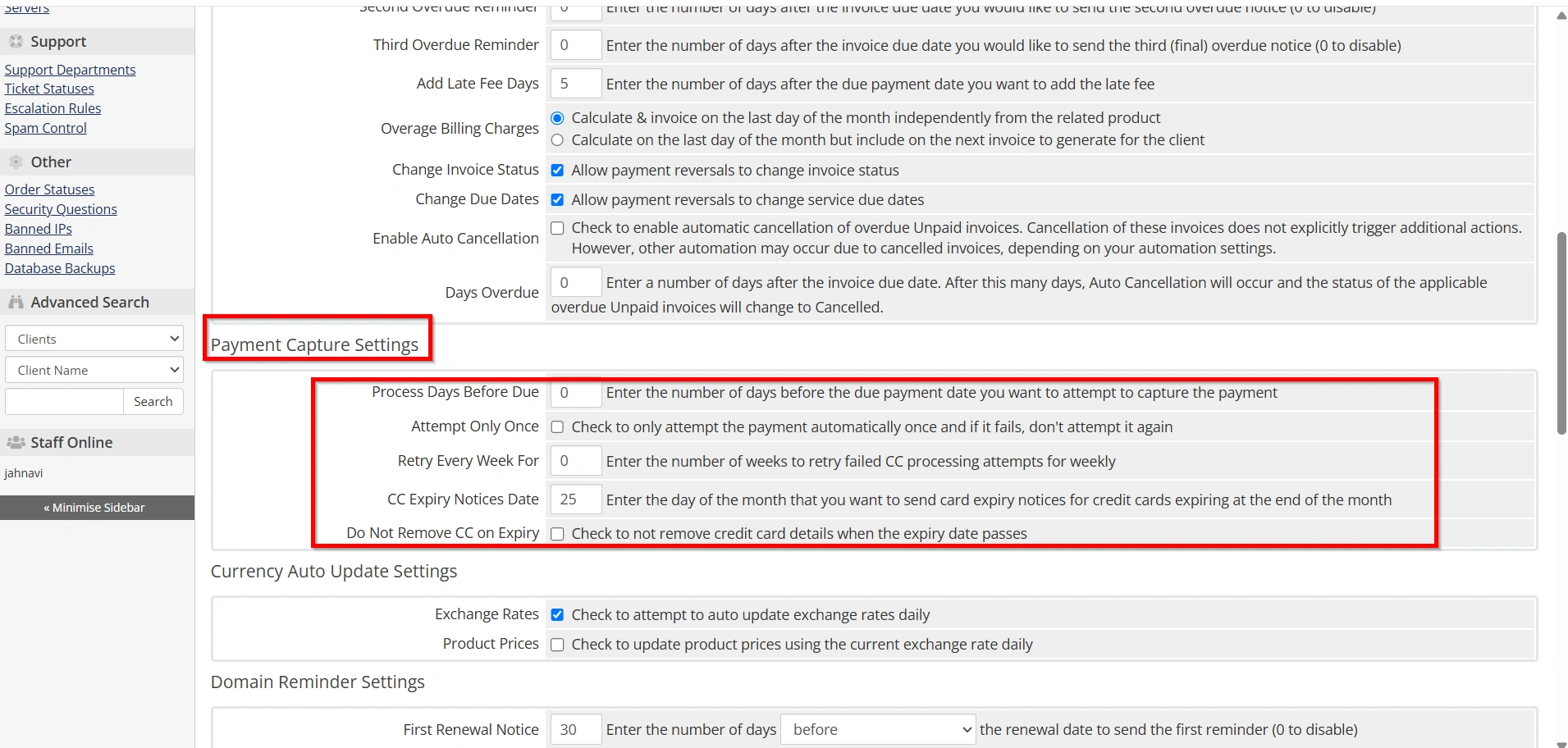
Step 6: Configure Payment Capture Settings
If using supported payment gateways, WHMCS can automatically process recurring payments.
Options include:
- Attempt payment capture automatically
- Retry failed payments
- Configure payment retry intervals
This helps increase successful payment collections.
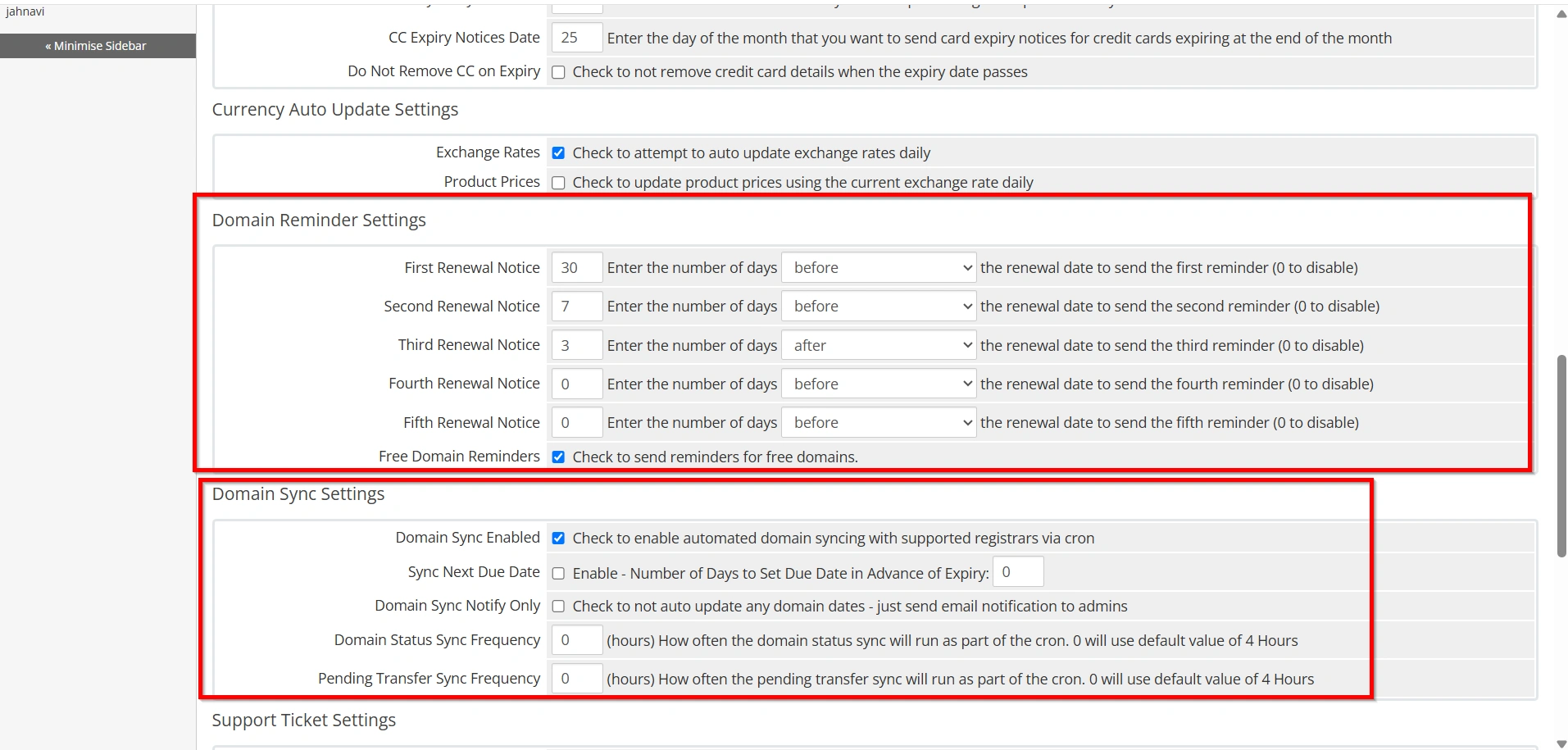
Step 7: Configure Domain Automation Settings
WHMCS can automate domain management tasks.
Domain Renewal Notices
Set renewal reminder schedules, such as:
- 30 Days Before Expiry
- 15 Days Before Expiry
- 7 Days Before Expiry
Domain Sync
Enable domain synchronization to:
- Update expiry dates
- Update registration status
- Sync registrar information
Auto-Renewal
Automatically renew domains when payment is received.
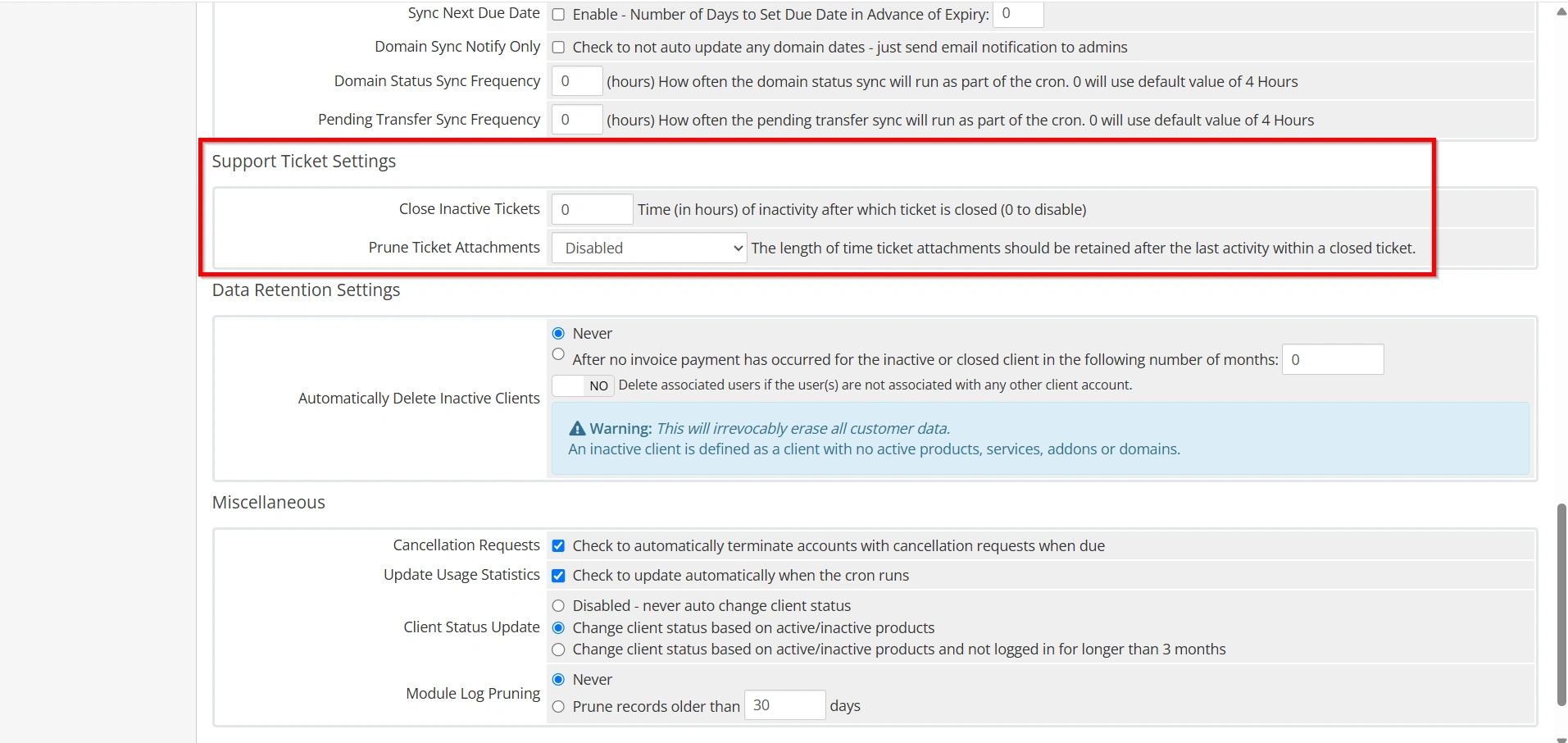
Step 8: Configure Support Ticket Automation
WHMCS can automate support ticket management.
Available options include:
- Auto-close inactive tickets
- Send customer satisfaction surveys
- Escalate overdue tickets
- Manage ticket follow-ups
These features help maintain efficient support operations.
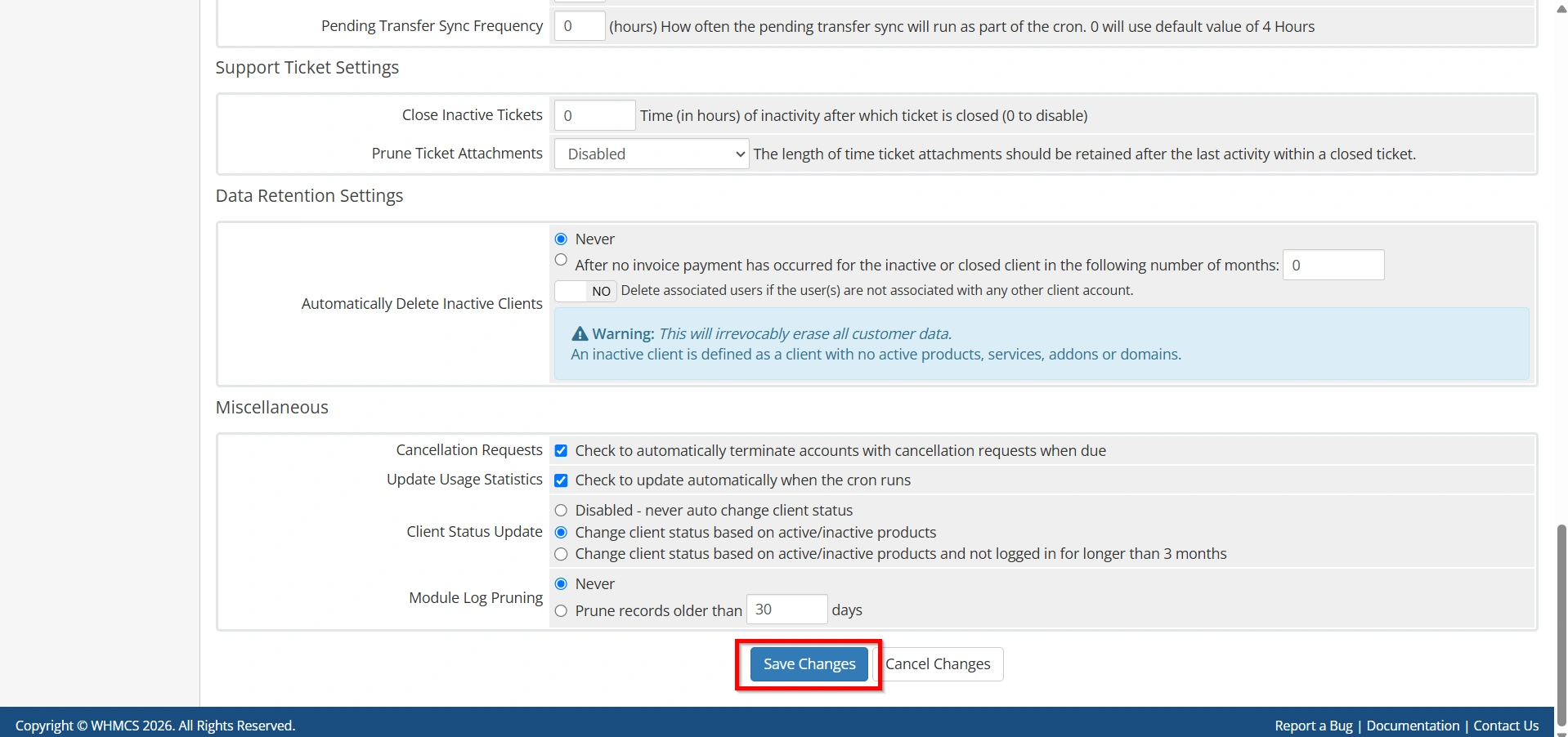
Step 9: Save Automation Settings
After configuring all required options:
- Review your settings carefully.
- Click Save Changes.
- Verify that the WHMCS cron job is running successfully.
Best Practices for WHMCS Automation Settings
To maximize the effectiveness of WHMCS automation, follow these best practices:
- Verify Cron Execution Regularly
- Test Changes Before Production Use
- Use Multiple Payment Reminders
- Set Reasonable Suspension Periods
- Enable Domain Synchronization
- Review Automation Logs Frequently
- Keep WHMCS Updated
Conclusion
WHMCS Automation Settings are one of the most powerful features available to hosting providers. By automating billing, payment reminders, account suspensions, domain renewals, support ticket management, and affiliate processing, WHMCS significantly reduces administrative workload while improving operational efficiency.
Properly configured WHMCS Automation Settings help ensure accurate billing, timely customer communication, and smooth service management. Whether you operate a small hosting company or a large web hosting business, investing time in configuring automation correctly will save countless hours and contribute to a more professional and scalable operation.
Related Articles


