cPanel
How to Create Email Accounts in cPanel
How to Create Email Accounts in cPanel Creating a professional email account using your own domain name is one of the most important steps in building a trusted online presence. In this detailed guide,…
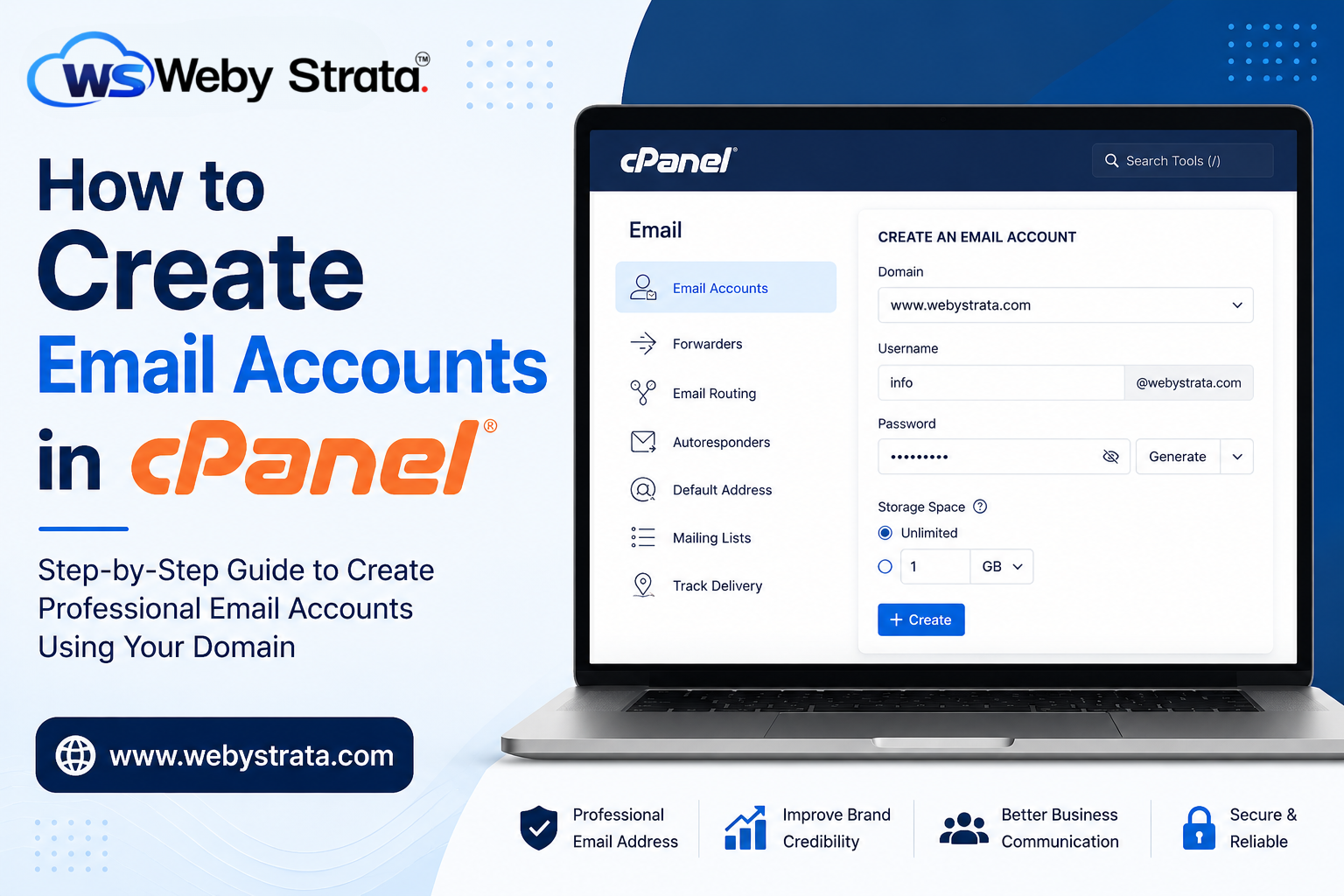
How to Create Email Accounts in cPanel
Creating a professional email account using your own domain name is one of the most important steps in building a trusted online presence. In this detailed guide, you will learn how to create email accounts in cPanel step by step in a simple and beginner-friendly way.
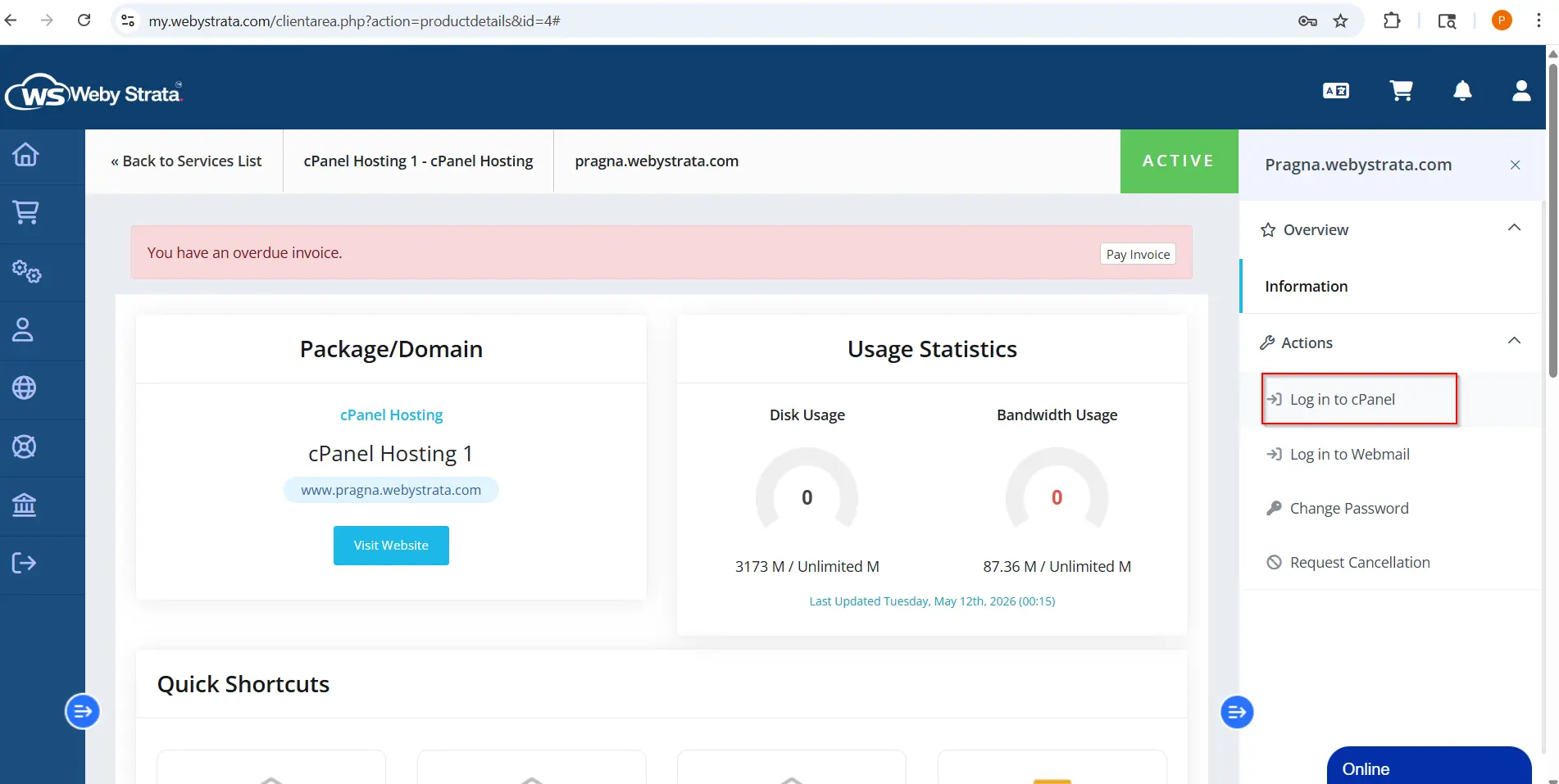
The first step in learning how to create email accounts in cPanel is logging into your WebyStrata client area using your official account credentials.
Follow these steps carefully:
Open the WebyStrata official website login page
After successful login:
- Go to the Services section
- Click on My Services
- Select your active hosting plan
- Click on the Login to cPanel button
Once you click it, you will be redirected directly to your cPanel dashboard, where you can manage all website and email-related settings easily.
Step 2: Open Email Section in cPanel
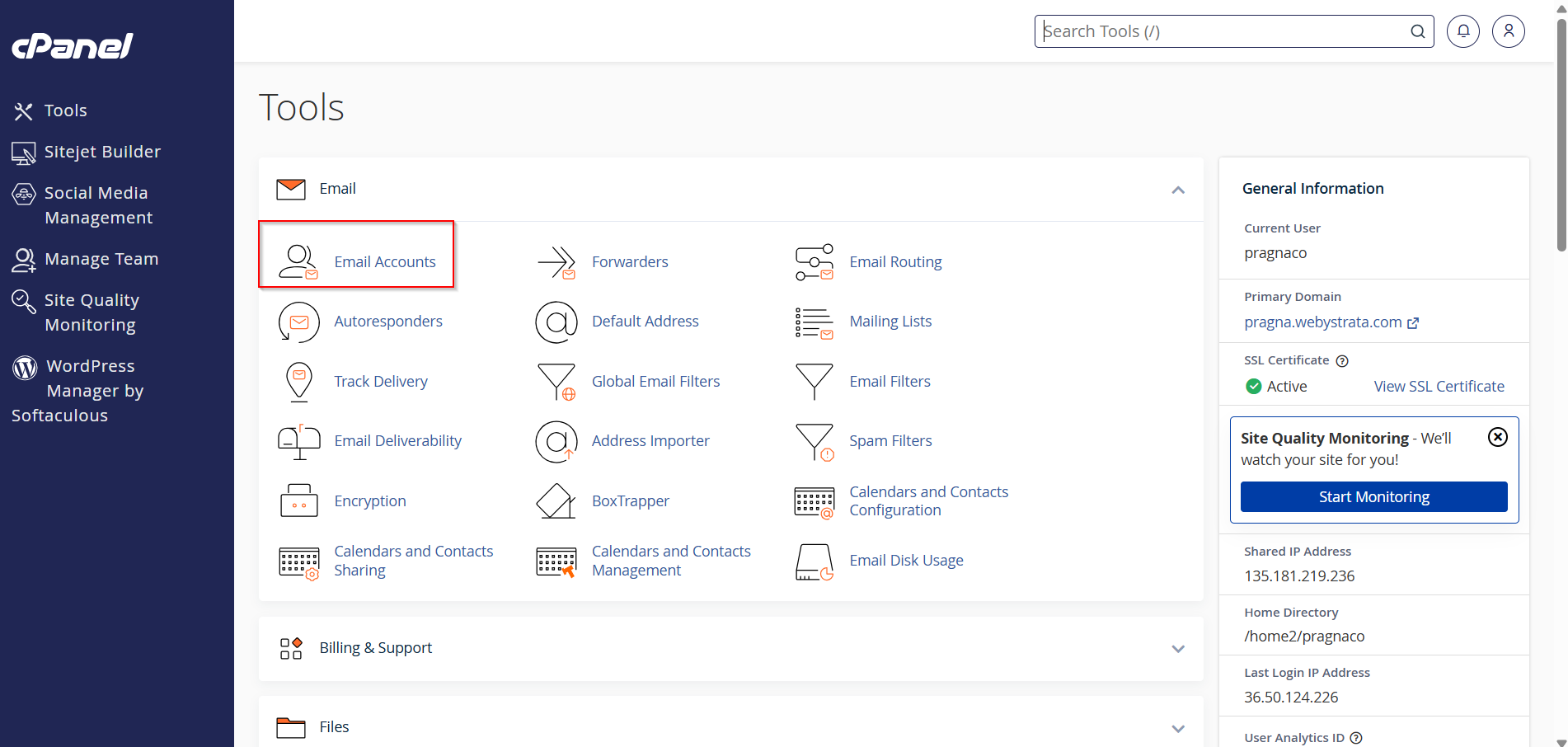
After successfully logging into cPanel, you will see multiple sections like Files, Databases, Domains, and Email.
To continue the process of how to create email accounts in cPanel, follow these steps:
- Scroll down to the Email section
- Look for email-related tools and options
- Click on the Email category or icon
This section contains all tools required to manage your email services including creating, deleting, and modifying email accounts.

Step 3: Access Email Accounts
Now you need to open the email account management area.
To proceed:
- Go to the Email Accounts option inside the Email section
- Click on it to open the email management page
Here, you can view all existing email accounts associated with your domain and also create new ones.
This is an important step in understanding how to create email accounts in cPanel because all email configurations start from here.
Step 4: Click on Create Button
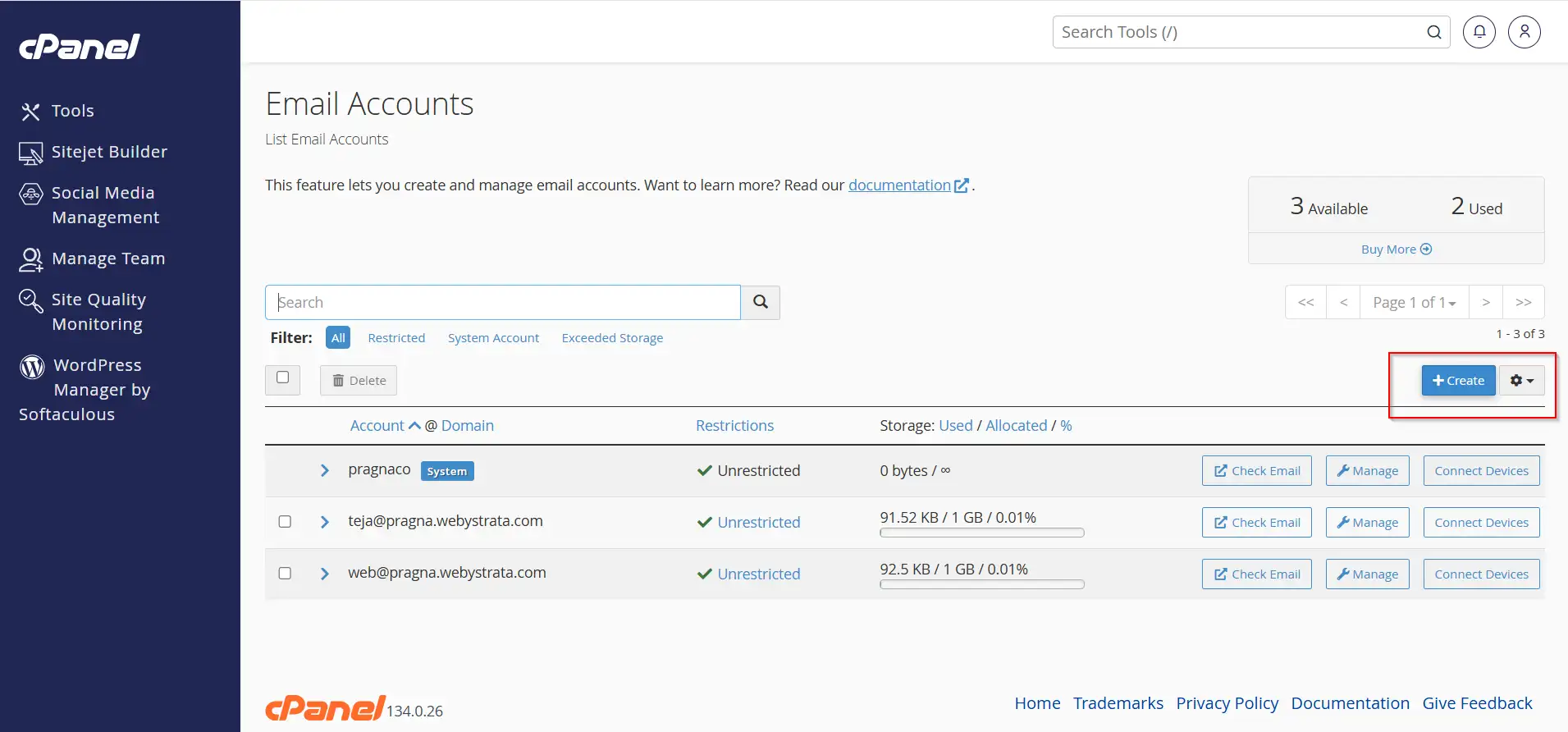
Once you are inside the Email Accounts page, you will find the option to create a new email account.
Follow these steps:
- Click on the Create button
- A new form will open where you can enter email details
- This form allows you to set up your new professional email account
This is where your new domain email setup begins.
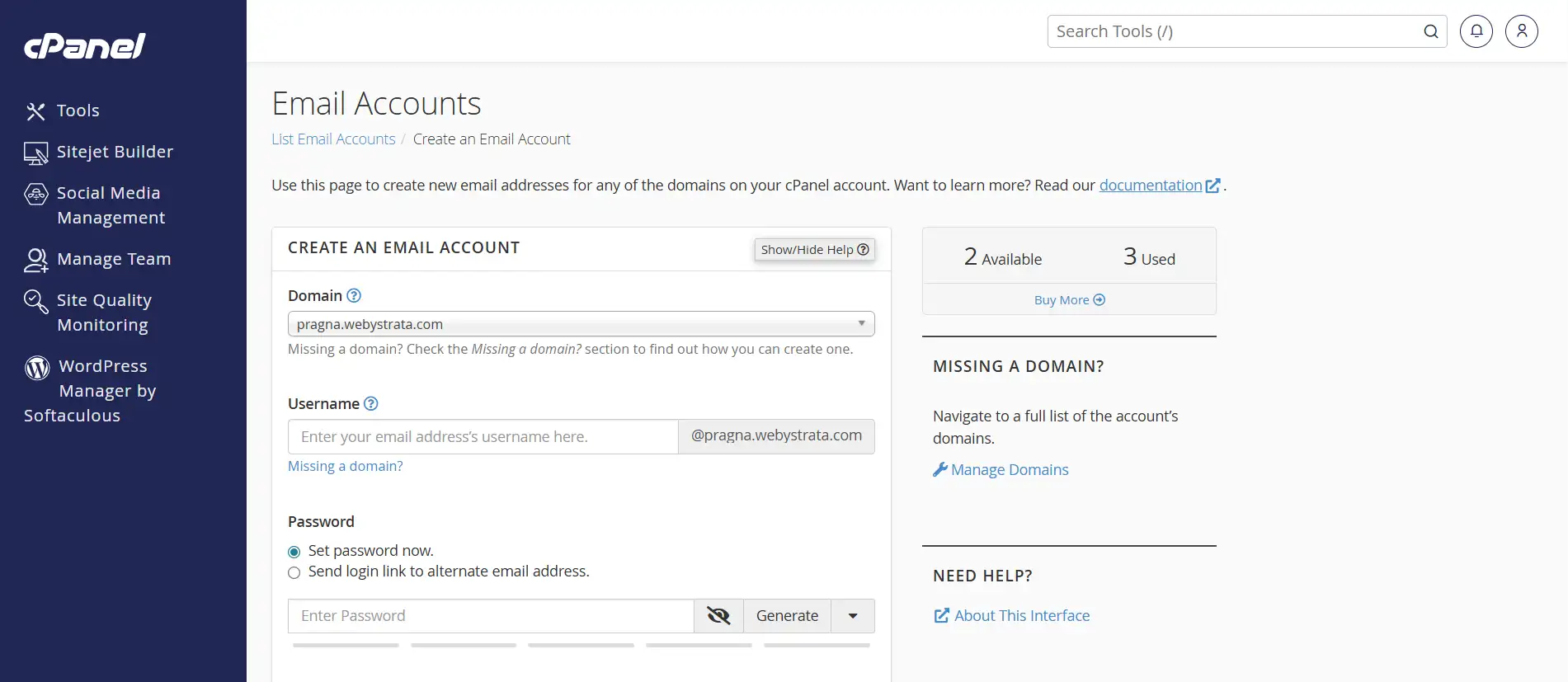
Step 5: Enter Email Details Properly
Now you must carefully fill in all required information to complete the setup.
Domain Selection
- Choose your domain name from the dropdown list
- Example: yourdomain.com
Email Username
- Enter the name you want for your email account
- Examples:
- info
- support
- admin
- sales
This will create email addresses like:
Password Setup
- Enter a strong password for security
- You can also click on Generate Password to automatically create a secure password
It is highly recommended to use a strong password to protect your email account from unauthorized access.
Step 6: Configure Storage Space
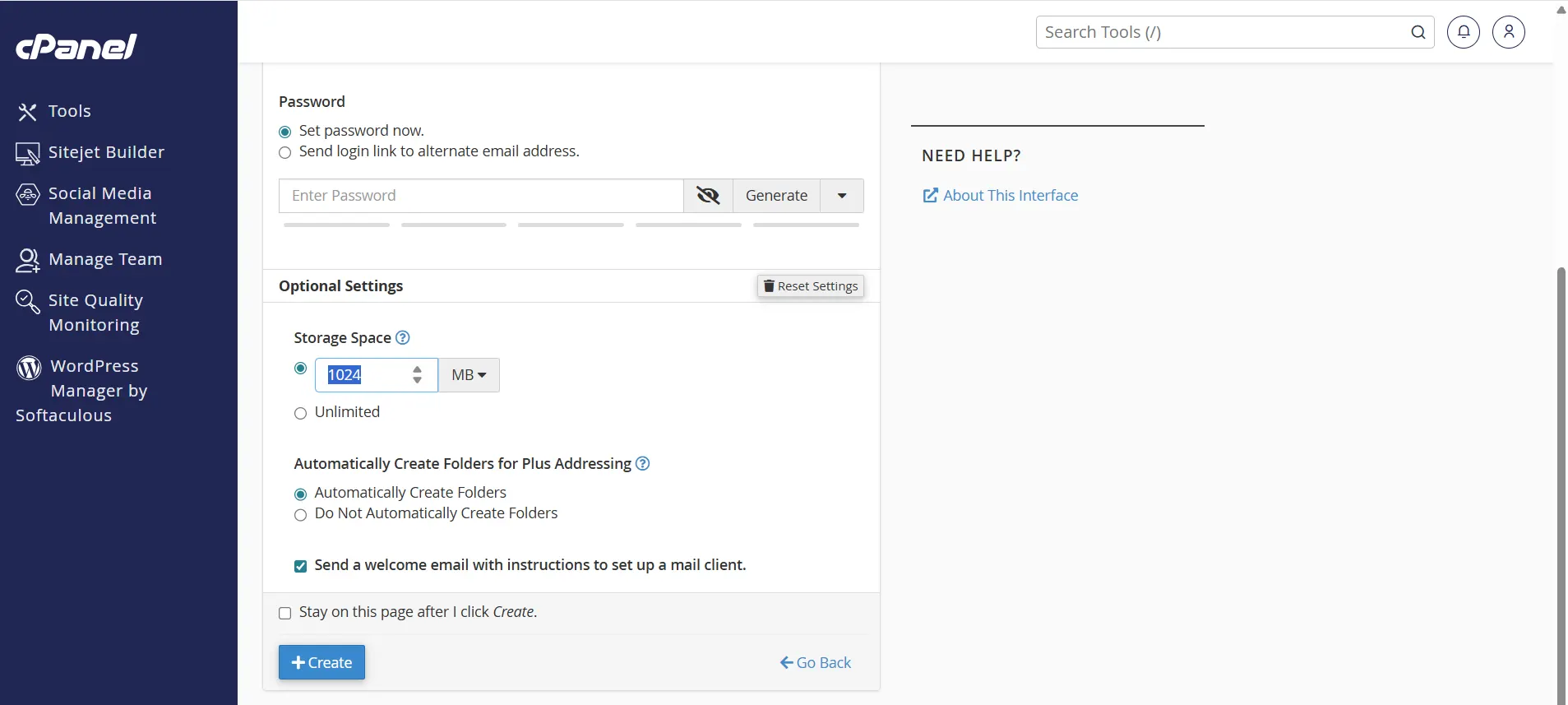
The next step in how to create email accounts in cPanel is setting mailbox storage limits.
You will usually have two options:
Option 1: Unlimited Storage
- Best for business and long-term usage
- No need to worry about storage space
Option 2: Custom Storage Limit
- Set a specific storage size (e.g., 1GB, 2GB, etc.)
- Useful if you want to manage disk usage carefully
Choosing the right storage depends on your hosting plan and email usage needs.
Step 7: Create the Email Account Successfully
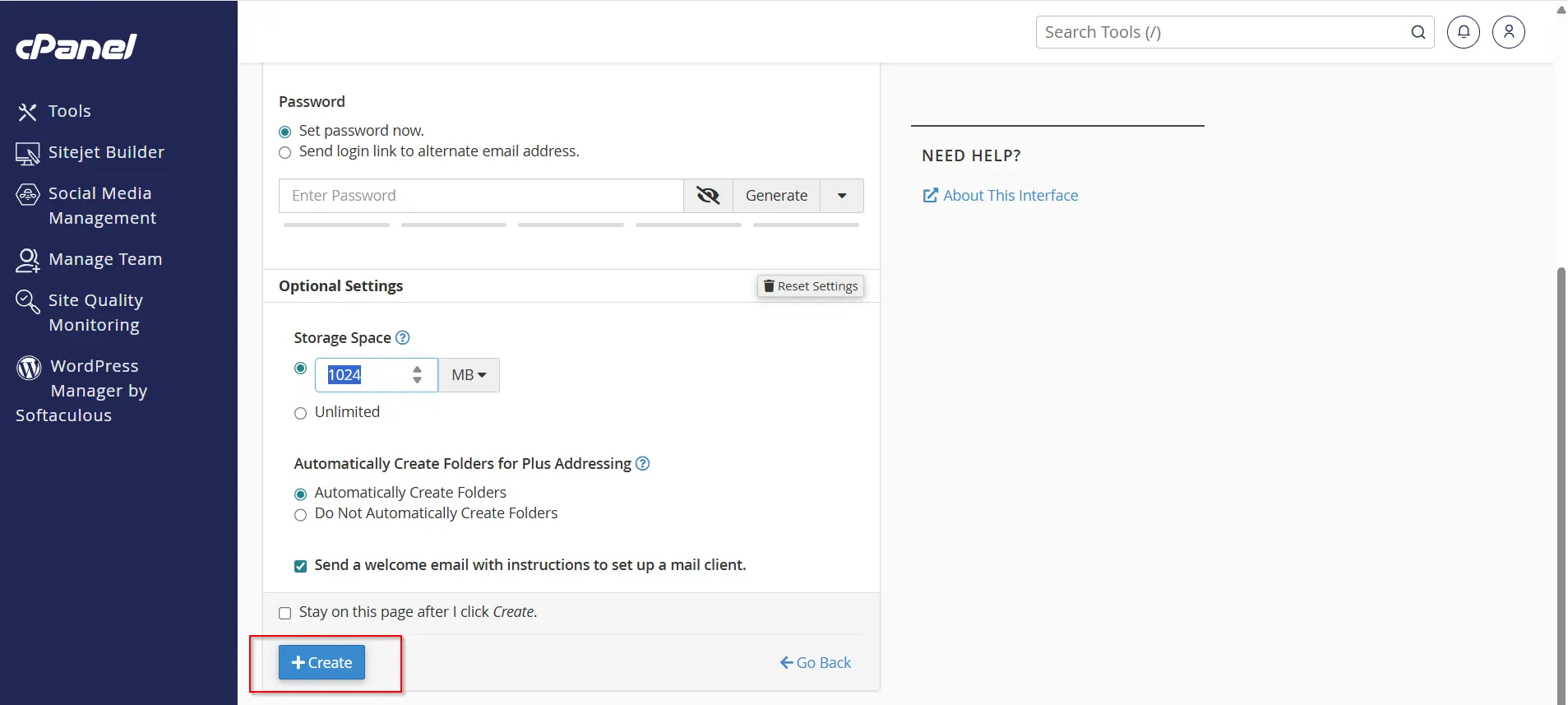
After filling in all the required details:
- Double-check the email username and domain
- Ensure the password is strong
- Confirm storage settings
Then:
- Click on the Create button
Your email account will now be successfully created.
You can now start using your professional email address for business communication.
Conclusion
Learning how to create email accounts in cPanel is essential for anyone running a website or online business.
A domain-based email account:
- Improves your professional image
- Builds customer trust
- Helps organize business communication
- Strengthens your brand identity
With just a few simple steps inside cPanel, you can easily set up multiple professional email accounts for your website.
Related Articles


