cPanel
How to Find the Latest Visitors to Your Website in cPanel
cPanel provides a simple way to check the latest visitors to your website using the Visitors feature. This tool displays recent entries from the Apache log file and helps you monitor website activity directly…

cPanel provides a simple way to check the latest visitors to your website using the Visitors feature. This tool displays recent entries from the Apache log file and helps you monitor website activity directly from your hosting account.
Using the Visitors option in cPanel, you can:
- View recent website visitors
- Monitor website traffic
- Check visitor IP addresses
- View accessed pages
- Analyze website activity
This feature is useful for website owners who want to quickly monitor recent traffic without using third-party analytics tools.
Step 1: Login to cPanel
Login to your cPanel account using your username and password.
Step 2: Open the Visitors Tool
Once you are inside cPanel:
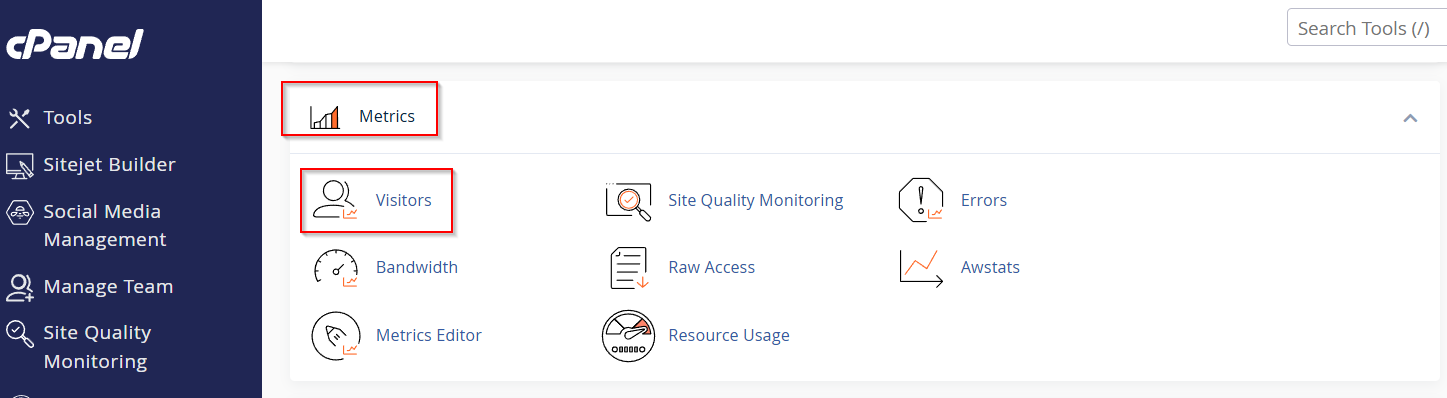
- Go to the Metrics section
- Click on Visitors
The Visitors feature allows you to view recent access logs for your website.
Step 3: Select the Domain or Subdomain
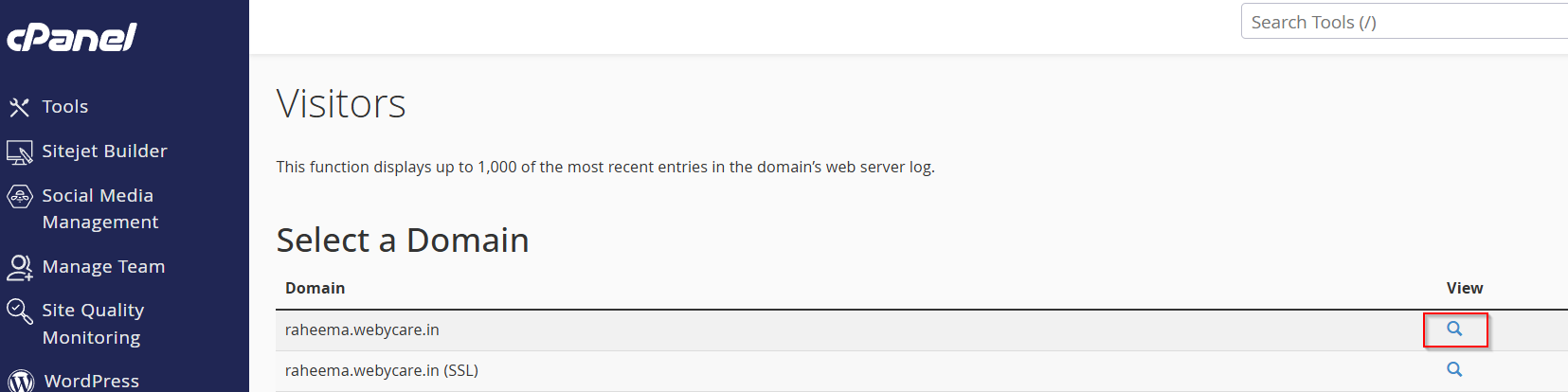
After opening the Visitors page:
- Choose the domain or subdomain you want to monitor
- Click on the Search icon
You can check visitor logs for:
- Primary domains
- Addon domains
- Subdomains
Step 4: View Latest Website Visitors
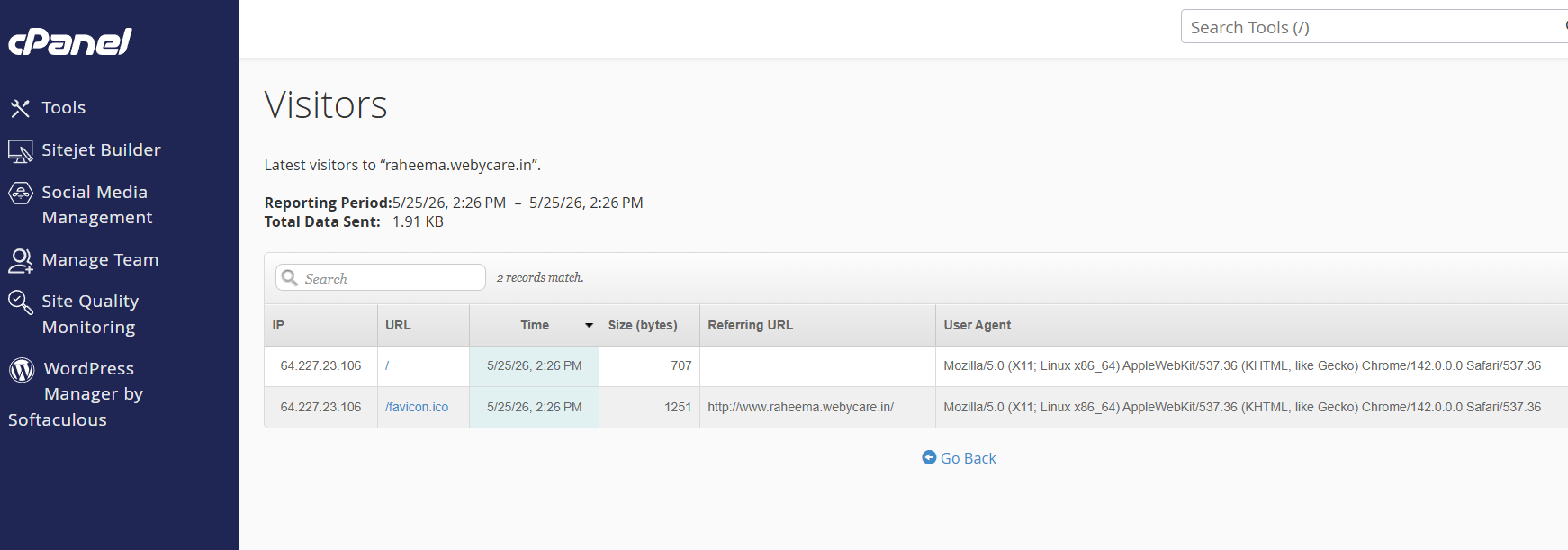
After selecting the domain, cPanel will display the latest visitors for that website.
The visitor log may include:
- Visitor IP address
- Date and time
- Accessed URL
- Browser details
- HTTP status code
This information helps you monitor website activity and identify unusual traffic.
Related Articles