cPanel
How to Remove a Domain Name from cPanel
How to Remove a Domain Name from cPanel Managing domains effectively is an important part of website administration. Whether you are migrating a website to a new hosting provider, removing an unused website, cleaning…
How to Remove a Domain Name from cPanel
Managing domains effectively is an important part of website administration. Whether you are migrating a website to a new hosting provider, removing an unused website, cleaning up your hosting account, or restructuring your online presence, there may come a time when you need to remove a domain name from cPanel.
cPanel makes domain management straightforward, allowing users to add, modify, and remove domains through an intuitive interface. However, before removing a domain, it is essential to understand what happens during the process and how to avoid accidental data loss.
In this guide, you’ll learn how to safely remove a domain name from cPanel, understand the implications of domain removal, and follow best practices to protect your website data.
Important Precautions Before Removing a Domain
Before deleting any domain, perform the following checks.
- Create a Full Backup
- Verify Website Usage
- Check Email Accounts
- Review Database Connections
- Verify DNS Records
Types of Domains That Can Be Removed
- Addon Domains
- Alias Domains
- Subdomains
Steps to Remove a Domain Name from cPanel
Step 1: Login to cPanel from Client Area
First, visit the WebyStrata website and log in to your client area account using your registered email address and password.
official Website www.webystrata.com
After logging in:
- Go to Services
- Click on My Services
- Select your active hosting service
- Click on Login to cPanel

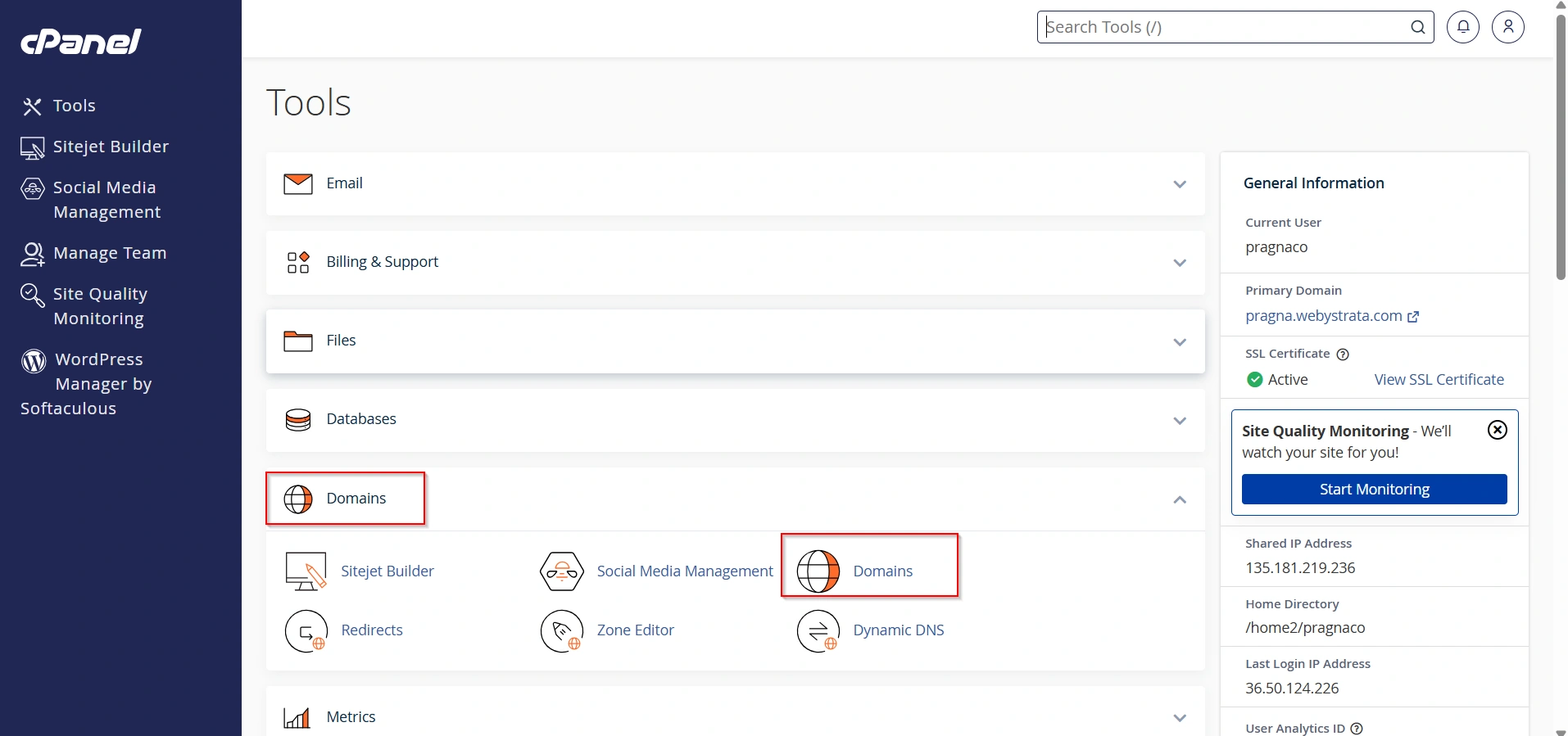
Step 2: Navigate to the Domains Section
After logging in:
- Scroll down to the Domains section.
- Click Domains.
You will see a list of all domains associated with your account.
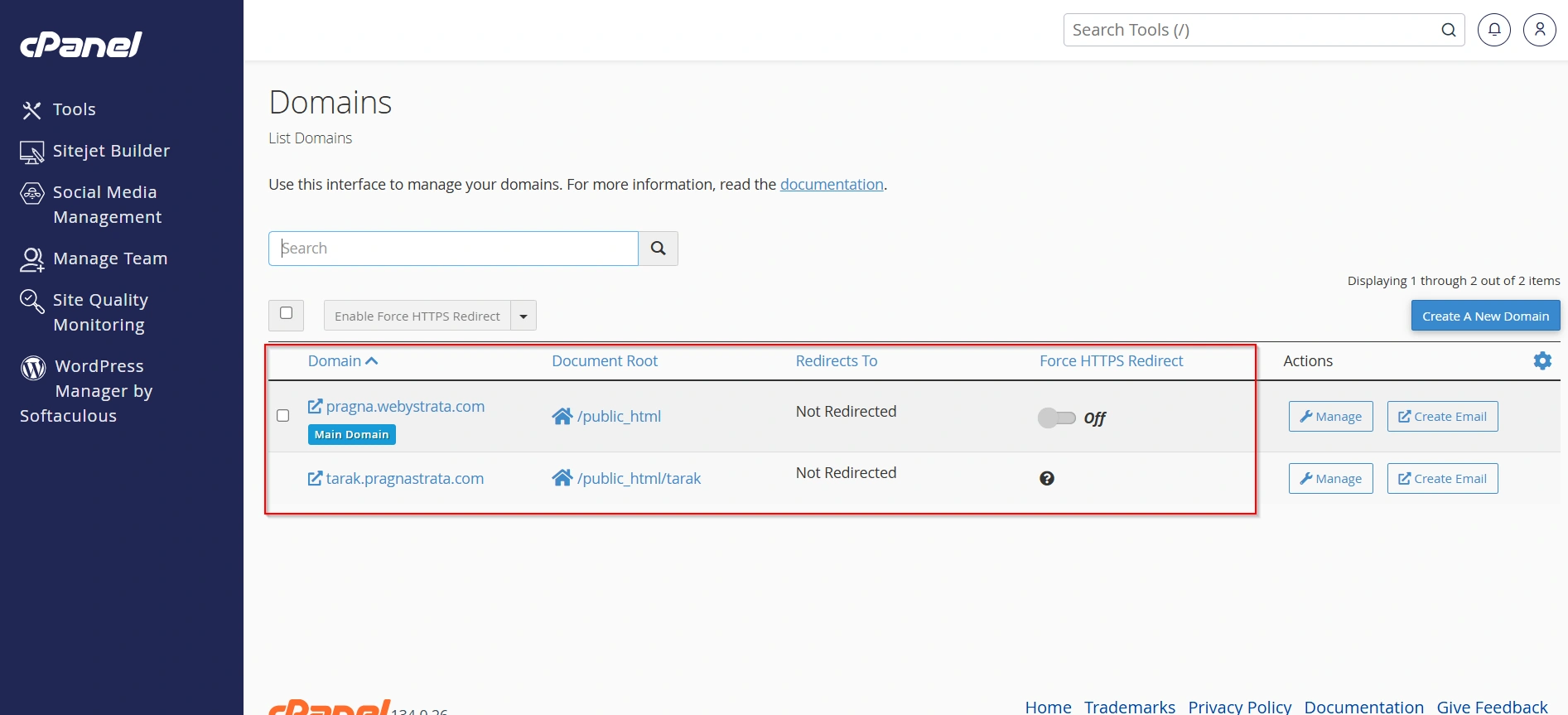
Step 3: Locate the Domain You Want to Remove
Review the list carefully.
Identify:
- Domain name
- Document root
- Redirect status
- Associated website
Double-check that you are selecting the correct domain.
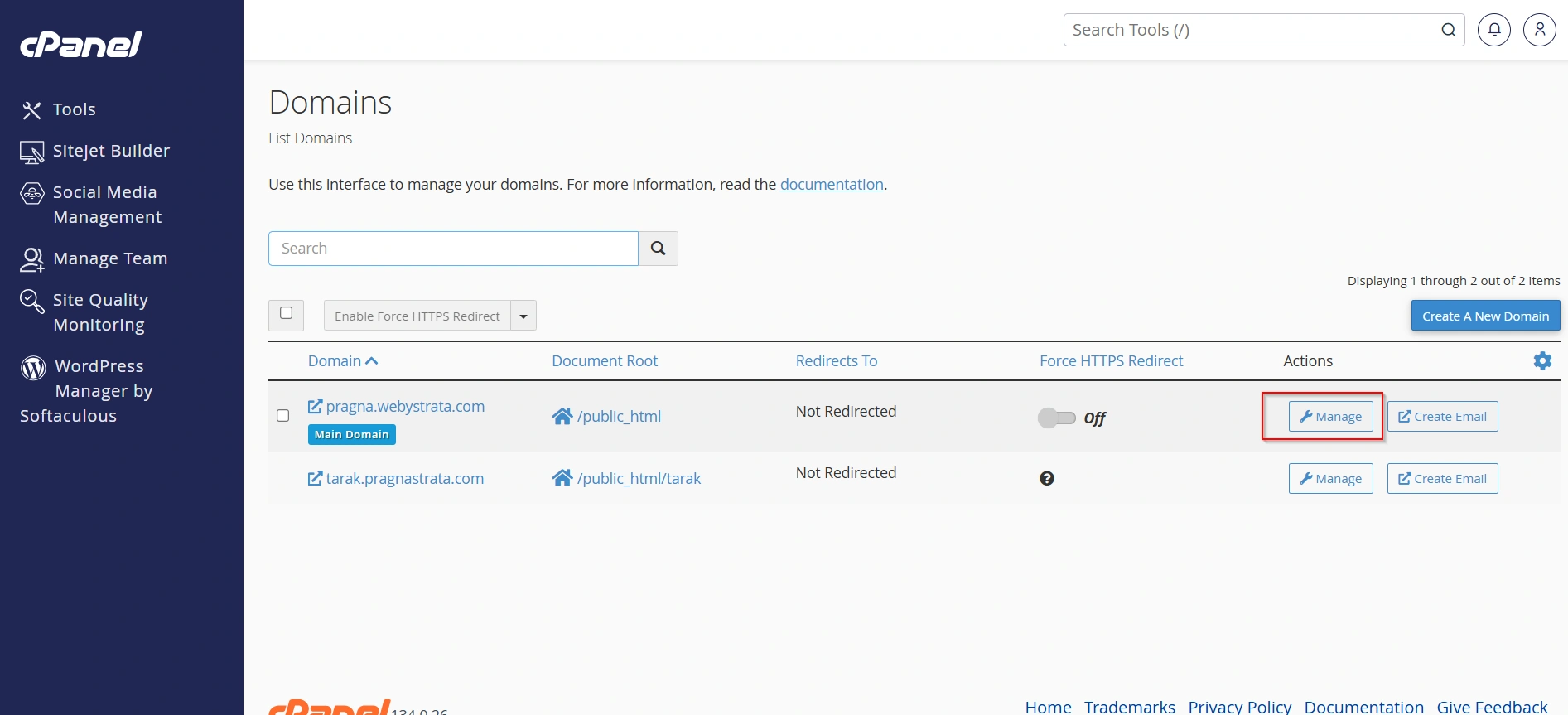
Step 4: Click the Manage Button
Next to the desired domain:
- Click Manage.
This opens the domain management settings.
Step 5: Select Remove Domain
Look for the option labeled:
- Remove Domain
- Delete Domain
- Remove
The exact wording may vary depending on your cPanel version.
Click the removal option.
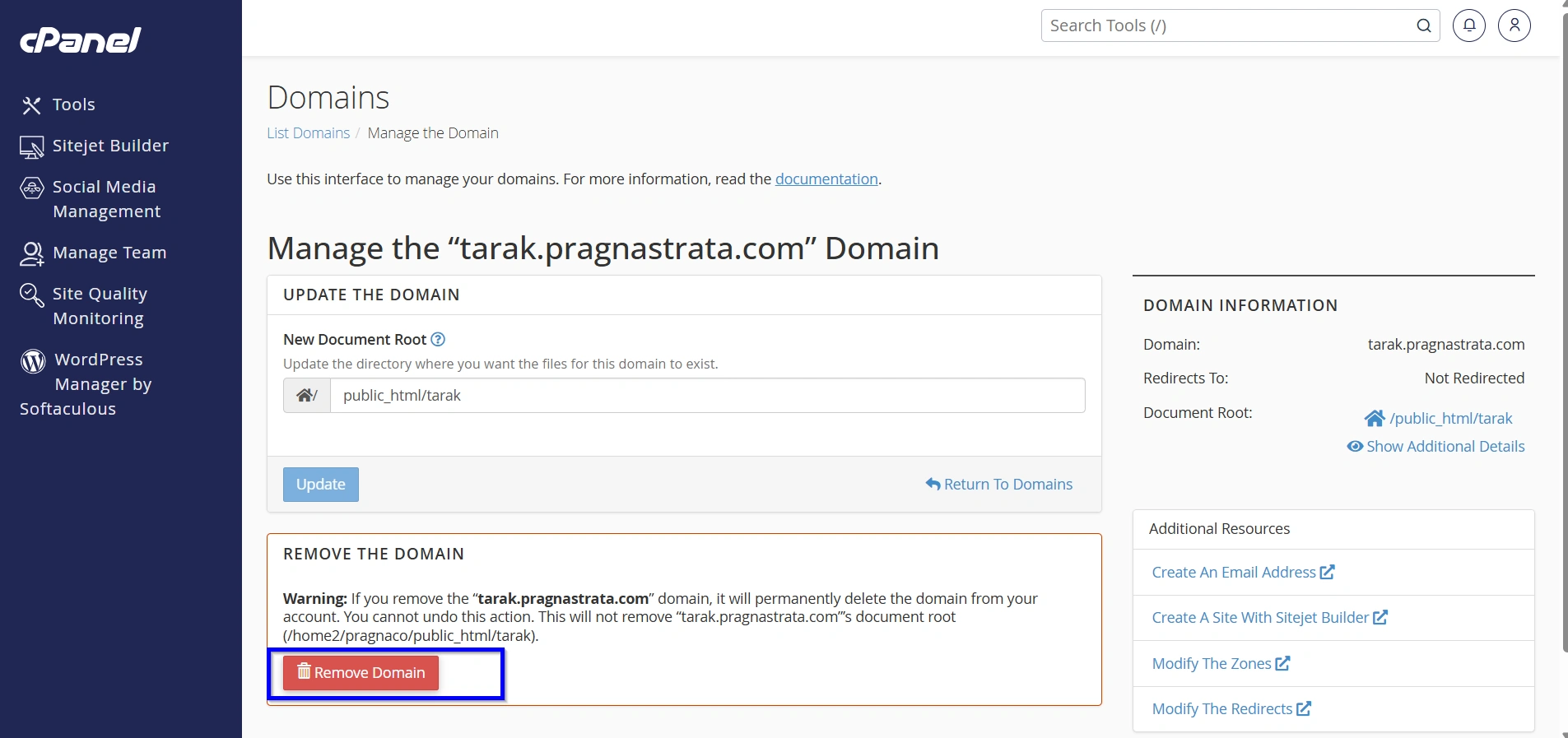
Step 6: Review the Warning Message
cPanel typically displays a confirmation screen explaining the consequences.
The warning may indicate:
- The domain will be removed from the account.
- Website access will stop.
- Associated services may be affected.
Read the message carefully before proceeding.
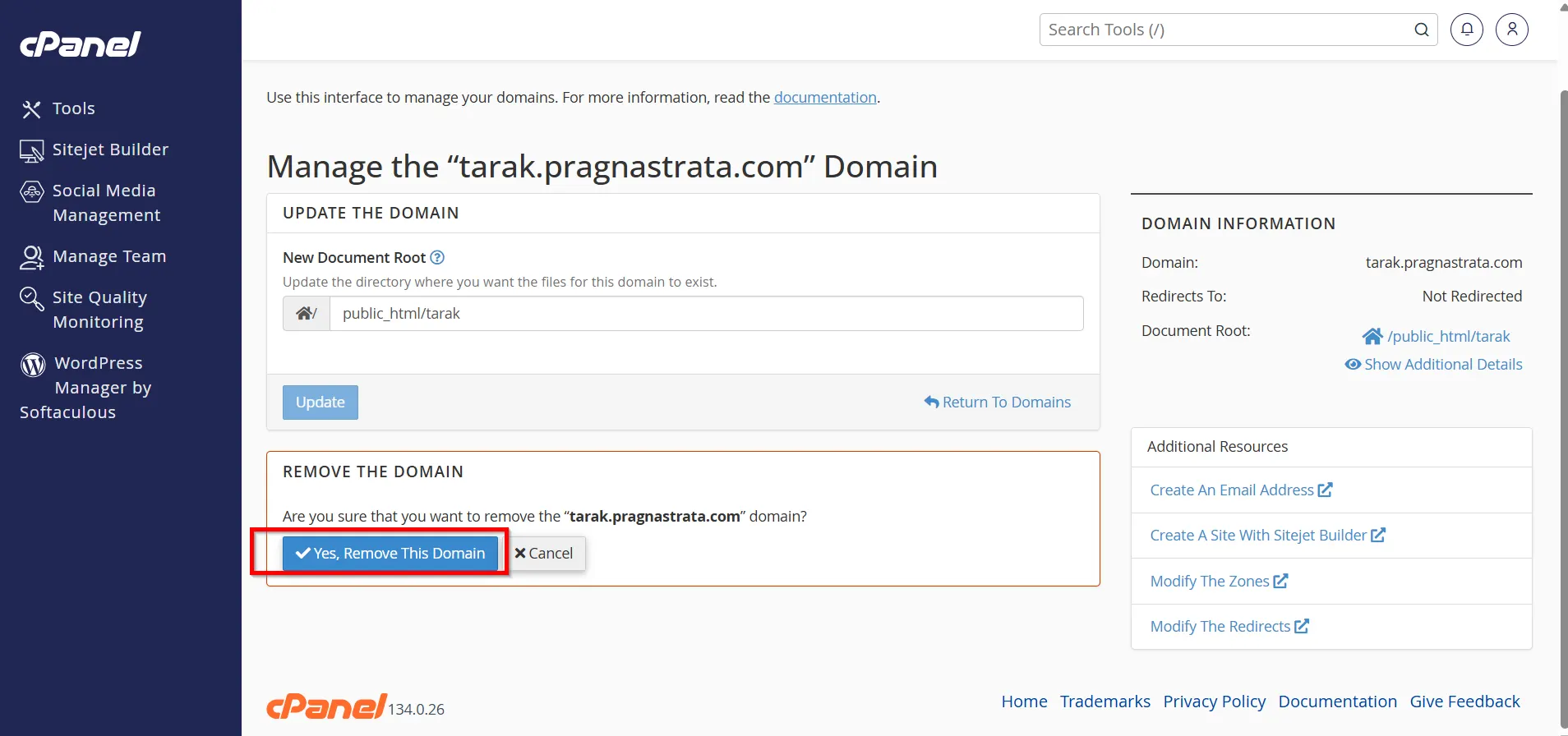
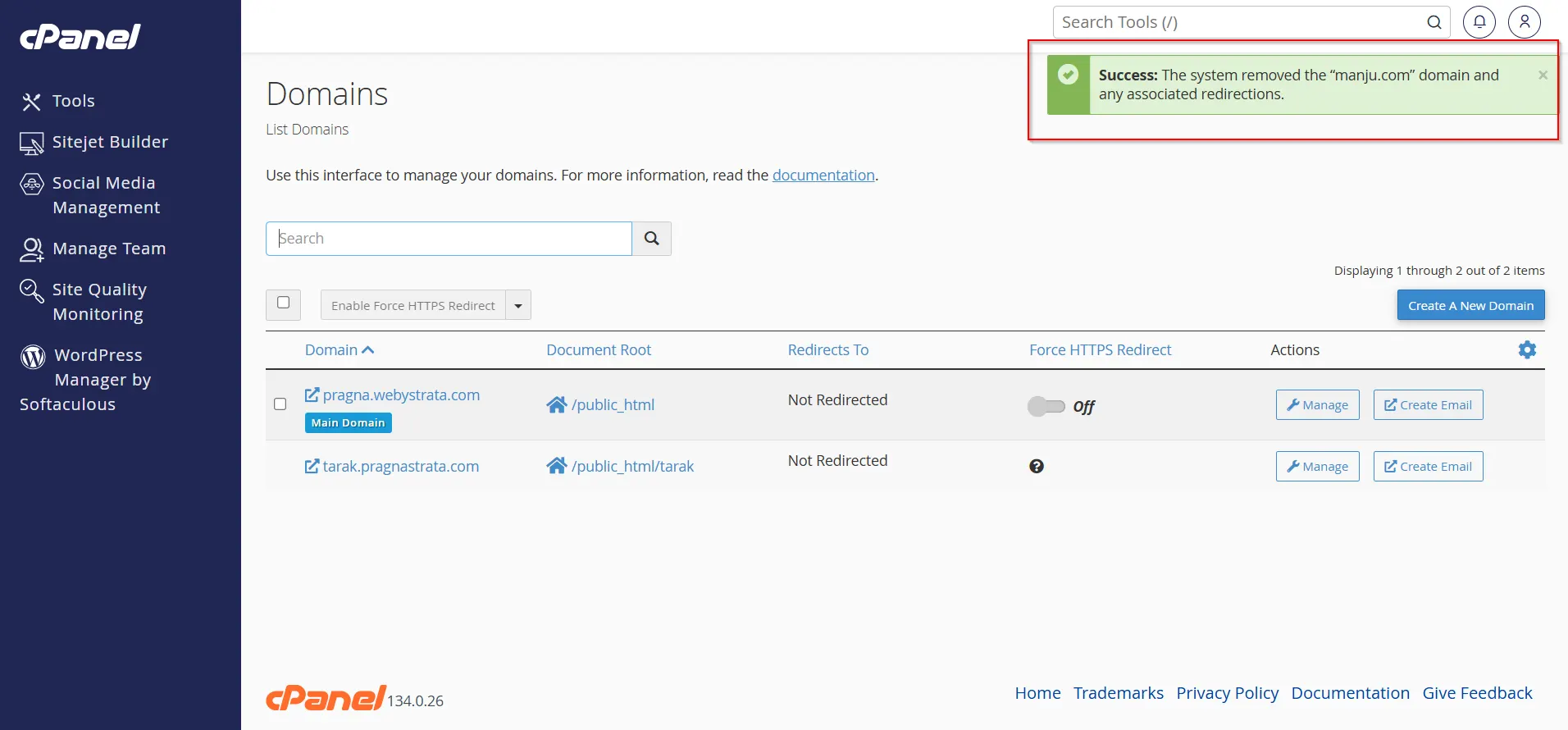
Step 7: Verify Successful Removal
After confirmation:
- The domain will disappear from the domain list.
- Associated website routing will stop.
- The domain will no longer function through that hosting account.
What Happens After Removing a Domain?
Many users assume that deleting a domain automatically removes all associated data. This is not always true.
- Domain Association Is Removed
- Website Files May Remain
- Email Services Stop Functioning
Any email accounts associated with the domain may stop working.
Examples:
- info@tarak.pragnastrata.com
- tarak.pragnastrata.com
- support@tarak.pragnastrata.com
- DNS Services May Be Impacted
Benefits of Removing Unused Domains
Improved Account Performance
Removing unused domains and their associated files helps reduce clutter, making your hosting account easier to manage and potentially improving overall efficiency.
Reduced Storage Usage
Inactive websites often contain files, databases, backups, and emails that consume disk space. Removing unused domains frees up valuable storage resources.
Easier Domain Monitoring
With fewer domains to manage, it becomes simpler to track domain renewals, SSL certificate expirations, and DNS settings.
Simplified DNS Management
Eliminating unused domains reduces the number of DNS records you need to maintain, helping prevent configuration errors and confusion.
Easier Website Migration
When migrating your hosting account to another server or provider, having only active domains makes the migration process faster, cleaner, and less complicated.
Conclusion
Removing a domain name from cPanel is a straightforward task that helps keep your hosting account organized and secure. Whether you are migrating a website, cleaning up unused domains, or restructuring your hosting environment, cPanel provides simple tools to manage domain removal efficiently.
Before deleting any domain, always create backups, verify associated services, and ensure no critical websites or email accounts depend on the domain. By following the steps outlined in this guide, you can safely remove domains from cPanel while protecting your data and maintaining a stable hosting environment.
Related Articles


