cPanel
How to Repair MySQL Database via cPanel
How to Repair MySQL Database via cPanel A MySQL database is one of the most important components of many websites and web applications. Popular platforms such as WordPress, Joomla, Drupal, Magento, and custom PHP…
How to Repair MySQL Database via cPanel
A MySQL database is one of the most important components of many websites and web applications. Popular platforms such as WordPress, Joomla, Drupal, Magento, and custom PHP applications rely on MySQL databases to store content, user information, settings, and other critical data.
Occasionally, a database may become corrupted due to server crashes, unexpected shutdowns, software conflicts, disk errors, or interrupted database operations. When this happens, websites may display database connection errors, missing content, slow performance, or other unexpected issues.
Fortunately, cPanel provides a built-in database repair tool that allows users to repair MySQL databases without requiring advanced technical knowledge or command-line access. In this guide, we’ll explain how to repair a MySQL database via cPanel and why regular database maintenance is important.
What Is MySQL Database Repair?
Database repair is the process of identifying and fixing issues within database tables. When a table becomes corrupted, it can affect website functionality and prevent applications from accessing stored data properly.
The Repair Database feature in cPanel checks database tables and attempts to restore them to a healthy state. This can help resolve many common database-related problems and improve overall website stability.
Important Precautions Before Repairing
Before performing any database maintenance, consider the following recommendations.
Create a Backup
Always create a complete database backup before making changes.
A backup allows you to restore your data if unexpected issues occur during the repair process.
Identify the Problem First
Use the Check Database option before running a repair. This can help identify whether corruption actually exists and which tables are affected.
Verify Disk Space
Ensure your hosting account has sufficient disk space available before performing maintenance operations.
How to Repair MySQL Database via cPanel
Follow these simple steps to repair your MySQL database.
Step 1: Login to cPanel from Client Area
First, visit the WebyStrata website and log in to your client area account using your registered email address and password.
official Website www.webystrata.com
After logging in:
- Go to Services
- Click on My Services
- Select your active hosting service
- Click on Login to cPanel

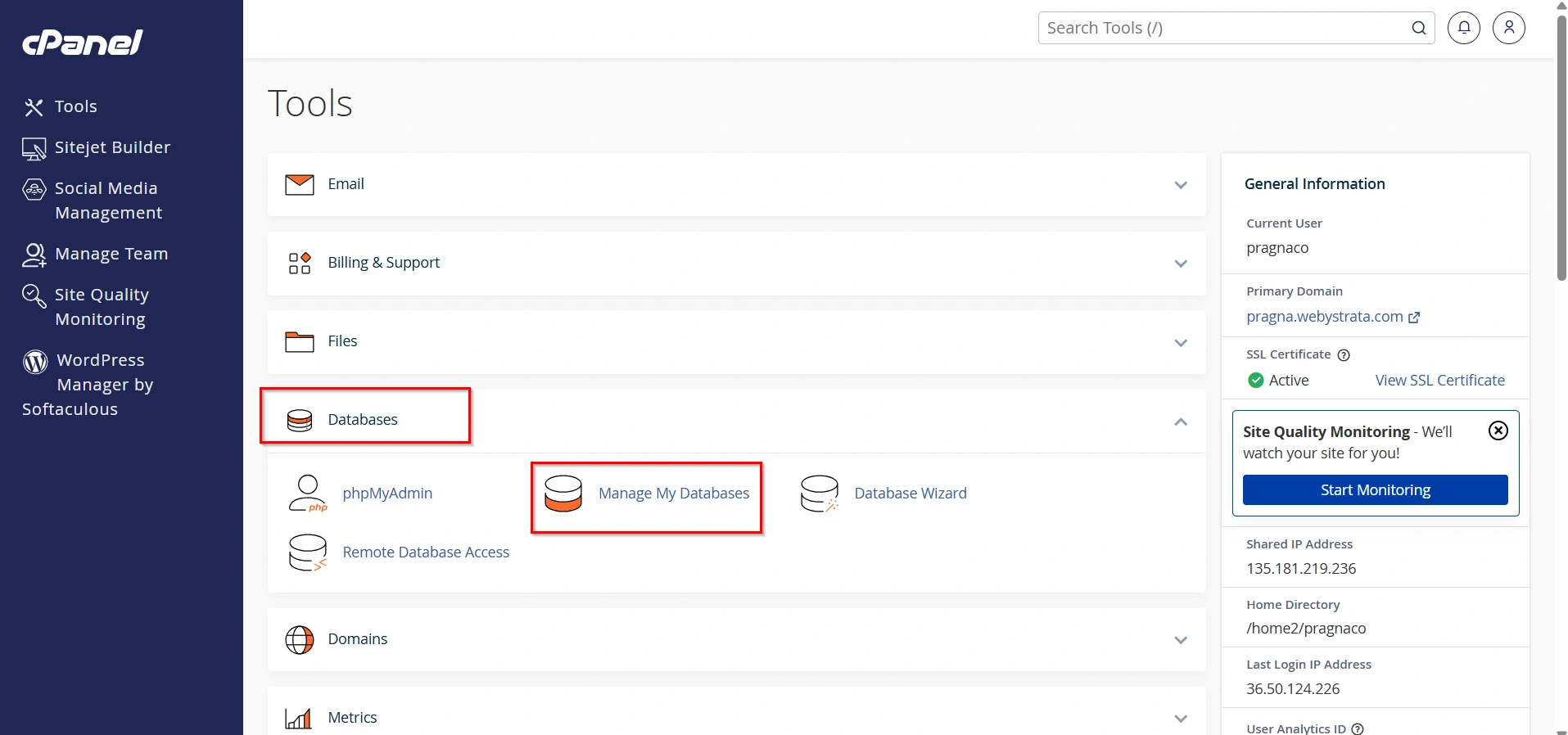
Step 2: Open MySQL Databases
Navigate to the Databases section and click on MySQL Databases.
This area allows you to manage your databases, users, and maintenance functions.
Step 3: Locate the Modify Databases Section
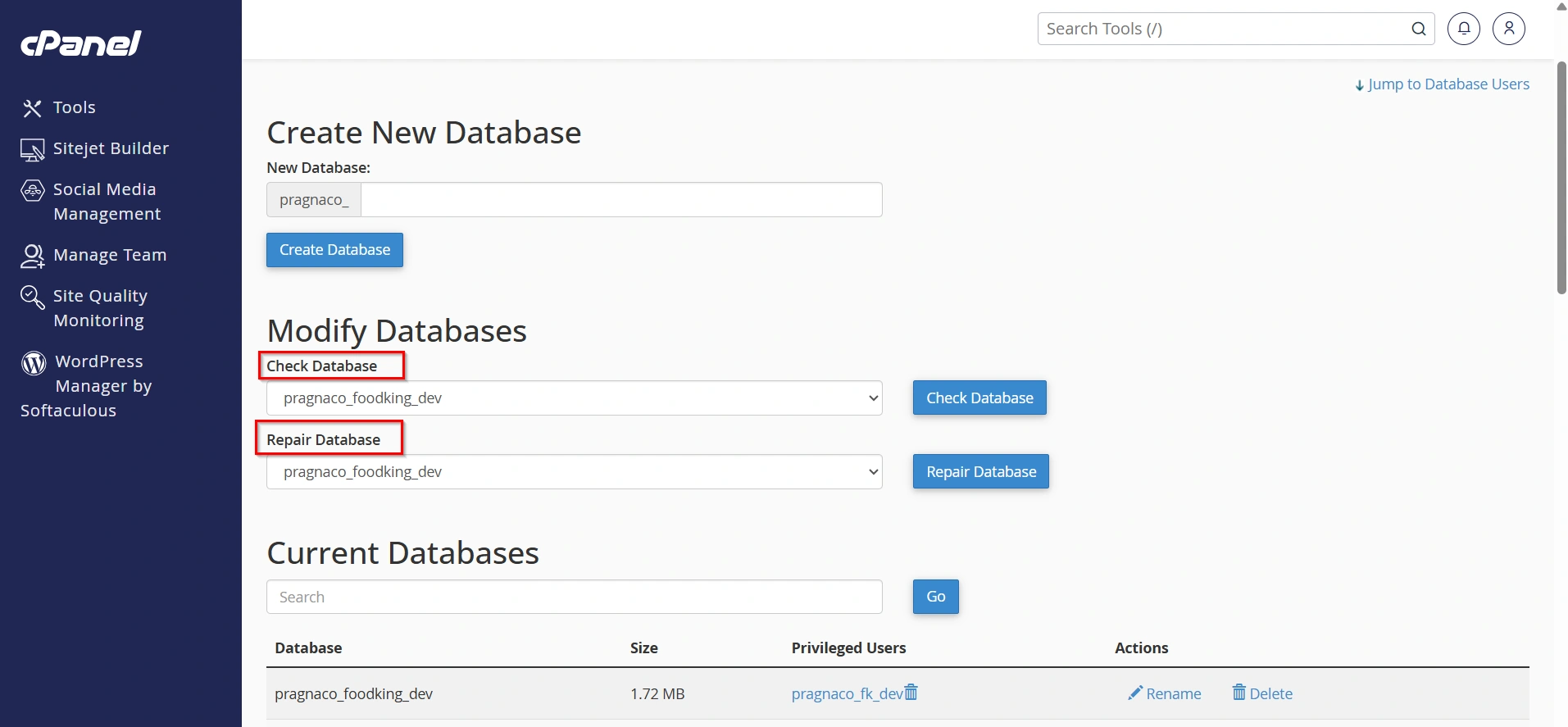
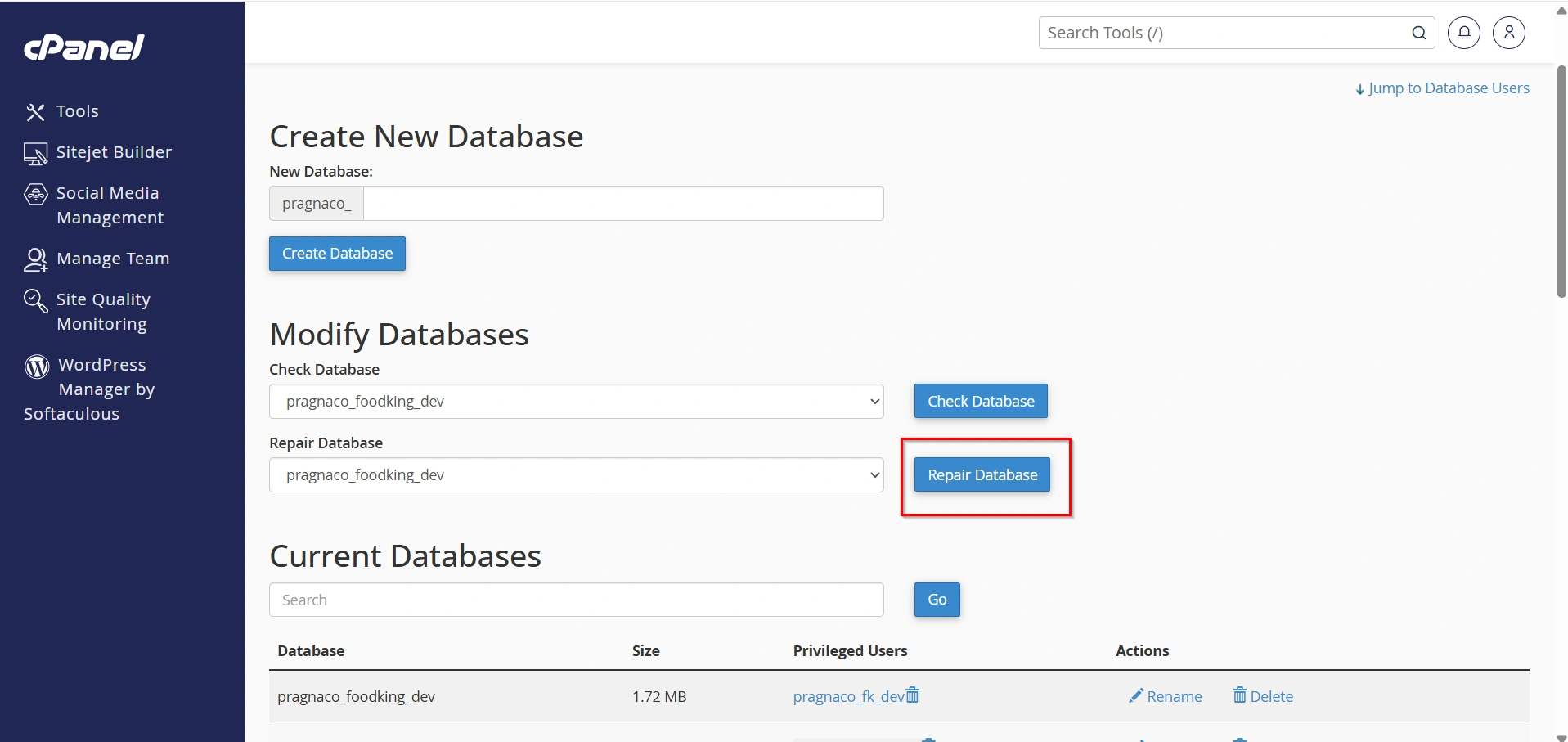
Scroll down until you find the Modify Databases section.
You will see two maintenance options:
- Check Database
- Repair Database
Step 4: Select the Database
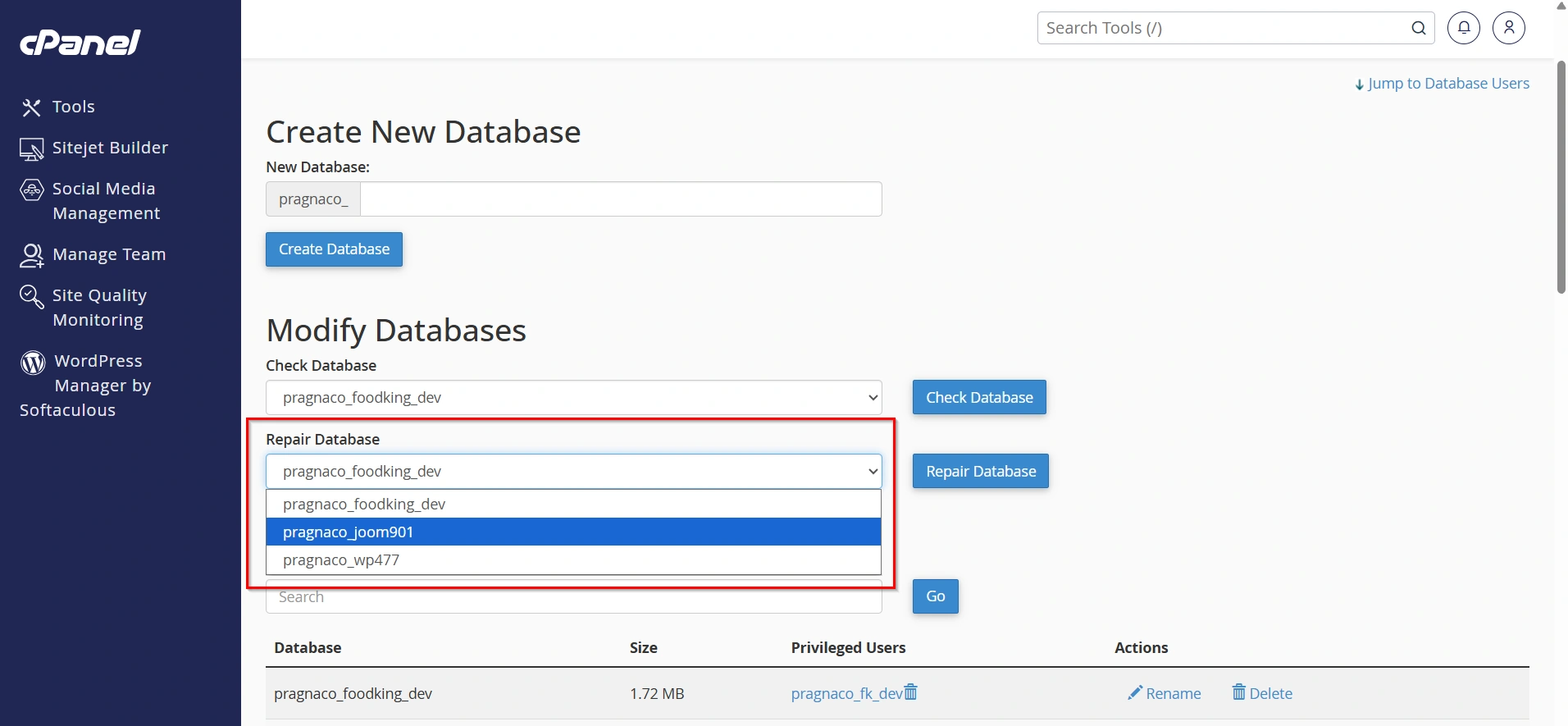
Under the Repair Database option, choose the database you want to repair from the dropdown menu.
Make sure you select the correct database associated with your website or application.
Step 5: Click Repair Database
Click the Repair Database button.
cPanel will begin analyzing the database tables and repairing any issues it finds.
The repair process may take a few seconds or several minutes depending on the size of the database.
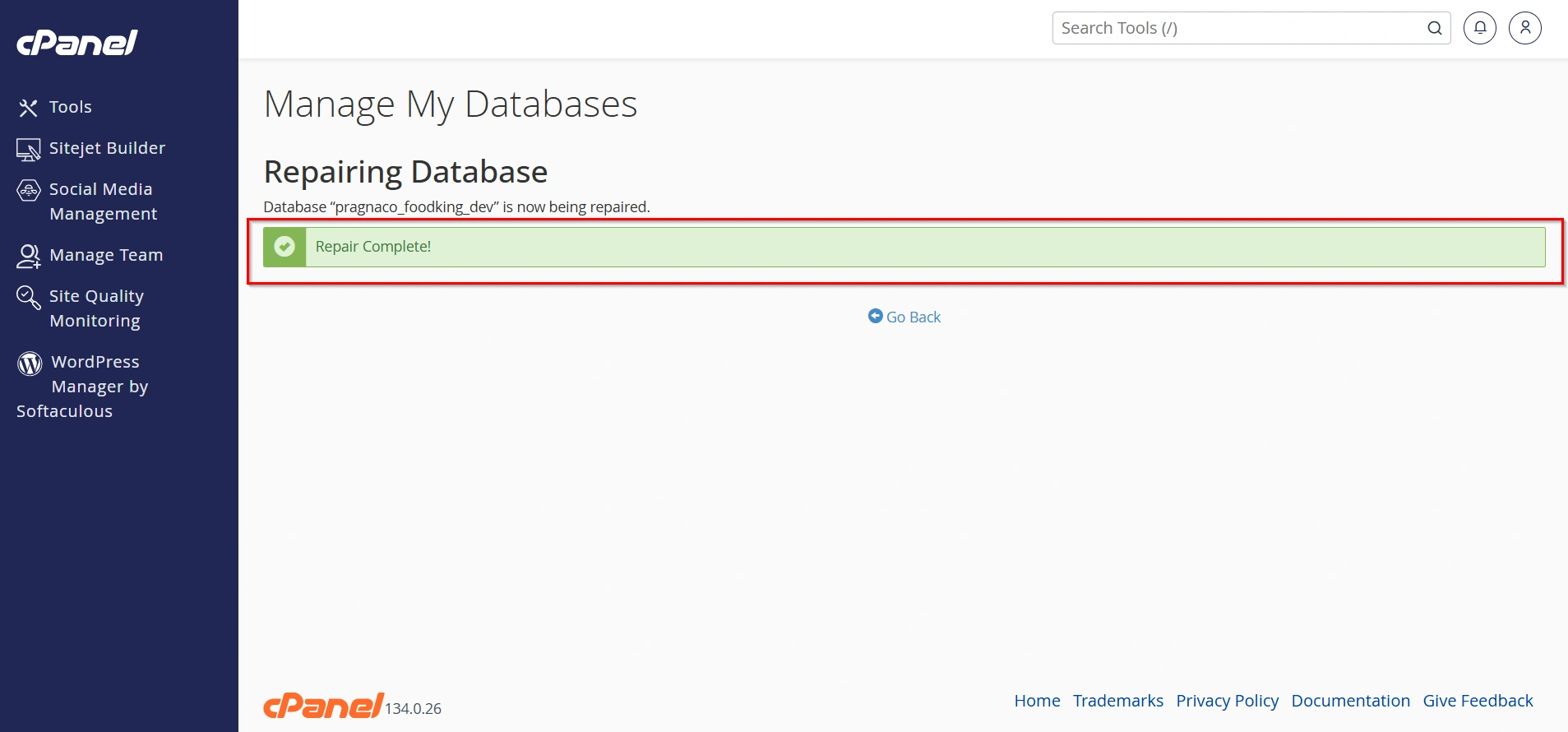
Step 6: Review the Results
After the repair process completes, cPanel will display the results for each table.
You may see messages such as:
- OK
- Table repaired
- Repair successful
- Status updated
Review the output carefully to ensure all tables were repaired successfully.
Step 7: Test Your Website
Once the repair process is complete, visit your website and verify that all pages, forms, and features are functioning properly.
If the issue has been resolved, your database repair was successful.
Benefits of Repairing MySQL Database via cPanel
Repairing your database regularly offers several benefits:
1. Restores Website Functionality
Database corruption can cause websites to stop working properly. Repairing the database can restore normal functionality and eliminate database-related errors.
2. Fixes Corrupted Tables
The repair process detects damaged tables and attempts to repair them automatically.
3. Improves Performance
Corrupted database tables may slow down database queries. Repairing them can improve website speed and responsiveness.
4. Prevents Data Inconsistencies
Database repairs help ensure that stored information remains accurate and consistent.
5. Easy to Perform
cPanel provides a simple interface that allows users to repair databases without needing technical expertise.
Conclusion
Repairing a MySQL database via cPanel is a simple and effective way to resolve database corruption, restore website functionality, and improve overall performance. The built-in Repair Database feature allows website owners to identify and fix database issues without requiring advanced technical skills.
By performing regular database maintenance, creating backups, and monitoring your website’s health, you can reduce the risk of future database problems and ensure your website remains stable and reliable. If you encounter database-related errors, the cPanel Repair Database tool should be one of the first troubleshooting steps you consider.
Related Articles


