cPanel
How to Reset a WordPress Admin Password
How to Reset a WordPress Admin Password Losing access to your WordPress administrator account can be stressful, especially when you need to make urgent updates to your website. Whether you've forgotten your password, are…
How to Reset a WordPress Admin Password
Losing access to your WordPress administrator account can be stressful, especially when you need to make urgent updates to your website. Whether you’ve forgotten your password, are not receiving password reset emails, or need to regain access after a security issue, WordPress offers several reliable methods to reset your administrator password.
Fortunately, resetting a WordPress admin password is a straightforward process. Depending on the level of access you have, you can reset the password through the WordPress login page, phpMyAdmin, cPanel, or other advanced methods.
In this guide, we’ll walk you through the most effective ways to reset a WordPress admin password and regain access to your website.
Why You Might Need to Reset Your WordPress Password
There are many reasons why website owners need to reset their WordPress administrator password, including:
- Forgotten login credentials
- Lost access to the registered email account
- Website migration issues
- Security concerns after a malware attack
- Unauthorized password changes
- Password reset emails not being delivered
- Multiple administrators managing the website
Regardless of the reason, WordPress provides several recovery options to help you get back into your website quickly.
Steps to Reset a WordPress Admin Password
Method 1: Reset Password from the WordPress Login Page
This is the easiest and most recommended method if you still have access to the email address associated with your administrator account.
Step 1: Visit the WordPress Login Page
Open your browser and navigate to:
https://yourdomain.com/wp-admin
or
https://yourdomain.com/wp-login.php
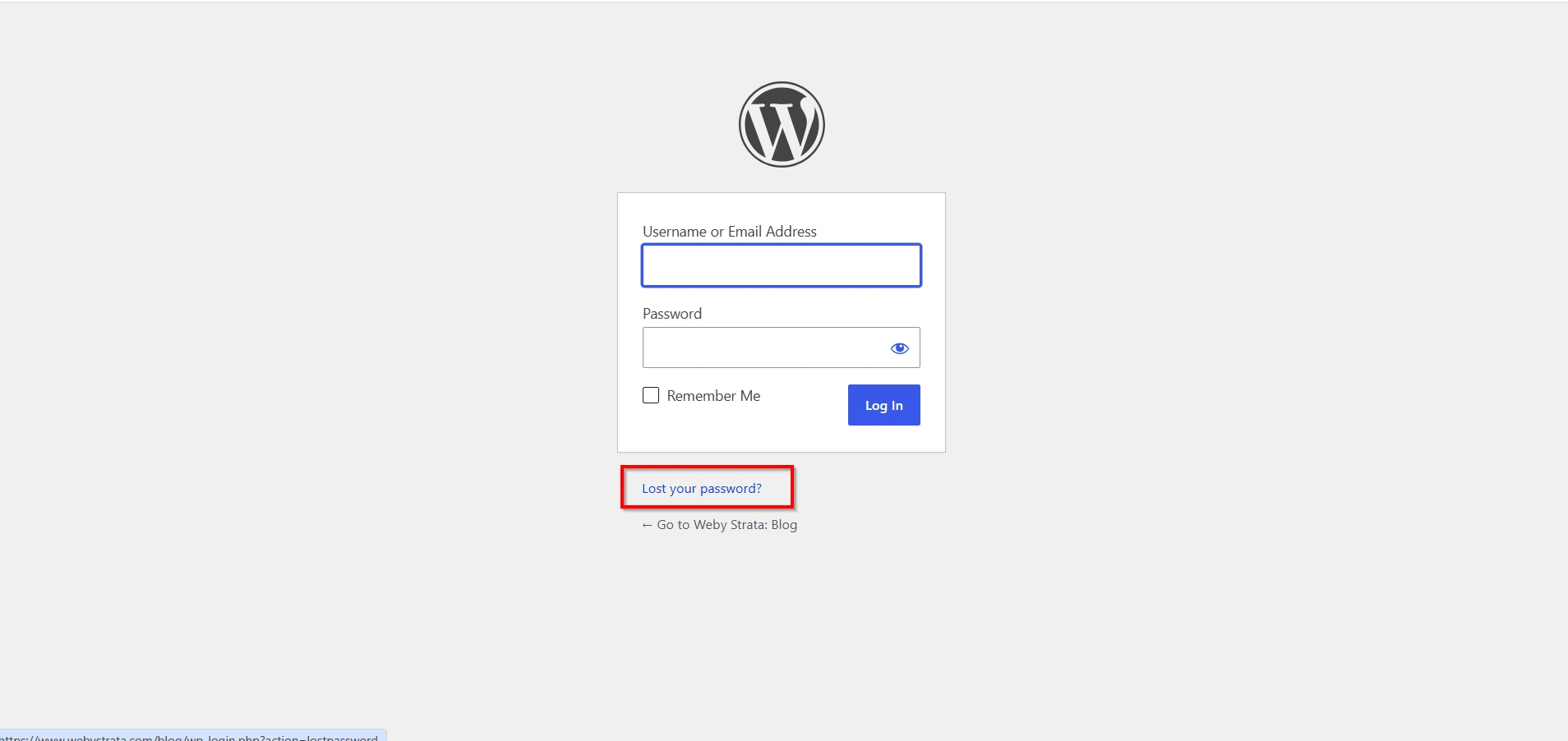
Step 2: Click “Lost your password?”
Below the login form, click the Lost your password? link.
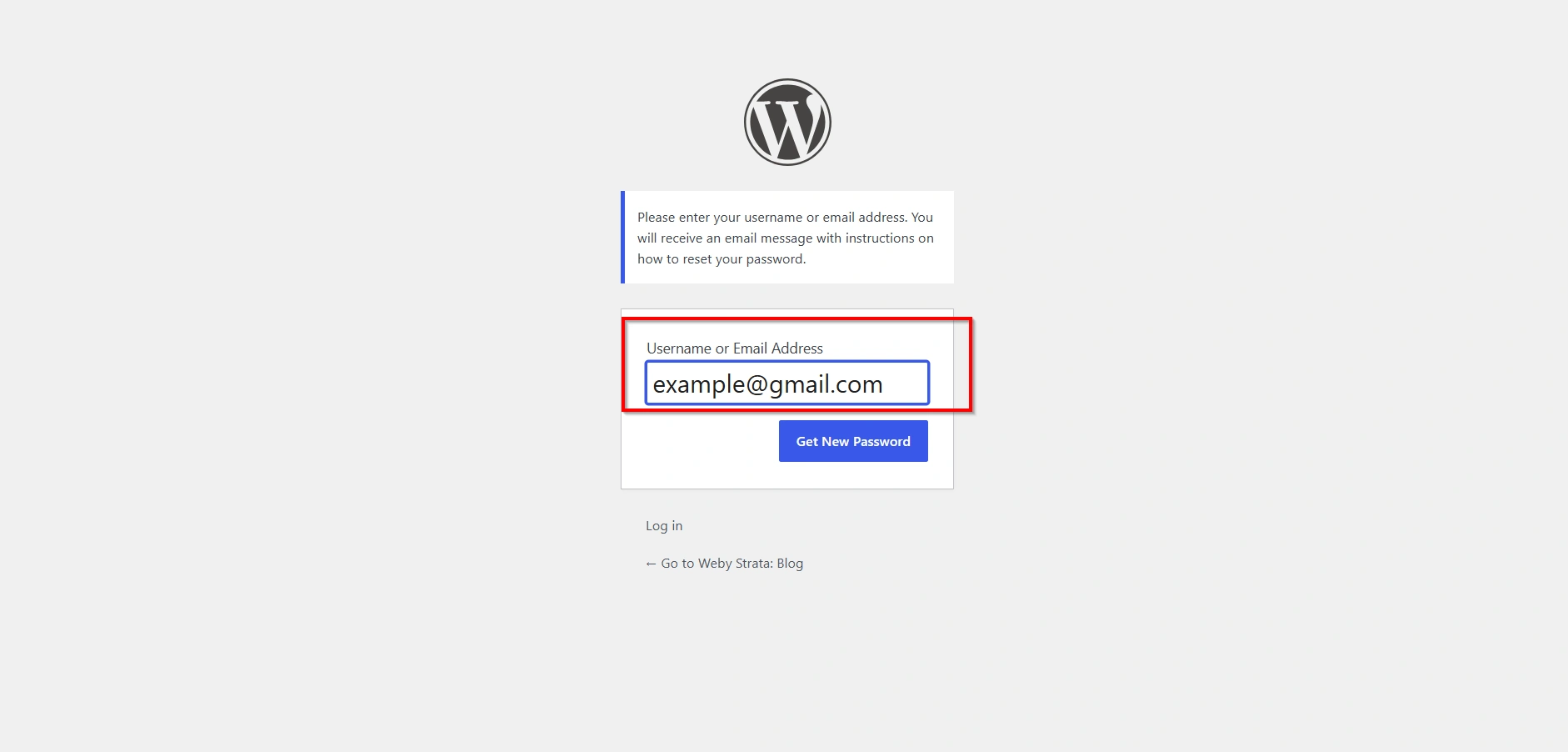
Step 3: Enter Your Username or Email Address
Enter the username or email address associated with your WordPress administrator account.
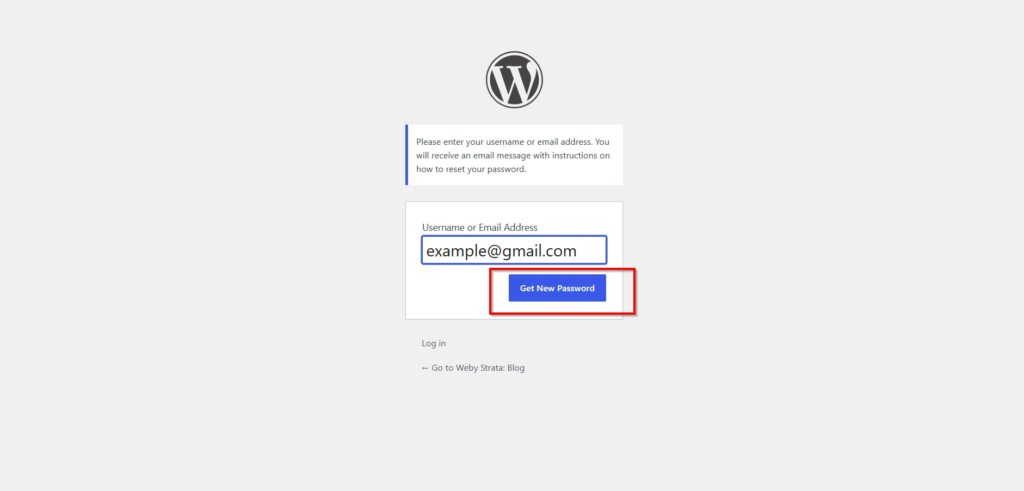
Step 4: Request a Password Reset
Click Get New Password.
WordPress will send a password reset link to your registered email address.
Step 5: Create a New Password
Open the email and click the password reset link.
You will be redirected to a page where you can create a new password. WordPress may suggest a strong password automatically, or you can create your own.
Step 6: Log In
Save the new password and log in to your WordPress dashboard using your updated credentials.
Benefits of This Method
- Quick and easy
- No technical knowledge required
- Official WordPress recovery process
- Safe and secure
Method 2: Reset WordPress Password Using phpMyAdmin
If you don’t have access to the registered email account, you can reset the password directly through the WordPress database using phpMyAdmin.
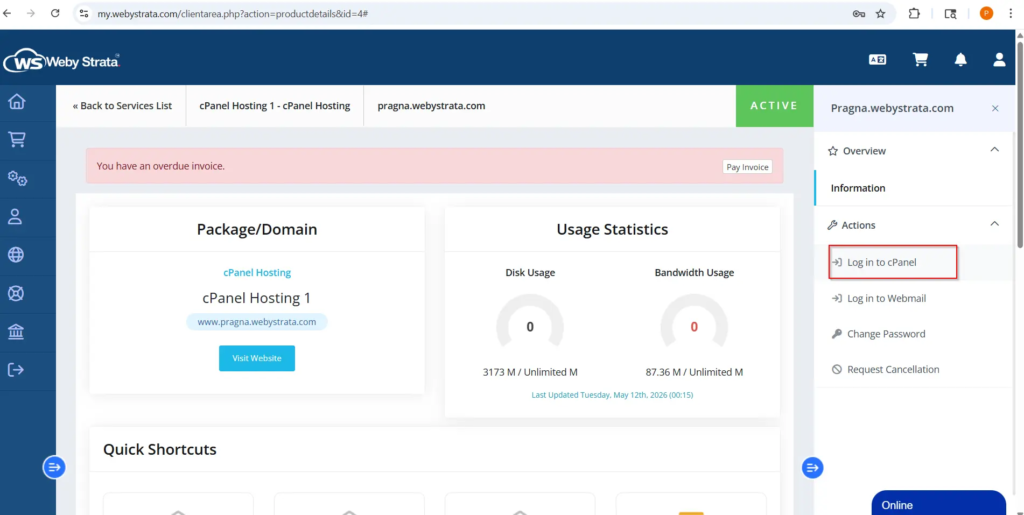
Step 1: Login to cPanel from Client Area
First, visit the WebyStrata website and log in to your client area account using your registered email address and password.
official Website www.webystrata.com
After logging in:
- Go to Services
- Click on My Services
- Select your active hosting service
- Click on Login to cPanel
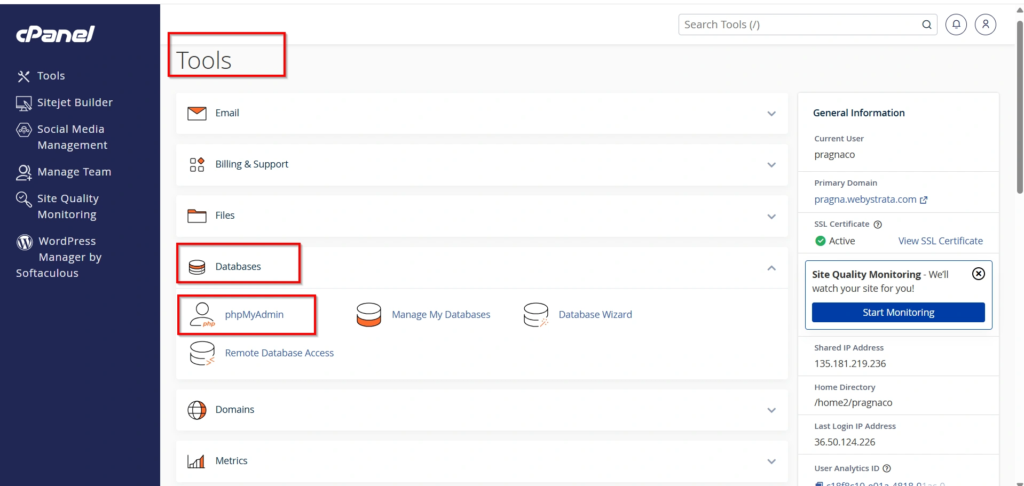
Step 2: Open phpMyAdmin
Under the Databases section, click phpMyAdmin.
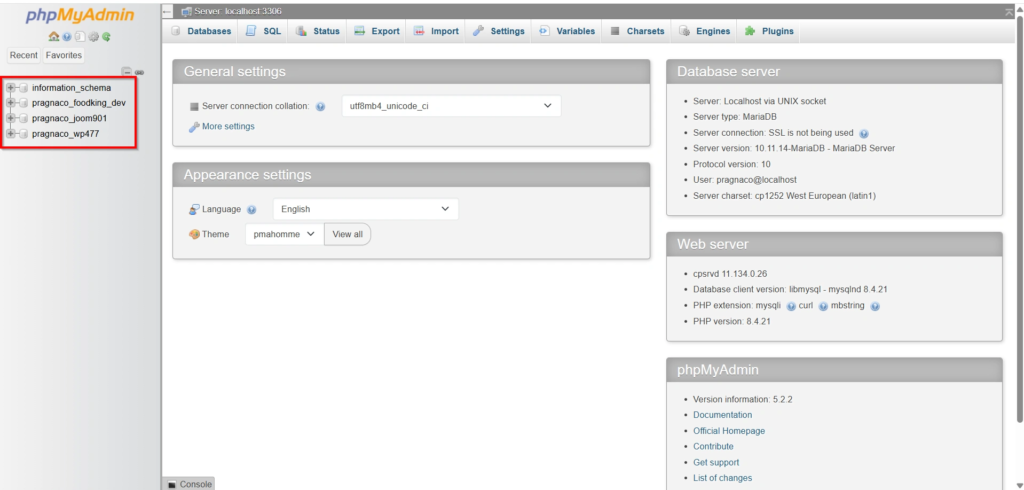
Step 3: Select Your WordPress Database
Locate and select the database associated with your WordPress installation.
Step 4: Open the Users Table
Find the table named:
wp_users
Note that your website may use a custom table prefix such as:
abc_users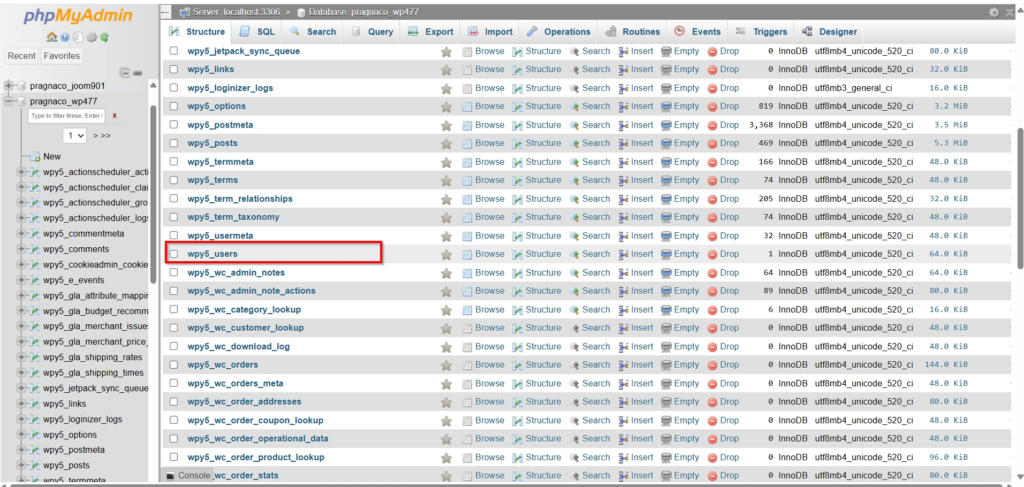
Step 5: Edit the Administrator Account
Locate your administrator username and click Edit.
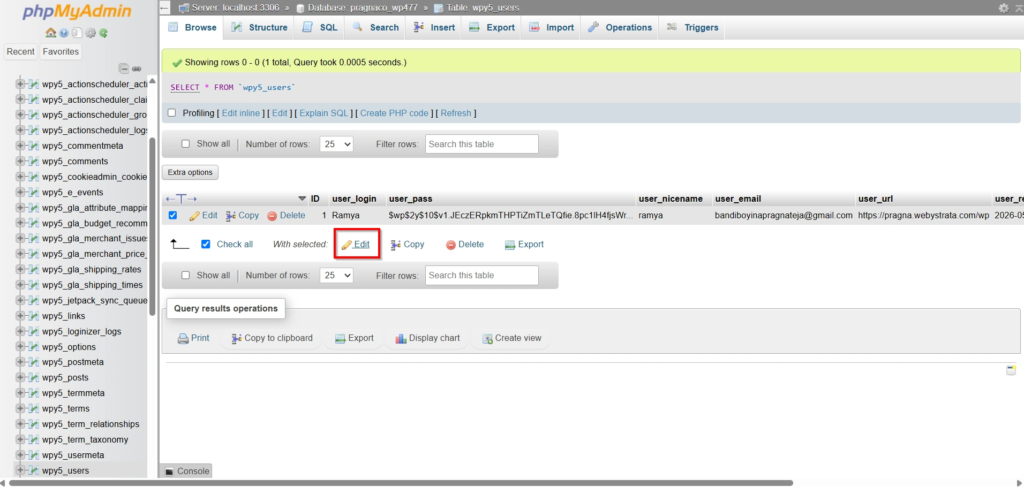
Step 6: Change the Password
In the user_pass field:
- Delete the existing encrypted password.
- Enter your new password.
- Select MD5 from the Function dropdown menu.
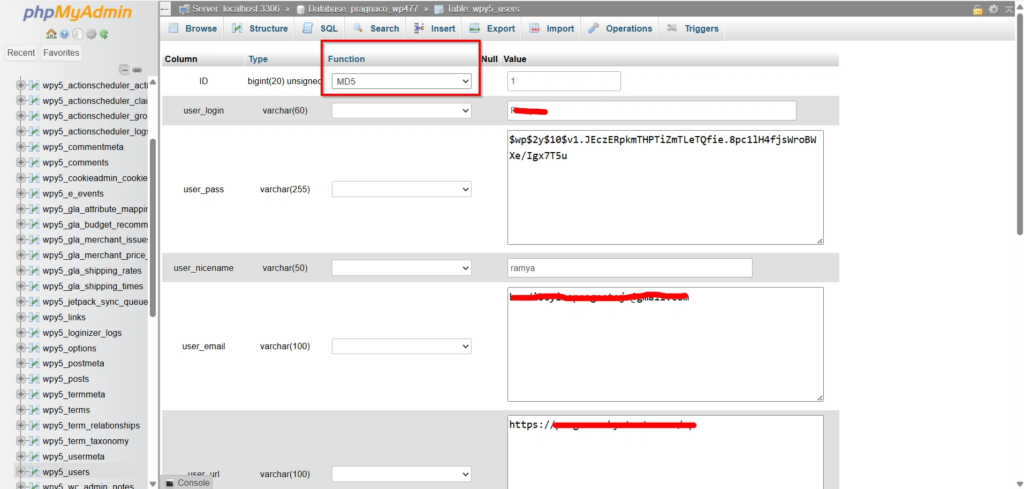
Step 7: Save Changes
Click Go or Save.
Your new password will be stored in the database, and you can now log in using the updated credentials.
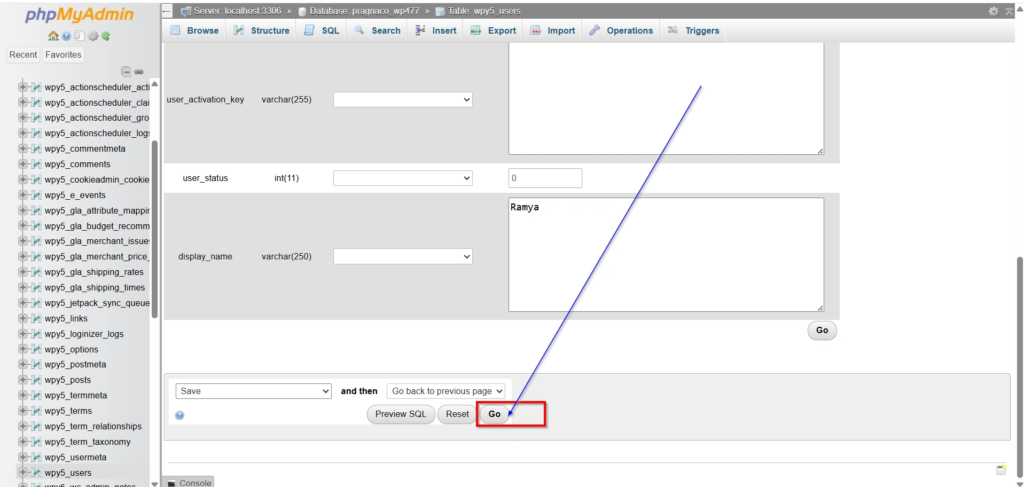
Advantages of phpMyAdmin Method
- Works even when email access is unavailable
- Fast and reliable
- Available on most hosting accounts
Best Practices for Creating Strong Passwords
A secure password helps protect your website from unauthorized access.
When creating a password, use:
- At least 12 characters
- Uppercase letters
- Lowercase letters
- Numbers
- Special characters
- Unique combinations
Avoid using:
- Your name
- Your website name
- Birth dates
- Common words
- Simple passwords such as “admin123”
Using a password manager can help generate and store strong passwords securely.
Security Tips After Resetting Your Password
Once you’ve regained access to your WordPress website, consider taking additional security measures:
- Enable Two-Factor Authentication (2FA)
- Update All Administrator Passwords
- Install a Security Plugin
- Keep WordPress Updated
- Monitor Login Activity
Conclusion
Knowing how to reset a WordPress admin password is an essential skill for every website owner. The easiest option is using the built-in “Lost your password?” feature, which allows you to reset your password through email. If email access is unavailable, phpMyAdmin provides a reliable alternative for updating the password directly through the database.
By following the steps outlined in this guide, you can quickly regain access to your WordPress dashboard and continue managing your website. Remember to use strong passwords, enable additional security measures, and keep your WordPress installation updated to reduce the risk of future login issues.
For more WordPress tutorials and step-by-step guides,
visit our WordPress knowledge base: www.webystrata.com/blog/category/wordpress/
Related Articles


