Latest Updates
How to Terminate Multiple Accounts in WHM
How to Terminate Multiple Accounts in WHM Managing a web hosting server involves more than creating and maintaining hosting accounts. Over time, server administrators may need to remove inactive, expired, suspended, or migrated hosting…
How to Terminate Multiple Accounts in WHM
Managing a web hosting server involves more than creating and maintaining hosting accounts. Over time, server administrators may need to remove inactive, expired, suspended, or migrated hosting accounts to keep their servers organized and efficient. If you manage multiple cPanel accounts, deleting them one by one can be time-consuming. Fortunately, WHM (Web Host Manager) provides a convenient feature that allows administrators to terminate multiple accounts simultaneously.
In this guide, you’ll learn how to terminate multiple accounts in WHM, understand when you should use this feature, and follow best practices to ensure safe account removal.
What Does It Mean to Terminate an Account in WHM?
Terminating an account in WHM permanently removes the associated cPanel account from the server. This includes:
- Website files
- Databases
- Email accounts
- FTP accounts
- DNS settings (unless retained)
- Account configurations
Once an account is terminated, all hosted data is deleted from the server. Therefore, administrators should always verify account selections and create backups before proceeding.
Prerequisites
Before terminating accounts in WHM, ensure that:
- You have root access or appropriate administrative privileges.
- Recent backups of important accounts are available.
- You have verified the accounts selected for removal.
- You understand that the process is irreversible.
How to Terminate Multiple Accounts in WHM
Follow the steps below to remove multiple cPanel accounts from your server.
Step 1: Log in to WHM
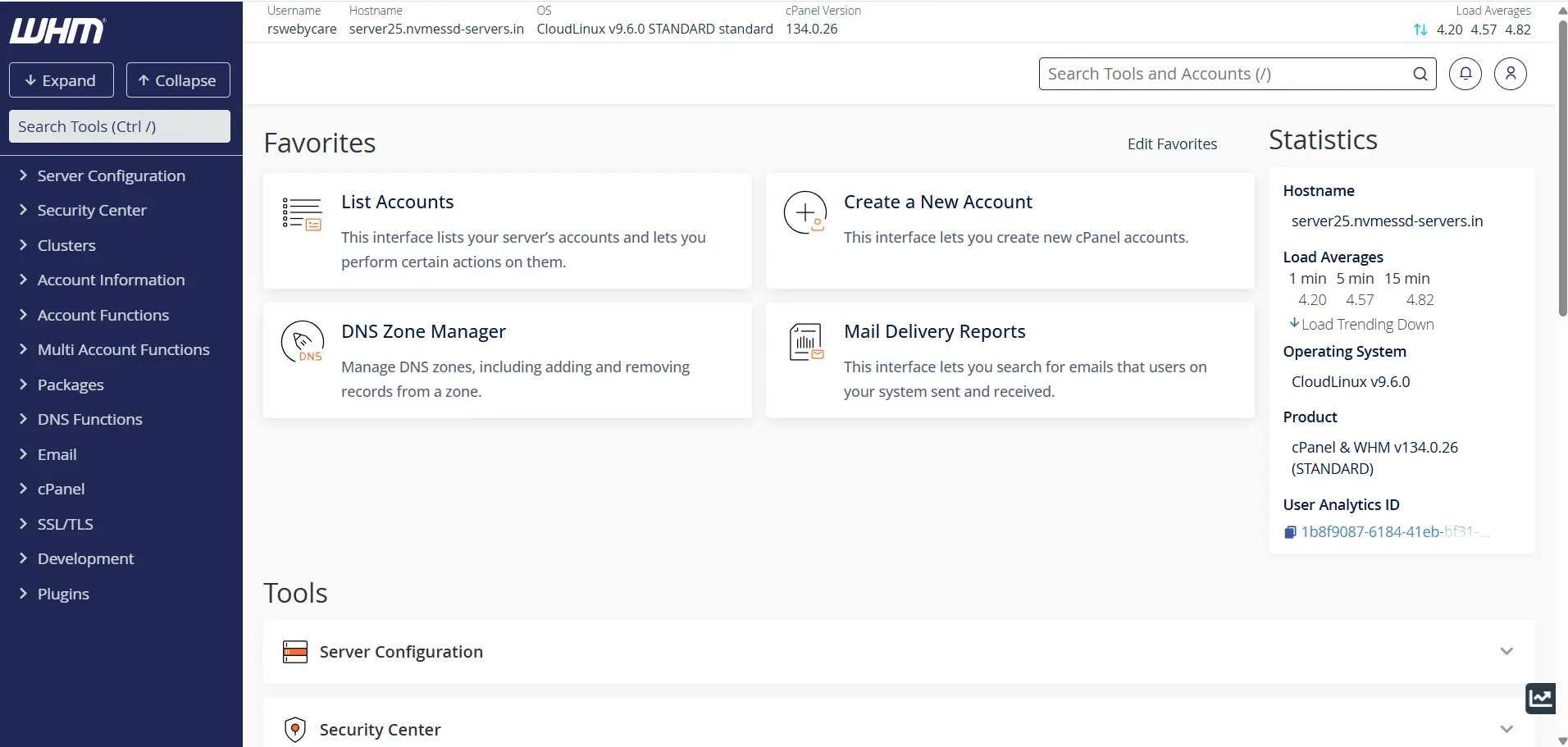
Start by accessing your WHM dashboard.
Common WHM login URLs include:
Enter your WHM username and password to log in.
Once authenticated, you will be directed to the WHM home page where all server management tools are available.
Step 2: Access the Terminate Accounts Page
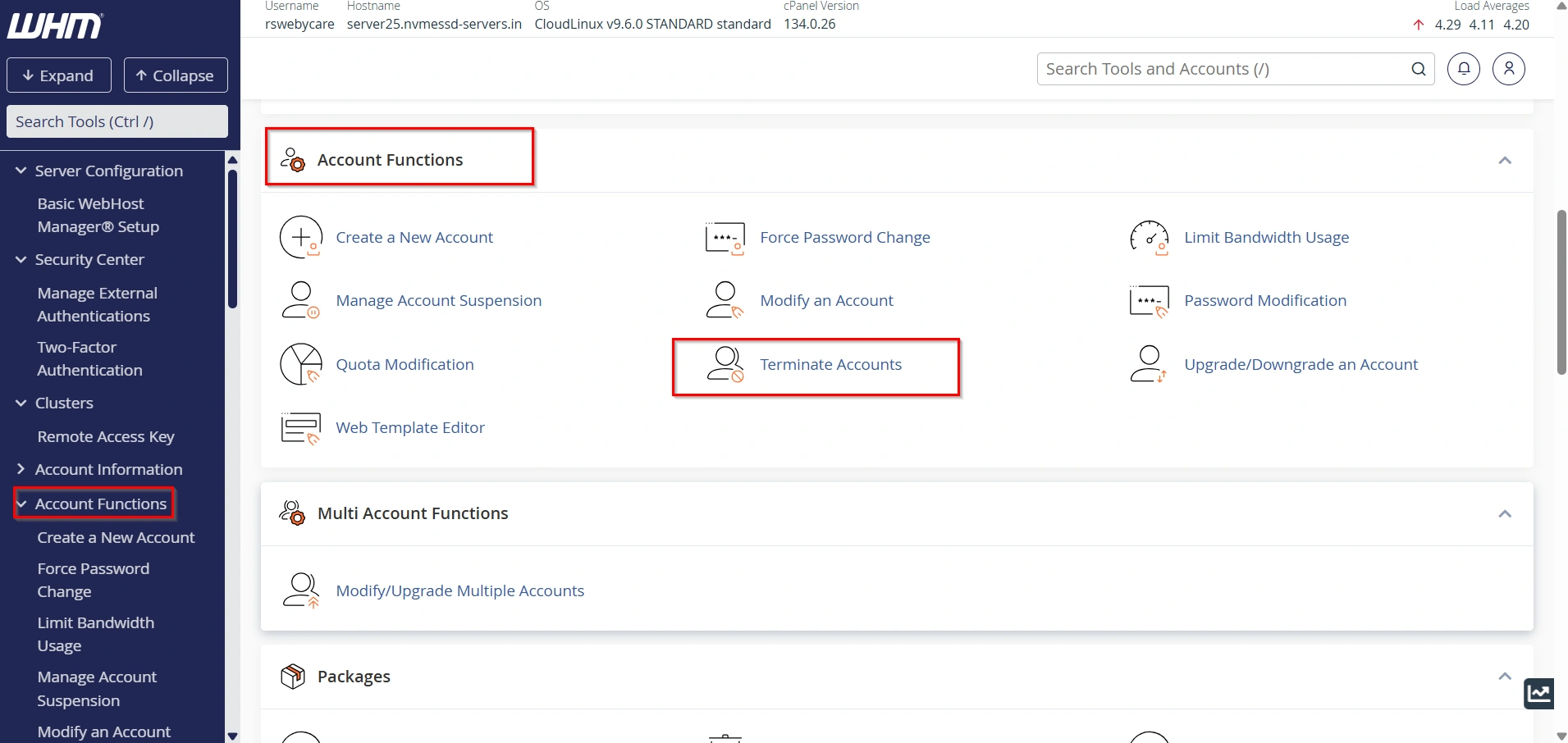
In the left-side navigation menu, locate the Account Functions section and click Terminate Accounts.
This page displays all existing cPanel accounts hosted on your server. You can review the list and select one or multiple accounts for termination.
Step 3: Select the Accounts You Want to Remove
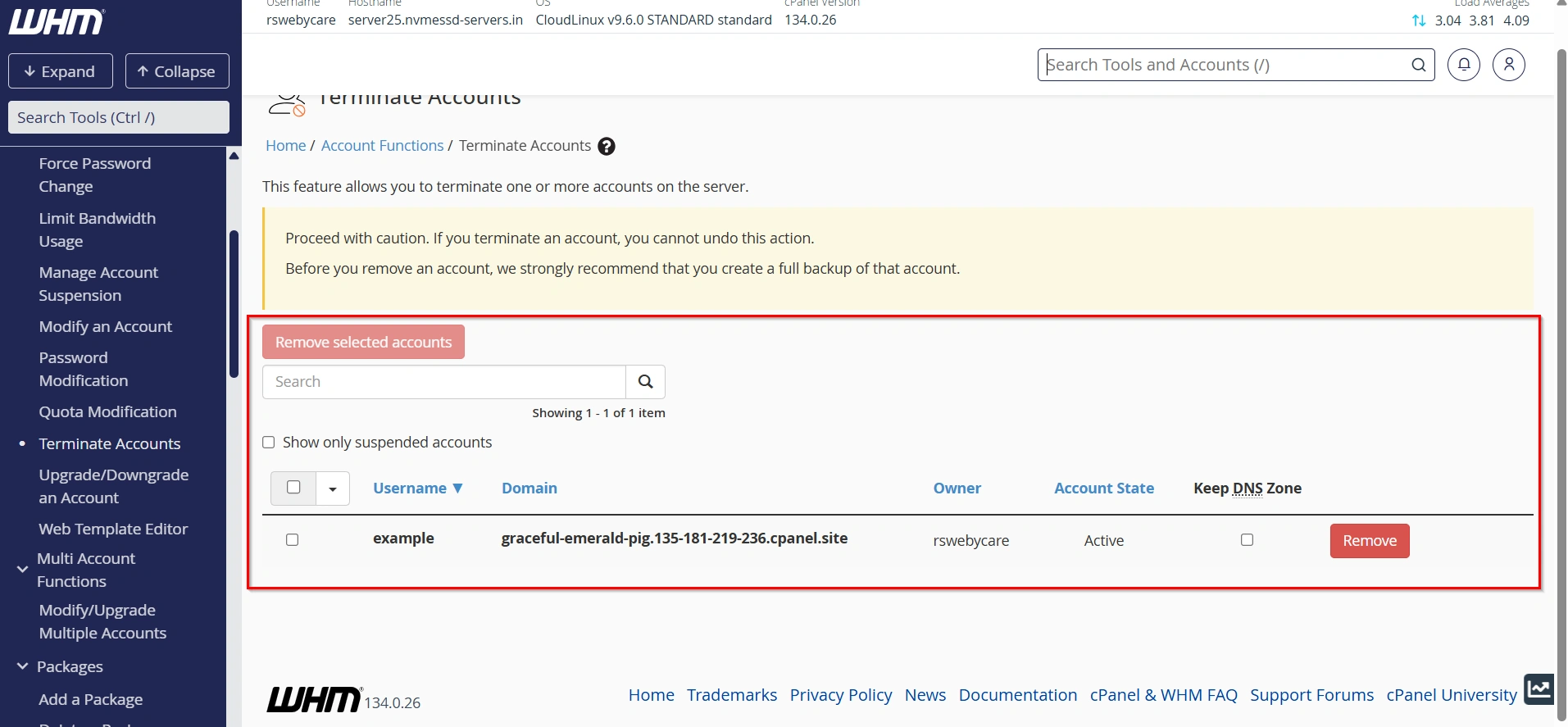
Browse the list of available accounts and select the checkboxes corresponding to the accounts you wish to terminate.
Take time to carefully review your selections because the deletion process permanently removes all associated account data.
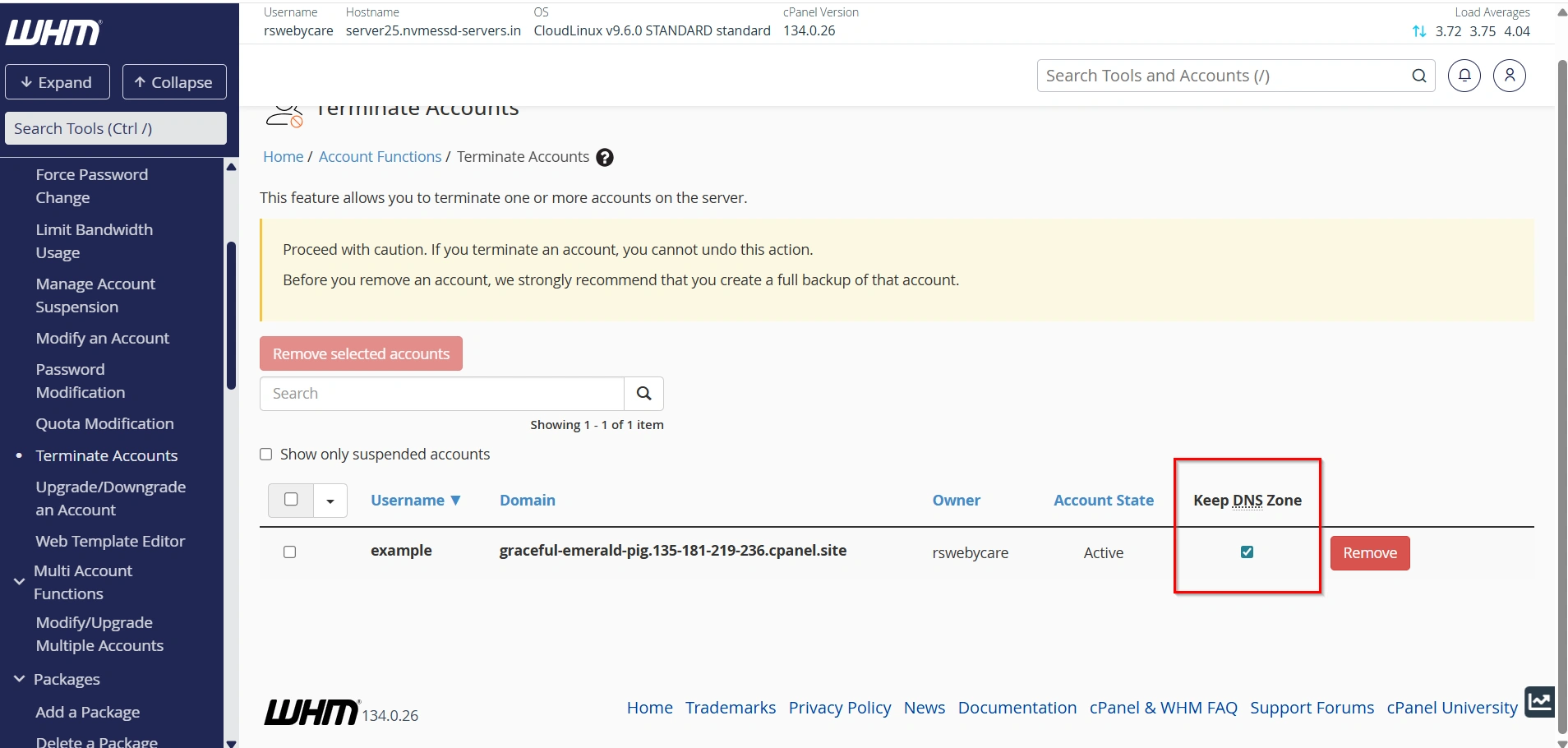
Step 4: Choose Whether to Keep DNS Zones
WHM provides an option called Keep DNS Zone.
If selected, the DNS records associated with the account will remain on the server even after the account itself is deleted.
This option can be useful when:
- Planning future account recreation
- Migrating websites gradually
- Preserving DNS configurations
- Avoiding DNS propagation issues
If DNS records are no longer needed, leave the option unchecked.
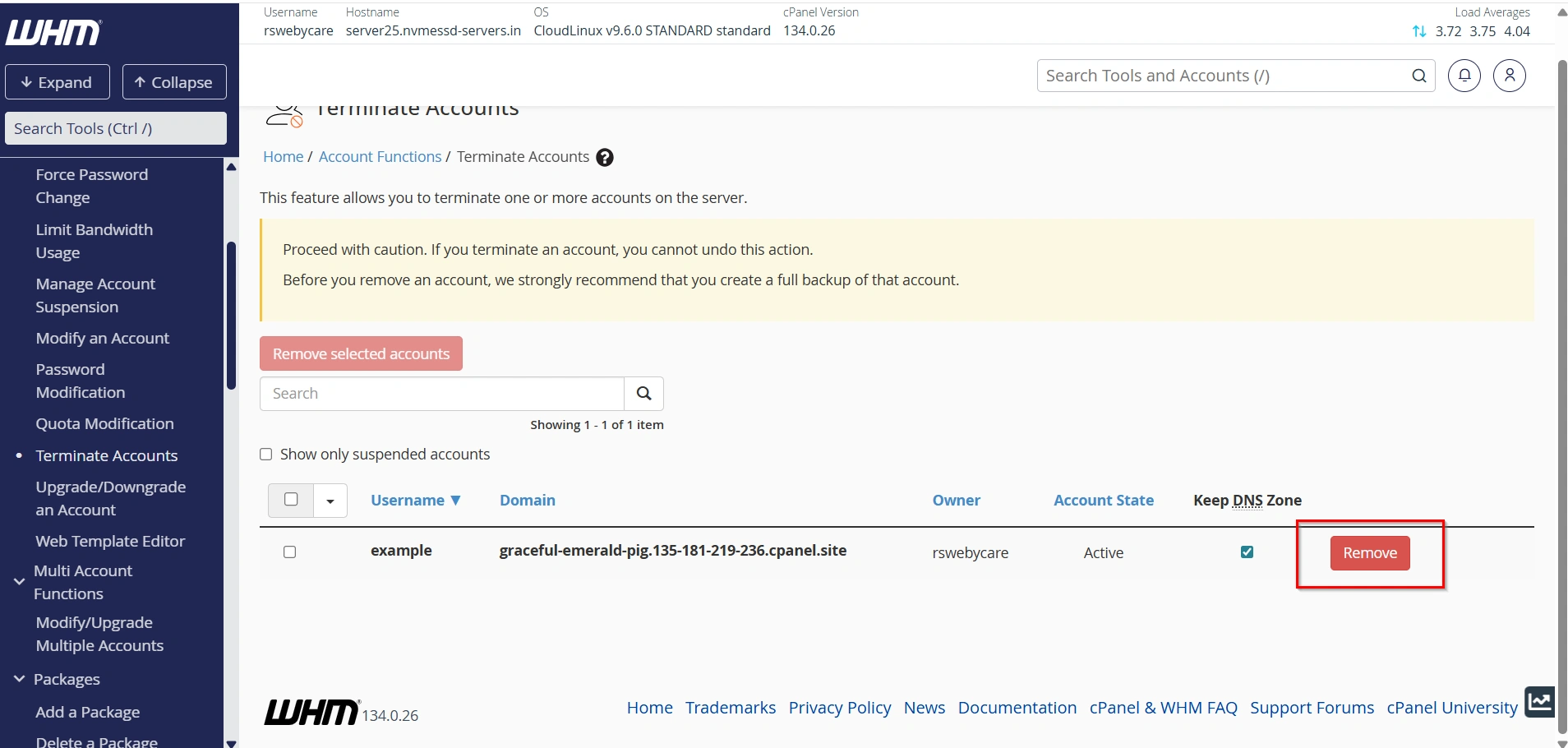
Step 5: Remove Selected Accounts
Once you have finalized your selections, click the Remove Selected Accounts button.
WHM will prepare the selected accounts for deletion and display a confirmation screen.
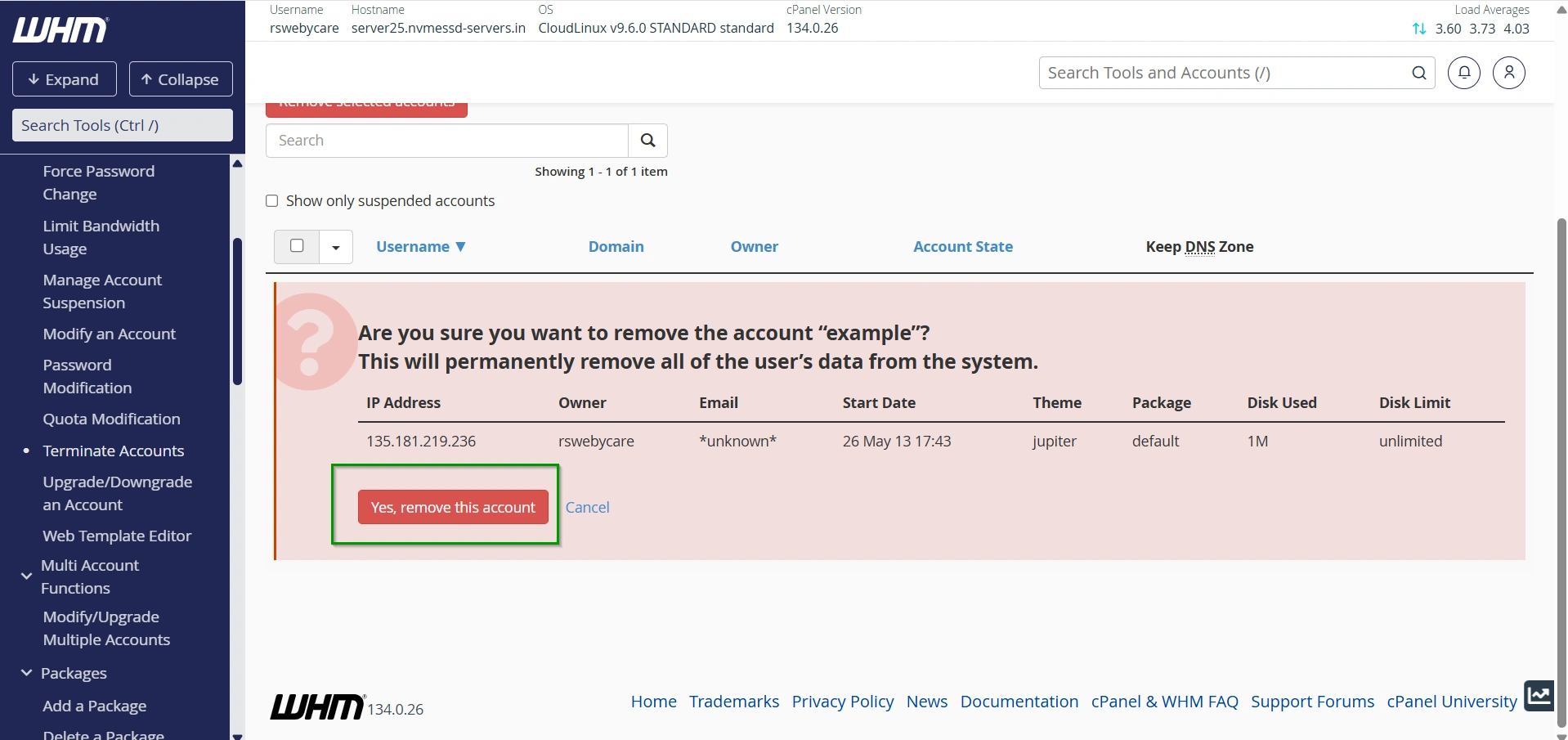
Step 6: Confirm the Deletion
To proceed with the account termination:
- Review the list of selected accounts.
- Check the confirmation checkbox.
- Click Yes, permanently remove the selected accounts.
WHM will begin the deletion process immediately.
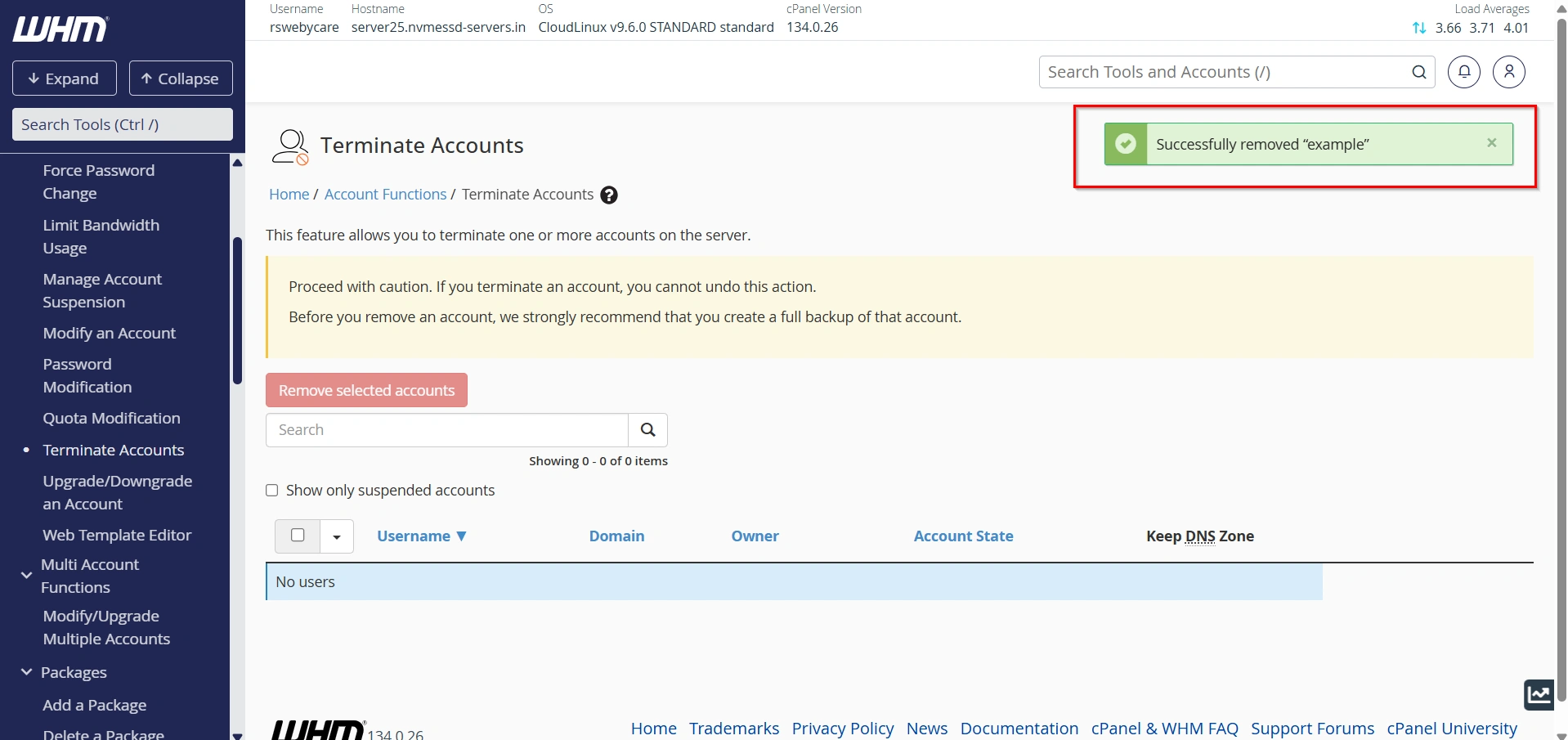
Step 7: Verify Successful Termination
After completion, WHM will display a success notification indicating that the selected accounts have been removed successfully.
You can confirm the removal by navigating to List Accounts within WHM and verifying that the accounts no longer appear in the list.
Why Would You Need to Terminate Multiple Accounts?
There are several situations where bulk account termination becomes useful:
1. Removing Expired Hosting Accounts
2. Cleaning Up Inactive Accounts
3. Server Migration Projects
4. Resource Optimization
5. Security and Compliance
Benefits of Terminating Multiple Accounts in WHM
Using WHM’s bulk termination feature offers several advantages:
- Saves Time
- Improves Server Performance
- Simplifies Account Management
- Enhances Security
- Better Resource Allocation
Common Mistakes to Avoid
When terminating multiple accounts, avoid these common errors:
- Deleting accounts without creating backups.
- Accidentally selecting active customer accounts.
- Removing DNS zones that are still in use.
- Failing to verify account ownership before deletion.
- Not documenting removed accounts for future reference.
Following proper procedures helps prevent data loss and service interruptions.
Conclusion
Knowing how to terminate multiple accounts in WHM is an essential skill for server administrators, hosting providers, and resellers. WHM’s bulk account removal feature simplifies account management, saves valuable time, and helps maintain an organized hosting environment.
Before proceeding with account termination, always verify your selections, create backups, and evaluate DNS requirements. By following the steps outlined in this guide, you can safely terminate multiple cPanel accounts while keeping your server secure, efficient, and well-maintained.
For more WHM management tutorials and step-by-step guides, visit our WHM knowledge base: www.webystrata.com/blog/category/whm-panel/
Related Articles


