cPanel
How to View Error logs in cPanel
How to View Error Logs in cPanel Website errors can occur unexpectedly and may affect your visitors, search engine rankings, and overall user experience. Whether you encounter a blank page, broken functionality, missing images,…
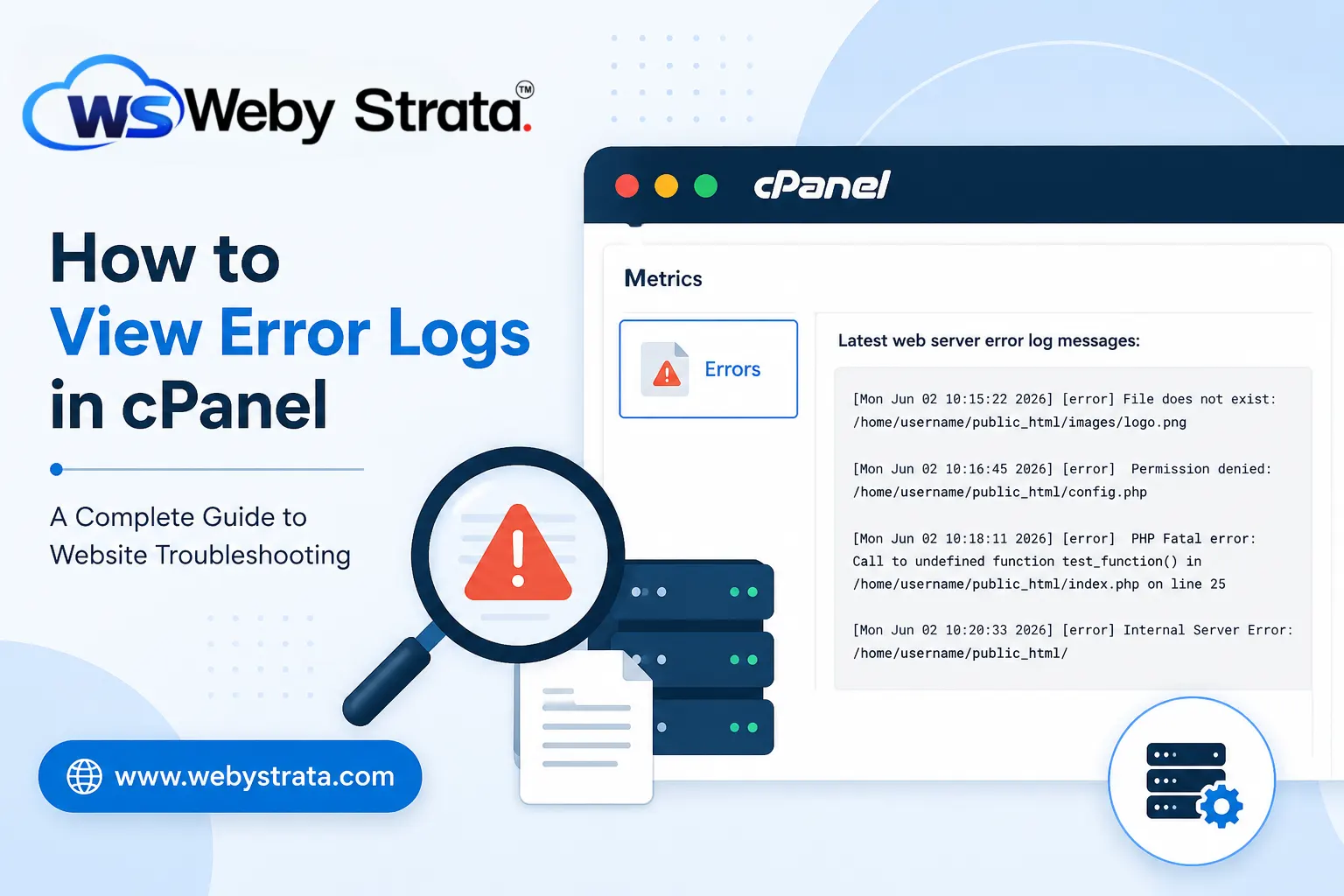
How to View Error Logs in cPanel
Website errors can occur unexpectedly and may affect your visitors, search engine rankings, and overall user experience. Whether you encounter a blank page, broken functionality, missing images, or server errors, identifying the root cause is the first step toward resolving the problem.
One of the most effective troubleshooting tools available in cPanel is the Errors feature. This feature allows website owners, developers, and administrators to view recent web server error messages generated by their hosting account.
Learning how to View Error Logs in cPanel can save significant time when diagnosing website issues and help you maintain a stable, reliable website.
In this guide, we will explain what error logs are, why they are important, how to access them in cPanel, how to interpret common errors, and best practices for website troubleshooting.
What Are Error Logs?
Error logs are records generated by the web server whenever it encounters a problem while processing requests for your website.
These logs provide detailed information about:
- Missing files
- Permission issues
- PHP errors
- Server configuration problems
- Script failures
- Application errors
- Broken links
- Access-related issues
Instead of guessing why something is not working, error logs provide valuable clues that help identify the exact source of the problem.
Why Are Error Logs Important?
Error logs serve several important purposes:
Faster Troubleshooting
Improved Website Stability
Better Security Monitoring
Reduced Downtime
Easier Development
Common Website Problems That Error Logs Can Help Diagnose
Error logs are useful for diagnosing many common website issues, including:
Internal Server Errors (500 Errors)
Missing Files
Permission Problems
PHP Fatal Errors
WordPress Plugin Conflicts
Theme Errors
Incorrect Redirects
How to View Error Logs in cPanel
Step 1: Login to cPanel from Client Area
First, visit the WebyStrata website and log in to your client area account using your registered email address and password.
official Website www.webystrata.com
After logging in:
- Go to Services
- Click on My Services
- Select your active hosting service
- Click on Login to cPanel

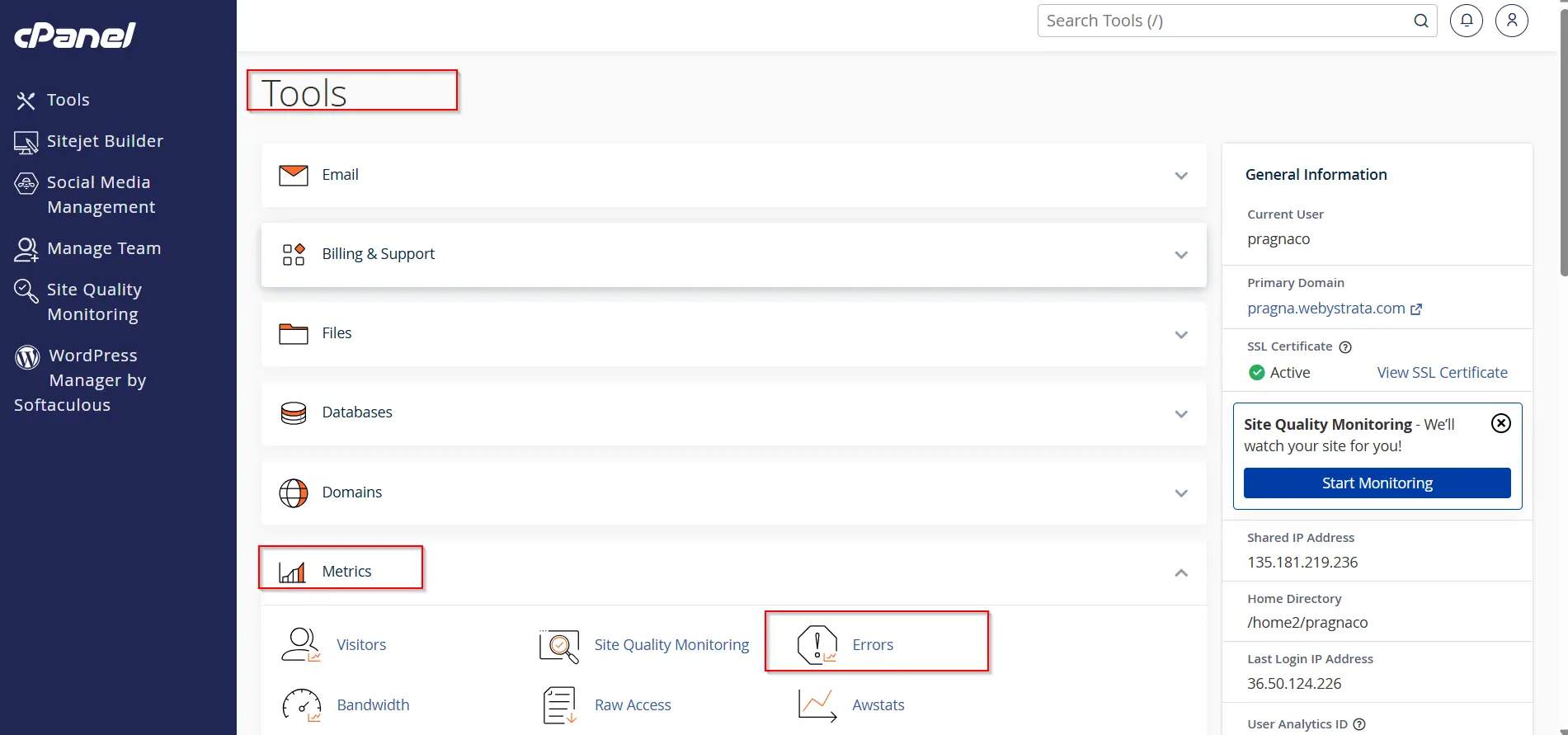
Step 2: Locate the Errors Tool
After logging in to cPanel:
- Scroll down to the Metrics section.
- Click on Errors.
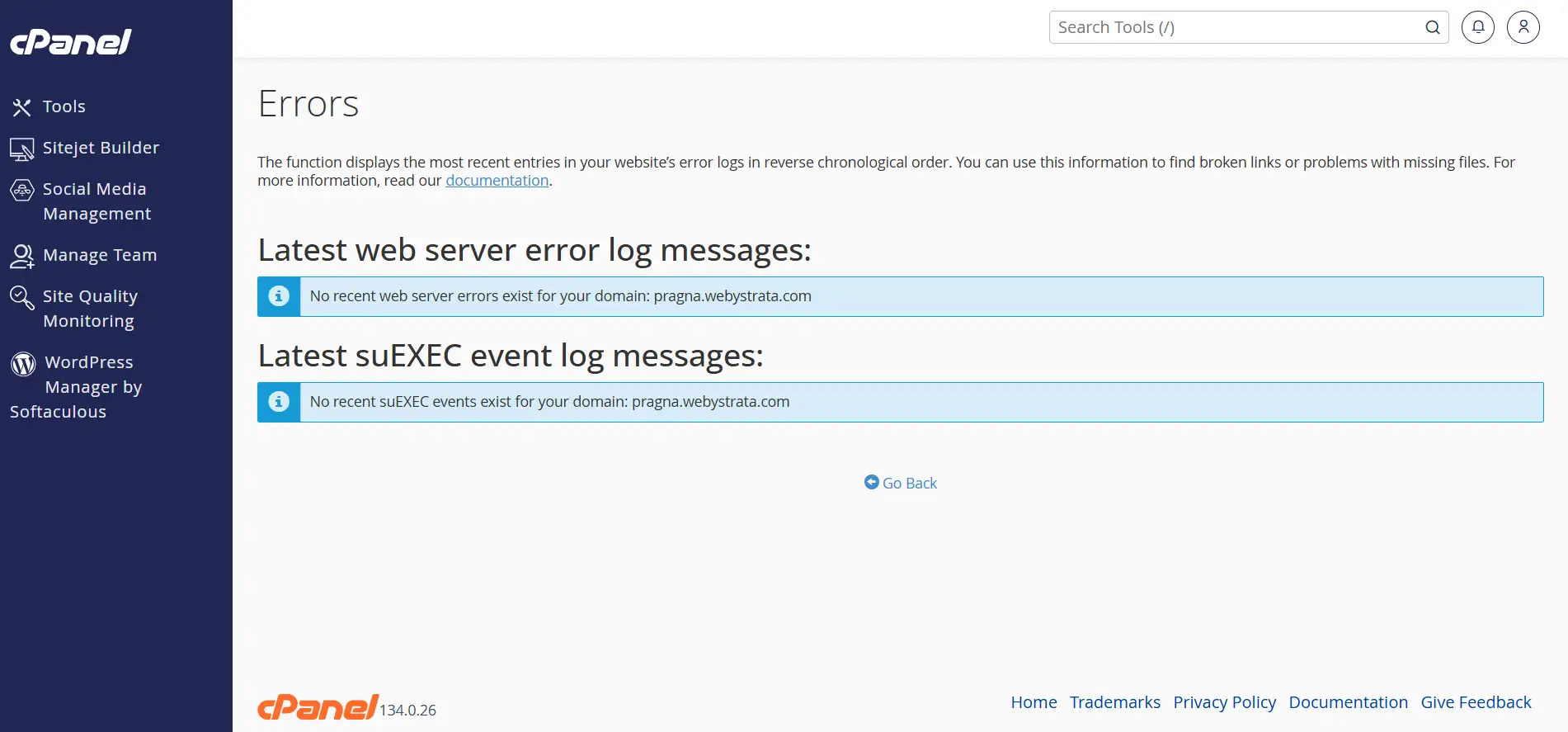
The Errors feature displays recent website and server errors recorded by your hosting account.
Step 3: View Recent Error Logs
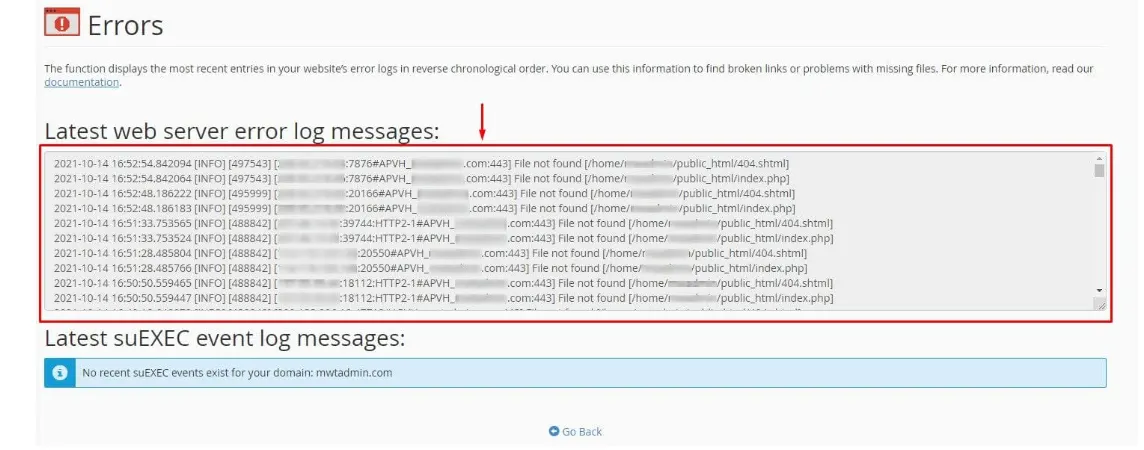
Once the Errors page opens, you will see a list of recent error messages.
The log entries typically contain:
- Date and time of the error
- Domain or website affected
- Error type
- File or script generating the error
- Additional details about the issue
Example:
[Mon Jun 02 10:15:22 2026] [error] File does not exist:
/home/username/public_html/images/logo.png
This example indicates that the website attempted to load a file that could not be found.
Step 4: Analyze the Error Details
Review the error messages carefully to identify the source of the problem.
Common issues include:
- Missing files or images
- Incorrect file permissions
- PHP warnings and fatal errors
- Broken links
- Script execution failures
- Application configuration problems
The error details often include the exact file path, making troubleshooting easier.
Step 5: Check Related Files
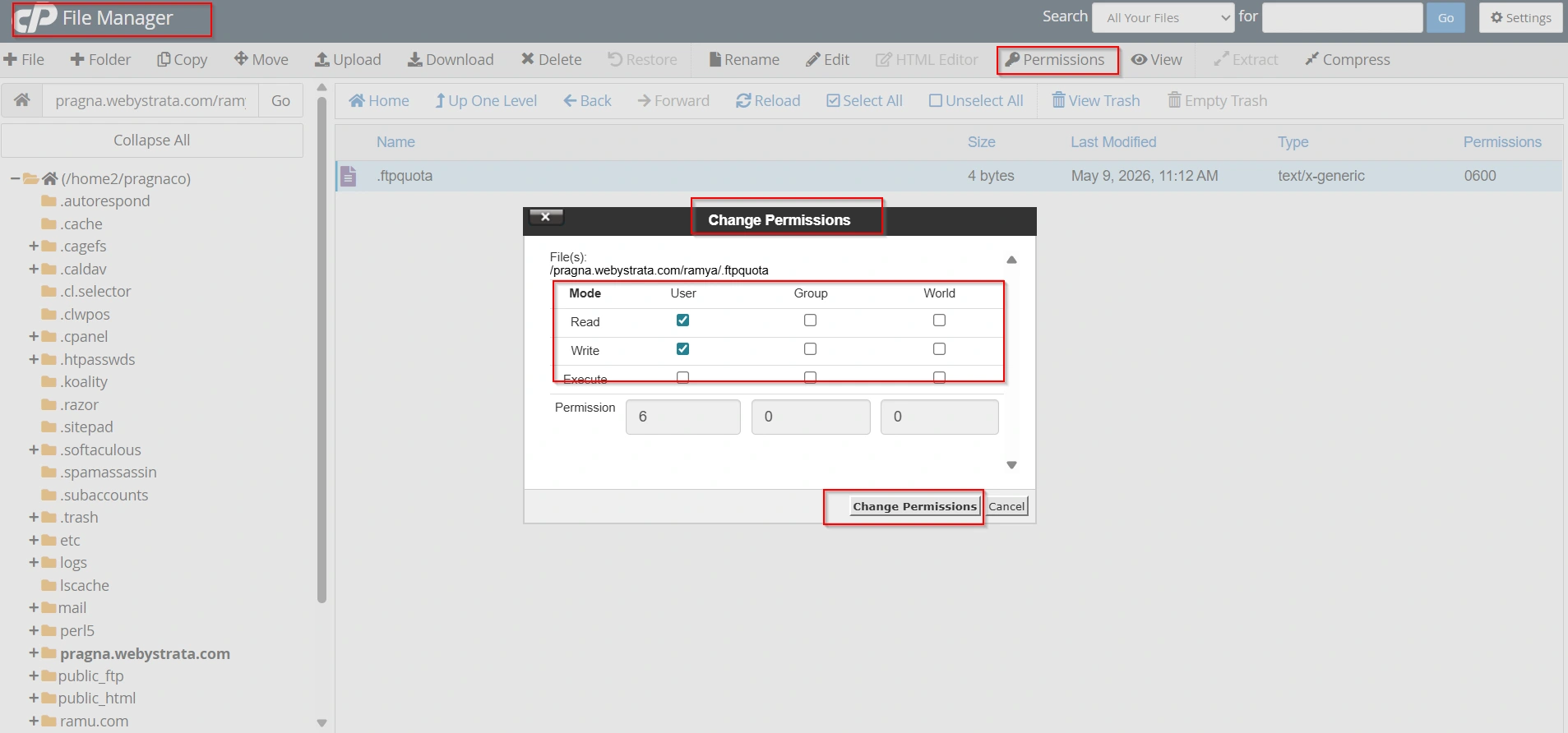
Using File Manager in cPanel:
- Navigate to the file path mentioned in the error log.
- Verify that the file exists.
- Check file permissions.
- Correct any missing or misconfigured files.
For PHP applications such as WordPress, this can help identify problematic plugins, themes, or custom code.
Step 6: Refresh and Monitor Logs
After making changes:
- Return to the Errors page.
- Refresh the page.
- Test your website again.
- Check whether new errors appear.
Monitoring logs after implementing fixes helps confirm that the issue has been resolved.
Best Practices for Monitoring Error Logs
To keep your website healthy:
Check Logs Regularly
Update Software
Monitor File Permissions
Backup Before Changes
Remove Unused Plugins
Test After Updates
Benefits of Reviewing Error Logs Regularly
Organizations that monitor error logs regularly benefit from:
- Faster issue detection
- Reduced downtime
- Improved security
- Better website performance
- Enhanced user experience
- Easier troubleshooting
- Improved server stability
Regular log monitoring is one of the simplest yet most effective website maintenance practices.
Conclusion
Knowing how to View Error Logs in cPanel is an essential skill for website owners, developers, and administrators. Error logs provide valuable insights into server activity and help diagnose website issues quickly and efficiently.
By accessing the Errors feature in cPanel, reviewing recent log entries, understanding common error messages, and following troubleshooting best practices, you can keep your website running smoothly and minimize downtime.
Whether you manage a WordPress website, an eCommerce store, a business website, or a custom web application, regularly checking error logs can help maintain optimal performance and provide a better experience for your visitors.
Related Articles


