cPanel
How to Install WordPress in cPanel via Softaculous
How to Install WordPress in cPanel via Softaculous WordPress is the most popular content management system (CMS) in the world, powering millions of websites ranging from personal blogs to large business portals and eCommerce…
How to Install WordPress in cPanel via Softaculous
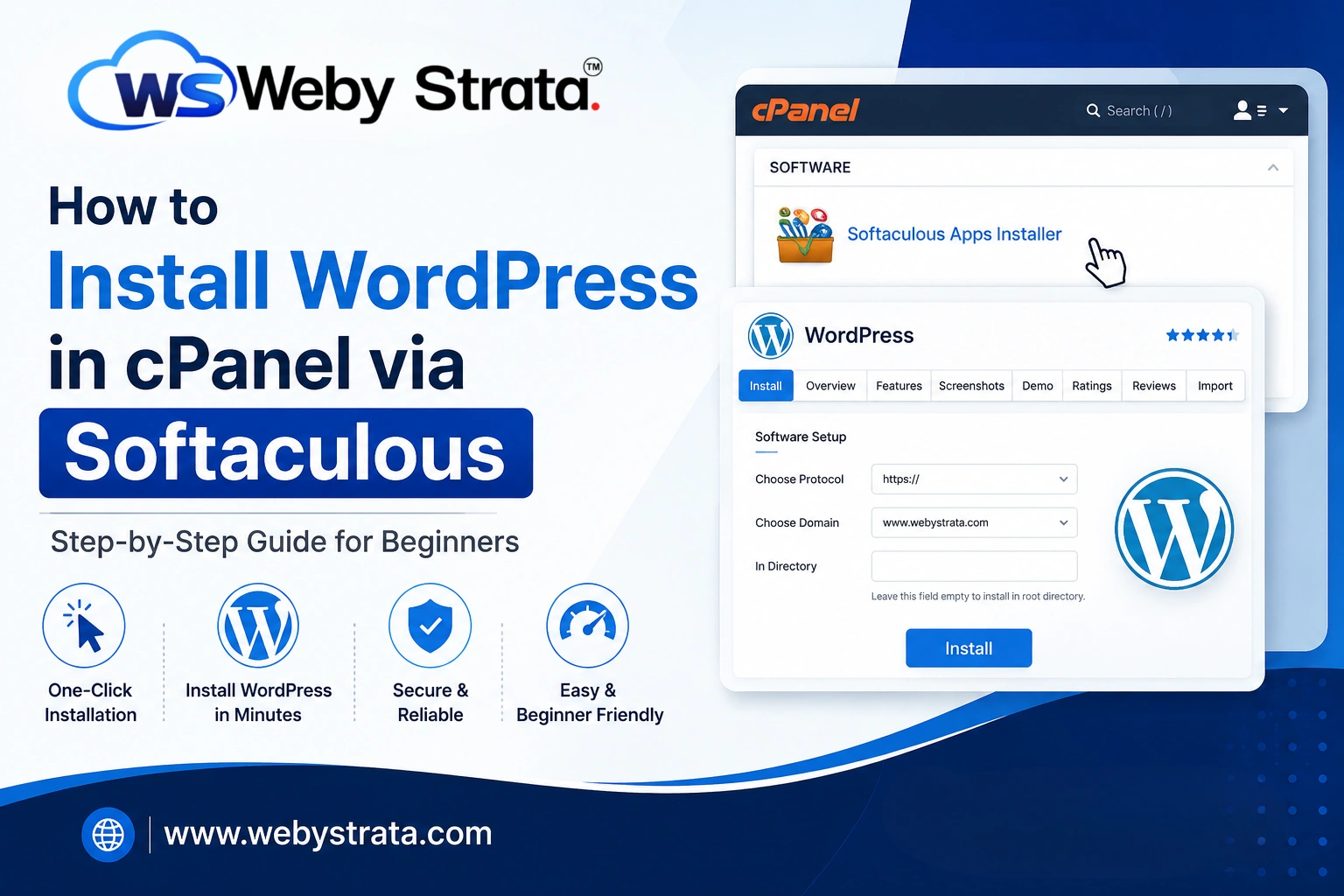
WordPress is the most popular content management system (CMS) in the world, powering millions of websites ranging from personal blogs to large business portals and eCommerce stores. One of the easiest ways to install WordPress is through Softaculous, a one-click application installer available in most cPanel hosting accounts.
Softaculous eliminates the need for manual file uploads, database creation, and advanced configuration. With just a few clicks, you can have a fully functional WordPress website ready to customize and publish.
In this guide, we’ll walk you through the complete process of installing WordPress in cPanel via Softaculous.
Why Use Softaculous to Install WordPress?
Softaculous is designed to simplify website application installations. Instead of manually downloading WordPress, creating a database, and configuring installation files, Softaculous handles everything automatically.
Prerequisites
Before installing WordPress, ensure you have the following:
- A domain name
- A hosting account with cPanel access
- Softaculous Apps Installer enabled
- Login credentials for cPanel
- An active SSL certificate (recommended)
Once these requirements are met, you’re ready to begin.
Steps to install WordPress in cPanel via Softaculous
Step 1: Login to cPanel from WebyStrata Client Area
First, visit the WebyStrata website and log in to your client area account using your registered email address and password.
official Website www.webystrata.com
After logging in:
- Go to Services
- Click on My Services
- Select your active hosting service
- Click on Login to cPanel
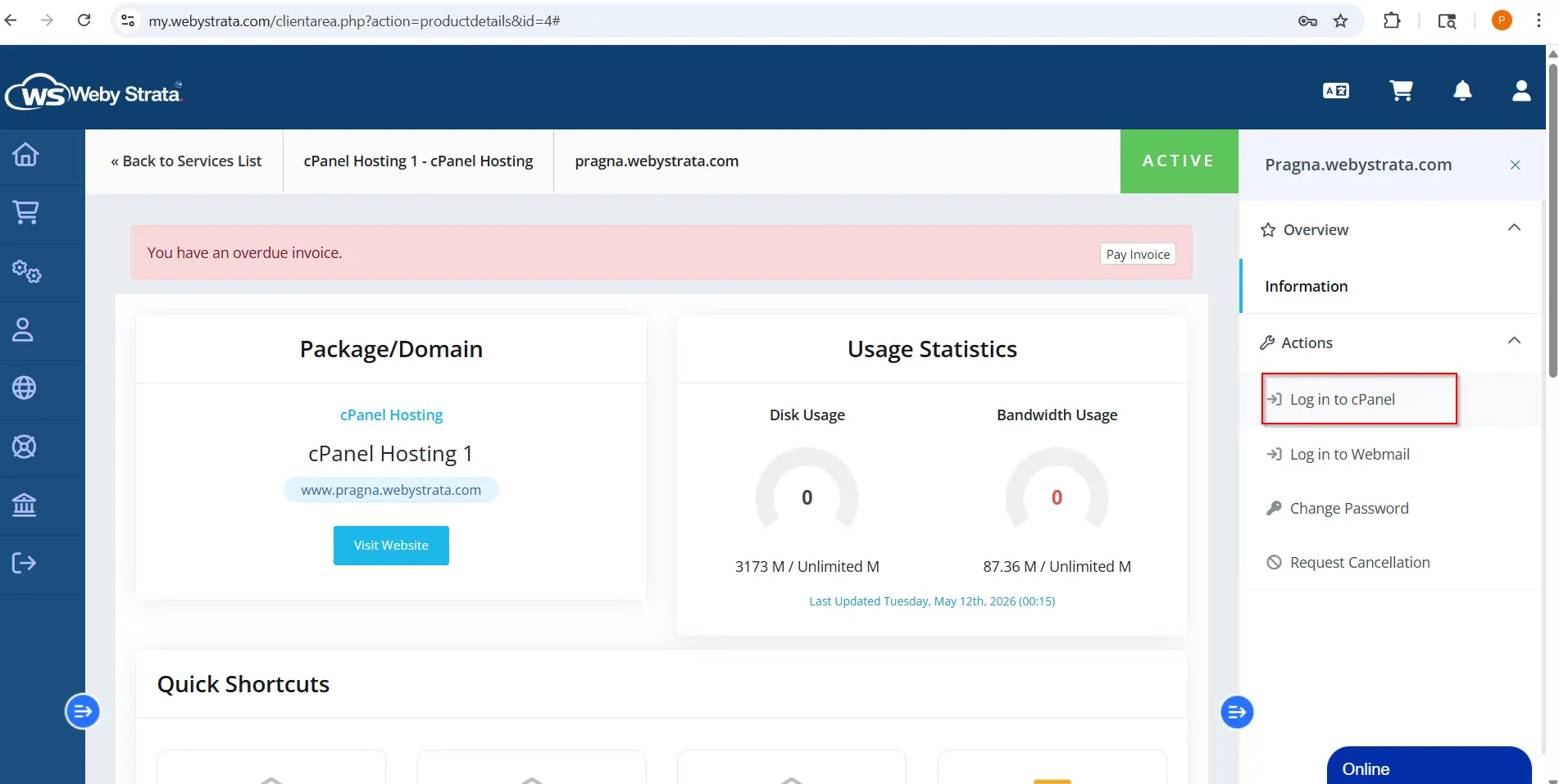
After successful login, you will see the cPanel dashboard containing various website management tools.
Step 2: Locate Softaculous Apps Installer
After accessing cPanel:
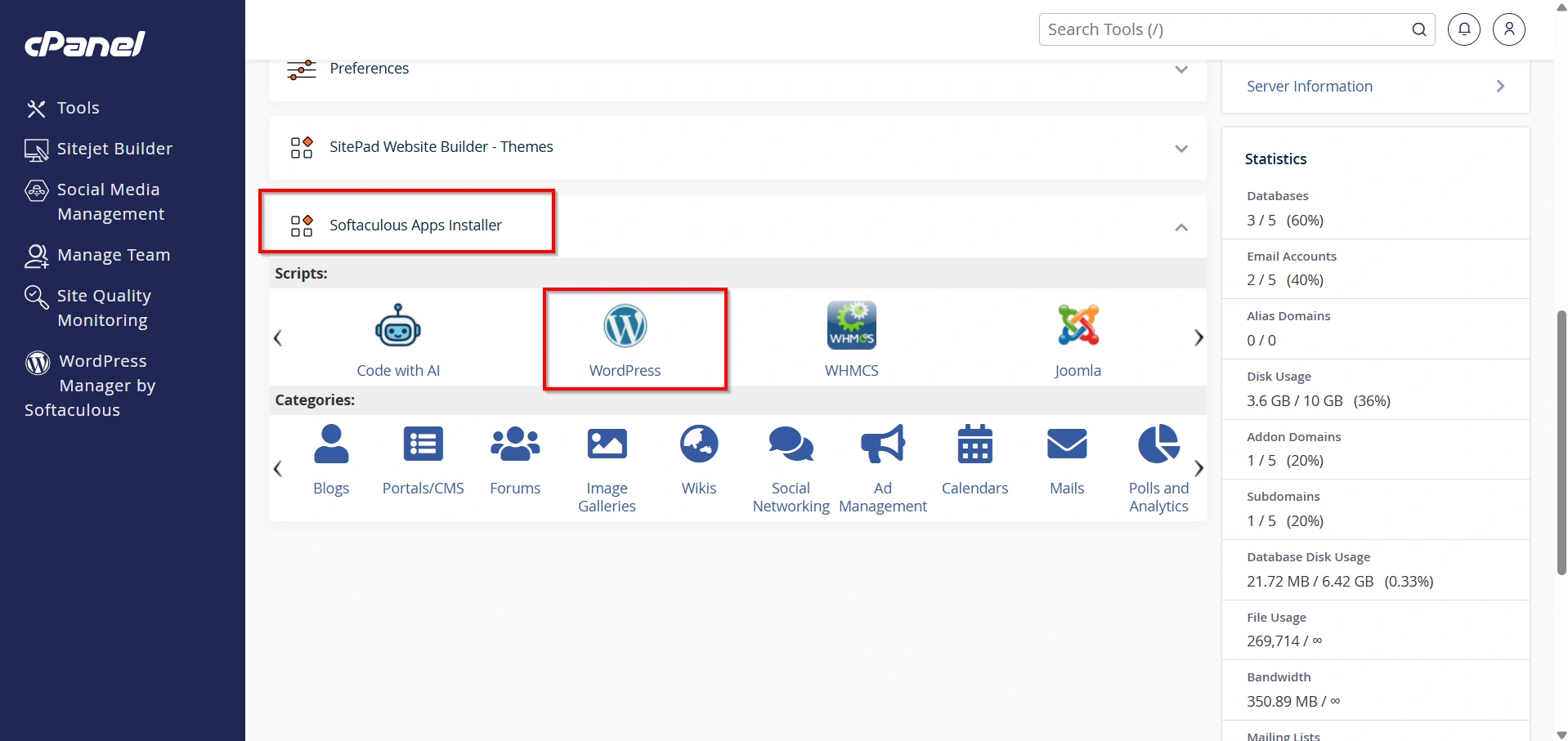
- Click Softaculous Apps Installer.
- Click WordPress to open the application page.
Softaculous provides one-click installation for hundreds of applications, including WordPress.
Step 3: Select WordPress
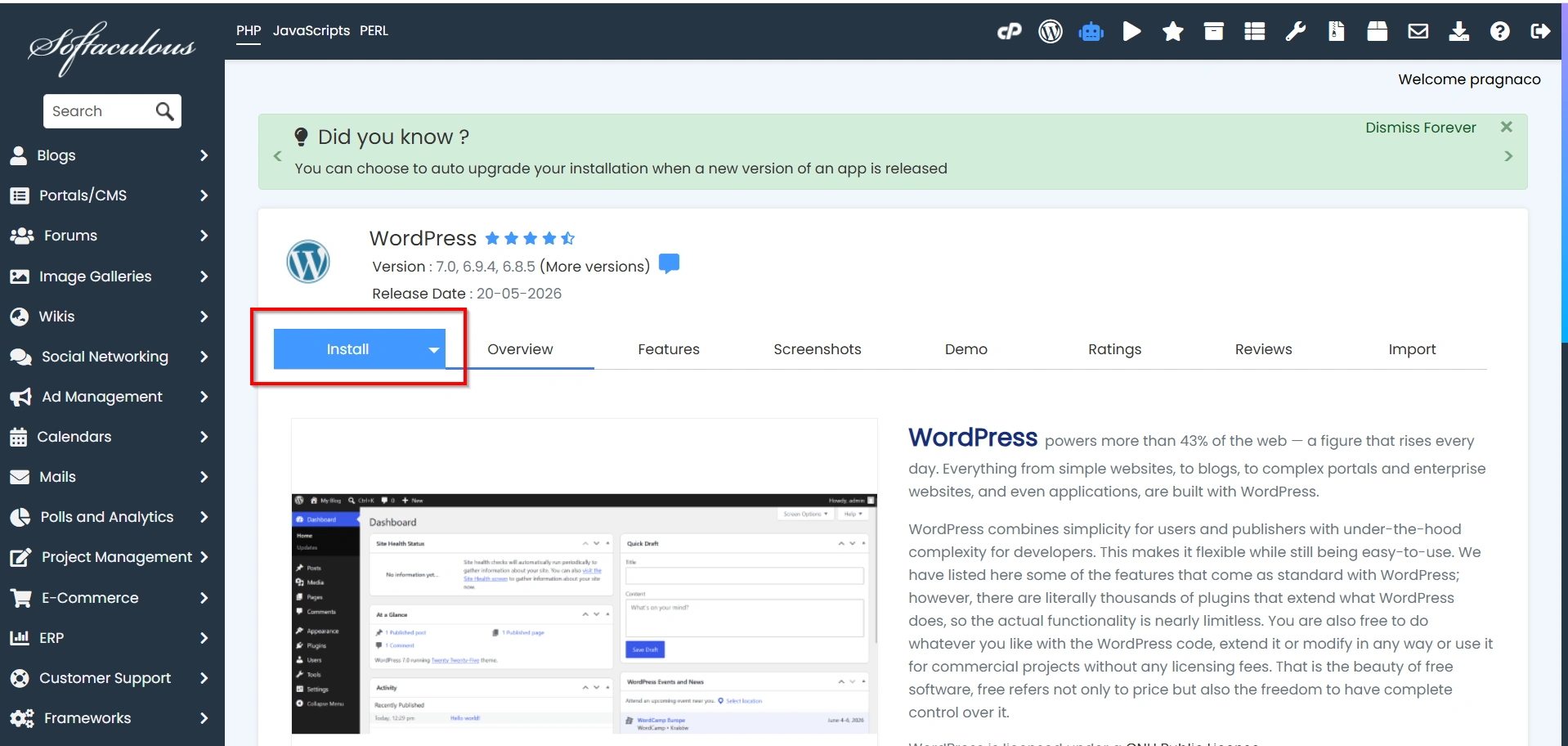
Inside WordPress:
- Review the WordPress overview and installation details.
- Click Install Now.
This opens the WordPress installation form.
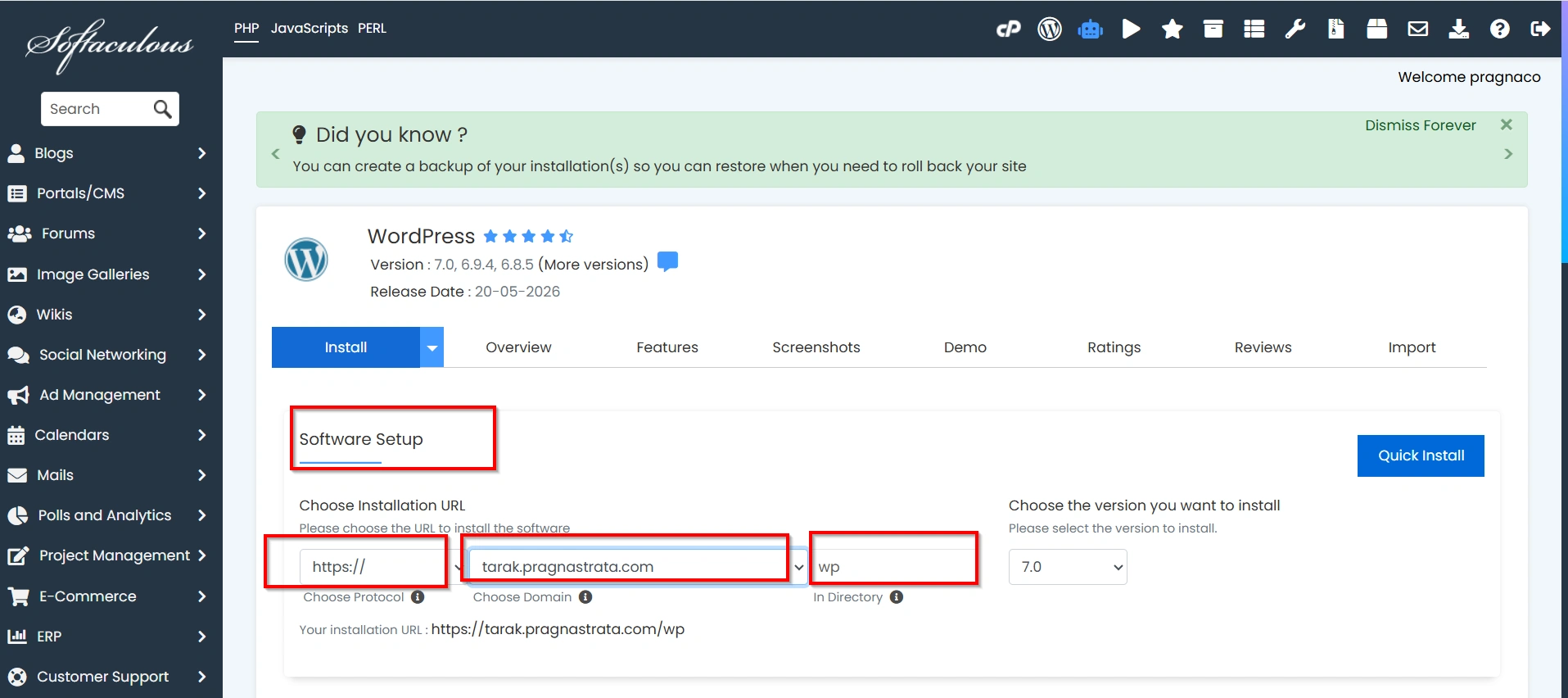
Step 4: Configure Software Setup
This section determines where WordPress will be installed.
Choose Protocol
You may see options such as:
- http://
- http://www.
- https://
- https://www.
If your website has an SSL certificate installed, select HTTPS for better security and SEO benefits.
Choose Domain
Select the domain where you want WordPress installed.
In Directory
Leave this field blank if you want WordPress installed directly on your primary domain.
Example:
Correct:
https://yourdomain.com
If you enter a folder name such as “blog”:
For most websites, leaving the directory field empty is recommended.
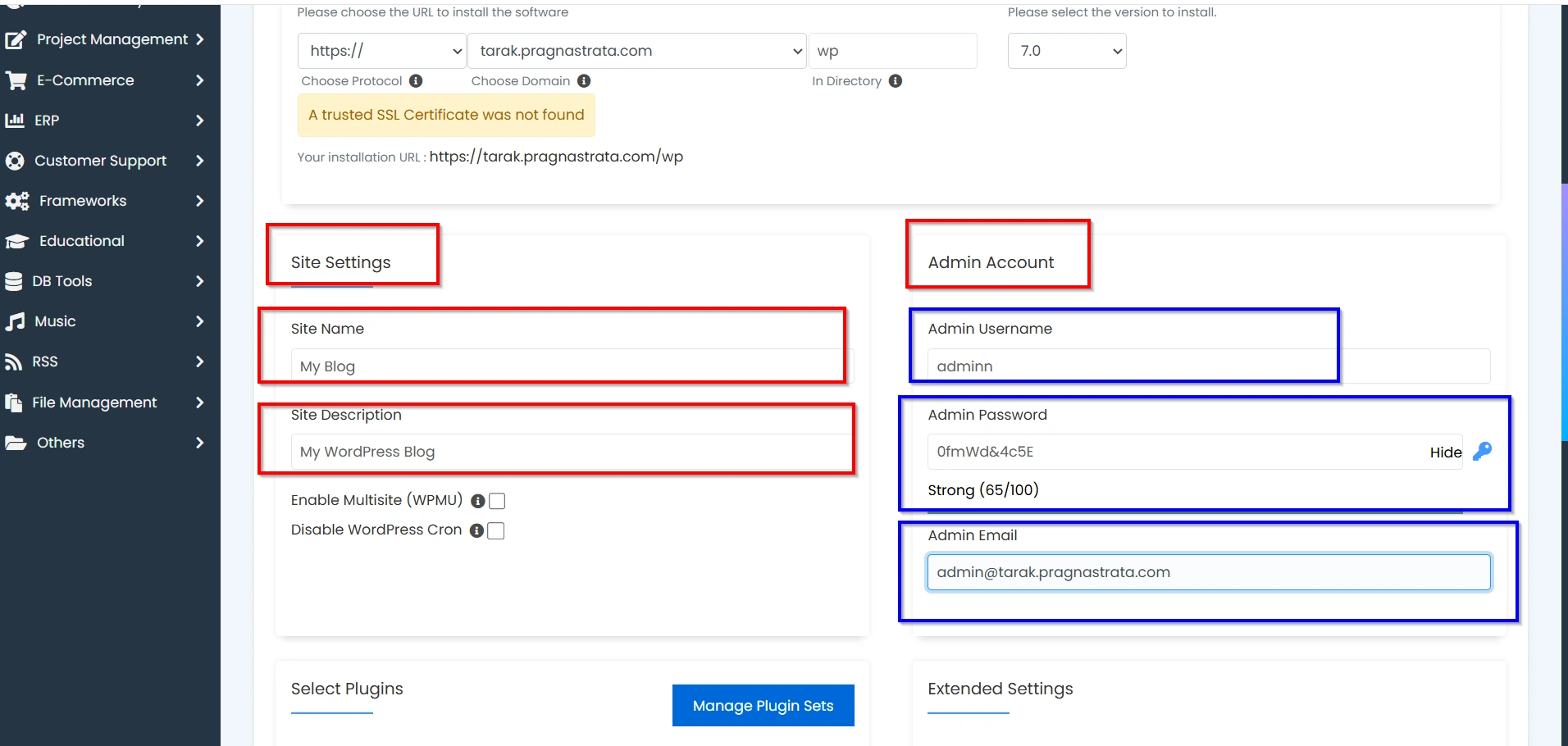
Step 5: Enter Site and Admin Settings
Next, you’ll configure your website information.
Site Name
Enter your website name.
Example:
Webystrata Hosting Solutions
Site Description
Enter a brief description.
Example:
Reliable Hosting and Website Solutions
Don’t worry if you’re unsure about these values—they can be changed later from the WordPress dashboard.
Create an Administrator Account
This is one of the most important steps during installation.
Admin Username
Choose a unique username.
Avoid common usernames such as:
- admin
- administrator
- root
Using a unique username improves security.
Admin Password
Create a strong password containing:
- Uppercase letters
- Lowercase letters
- Numbers
- Special characters
A strong password helps protect your website from unauthorized access.
Admin Email
Enter a valid email address.
WordPress will use this email for:
- Password recovery
- Website notifications
- System updates
- User management alerts
Step 6: Choose Language
Softaculous allows you to install WordPress in multiple languages.
Popular options include:
- English
- Spanish
- French
- German
- Hindi
- Portuguese
Select the language that best suits your audience.
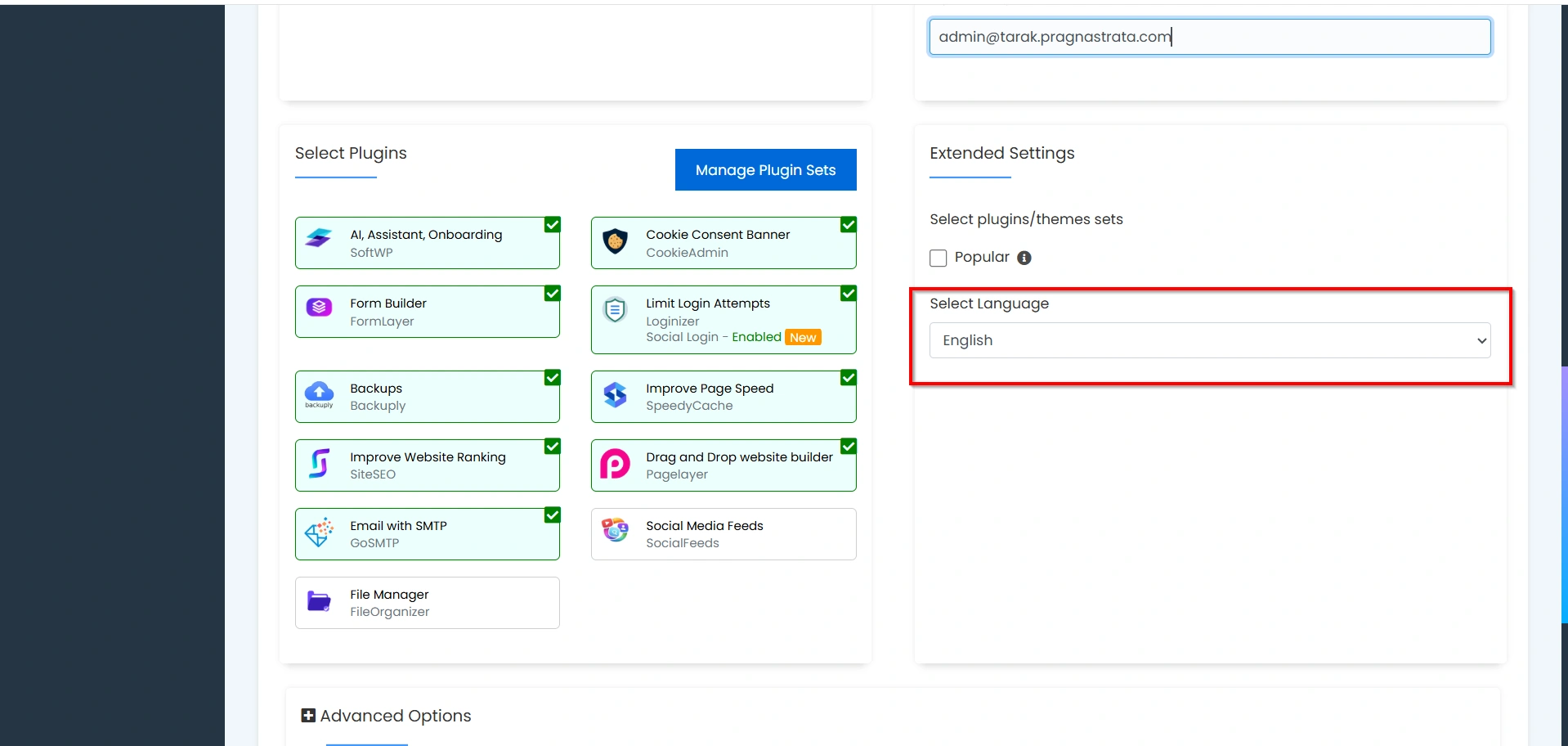
Step 7: Select Optional Features
Depending on your hosting environment, Softaculous may provide additional options.
Automatic Updates
You can enable updates for:
- WordPress Core
- Themes
- Plugins
Automatic updates help keep your website secure and up-to-date.
Backups
Some hosting providers allow automated backups through Softaculous.
Backups are highly recommended because they provide protection against accidental data loss.
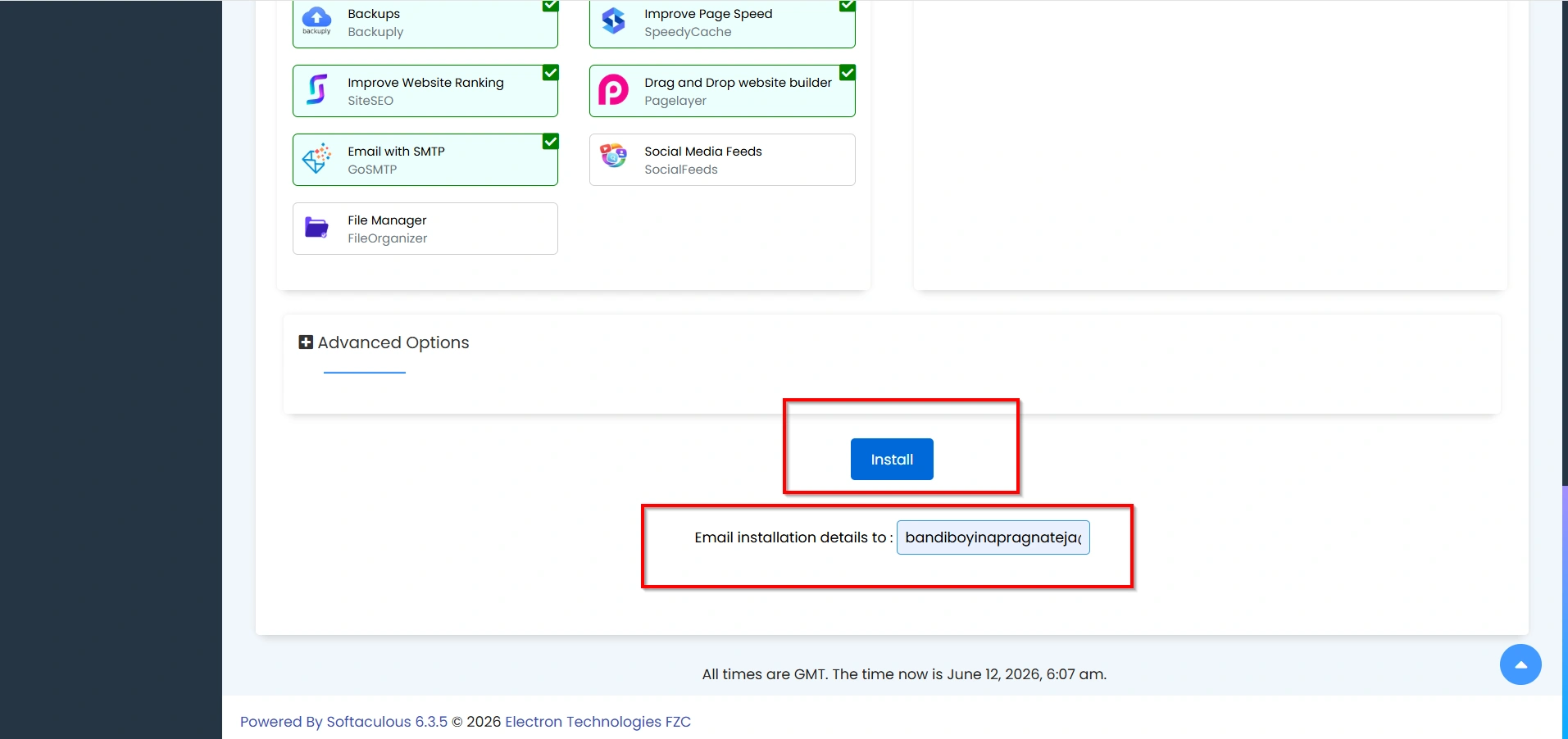
Step 8: Install WordPress
After reviewing all settings:
- Scroll to the bottom of the page.
- Click Install.
Softaculous will now:
- Create the database
- Configure WordPress
- Upload installation files
- Apply settings
- Generate login credentials
The installation process typically takes less than a minute.
Step 9: Access Your New WordPress Website
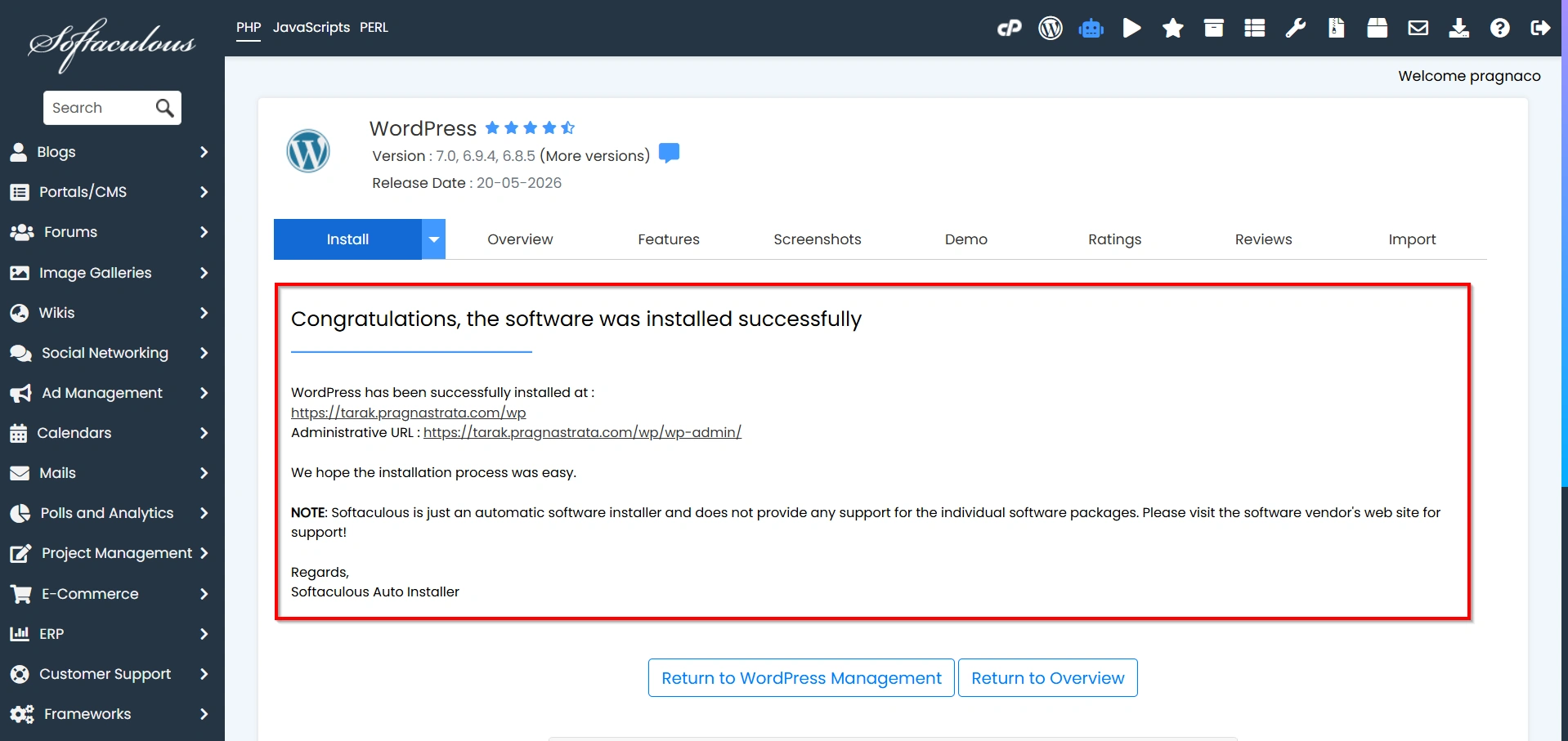
Once installation is complete, Softaculous displays important links.
Website URL
This is your public website address.
Example:
https://yourdomain.com
Admin URL
This is your WordPress login page.
Example:
https://yourdomain.com/wp-admin
Save these links for future reference.
Step 10: Log In to the WordPress Dashboard
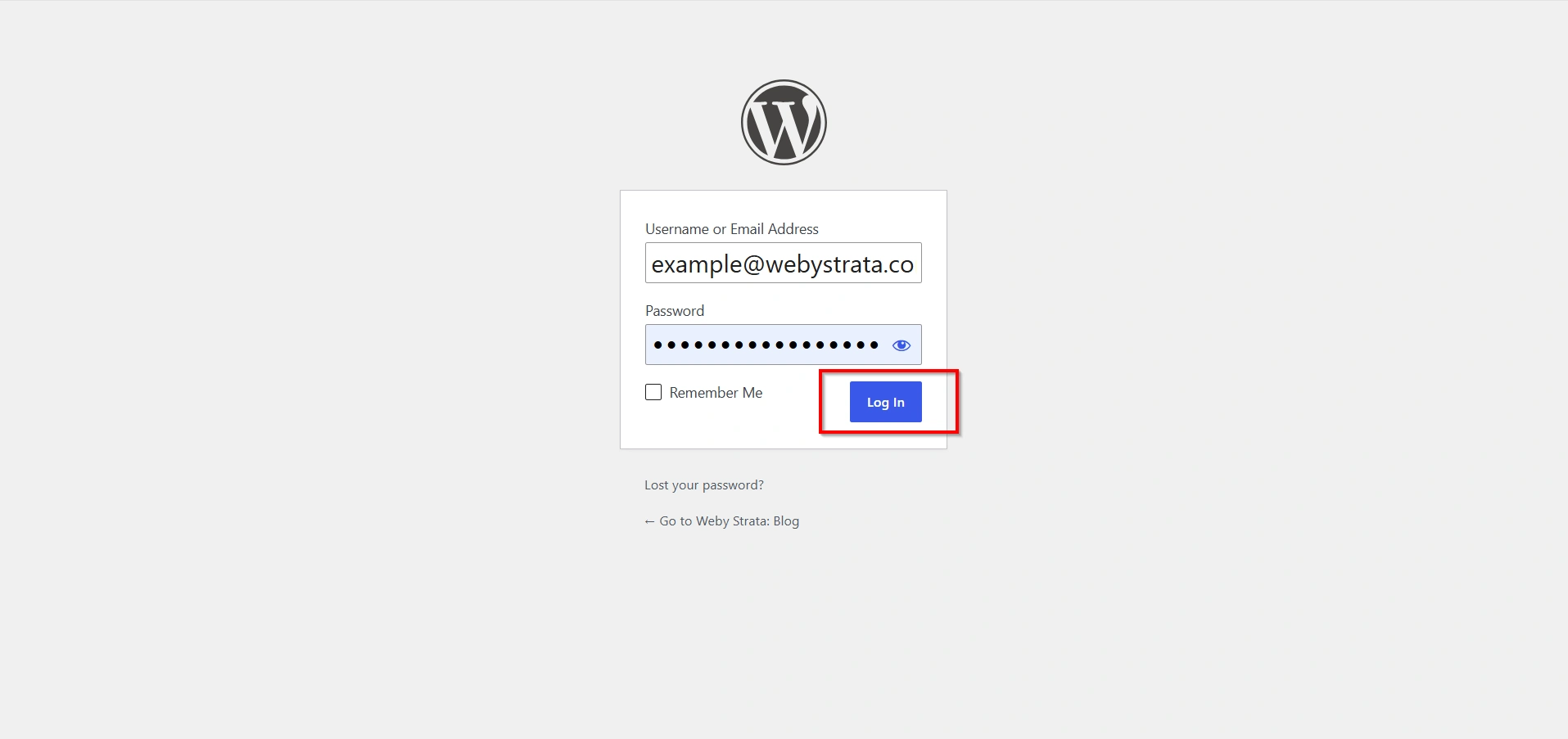
To access your website backend:
- Visit the Admin URL.
- Enter your username.
- Enter your password.
- Click Log In.
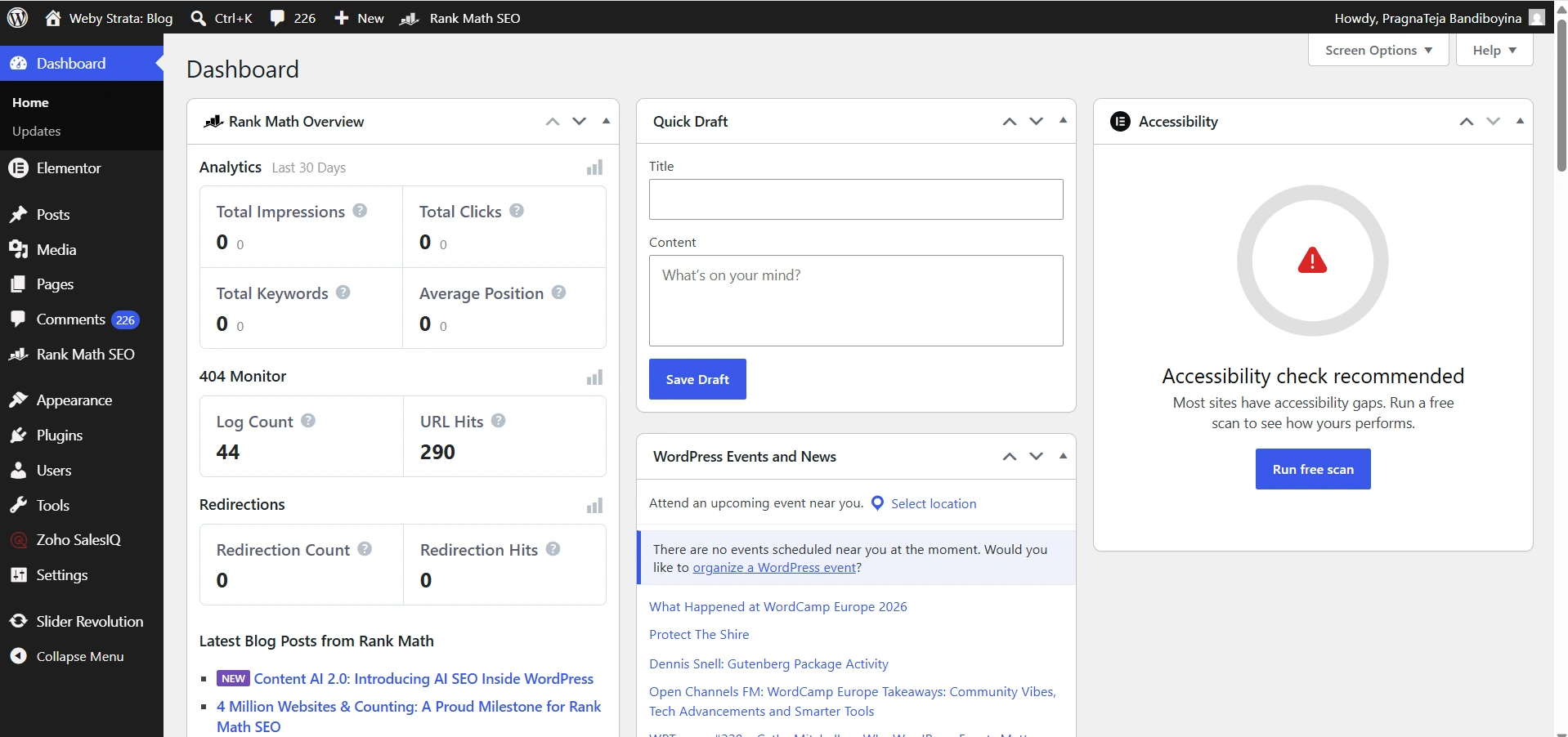
You will be redirected to the WordPress dashboard.
From here, you can:
- Create pages
- Publish blog posts
- Install themes
- Add plugins
- Manage users
- Configure website settings
Benefits of Softaculous
- Quick one-click installation
- No technical expertise required
- Automatic database creation
- Faster website deployment
- Easy management of multiple WordPress installations
- Backup and restore options
- Automatic update support
- Secure installation process
Conclusion
Installing WordPress in cPanel via Softaculous is one of the fastest and most beginner-friendly ways to launch a website. The installer automates the technical aspects of setup, allowing you to focus on building content and growing your online presence. By following the steps outlined in this guide, you can create a secure and fully functional WordPress website within minutes.
Whether you’re starting a blog, creating a business website, or launching an online store, Softaculous makes the WordPress installation process simple, reliable, and efficient.
Related Articles


