cPanel
How to Locate the Path of an Addon Domain from cPanel
How to Locate the Path of an Addon Domain from cPanel When managing multiple websites under a single hosting account, addon domains are an essential feature of cPanel. Each addon domain points to its…
How to Locate the Path of an Addon Domain from cPanel
When managing multiple websites under a single hosting account, addon domains are an essential feature of cPanel. Each addon domain points to its own directory, allowing you to host separate websites while using the same hosting account.
There are many situations where you may need to locate the path of an addon domain from cPanel. Whether you’re installing a CMS, uploading website files, troubleshooting website issues, configuring scripts, or restoring backups, knowing the exact document root of your addon domain is crucial.
In this guide, you’ll learn how to locate the path of an addon domain from cPanel, understand document roots, and manage your website directories effectively.
What Is an Addon Domain?
An addon domain is an additional domain name hosted within the same cPanel account as your primary domain. It functions as an independent website with its own files, content, email accounts, and settings.
For example:
- Primary Domain: example.com
- Addon Domain: mybusiness.com
Each addon domain is assigned a document root folder where its website files are stored.
Example:
public_html/mybusiness
All files for the addon domain are located within this directory.
Understanding Document Root
A document root is the directory where a website’s files are stored on the server.
When visitors access your domain through a web browser, the server serves content from the document root directory.
Example:
Domain:
mybusiness.com
Document Root:
public_html/mybusiness
Absolute Server Path:
/home/username/public_html/mybusiness
How to Locate the Path of an Addon Domain from cPanel
Step 1: Login to cPanel from Client Area
First, visit the WebyStrata website and log in to your client area account using your registered email address and password.
official Website www.webystrata.com
After logging in:
- Go to Services
- Click on My Services
- Select your active hosting service
- Click on Login to cPanel

Step 2: Open the Domains Section
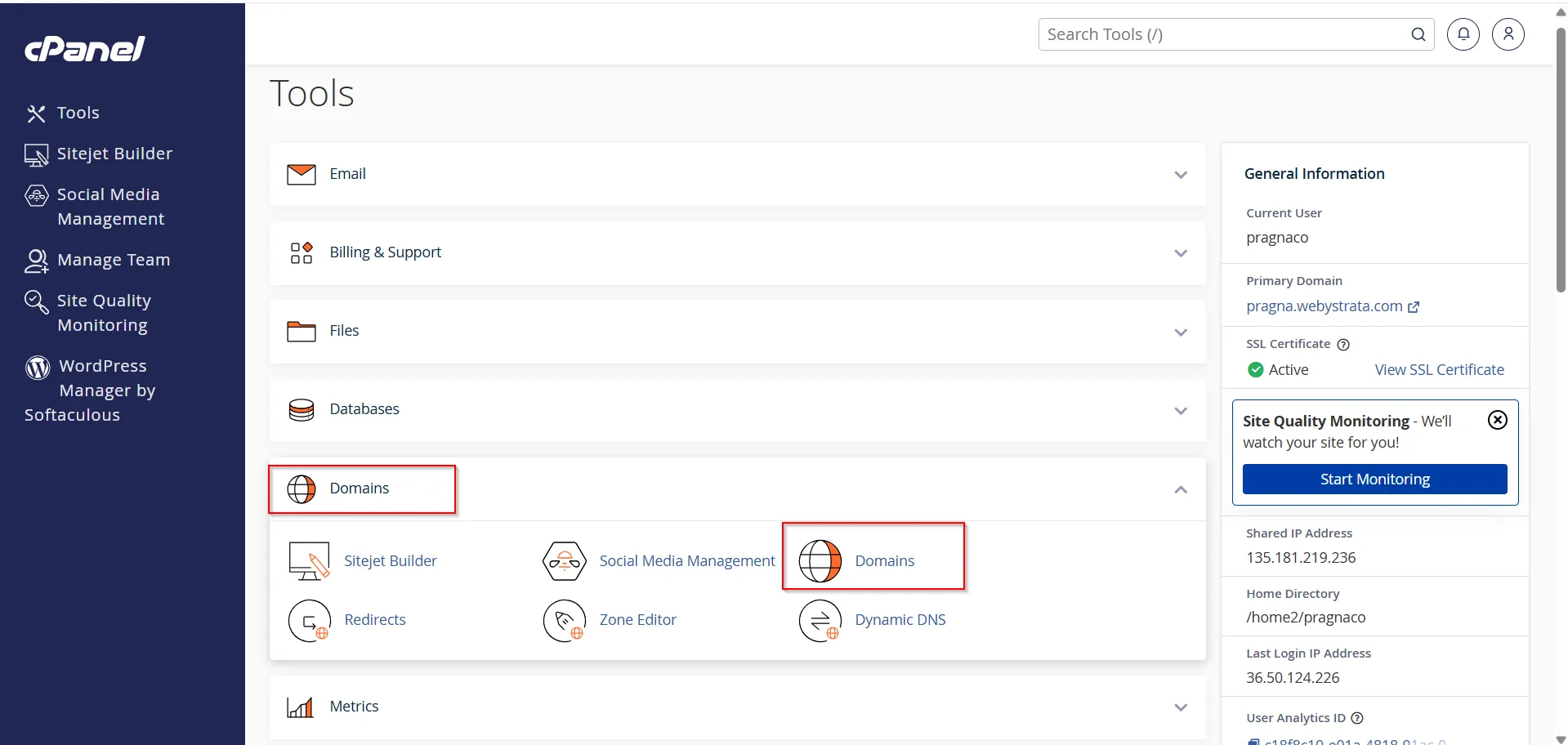
After logging in, scroll down or use the search bar to locate the Domains section.
Click on:
Domains
Step 3: Locate Your Addon Domain
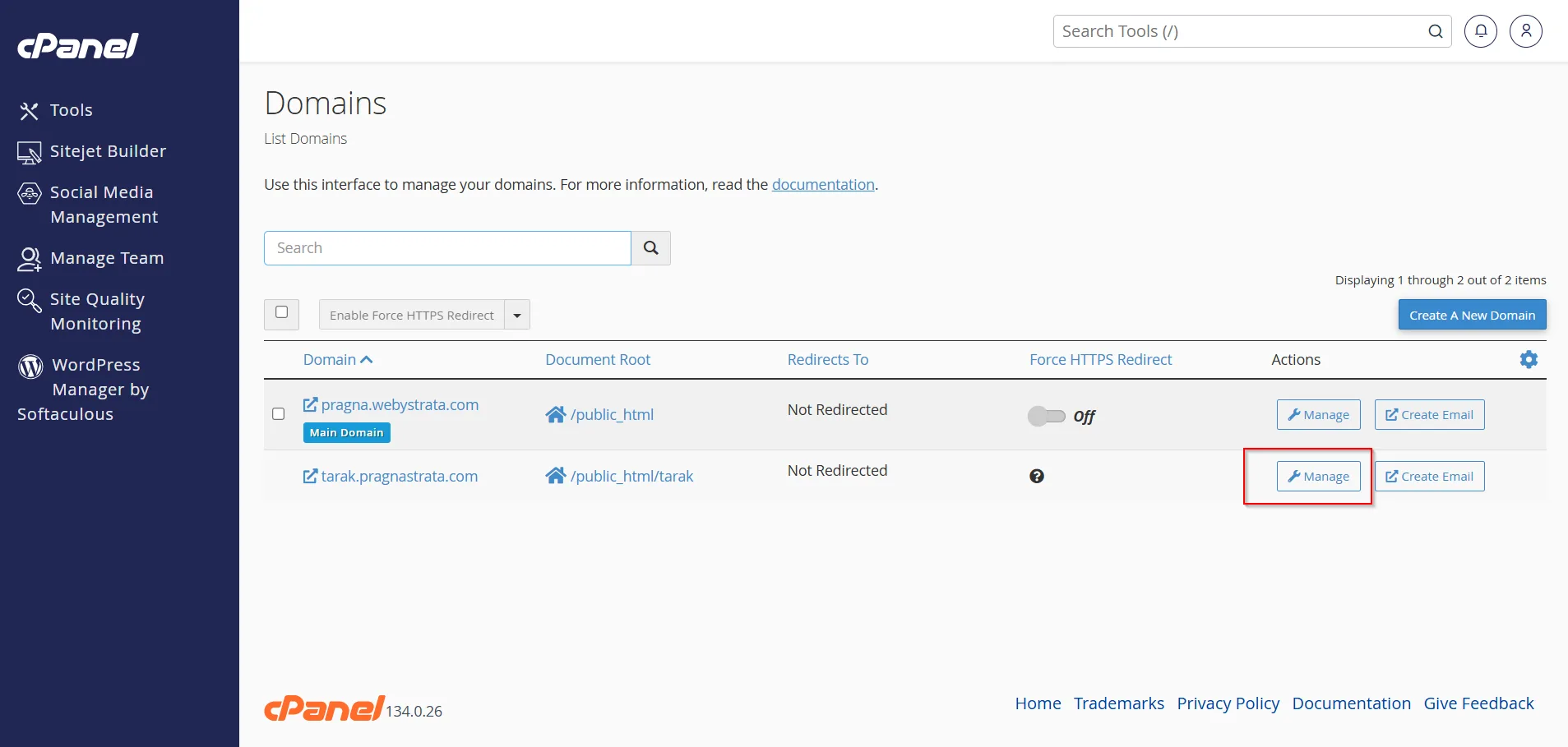
You will see a list of all domains associated with your hosting account.
Find the addon domain whose path you want to identify.
The domain list typically displays:
- Domain Name
- Document Root
- Redirect Status
- Actions
- Click on Manage
Step 4: Check the Document Root
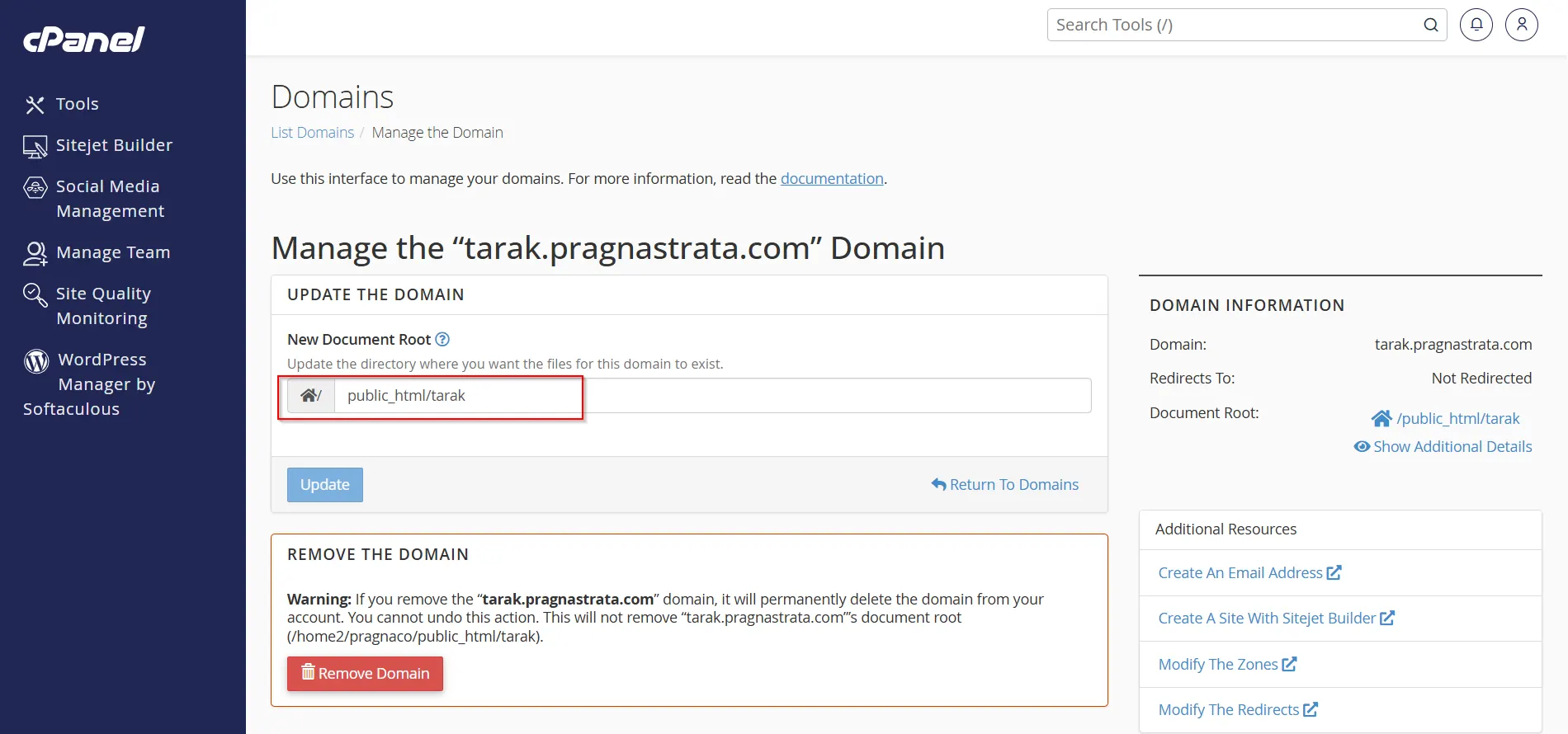
Look for the Document Root column next to your addon domain.
The value displayed under Document Root represents the folder where the website files are stored.
Step 5: View the Full Path Using File Manager
To verify the complete server path:
- Return to the cPanel home page.
- Open File Manager.
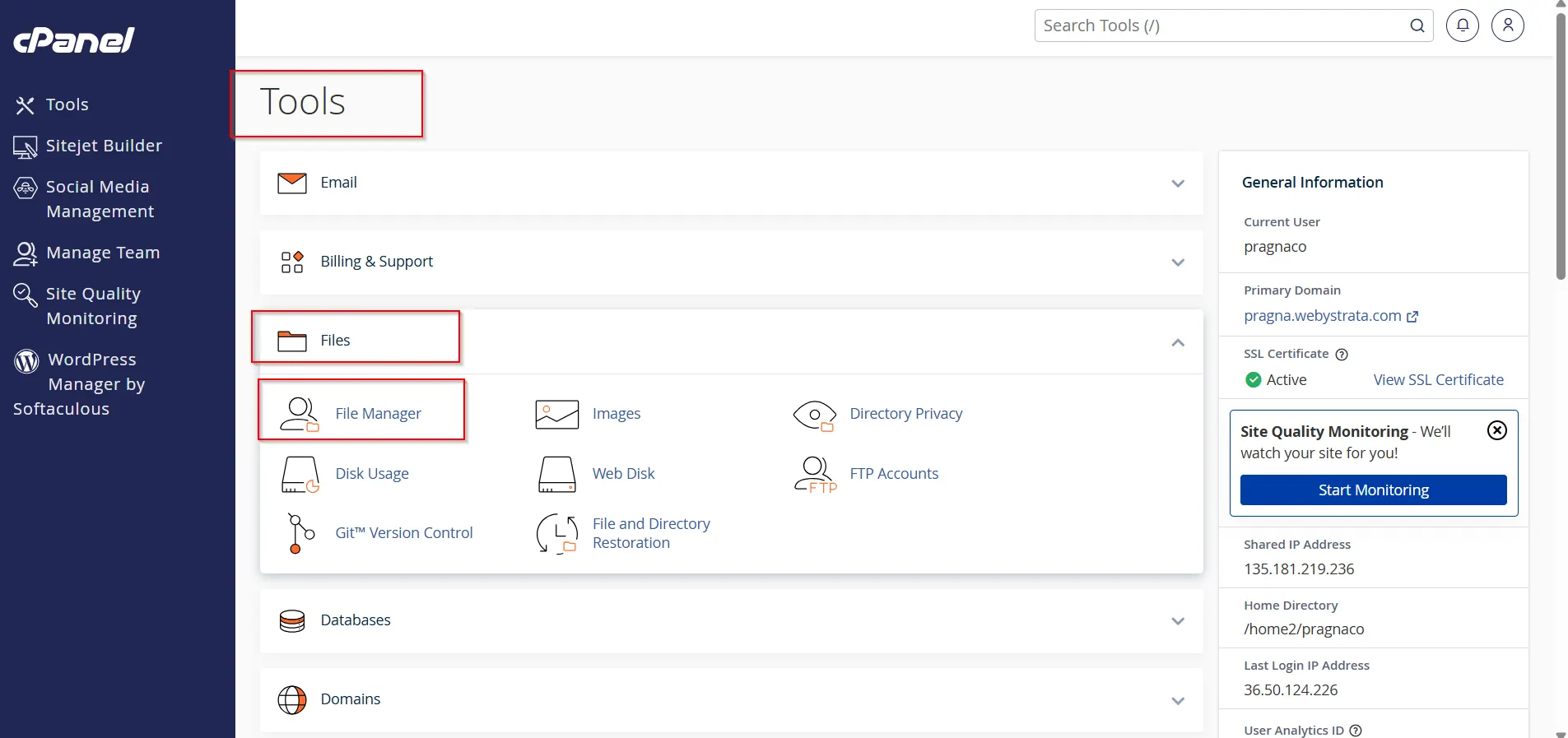
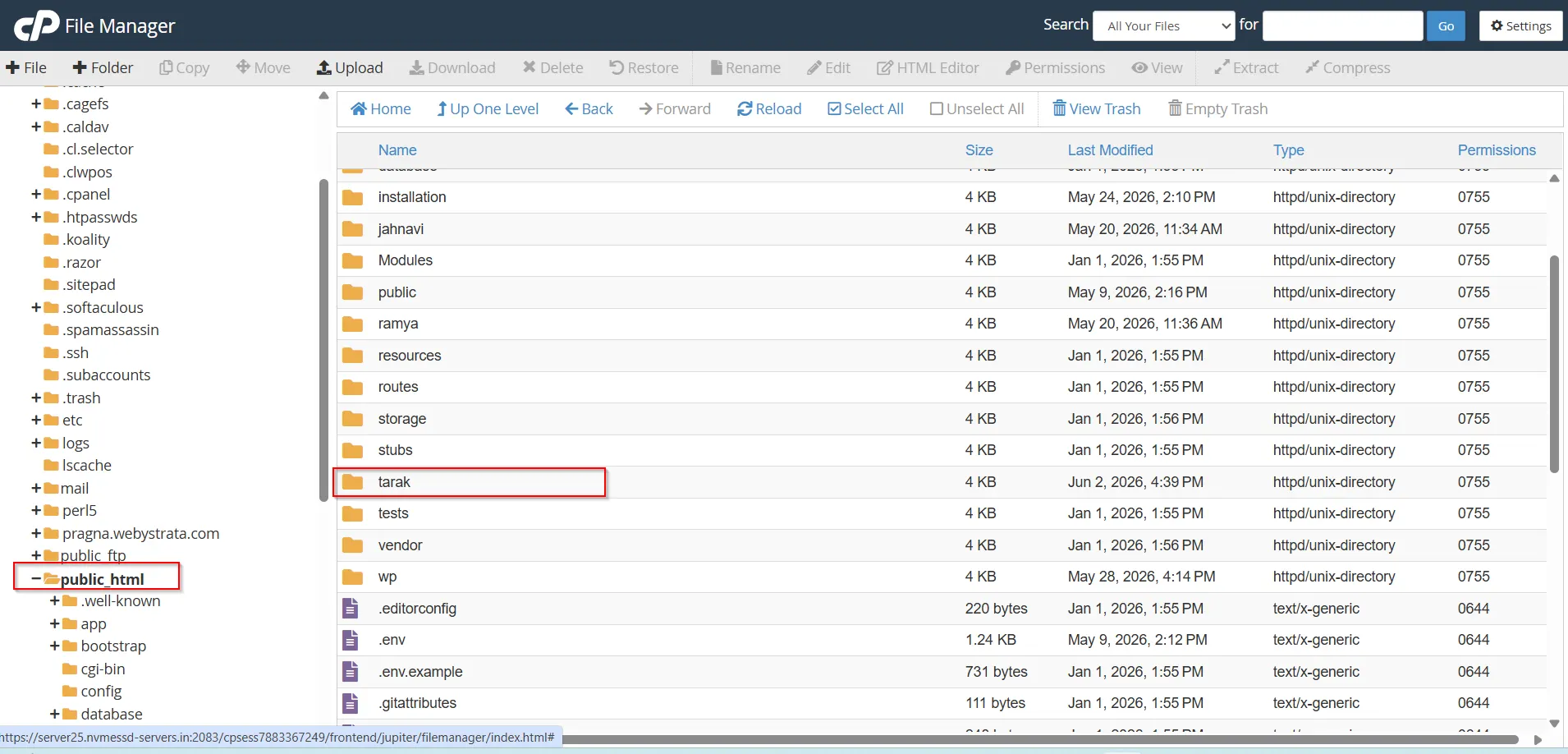
3. Navigate to the displayed document root folder.
For example:
public_html/mybusiness
Inside File Manager, this folder contains all website files for the addon domain.
The absolute server path may look similar to:
/home/username/public_html/mybusiness
Where:
- home = server home directory
- username = your cPanel username
- public_html = web root directory
- mybusiness = addon domain folder
Step 6: Confirm Website Files
Open the addon domain directory and verify that it contains website files such as:
- index.php
- index.html
- wp-config.php
- wp-content
- images
- css
- js
This confirms you have located the correct path.
Why You Need to Find the Addon Domain Path
Knowing the addon domain’s path can help you:
- Upload website files to the correct directory
- Install WordPress or other CMS platforms
- Configure applications and scripts
- Troubleshoot website loading issues
- Restore website backups
- Manage file permissions
- Access website logs and configuration files
- Verify domain setup
Benefits of Knowing Your Addon Domain Path
Understanding where your addon domain files are stored offers several advantages:
- Faster troubleshooting
- Easier website migrations
- Simplified application installations
- Better file organization
- Improved server management
- Efficient backup and restoration processes
For developers and website administrators, knowing the document root path is essential for managing websites effectively.
Conclusion
Learning how to locate the path of an addon domain from cPanel is an important skill for website owners, developers, and hosting administrators. By accessing the Domains section and reviewing the Document Root information, you can quickly identify where your website files are stored. If the document root is not displayed, File Manager provides an alternative way to locate the correct directory.
Keeping track of your addon domain paths helps streamline website management, improves troubleshooting, and ensures that updates, backups, and installations are performed in the correct location.
Related Articles


