Latest Updates
Locate Your WordPress Configuration File Using cPanel
Locate Your WordPress Configuration File Using cPanel The WordPress configuration file, commonly known as wp-config.php, is one of the most important files in any WordPress installation. It contains essential information that allows WordPress to…
Locate Your WordPress Configuration File Using cPanel
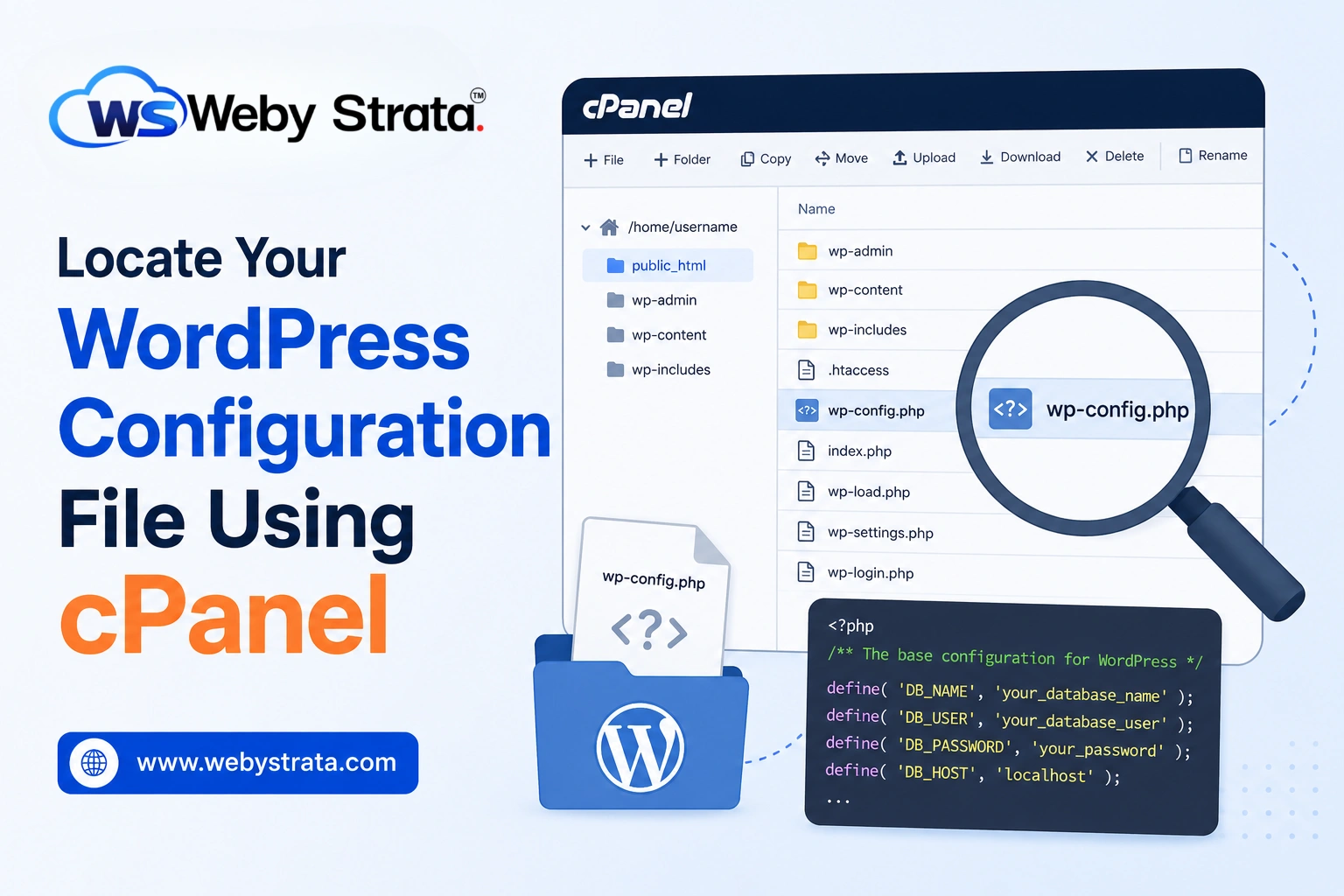
The WordPress configuration file, commonly known as wp-config.php, is one of the most important files in any WordPress installation. It contains essential information that allows WordPress to connect to your database and function correctly. Whether you are troubleshooting website issues, migrating your website, updating database credentials, or reviewing configuration settings, knowing how to locate this file is an important skill for every WordPress administrator.
Fortunately, if your hosting account includes cPanel, finding the WordPress configuration file is a straightforward process. In this guide, you will learn what the wp-config.php file is, why it is important, and how to locate it using cPanel File Manager.
What Is the WordPress Configuration File?
The wp-config.php file is the primary configuration file used by WordPress. During installation, WordPress creates this file and stores important settings that control how the website interacts with its database and server environment.
The file typically contains:
- Database name
- Database username
- Database password
- Database host information
- WordPress table prefix
- Authentication keys and salts
- Debugging settings
- Memory limit configurations
- Custom WordPress settings
Without the wp-config.php file, WordPress cannot communicate with its database, making the website inaccessible.
Before You Begin
Before locating the WordPress configuration file, ensure that:
- You have access to your hosting account.
- You can log in to cPanel.
- You have permission to manage website files.
- You understand the importance of creating backups before editing files.
It is strongly recommended to create a backup of your website before making any modifications to the configuration file.
Locate Your WordPress Configuration File Using cPanel
Follow the steps below to find the wp-config.php file through cPanel.
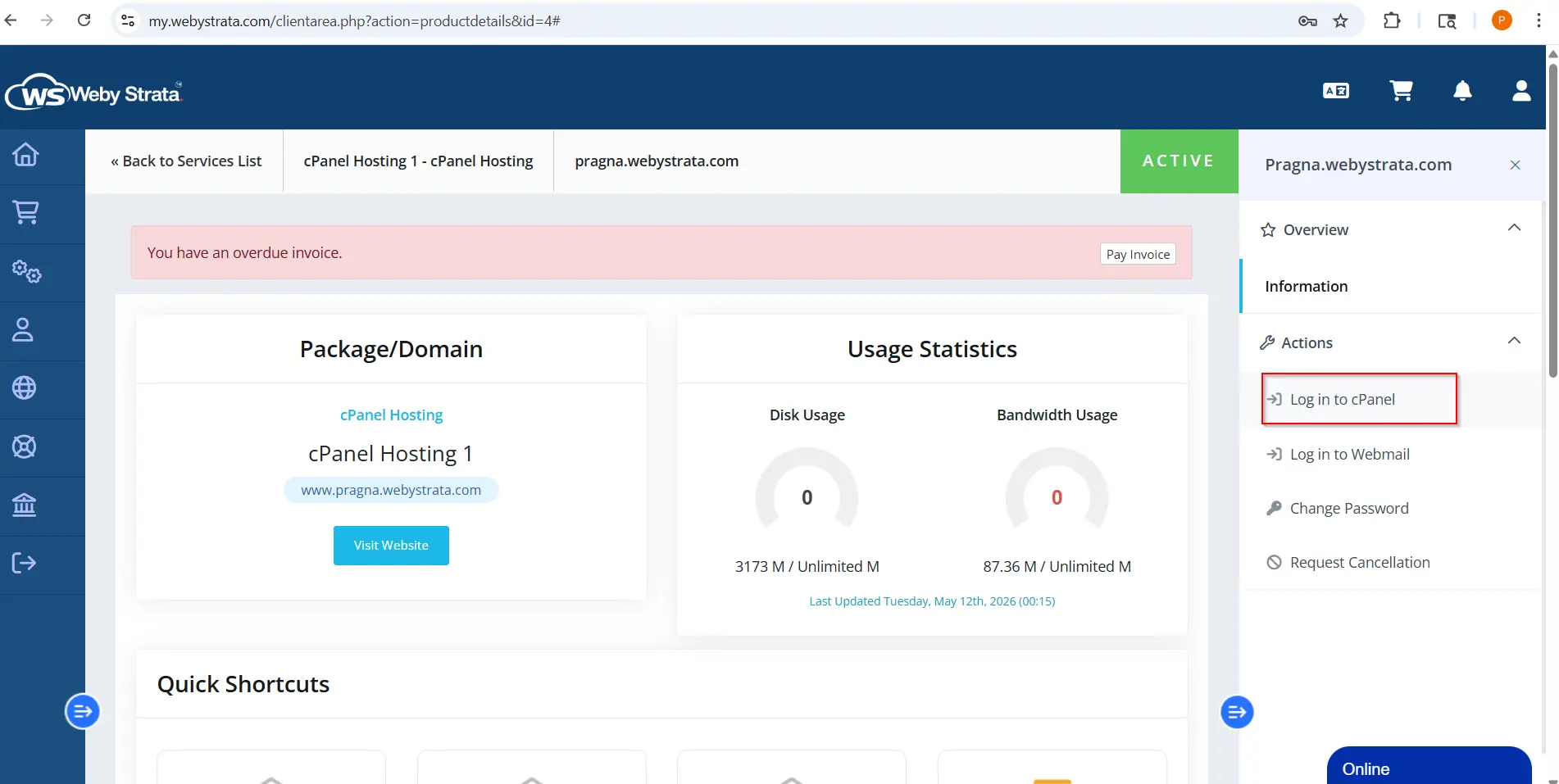
Step 1: Login to cPanel from WebyStrata Client Area
First, visit the WebyStrata website and log in to your client area account using your registered email address and password.
official Website www.webystrata.com
After logging in:
- Go to Services
- Click on My Services
- Select your active hosting service
- Click on Login to cPanel
Step 2: Open File Manager
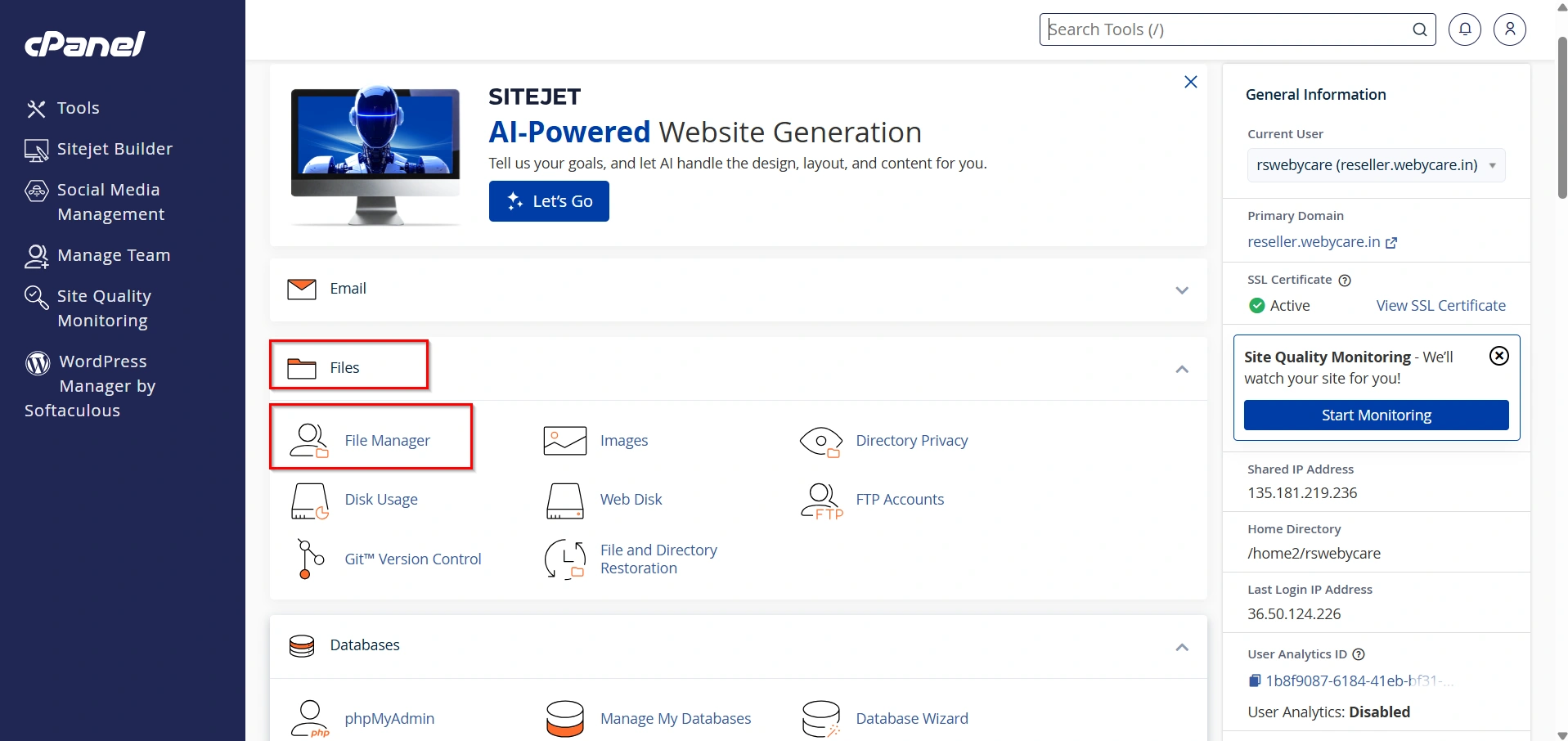
Once logged in, navigate to the Files section.
Click on:
File Manager
File Manager provides direct access to all files and folders stored within your hosting account.
Step 3: Navigate to the WordPress Installation Directory
After opening File Manager, locate your WordPress installation directory.
For most primary domains, WordPress is installed inside:
public_html
If WordPress is installed on an addon domain, subdomain, or custom directory, navigate to the corresponding folder.
Examples include:
public_html/blog
public_html/store
public_html/subdomain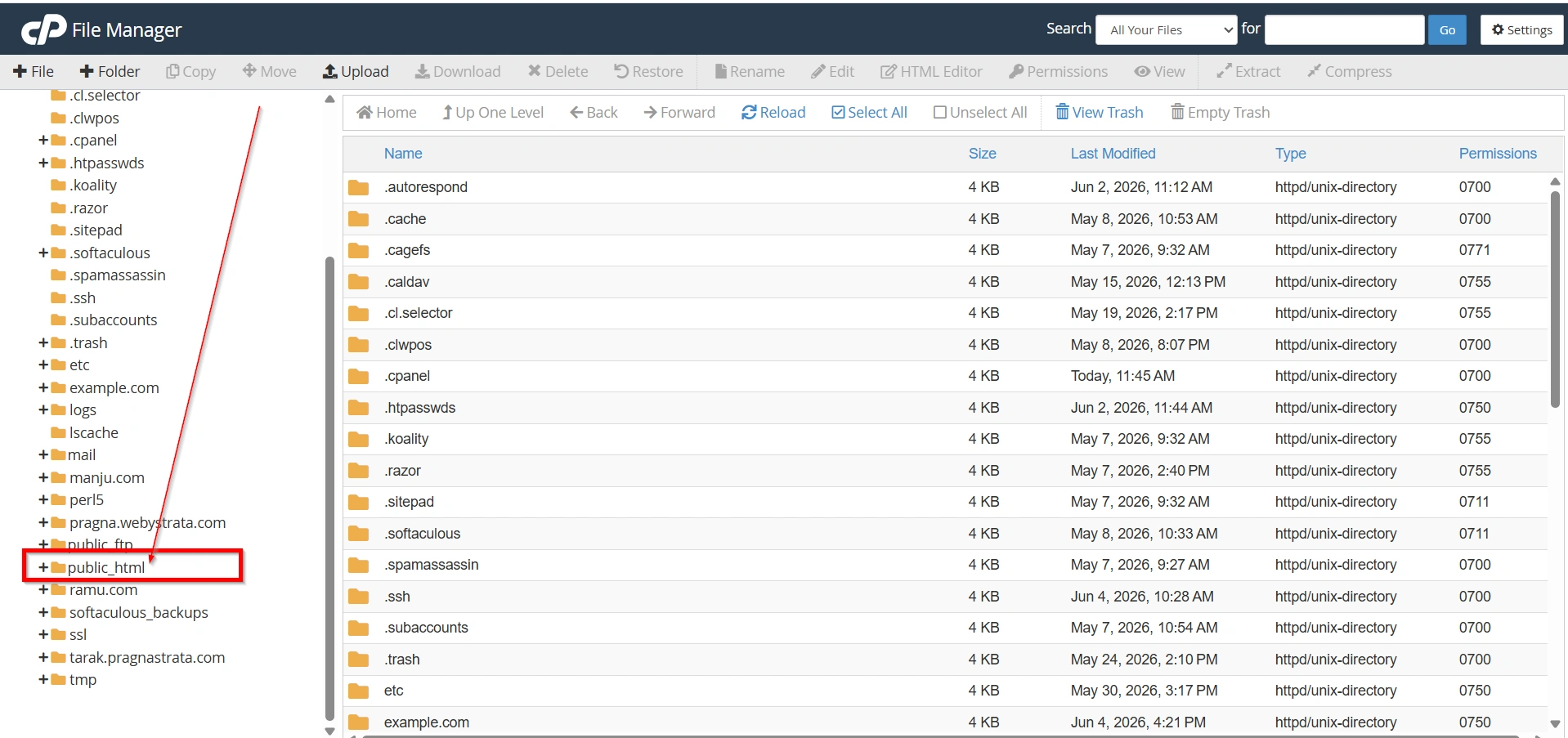
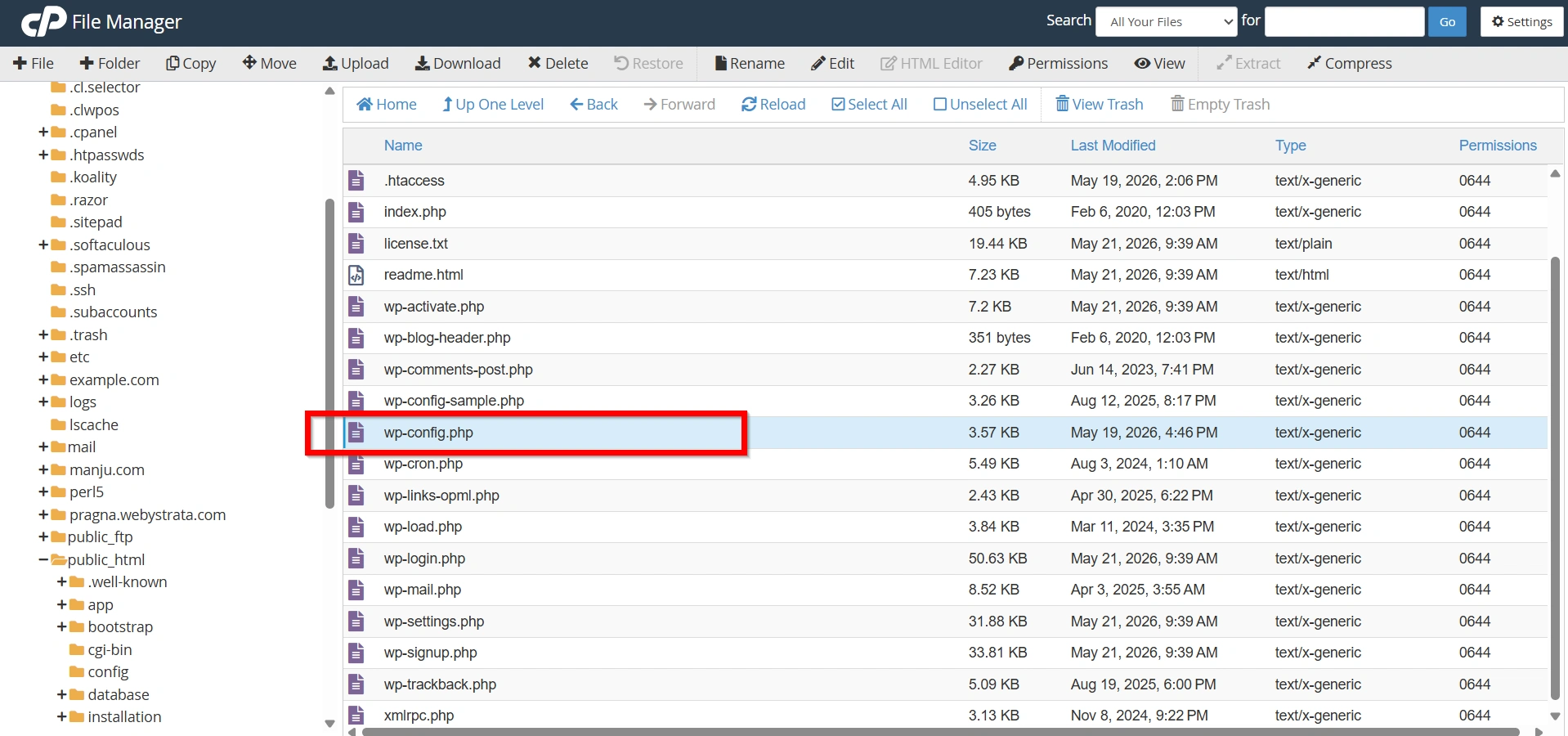
Step 4: Locate the wp-config.php File
Inside your WordPress root directory, you will find several WordPress folders and files.
Look for:
wp-admin
wp-content
wp-includes
wp-config.php
The file named wp-config.php is your WordPress configuration file.
It is typically located in the same directory as the wp-admin, wp-content, and wp-includes folders.
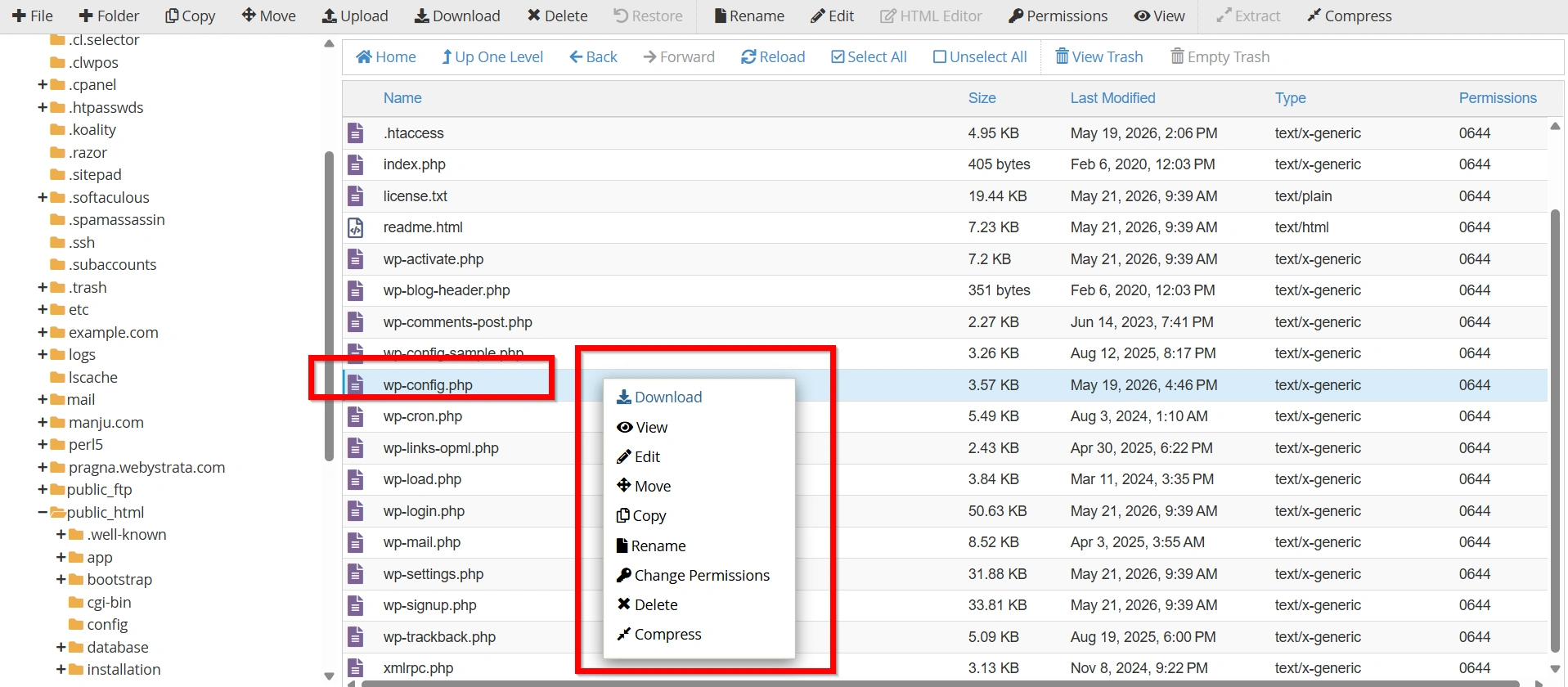
Step 5: View or Edit the File
Right-click on wp-config.php and select Edit or Code Edit.
You can now view the configuration settings stored within the file.
Important: Always create a backup before making any modifications to the wp-config.php file.
Why Might You Need to Locate wp-config.php?
There are several situations where you may need to access the WordPress configuration file:
- Troubleshooting database connection errors
- Verifying database credentials
- Migrating a WordPress website
- Enabling WordPress debugging mode
- Improving website security
- Configuring advanced WordPress settings
- Increasing PHP memory limits
- Installing custom integrations
Because this file contains sensitive information, it should always be handled carefully.
Benefits of Locating the WordPress Configuration File
- Helps verify database connection settings.
- Simplifies troubleshooting and website maintenance.
- Makes website migration easier.
- Provides access to advanced WordPress settings.
- Improves overall website management efficiency.
- Supports security enhancements and debugging tasks.
- Allows quick identification of configuration-related issues.
Conclusion
The wp-config.php file is one of the most important components of a WordPress website. It stores critical information such as database credentials, security settings, and configuration options that allow WordPress to operate correctly. Using cPanel File Manager, you can quickly locate this file within your WordPress installation directory, usually inside the public_html folder.
Knowing how to locate the WordPress configuration file can help you troubleshoot issues, manage settings, improve security, and maintain your website more effectively. Always remember to create a backup before making changes and handle the file carefully to avoid unexpected website errors.
Related Articles


