Latest Updates
How to Manage Bandwidth for Customer Accounts in WHM
How to Manage Bandwidth for Customer Accounts in WHM Bandwidth management is one of the most important responsibilities of a hosting administrator. Whether you manage a dedicated server, VPS, or reseller hosting environment, controlling…
How to Manage Bandwidth for Customer Accounts in WHM
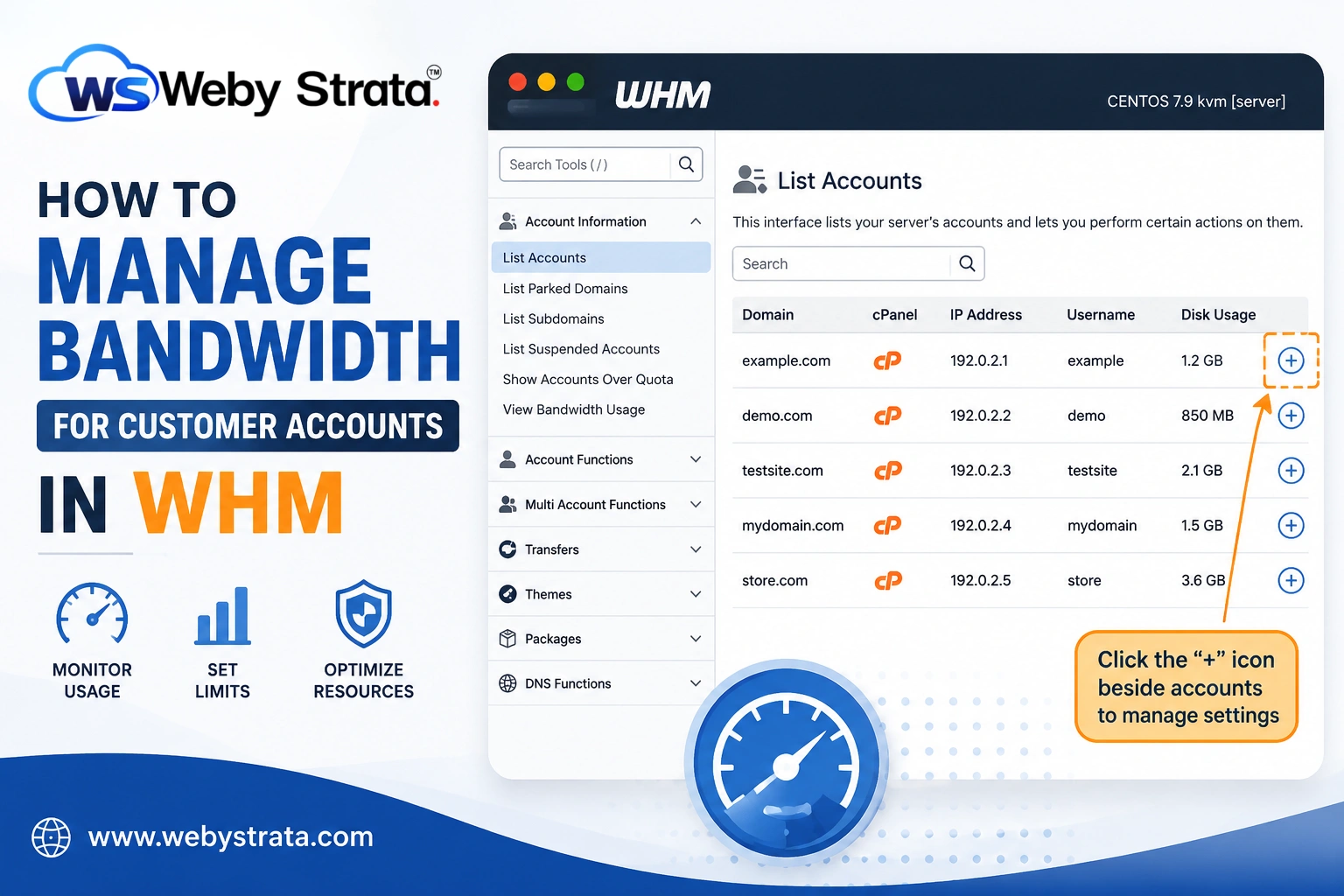
Bandwidth management is one of the most important responsibilities of a hosting administrator. Whether you manage a dedicated server, VPS, or reseller hosting environment, controlling bandwidth usage helps ensure that all hosted websites receive fair access to server resources. WHM (Web Host Manager) provides simple tools that allow administrators to monitor bandwidth consumption and configure bandwidth limits for individual hosting accounts.
By properly managing bandwidth in WHM, you can prevent resource abuse, maintain server performance, and avoid service interruptions caused by excessive traffic usage. In this guide, we will explain what bandwidth is, why it is important, and how to manage bandwidth limits for customer accounts using WHM.
What Is Bandwidth?
Bandwidth refers to the amount of data transferred between a website and its visitors during a specific period. Every time someone accesses a webpage, downloads a file, views an image, or streams content, bandwidth is consumed.
Hosting providers usually allocate a monthly bandwidth quota based on the hosting package selected by the customer. If a website receives a large number of visitors or hosts large files, it may consume bandwidth more quickly.
Bandwidth is commonly measured in:
- Megabytes (MB)
- Gigabytes (GB)
- Terabytes (TB)
Monitoring bandwidth usage helps administrators ensure that no single account consumes excessive resources that could impact other websites on the server.
Why Manage Bandwidth in WHM?
Managing bandwidth limits offers several benefits for hosting providers and server administrators.
- Better Resource Allocation
- Improved Server Performance
- Prevention of Abuse
- Easier Hosting Plan Management
- Enhanced Customer Experience
Steps to Manage Bandwidth for Customer Accounts in WHM
WHM provides built-in options to configure bandwidth limits for individual hosting accounts.
Follow the steps below to manage bandwidth usage.
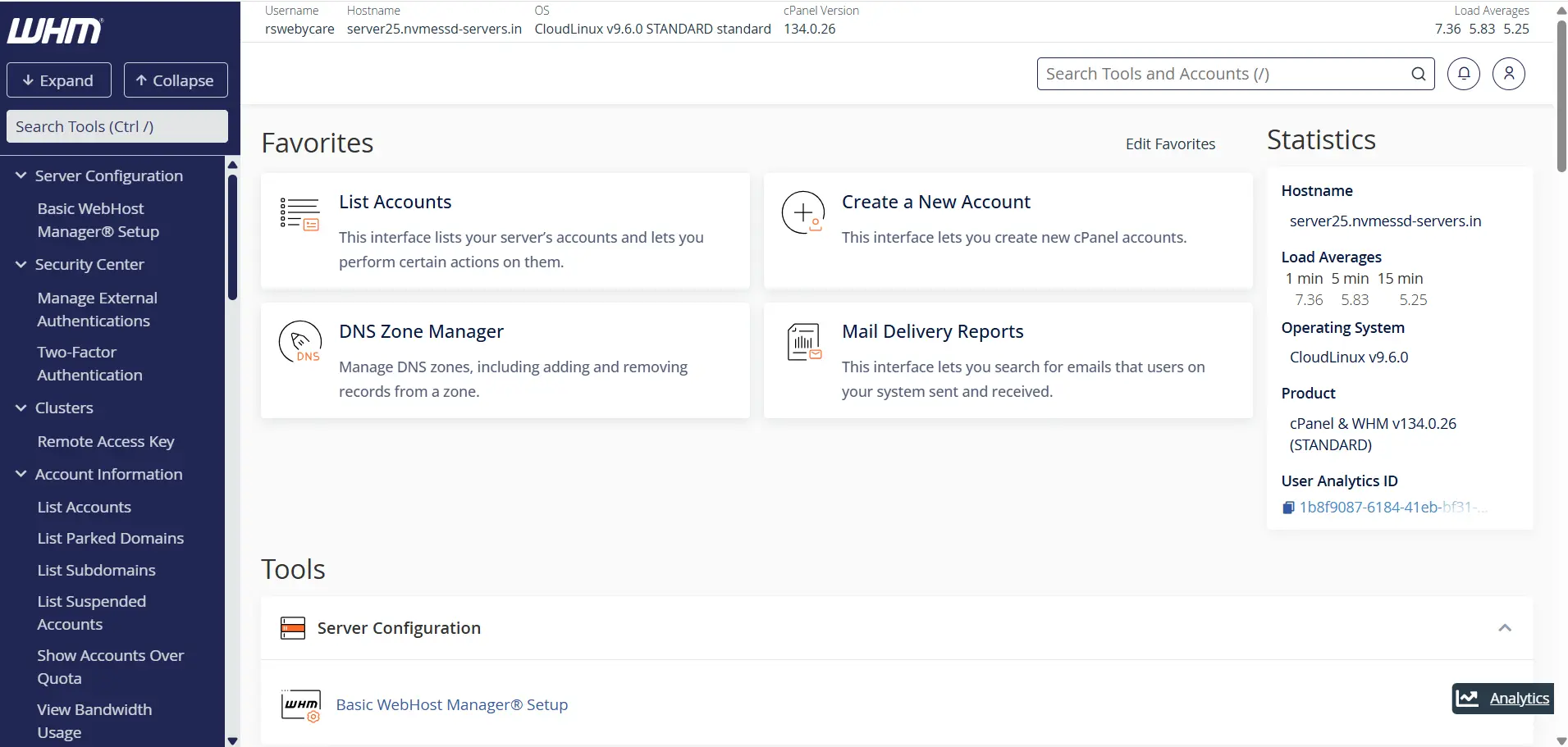
Step 1: Log in to WHM
Start by accessing your WHM dashboard.
Common WHM login URLs include:
Enter your WHM username and password to log in.
Once authenticated, you will be directed to the WHM home page where all server management tools are available.
Step 2: Open Account Information
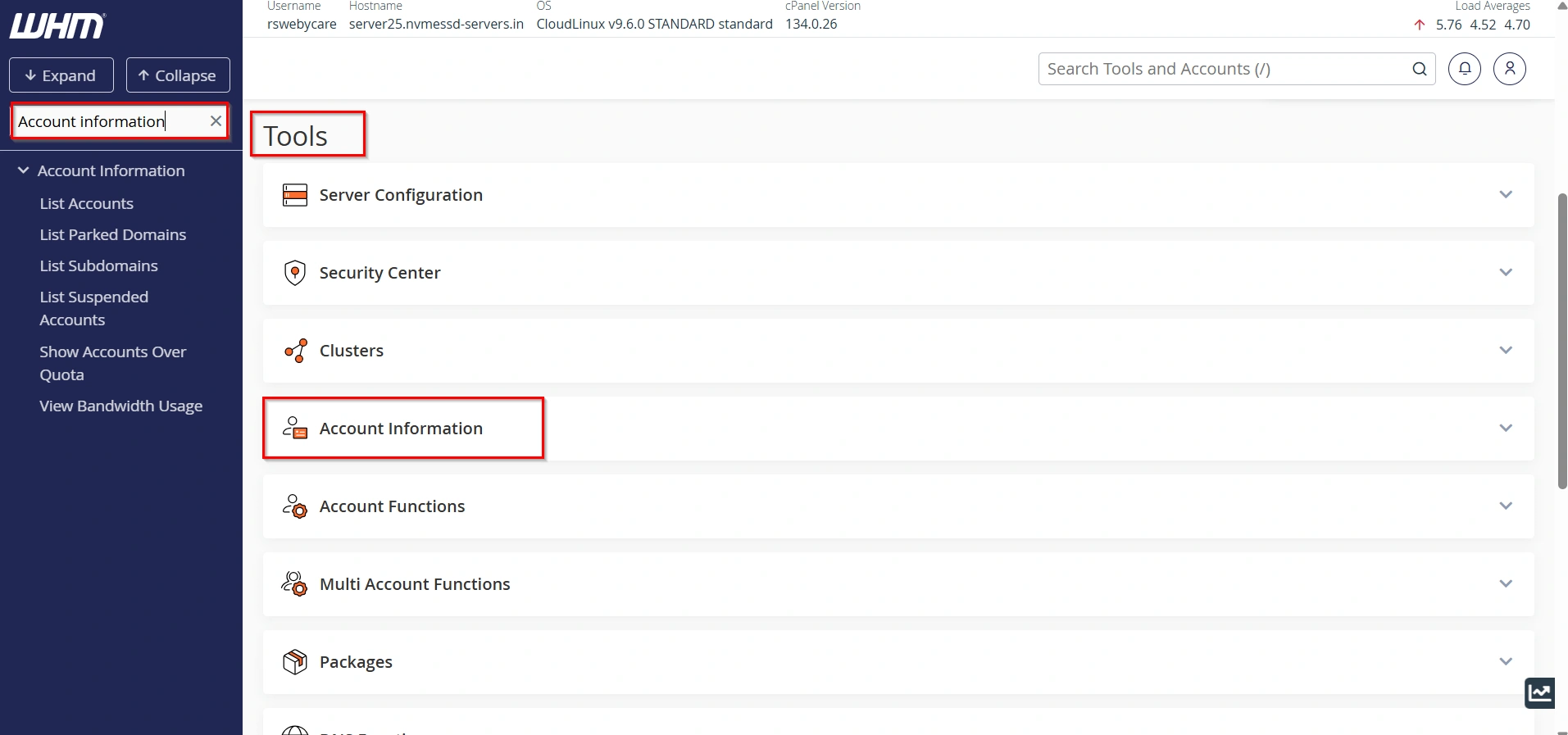
From the left-hand navigation menu, locate the search box.
Type Account Information and click the corresponding option.
This section contains tools for managing hosting accounts on the server.
Step 3: Select List Accounts
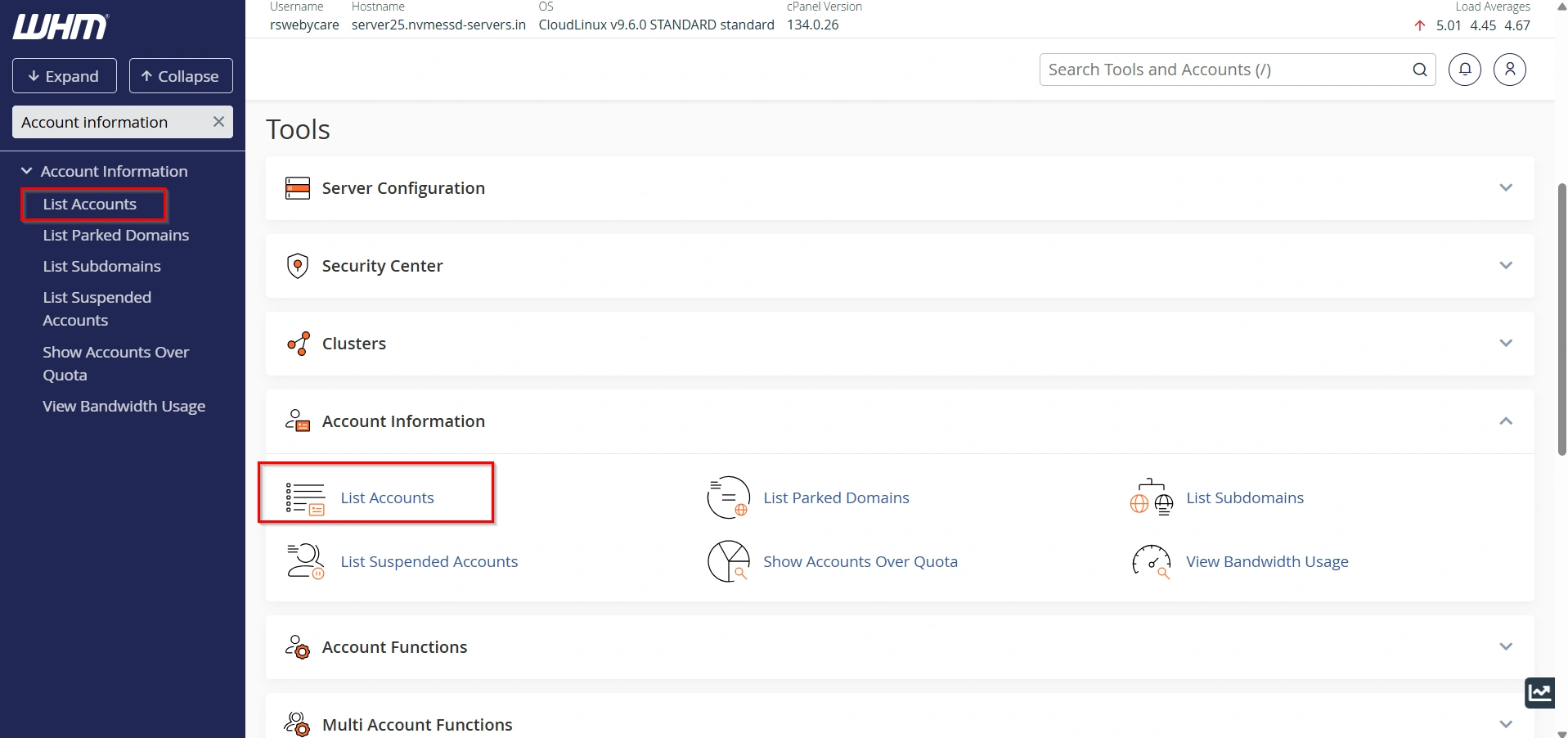
Under the Account Information section, click List Accounts.
WHM will display all hosting accounts currently hosted on the server.
You can view information such as:
- Domain name
- Username
- Package name
- Disk usage
- Bandwidth usage
- Account owner
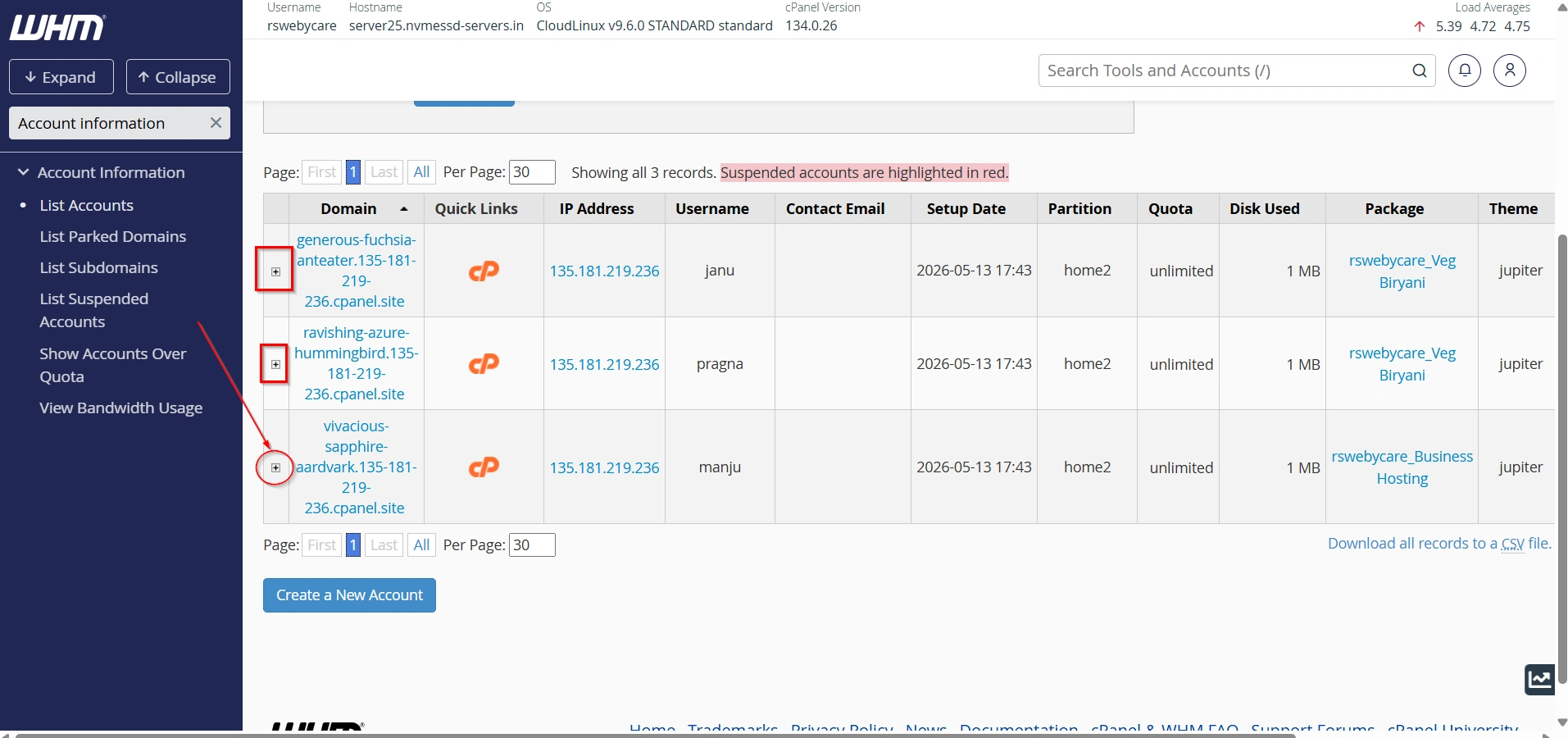
Step 4: Expand the Account Options
Locate the hosting account for which you want to configure bandwidth.
Click the “+” icon next to the account.
Additional management options will become visible.
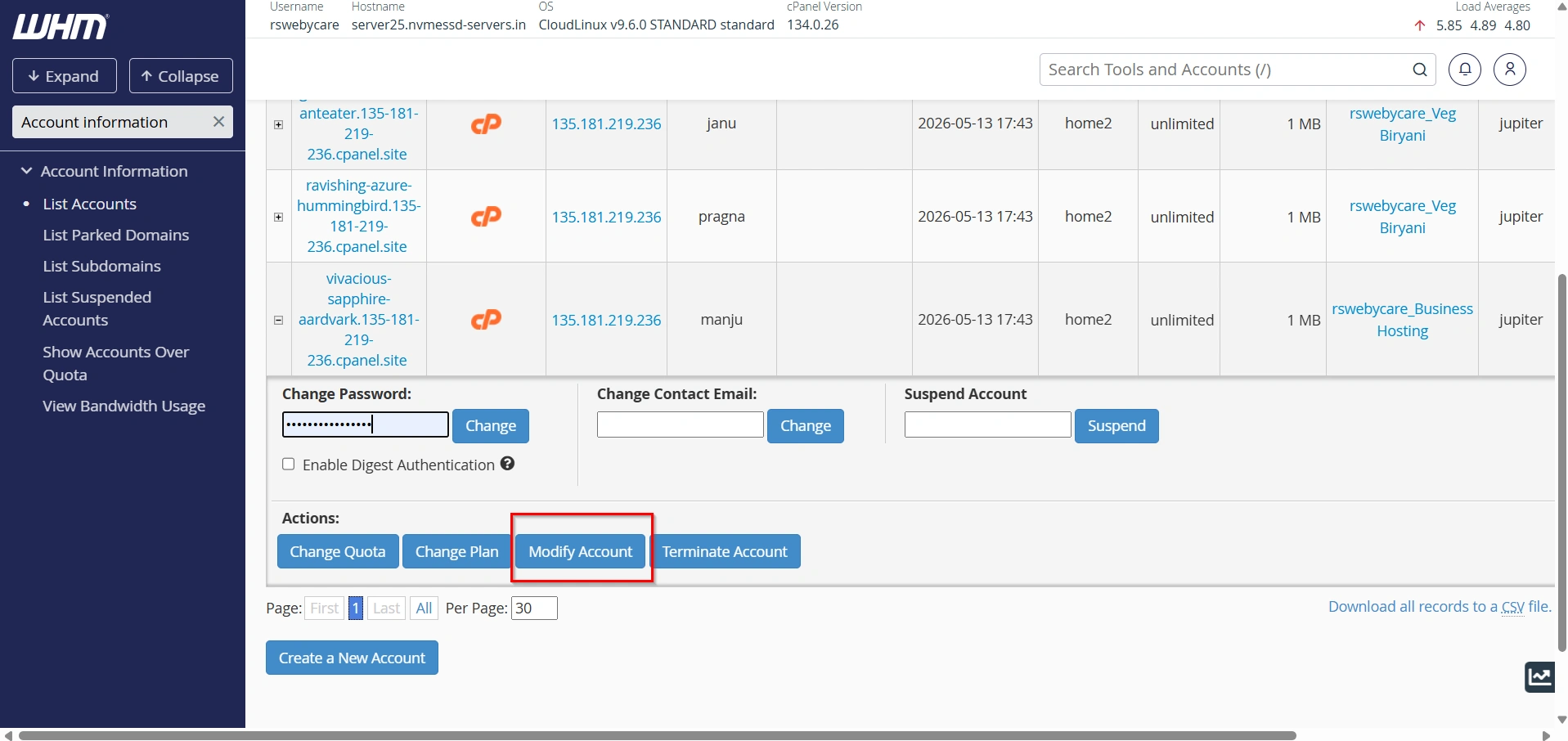
Step 5: Click Modify Account
Select Modify Account from the available options.
The Modify Account page allows administrators to adjust resource limits and account settings.
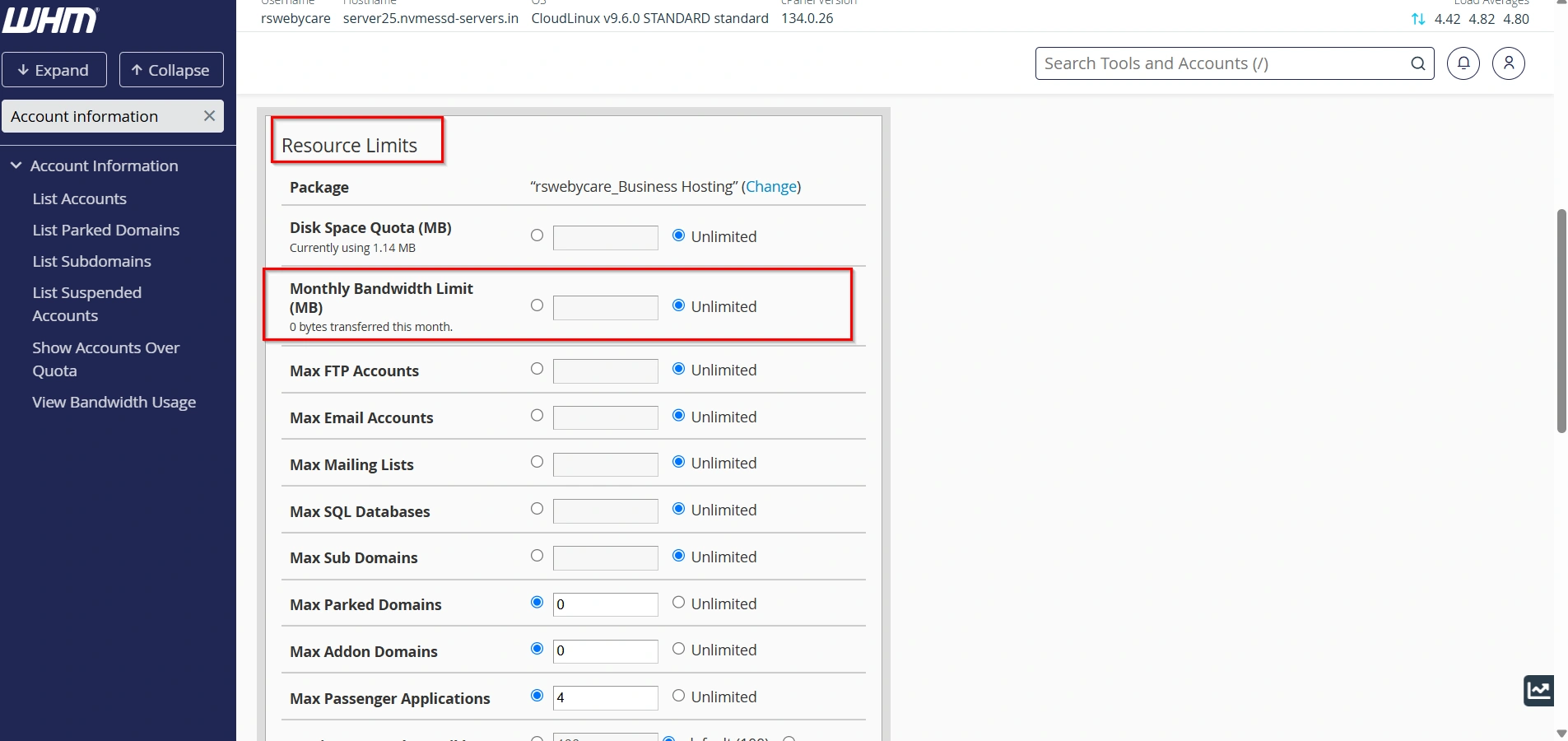
Step 6: Locate Resource Limits
Scroll down until you find the Resource Limits section.
Within this section, locate Monthly Bandwidth Limit (MB).
You will see options for setting a custom bandwidth limit or selecting unlimited bandwidth.
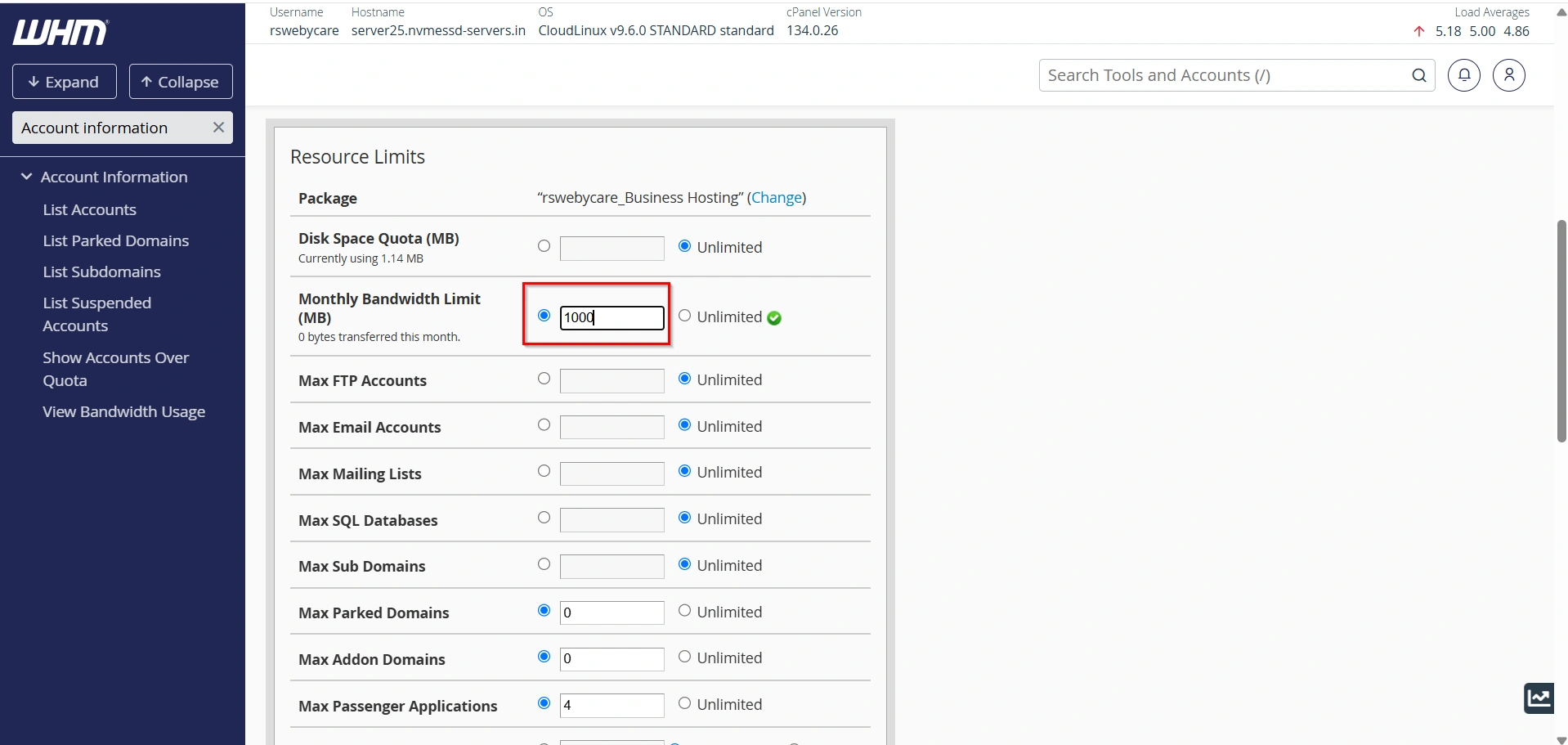
Step 7: Set the Monthly Bandwidth Limit
Select the radio button beside the empty bandwidth field.
Enter the maximum bandwidth allocation in megabytes (MB).
For example:
- 5 GB = 5,120 MB
- 10 GB = 10,240 MB
- 50 GB = 51,200 MB
- 100 GB = 102,400 MB
Choose a value that matches the customer’s hosting plan.
If you do not want any bandwidth restrictions, select the Unlimited option.
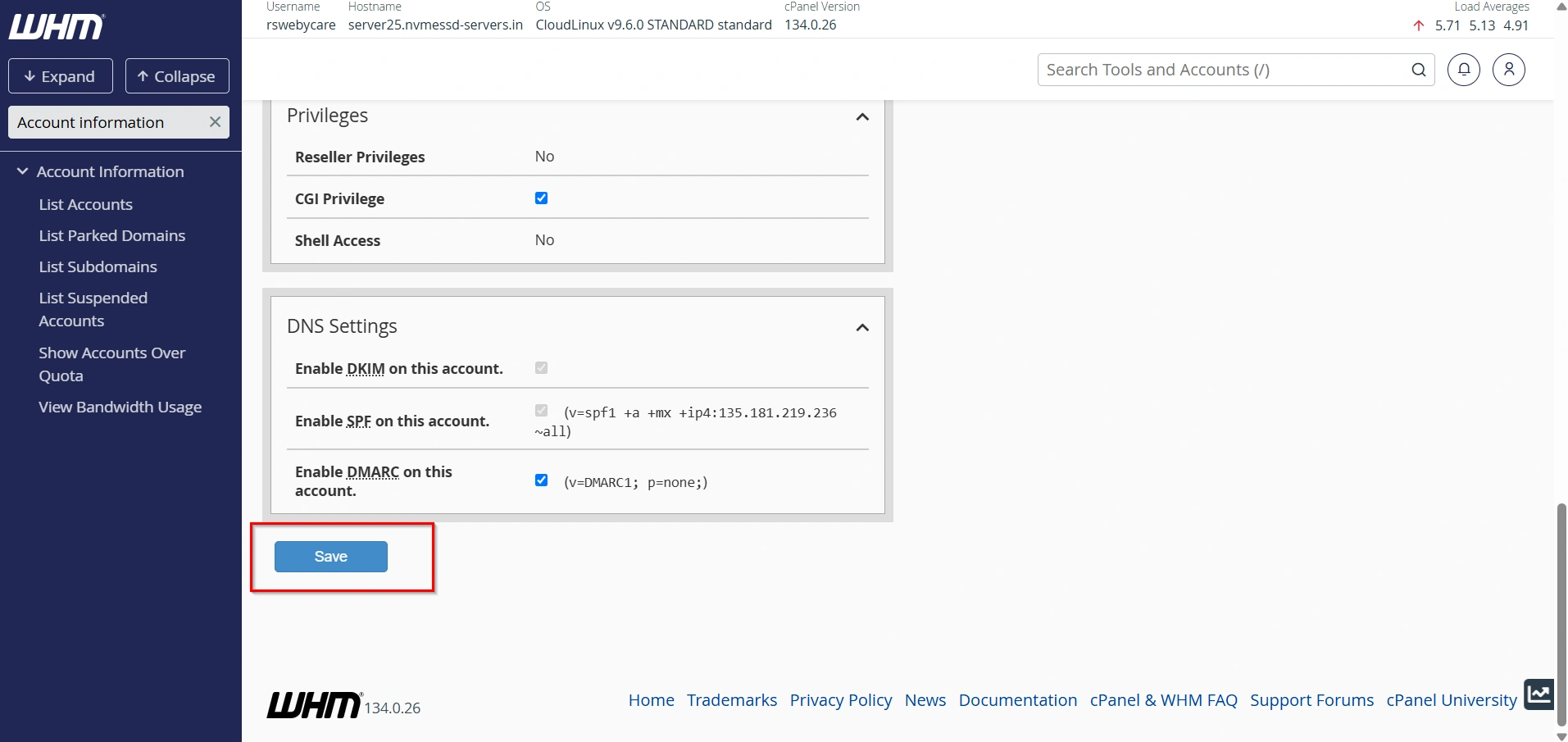
Step 8: Save the Changes
After configuring the desired bandwidth limit, scroll to the bottom of the page.
Click Save.
WHM will apply the changes and display a confirmation message indicating that the account has been updated successfully.
Important Note About Bandwidth Limits
It is important to understand that WHM checks bandwidth limits only once per day.
This means an account may temporarily exceed its configured bandwidth allocation before the system performs its daily verification process.
Because of this limitation, administrators should regularly monitor high-traffic websites and adjust bandwidth allocations when necessary.
Best Practices for Managing Bandwidth
To maximize server performance and improve customer satisfaction, consider the following best practices.
- Monitor Accounts Regularly
- Set Appropriate Limits
- Encourage Website Optimization
- Use Content Delivery Networks (CDNs)
- Upgrade High-Traffic Websites
- Investigate Traffic Spikes
Common Causes of High Bandwidth Usage
Several factors can contribute to increased bandwidth consumption:
- High website traffic
- Large image galleries
- Video streaming content
- Downloadable files
- Backup downloads
- Bot traffic
- DDoS attacks
- Poor website optimization
Understanding these causes can help administrators take corrective action before performance issues occur.
Conclusion
Managing bandwidth in WHM is a critical part of server administration. By setting appropriate monthly bandwidth limits, monitoring account usage, and responding quickly to unusual traffic patterns, hosting providers can maintain stable server performance and ensure fair resource allocation among customers. WHM provides easy-to-use tools that simplify bandwidth management, making it easier to support growing websites while maintaining a reliable hosting environment. Regular monitoring and proactive management will help you prevent bandwidth-related issues and deliver a better hosting experience for your customers.
For more WHM management tutorials and step-by-step guides,
visit our WHM knowledge base: www.webystrata.com/blog/category/whm-panel/
Related Articles


