cPanel
How to Create and Manage MySQL Databases and Users in cPanel
How to Create and Manage MySQL Databases and Users in cPanel Managing MySQL databases is one of the most important tasks in website hosting and application management. Many content management systems, business websites, eCommerce…
How to Create and Manage MySQL Databases and Users in cPanel
Managing MySQL databases is one of the most important tasks in website hosting and application management. Many content management systems, business websites, eCommerce platforms, and web applications depend on MySQL databases to store website data, user information, settings, and application content. cPanel provides a simple graphical interface that allows users to manage MySQL databases without needing advanced technical knowledge or command-line access.
In this guide, you will learn how to create MySQL databases, create database users, assign users to databases, manage user privileges, and safely delete databases and users directly from cPanel.
What is MySQL?
MySQL is a popular open-source relational database management system used by websites and web applications to store and organize data. It is widely used because of its speed, reliability, security, and compatibility with most hosting environments.
Applications such as WordPress, Joomla, Magento, Laravel projects, and many custom PHP applications use MySQL databases to store information including:
- Website content
- User accounts
- Product information
- Orders and transactions
- Website settings
- Form submissions
- Application data
Without a database, many modern websites and dynamic applications cannot function properly.
Step 1: Login to cPanel from Client Area
First, visit the WebyStrata website and log in to your client area account using your registered email address and password.
official Website www.webystrata.com
After logging in:
- Go to Services
- Click on My Services
- Select your active hosting service
- Click on Login to cPanel

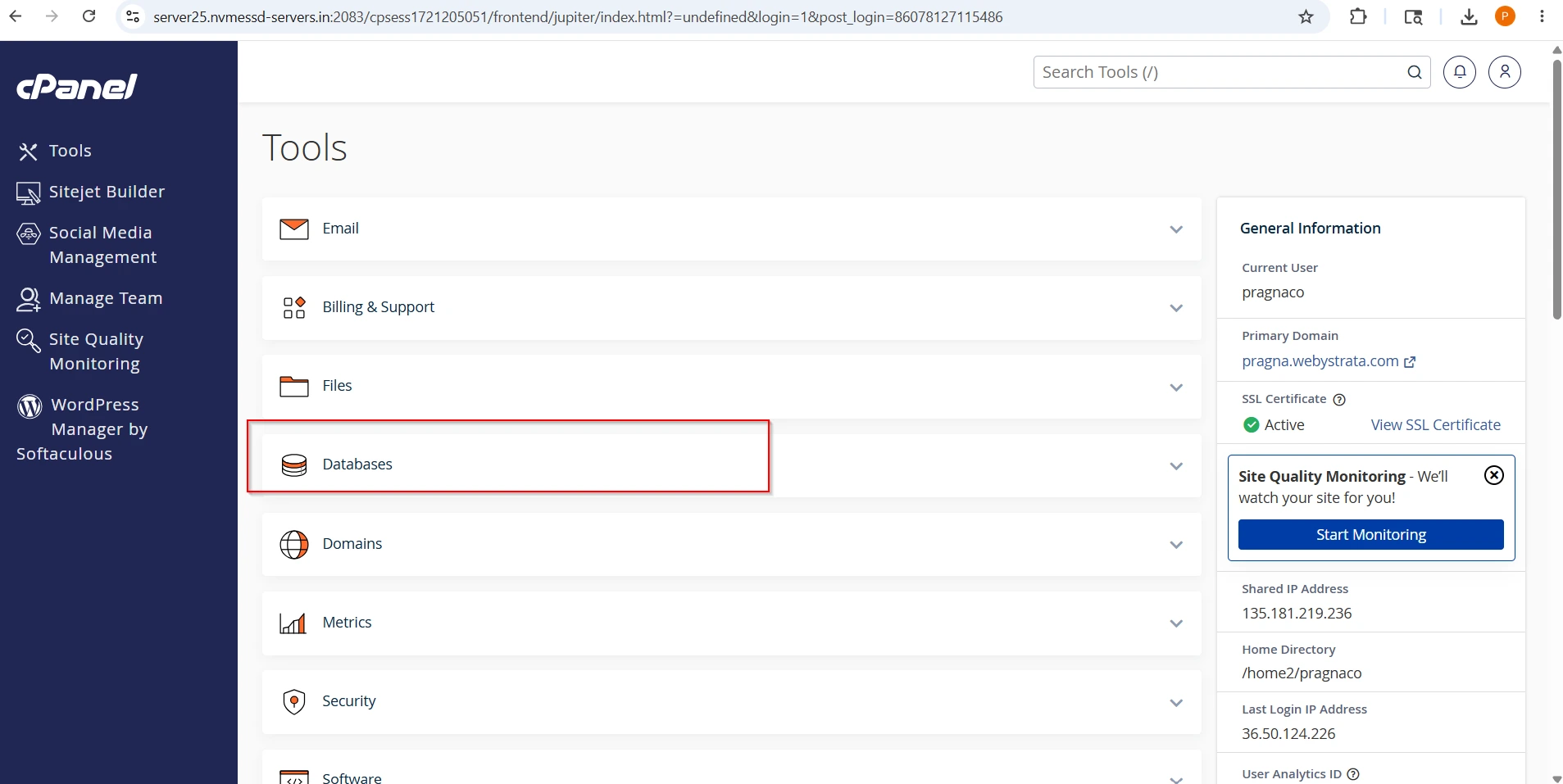
Step 2: Open MySQL® Databases
After logging in to cPanel:
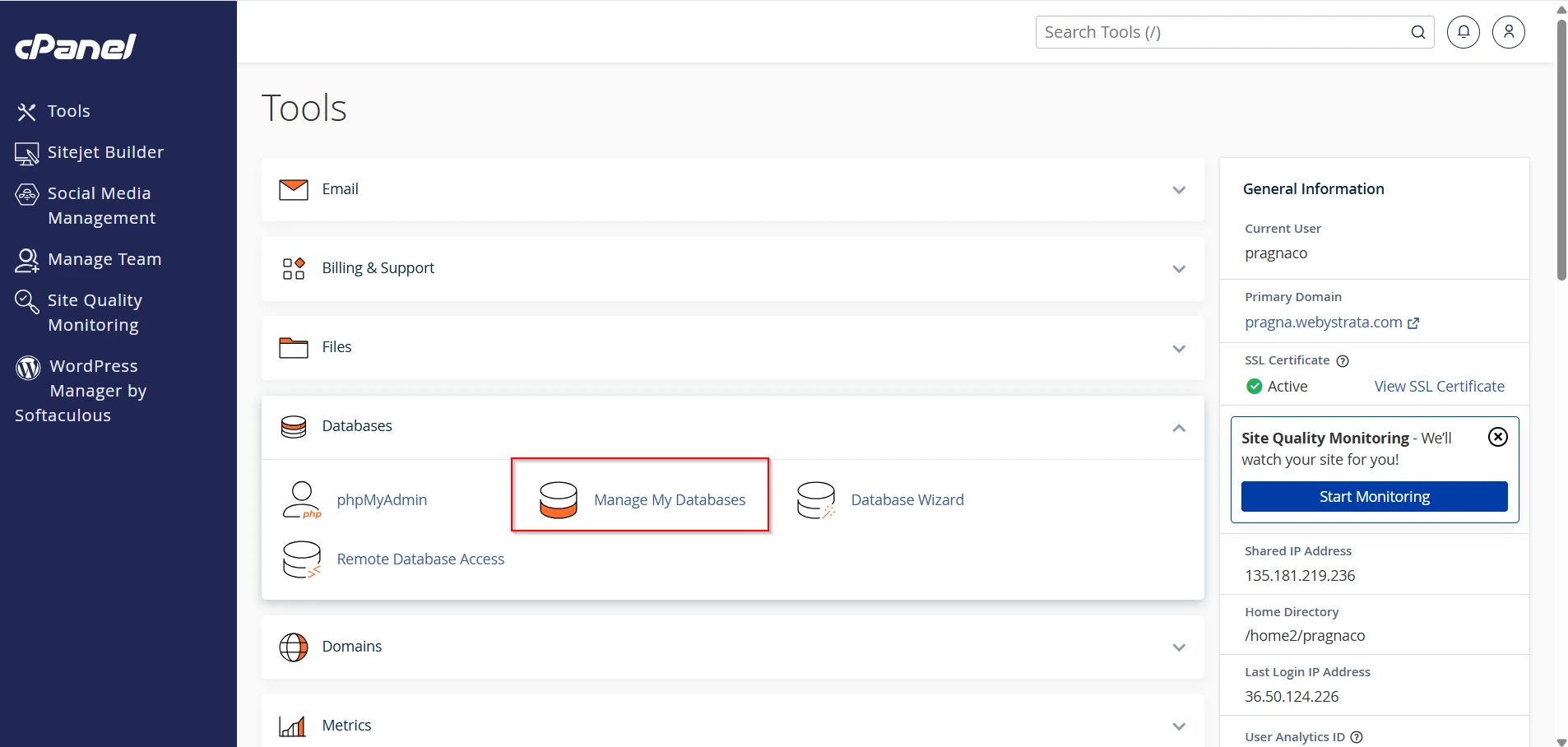
- Scroll down to the Databases section.
- Click on Manage My Databases
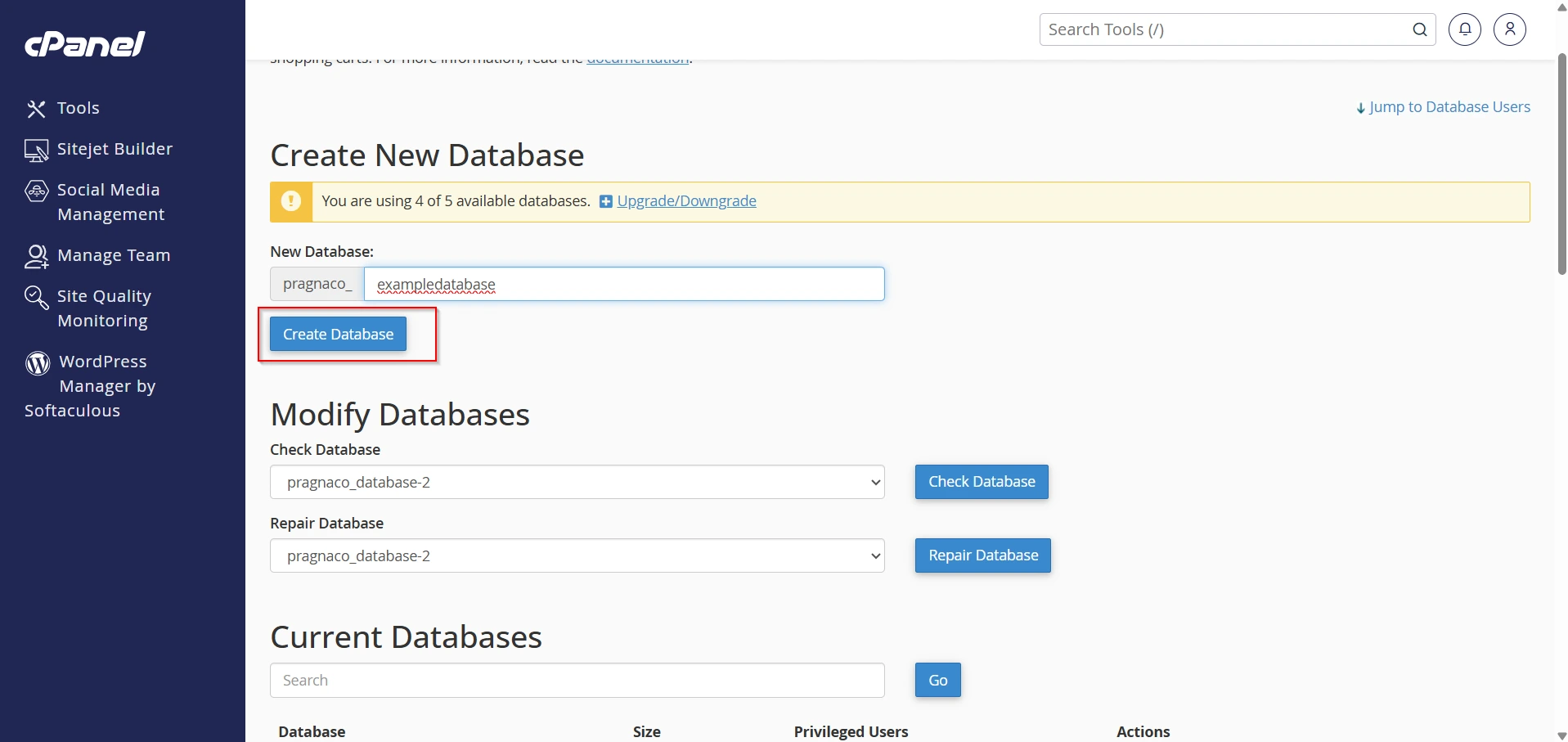
Step 3: Create a New Database
Under the Create New Database section:
- Enter your database name in the text box.
- Click on Create Database.
Example:
- Database Name:
mywebsite_db
Note: cPanel automatically adds your account username as a prefix to the database name.
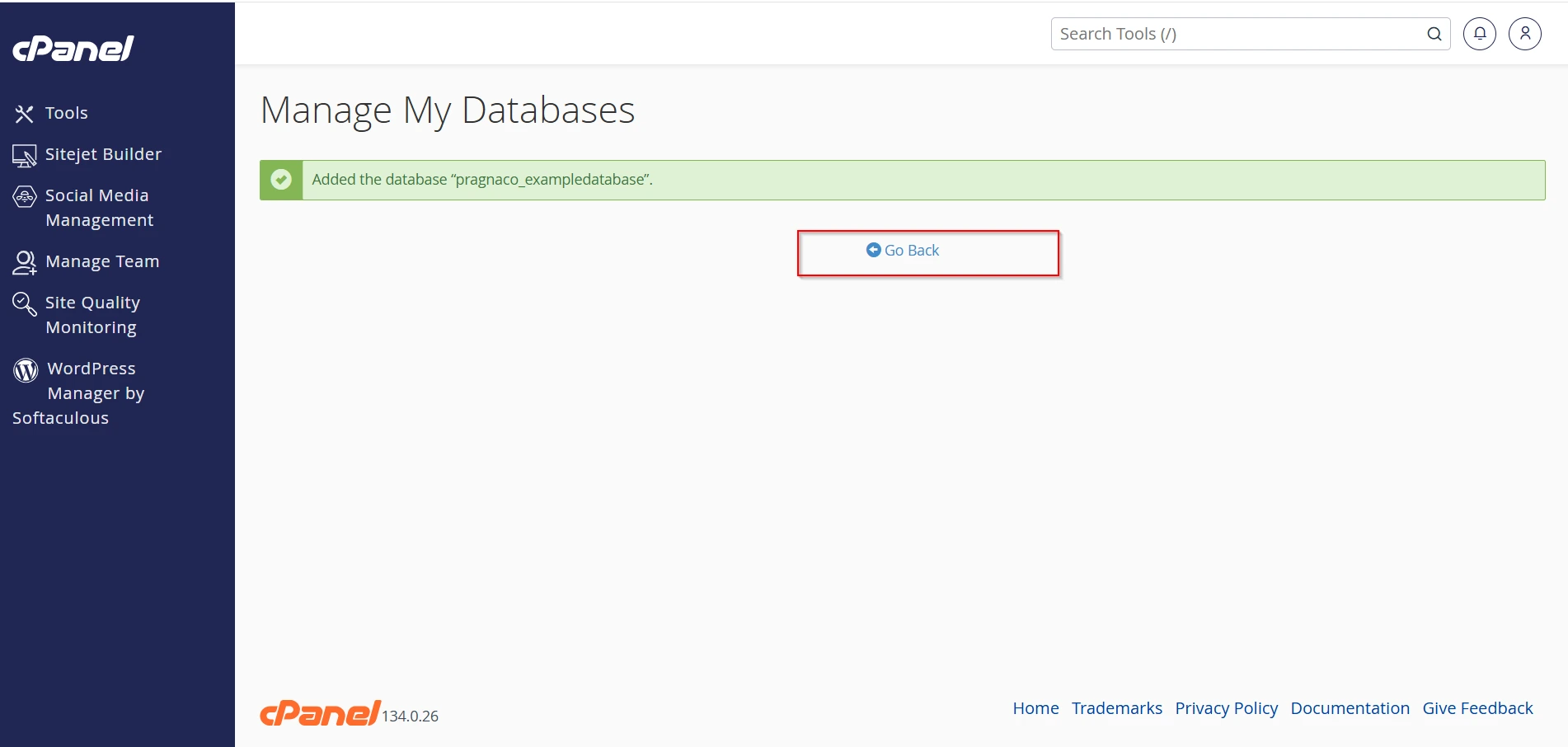
Step 4: Database Created Successfully
After clicking the button, you will see a success message confirming that the database has been created.
Click Go Back to return to the MySQL Databases page
How to Create a MySQL User in cPanel
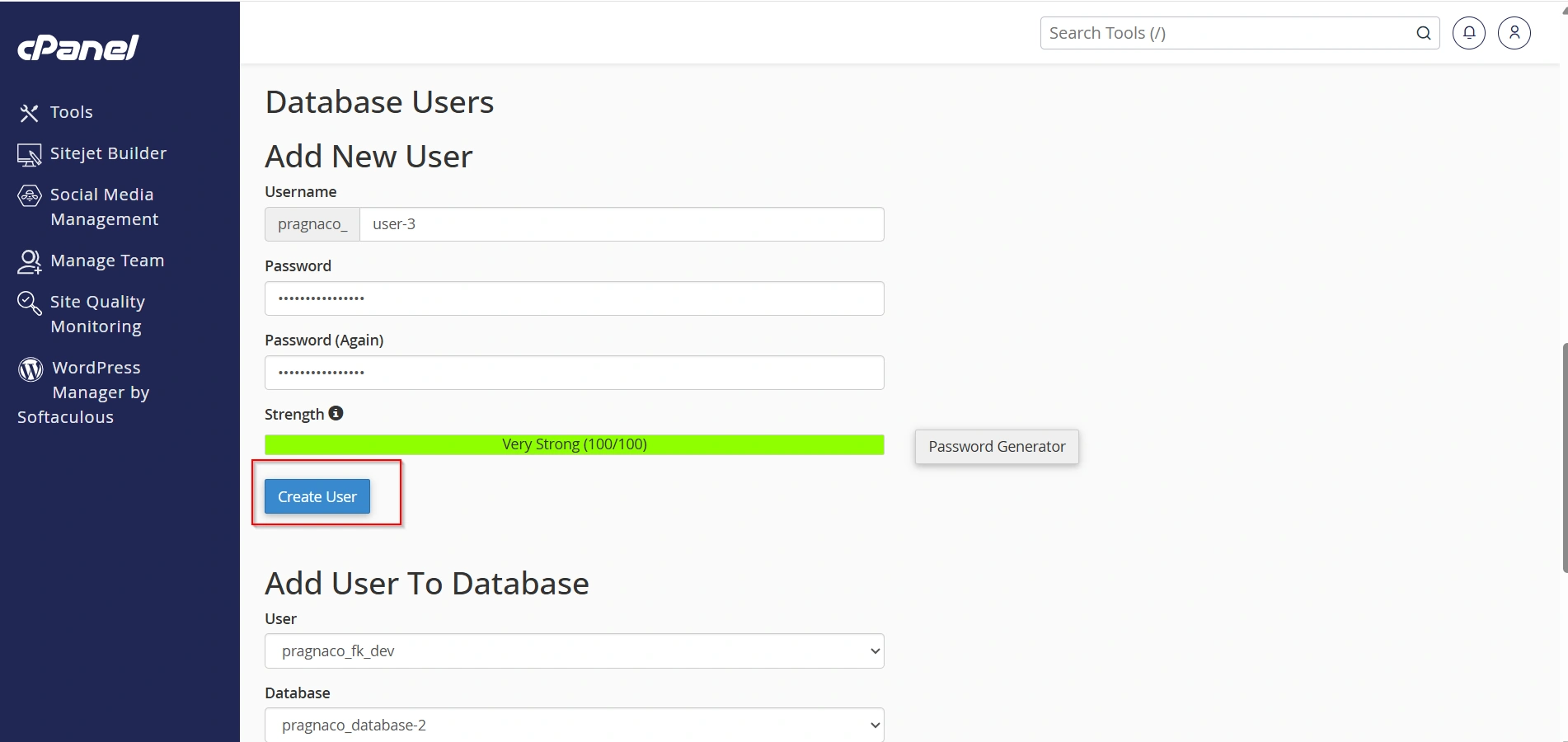
Step 5: Create a New Database User
Scroll down to the MySQL Users section.
- Enter a username in the Username field.
- Enter a strong password.
- Re-enter the password for confirmation.
- Click on Create User.
You can also use the Password Generator option to create a secure password.
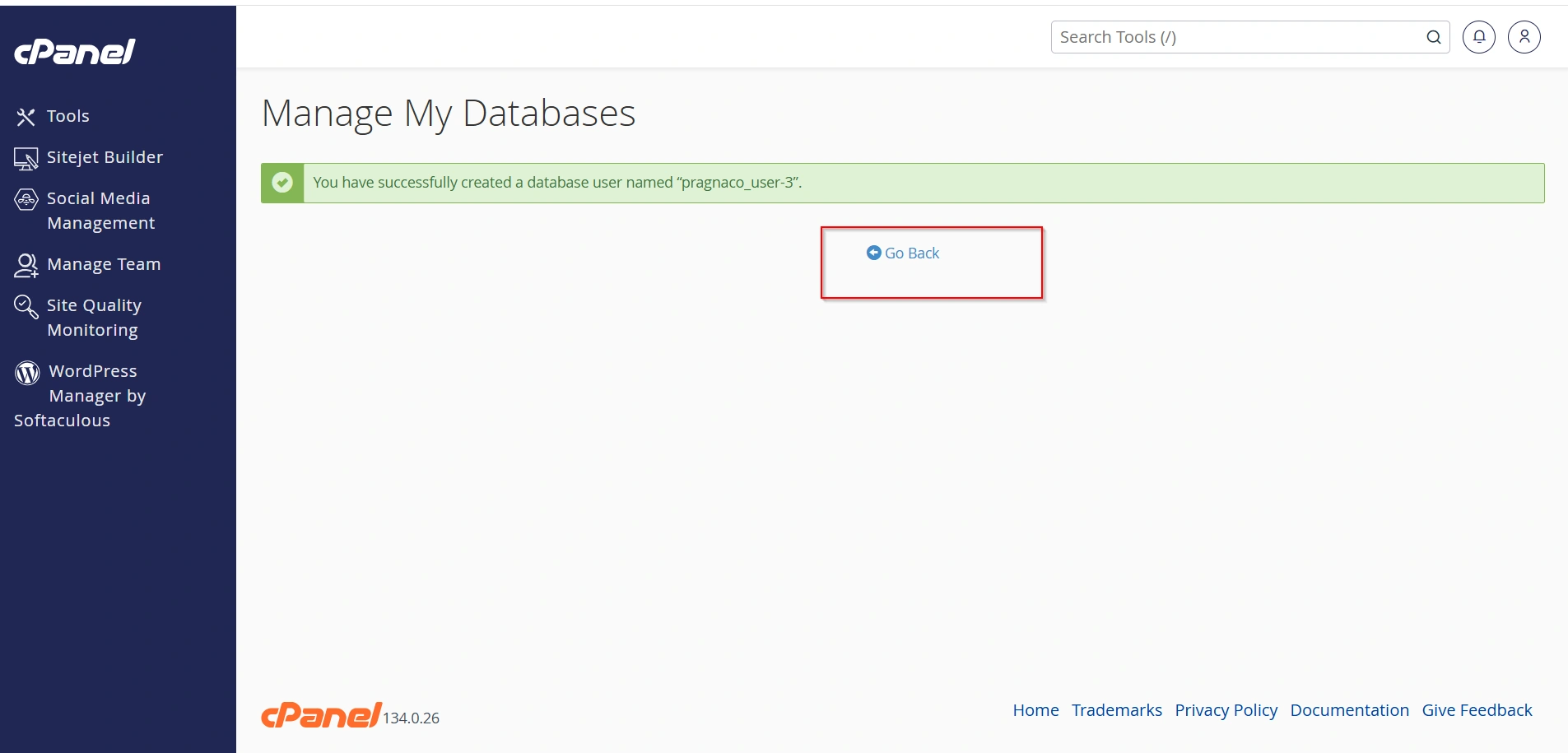
Step 6: User Created Successfully
After clicking Create User, a success message will appear confirming that the MySQL user has been created.
Click Go Back to continue.
How to Assign a User to a Database
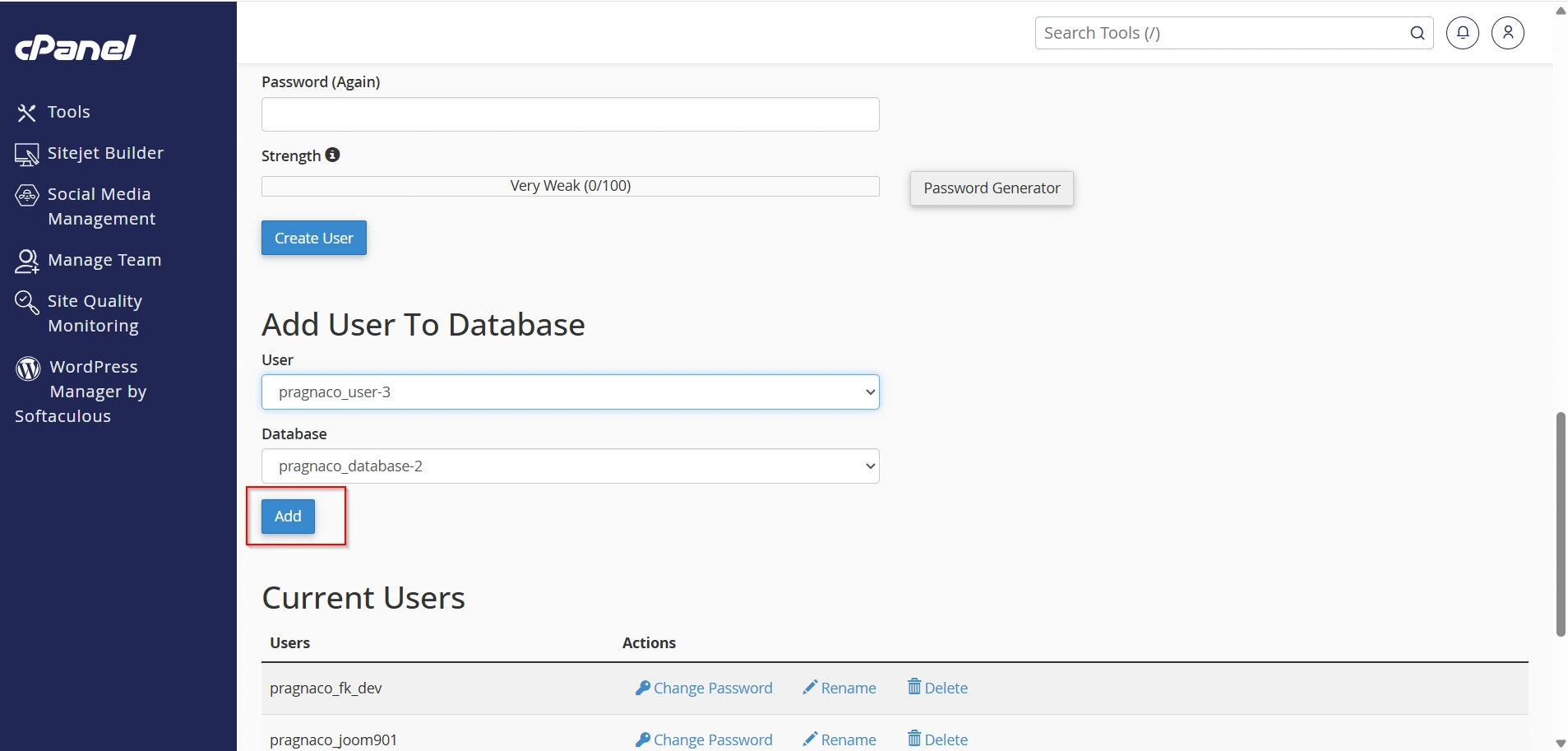
Step 7: Add User to Database
Scroll to the Add User To Database section.
- Select the database user from the User dropdown menu.
- Select the database from the Database dropdown menu.
- Click on Add.
Step 8: Assign Database Privileges
On the next page:
- Select ALL PRIVILEGES if you want the user to have full access.
- Or select specific permissions as required.
- Click on Make Changes.
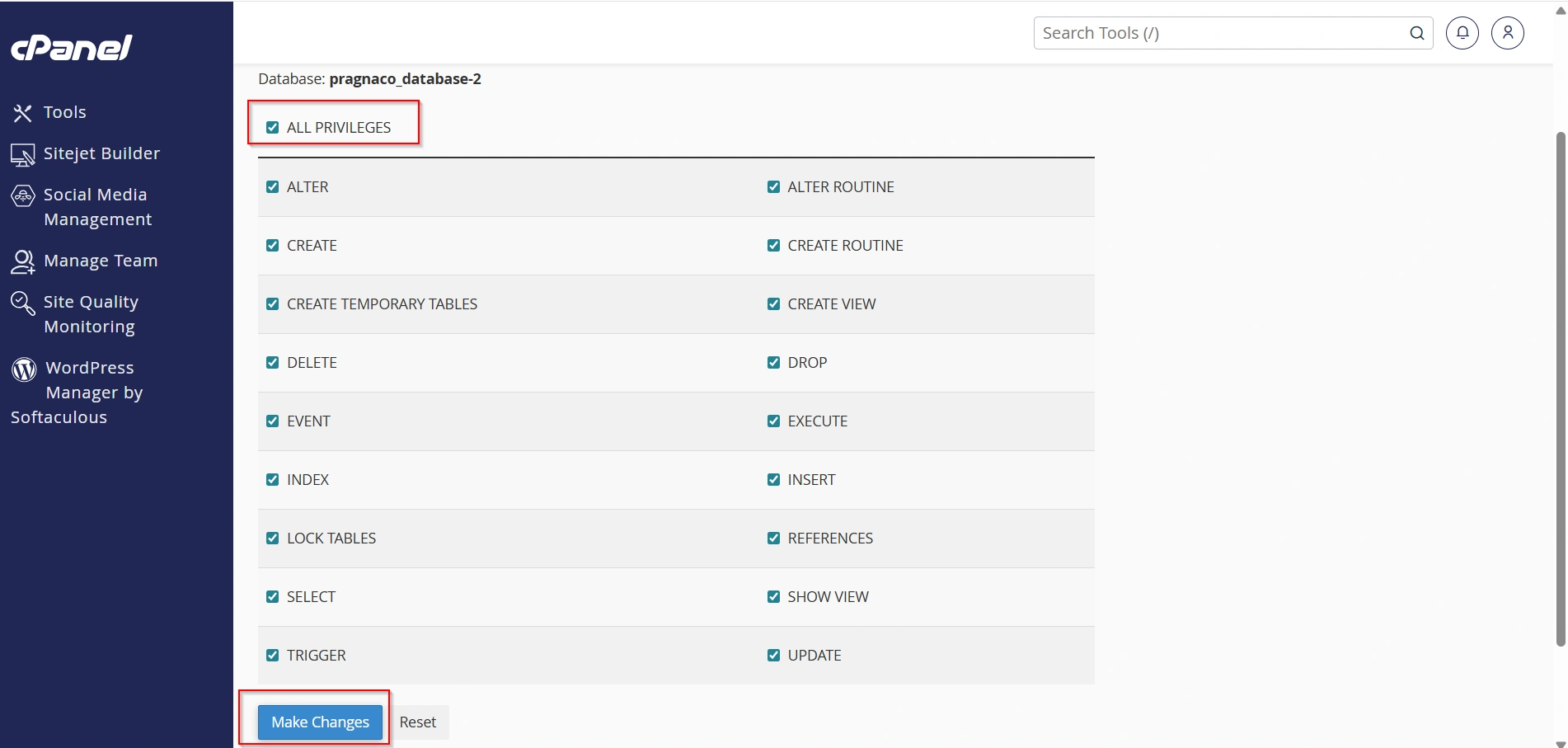
The database user is now successfully assigned to the database.
How to Delete a MySQL Database
Step 9: Open Current Databases Section
Scroll down to the Current Databases section.
Here you will see all databases available in your cPanel account.
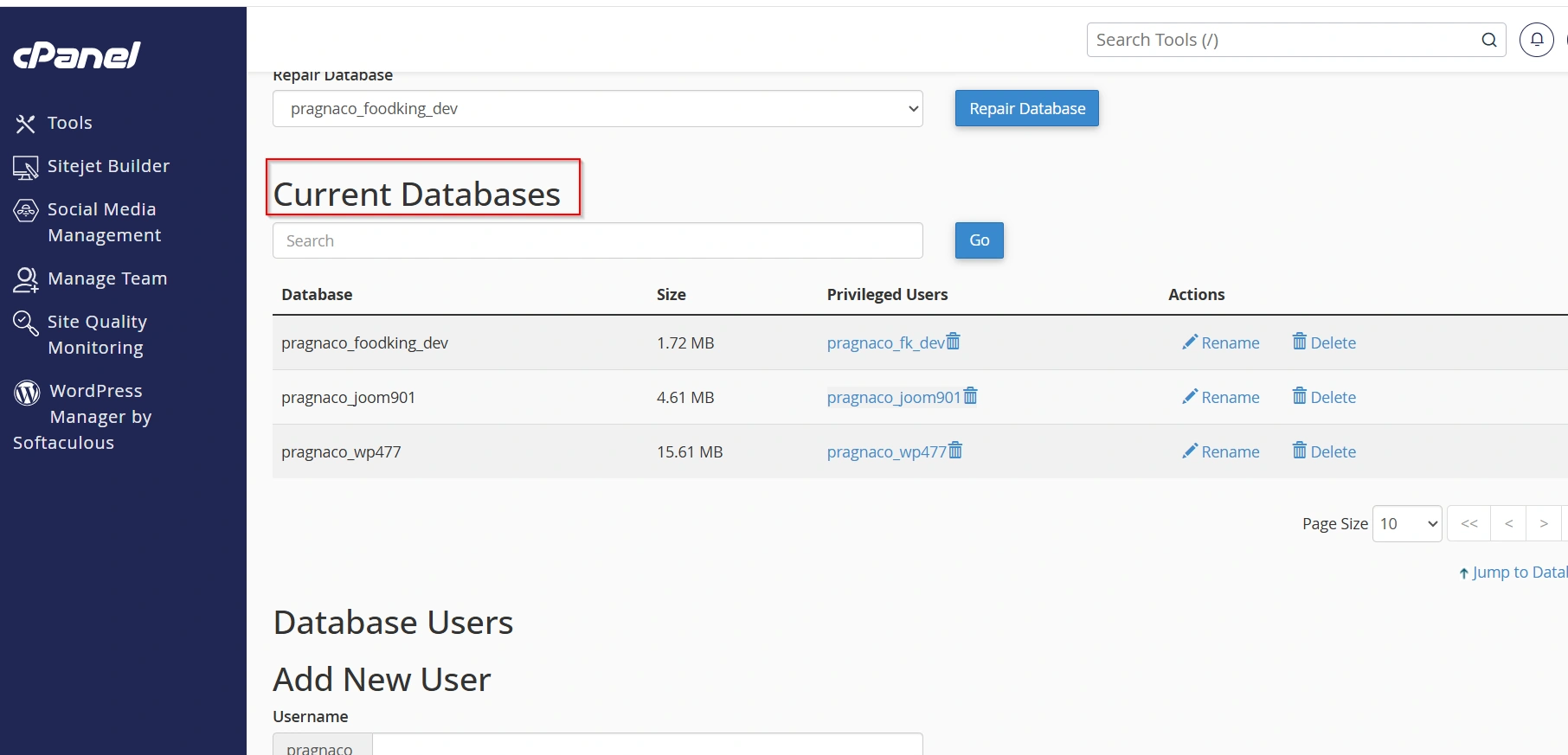
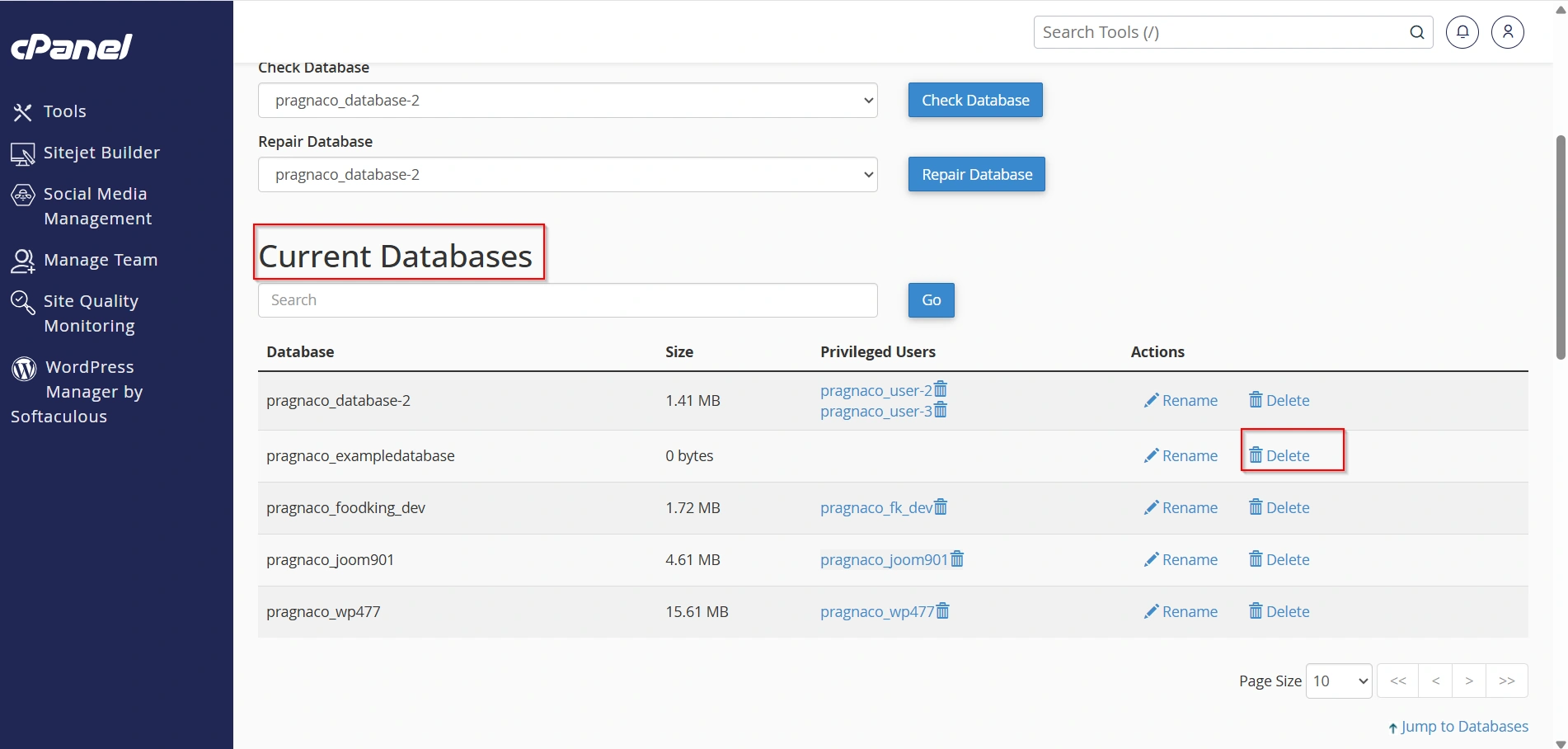
Step 10: Delete the Database
- Find the database you want to remove.
- Click on the Delete option beside the database name.
3. A confirmation popup will appear.
4. Click Delete Database to confirm.
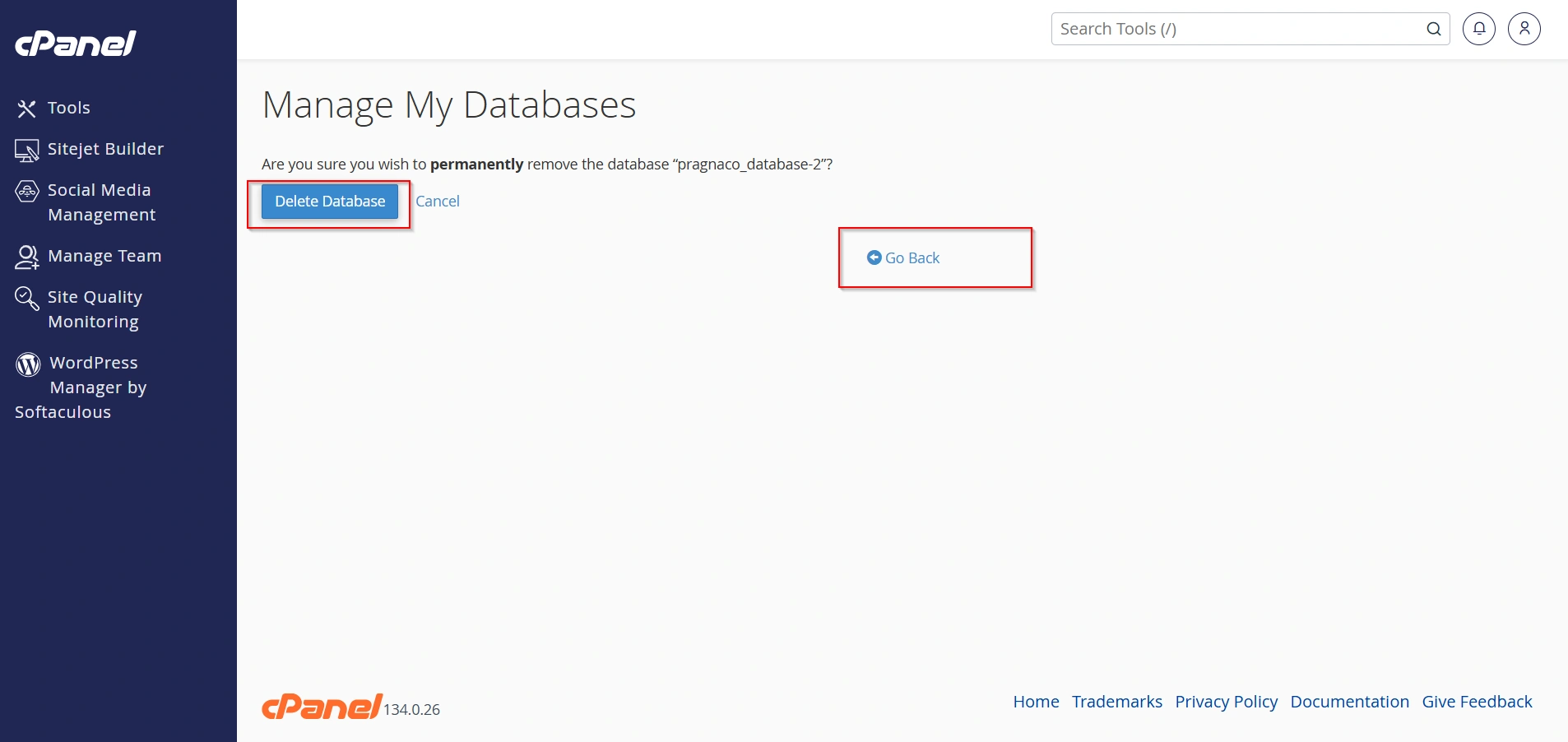
Warning: Deleting a database permanently removes all data stored inside it.
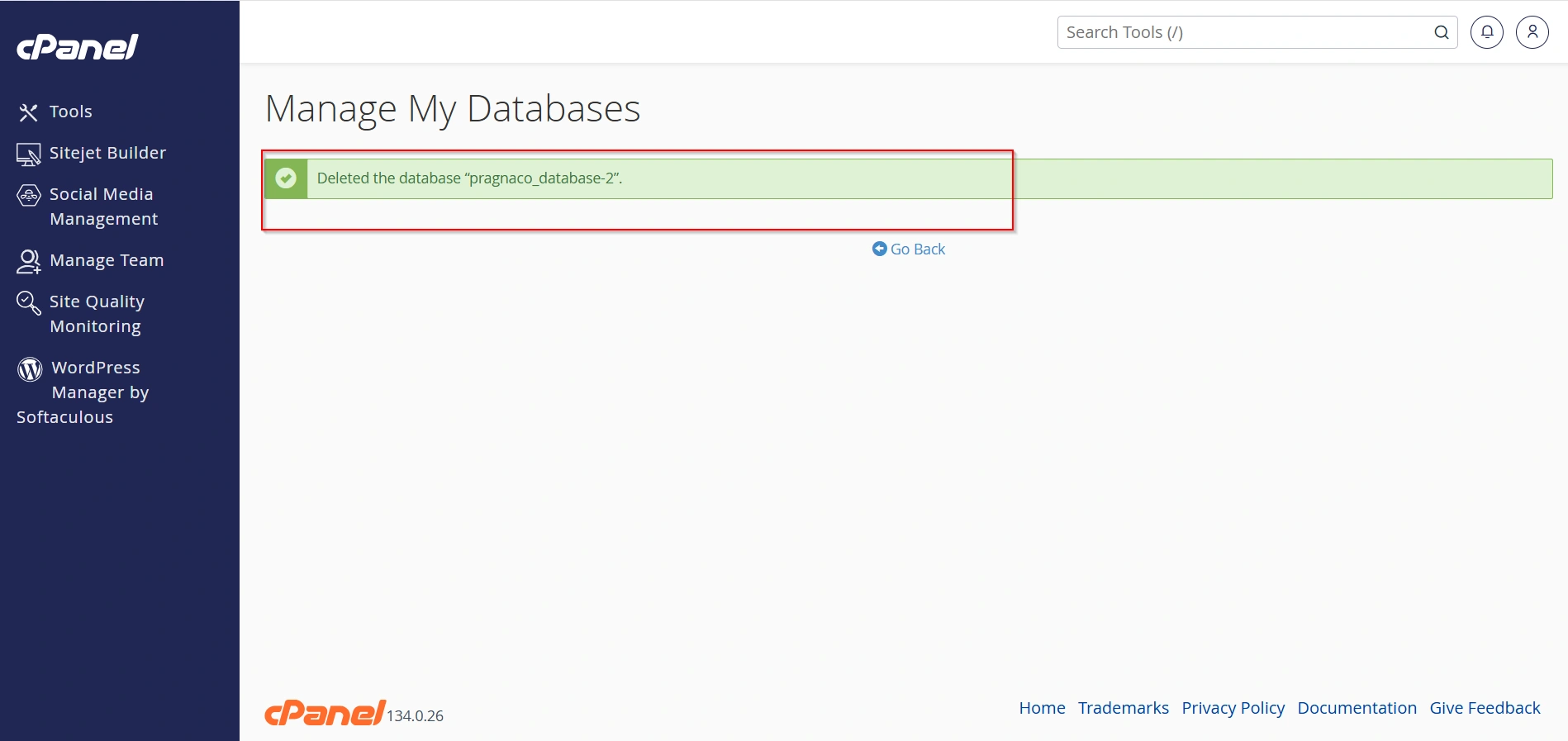
- Database deleted Successfully
Conclusion
Managing MySQL databases and users in cPanel is an essential skill for website owners, developers, and hosting users. cPanel provides a simple and efficient interface to create databases, create users, assign privileges, and safely remove unused databases or users.
By understanding proper database management practices, you can improve website security, maintain better organization, and ensure smooth website performance. Always remember to use strong passwords, assign proper permissions, and create backups before deleting any important database data.
Related Articles