cPanel
How to Access cPanel File Manager and Manage Files
Managing Website Files Using cPanel File Manager Managing website files is an essential part of website administration and hosting management. cPanel provides a powerful built-in File Manager tool that allows users to easily upload,…
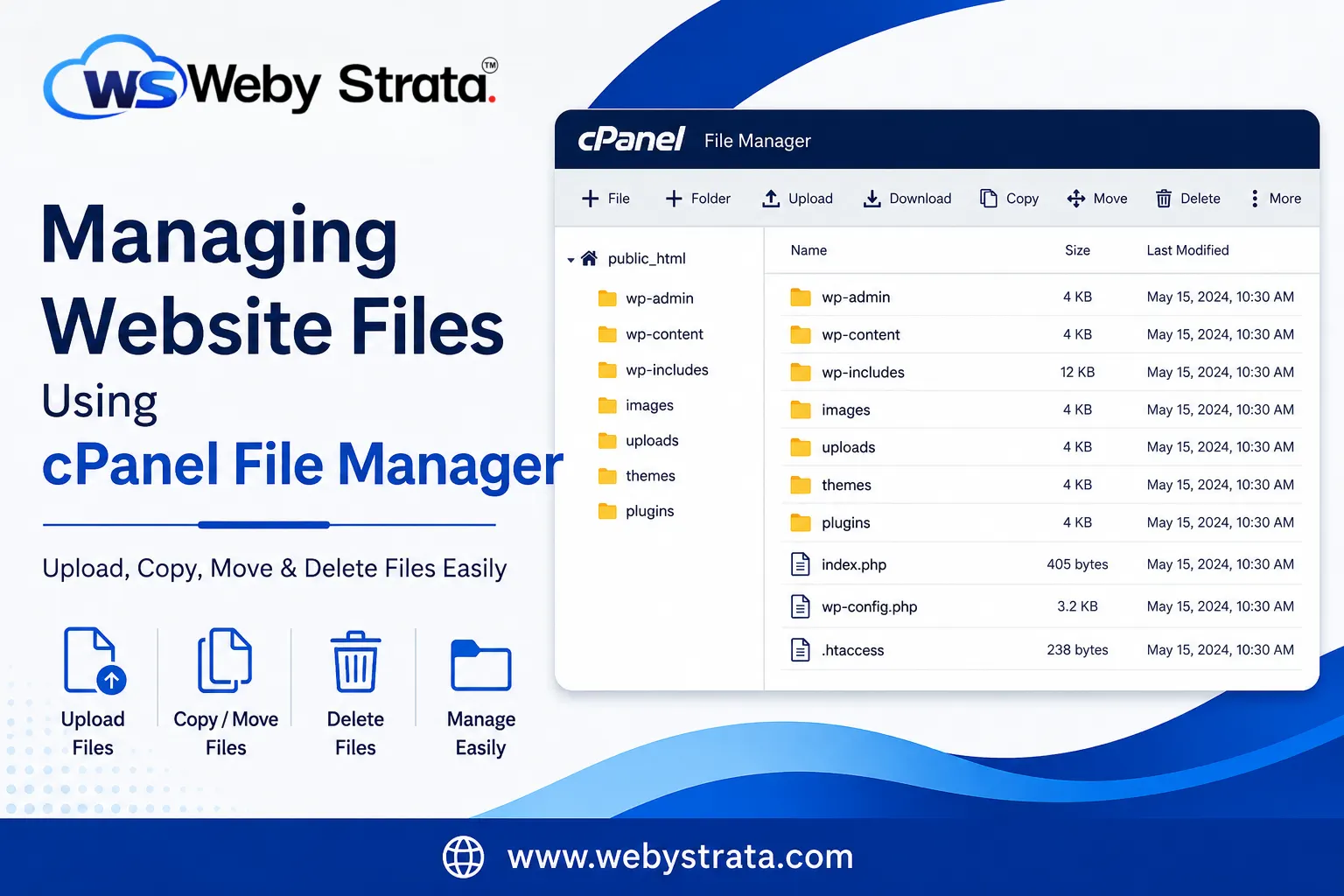
Managing Website Files Using cPanel File Manager
Managing website files is an essential part of website administration and hosting management. cPanel provides a powerful built-in File Manager tool that allows users to easily upload, edit, copy, move, and delete files directly from the browser without using any third-party FTP software.
Whether you are managing a WordPress website, uploading images, installing themes or plugins, creating backups, or organizing website folders, the cPanel File Manager simplifies the entire process with its user-friendly interface.
In this article, we will explain how to access the cPanel File Manager, upload files, copy or move files, and safely delete unnecessary files from your hosting account.
What is cPanel File Manager?
cPanel File Manager is a web-based file management tool available inside the cPanel hosting dashboard. It helps website owners manage website files and folders without requiring external FTP applications.
Using File Manager, users can:
- Upload website files
- Create or delete folders
- Copy and move files
- Edit website code
- Manage WordPress files
- Extract ZIP archives
- Change file permissions
It is one of the most commonly used tools for website maintenance and hosting management.
How to Access cPanel File Manager
Follow these simple steps to access File Manager in cPanel.
Step 1: Login to cPanel from WebyStrata Client Area
First, visit the WebyStrata website and log in to your client area account using your registered email address and password.
official Website www.webystrata.com
After logging in:
- Go to Services
- Click on My Services
- Select your active hosting service
- Click on Login to cPanel
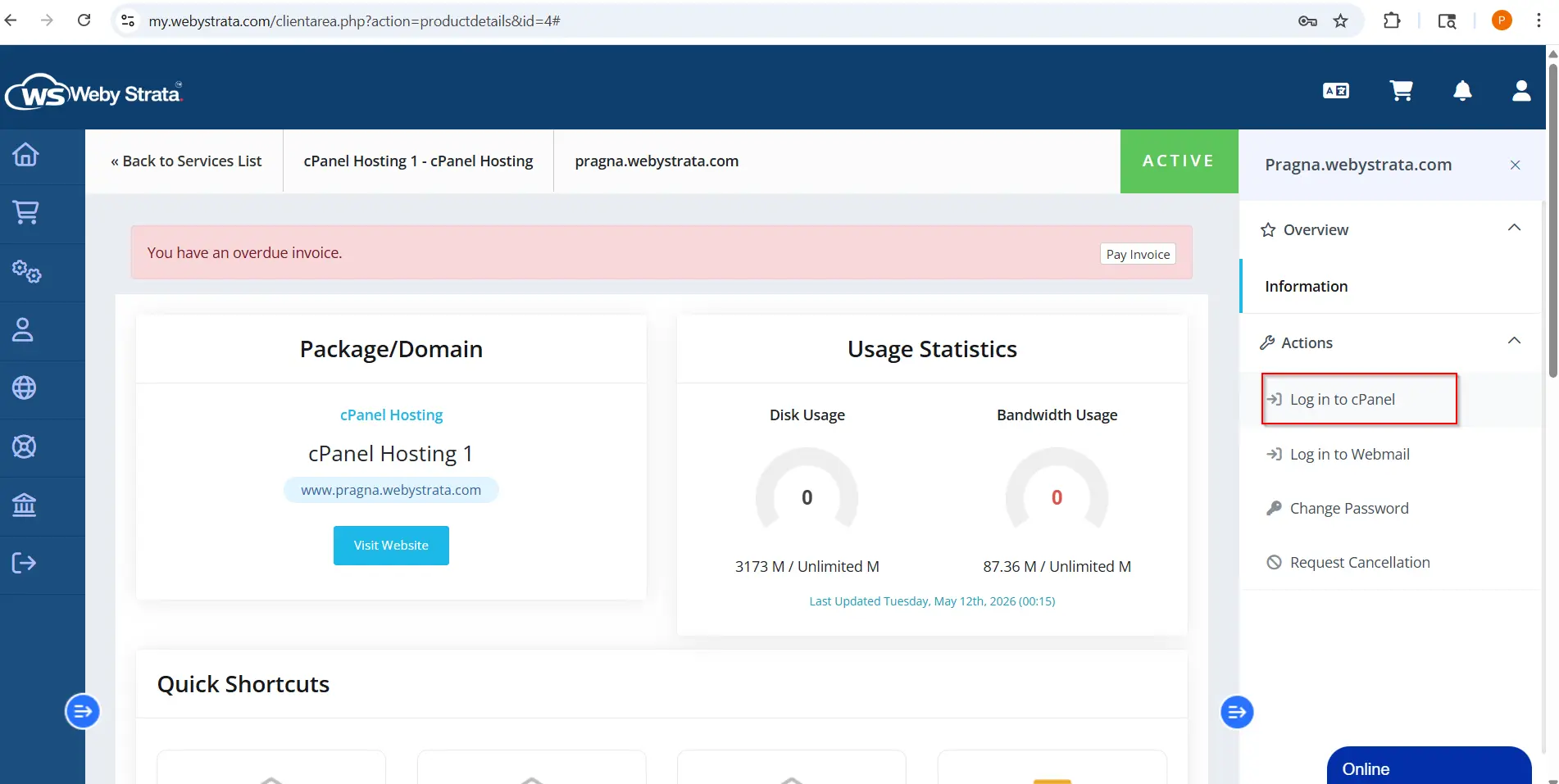
Step 2: Open File Manager
After logging in:
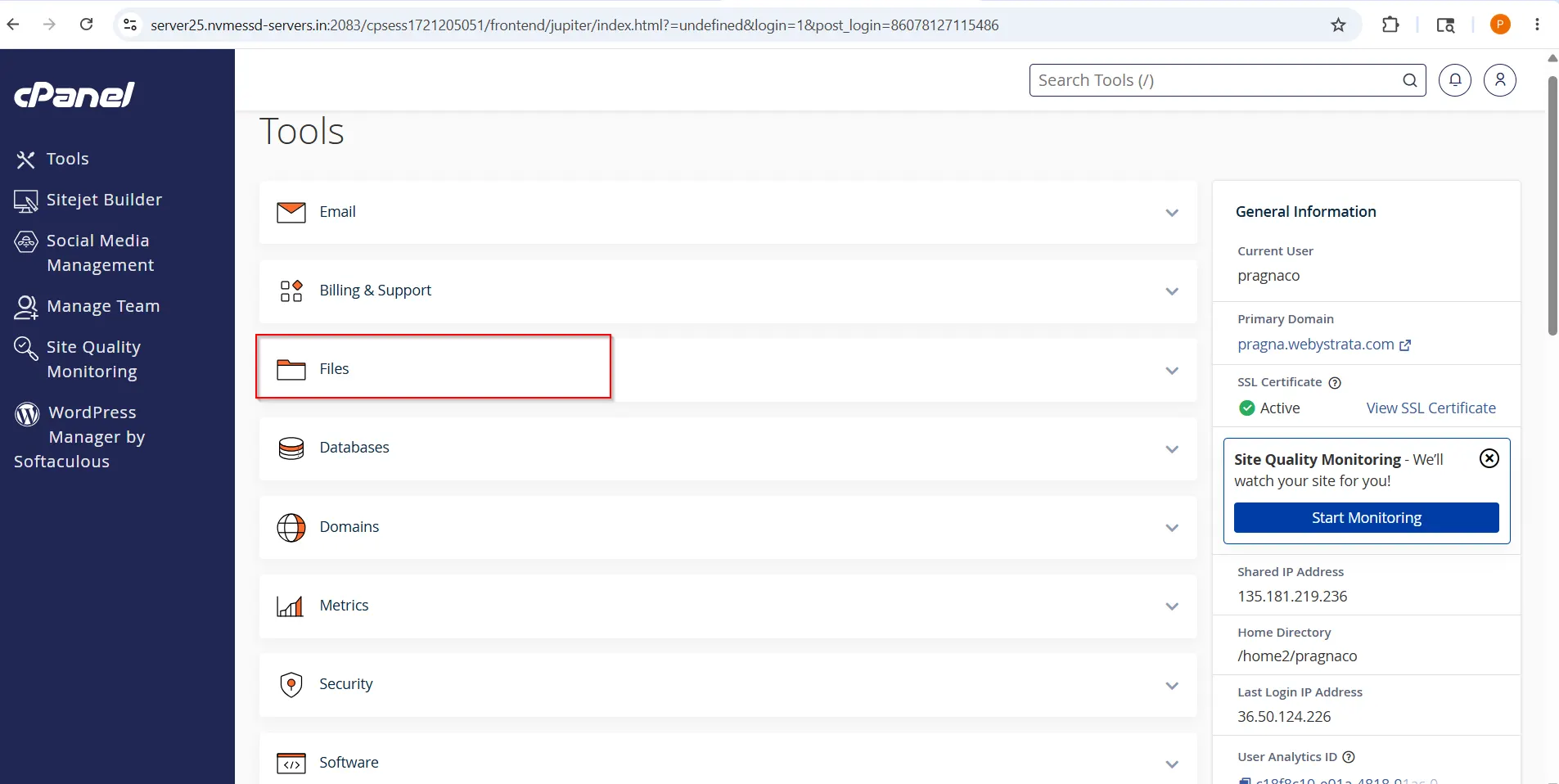
- Go to the Files section
3. Click on File Manager
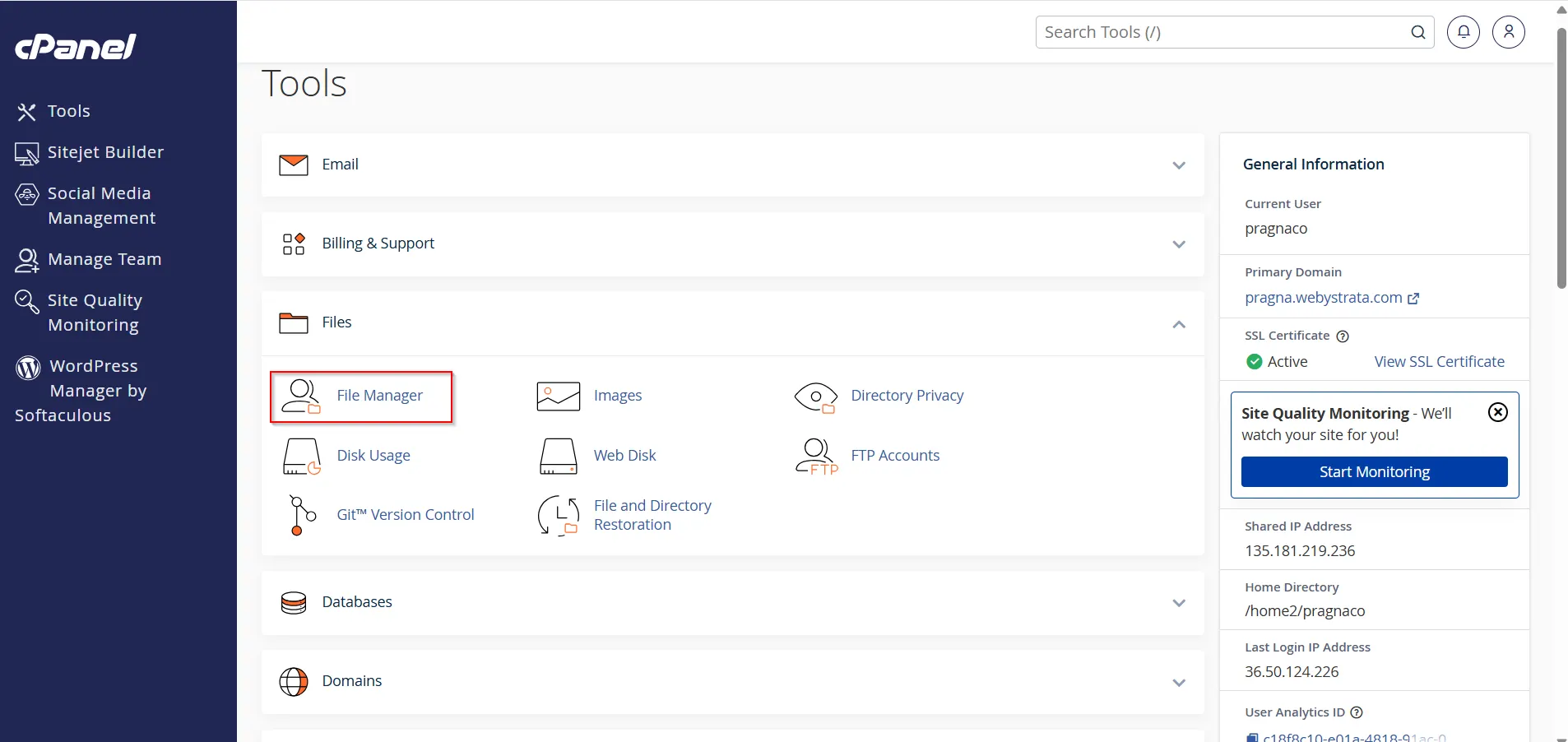
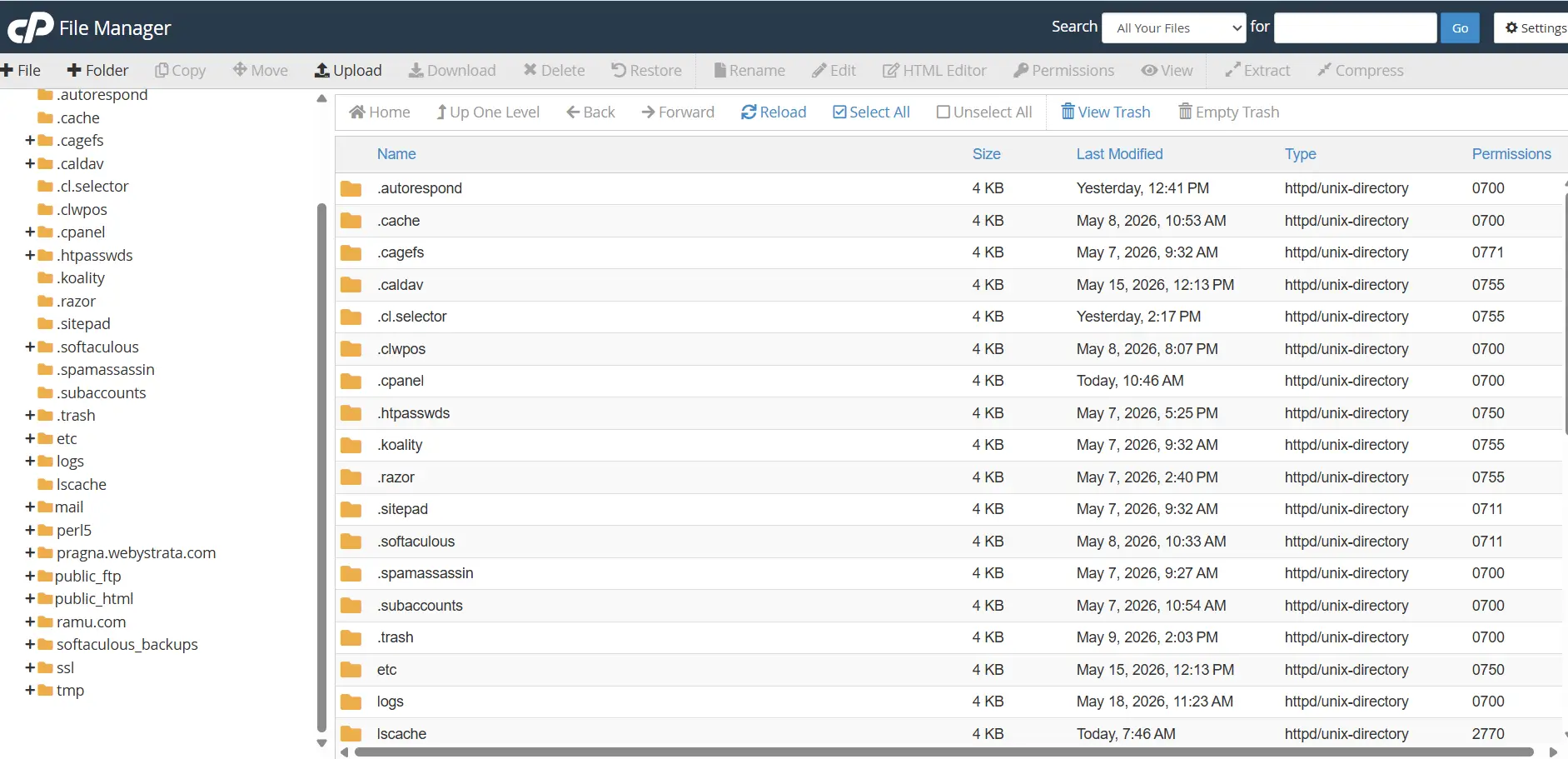
The File Manager interface will open and display all website files and folders.
Common folders include:
- public_html
- wp-content
- uploads
- themes
- plugins
How to Upload Files in cPanel File Manager
Uploading files through File Manager is useful for adding images, themes, plugins, backups, and website files to the hosting account.
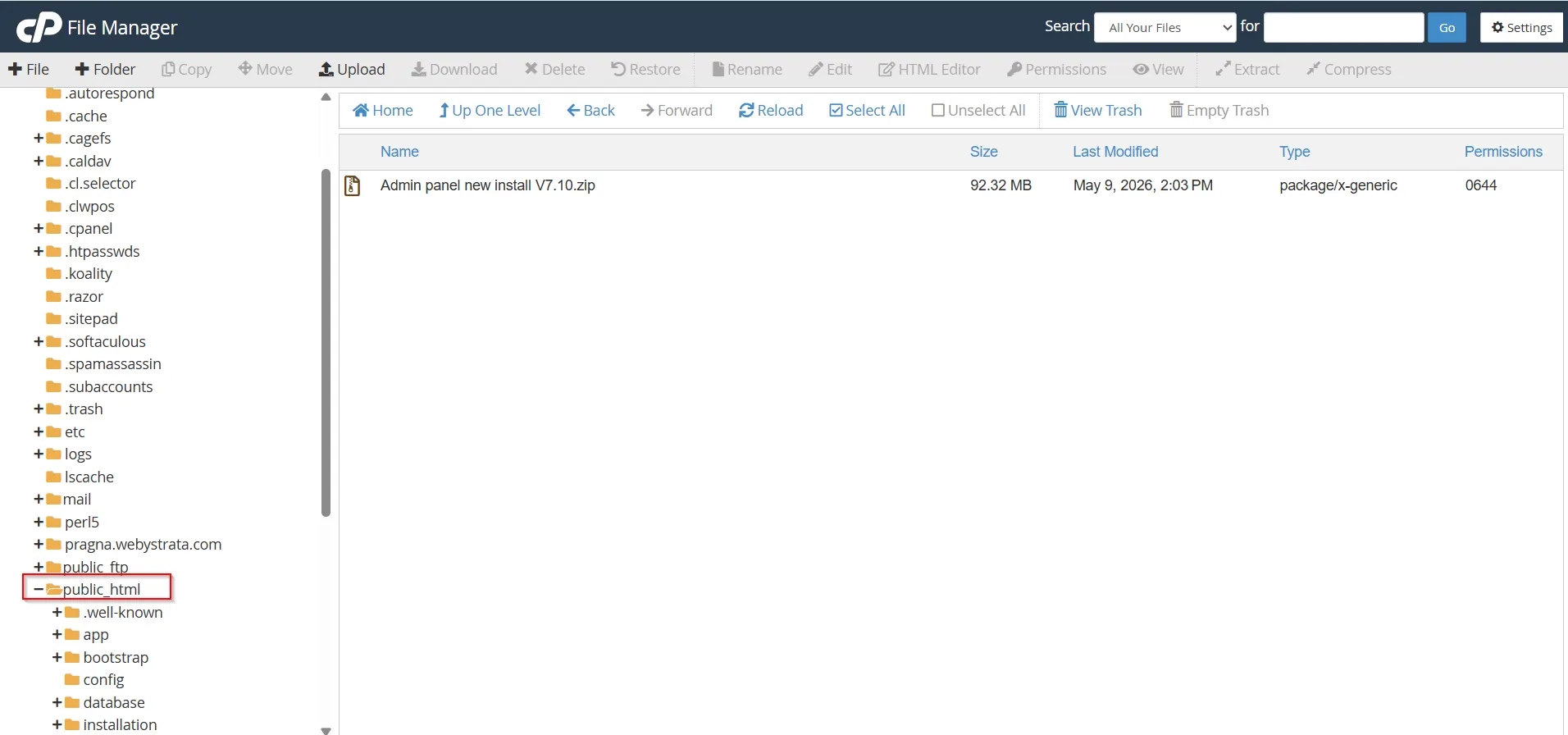
Step 1: Open the Destination Folder
Inside File Manager, open the folder where you want to upload the file.
Examples:
- public_html for website files
- wp-content/themes for WordPress themes
- uploads folder for media files
Step 2: Click Upload
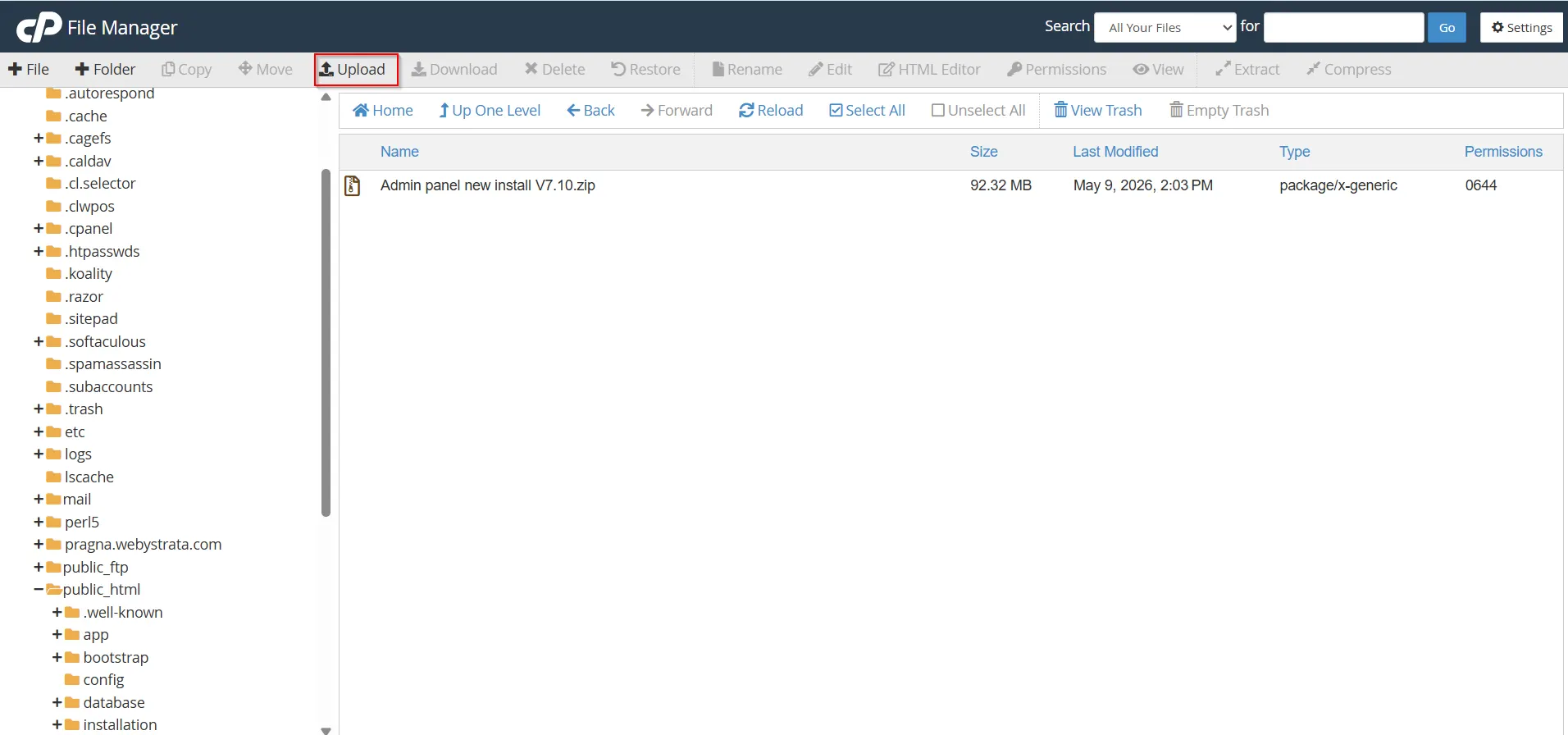
At the top menu:
- Click Upload
- Click Select File
- Choose the file from your computer
Step 3: Wait for Upload Completion
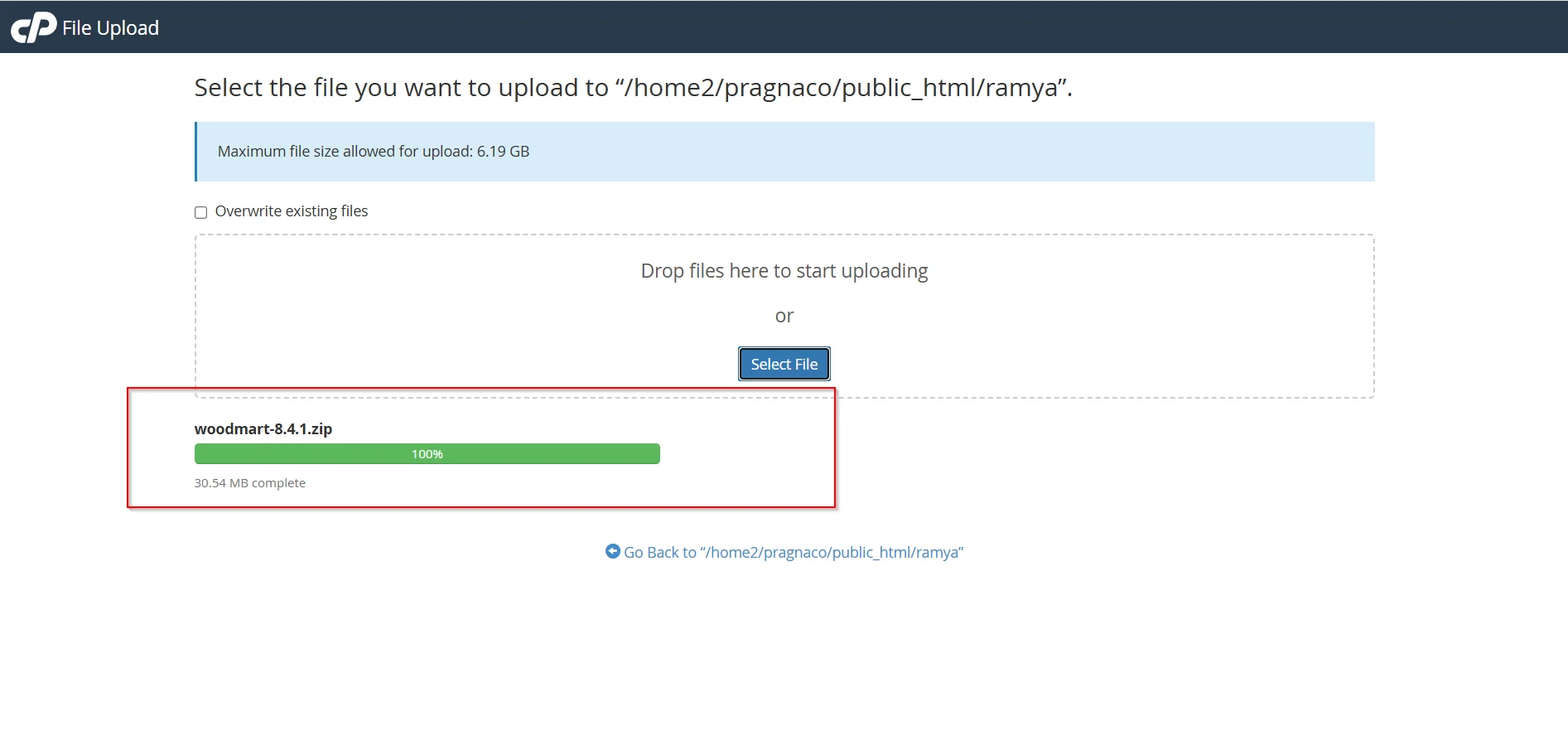
Wait until the upload progress reaches 100%.
 After completion:
- Return to File Manager
- Refresh the page
- Verify the uploaded file
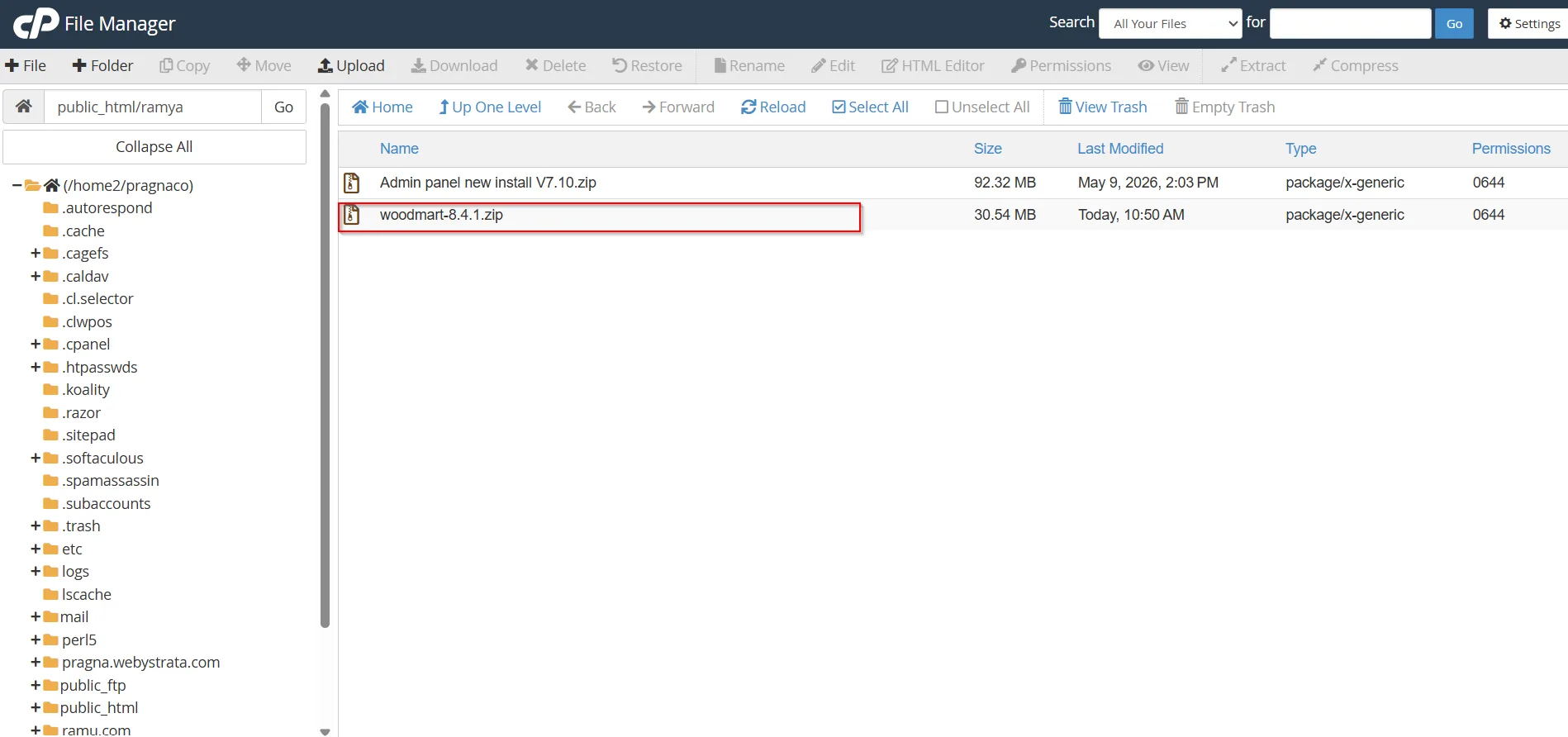
How to Copy or Move Files in File Manager
The Copy and Move features help users organize website files and directories efficiently.
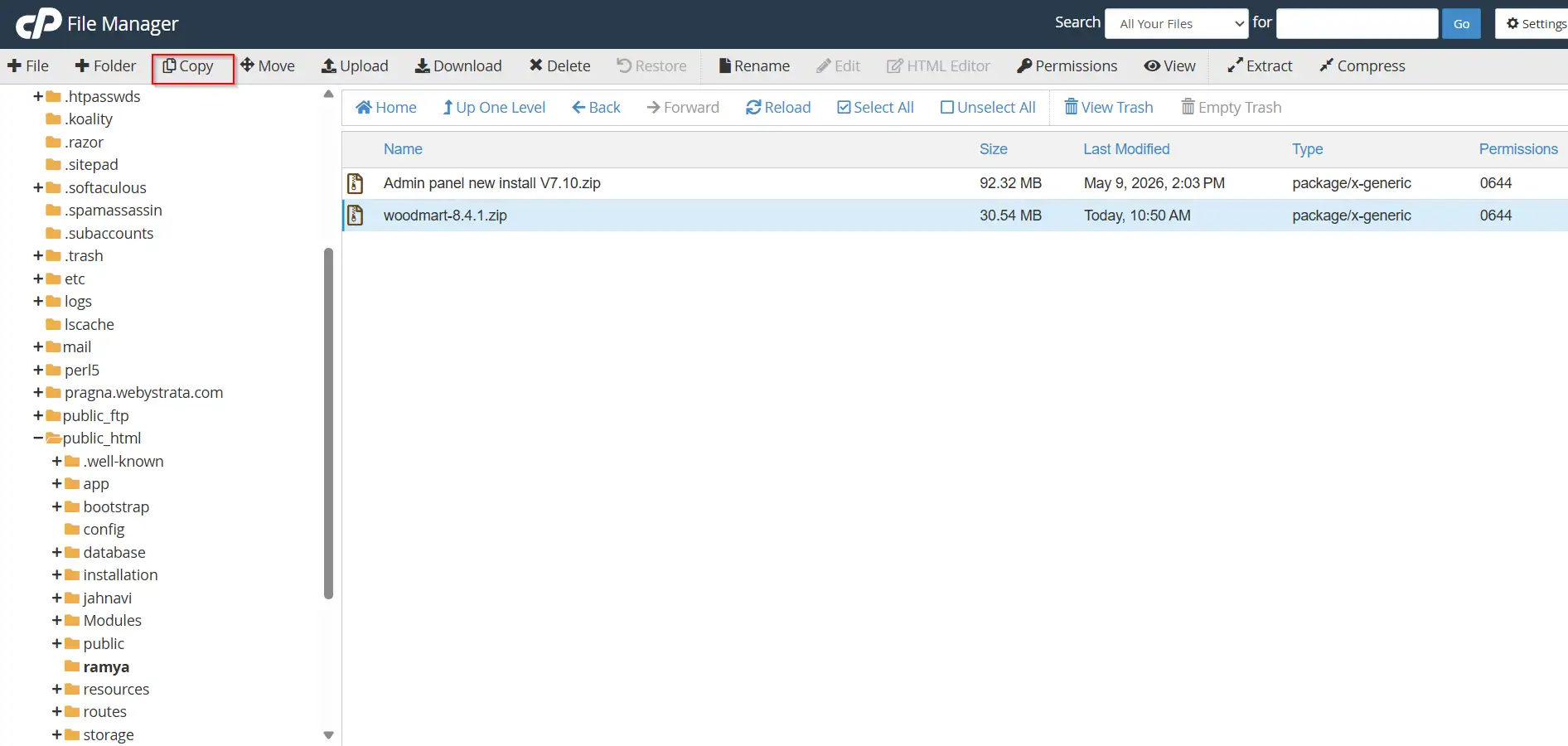
Steps to Copy a File
- Select the file or folder
- Click Copy
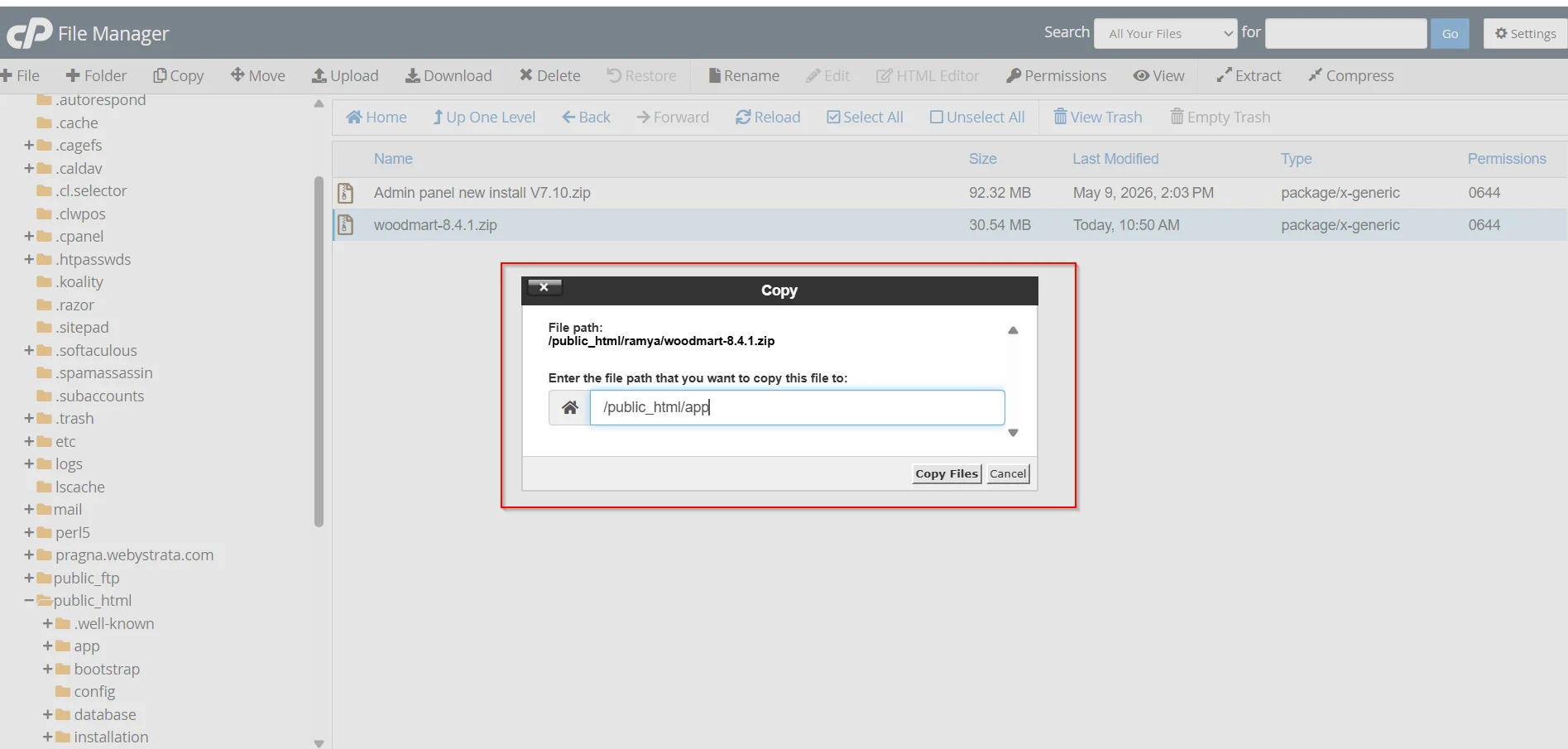
3. Enter the destination path
4. Click Copy File(s)
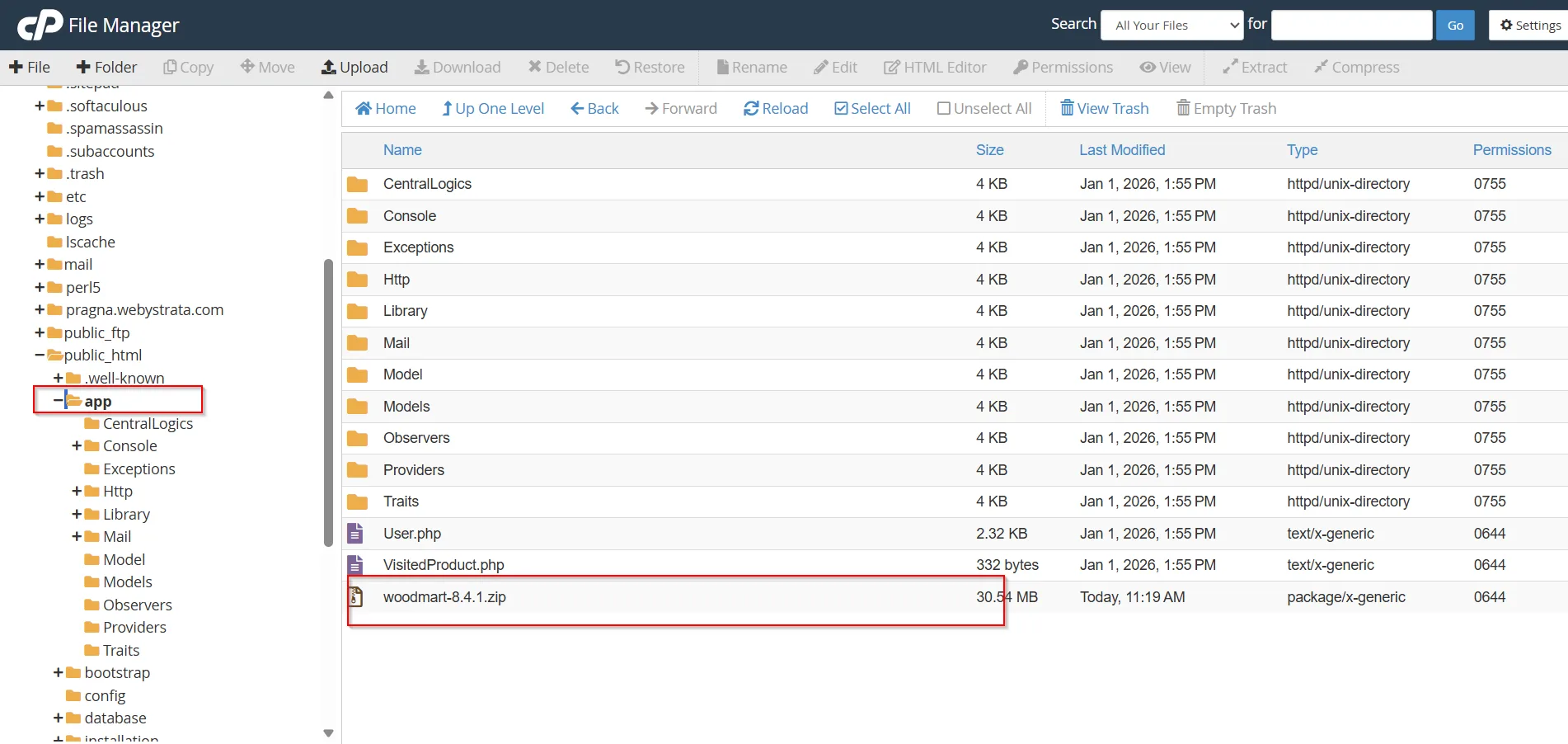
A duplicate copy of the file will be created.
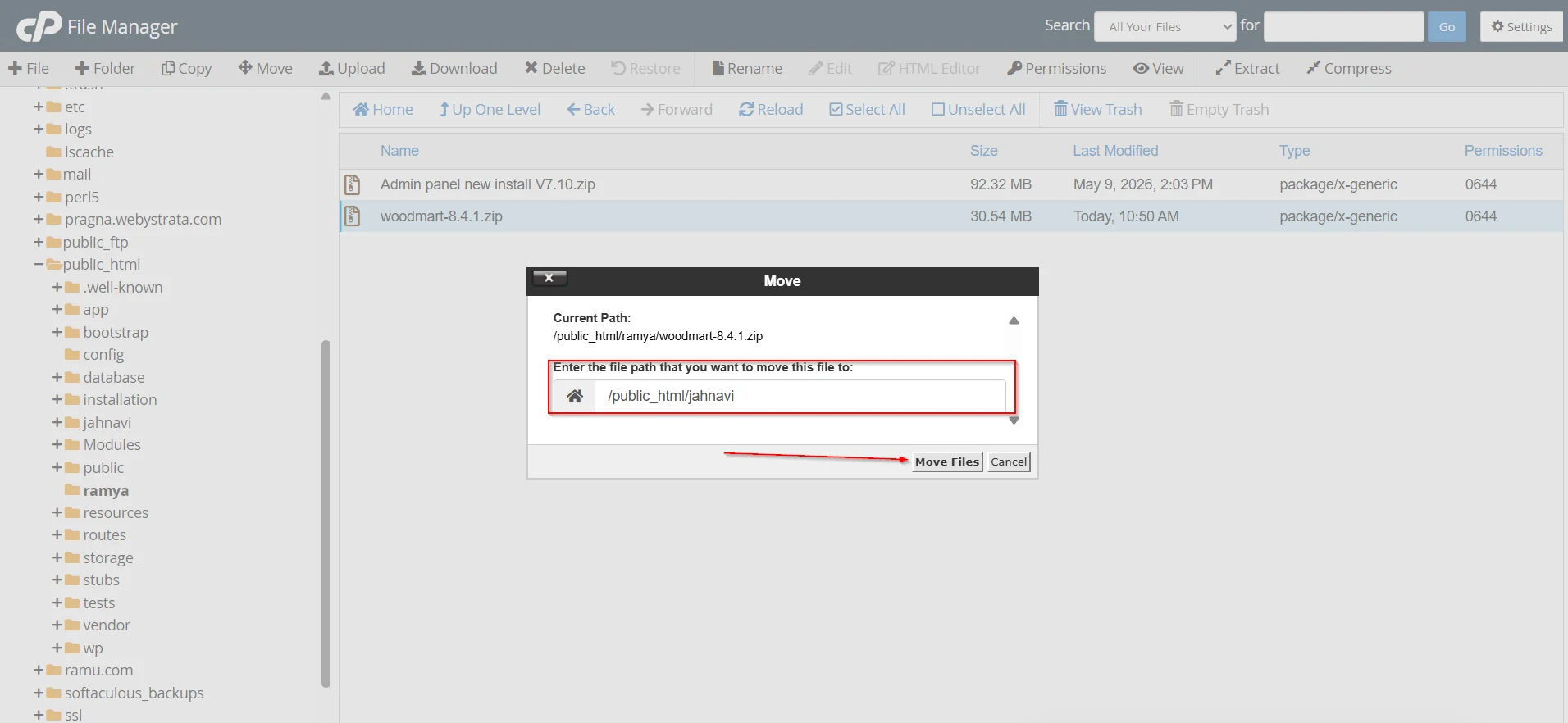
Steps to Move a File
- Select the file or folder
- Click Move
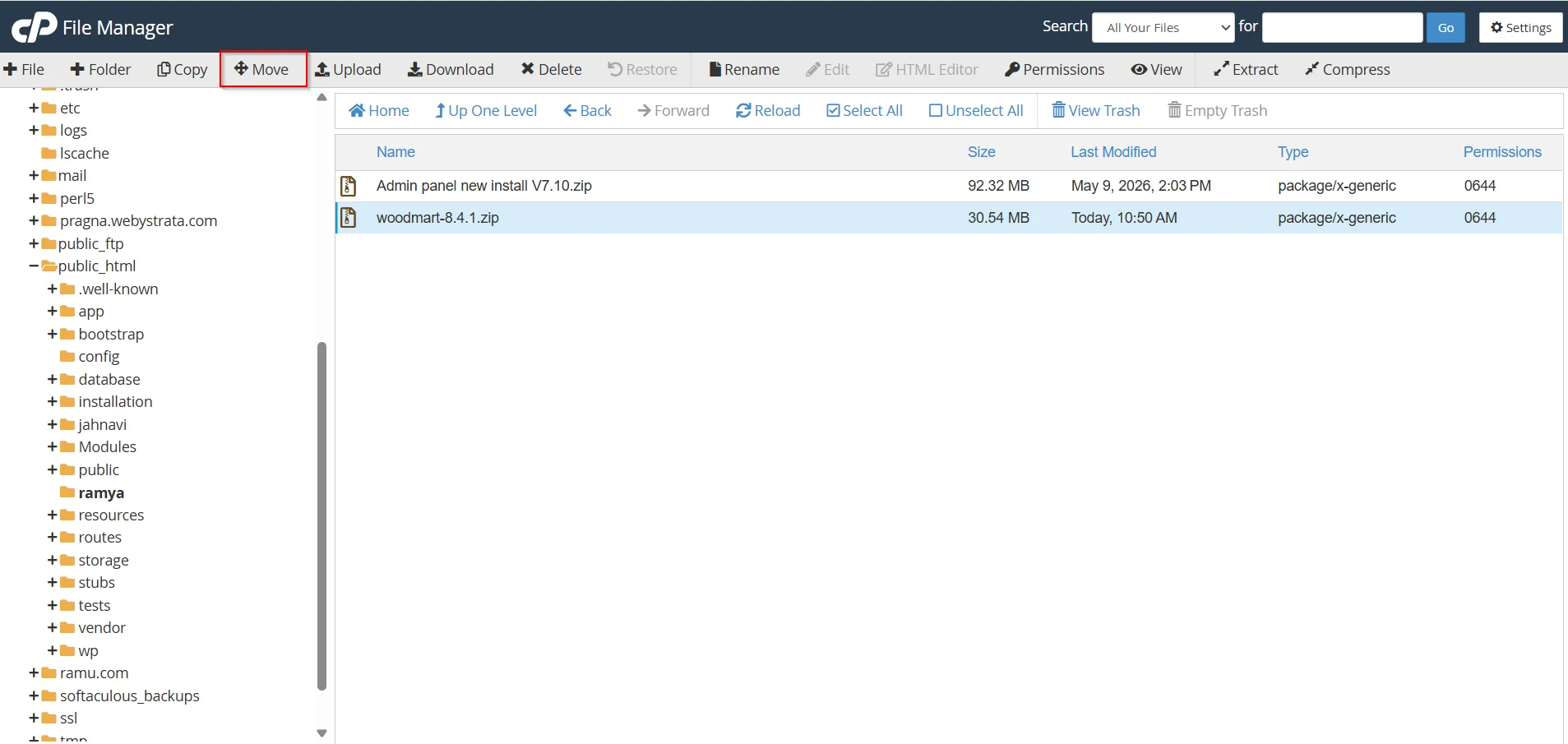
3. Enter the destination folder path
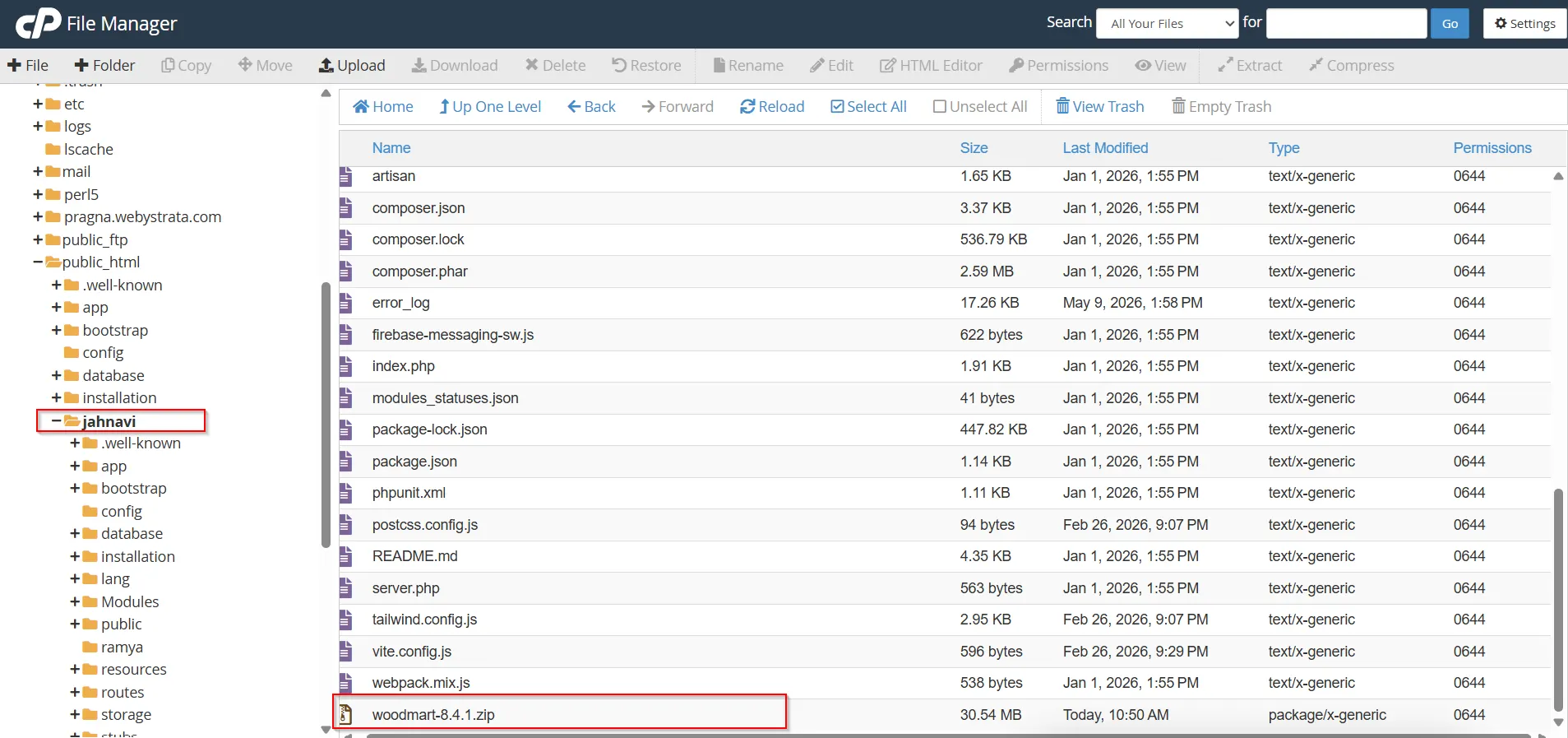
4. Click Move File(s)
The selected file will be transferred to the new location.
How to Delete Files in cPanel File Manager
Deleting unnecessary files helps free storage space and keeps the hosting account organized.
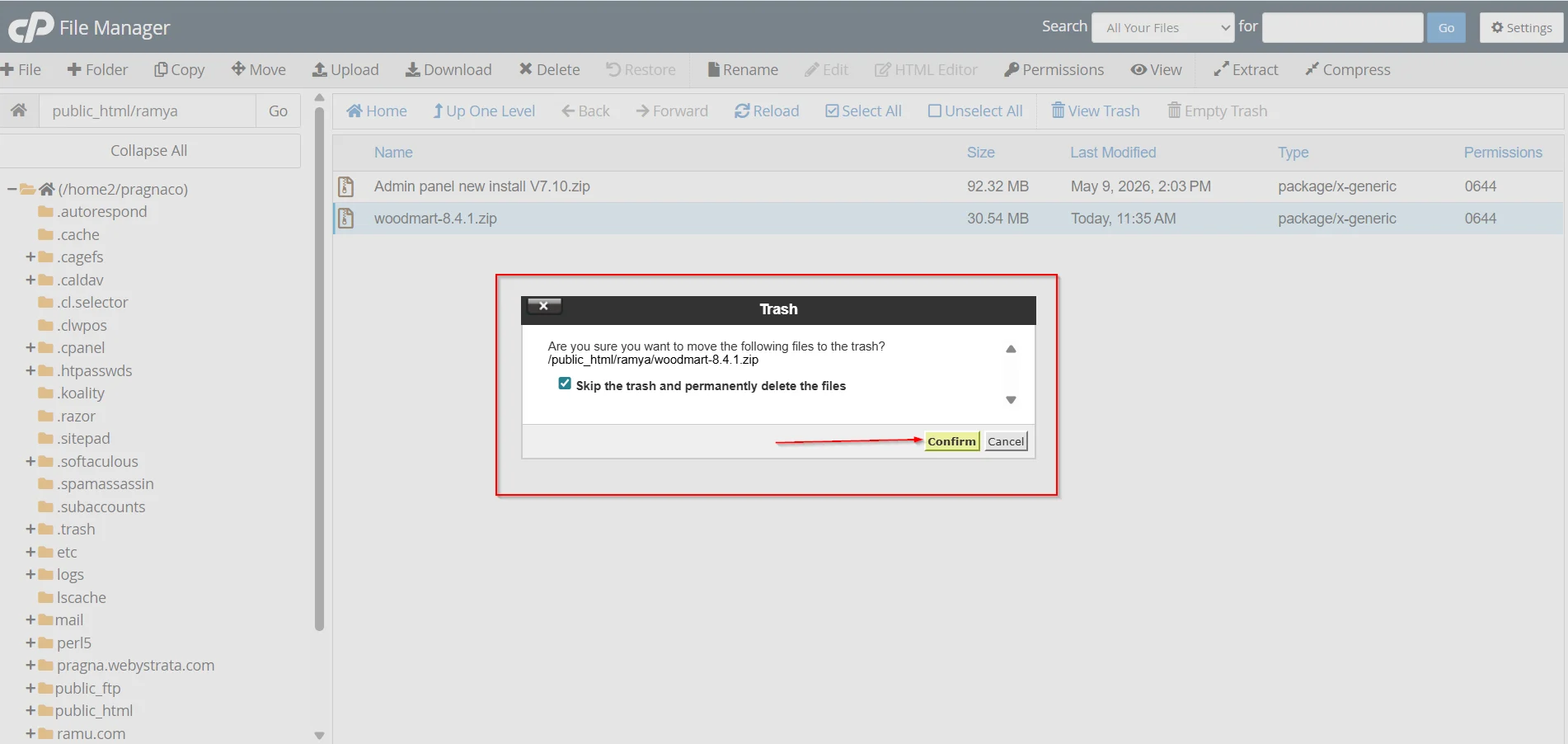
Steps to Delete a File
- Select the file or folder
- Click Delete
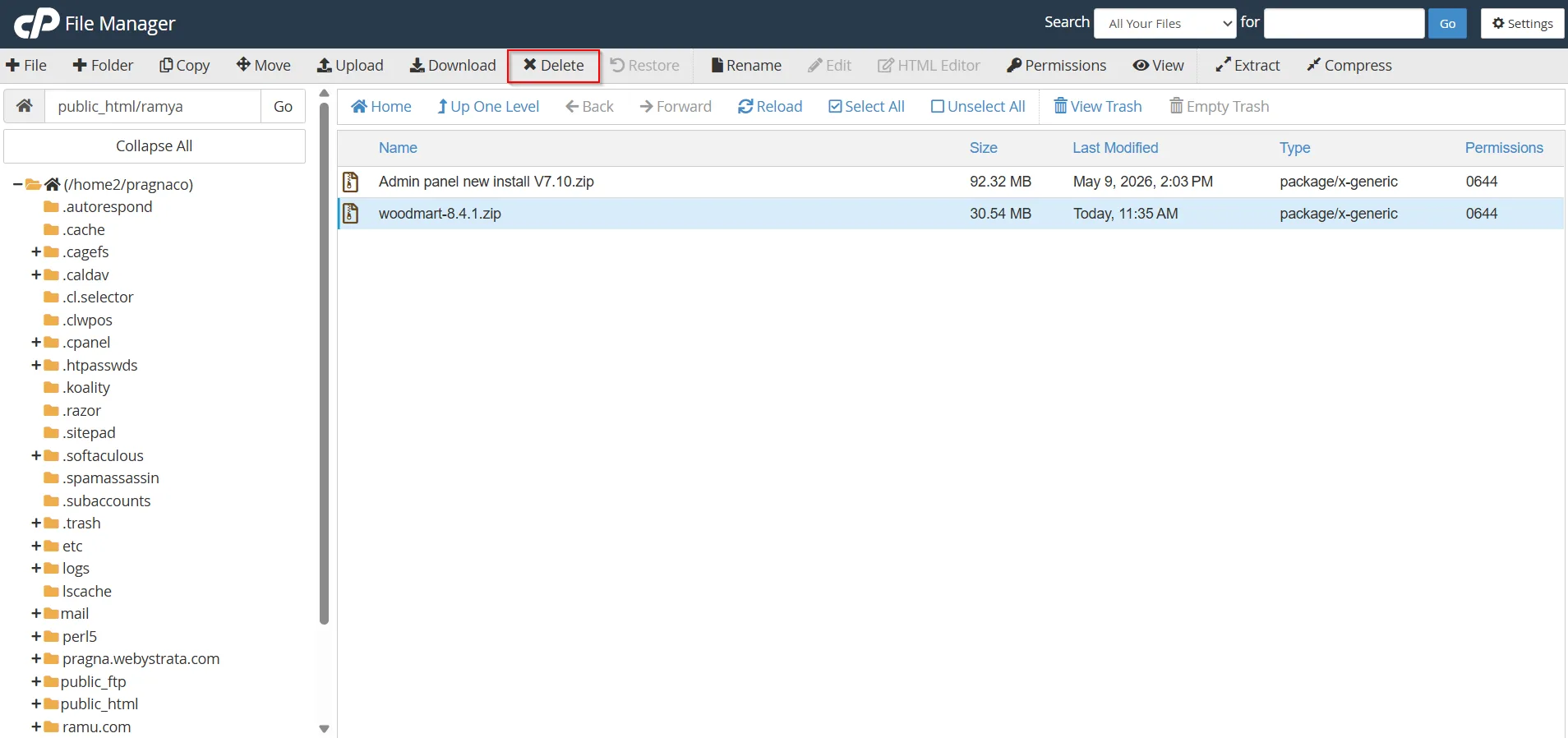
3.Confirm deletion
You may also see:
- “Skip the trash and permanently delete the files”
Enable this option only if you want immediate permanent deletion.
Benefits of Using cPanel File Manager
Some advantages of File Manager include:
- Easy browser-based file management
- No need for FTP software
- Quick upload and download functionality
- Simple file editing and organization
- Convenient WordPress file management
- Secure access through cPanel
Conclusion
cPanel File Manager is a powerful and user-friendly tool that simplifies website file management directly from the hosting dashboard. Whether you need to upload files, organize folders, copy or move data, or delete unnecessary files, File Manager provides an easy and efficient solution for website administration.
By understanding how to use cPanel File Manager effectively, users can manage their websites more efficiently and perform essential hosting tasks without technical complexity.
Related Articles