Web Hosting
How to Migrate Client Websites to Reseller Hosting With Less Downtime
Migrating a client website into reseller hosting can be straightforward when the site is small and static. It becomes more sensitive when the website receives orders, form submissions, email, memberships, or frequent content updates.…

Migrating a client website into reseller hosting can be straightforward when the site is small and static. It becomes more sensitive when the website receives orders, form submissions, email, memberships, or frequent content updates.
The safest approach is to prepare the new account, copy the site while the old version remains live, test the copy, and change DNS only after you are confident that the new environment works. This guide gives resellers a repeatable migration process designed to reduce downtime and avoid lost data.
Inventory the website before moving it
Start with an inventory rather than copying files immediately. Record the domain, hosting provider, control panel, PHP version, database type, email provider, DNS records, SSL setup, cron jobs, external integrations, and current storage usage.
Ask these questions:
- Is the website static, WordPress, or another application?
- Does it store orders, registrations, comments, or form submissions?
- Does the domain use hosting email or a separate email provider?
- Are there scheduled tasks, webhooks, payment gateways, or API connections?
- Will the customer continue editing the old site during migration?
- What is the acceptable maintenance window and rollback plan?
The answers determine whether a simple copy is enough or whether you need a controlled cutover.
Prepare the new reseller account
Create the destination cPanel account before changing the domain’s DNS. Assign the correct package, create a unique password, confirm storage and resource limits, and verify that the PHP version and extensions required by the application are available.
Prepare the database, email addresses, SSL process, and temporary testing method. Do not cancel the old hosting account while the migration is still being verified.
Lower DNS TTL before the cutover
If you control the DNS zone, reduce the relevant DNS record TTL before migration. A shorter TTL can help resolvers refresh the destination more quickly, although it cannot control every caching layer or guarantee an instant change.
Record the current A, CNAME, MX, TXT, and verification records before editing anything. Take a screenshot or export of the zone so you can compare the old and new configuration.
Create a complete backup
Keep a full copy of the website files and databases before starting. For WordPress or another database-backed application, export the database separately and confirm that the archive can be opened.
Also capture:
- Configuration files and environment variables
- Uploaded media and private storage directories
- Database credentials and table prefix
- Cron schedules and scheduled tasks
- SSL and email configuration details
- Third-party API keys that must be reconfigured securely
Copy files and import the database
Transfer the site files using the method supported by the current and destination hosts. Import the database into a newly created database and user. Do not overwrite an unrelated database or place credentials in a publicly accessible file.
Update the application configuration to use the new database name, username, password, and host. If the domain has not yet been pointed to the new server, use a temporary host entry or preview method for testing.
Test the copy before DNS changes
Test the destination as if you were the customer:
- Homepage, internal links, images, and downloads
- Login, registration, search, and contact forms
- Checkout, payment callbacks, and order confirmation
- Database writes and uploaded files
- HTTPS, redirects, canonical URLs, and robots settings
- PHP warnings, application logs, and scheduled tasks
- Email sending and receiving if email is moving too
Use a staging or temporary URL carefully. Some applications store the production domain in the database, so avoid replacing URLs globally until you understand how the application handles them.
Plan the final cutover
Choose a low-traffic period and tell the customer what may be unavailable. For an active store or membership site, place the application into maintenance mode or stop new writes briefly while taking a final database export.
- Announce the maintenance window.
- Stop or reduce new writes on the old site if required.
- Take a final database and file delta backup.
- Copy the final changes to the destination.
- Verify the destination one more time.
- Update the DNS records or nameservers.
- Check the site from multiple networks and devices.
Keep the old hosting active until the DNS transition is complete and the customer confirms that the new site works.
Do not forget email migration
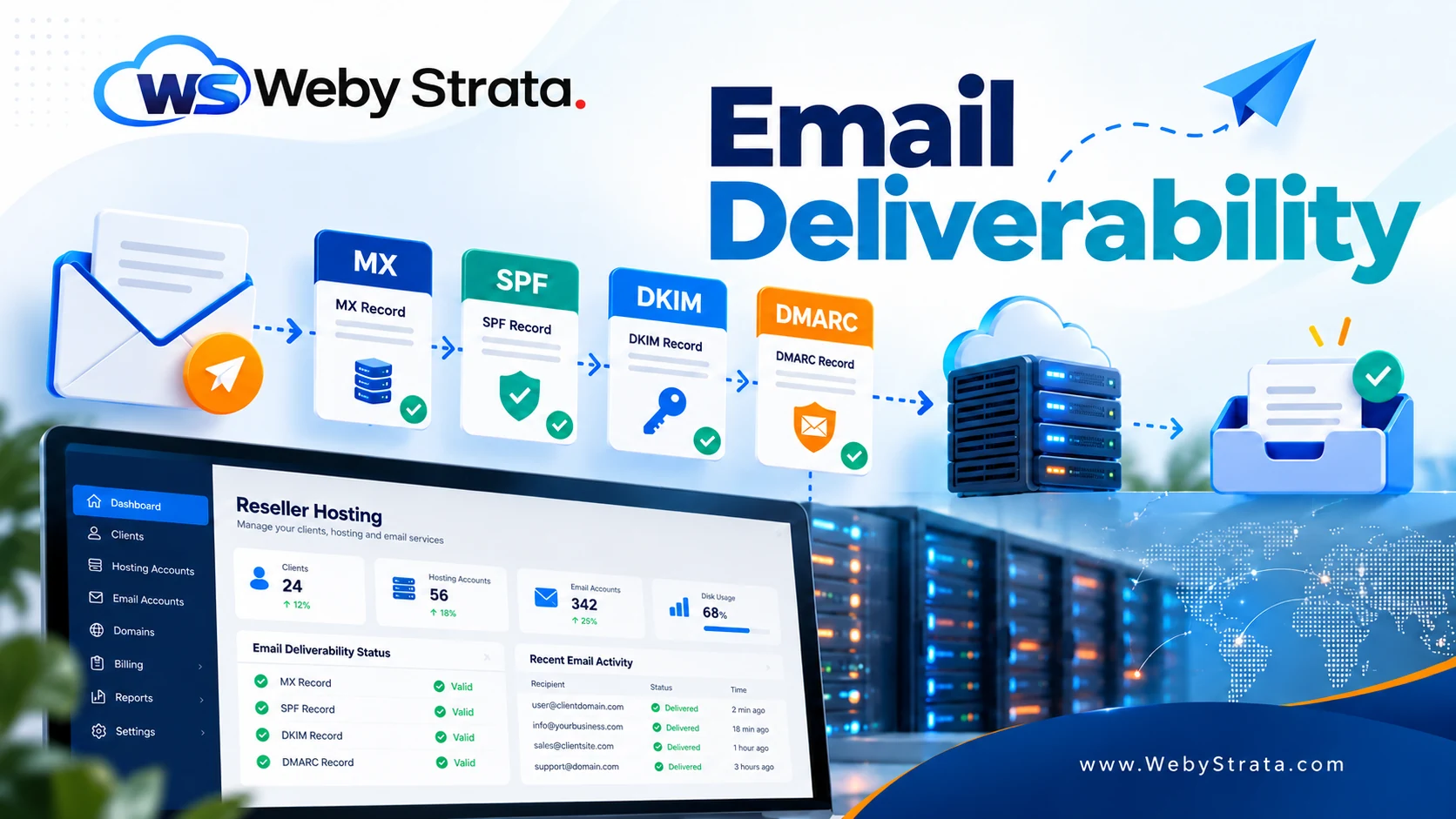
Website migration and email migration are separate tasks. If the customer keeps email with the old provider or an external service, preserve the correct MX, SPF, DKIM, and DMARC records.
If mailboxes are moving to the reseller account, plan mailbox creation, message transfer, passwords, mobile settings, and delivery testing. Tell users when they should change their mail-client settings and keep a copy of the old mail data according to your agreement.
Verify DNS, SSL, and application health
| Check | What to confirm |
|---|---|
| DNS | A, CNAME, MX, TXT, and nameserver records point to the intended services |
| SSL | Certificate covers the domain and HTTPS redirects work correctly |
| Application | Forms, logins, database writes, uploads, and integrations work |
| Sending, receiving, authentication, and mailbox access work | |
| Performance | Pages load normally and resource limits are not being reached |
| Monitoring | Uptime, backups, renewals, and error alerts are active |
Keep a rollback plan
A rollback plan is not an admission that the migration will fail. It is a way to respond quickly if the new server has an unexpected issue.
Keep the old hosting active, preserve the original DNS records, document the last known-good backup, and define who can approve a rollback. If the application receives new orders or submissions after cutover, do not switch back casually without preserving that new data.
Communicate the completed migration
Send the customer a short completion summary with the new hosting details, DNS status, support channel, backup policy, maintenance window, and any action they must take. Record the final checks and the date on which the old hosting account can be cancelled.
Final takeaway
A low-downtime reseller migration is mostly preparation. Inventory the site, create the destination account, copy and test without changing DNS, perform a final synchronized transfer, and keep a rollback path. WebyStrata provides the reseller hosting environment; the reseller owns the migration plan, customer communication, and application-level validation.
Explore WebyStrata hosting options when preparing a reliable destination for client websites.
Frequently asked questions
Should I cancel the old hosting account before DNS changes?
No. Keep the old account active until the destination is tested, DNS has updated, and the customer confirms the website and email are working.
Can I migrate a busy store without losing orders?
You can reduce risk with a final database sync or a short maintenance window, but every application is different. Test the process and confirm how new orders and database writes are handled.
Does changing nameservers move email automatically?
No. Email depends on MX and related authentication records. Preserve or recreate the correct email configuration before changing nameservers.
Related Articles