WordPress Guides
How to Migrate a WordPress Site Without Downtime: A Practical Checklist
Learn how to migrate a WordPress site with a backup, staging copy, DNS plan and post-launch checks to reduce downtime, errors and lost data.
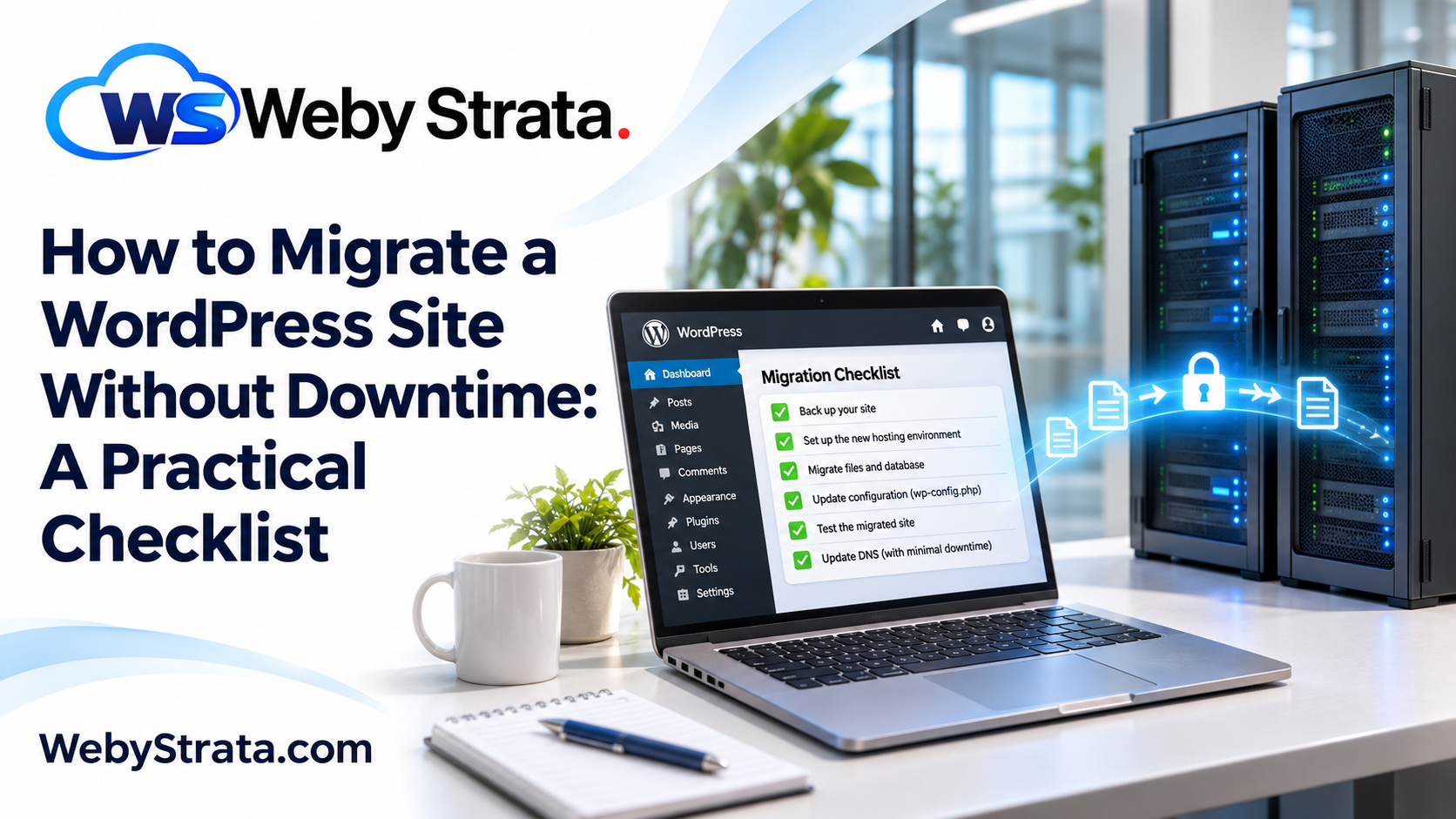
Moving a WordPress website to a new hosting environment does not have to mean taking the site offline for hours. The safest approach is to build and test the destination while the current website continues serving visitors, then switch traffic only after the new copy is ready.
This guide explains how to migrate a WordPress site with a practical sequence for preparation, backups, staging, transfer, DNS changes and post-launch checks. It also explains which details commonly get missed, including email records, scheduled tasks, media files, redirects and third-party integrations.
WebyStrata includes free website migration with an active WebyStrata hosting plan. Eligibility, source access and the exact transfer scope should be confirmed before scheduling the move.
When should you migrate a WordPress site?
A migration may be worthwhile when the current environment no longer fits the website. Common reasons include:
- The site needs more storage, memory or processing capacity.
- The current host has slow support or repeated service problems.
- You need a control panel, PHP version or database configuration that is not available today.
- The website is moving from development to production.
- A business wants hosting, domain, backups and support managed through one provider.
- A redesign or rebuild requires a clean, tested destination environment.
Migration is not automatically the right solution for every performance problem. First check image sizes, plugins, caching, database queries and application errors. If the server is the constraint, a planned move can improve the foundation without changing the content or design.
What should you record before migration?
Create a short inventory before copying anything. It gives you a reference for testing the new site and makes rollback decisions easier.
Record the following:
- The main domain, subdomains and any parked or addon domains
- Current WordPress, PHP, database, theme and plugin versions
- The WordPress and site URLs shown in the dashboard
- Database name, database user, table prefix and database size
- Total file size, uploads size and available storage at the destination
- Cron jobs, scheduled tasks, webhooks and background workers
- Forms, payment gateways, search tools, analytics and advertising integrations
- Redirect rules, robots.txt, XML sitemap and important indexed URLs
- DNS records for the website, email, verification services and third-party tools
- Administrator accounts, recovery email addresses and access to the current host
Keep the email plan separate from the website plan. A website can move correctly while mail stops working if MX, SPF, DKIM or other mail records are changed accidentally.
If you are still choosing the destination environment, start with what CMS hosting means and how to choose the right setup. The WordPress version, PHP release, database engine, storage and available controls should be confirmed before transfer.
Which WordPress migration method should you use?
The best method depends on the website’s size, access and risk level. A small brochure site may be moved with an assisted tool, while a busy store or membership website needs a controlled staging and cutover process.
| Method | Best for | Strength | Main risk |
|---|---|---|---|
| Migration plugin | Small to medium sites with compatible environments | Guided packaging and restoration | Large archives, timeouts or blocked files may require another method |
| Manual files and database transfer | Administrators who need direct control | Clear control over each component | More configuration and verification work |
| Hosting-assisted migration | Businesses that want technical help | Less operational work for the owner | Scope, access and compatibility must be confirmed in advance |
| Rebuild and content import | Major redesigns or clean implementations | Opportunity to remove unused components | Theme, plugin, URL and content differences can create SEO problems |
Do not choose a method only because it is the fastest to start. Choose the method that gives you a complete backup, a testable destination and a recovery path if the first attempt fails.
How to migrate a WordPress site step by step
1. Choose the destination and migration window
Confirm that the new hosting account supports the website’s technical requirements. Check the PHP version, database support, SSL, storage, server limits, cron access, file permissions and any required extensions.
Pick a period with fewer content changes and lower traffic. Tell editors, store managers and support staff when the content freeze begins. For an active store, record the final order, customer and product changes immediately before the last backup so the destination does not miss new data.
Create an emergency rollback plan before doing the transfer. The old hosting account should remain available until the destination has passed testing and the DNS change has had time to settle.
2. Create backups and verify that they work
Make at least two independent backups:
- A complete database export
- A copy of the WordPress files, including
wp-content/uploads - A record of DNS and email settings
- A copy of configuration files and server rules where applicable
Store one backup away from the current hosting account. A backup that exists but cannot be opened or restored is not a reliable recovery plan. Test the archive by checking that it contains the database dump, media folders, themes, plugins and configuration information you expect.
For a store or membership site, also record recent transactions, users, subscriptions, bookings or form entries. The exact items depend on the application, but the principle is the same: identify data that may change while the migration is in progress.
3. Prepare a private copy of the destination
Install the required software and create a private staging or temporary site at the new host. Do not point the public domain to it yet.
The destination should use the same domain structure as the final site wherever possible. A temporary address is useful for testing, but it can create confusing links if the site has hard-coded URLs. Plan how the final domain will be applied before importing the database.
Set up HTTPS, a database and the required PHP extensions. Keep the destination protected from search engines while it is private. A password-protected staging site, access restriction or noindex control can prevent an unfinished copy from appearing in search results.
4. Transfer the files and database
The WordPress files and database must be moved together. Copying only the theme and visible pages will not preserve the complete website.
The file transfer normally includes:
wp-adminandwp-includeswp-content, especially uploads, themes and plugins- The root configuration and rewrite files
- Custom files used by the theme or application
Import the database into the destination database created for the site. Update the configuration with the new database name, user, password, host and table prefix when required. Keep the original values documented so you can compare them during troubleshooting.
Large databases or archives may fail through a browser-based importer. In that case, use a command-line import, split the file into smaller parts or ask the hosting team to handle the transfer. Do not repeatedly restart a partial import without checking whether tables were already created.
5. Check URLs, paths and permissions
After the files and database are in place, confirm that the site URL and home URL match the intended domain. If the domain or path is changing, update URLs carefully and preserve serialized data. A simple text replacement can corrupt structured values stored by themes and plugins.
Review:
- Absolute file paths and upload directories
- Image and media URLs
- Canonical URLs and redirect rules
- Hard-coded links in menus, widgets and theme files
- File and directory permissions
- Cache directories and temporary files
- Environment variables or secrets used by integrations
Open the login page, homepage, several posts and pages, the media library and a search result. Broken images or unexpected redirects often reveal a path problem before the domain is switched.
6. Test the new copy before changing DNS
Test the destination through its temporary address, a hosts-file entry or another private preview method. The exact method depends on the hosting environment, but the goal is the same: send test requests to the new server without changing public DNS.
Use a checklist rather than relying on the homepage alone:
- Log in and log out of the dashboard
- Open posts, pages, categories, tags and author archives
- Upload and display a new test image
- Submit every important form
- Test search, comments and account registration if enabled
- Test checkout, payment status and transactional emails for stores
- Confirm scheduled tasks, webhooks and external API connections
- Test redirects from important old URLs
- Check HTTPS, mixed content and certificate coverage
- Review the sitemap, robots.txt and canonical tags
- Check mobile layout and the most important templates
Compare the destination with the current site using a list of important URLs. A visual comparison and a crawl of both copies can expose missing pages that a manual homepage check will not find.
7. Prepare and perform the DNS cutover
Before changing DNS, lower the DNS TTL if your DNS provider allows it. Do this ahead of the planned move so the change can be refreshed more quickly by many networks. TTL reduction does not force every resolver to update instantly, so keep the old site ready.
Change only the records required for the website. Do not replace the complete DNS zone unless you have documented every record and understand the effect on email and verification services. The A record, CNAME record or nameserver change depends on how the domain is managed.
Keep the old website available during the transition. Visitors may reach either environment while DNS caches expire. For sites with frequent orders, comments or registrations, use a brief maintenance window or a final data-sync plan so both copies do not accept different changes.
8. Complete post-migration checks and monitor the site
Once the domain resolves to the new server, repeat the critical tests using the real URL. Check the homepage, login, forms, checkout, images, redirects, SSL and email notifications.
Monitor for:
- 404 errors and redirect loops
- PHP warnings or fatal errors
- Slow queries, high resource use and failed cron jobs
- Missing images, attachments or downloadable files
- Failed payment, form or email notifications
- Search indexing changes and unexpected canonical URLs
- Security alerts, login failures and blocked requests
Do not cancel the old hosting account immediately. Keep the verified backup and previous environment until the new site has completed a sensible observation period and the business is confident that no delayed process depends on the old server.
Common WordPress migration mistakes to avoid
Migrating without a content freeze
If the current site continues changing during the transfer, the destination can be missing orders, comments, posts or customer data. Define a freeze time or use a final synchronization plan.
Forgetting the uploads directory
The database can restore successfully while the media library appears empty because wp-content/uploads was not copied. Check images, PDFs and other downloads explicitly.
Changing nameservers without recording email records
Moving DNS can affect mail, verification records, subdomains and security services. Export or document the complete DNS zone before making a nameserver change.
Replacing URLs with a basic search-and-replace
Serialized data can break when values are replaced without a migration-aware tool. Use a method that understands WordPress data structures and then test widgets, menus, forms and plugin settings.
Removing the old site too early
DNS caches, scheduled jobs and forgotten integrations can take time to reveal problems. Keep the old environment available until monitoring confirms the move is stable.
When should you use migration support?
Professional help is useful when the website earns revenue, stores customer information, has a large database, uses several integrations or needs a short interruption window. It is also useful when you do not have reliable access to the source server or are unsure which DNS and email records must remain unchanged.
WebyStrata can help you plan a WordPress move around the website’s files, database, domain, DNS, SSL and hosting requirements. Review WebyStrata WordPress hosting and website migration support to choose the right starting point. If the site is currently on cPanel, WebyStrata cPanel hosting provides a familiar control-panel workflow for files, databases, SSL and application management.
WebyStrata includes this migration service at no extra charge with an active WebyStrata hosting plan. Confirm the source account, website type, email requirements, access details and service scope with the team before the migration window is booked.
FAQs
How long does it take to migrate a WordPress site?
The time depends on the file size, database size, number of integrations, access method and testing requirements. A small site may be transferred quickly, while a store or membership site needs a planned window for backups, data checks, DNS and final verification.
Can I migrate WordPress without changing the domain?
Yes. You can build and test the destination before changing the public DNS records, then point the existing domain to the new server after the copy is ready. Keep the old site available while DNS caches update.
Will my WordPress SEO be affected by migration?
It can be affected if URLs, redirects, canonical tags, robots.txt, sitemaps, SSL or important pages change. Preserve the URL structure where possible, test key redirects and check the final site with a crawl after DNS cutover.
Do I need to move email when migrating my website?
Not always. Website hosting and email can use separate services, but you must preserve the correct MX, SPF, DKIM and related DNS records. Do not change nameservers or copy a DNS zone without checking its mail records.
What should I do if the migrated website shows errors?
Keep the old site available, review server and PHP logs, check the database credentials, confirm file permissions and compare the required PHP extensions and plugin versions. If the problem affects visitors or transactions, use the rollback plan while you investigate the destination.
Can WebyStrata help migrate my WordPress website?
Yes. WebyStrata includes free website migration with an active WebyStrata hosting plan. The team can review the source environment, files, database, domain, DNS and email requirements before the move. Confirm the website scope, access details, testing plan and expected interruption window before scheduling.
Final takeaway
The safest way to migrate a WordPress site is to treat the move as a controlled release, not a one-click copy. Record the current environment, verify backups, build the destination privately, test important workflows, prepare DNS and keep a rollback option until the new site is stable.
Start with a migration plan that protects your content, customer data, email and search visibility, then move to an active WebyStrata hosting plan to use the included free migration support for an organised path to the new environment.
Related Articles