cPanel
How to Remove WordPress from cPanel Softaculous
How to Remove WordPress from cPanel Softaculous WordPress is one of the most widely used content management systems (CMS) in the world, and Softaculous makes installing it incredibly simple through cPanel. However, there may…
How to Remove WordPress from cPanel Softaculous
WordPress is one of the most widely used content management systems (CMS) in the world, and Softaculous makes installing it incredibly simple through cPanel. However, there may come a time when you need to remove a WordPress installation. Whether you’re redesigning your website, moving to a new platform, troubleshooting issues, or simply cleaning up unused installations, Softaculous provides an easy way to uninstall WordPress safely.
In this guide, you’ll learn how to remove WordPress from cPanel Softaculous, what happens during the removal process, and the precautions you should take before uninstalling your website.
Why Remove a WordPress Installation?
There are several reasons why website owners choose to remove WordPress from their hosting account:
1. Starting Fresh
2. Website Migration
3. Unused Test Websites
4. Security and Maintenance
5. Freeing Up Hosting Resources
Things to Do Before Removing WordPress
Before uninstalling WordPress, consider the following precautions:
- Create a Backup
- Verify the Correct Website
- Download Important Data
How to Remove WordPress from cPanel Softaculous
Follow these steps to uninstall WordPress using Softaculous.
Step 1: Login to cPanel from WebyStrata Client Area
First, visit the WebyStrata website and log in to your client area account using your registered email address and password.
official Website www.webystrata.com
After logging in:
- Go to Services
- Click on My Services
- Select your active hosting service
- Click on Login to cPanel
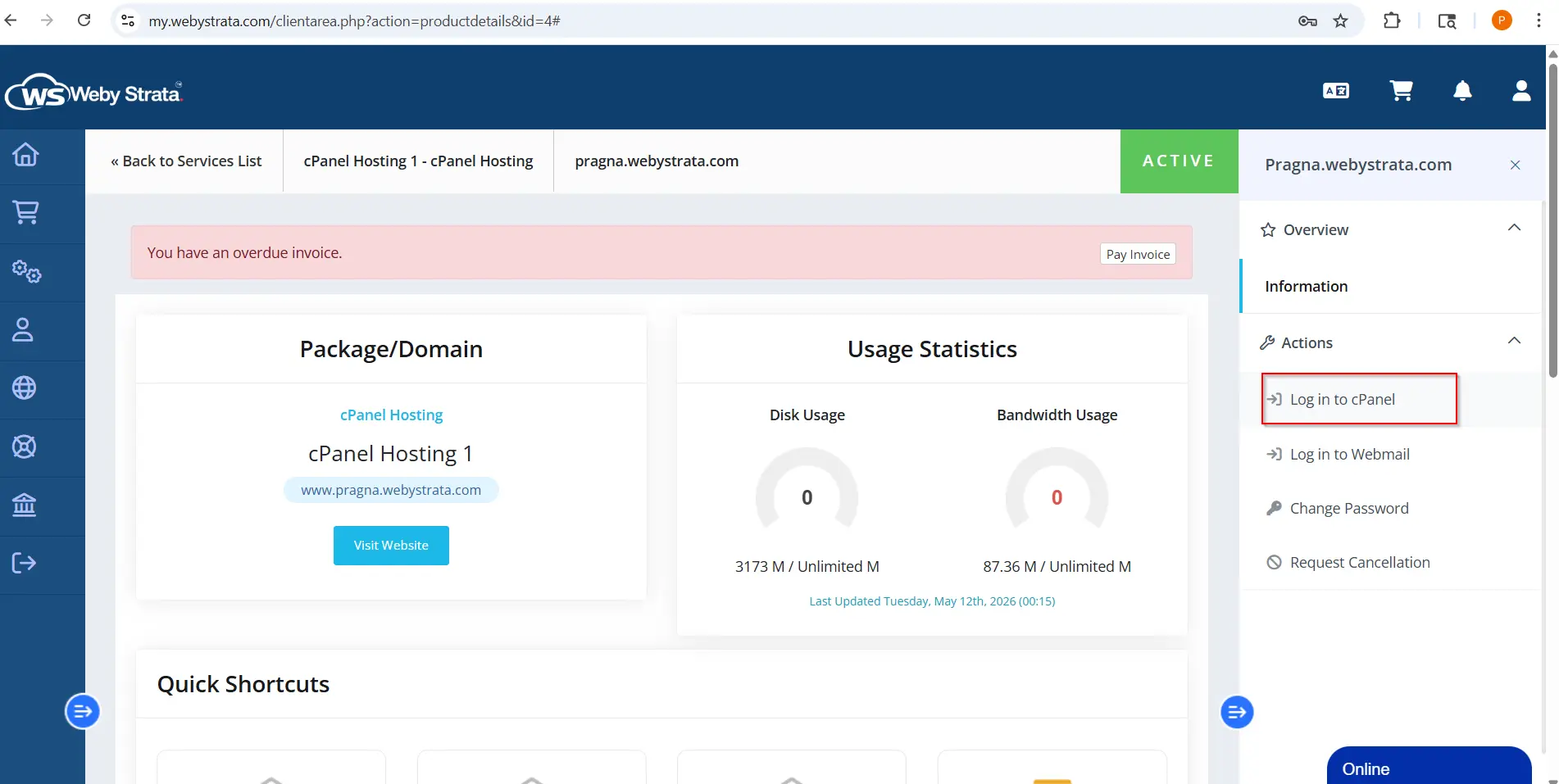
After successful login, you will see the cPanel dashboard containing various website management tools.
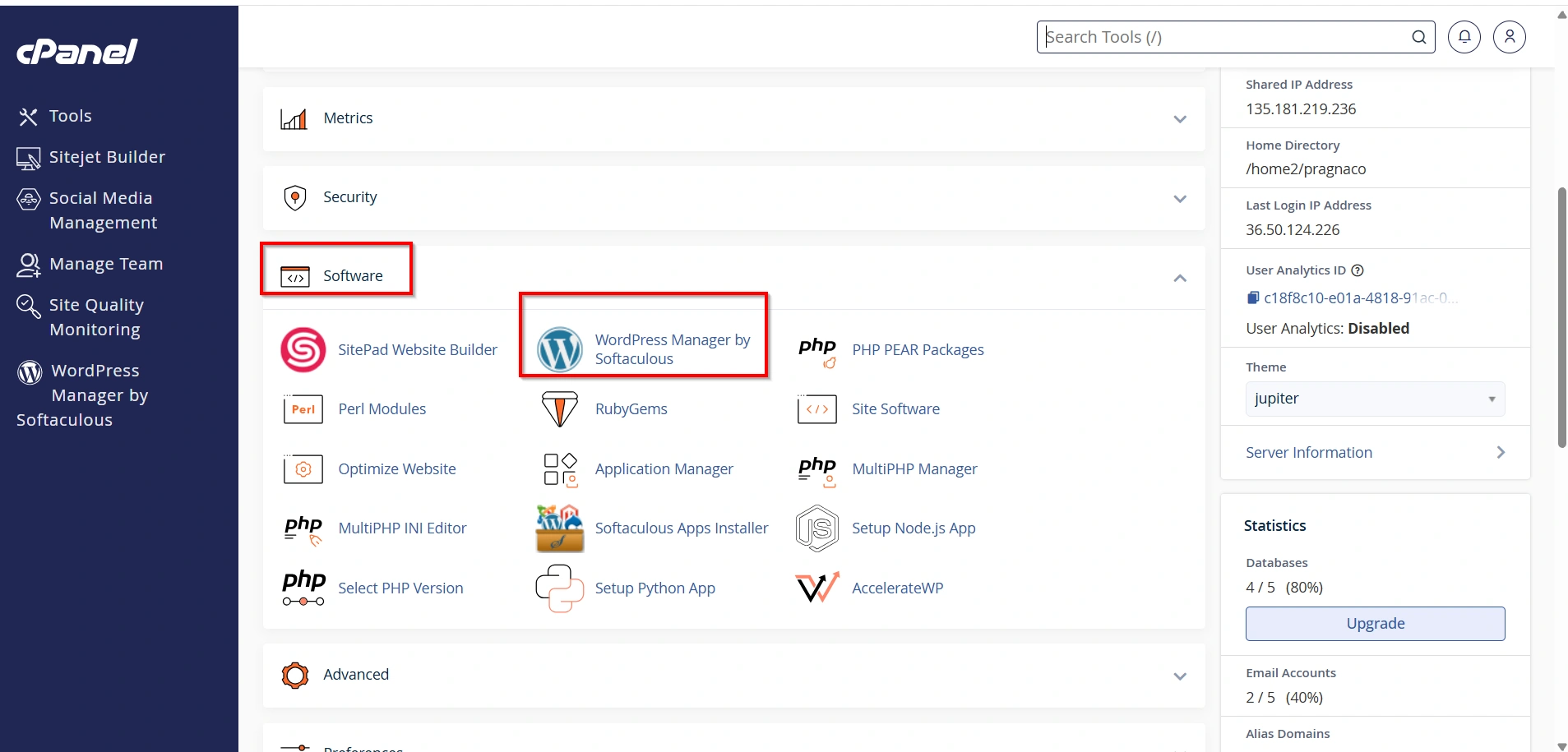
Step 2: Open Softaculous Apps Installer
- Scroll to the Software section.
- Click WordPress Manager by Softaculous.
3. The Softaculous dashboard will open, displaying available applications and your current installations.
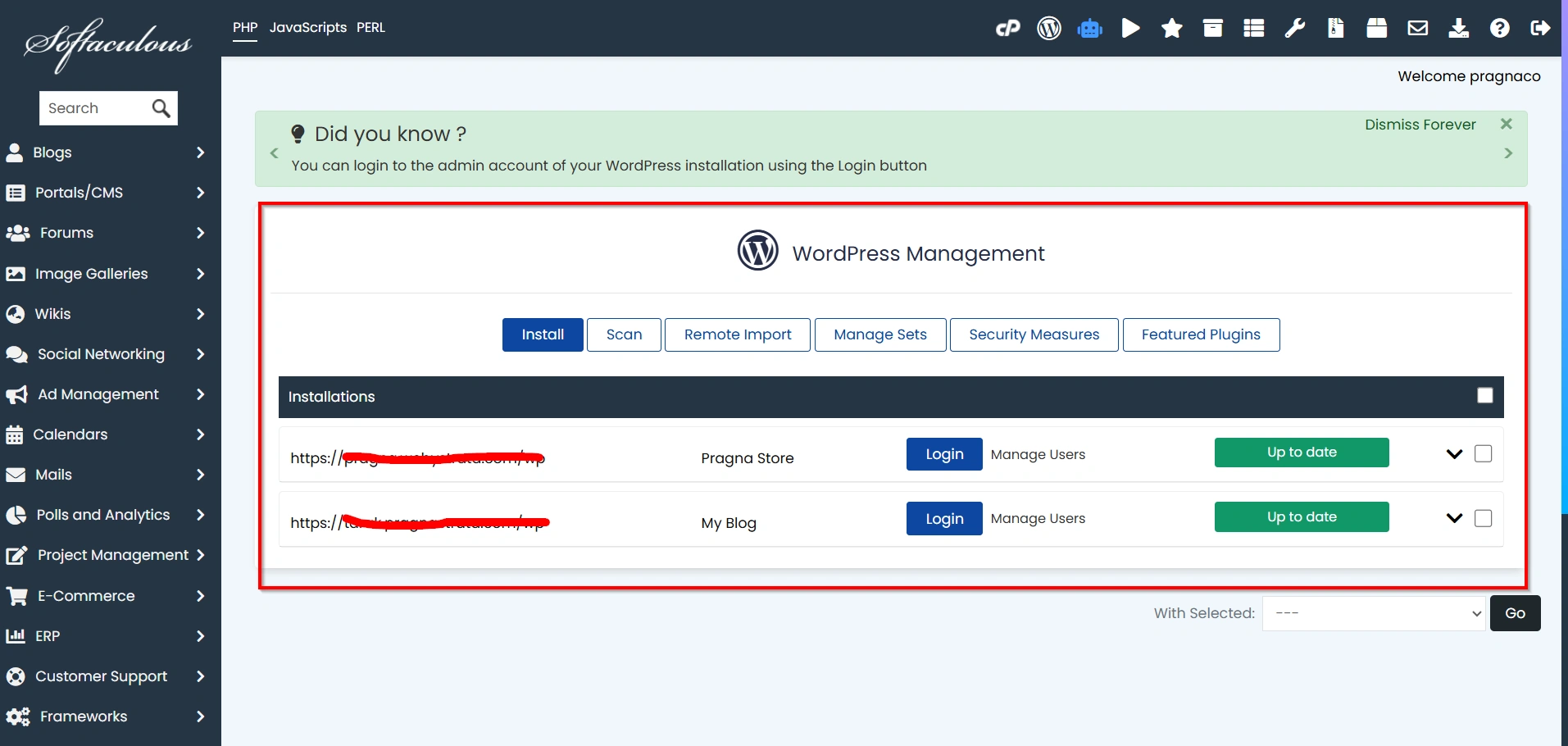
Step 3: Access Installed Applications
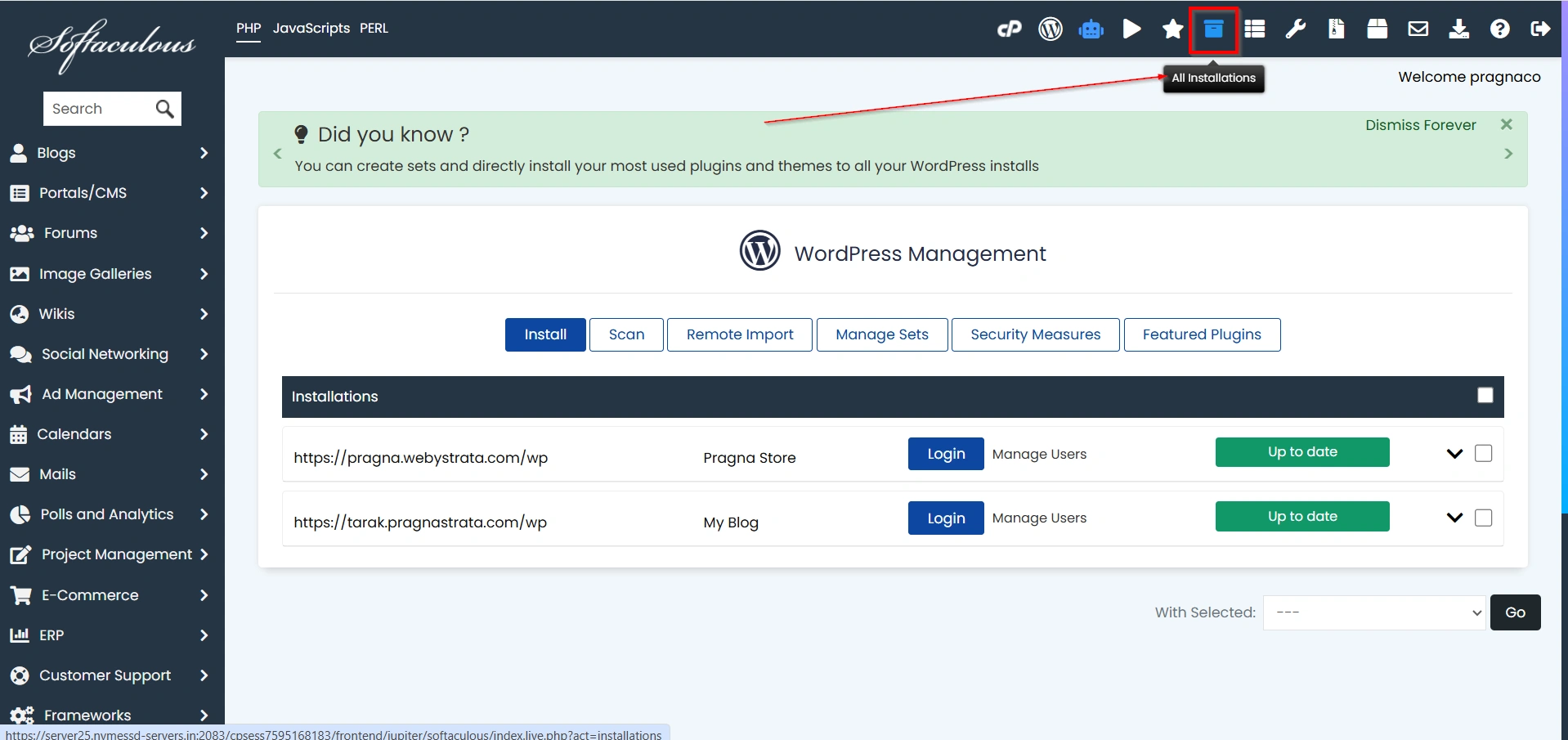
- Click the Installations icon located in the top menu.
- Alternatively, click All Installations.
Step 4: Review Installation Details
Before deleting anything, carefully review:
- Domain name
- Installation path
- Website URL
- Database information
This step helps prevent accidental deletion of the wrong website.
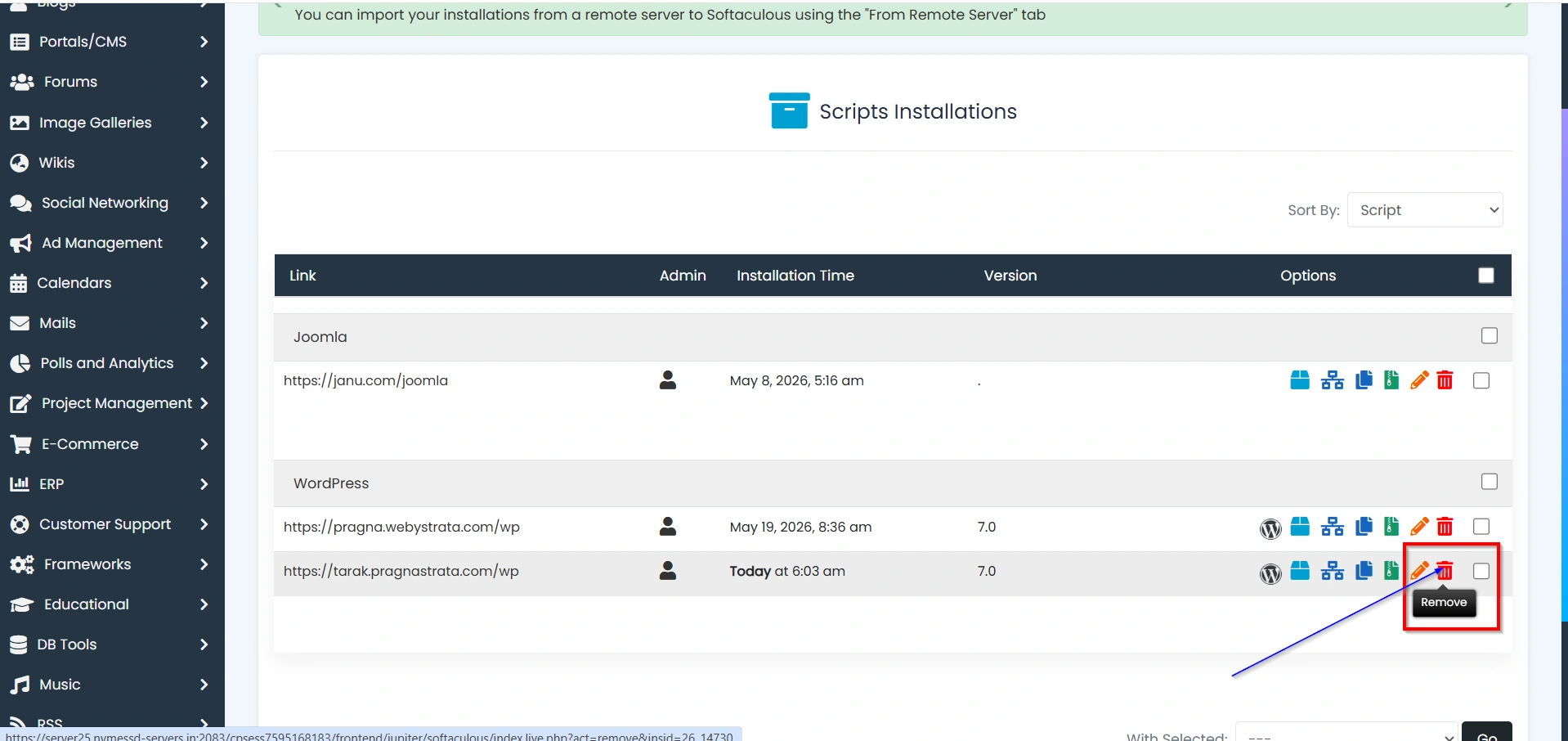
Step 5: Click the Remove Icon
Next to the WordPress installation, you’ll find a Remove or Delete icon represented by an “X”.
Click this icon to start the uninstall process.
Step 6: Choose Removal Options
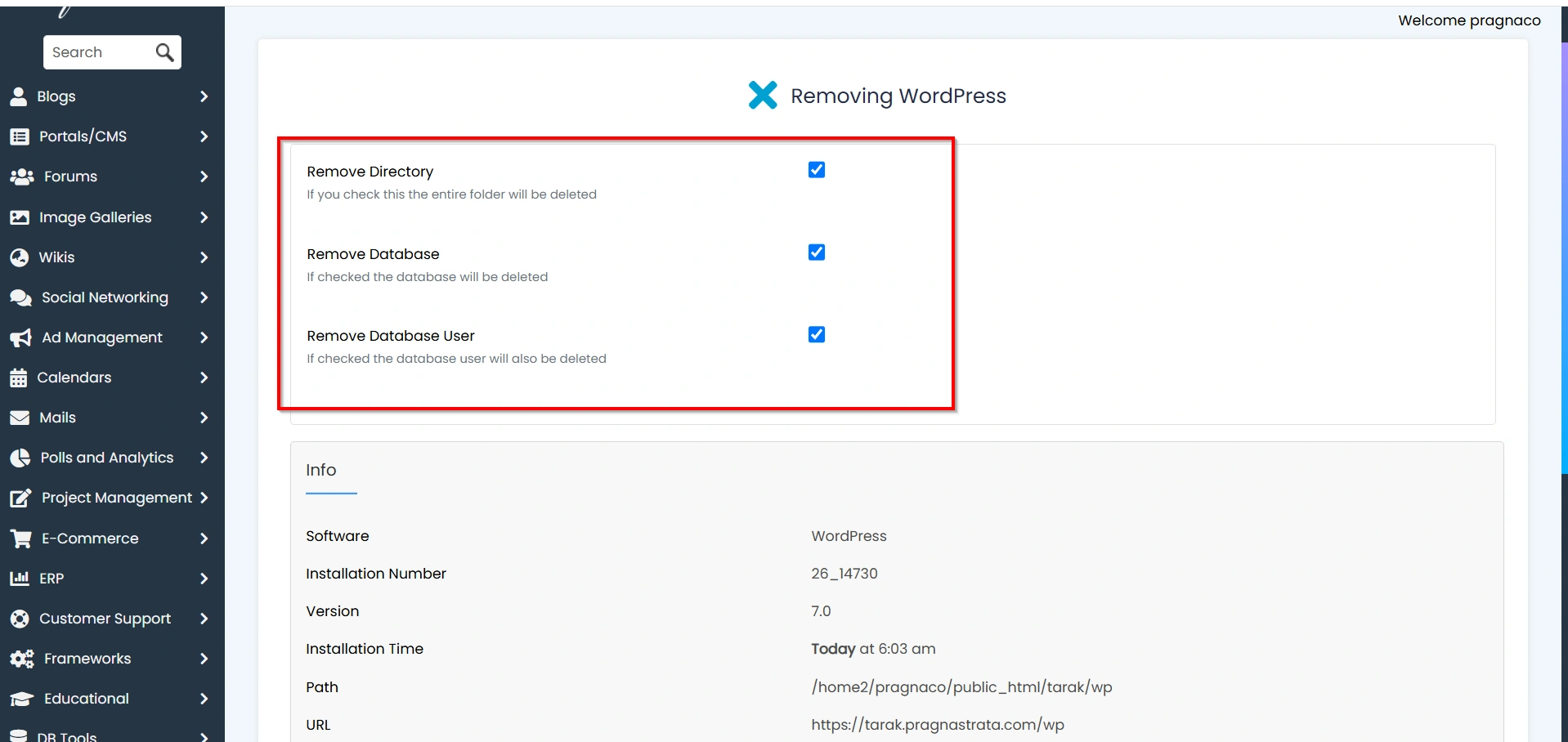
Softaculous typically provides the following options:
Remove Directory
This option deletes all WordPress files, including:
- Themes
- Plugins
- Media uploads
- Configuration files
- Core WordPress files
Remove Database
This option deletes the MySQL database associated with the WordPress installation.
For a complete removal, it’s recommended to select both options.
Step 7: Confirm Removal
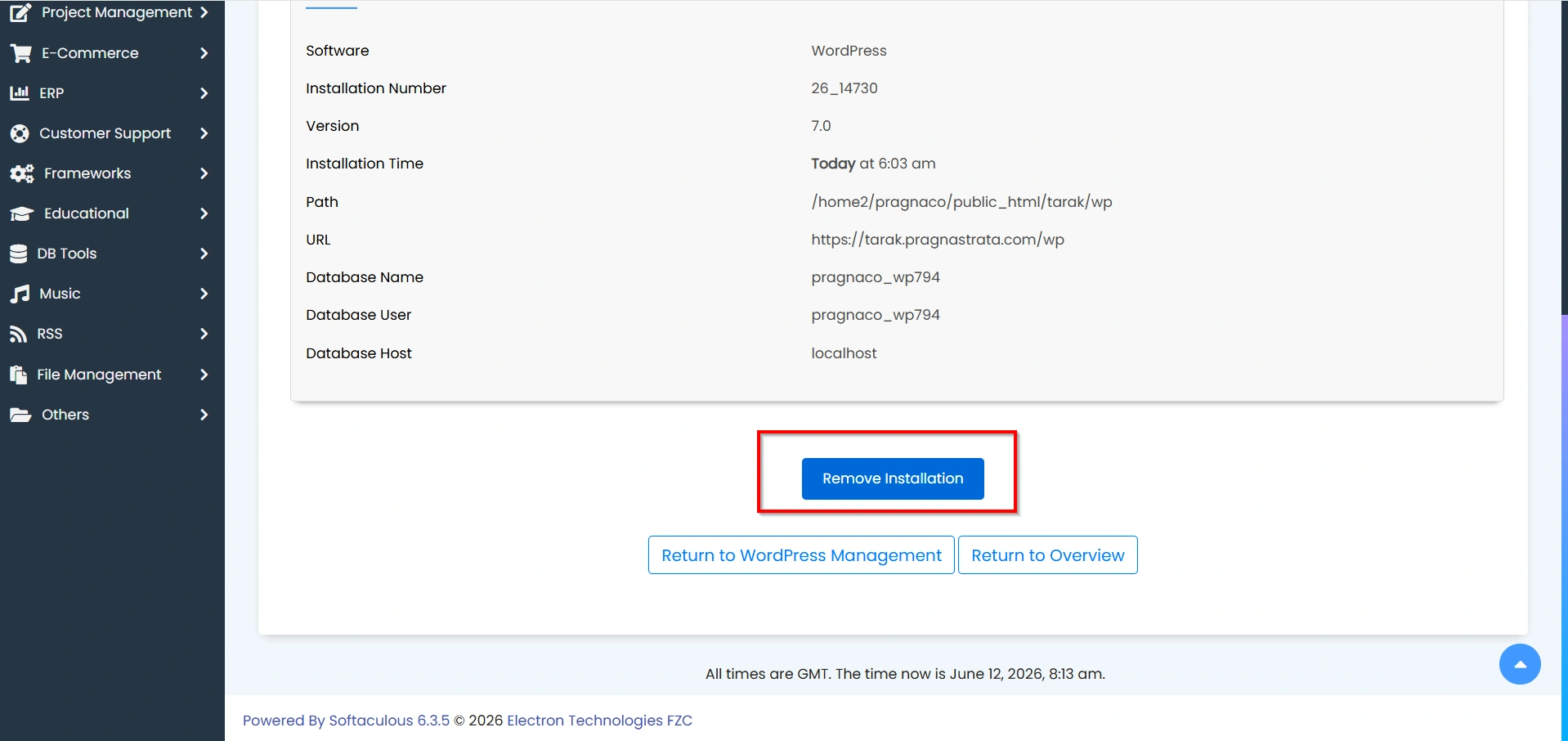
After reviewing the options, click Remove Installation.
Softaculous will ask for confirmation before proceeding.
Confirm the action to begin the uninstall process.
Step 8: Wait for Completion
The removal process usually takes only a few moments.
Once complete, Softaculous will display a success message confirming that the WordPress installation has been removed.
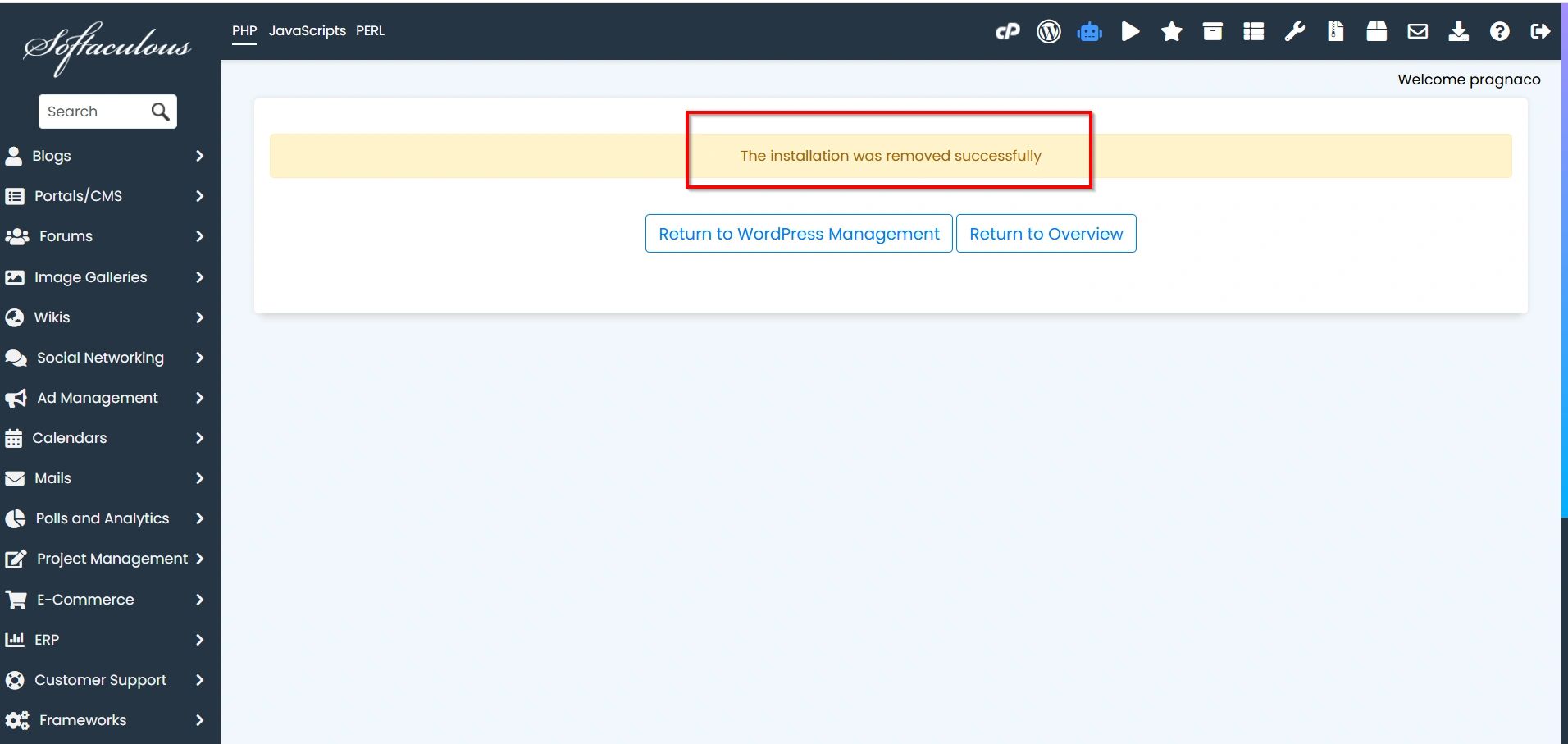
Step 9: Verify the Removal
Return to the Installations page and ensure the WordPress installation no longer appears.
You can also visit the website URL to verify that the site has been successfully removed.
What Happens When WordPress Is Removed?
Depending on the options selected, Softaculous may remove:
- WordPress core files
- Installed themes
- Plugins
- Media uploads
- MySQL database
- Configuration settings
After removal, the website will no longer be accessible unless restored from a backup.
Benefits of Removing WordPress Through Softaculous
Using Softaculous to uninstall WordPress offers several advantages:
- Quick and user-friendly process
- Automatic file cleanup
- Easy database removal
- Reduced risk of leaving unused files behind
- Helps maintain server organization
- Saves time compared to manual deletion
Conclusion
Removing WordPress from cPanel Softaculous is a straightforward process that can be completed in just a few minutes. By accessing your Softaculous installations, selecting the correct WordPress site, and choosing the appropriate removal options, you can safely uninstall WordPress along with its files and database.
Before proceeding, always create a backup and verify that you’re deleting the correct installation. Following these steps will help ensure a smooth and error-free removal process while keeping your hosting account organized and secure.
Related Articles


