How to Reset Email Account Password from cPanel

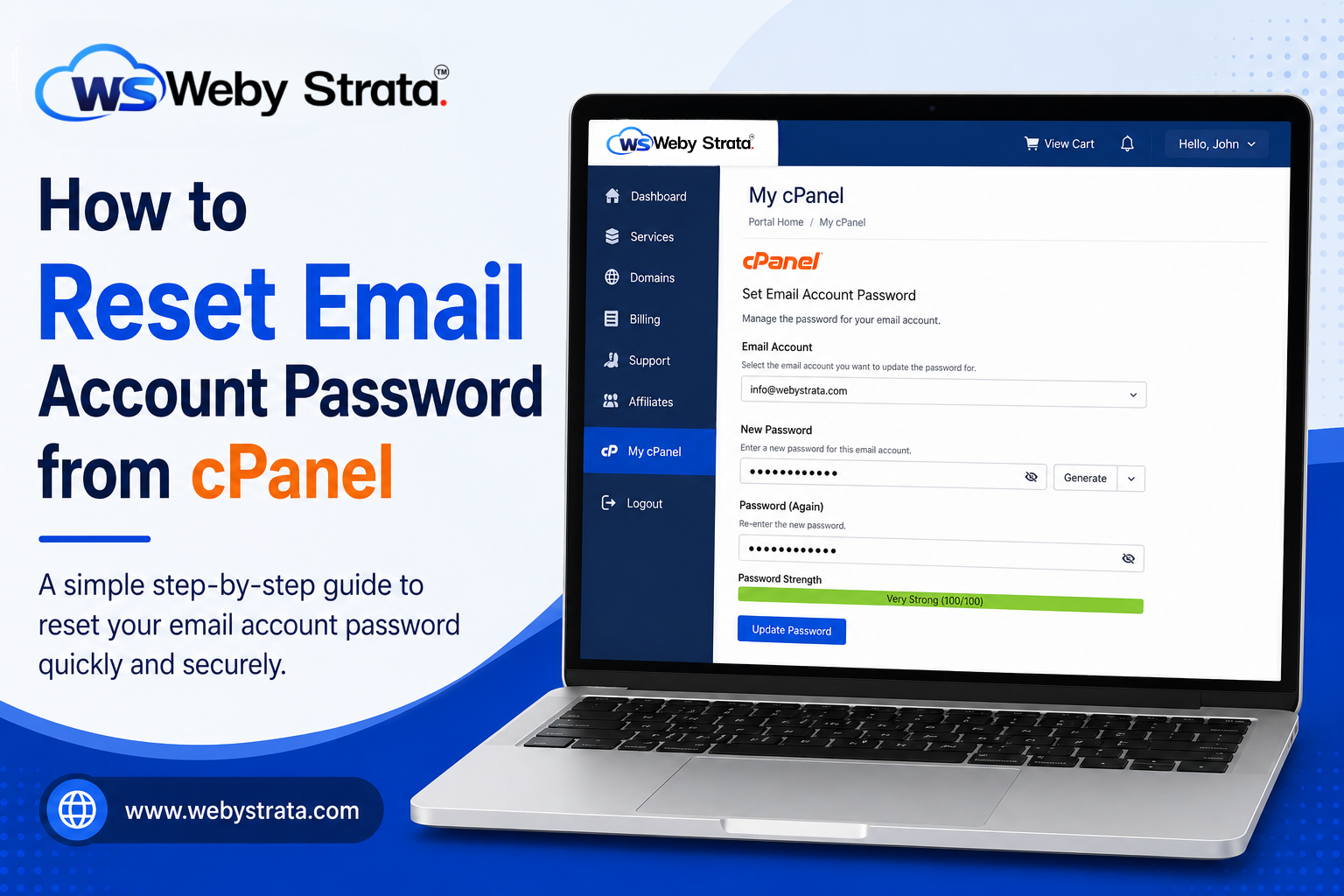
How to Reset Email Account Password from cPanel

Managing your email account password is important for both security and account access. If you forgot your email password or want to change it for security reasons, cPanel allows you to reset it easily within a few minutes.

In this guide, we will explain the complete step-by-step process to reset email account password from cPanel using your hosting client area and cPanel dashboard.

Step 1: Login to cPanel from WebyStrata Client Area to Reset Email Account Password from cPanel

The first step to reset email account password from cPanel is accessing your hosting control panel through the WebyStrata Client Area. WebyStrata provides direct cPanel access so users can securely manage hosting and email settings without manually entering cPanel login details every time.

First, visit the WebyStrata website and log in to your client area account using your registered email address and password.

official Website www.webystrata.com

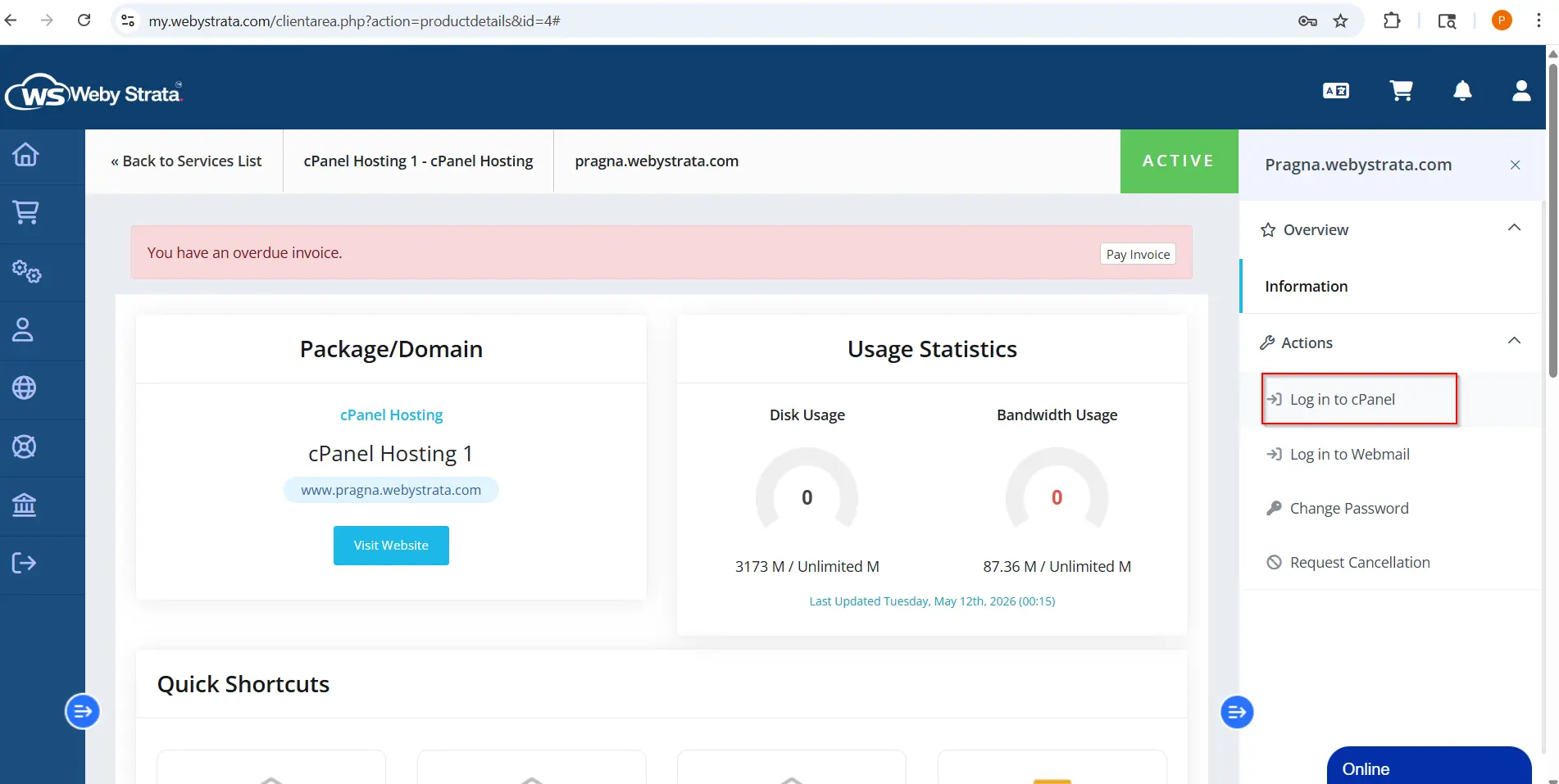
After successfully logging into the client area:

  1. Go to Services
  2. Click on My Services
  3. Select your active hosting service
  4. Click on Login to cPanel

Once you click on Login to cPanel, you will automatically be redirected to your cPanel dashboard where you can manage email accounts, hosting settings, domains, files, and databases.

This is the easiest and safest way to access cPanel and reset email account password from cPanel using your WebyStrata hosting account.

how-to-reset-email-account-password-from-cpanel

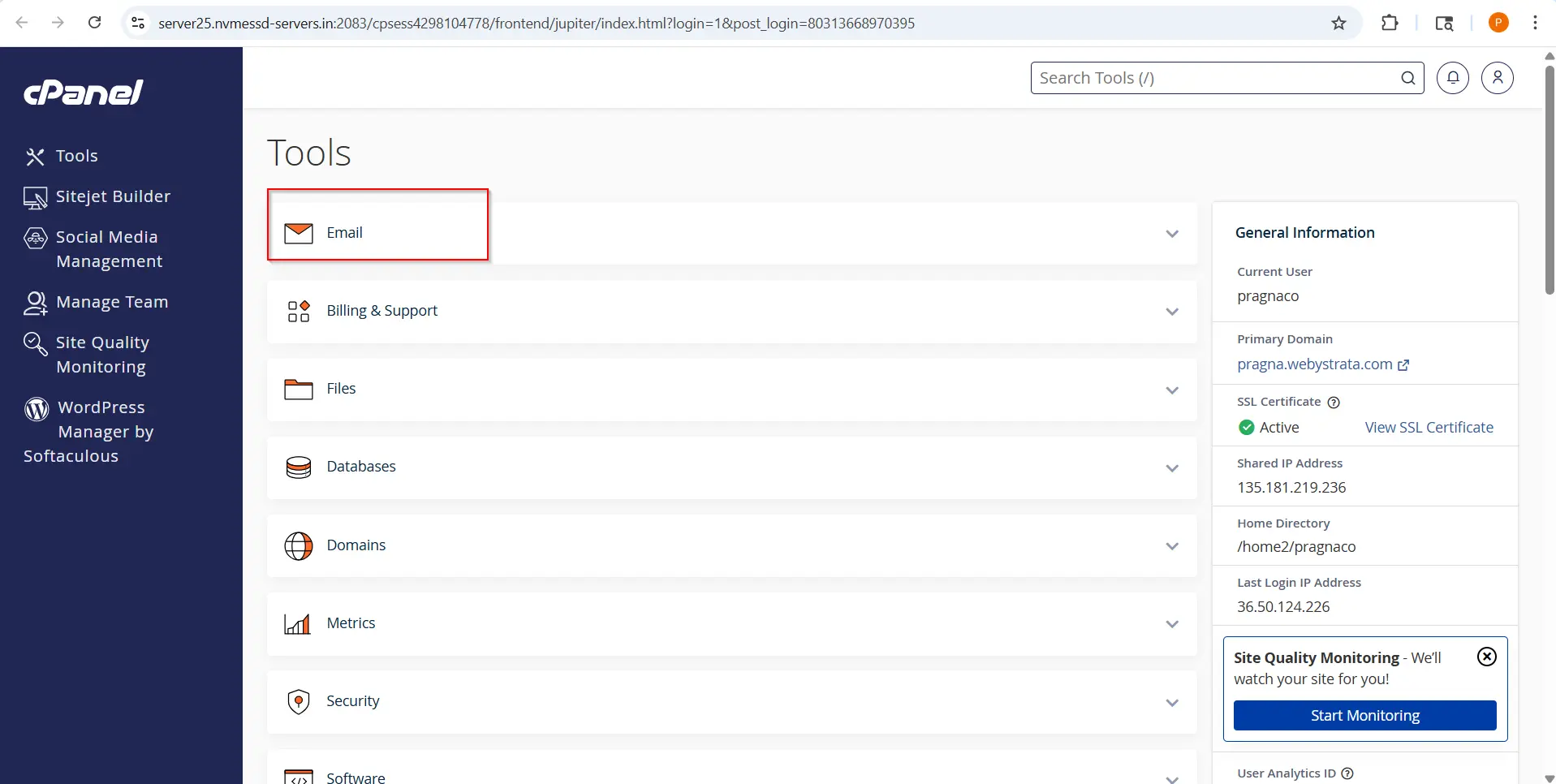
Step 2: Open Email Section in cPanel to Reset Email Account Password from cPanel

After successfully logging into cPanel, you will see various sections such as Files, Databases, Domains, Security, Software, and Email.

To continue the process to reset email account password from cPanel, scroll down until you find the Email section.

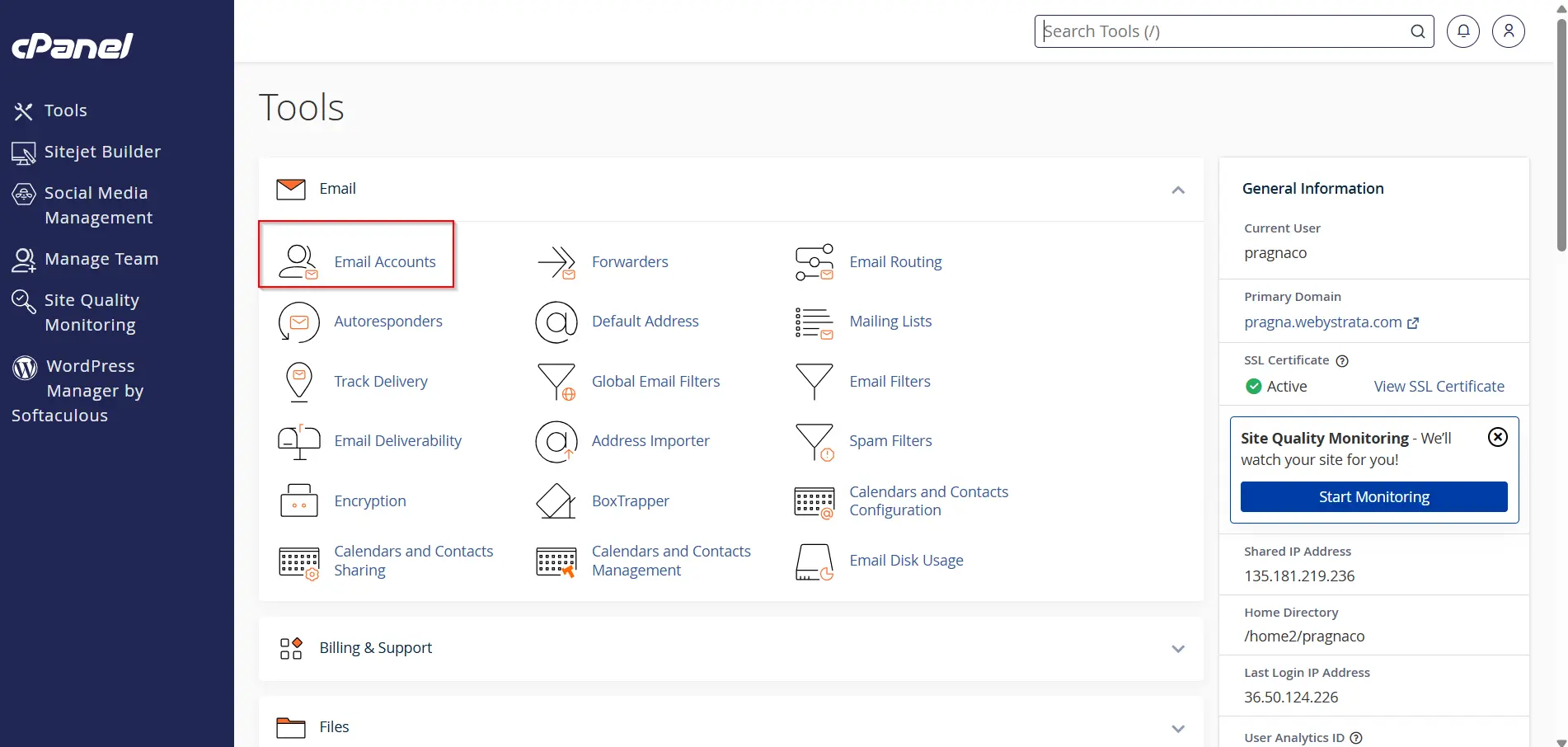
The Email section contains all tools related to email account management including:

  • Email Accounts
  • Forwarders
  • Email Routing
  • Spam Filters
  • Autoresponders
  • Mailing Lists

Click on the Email option or directly locate Email Accounts depending on your cPanel layout.

The Email section is the main area where you can create, manage, and reset email account password from cPanel.

how-to-reset-email-account-password-from-cpanel

Step 3: Open Email Accounts to Reset Email Account Password from cPanel

Inside the Email section, click on Email Accounts.

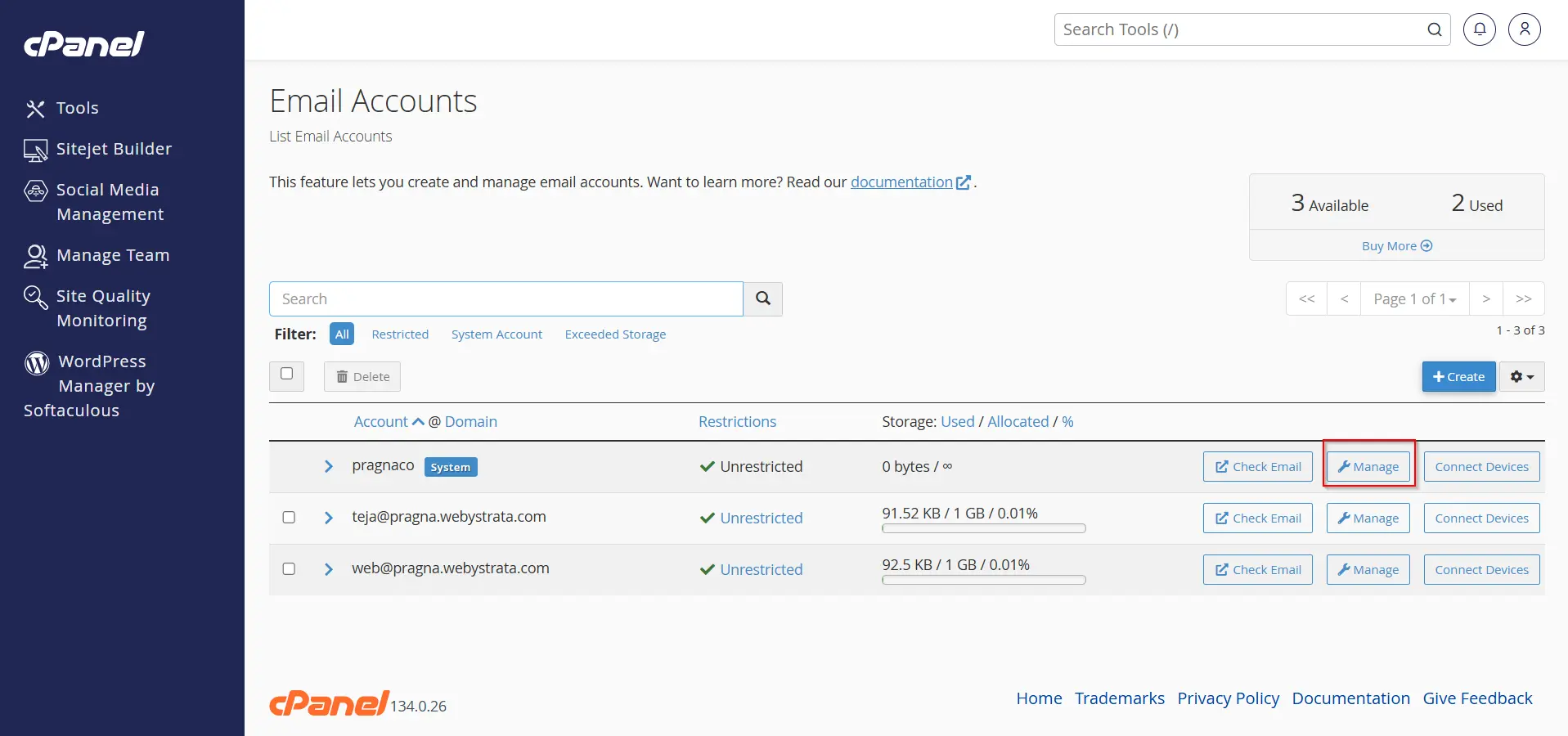
The Email Accounts page will display all email addresses created under your hosting account and domain name. Here you can view multiple email accounts such as:

This section allows users to:

  • Create new email accounts
  • Manage existing email accounts
  • Check storage usage
  • Configure devices
  • Access webmail
  • Reset email account password from cPanel

Locate the specific email account for which you want to change or reset the password.

how-to-reset-email-account-password-from-cpanel

Step 4: Select the Email Account to Reset Email Account Password from cPanel

Now find the email account whose password you want to update.

Next to every email account, you will see different options such as:

  • Check Email
  • Connect Devices
  • Manage

Click on the Manage button beside the required email account.

The Manage section allows users to control all important settings related to the selected email account including:

  • Password management
  • Storage allocation
  • Security settings
  • Email restrictions

This is the most important step in the process to reset email account password from cPanel because this section gives direct access to password modification options.
how-to-reset-email-account-password-from-cpanel

Step 5: Enter a New Password to Reset Email Account Password from cPanel

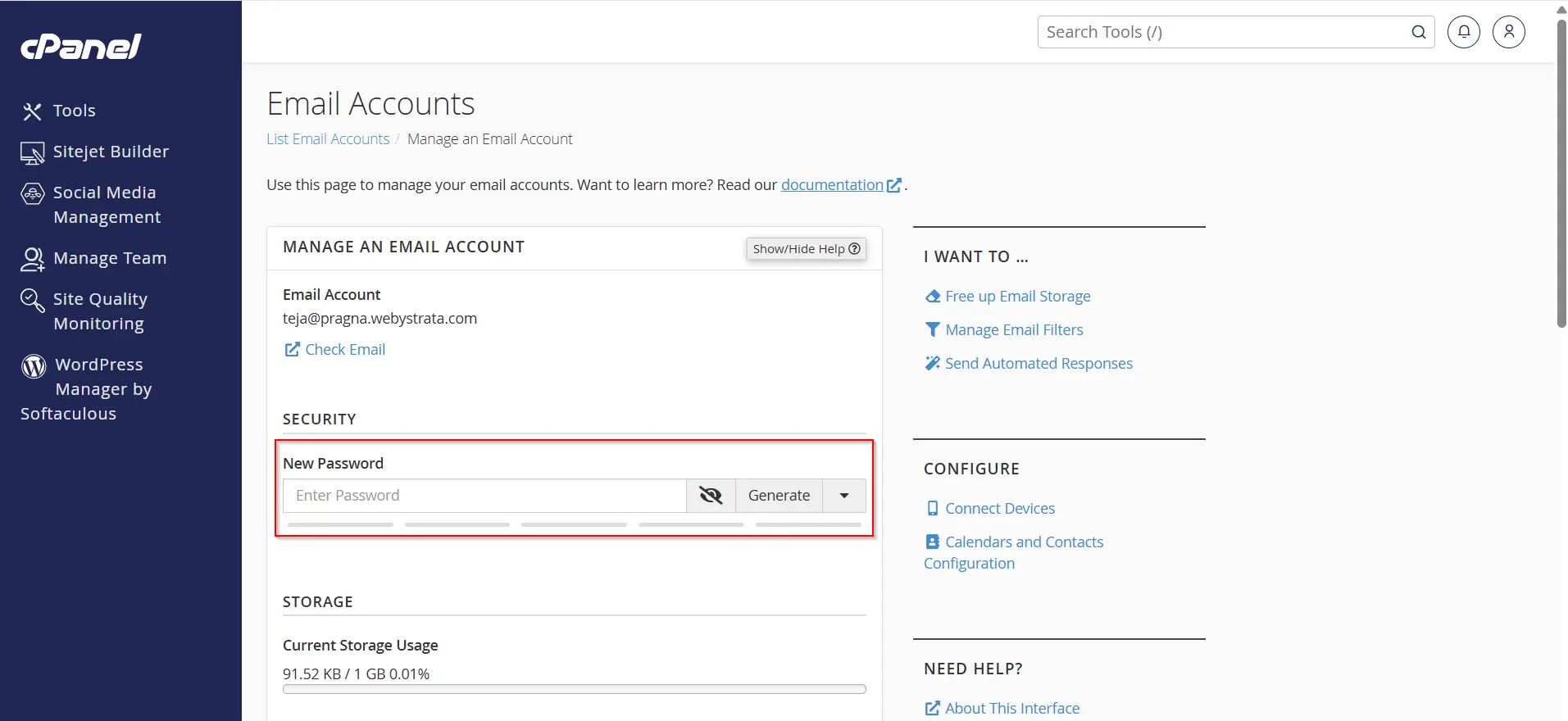
After opening the Manage Email Account page, you will see the password settings section.

Now enter a new strong password for your email account.

You can either:

  • Manually create your own password
    OR
  • Click on Generate to automatically create a strong and secure password

For better email security, always use:

  • Uppercase letters
  • Lowercase letters
  • Numbers
  • Special characters

A strong password helps protect your email account from unauthorized access, hacking attempts, spam activity, and data theft.

When trying to reset email account password from cPanel, it is recommended to avoid weak passwords such as:

  • 123456
  • password
  • admin123
  • yourname123

Using a strong password improves both security and account protection.

how-to-reset-email-account-password-from-cpanel

Step 6: Update Email Settings to Successfully Reset Email Account Password from cPanel

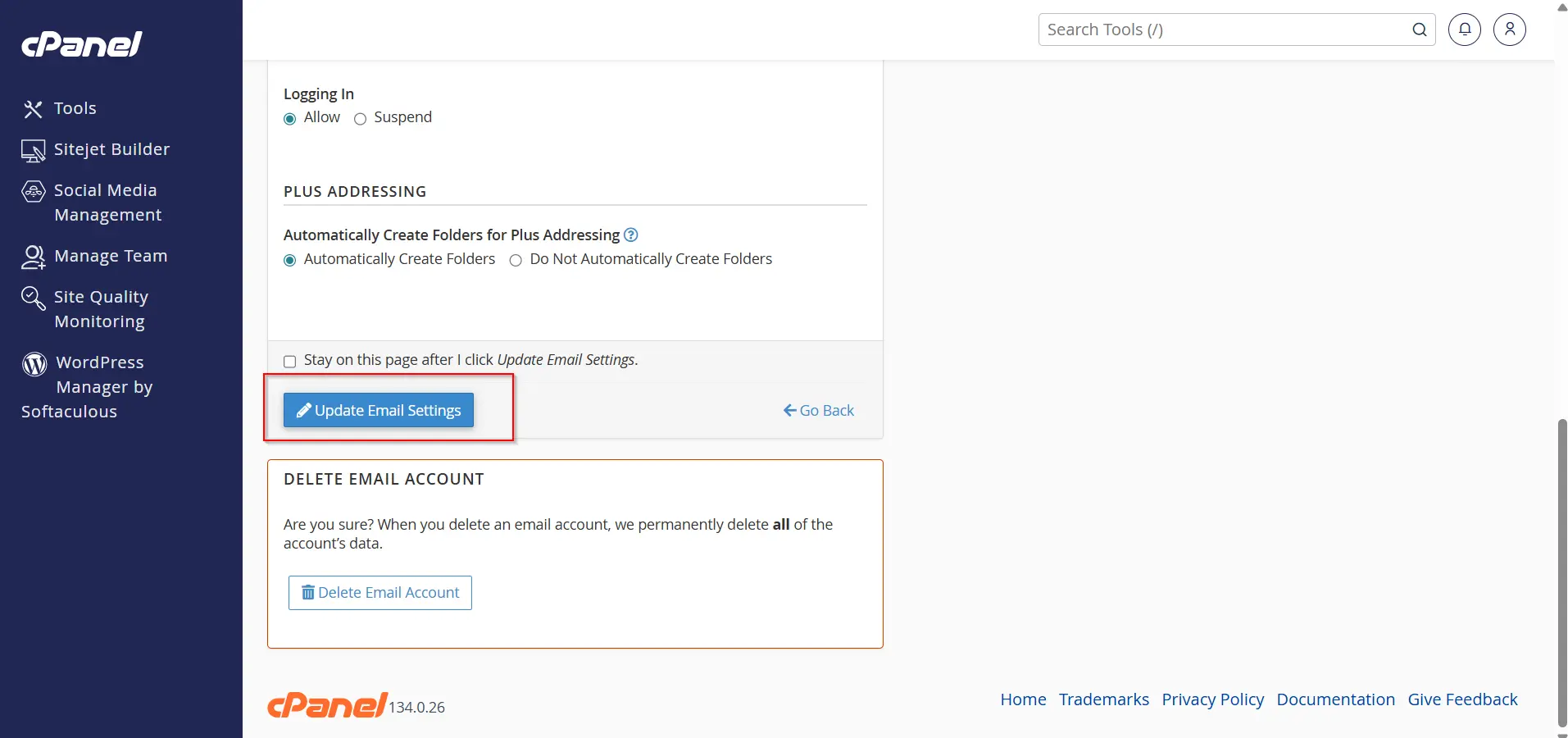
After entering the new password, scroll down to the bottom of the page.

Click on Update Email Settings.

Once you click the button, cPanel will immediately save the new password and apply the changes to your email account.

Your email account password has now been successfully updated.

If there is a checkbox near the Update Email Settings button, it is usually optional and can normally be left unchecked while trying to reset email account password from cPanel.
how-to-reset-email-account-password-from-cpanel

Benefits of Resetting Email Account Password from cPanel

There are several benefits when you reset email account password from cPanel:

  • Improves email security
  • Prevents unauthorized access
  • Protects business communication
  • Helps recover access quickly
  • Easy process with no technical knowledge required
  • Takes only a few minutes to complete

cPanel makes the process simple even for beginners.

Conclusion

Knowing how to reset email account password from cPanel is an essential skill for every website owner and hosting user. Whether you forgot your email password, want to improve security, or need to update account access, cPanel provides a quick and easy solution.

By following the above steps carefully, you can successfully reset email account password from cPanel and regain secure access to your professional email account within minutes.

Always remember to use strong passwords and update the new password on all connected devices after completing the password reset process.
Leave a Reply

Your email address will not be published. Required fields are marked *