Latest Updates
How to Set Up a cPanel Hosting Product in WHMCS
How to Set Up a cPanel Hosting Product in WHMCS If you sell shared hosting services, one of the first tasks after installing WHMCS is to Set Up a cPanel Hosting Product in WHMCS.…
How to Set Up a cPanel Hosting Product in WHMCS
If you sell shared hosting services, one of the first tasks after installing WHMCS is to Set Up a cPanel Hosting Product in WHMCS. By integrating WHMCS with your cPanel/WHM server, you can automatically create hosting accounts, suspend overdue services, unsuspend paid accounts, and terminate canceled services without manual intervention.
This guide explains how to create a cPanel hosting product and connect it with your WHM server for automated provisioning.
Prerequisites
Before you begin, ensure that:
- WHMCS is installed and working properly.
- You have root or reseller access to WHM.
- Your WHM server is added to WHMCS.
- At least one cPanel hosting package exists in WHM.
- You have generated a Remote Access Key or API Token in WHM.
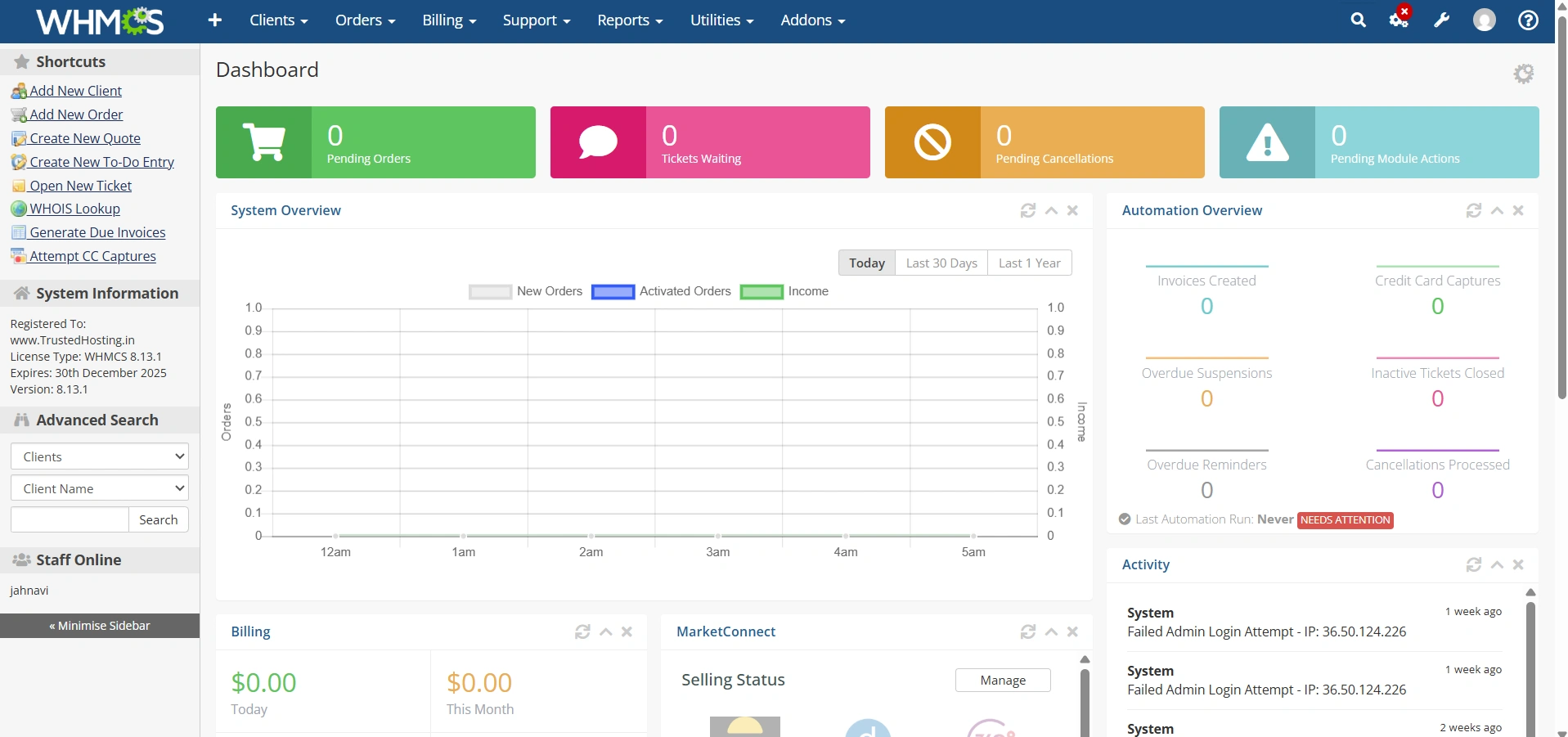
Step 1: Log in to WHMCS Admin Area
Log in to your WHMCS administrator dashboard.
Step 2: Add Your cPanel Server
Before creating a hosting product, add your server to WHMCS.
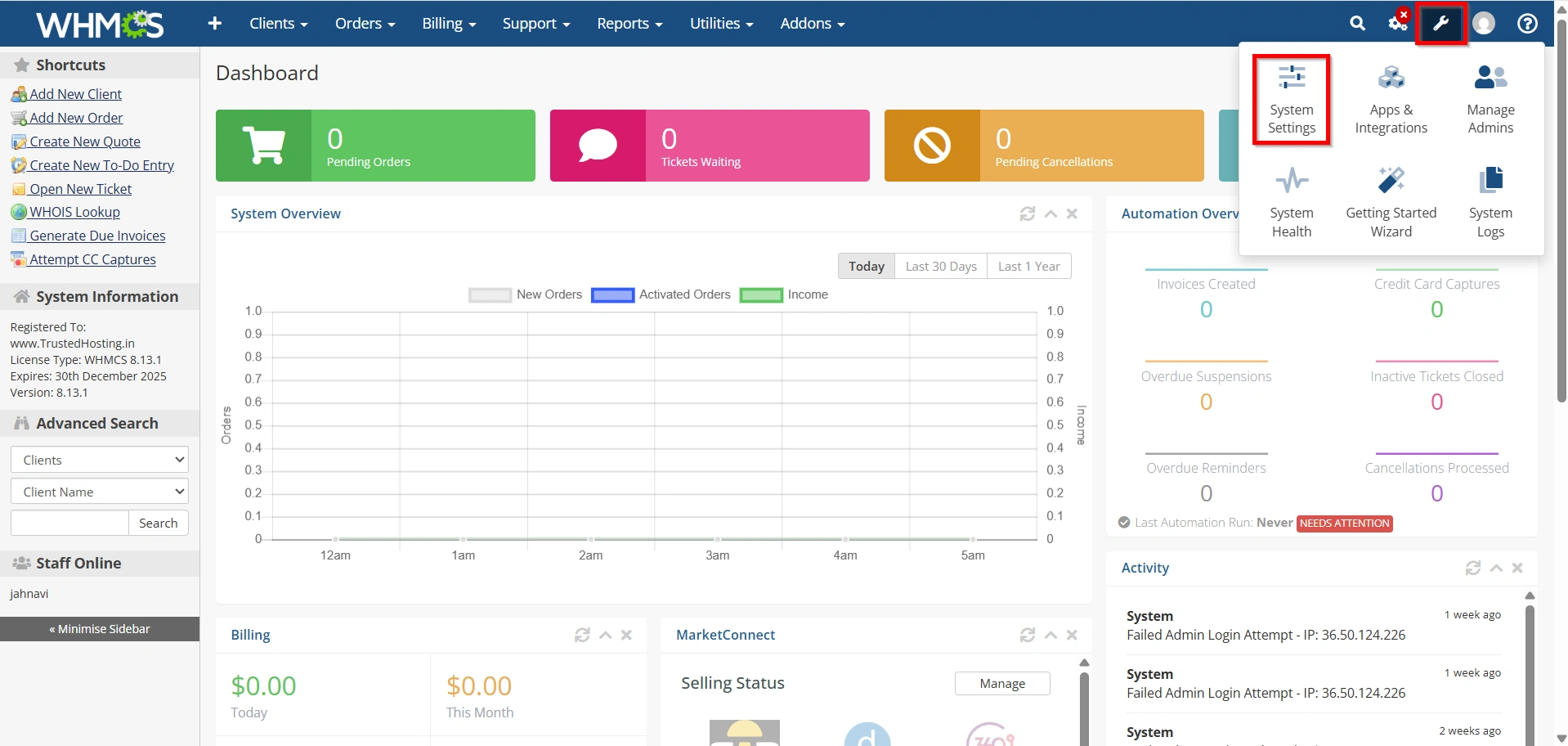
- Navigate to Configuration Icon → System Settings
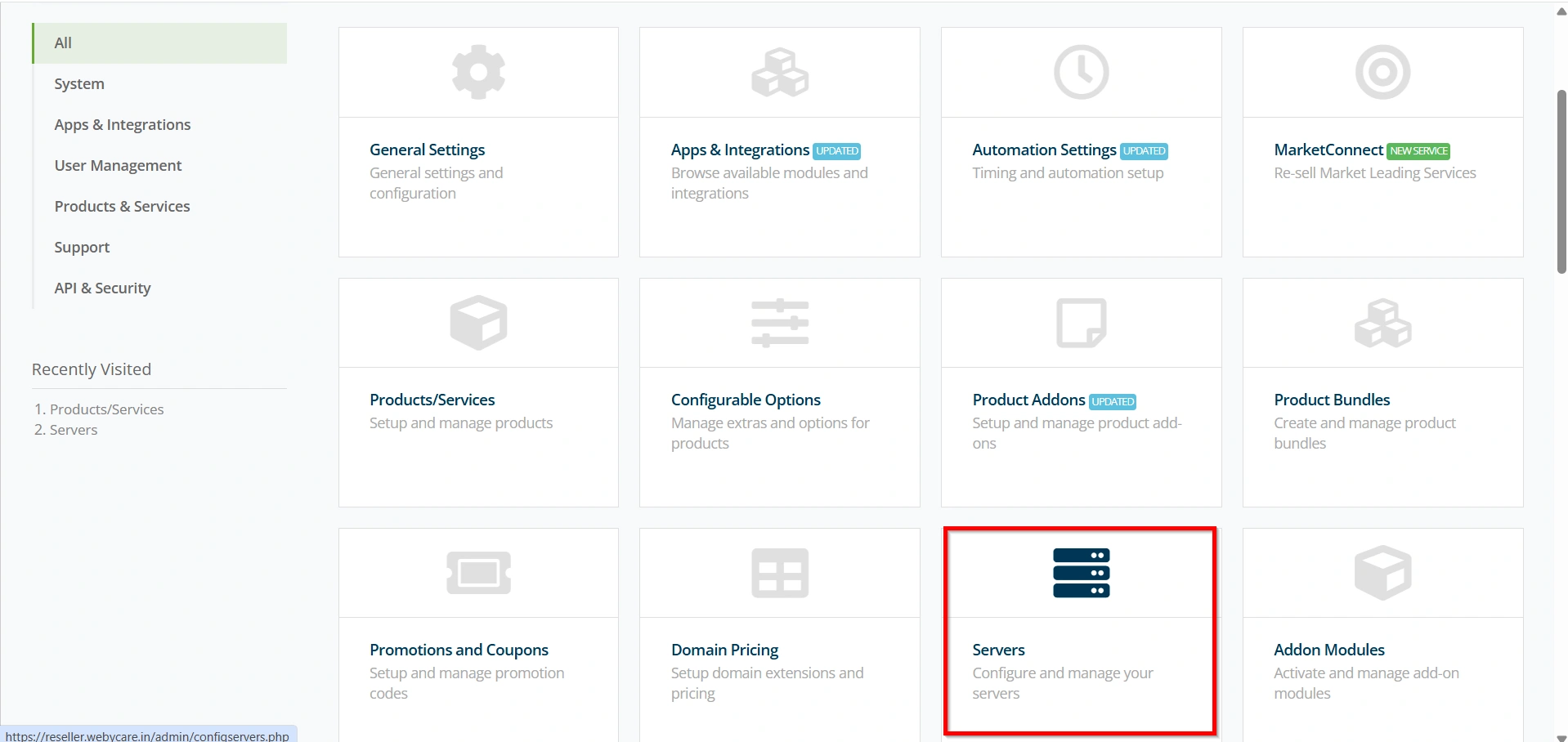
- Select Servers
Click Add New Server.
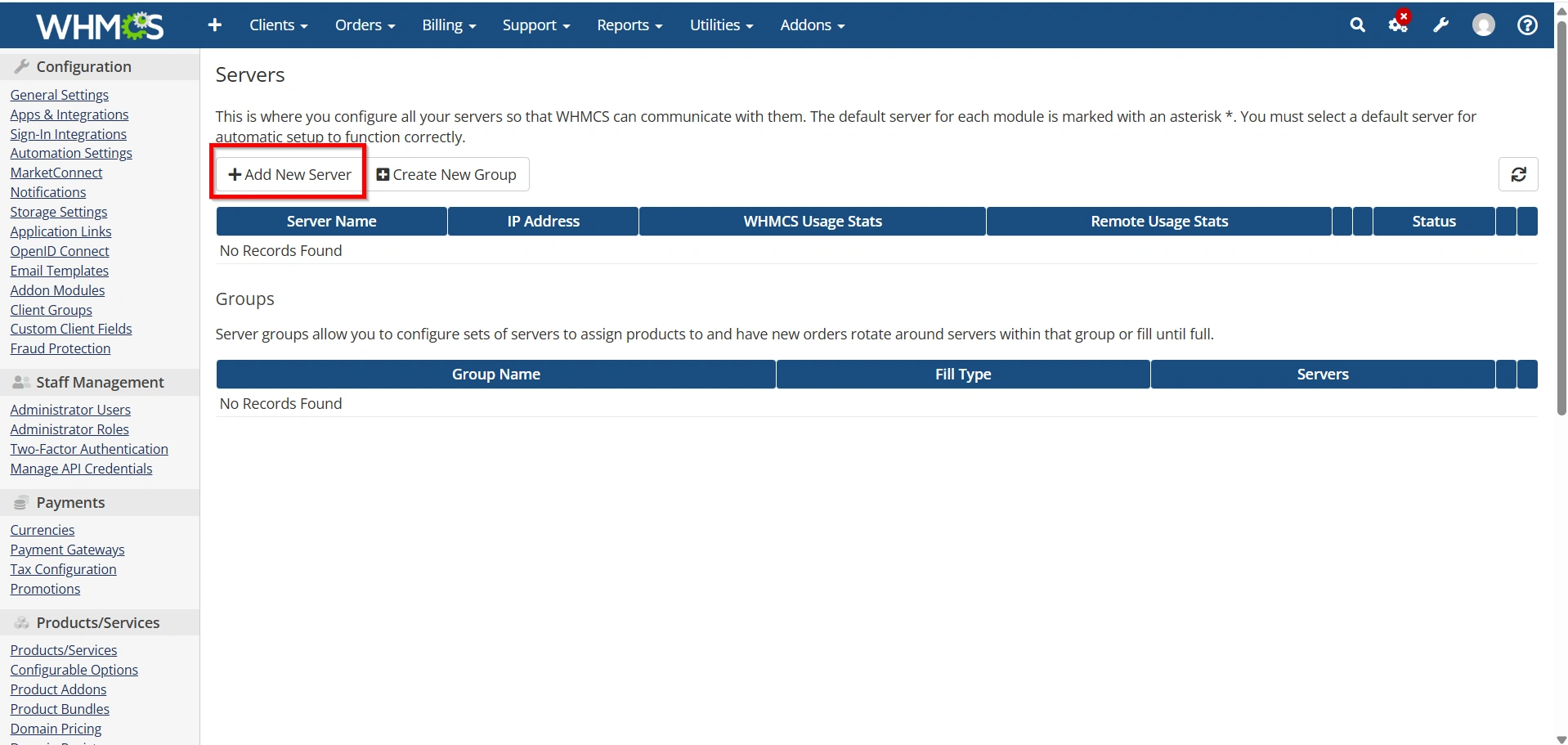
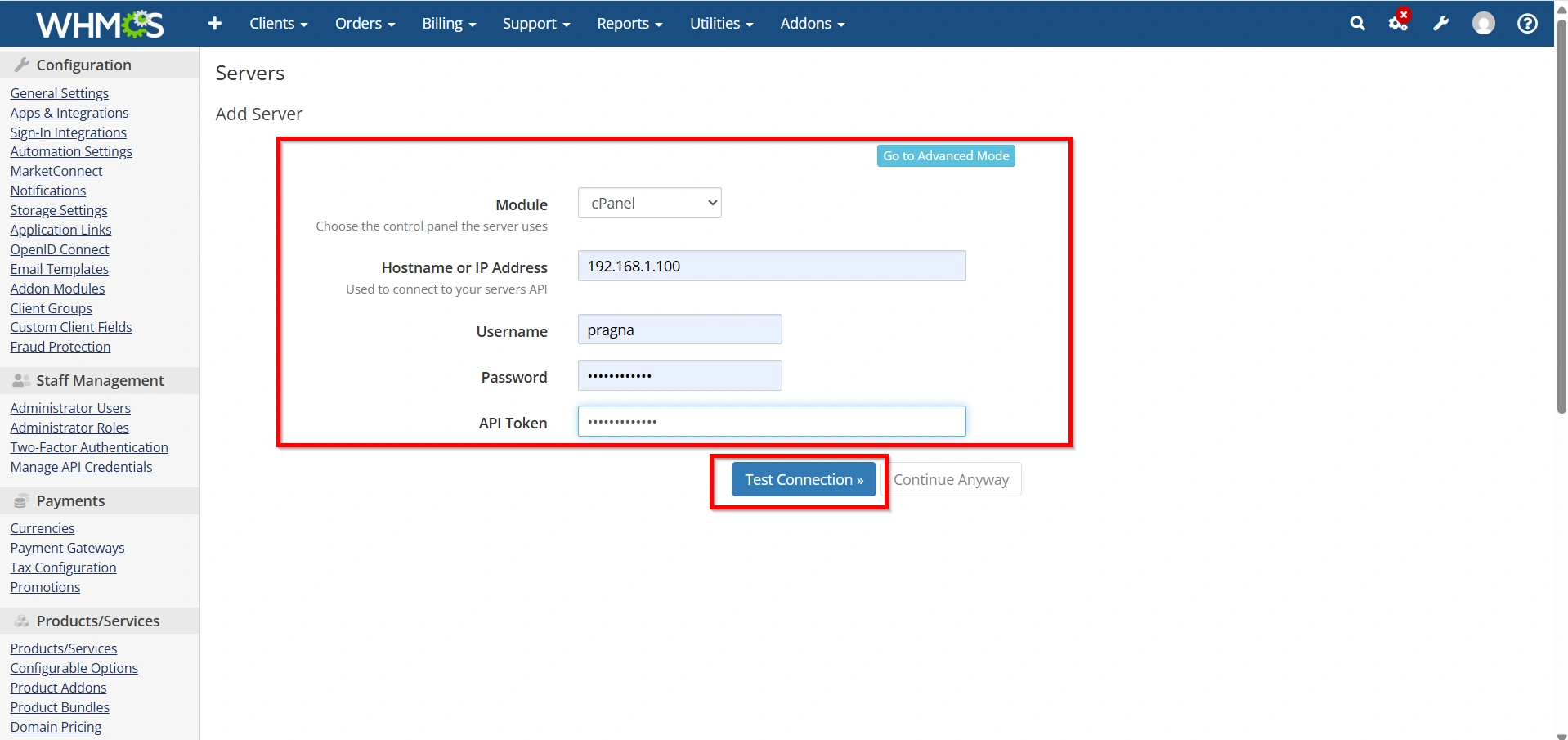
Fill in the required details:
- Server Name
- Hostname
- IP Address
- Nameserver 1
- Nameserver 2
- Username
- Password or API Token
- Server Type: cPanel
Click Test Connection.
If successful, click Save Changes.
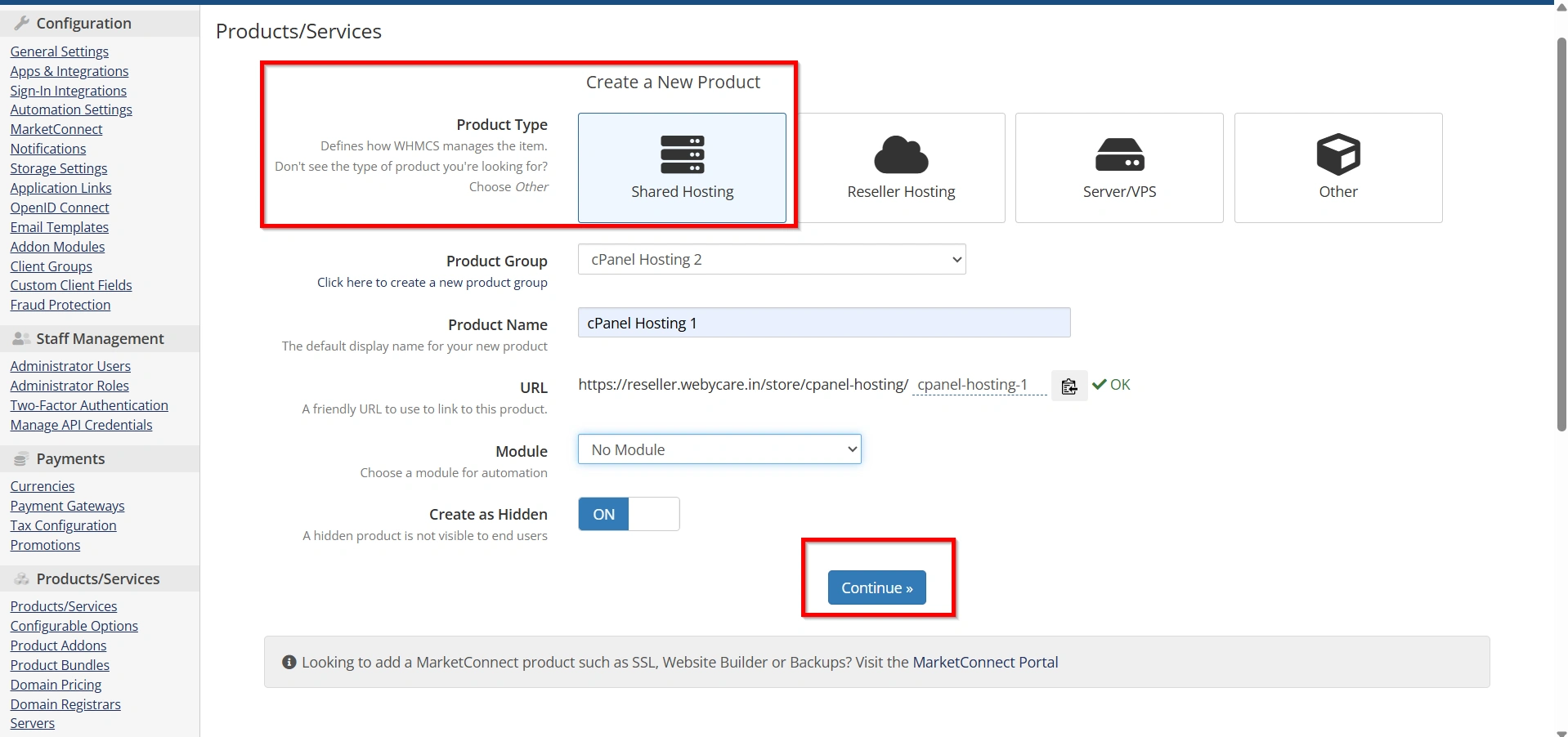
Step 3: Create a New Product
Go to:
System Settings → Products/Services
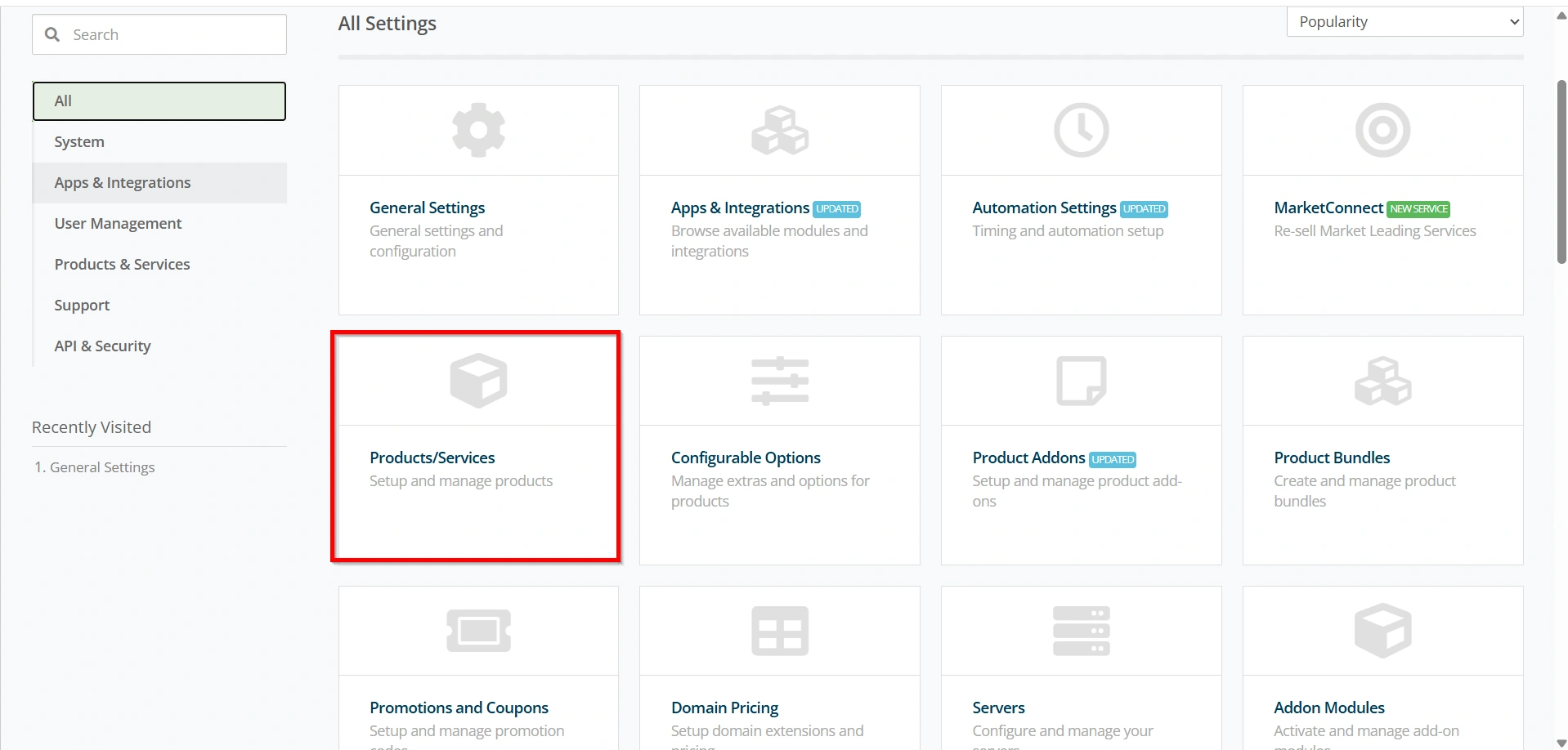
Click Create a New Product.
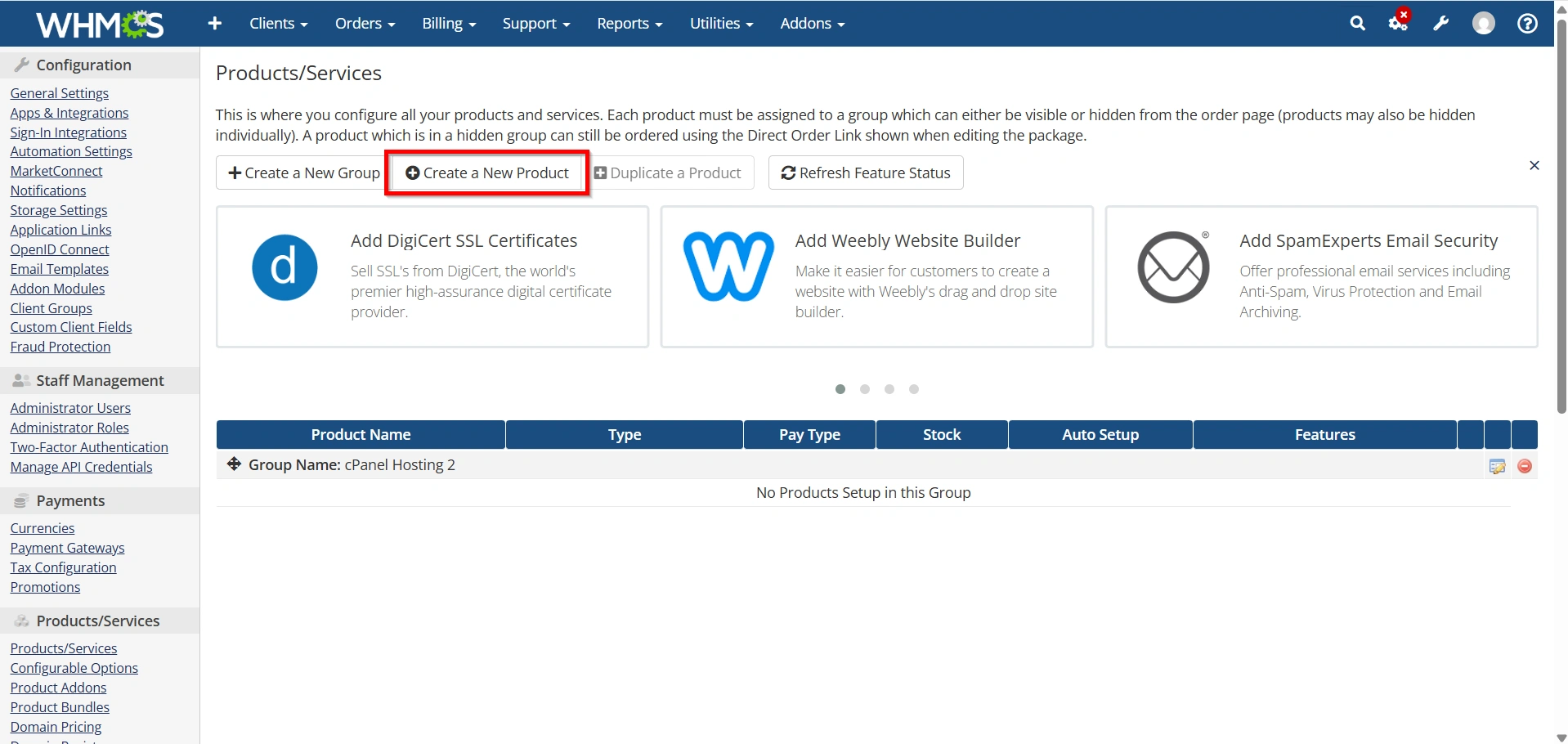
Choose:
- Product Type: Hosting Account
- Product Group
- Product Name
Example:
- Shared Starter
- Shared Business
- Premium Hosting
Click Continue.
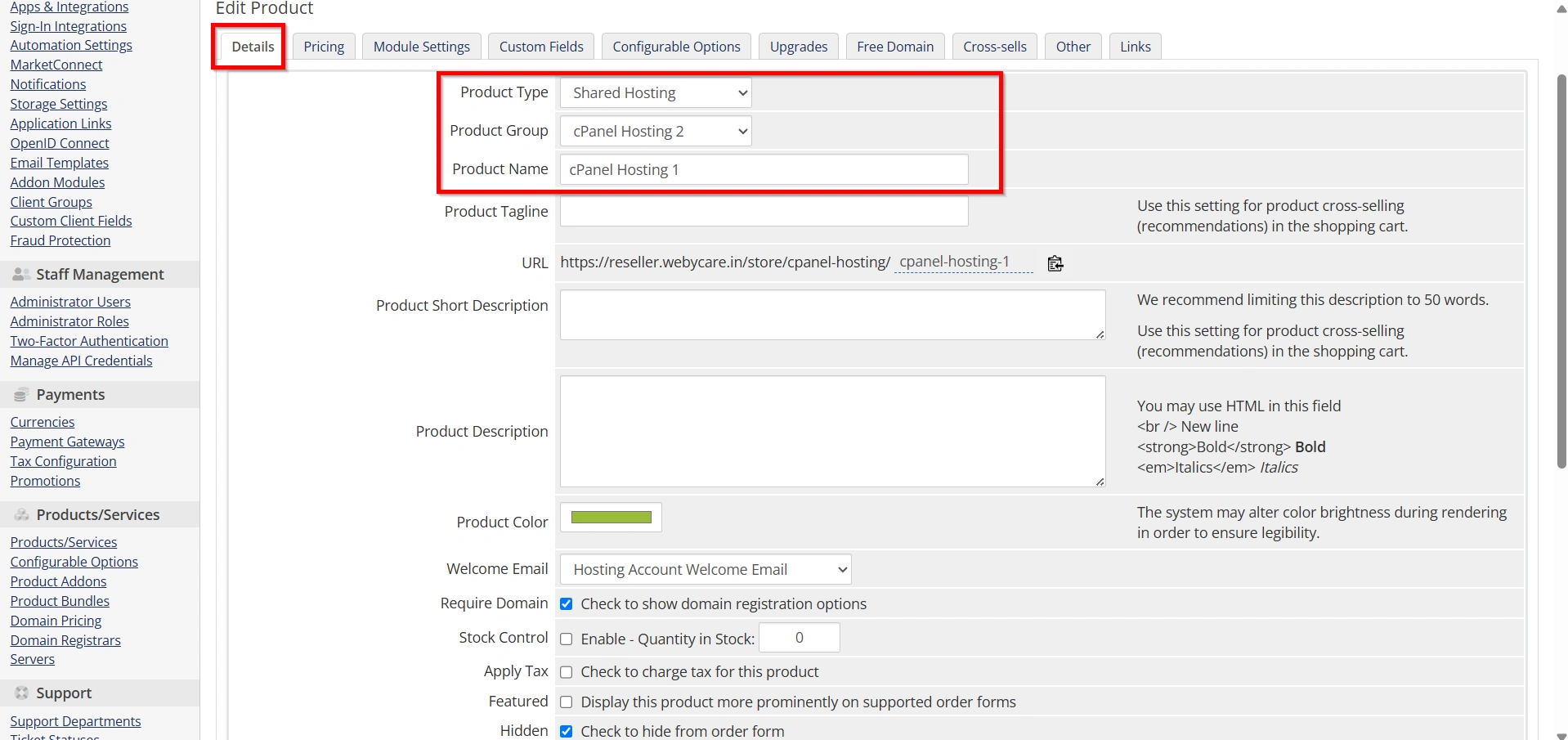
Step 4: Configure Product Details
Under the Details tab configure:
- Product Name
- Description
- Welcome Email
- Require Domain
- Stock Control (optional)
You can also:
- Enable Featured Product
- Set Product Tagline
- Add Product Images
Save the settings.
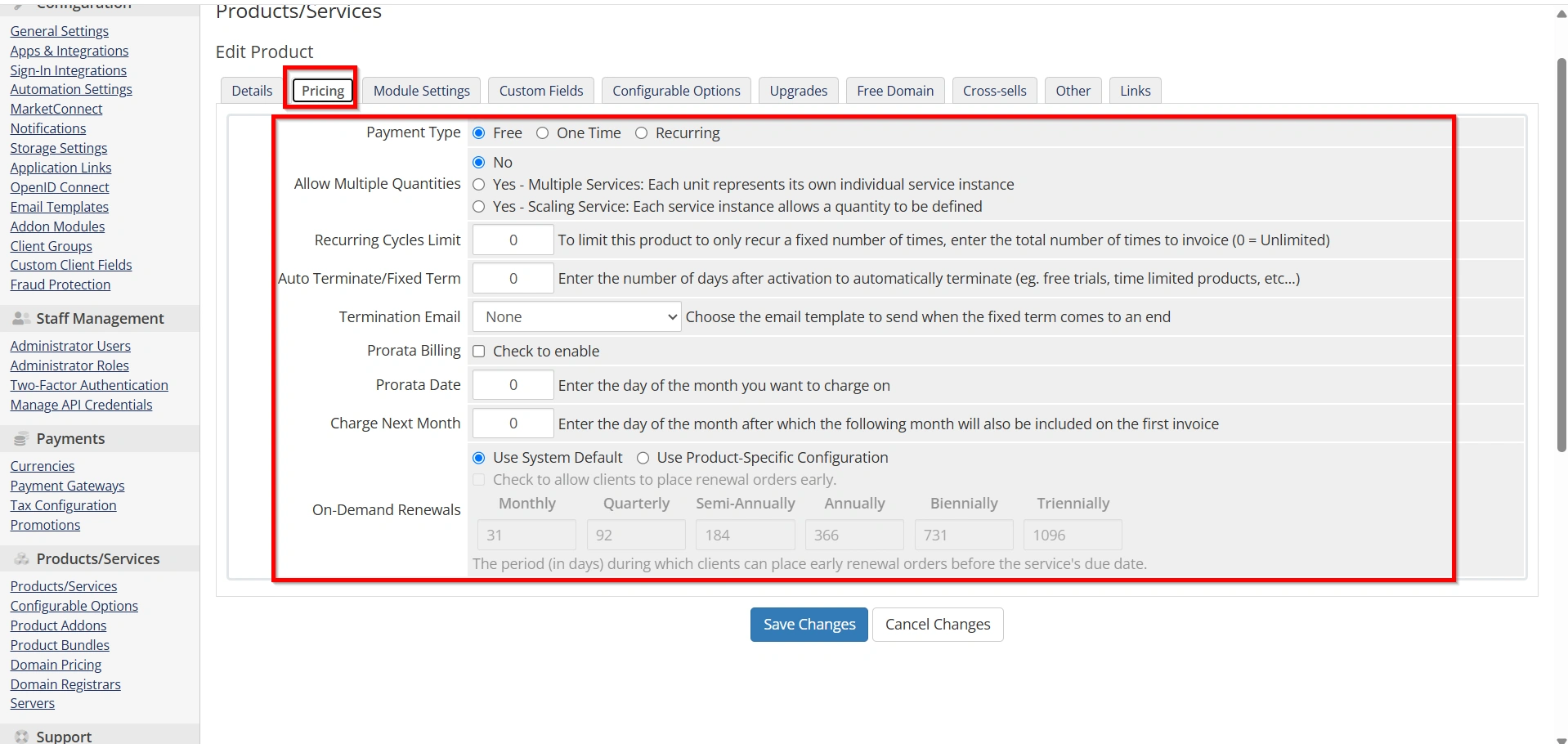
Step 5: Configure Pricing
Open the Pricing tab.
Set pricing for:
- Monthly
- Quarterly
- Semi-Annually
- Annually
- Biennially
- Triennially
Example:
| Billing Cycle | Price |
|---|---|
| Monthly | $4.99 |
| Annually | $49.99 |
Save Changes.
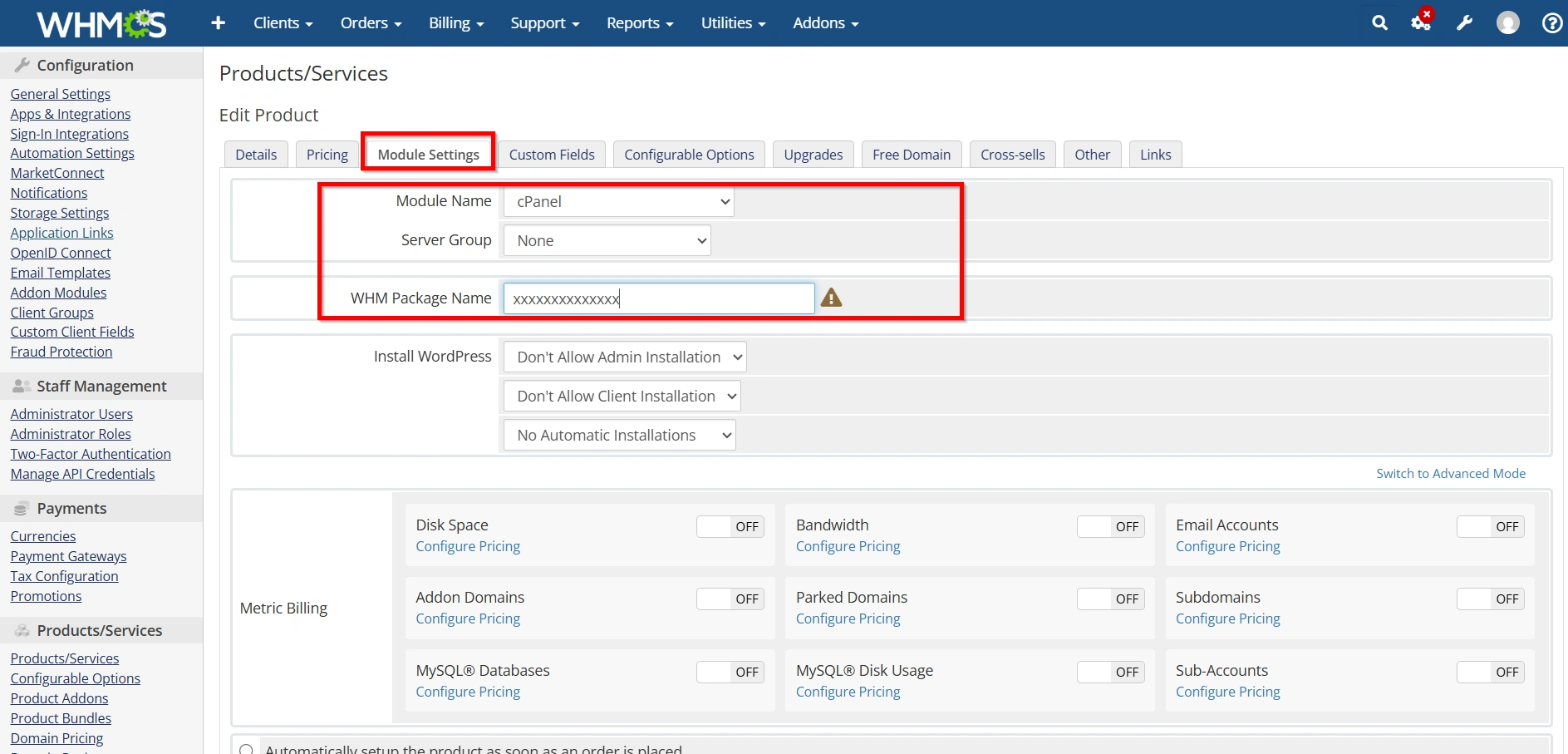
Step 6: Configure the Module
Open the Module Settings tab.
Select:
Module Name: cPanel
WHMCS will display additional configuration options.
Select:
- Server Group
- Server
- WHM Package Name
The WHM Package Name must exactly match the package created in WHM.
Example:
starter
business
premium
Do not include extra spaces or incorrect capitalization.
Step 7: Configure Automatic Account Creation
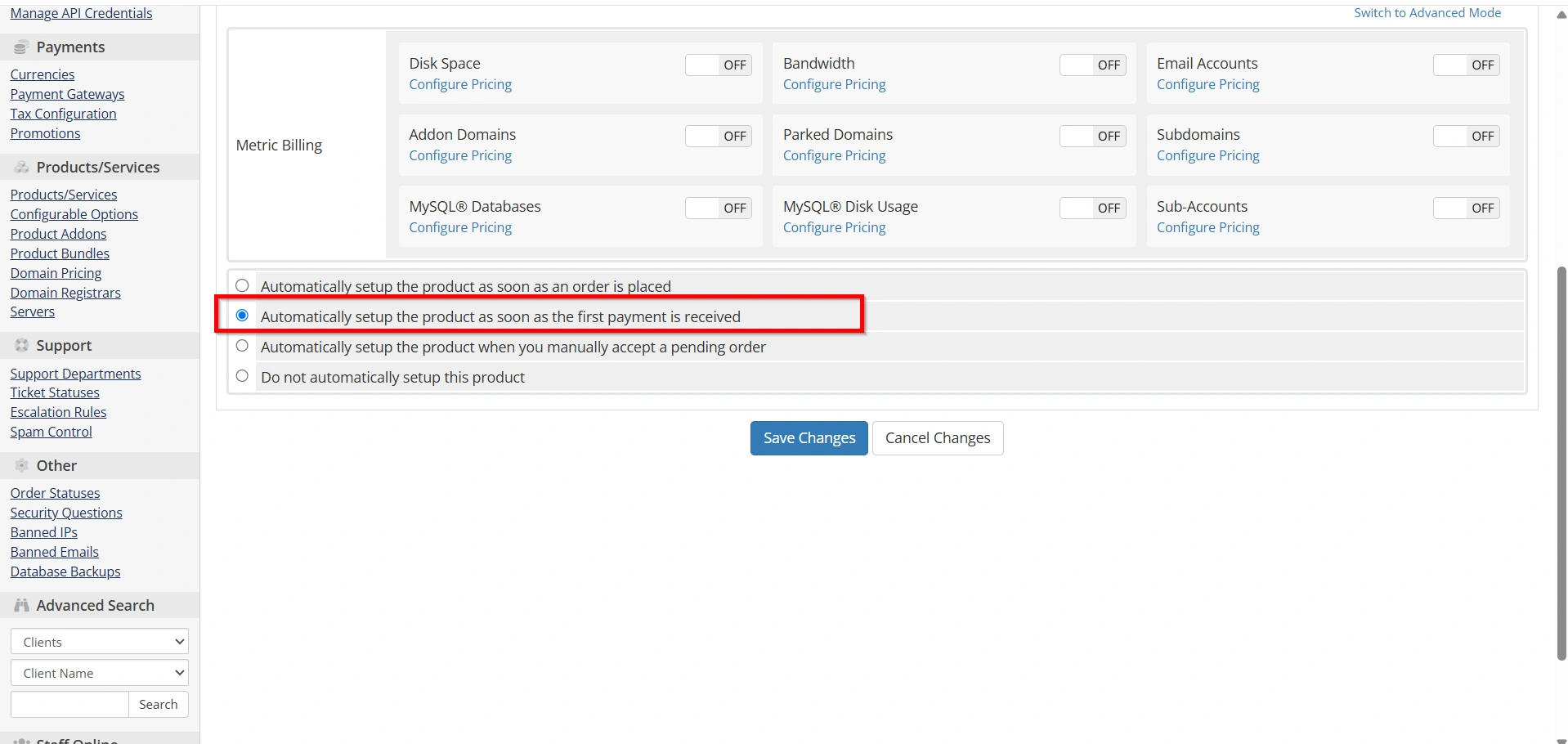
Under Module Settings, choose:
Automatically setup the product as soon as the first payment is received
Other available options include:
- When order is placed
- Manually
- When manually accepted
Most hosting providers use:
Automatically setup after first payment
This allows WHMCS to provision the hosting account immediately after payment.
Step 8: Configure Other Product Options
Review additional tabs such as:
Module Settings
- Package
- Server Group
- Resource Limits
Custom Fields
Add fields if required.
Configurable Options
Offer upgrades such as:
- Additional Disk Space
- Extra Bandwidth
- Dedicated IP
- Premium Backups
Upgrades
Allow clients to upgrade between hosting plans.
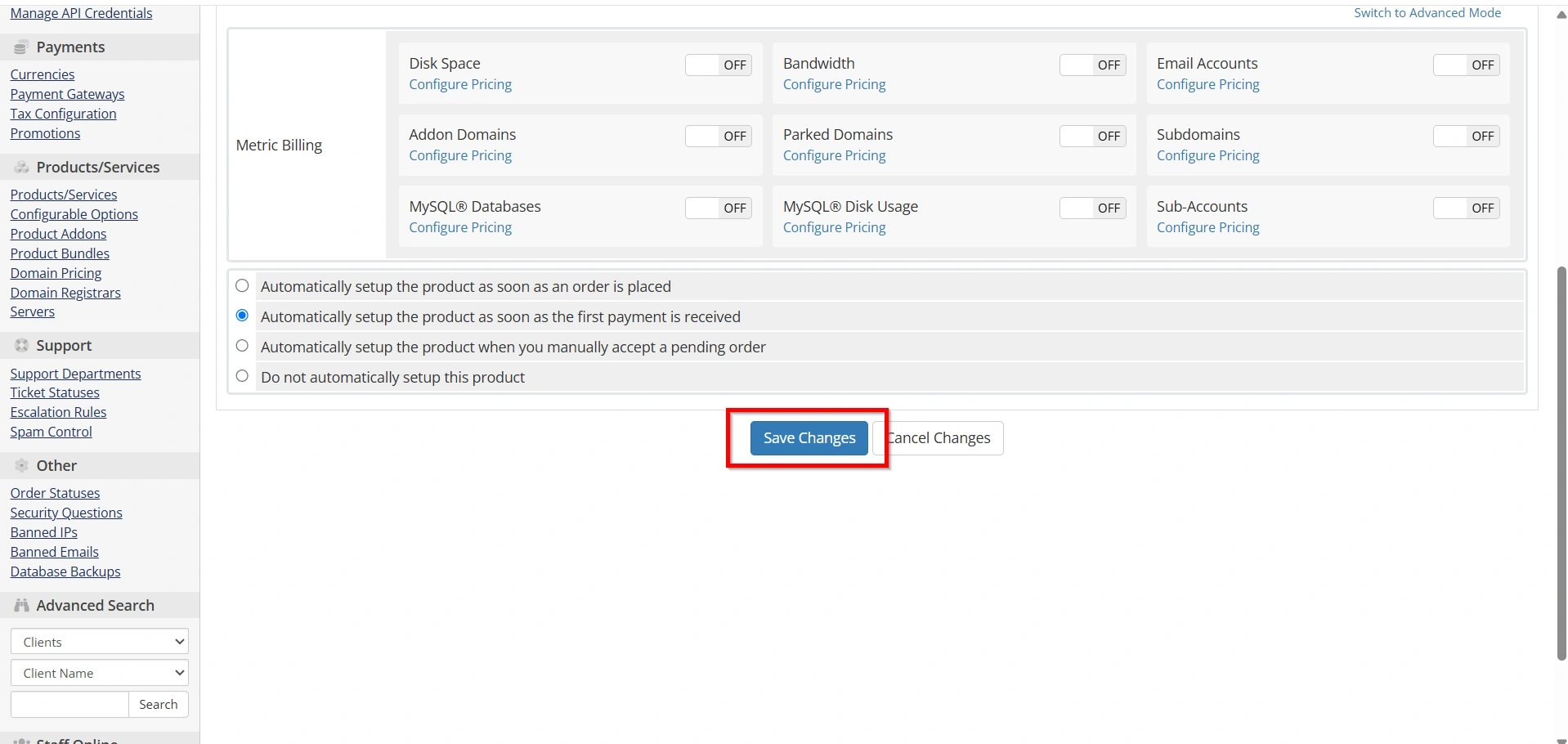
Step 9: Save the Product
After reviewing all settings, click:
Save Changes
Your cPanel hosting product is now ready to accept orders.
Step 10: Test the Product
Create a test order.
Complete payment (or manually accept the order).
Verify that WHMCS:
- Creates the cPanel account automatically.
- Sends the welcome email.
- Displays the hosting service under the client’s account.
- Synchronizes account information correctly.
If everything works, your automation is configured successfully.
Benefits of Setting Up a cPanel Hosting Product in WHMCS
When you Set Up a cPanel Hosting Product in WHMCS, you gain several benefits:
- Automatic hosting account creation
- Faster order processing
- Reduced manual work
- Automatic suspension and unsuspension
- Automatic account termination
- Improved client experience
- Centralized hosting management
- Scalable provisioning for growing businesses
Conclusion
Knowing how to Set Up a cPanel Hosting Product in WHMCS is one of the most important steps in automating your web hosting business. By properly configuring your server, product settings, pricing, module options, and automation, you can Set Up a cPanel Hosting Product in WHMCS that delivers hosting accounts instantly after payment. Once you Set Up a cPanel Hosting Product in WHMCS, your business benefits from faster provisioning, fewer manual tasks, improved customer satisfaction, and a more scalable hosting platform.
Related Articles


