Latest Updates
How to Set Up a Dedicated Server Product in WHMCS
How to Set Up a Dedicated Server Product in WHMCS Dedicated servers are ideal for customers who require maximum performance, complete control, and dedicated hardware resources. WHMCS makes it easy to create and automate…
How to Set Up a Dedicated Server Product in WHMCS
Dedicated servers are ideal for customers who require maximum performance, complete control, and dedicated hardware resources. WHMCS makes it easy to create and automate dedicated server products by integrating with server control panels and provisioning modules.
In this guide, you’ll learn how to Set Up a Dedicated Server Product in WHMCS from start to finish.
Prerequisites
Before you begin, ensure that:
- WHMCS is installed and configured.
- Your dedicated server is ready for provisioning.
- A supported provisioning module (such as cPanel/WHM, Plesk, DirectAdmin, or a custom module) is installed.
- Your server details are available.
- You have administrator access to the WHMCS Admin Area.
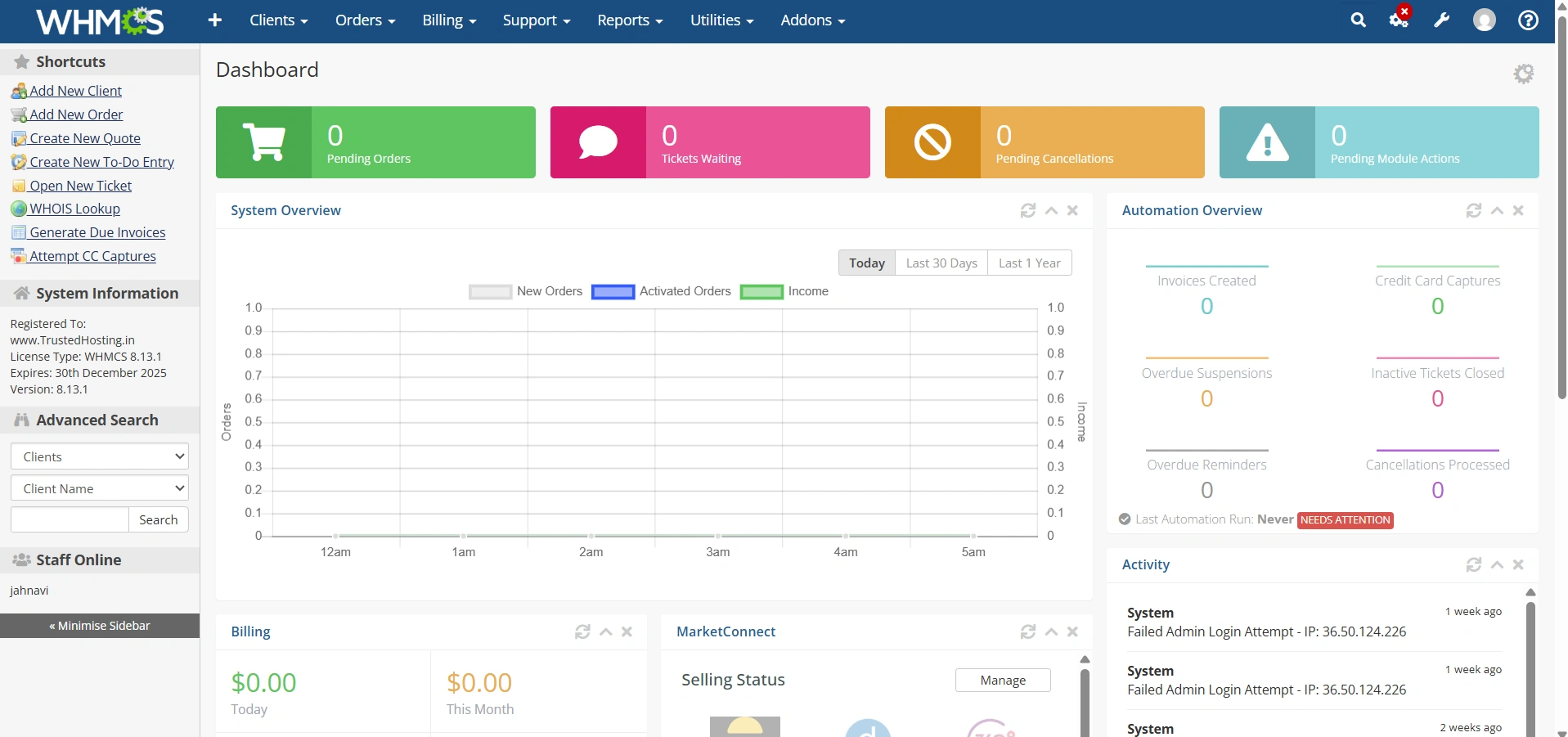
Step 1: Log in to WHMCS Admin Area
Log in to your WHMCS administrator dashboard.
Step : Configure Products
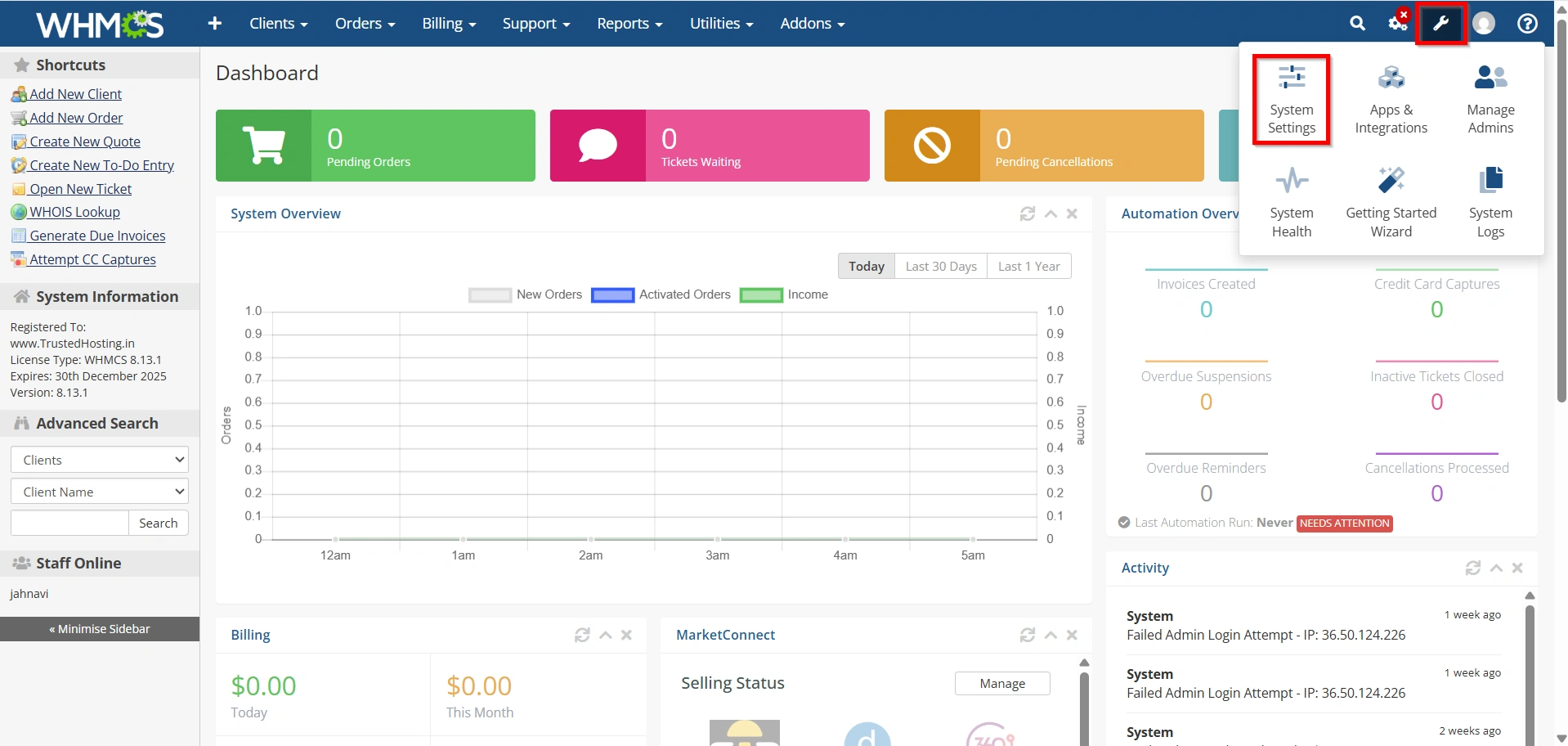
Navigate to:
- Configuration Icon → System Settings
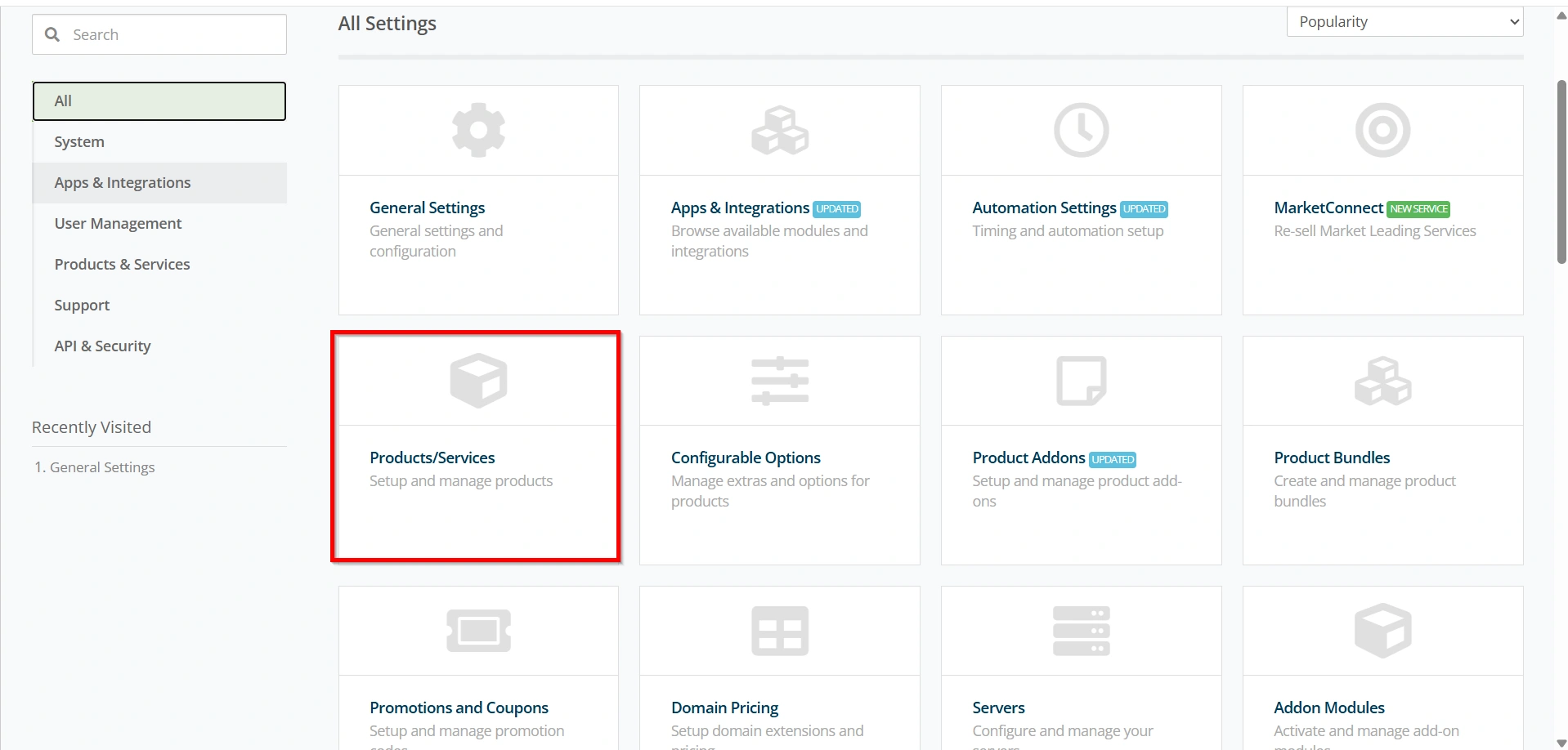
- Select Products/Services
Step 3: Create a Product Group
If you don’t already have one:
- Click Create a New Group.
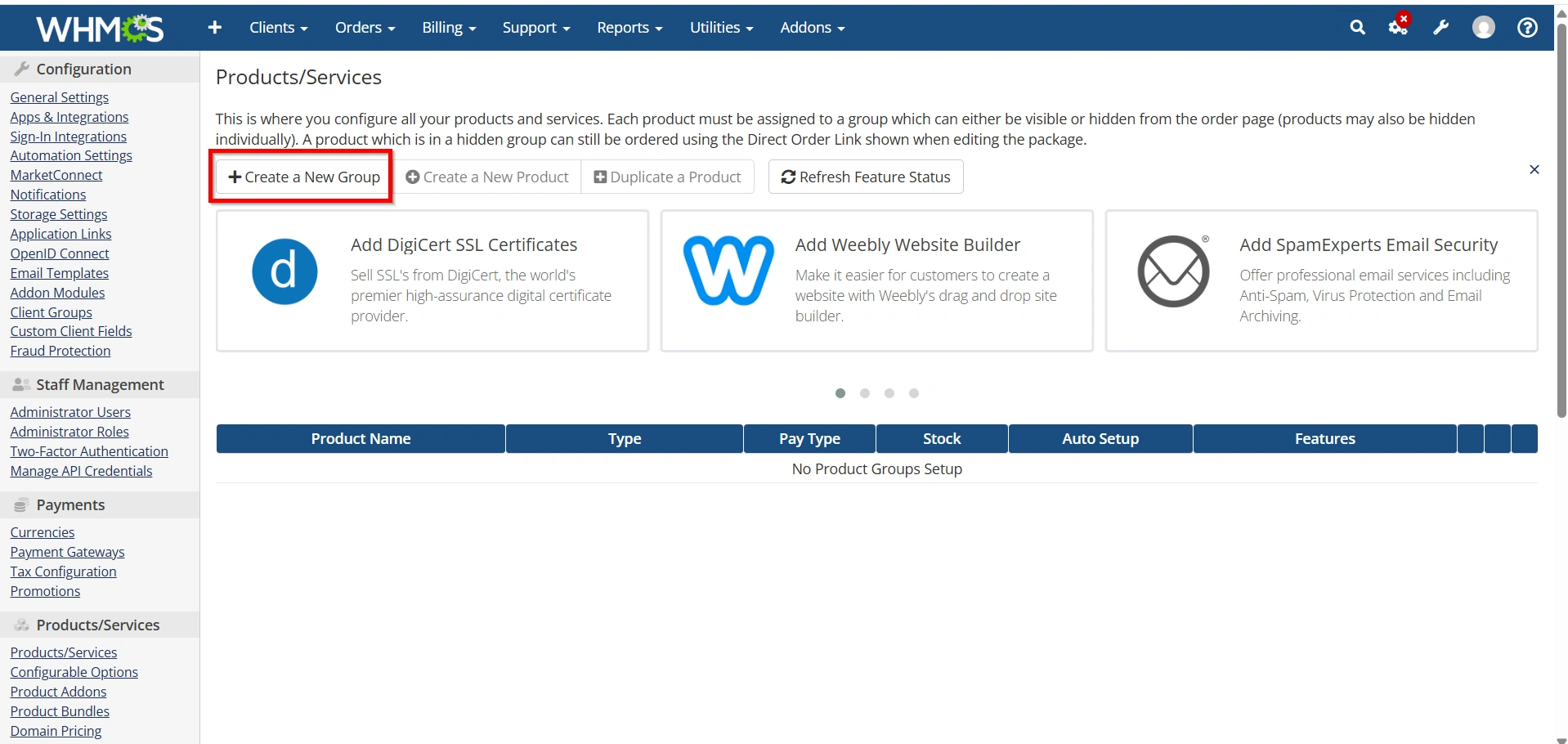
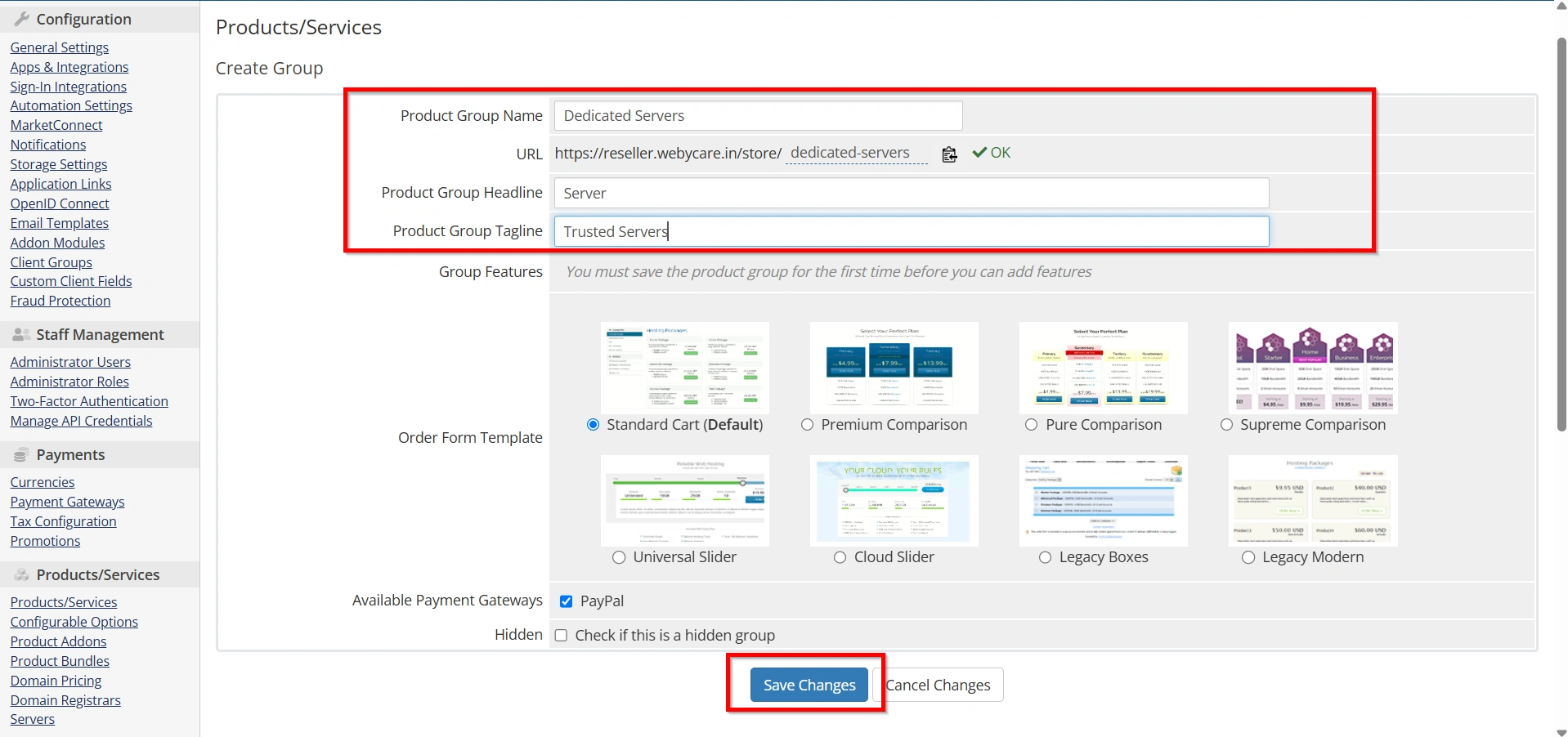
2. Enter a group name.
Example:
- Dedicated Servers
- Configure the display settings.
- Click Save Changes.
Step 4: Create a New Product
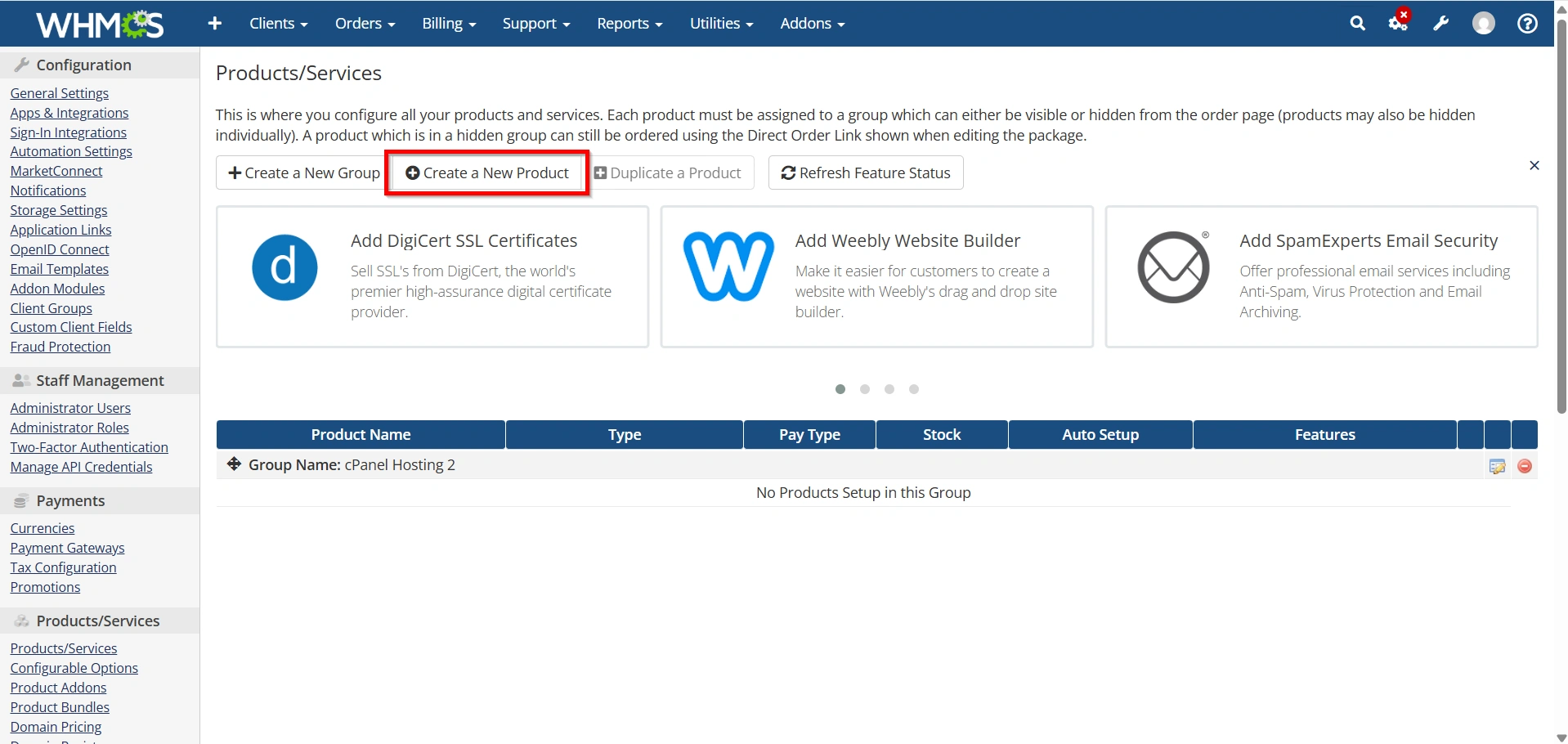
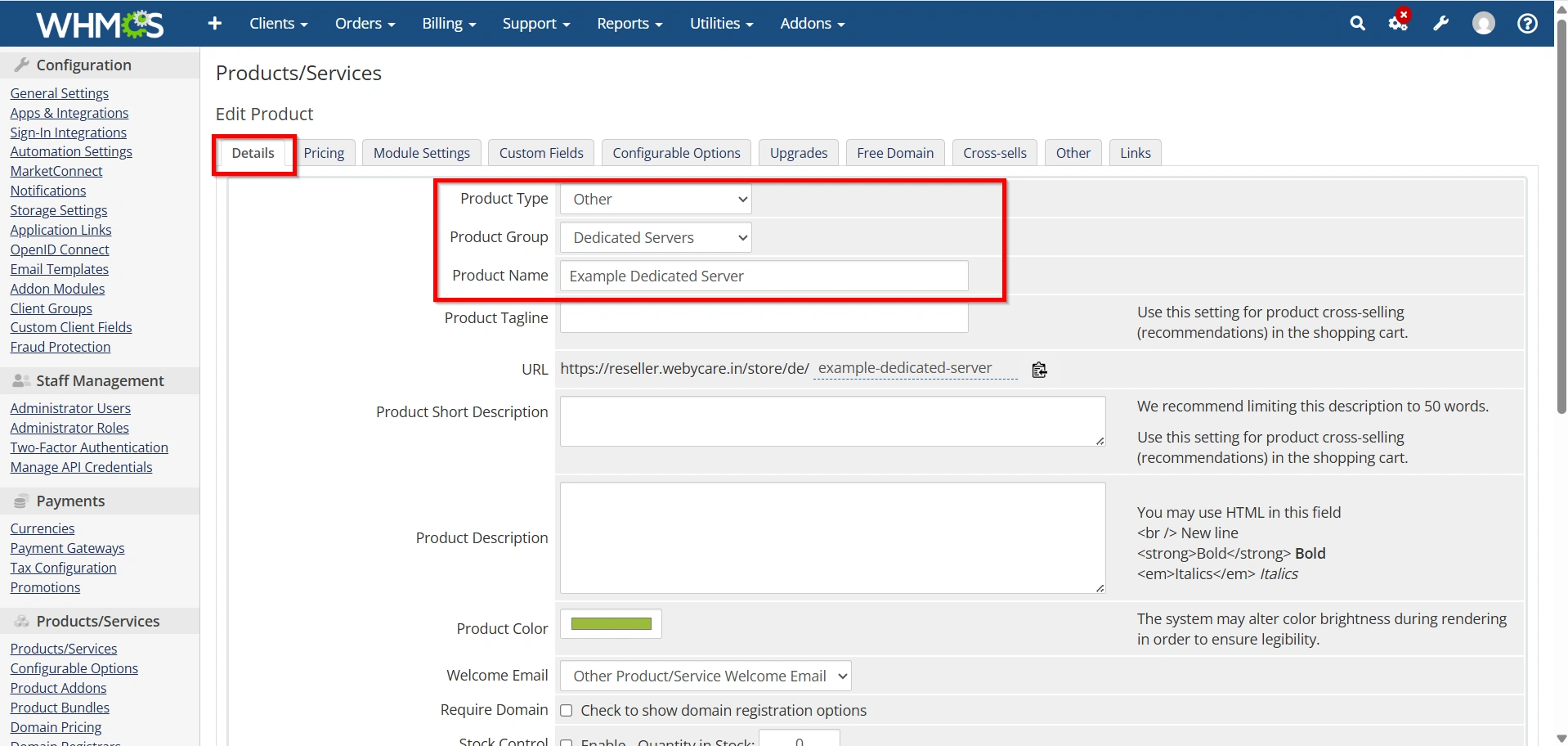
- Click Create a New Product.
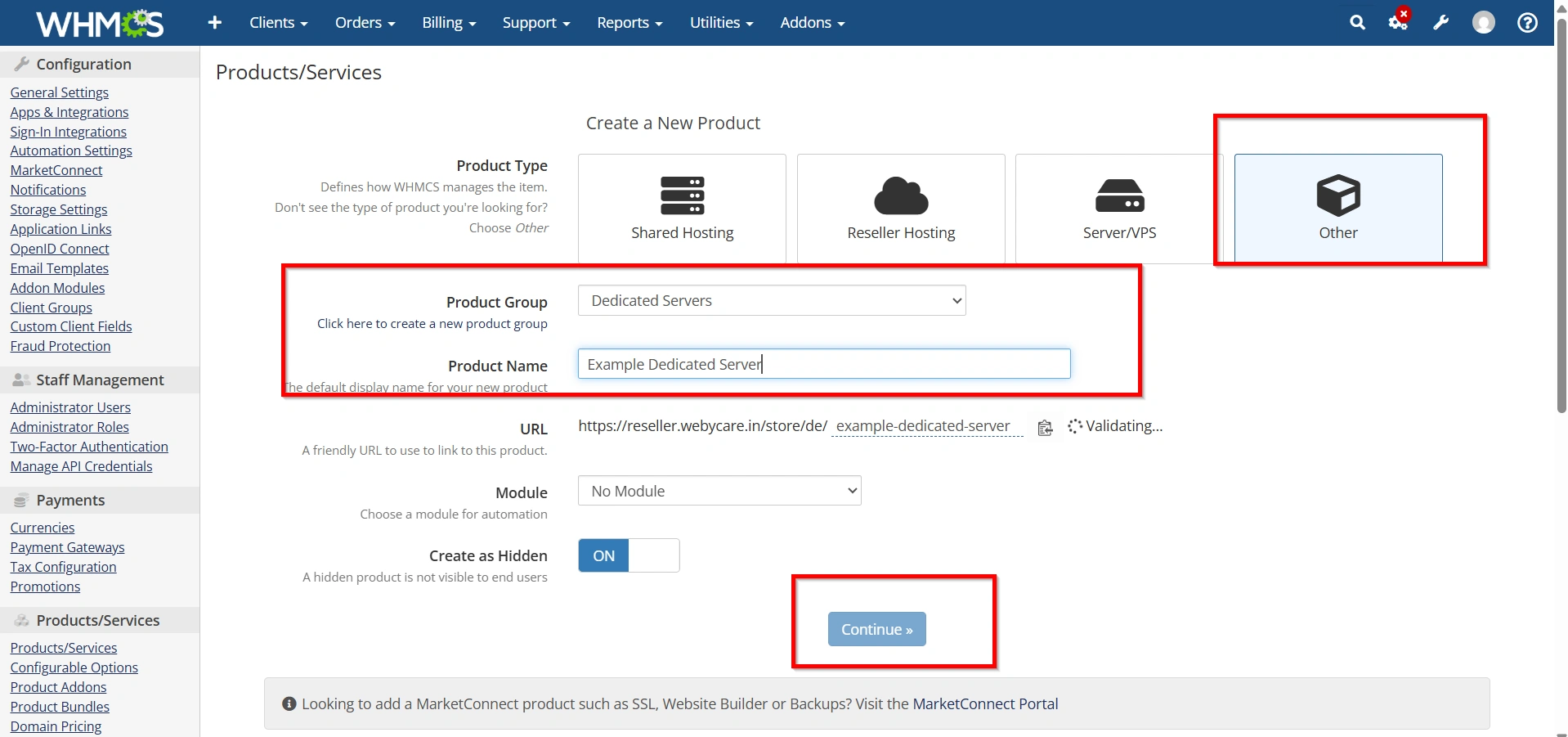
2. Select:
- Product Type: Other
- Product Group: Dedicated Servers
- Product Name: Example Dedicated Server
Click Continue.
Step 5: Configure Product Details
Under the Details tab configure:
- Product Name
- Product Description
- Welcome Email
- Require Domain (if needed)
- Product Image (optional)
- Product Features
Save your changes.
Step 6: Configure Pricing
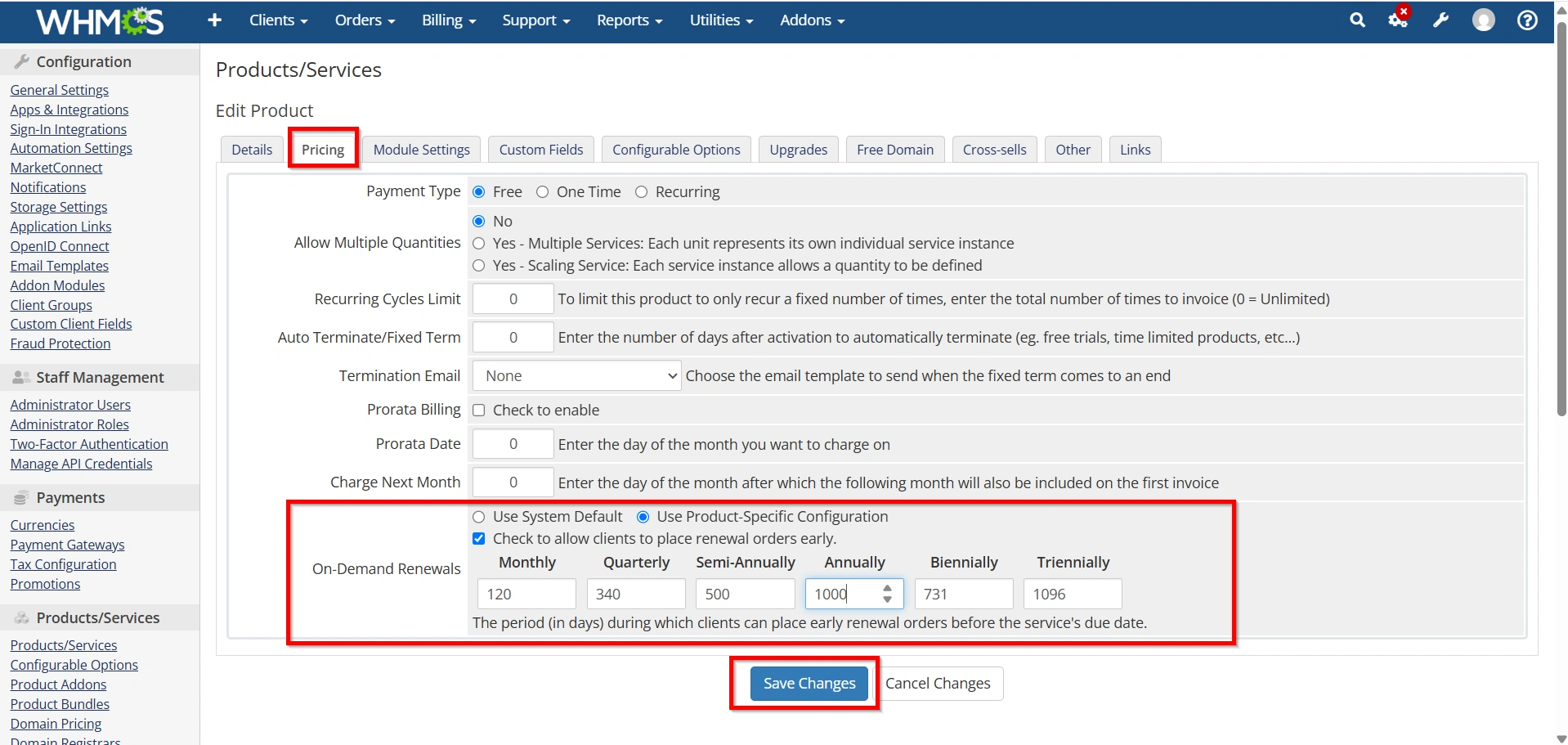
Open the Pricing tab.
Enable the billing cycles you wish to offer:
- Monthly
- Quarterly
- Semi-Annually
- Annually
- Biennially
- Triennially
Enter pricing for each billing cycle.
Example:
| Billing Cycle | Price |
|---|---|
| Monthly | $120.00 |
| Quarterly | $340.00 |
| Annually | $1,350.00 |
Click Save Changes.
Step 7: Configure the Module
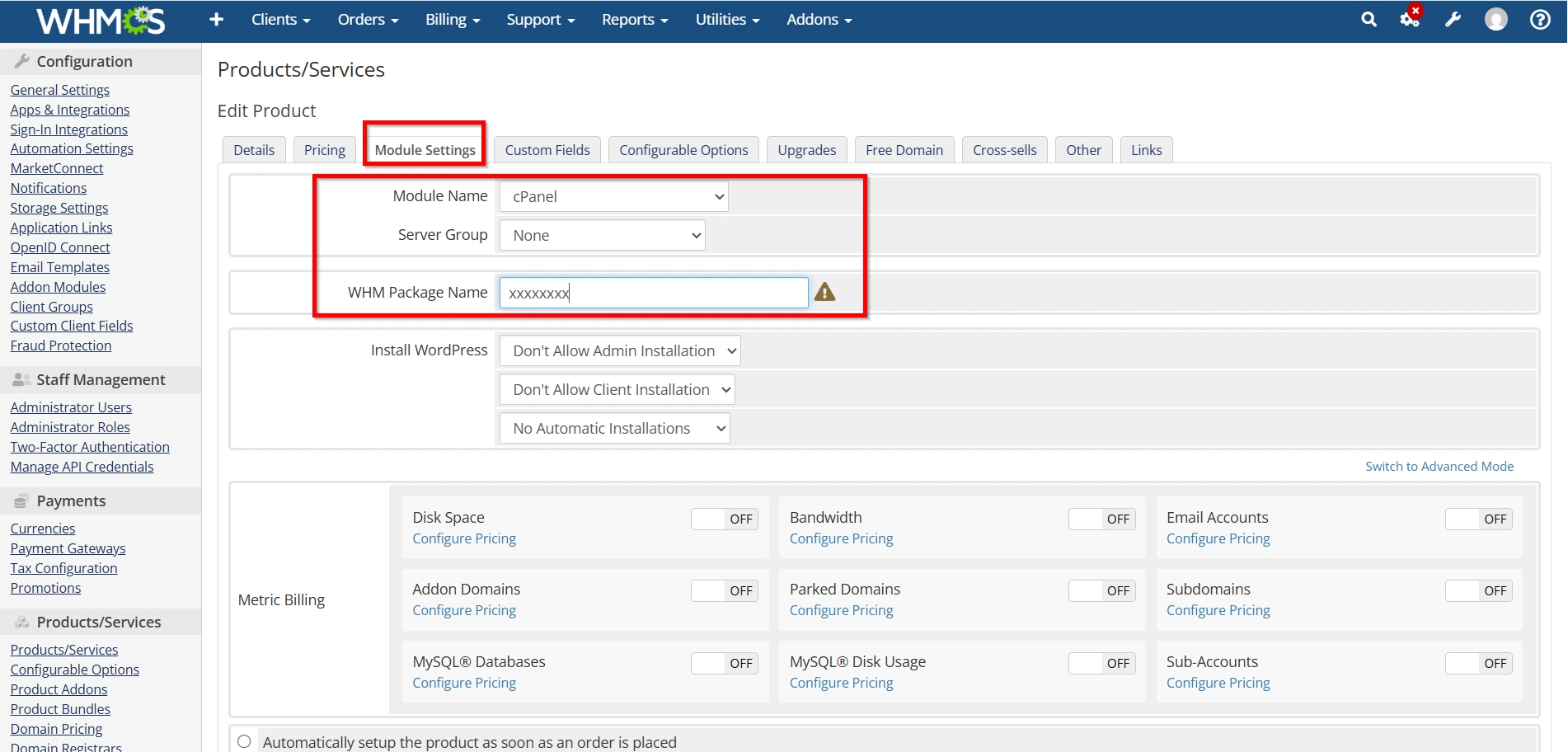
Open the Module Settings tab.
Select the provisioning module that matches your server.
Examples include:
- cPanel/WHM
- Plesk
- DirectAdmin
- SolusVM
- Proxmox
- Custom Dedicated Server Module
Configure:
- Server Group
- Package Name
- Username Generation
- Dedicated IP Assignment
- Hostname Template
- Root Access (if applicable)
Save the configuration.
Step 8: Configure Product Features
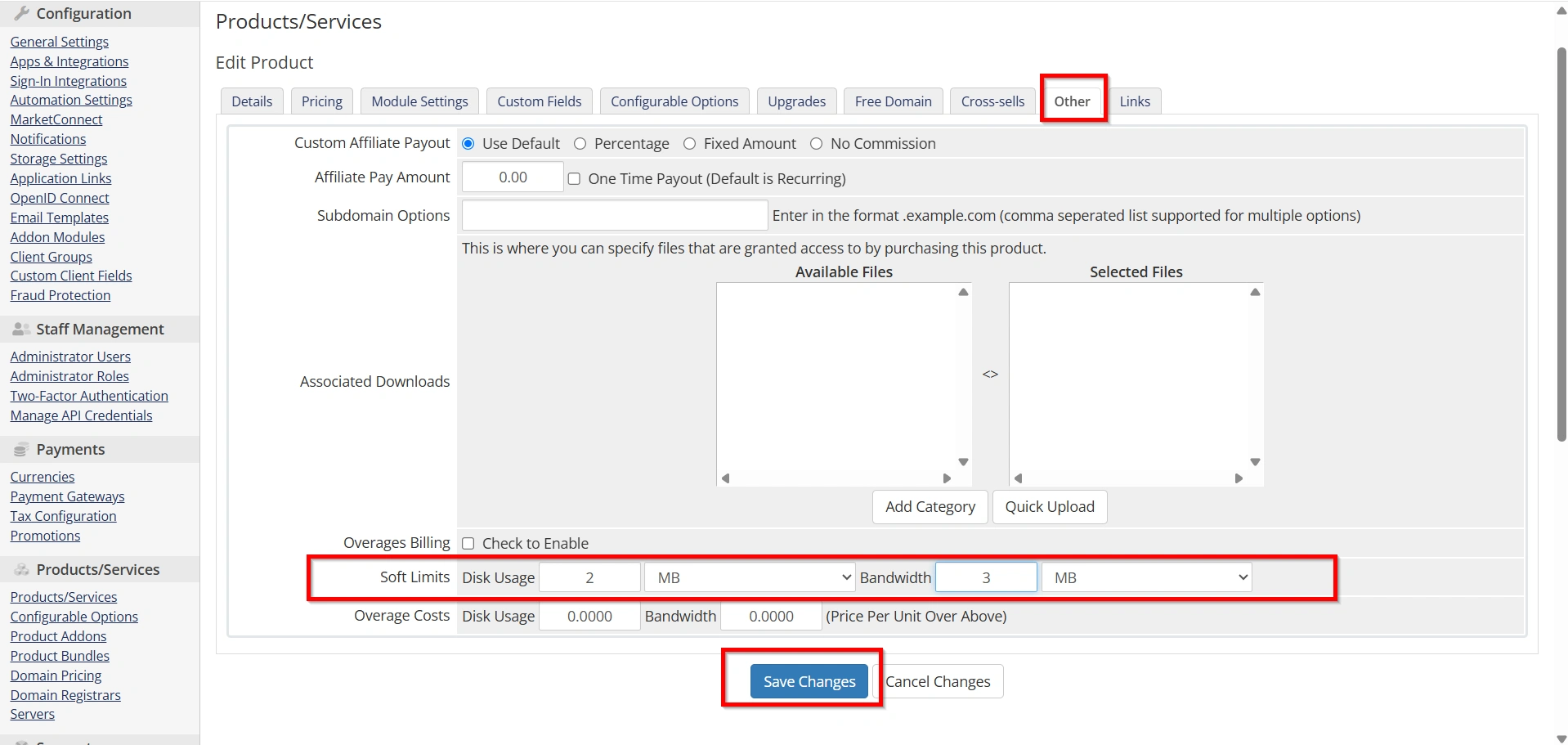
Open the Other or Custom Fields tab (depending on your provisioning module).
You can define specifications such as:
- CPU
- RAM
- Storage
- SSD/NVMe
- Bandwidth
- Dedicated IP Addresses
- Operating System
- Control Panel
- Backup Options
These details help customers understand what they’re purchasing.
Step 9: Configure Automation
Go to:
Configuration → System Settings → Automation Settings
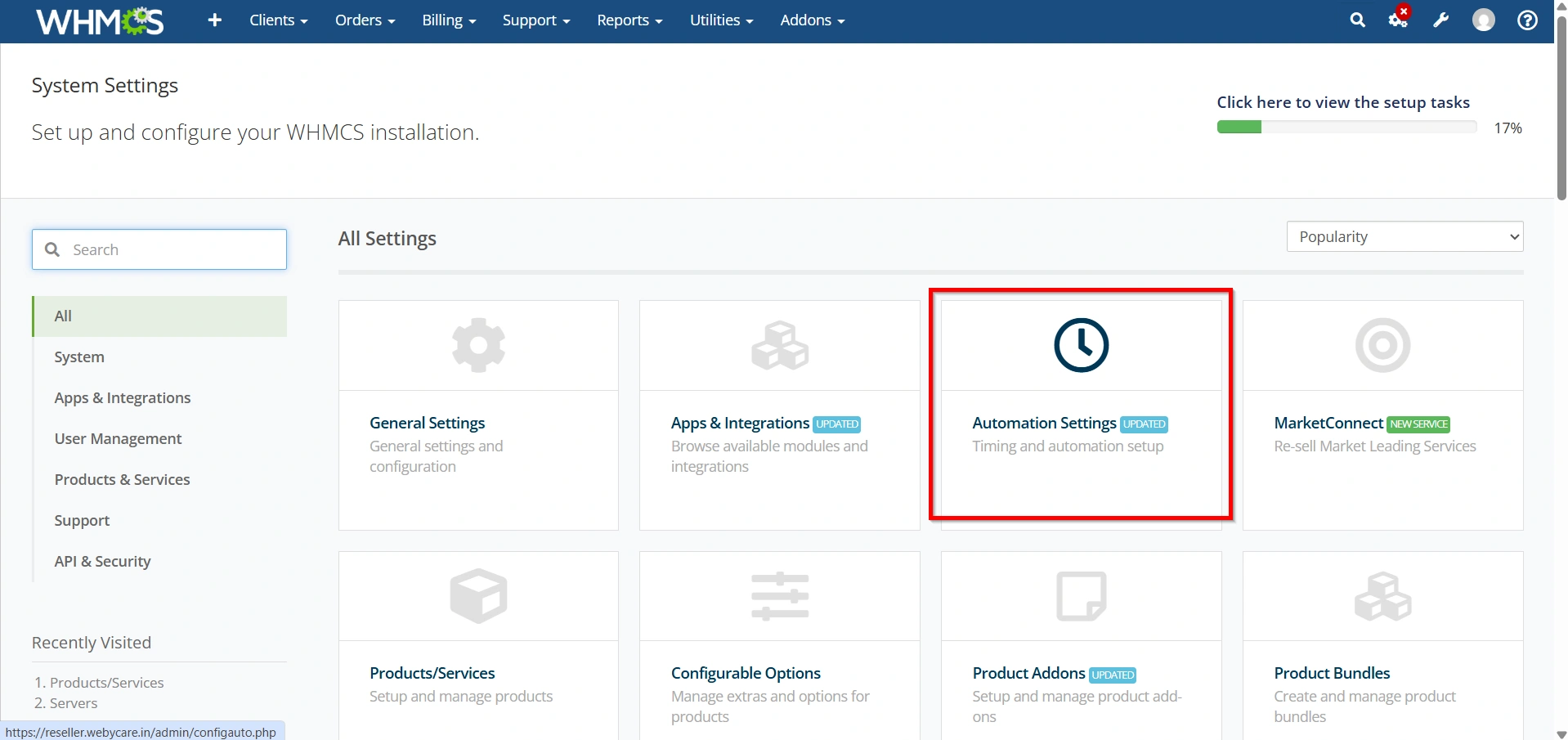
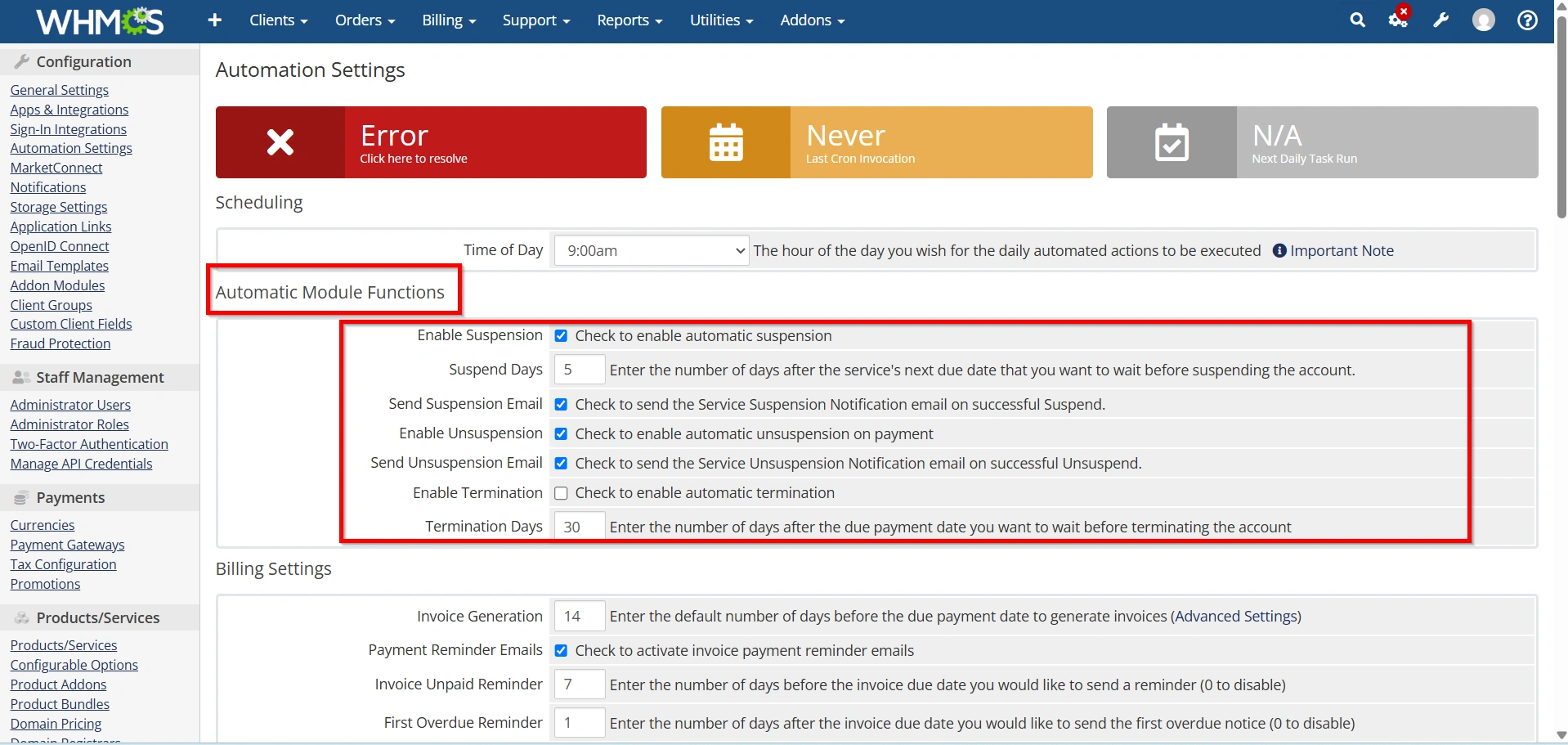
Configure automation for:
- Account Provisioning
- Suspension
- Unsuspension
- Termination
- Invoice Generation
- Renewal Reminders
Automation helps eliminate manual tasks.
Step 10: Test the Product
Before making the product available:
- Place a test order.
- Verify invoice generation.
- Confirm module provisioning.
- Check welcome email delivery.
- Verify server creation.
- Test suspension and termination actions.
Resolve any issues before launching.
Best Practices
When you Set Up a Dedicated Server Product in WHMCS, consider these recommendations:
- Use descriptive product names.
- Clearly list hardware specifications.
- Offer configurable upgrades.
- Enable automated provisioning whenever possible.
- Regularly monitor provisioning logs.
- Test all automation after updates.
- Keep pricing accurate and competitive.
Common Issues
Product does not provision
- Verify the server connection.
- Check API credentials.
- Confirm the selected provisioning module.
Incorrect pricing
- Review billing cycle pricing.
- Verify configurable option pricing.
Module connection errors
- Confirm firewall settings.
- Check API permissions.
- Verify hostname and SSL configuration.
Automation not working
- Ensure the WHMCS cron job is running.
- Review the Module Log and Activity Log.
Conclusion
Learning how to Set Up a Dedicated Server Product in WHMCS helps automate dedicated server provisioning, billing, and management. By correctly configuring product details, pricing, server modules, and automation settings, you can deliver a seamless ordering experience while reducing manual work. Always test your product before going live to ensure reliable provisioning and a smooth experience for your customers. A properly configured dedicated server product ensures efficient management, improves customer satisfaction, and supports the growth of your hosting business.
Related Articles


