Latest Updates
How to Set Up a Free Trial Hosting Package in WHMCS
How to Set Up a Free Trial Hosting Package in WHMCS Offering a free hosting trial is a proven strategy for attracting new customers and showcasing the quality of your hosting services. When you…
How to Set Up a Free Trial Hosting Package in WHMCS
Offering a free hosting trial is a proven strategy for attracting new customers and showcasing the quality of your hosting services. When you Set Up a Free Trial Hosting Package in WHMCS, potential clients can experience your hosting environment, server performance, and customer support before committing to a paid plan. WHMCS provides the tools needed to automate account creation, manage client accounts, and streamline the onboarding process. By learning how to Set Up a Free Trial Hosting Package in WHMCS, hosting providers can increase user engagement, generate more leads, and improve conversion rates. This guide explains the complete process to Set Up a Free Trial Hosting Package in WHMCS and create a smooth experience for trial users.
Why Offer a Free Trial Hosting Package?
A free trial hosting package provides several benefits:
- Increases customer confidence in your services.
- Allows users to test hosting performance before purchasing.
- Generates more leads and sign-ups.
- Improves conversion rates from visitors to paying customers.
- Gives potential clients hands-on experience with your hosting platform.
When you Set Up a Free Trial Hosting Package in WHMCS, you create an opportunity to demonstrate the value of your hosting services without requiring an upfront commitment.
Prerequisites
Before configuring your free trial package, ensure you have:
- A functioning WHMCS installation.
- A hosting server connected through cPanel, DirectAdmin, Plesk, or another supported control panel.
- Server modules configured properly.
- Product groups already created.
- Automated account provisioning enabled.
Having these requirements in place will simplify the process when you Set Up a Free Trial Hosting Package in WHMCS.
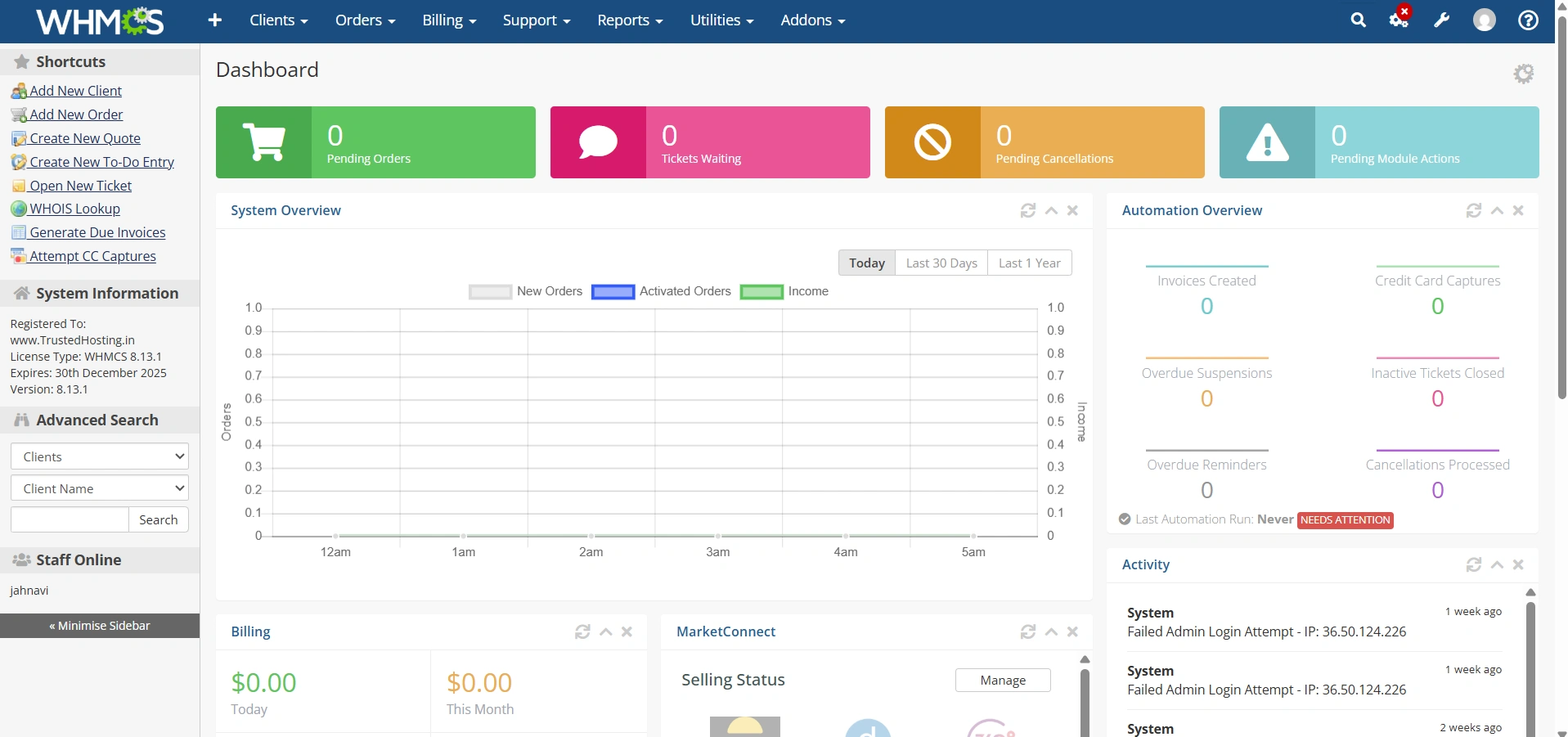
Step 1: Log in to WHMCS Admin Area
Log in to your WHMCS administrator dashboard.
Step 2: Create a Product Group
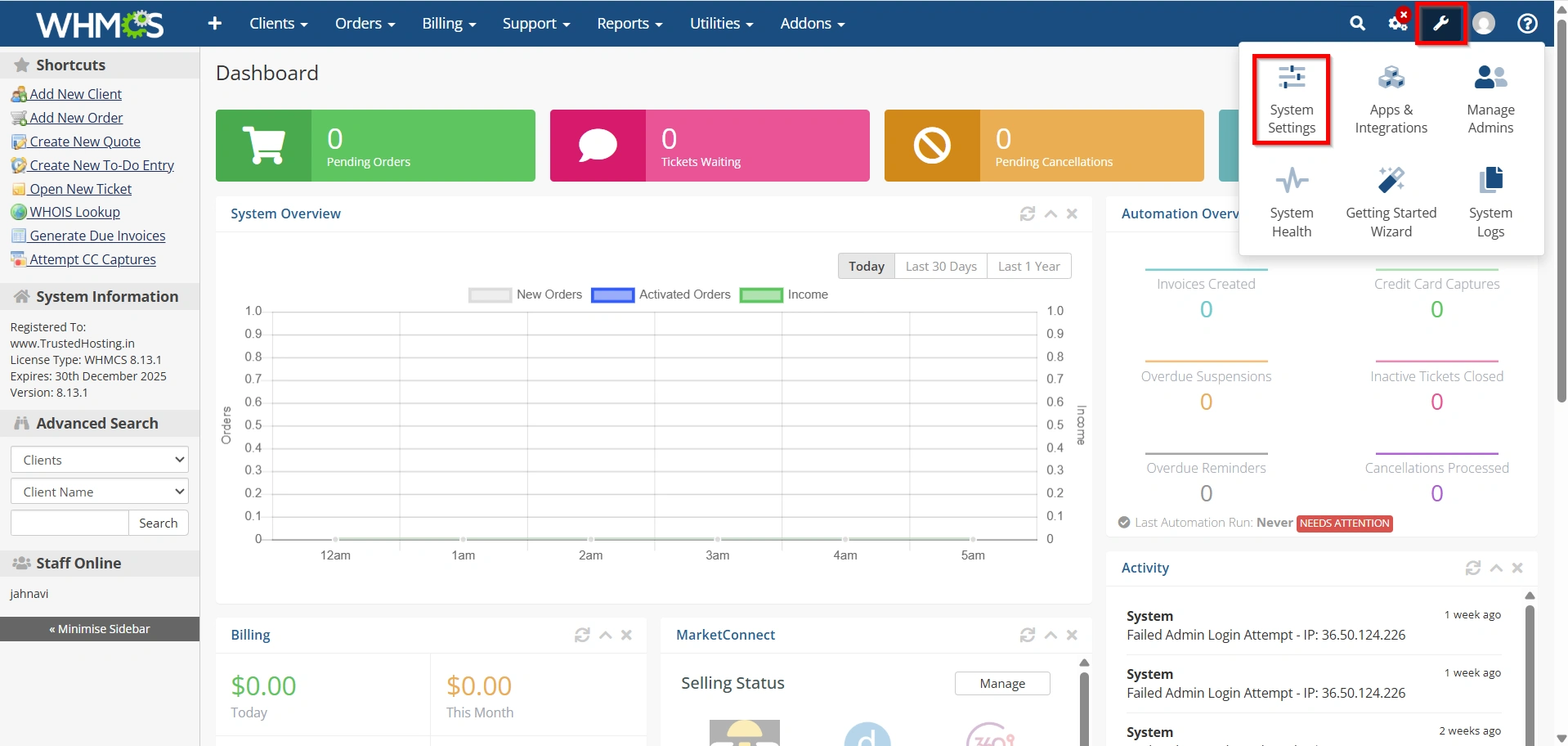
- Navigate to Configuration Icon > System Settings
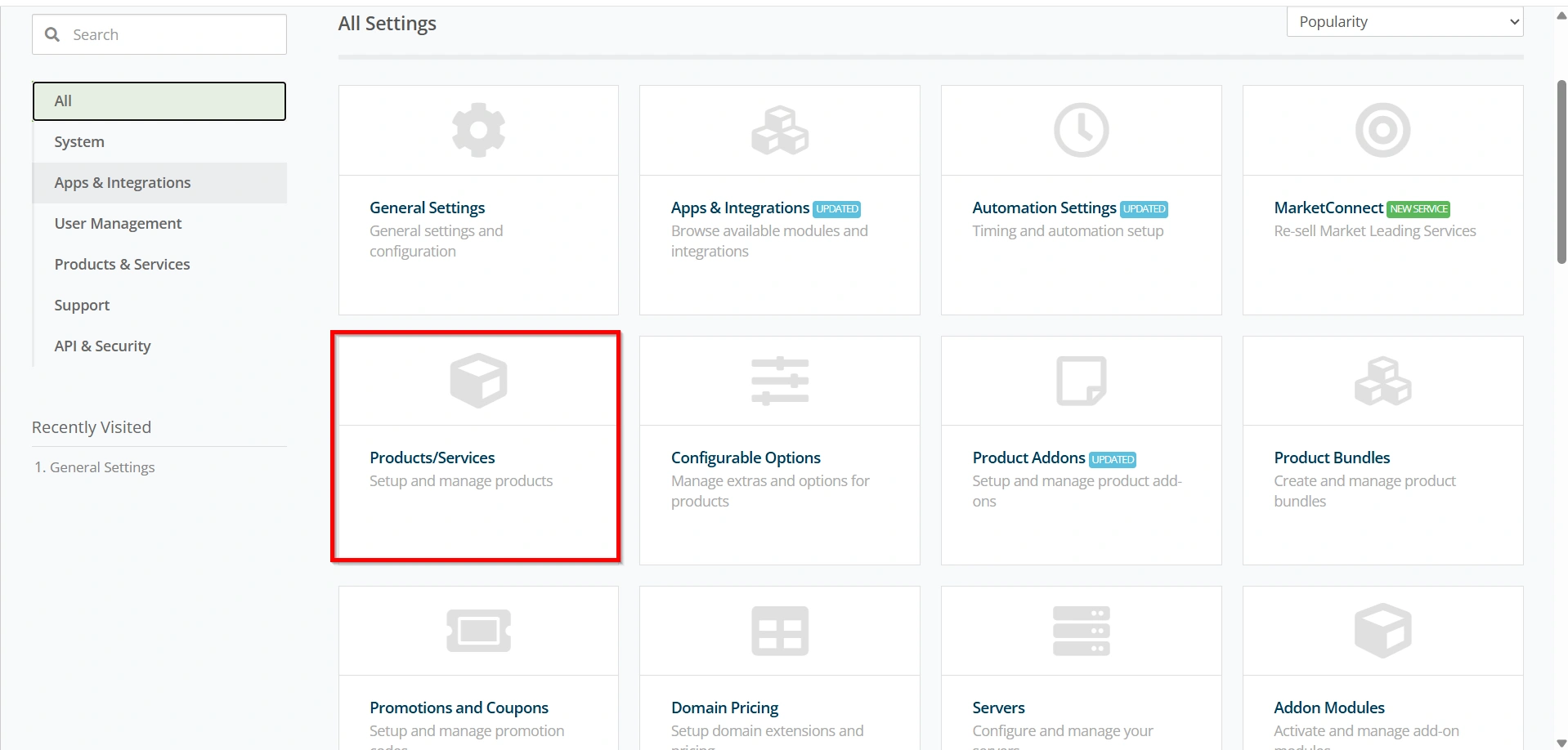
- Select Products/Services.
- Click Create a New Group.
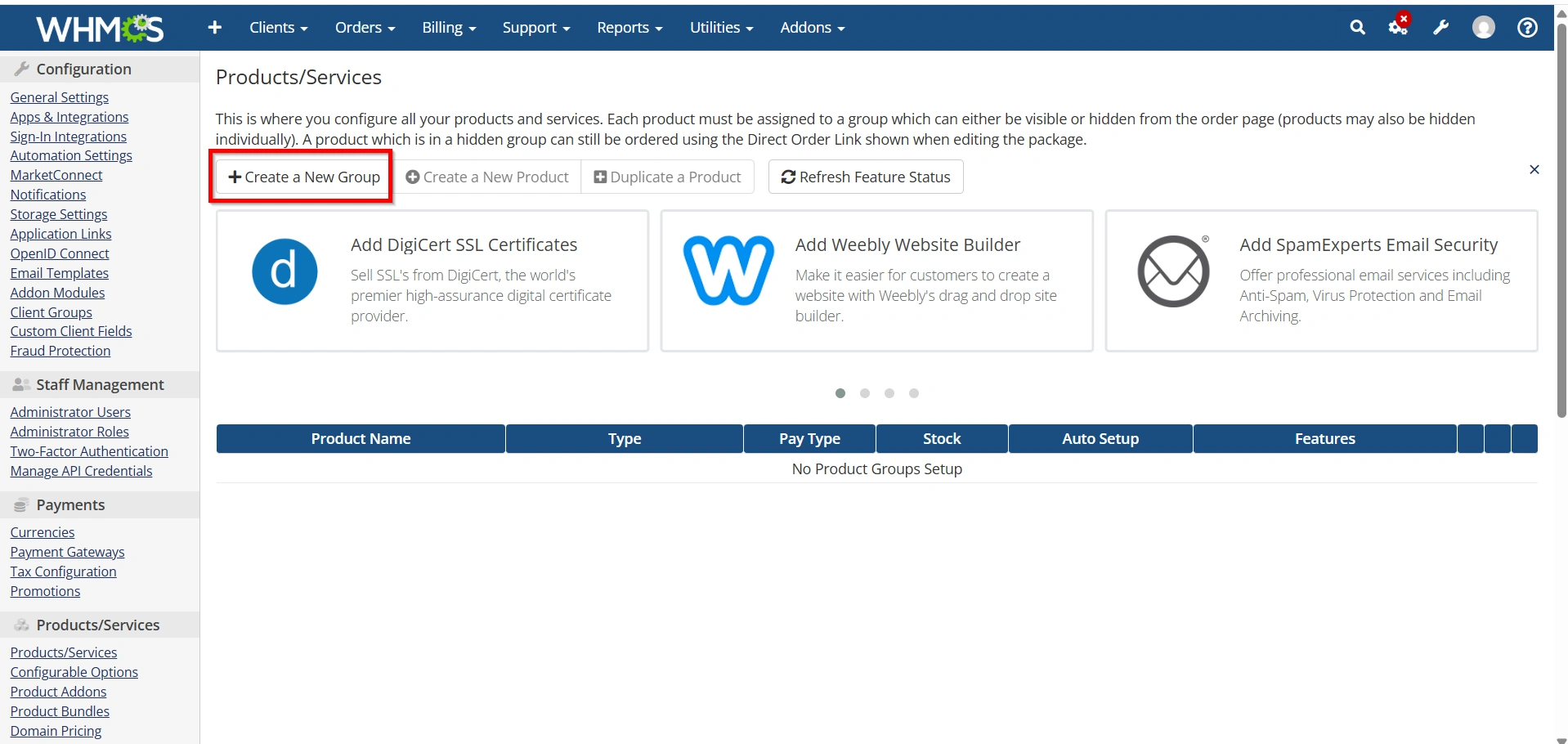
Enter a group name such as:
- Free Trial Hosting
- Trial Packages
- Starter Hosting Trial
- Add a group headline and description.
- Click Save Changes.
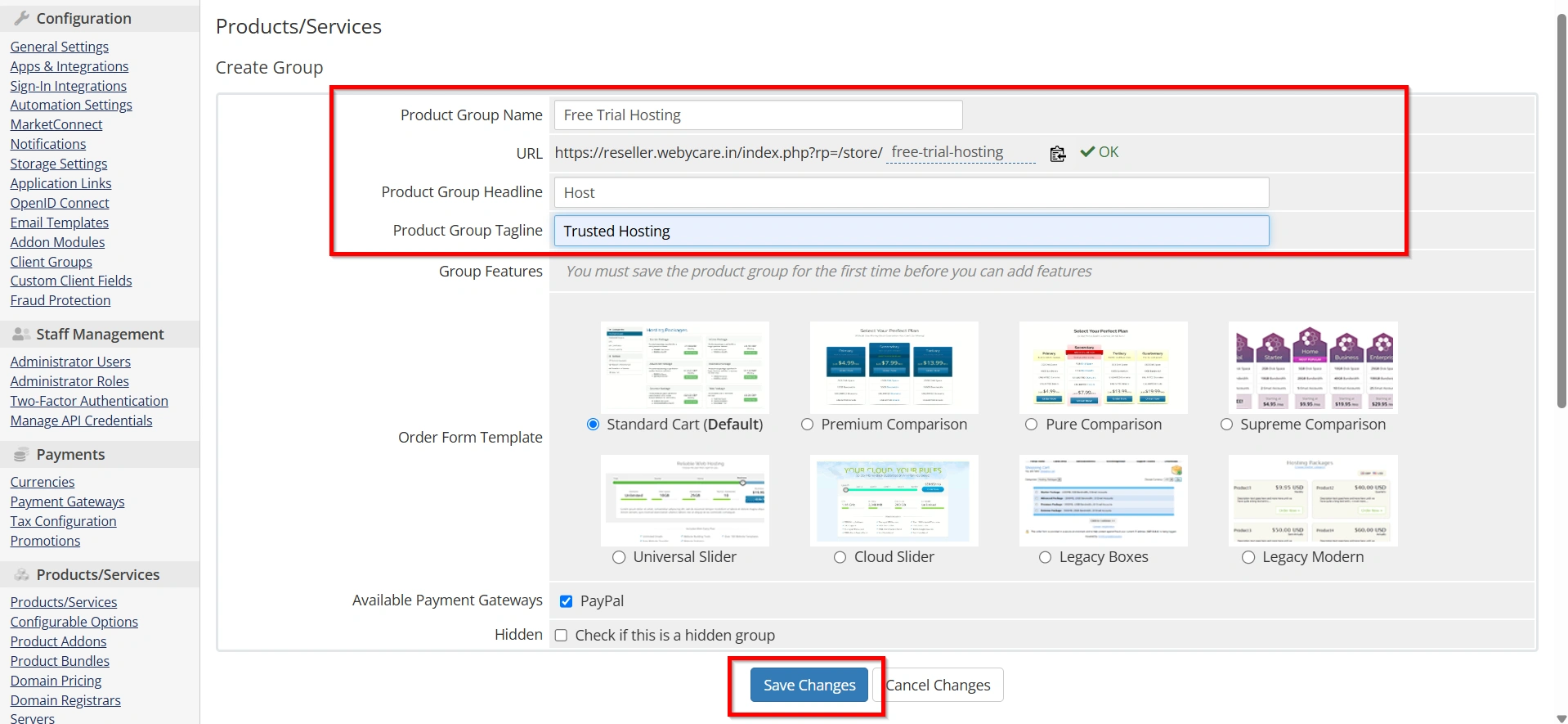
This group will organize all trial hosting plans displayed on your order page.
Step 3: Create a Free Trial Hosting Product
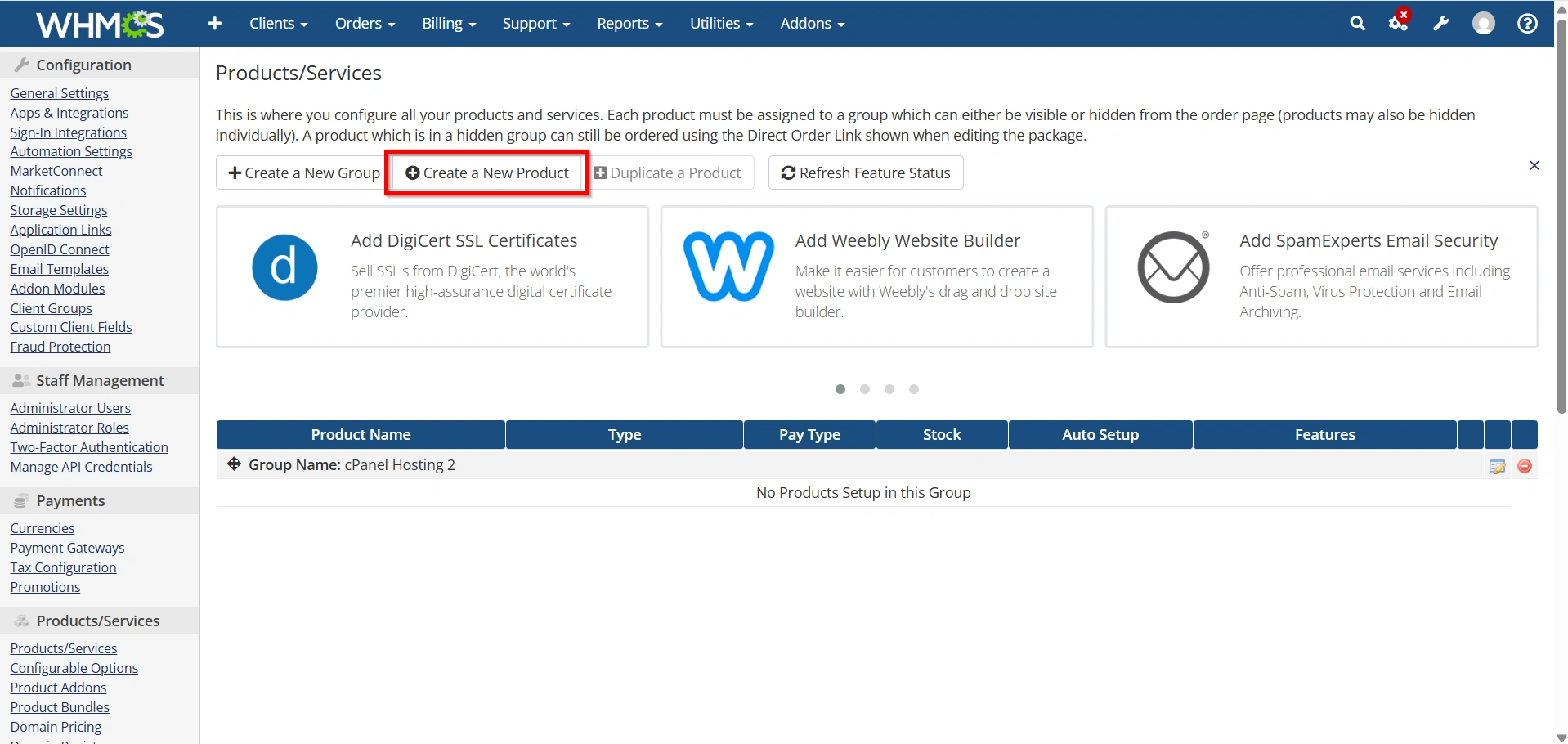
- Open the product group you created.
- Click Create a New Product.
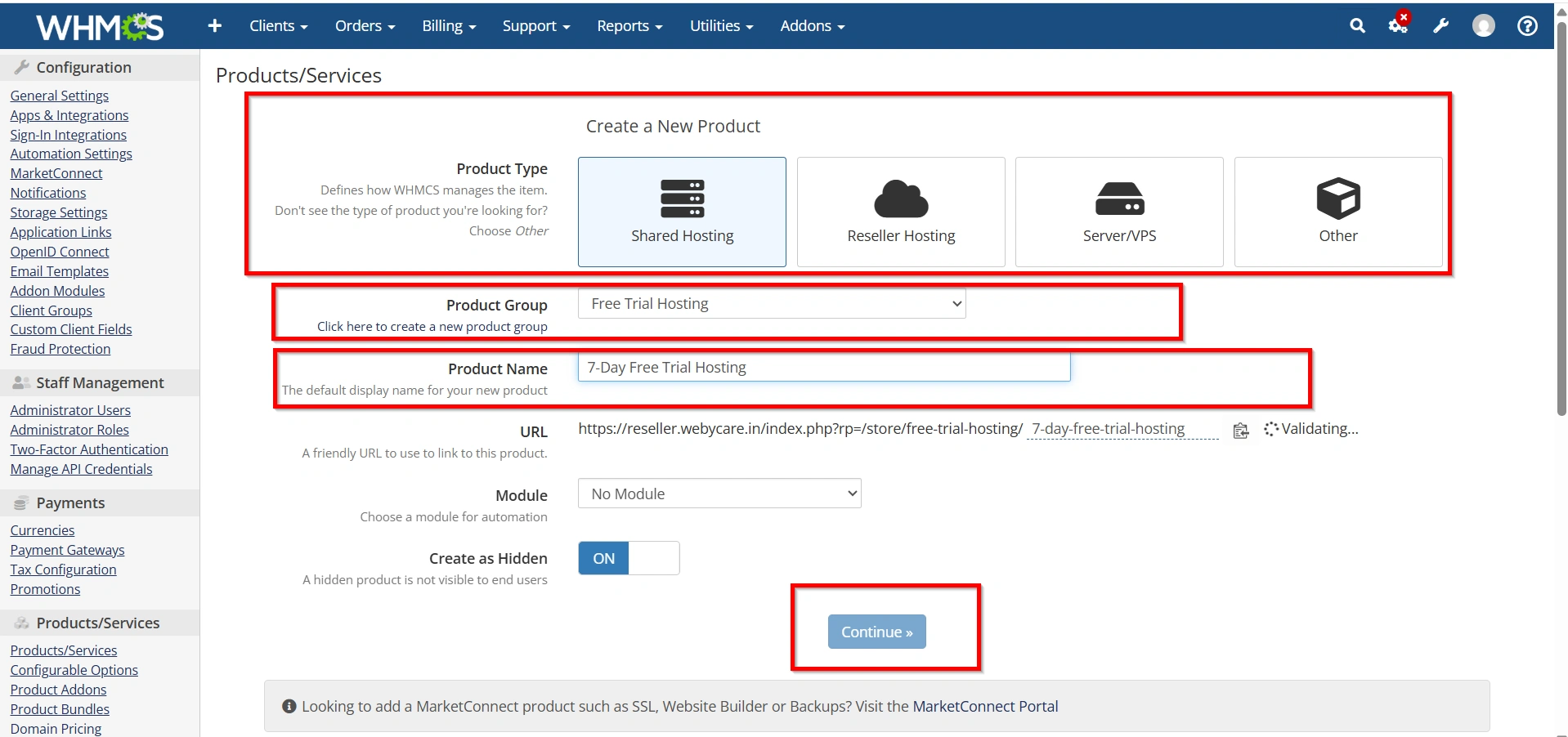
3. Select:
- Product Type: Hosting Account
- Product Group: Free Trial Hosting
Enter a product name such as:
-
- 7-Day Free Trial Hosting
- 14-Day Trial Hosting
- Free Starter Hosting
4. Click Continue.
The product configuration page will now appear.
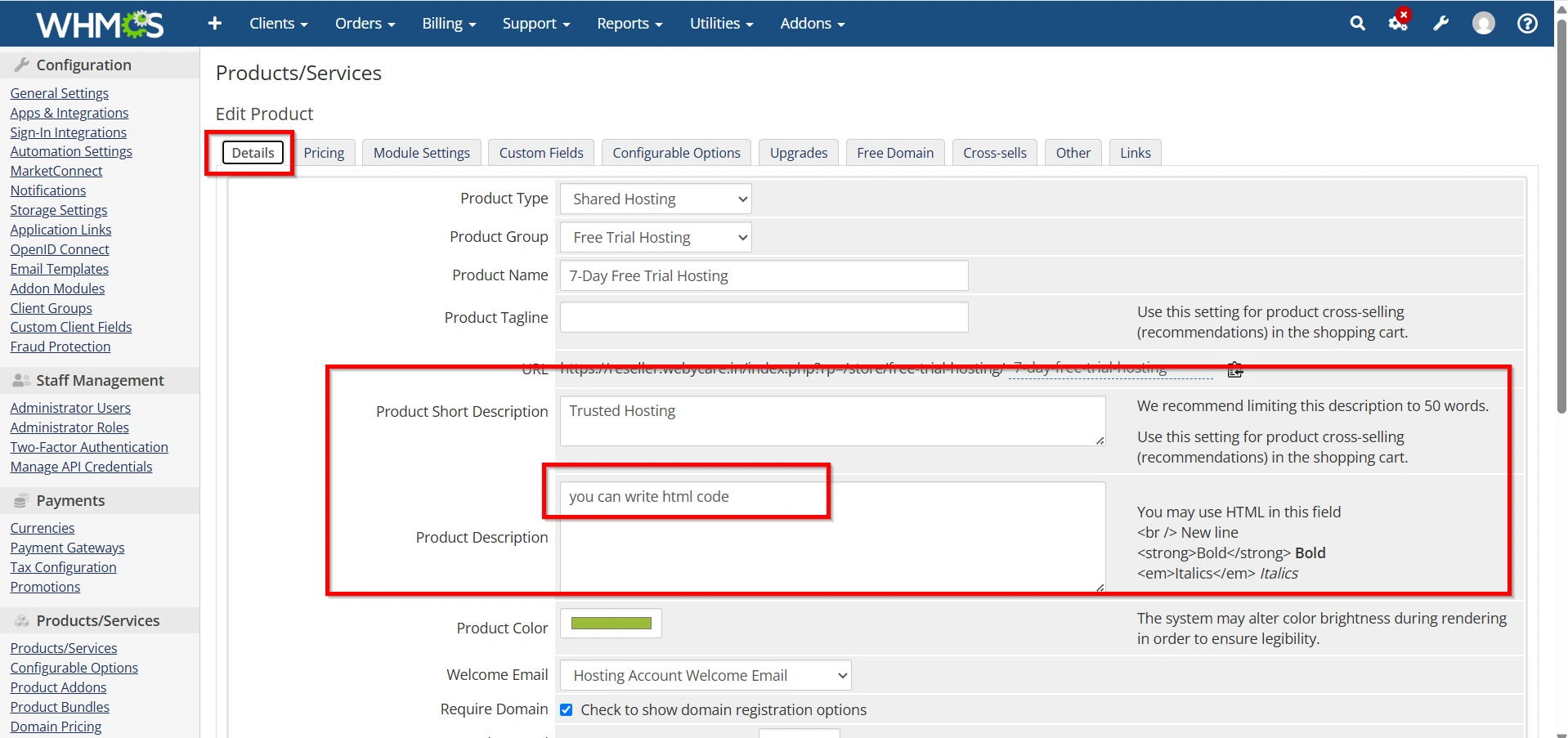
Step 4: Configure Product Details
Under the Details tab:
- Enter a clear product description.
- Highlight included features such as:
- Disk space
- Bandwidth
- Email accounts
- Databases
- Control panel access
Example:
- 1 GB SSD Storage
- 10 GB Monthly Bandwidth
- Free Control Panel Access
- Email Hosting Included
- One Website Allowed
A detailed product description helps customers understand what is included in the free trial.
Step 5: Configure Pricing
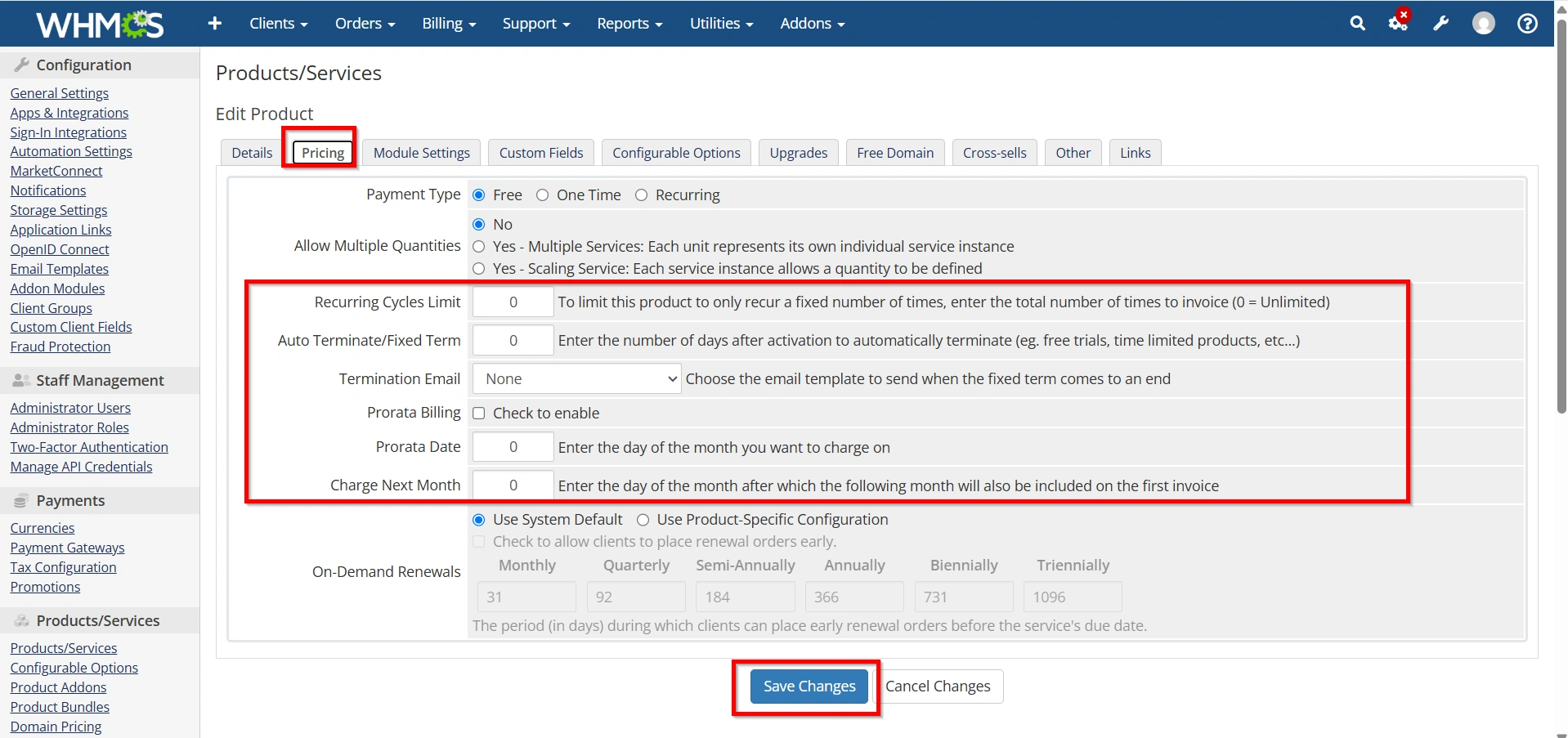
Navigate to the Pricing tab.
To create a free trial:
- Enable the pricing model.
- Set the monthly price to:
- 0.00
- Leave setup fees as:
- 0.00
- Save changes.
This allows customers to place orders without any payment requirements.
When you Set Up a Free Trial Hosting Package in WHMCS, ensuring the price is configured correctly is essential for a seamless signup experience.
Step 6: Create a Limited Resource Package in WHM
- Log in to WHM.
- Navigate to Packages → Add a Package.
- Enter a package name, for example:
trial-hostingfree-trial
- Configure resource limits:
- Disk Quota (MB): 1024 (1 GB)
- Monthly Bandwidth (MB): 10240 (10 GB)
- Max FTP Accounts: 1
- Max Email Accounts: 5
- Max Databases: 2
- Max Sub Domains: 1
- Max Parked Domains: 0
- Max Addon Domains: 0
- Click Add.
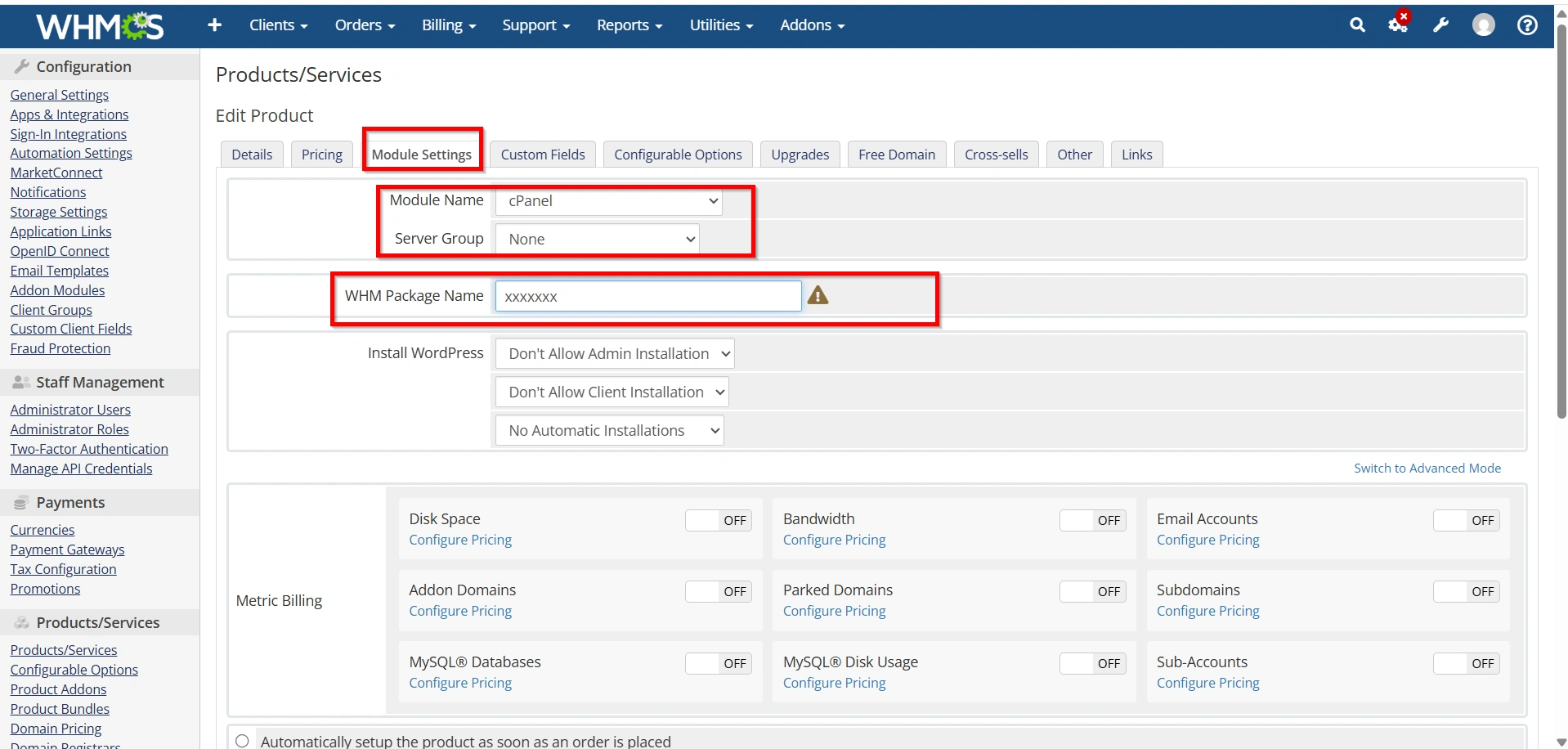
Step 7: Configure Module Settings
Open the Module Settings tab.
- Select your hosting control panel module:
- cPanel
- DirectAdmin
- Plesk
- Other supported modules
- Choose the server.
- Select the hosting package corresponding to the trial plan.
This configuration enables automatic account creation whenever a trial order is accepted.
4. Enable Automatic Account Provisioning
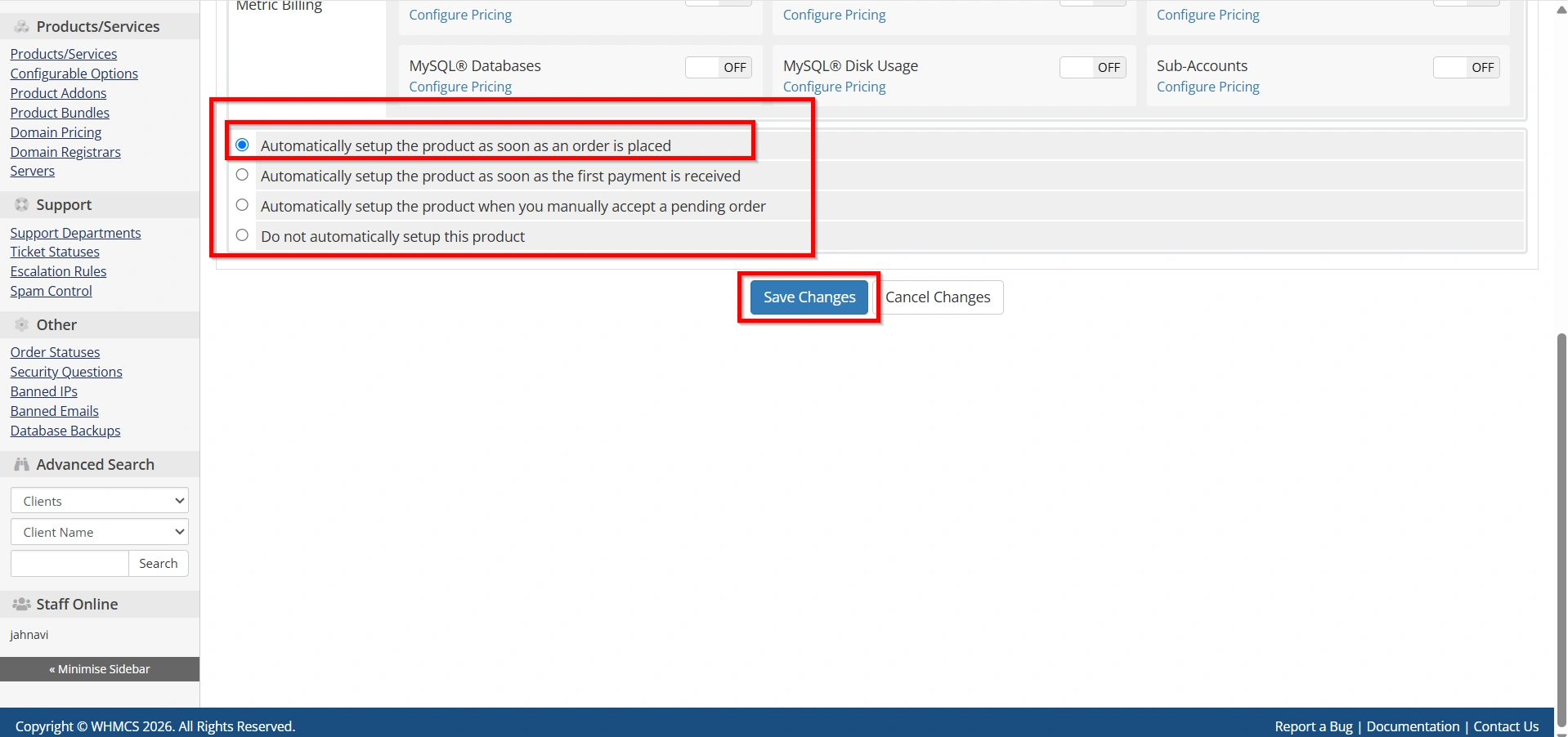
Still within Module Settings:
- Choose Automatically setup the product as soon as an order is placed.
Alternatively, you may choose manual approval if you want to review trial signups before activation.
Automated provisioning provides a better customer experience and reduces administrative workload.
5. Save Changes
Step 8: Configure Trial Duration
WHMCS does not include a dedicated trial expiration feature by default, but you can manage trial periods through:
- Product welcome emails
- Suspension settings
- Automation tasks
- Custom hooks
- Third-party WHMCS modules
Common trial periods include:
- 7 Days
- 14 Days
- 30 Days
Clearly communicate the expiration date to customers during signup.
Step 9: Customize Welcome Emails
Navigate to:
Configuration > System Settings > Email Templates
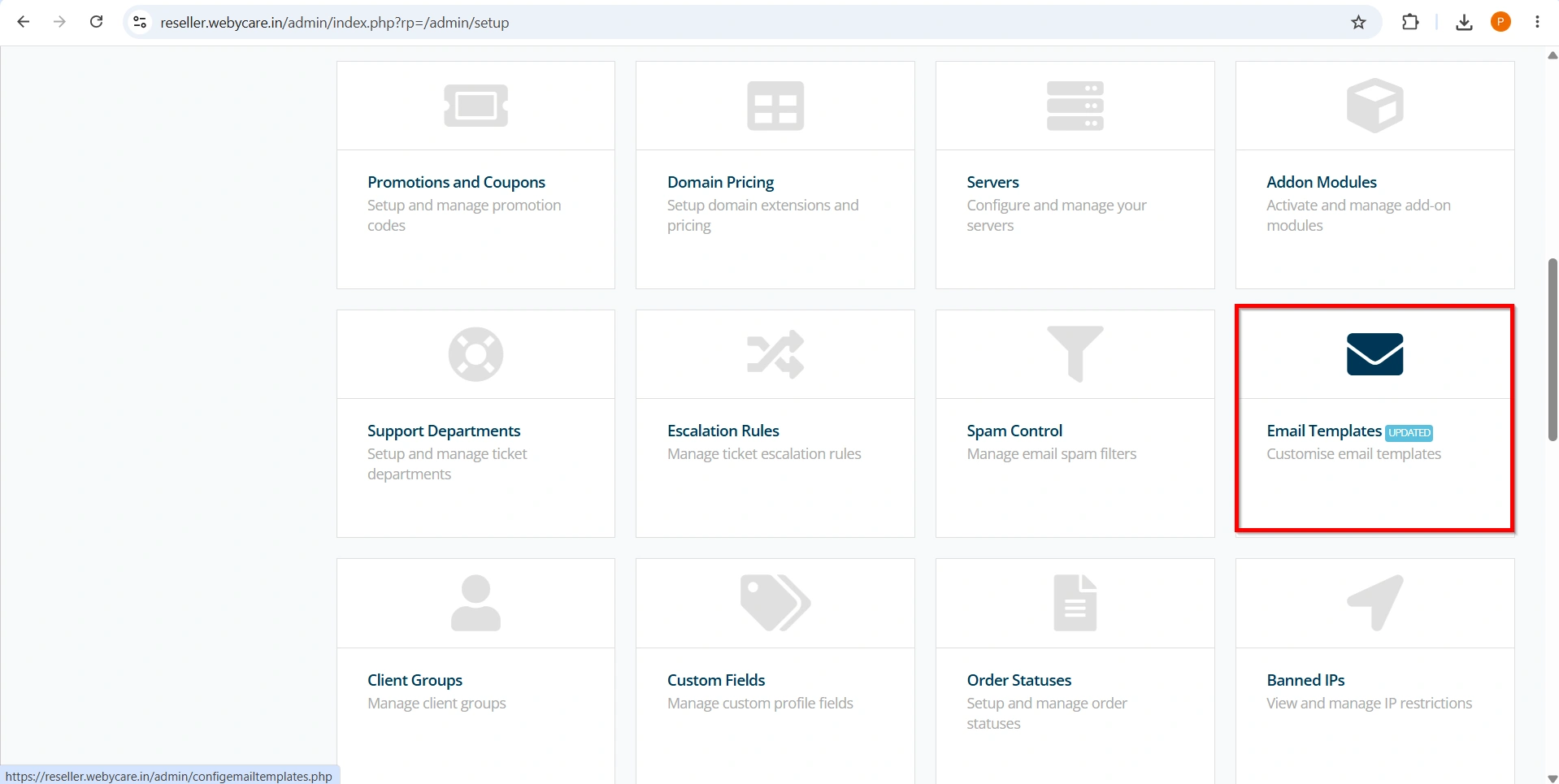
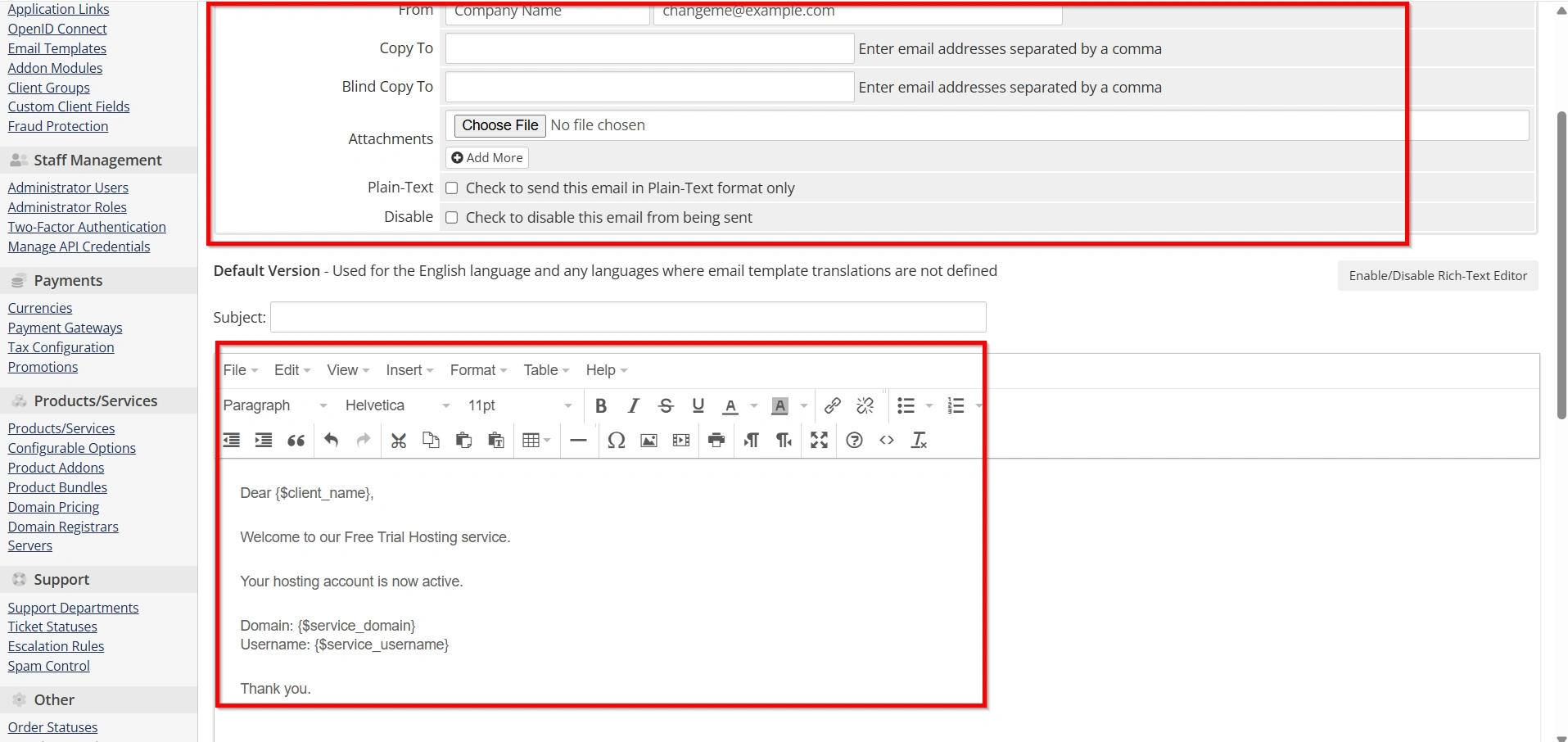
Create or edit a welcome email template containing
- Hosting account details
- Control panel login URL
- Trial expiration date
- Upgrade instructions
- Support contact information
A professional welcome email helps users get started quickly.
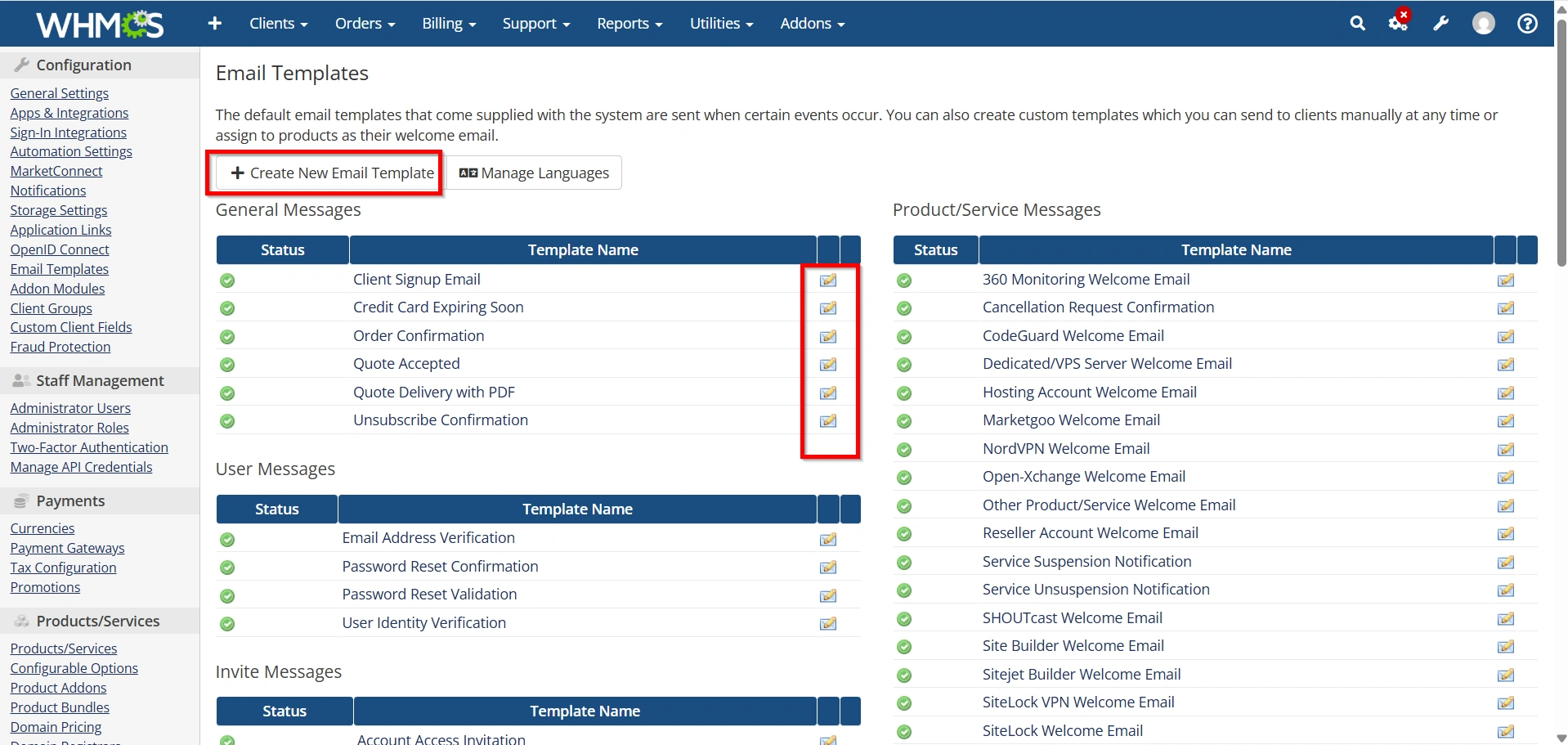
- Enter the Required Fields
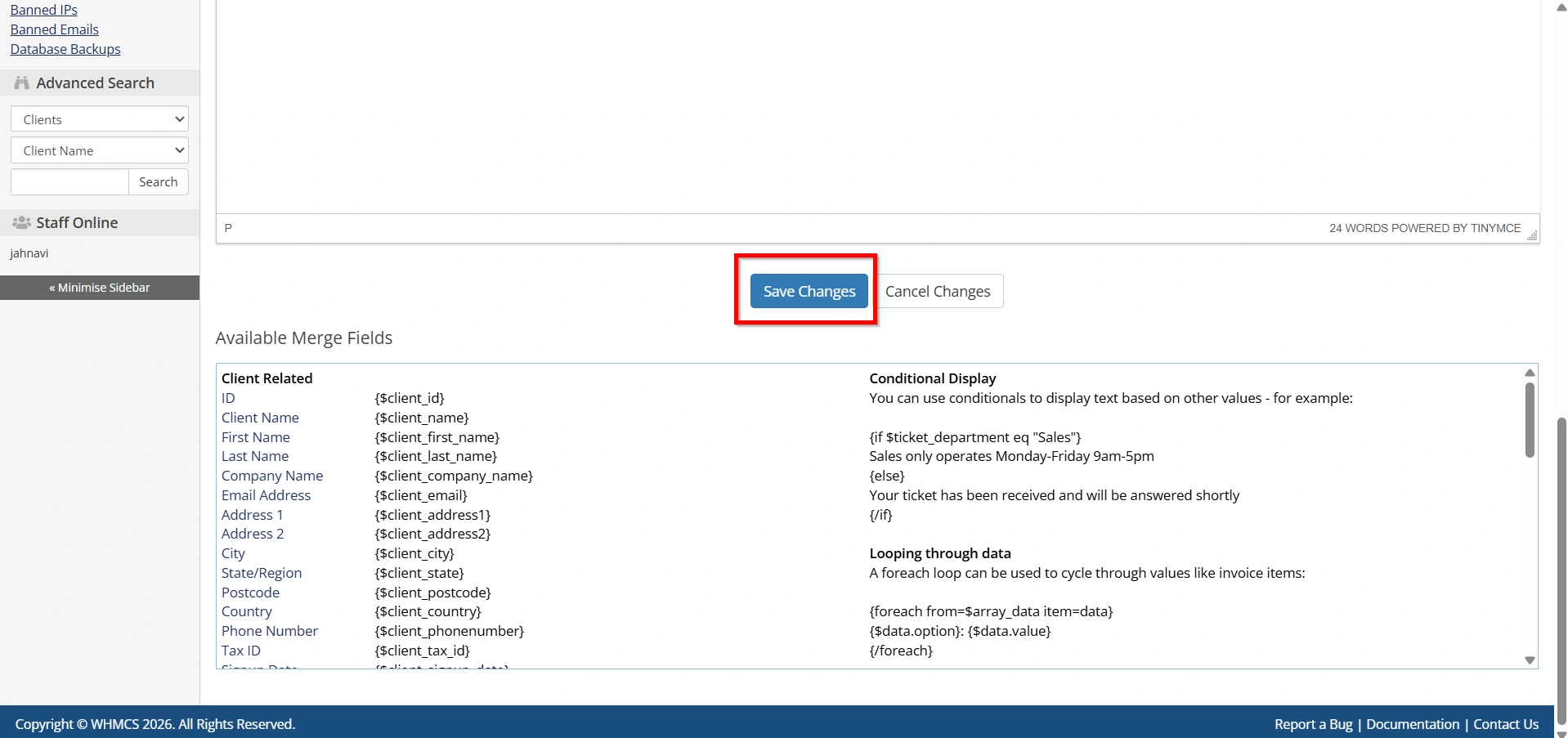
- Save Changes
Step 10: Create Upgrade Paths
The primary goal of a trial package is converting users into paying customers.
Create related hosting plans such as:
- Basic Hosting
- Business Hosting
- Premium Hosting
Then configure upgrade options within WHMCS.
Customers can seamlessly upgrade their accounts when their trial period ends.
Best Practices for Free Trial Hosting
When you Set Up a Free Trial Hosting Package in WHMCS, consider these best practices:
- Verify New Signups
- Prevent Abuse
- Monitor Resource Usage
- Provide Excellent Support
- Send Upgrade Reminders
Conclusion
A free trial hosting package is an excellent marketing tool for hosting providers looking to attract new customers and increase conversions. WHMCS simplifies the process by allowing administrators to automate account creation, manage trial users, and create upgrade opportunities.
Successfully learning how to Set Up a Free Trial Hosting Package in WHMCS can help hosting providers attract more prospects and convert them into long-term customers. With proper product configuration, automated account provisioning, and resource limitations, you can offer a secure and effective trial experience. When you Set Up a Free Trial Hosting Package in WHMCS, you give potential customers the opportunity to evaluate your services without risk. Following the steps in this guide will help you Set Up a Free Trial Hosting Package in WHMCS efficiently while maintaining control over resources and account management. A well-planned approach to Set Up a Free Trial Hosting Package in WHMCS can become a valuable part of your hosting business growth strategy.
Related Articles


