Latest Updates
How to Set Up a Product Group in WHMCS
How to Set Up a Product Group in WHMCS As your hosting business grows, managing multiple products and services can become challenging. WHMCS provides a powerful way to organize your offerings through Product Groups,…
How to Set Up a Product Group in WHMCS
As your hosting business grows, managing multiple products and services can become challenging. WHMCS provides a powerful way to organize your offerings through Product Groups, making it easier for customers to find the services they need and for administrators to manage their product catalog efficiently. Learning how to Set Up a Product Group in WHMCS is one of the first steps toward creating a well-structured and professional ordering system.
When you Set Up a Product Group in WHMCS, you can categorize related services such as Shared Hosting, VPS Hosting, Dedicated Servers, SSL Certificates, and Domain Registration into separate sections. This organization improves navigation, enhances the customer experience, and helps present your products in a clear and professional manner.
Whether you are launching a new hosting company or expanding an existing service portfolio, understanding how to Set Up a Product Group in WHMCS will help you maintain a clean storefront and streamline product management. In this guide, we will walk through the complete process to Set Up a Product Group in WHMCS, explain its benefits, and share best practices for keeping your products organized as your business grows.
What is a Product Group in WHMCS?
A Product Group is a category that contains one or more related products or services. Instead of displaying all products in a single list, WHMCS allows you to organize them into logical groups.
For example, a hosting company may create the following product groups:
- Shared Hosting
- WordPress Hosting
- VPS Hosting
- Dedicated Servers
- SSL Certificates
- Website Maintenance Services
Each product group can contain multiple products with different pricing and configurations.
Product groups improve navigation, enhance customer experience, and make your WHMCS storefront look more professional.
Why Create Product Groups in WHMCS?
Product groups provide several benefits:
- Organize products into clear categories
- Improve website navigation
- Make ordering easier for customers
- Display related products together
- Manage large product catalogs efficiently
- Create a professional ordering system
How to Set Up a Product Group in WHMCS
Follow these steps to create a new product group in WHMCS.
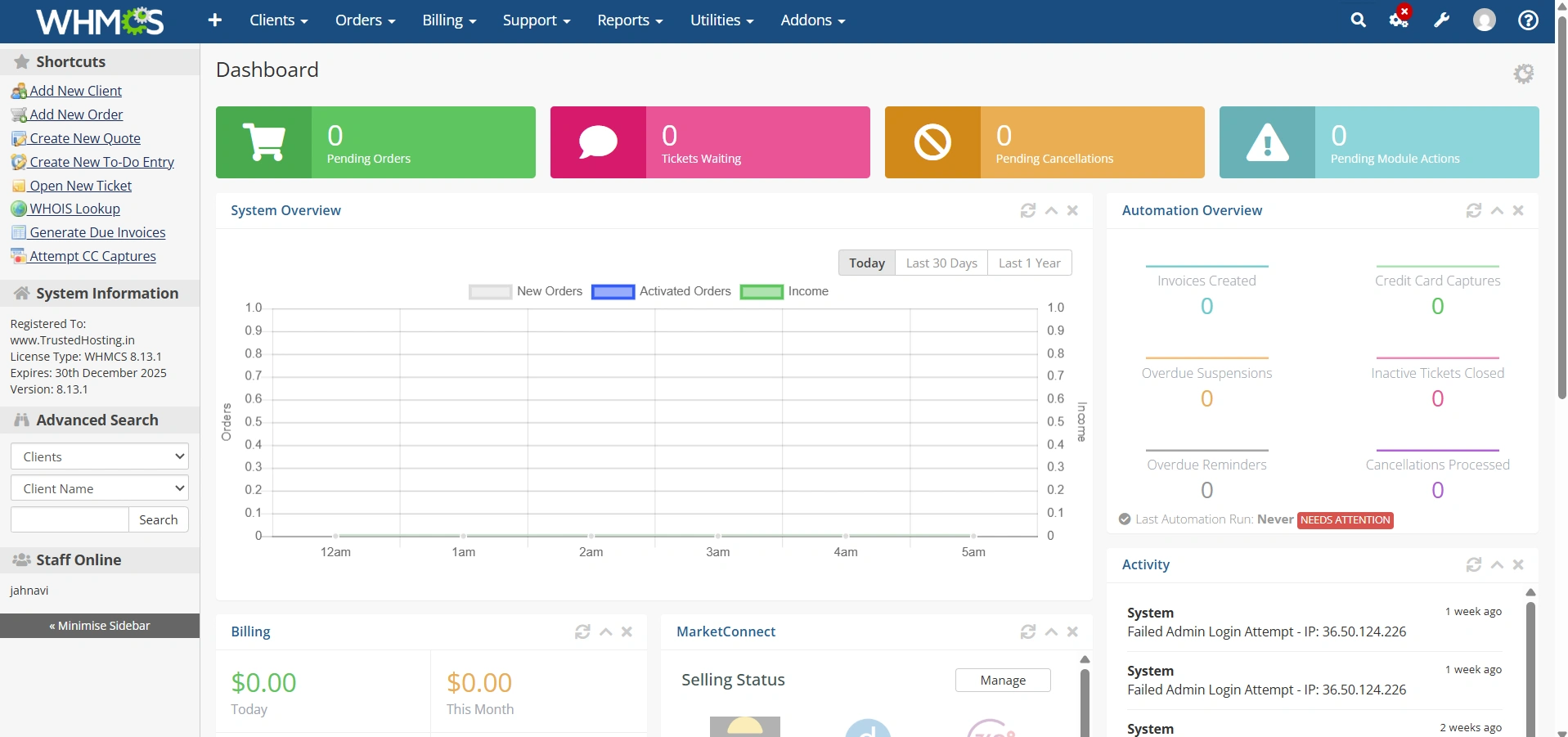
Step 1: Log in to WHMCS Admin Area
Log in to your WHMCS administrator dashboard.
Step 2: Access Product Group Settings
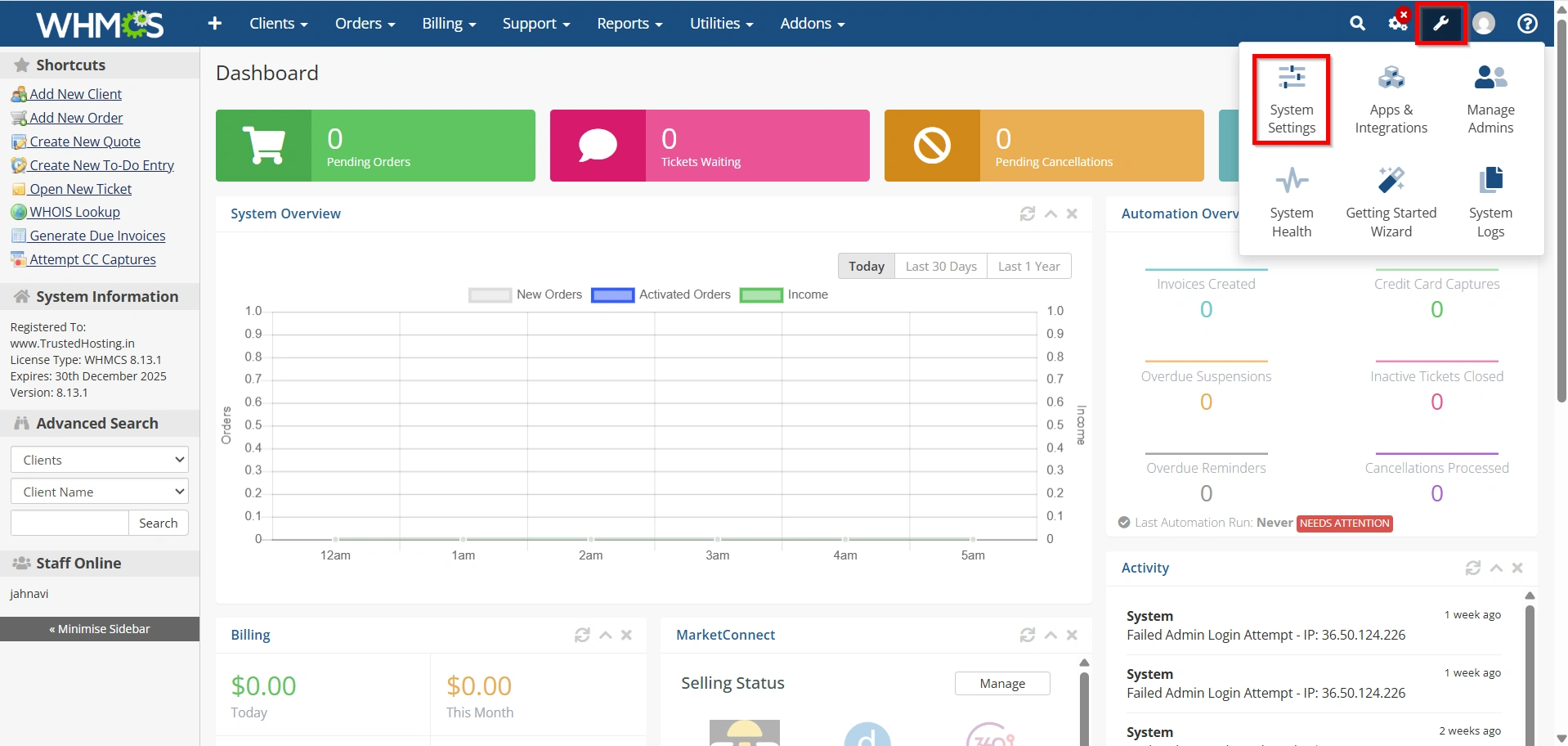
Navigate to:
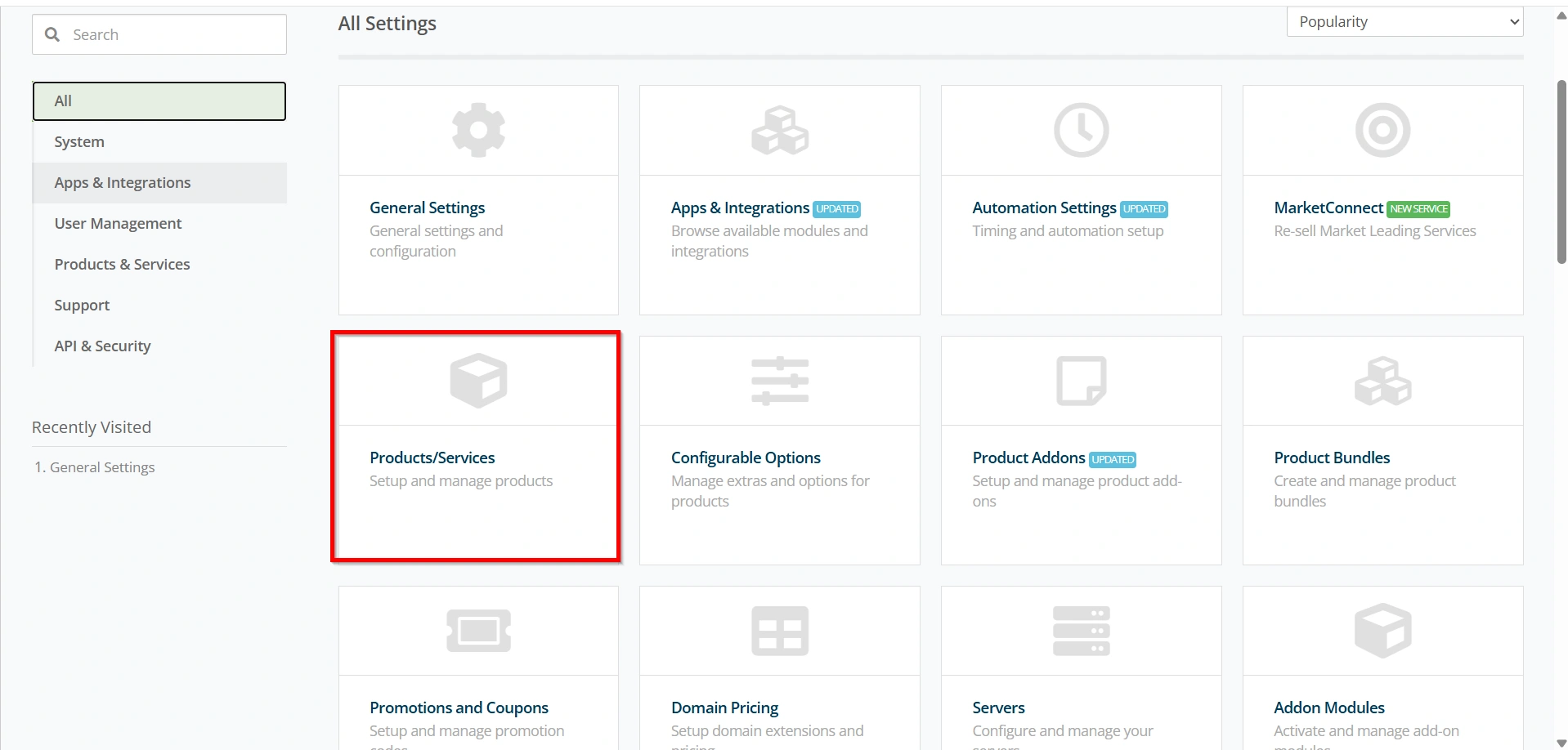
- Configuration Icon → System Settings
- Under All Settings ,
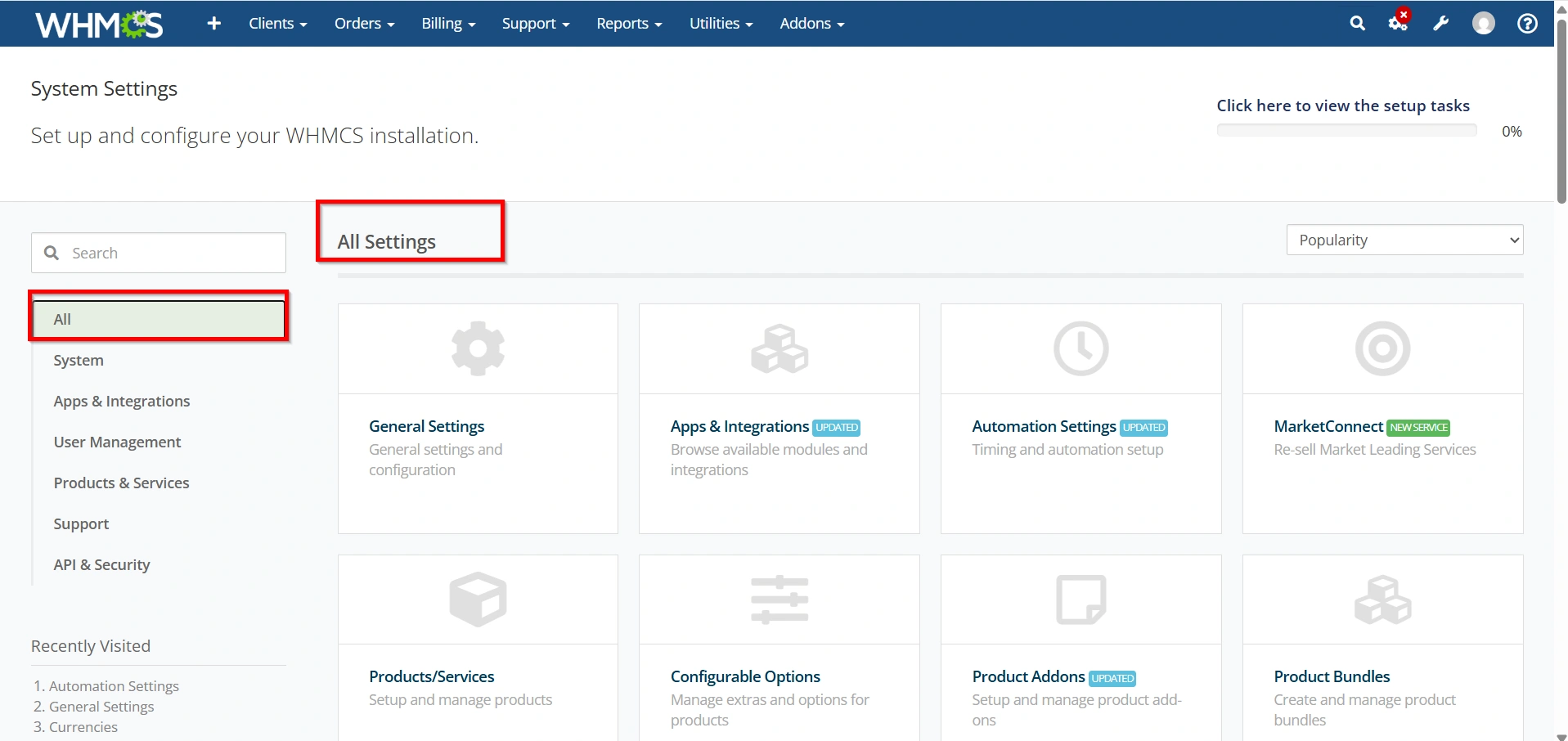
- Select Products/Services
This section contains all settings related to your products, services, and product organization.
Step 3: Open Product Groups
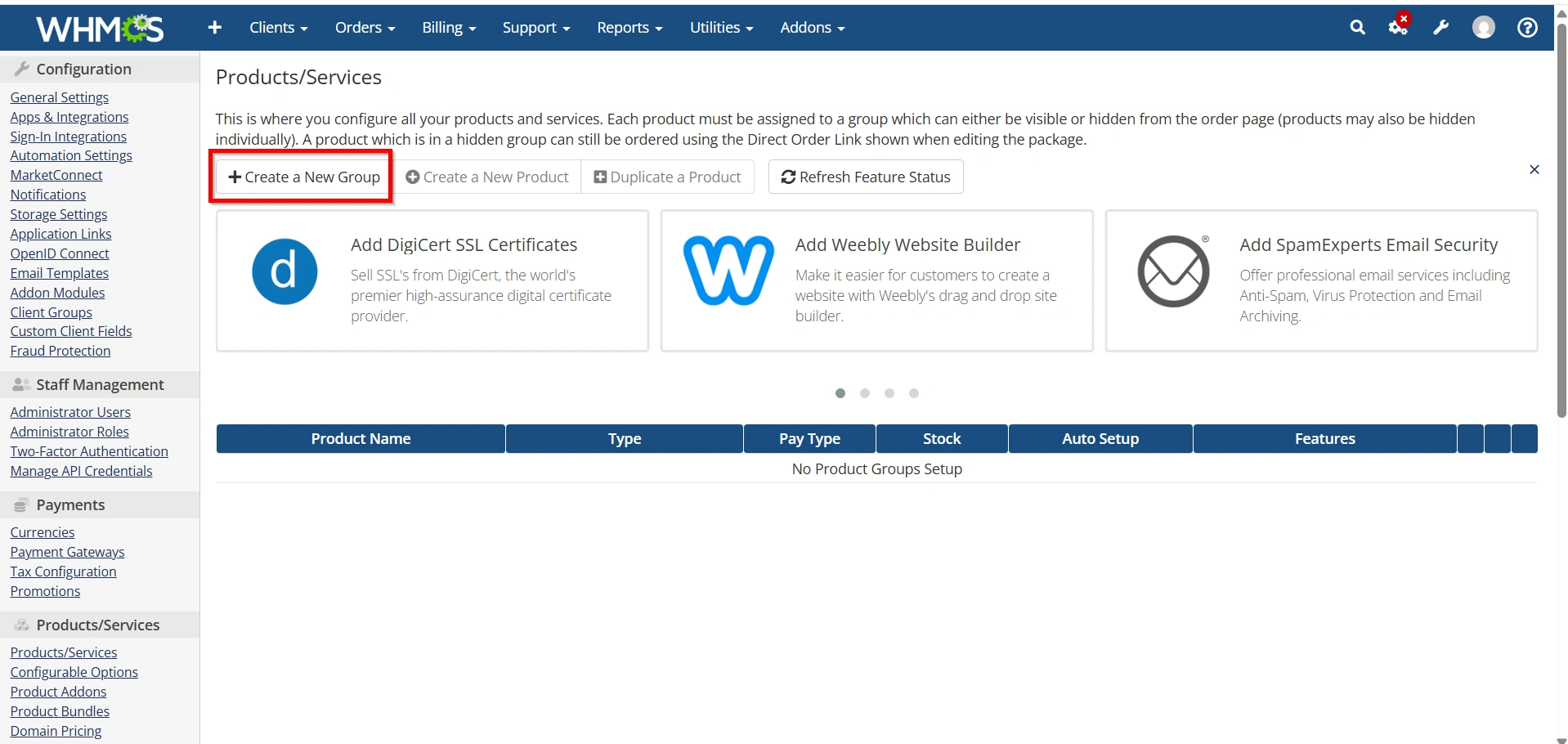
Inside the Products/Services page, click on:
- Create a New Group
This option allows you to create a new category where you can add related products.
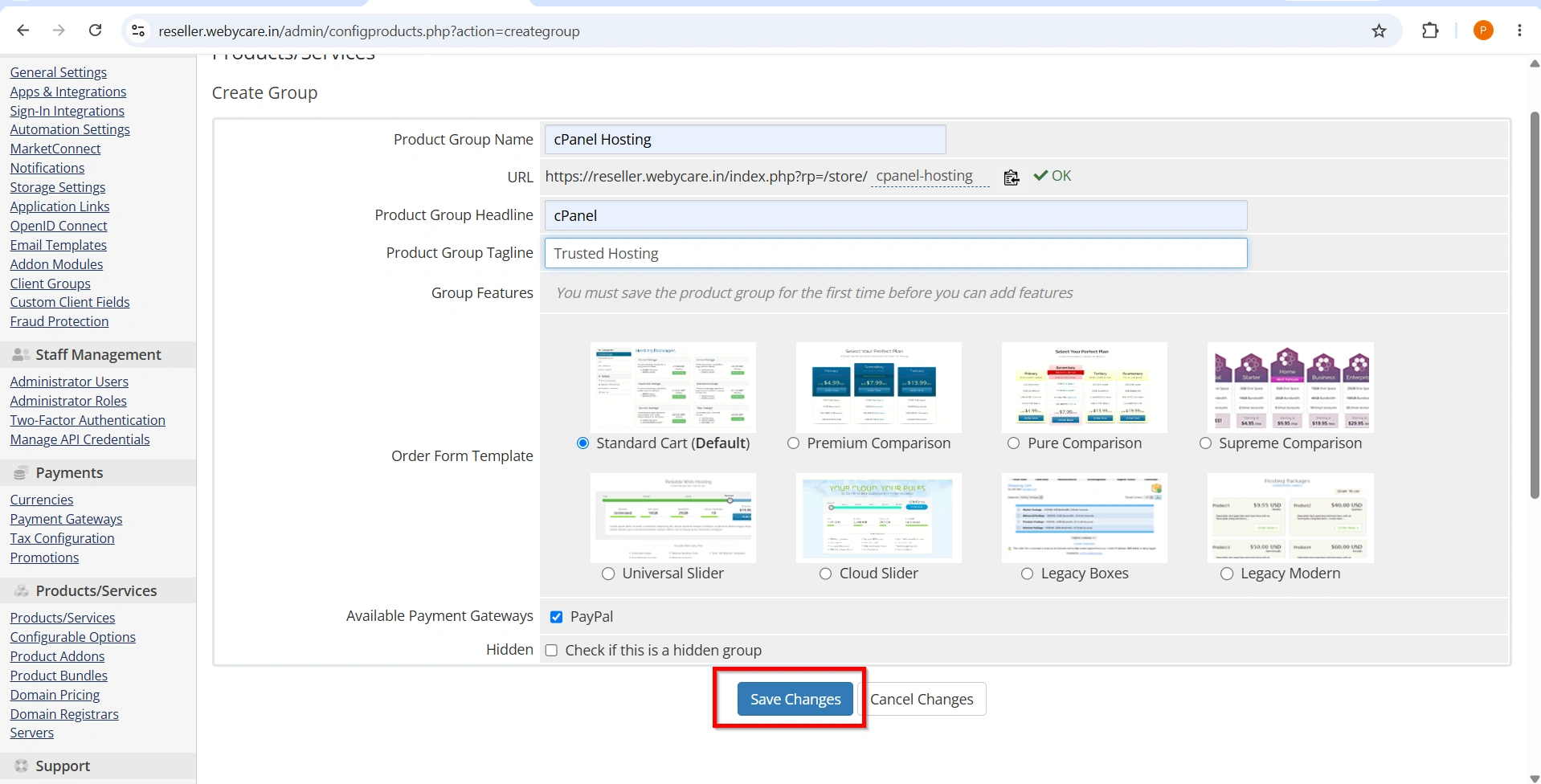
Step 4: Enter Product Group Details
Now configure the product group information.
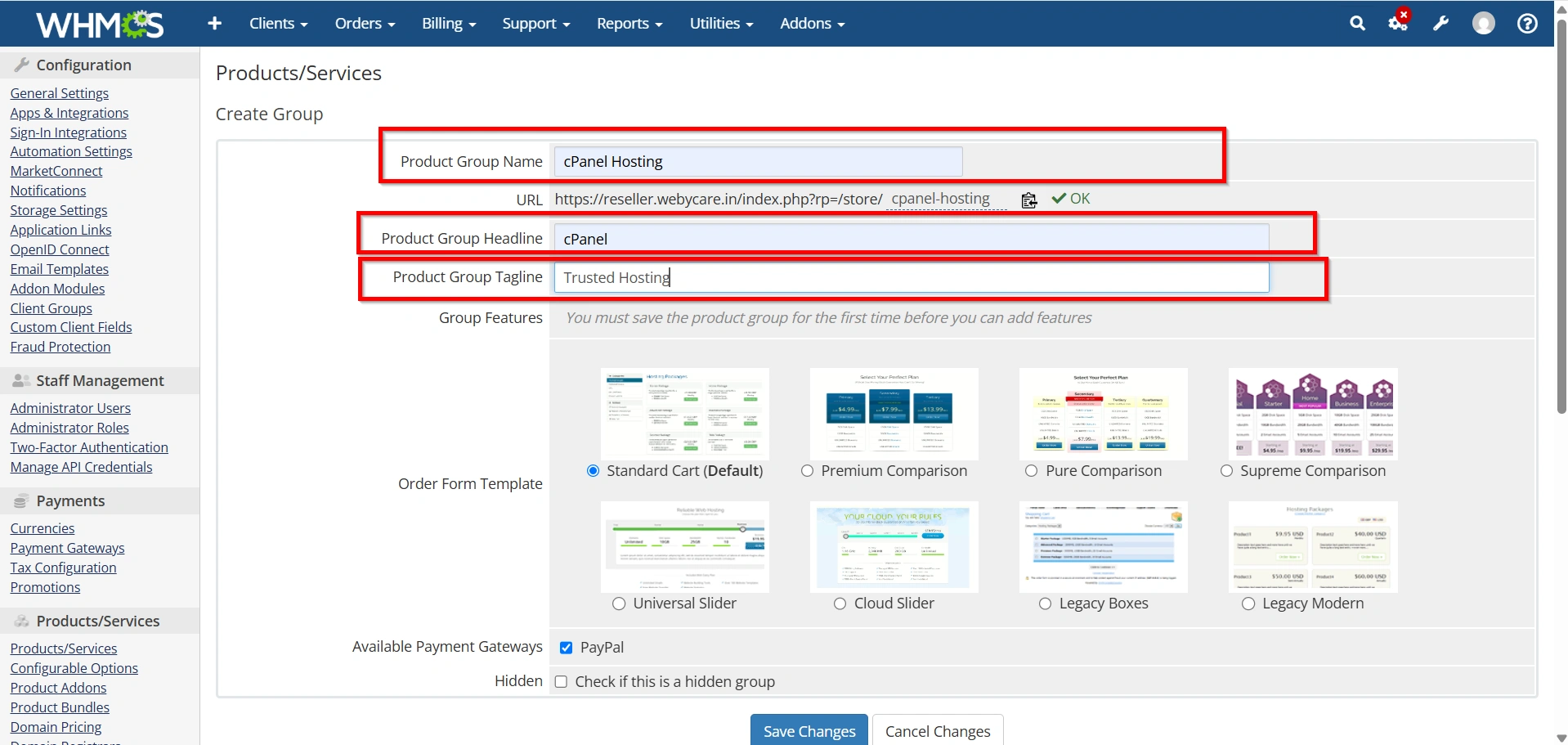
Add the following details:
Product Group Name
Enter a name that clearly describes the products included in the group.
Examples:
- Web Hosting
- VPS Hosting
- Email Hosting
Product Group Headline
Add a short heading that will be displayed to customers.
Example:
“Reliable Hosting Solutions for Your Business”
Product Group Tagline
Add a brief description explaining the services available in this group.
Example:
“Choose from flexible hosting plans designed for websites of all sizes.”
Step 5: Configure Product Group Display Options
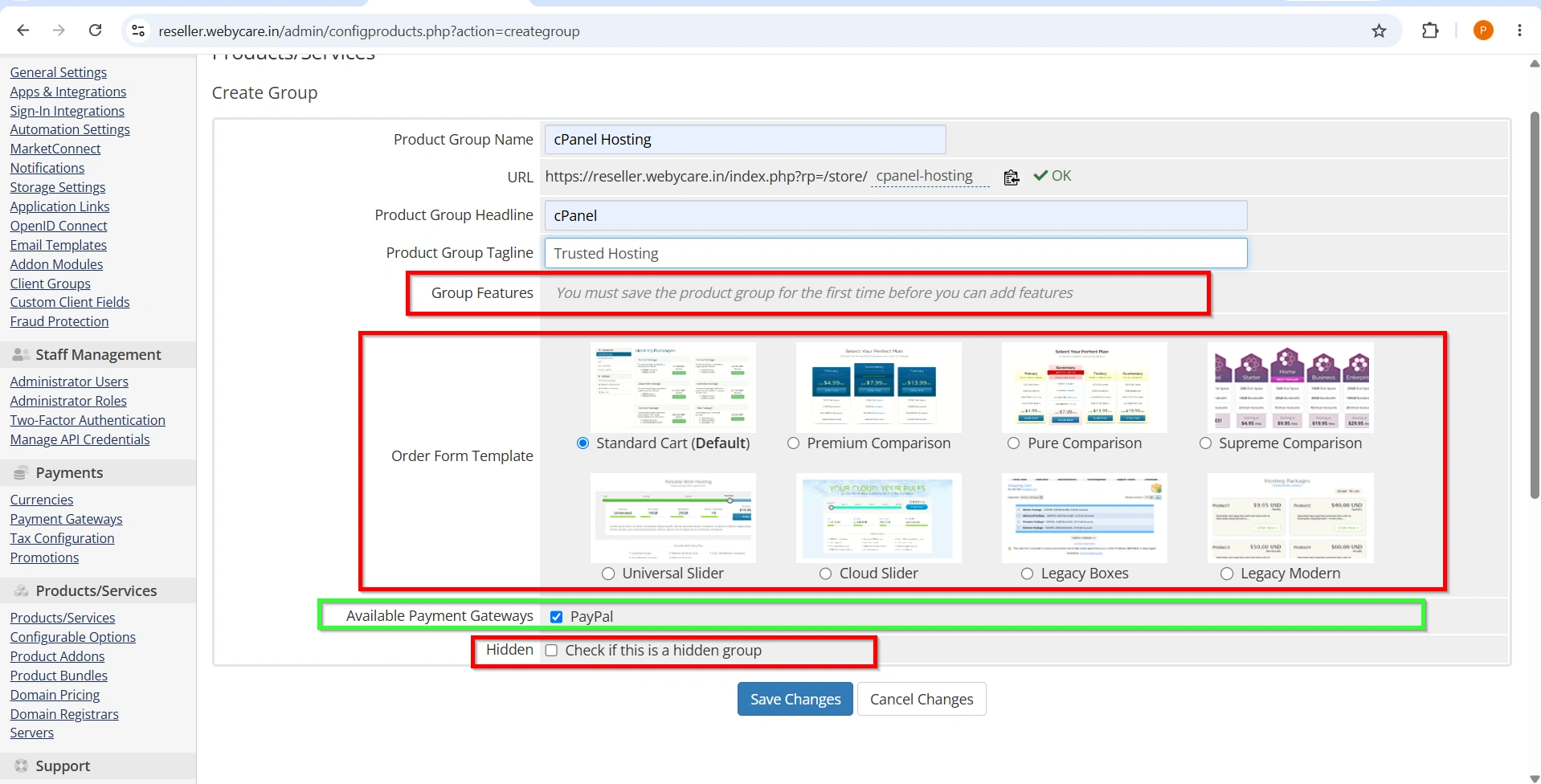
WHMCS provides options to control how the product group appears on your order form.
You can configure:
Product Group Features
You can add information about the services included in the group to help customers understand the available options.
Order Form Template
Select the order form design where this product group will be displayed.
Available Payment Gateways
You can select payment methods you want
ex : PayPal
Hidden Option
Enable this if you do not want the product group to appear publicly but still want to use it internally.
Step 6: Save the Product Group
After entering all required details, click:
Save Changes
Your new product group will now be created successfully.
Step 7: Add Products to the Product Group
After creating the group, you need to assign products to it.
Navigate to:
- Configuration → System Settings → Products/Services
- Select Create a New Product , if you already having please ignore this step
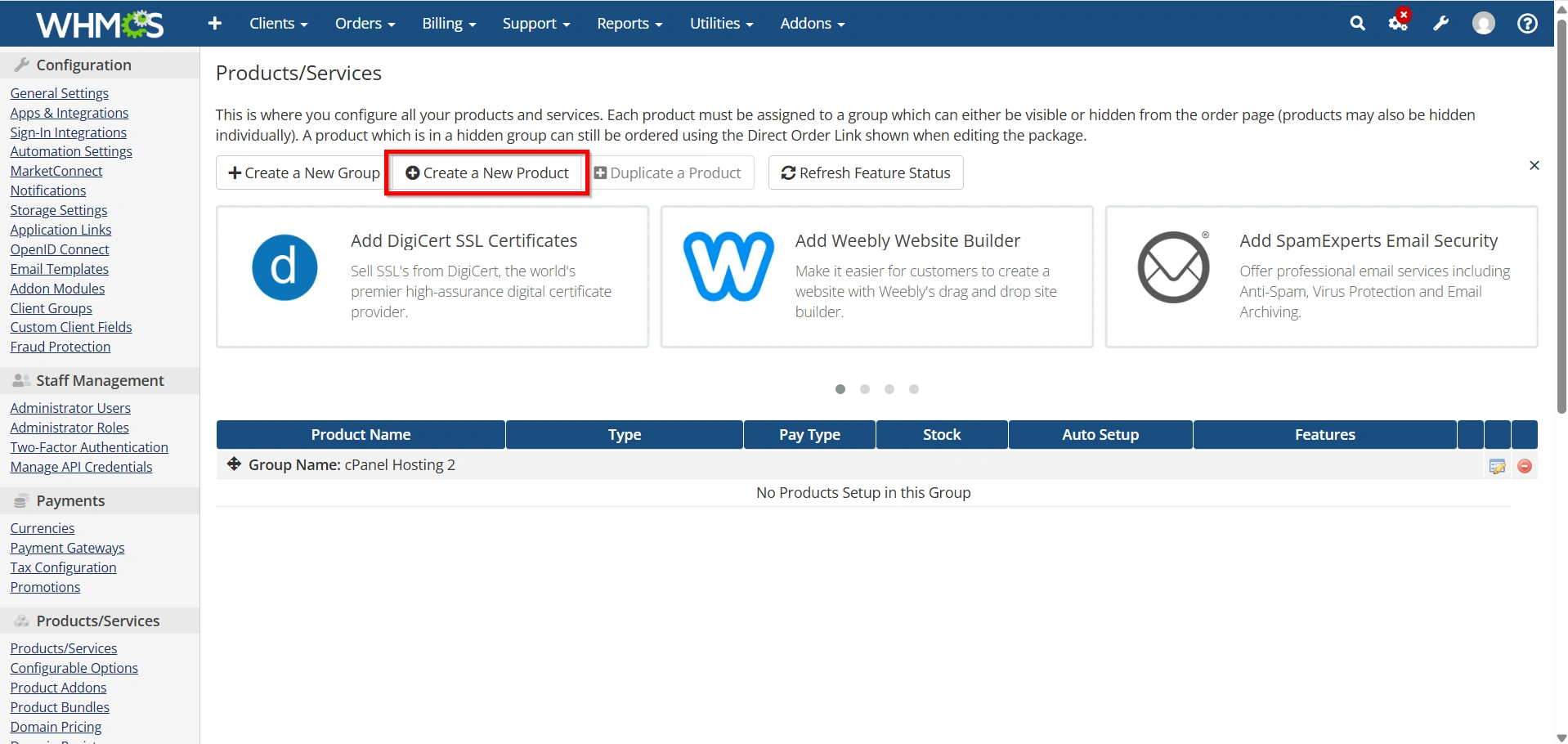
Add the following details:
Product Type
- Shared Hosting
- Reseller Hosting
- Server/ VPS
- Other
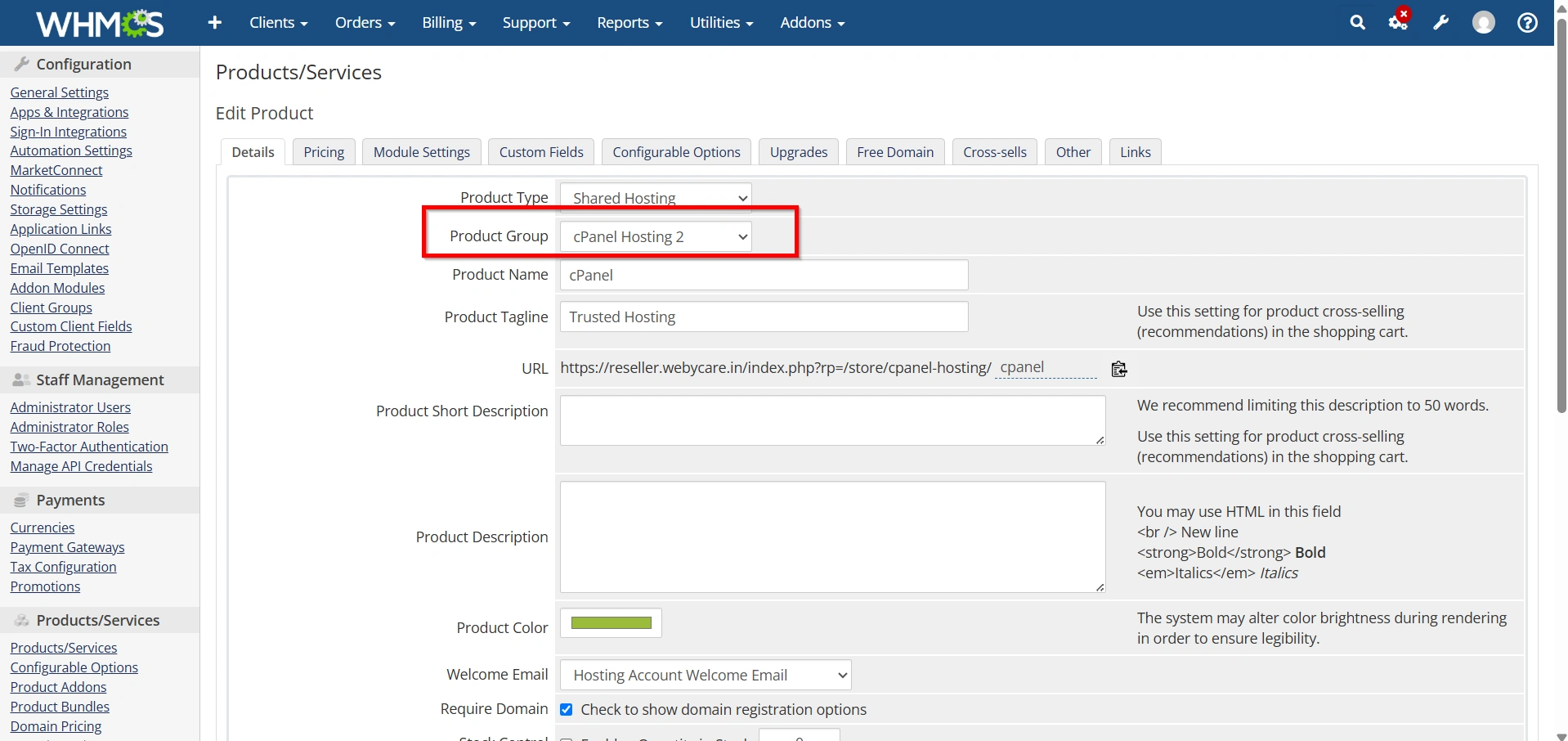
Product Group
Choose Your Own Product Group
Product Name
You can any name you want
- Click on Continue
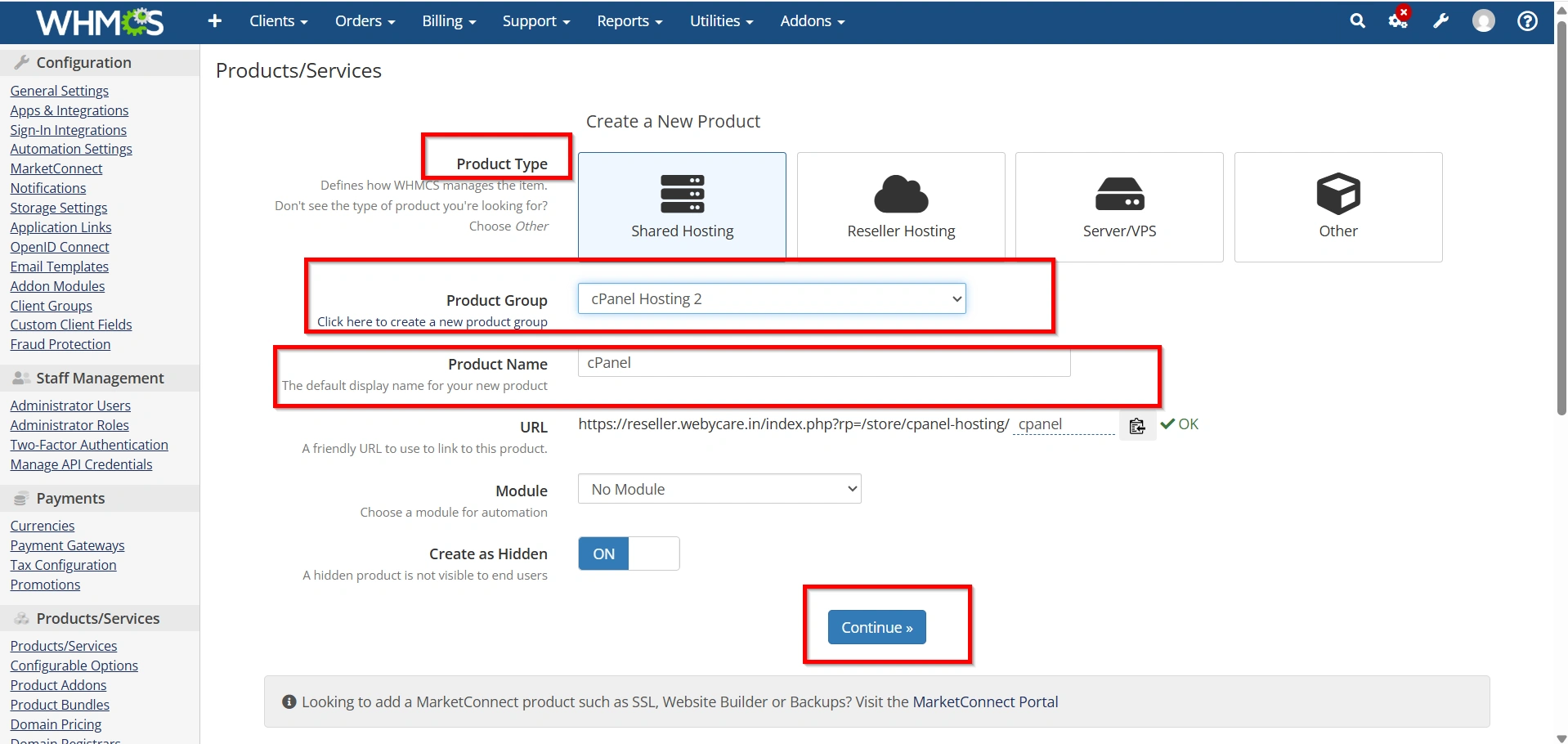
- It will display all the details before you selected
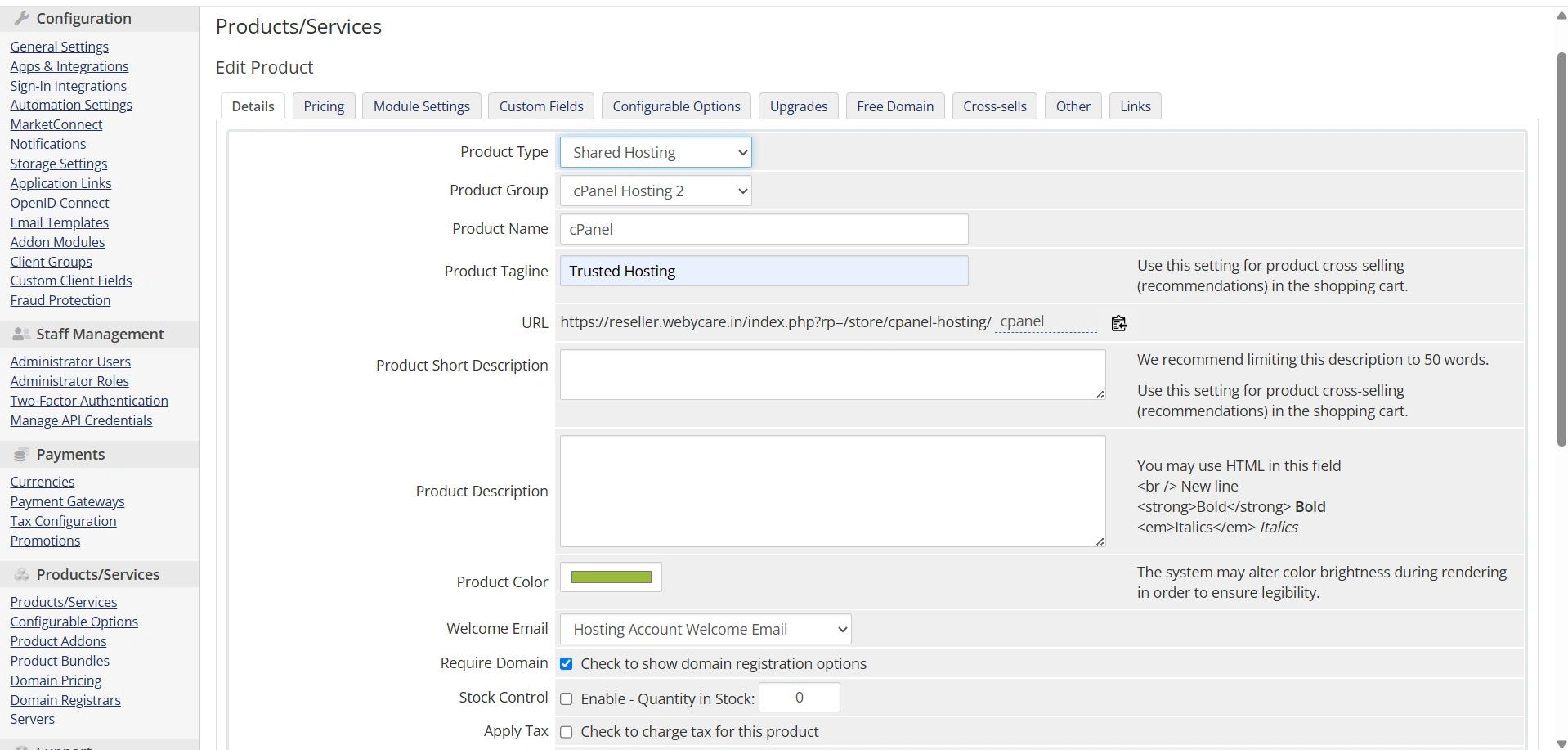
- Click Save Changes
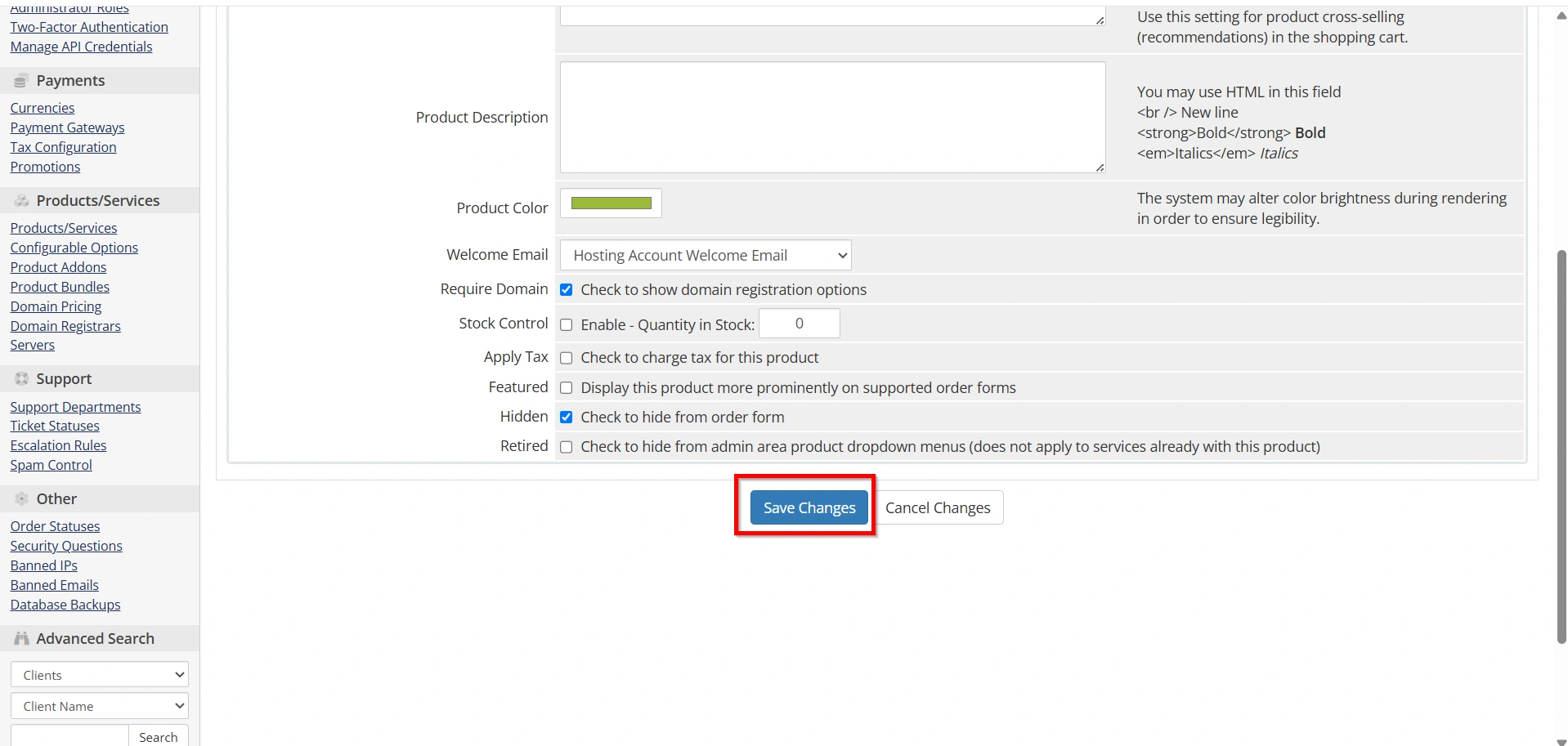
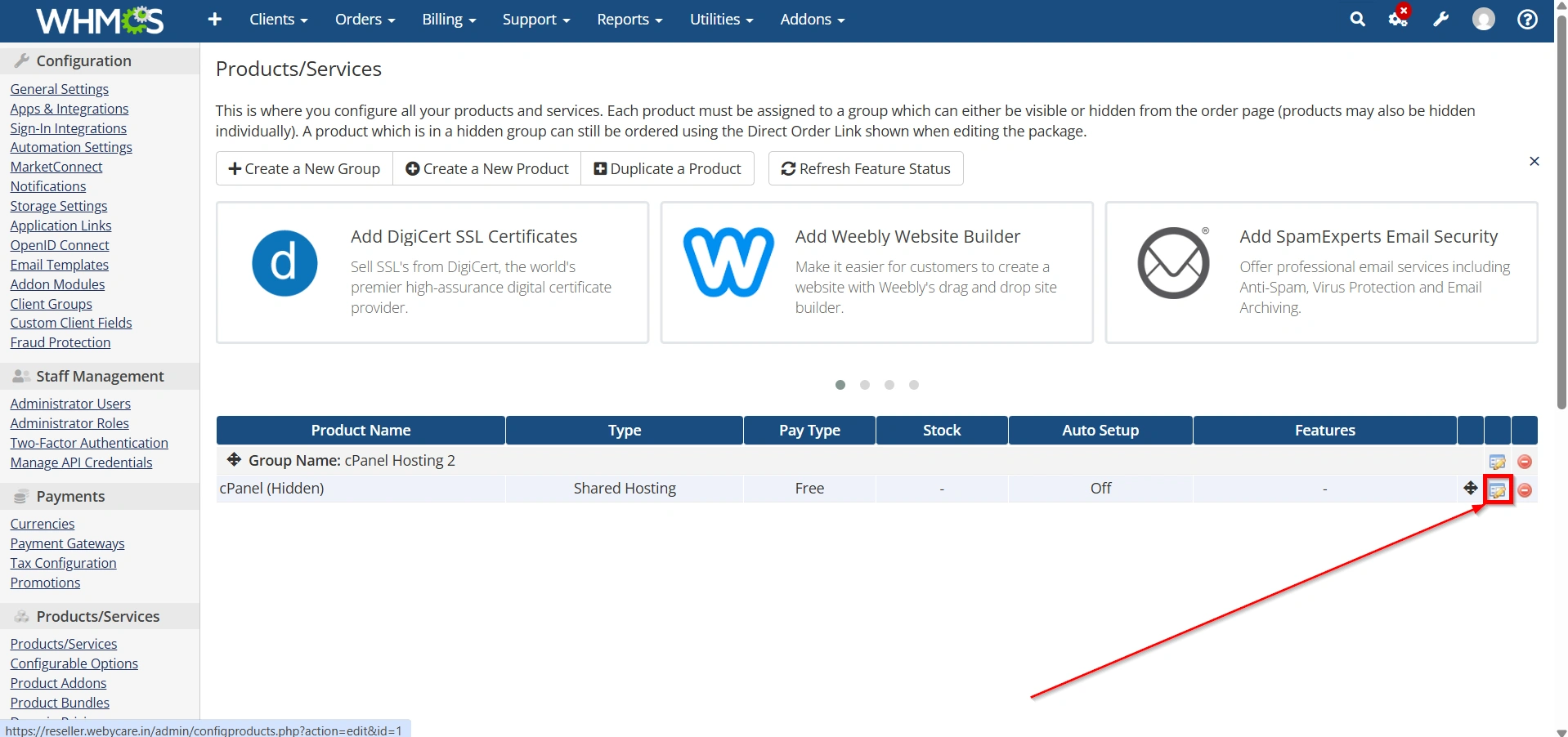
- Select an Existing Product then Click Edit Icon
- Choose the newly created product group
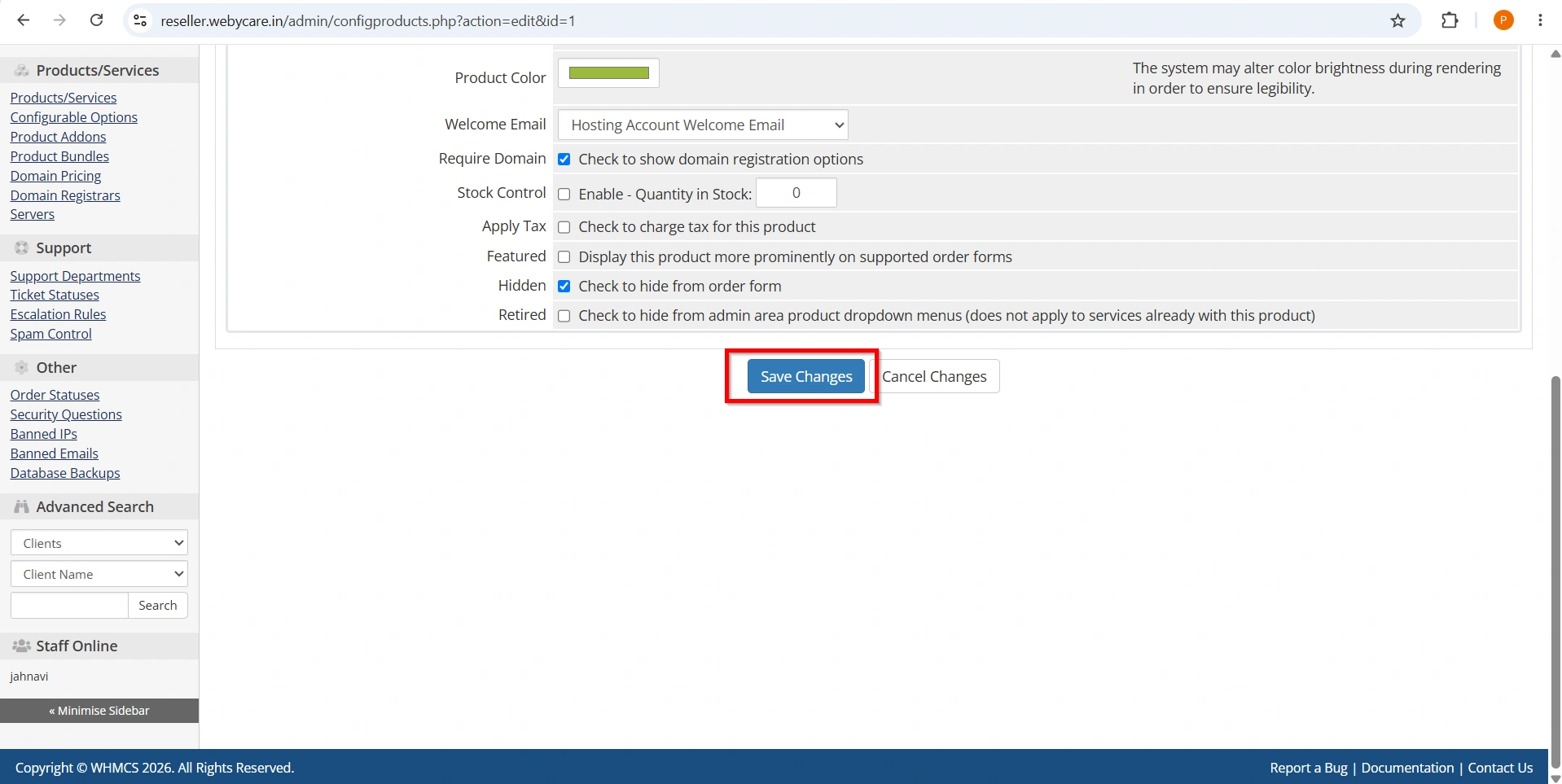
- Save the Changes.
The product will now appear under that category.
Benefits of Creating Product Groups
Creating product groups is an important step in organizing your services and improving the overall customer experience. When you Set Up a Product Group in WHMCS, you gain several advantages that make product management more efficient and your storefront more professional.
- Improved Organization
- Better Customer Experience
- Professional Product Display
- Easier Product Management
- Simplified Marketing
Conclusion
Learning how to Set Up a Product Group in WHMCS is an essential part of building a well-organized hosting and billing platform. Product groups help categorize services, improve navigation, simplify product management, and create a better purchasing experience for customers.
By creating logical product categories, adding informative descriptions, and organizing related services together, you can present a professional storefront that makes it easier for customers to find and purchase your products. Whether you’re managing a small hosting business or a large service catalog, properly configured product groups provide the foundation for efficient service management and business growth.
Related Articles


