Latest Updates
How to Set Up a Reseller Hosting Product in WHMCS
How to Set Up a Reseller Hosting Product in WHMCS If you offer reseller hosting services, WHMCS makes it easy to create and manage reseller hosting packages. By properly configuring your reseller hosting products,…
How to Set Up a Reseller Hosting Product in WHMCS
If you offer reseller hosting services, WHMCS makes it easy to create and manage reseller hosting packages. By properly configuring your reseller hosting products, you can automate account provisioning, billing, renewals, welcome emails, and suspension for overdue accounts.
In this guide, you’ll learn how to Set Up a Reseller Hosting Product in WHMCS from start to finish.
Why Set Up a Reseller Hosting Product in WHMCS?
When you Set Up a Reseller Hosting Product in WHMCS, you can:
- Automatically create reseller hosting accounts
- Assign reseller hosting plans from your control panel
- Configure monthly, yearly, or custom billing cycles
- Enable automatic account suspension and termination
- Deliver welcome emails automatically
- Offer configurable options and addons
- Reduce manual work with complete automation
Prerequisites
Before you begin, ensure you have:
- WHMCS installed and configured
- A hosting server connected to WHMCS
- cPanel/WHM or another supported reseller hosting control panel
- A reseller hosting package already created on your server
- Administrator access to the WHMCS Admin Area
Step 1: Log in to WHMCS Admin Area
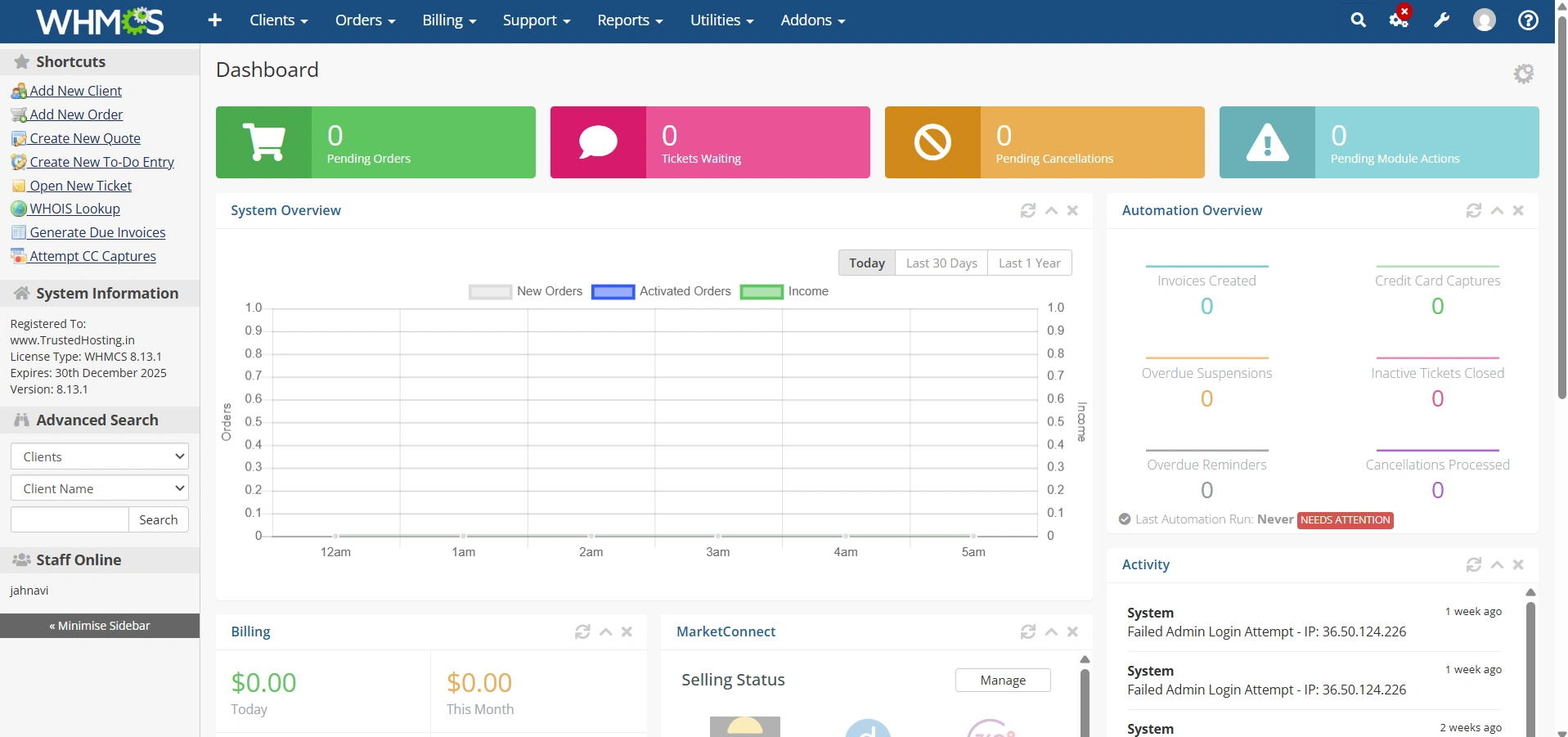
Log in to your WHMCS administrator dashboard.
Step 2: Create a Product Group
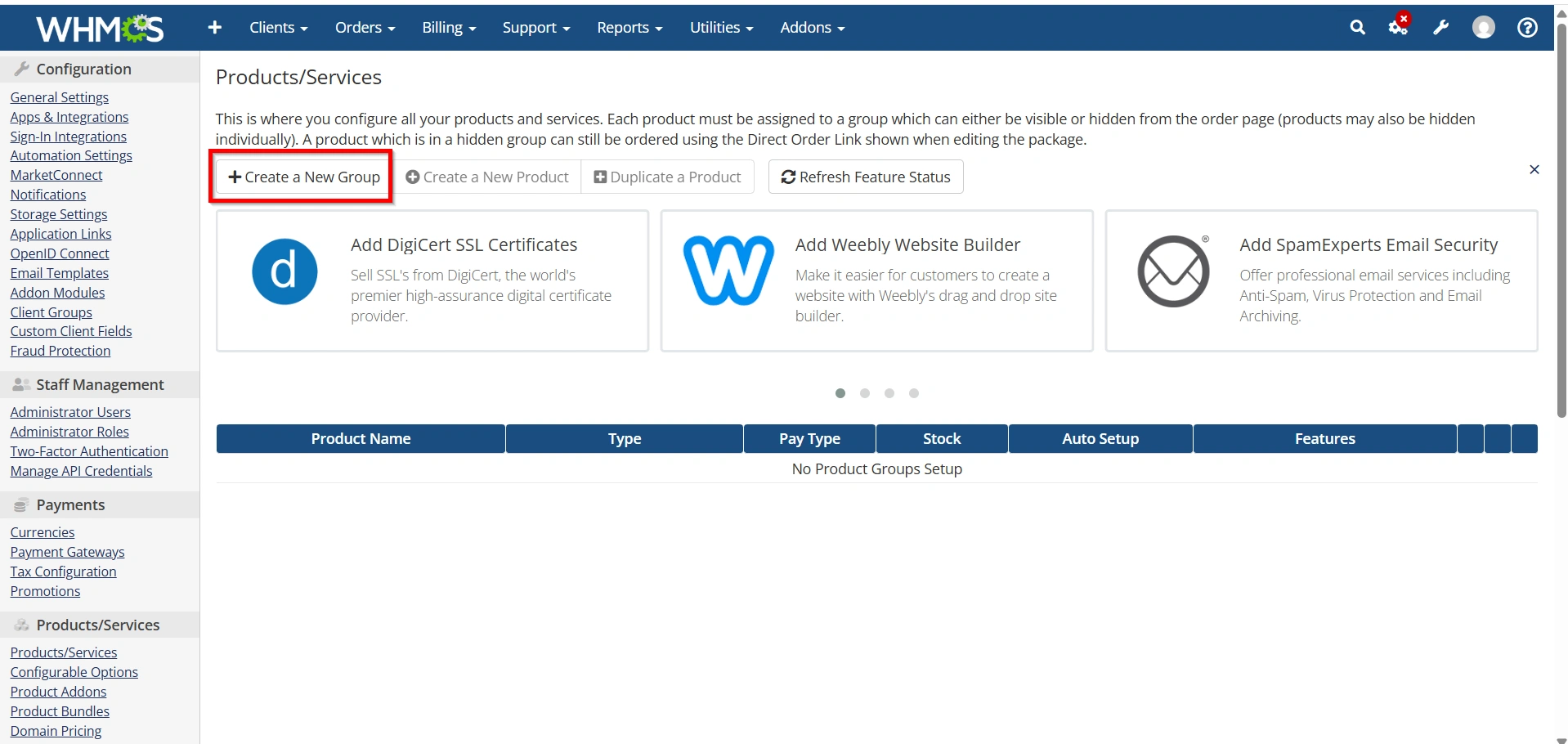
If you don’t already have a reseller hosting category:
- Click Create a New Group
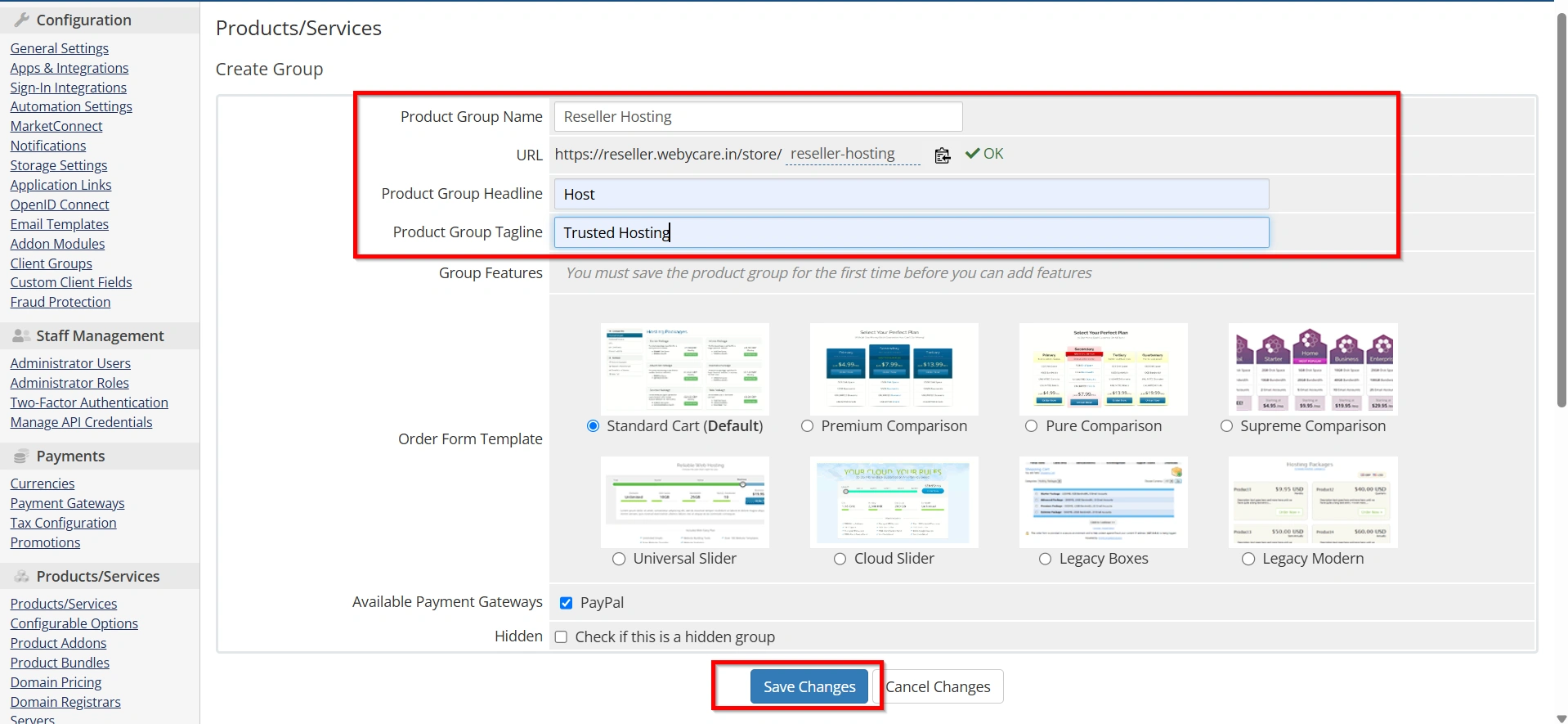
- Enter:
- Group Name: Reseller Hosting
- Headline (Optional)
- Tagline (Optional)
Save the group.
This helps organize your hosting plans in the client area.
Step 3: Navigate to Products & Services
Navigate to:
Configuration → System Settings → Products/Services
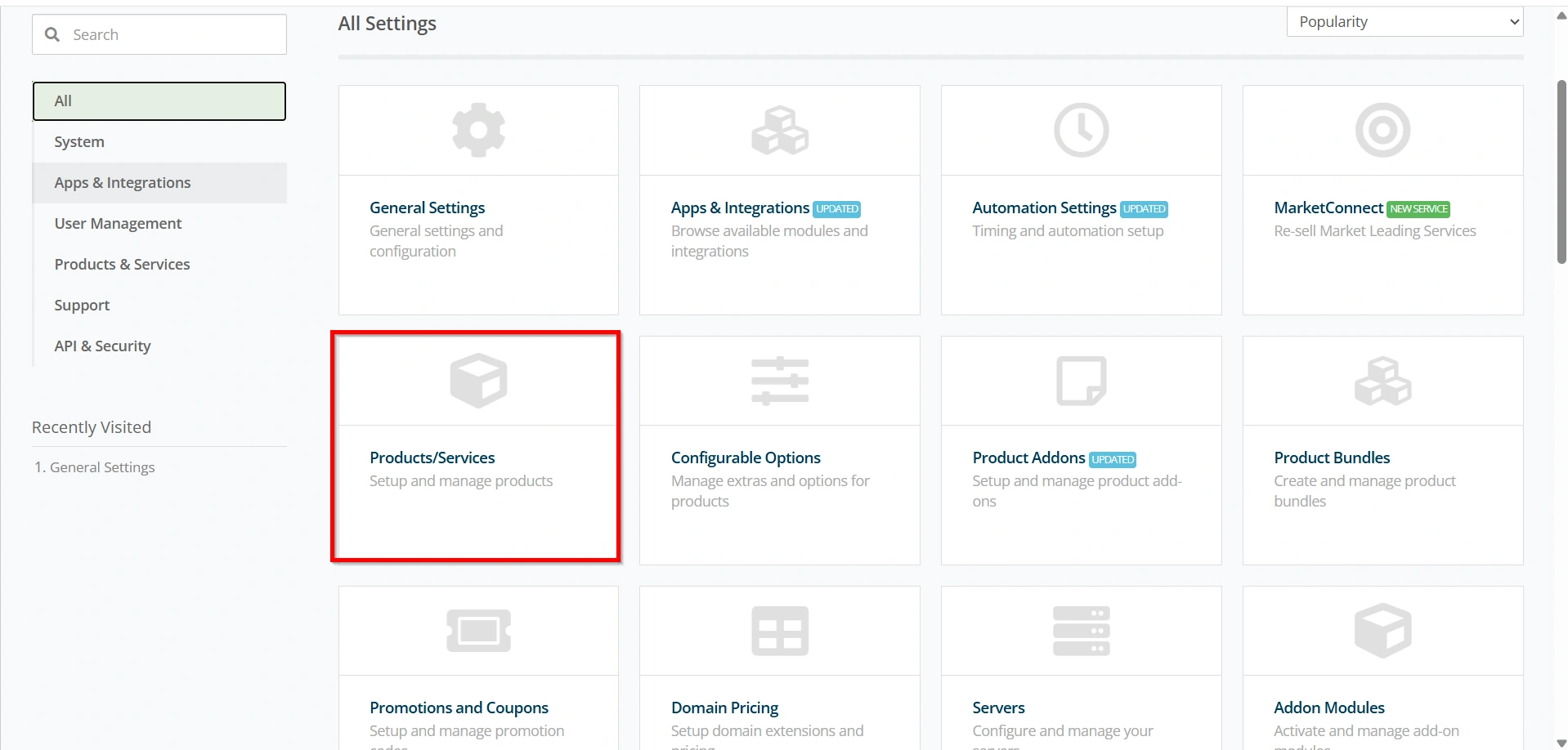
Click Create a New Product.
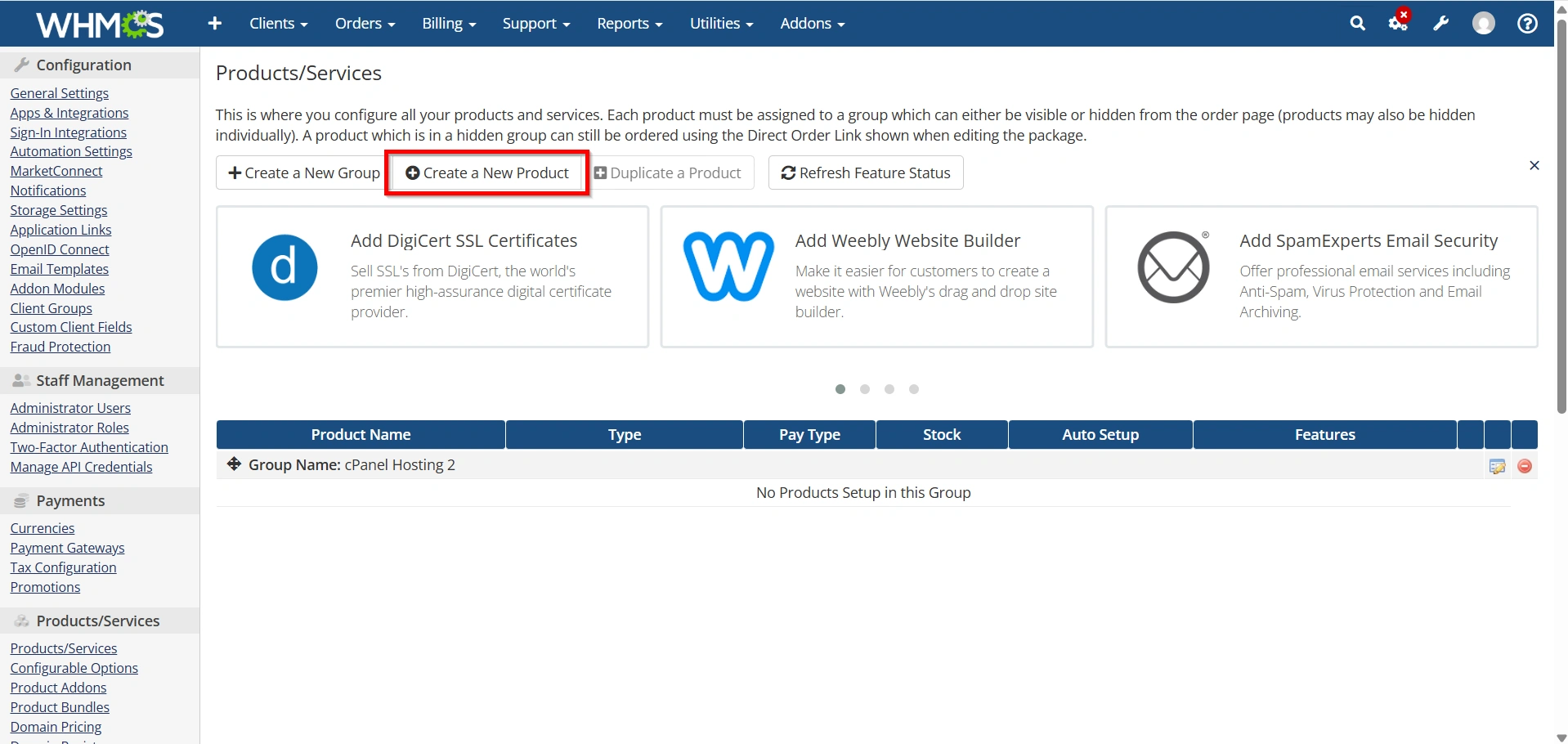
Step 4: Create the Reseller Hosting Product
Enter the following information:
- Product Type:
- Hosting Account
- Product Group:
- Reseller Hosting
- Product Name:
- Starter Reseller Hosting
- Business Reseller Hosting
- Enterprise Reseller Hosting
Click Continue.
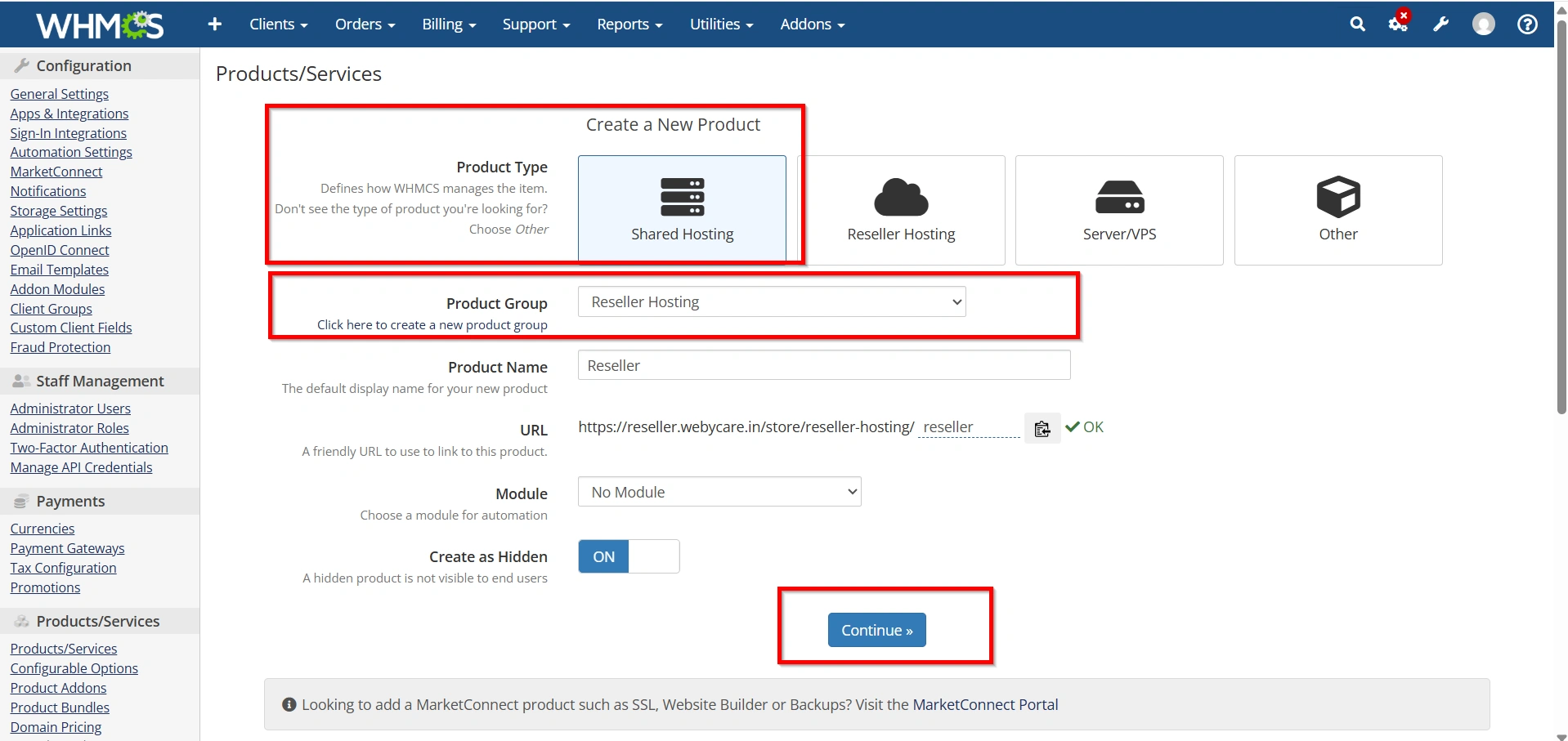
Step 5: Configure the Details Tab
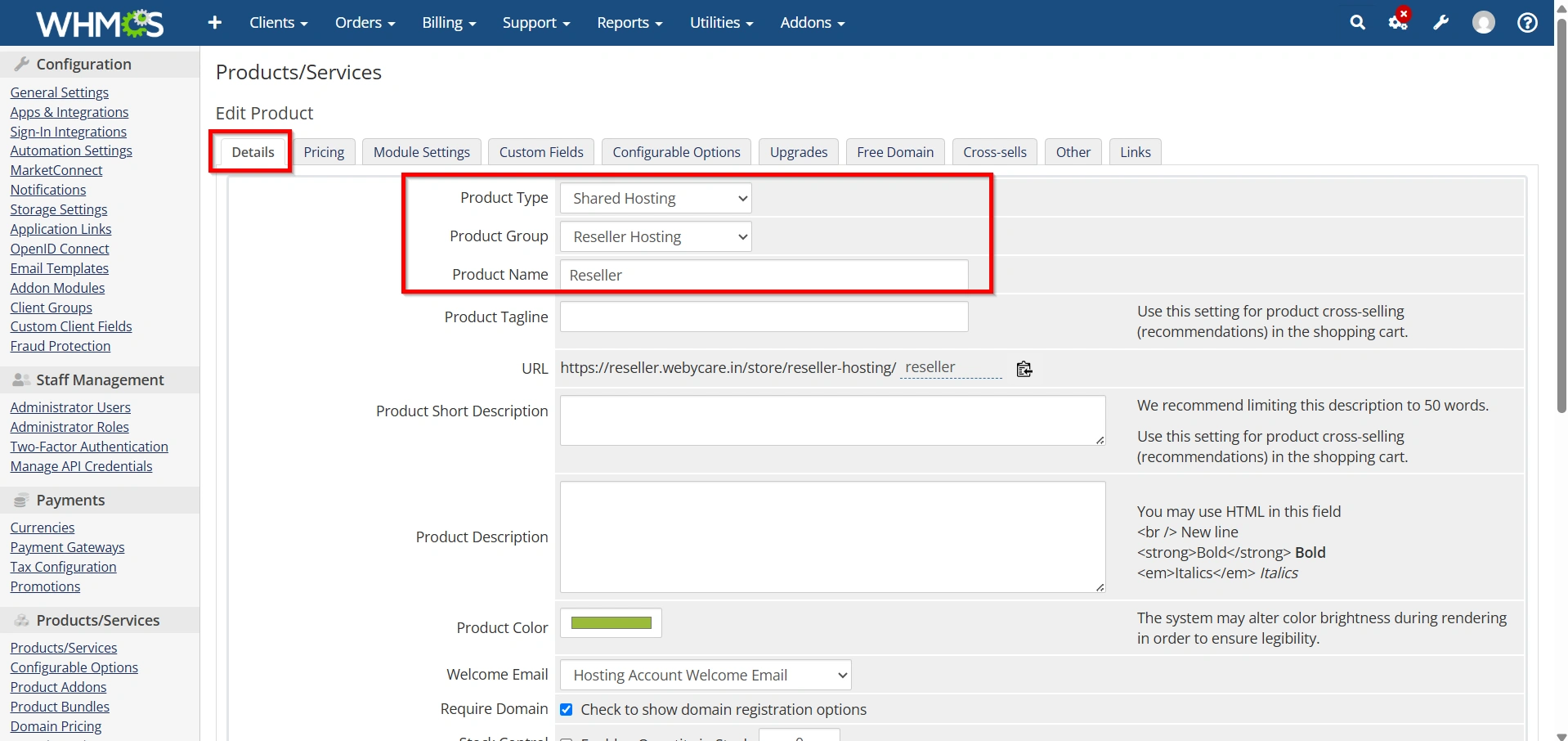
Under the Details tab configure:
Product Name
Example:
Starter Reseller Hosting
Description
Include details such as:
- Disk Space
- Bandwidth
- Number of cPanel Accounts
- Free SSL
- Free Backups
- Dedicated IP (if included)
- Support Availability
A clear description helps customers choose the correct plan.
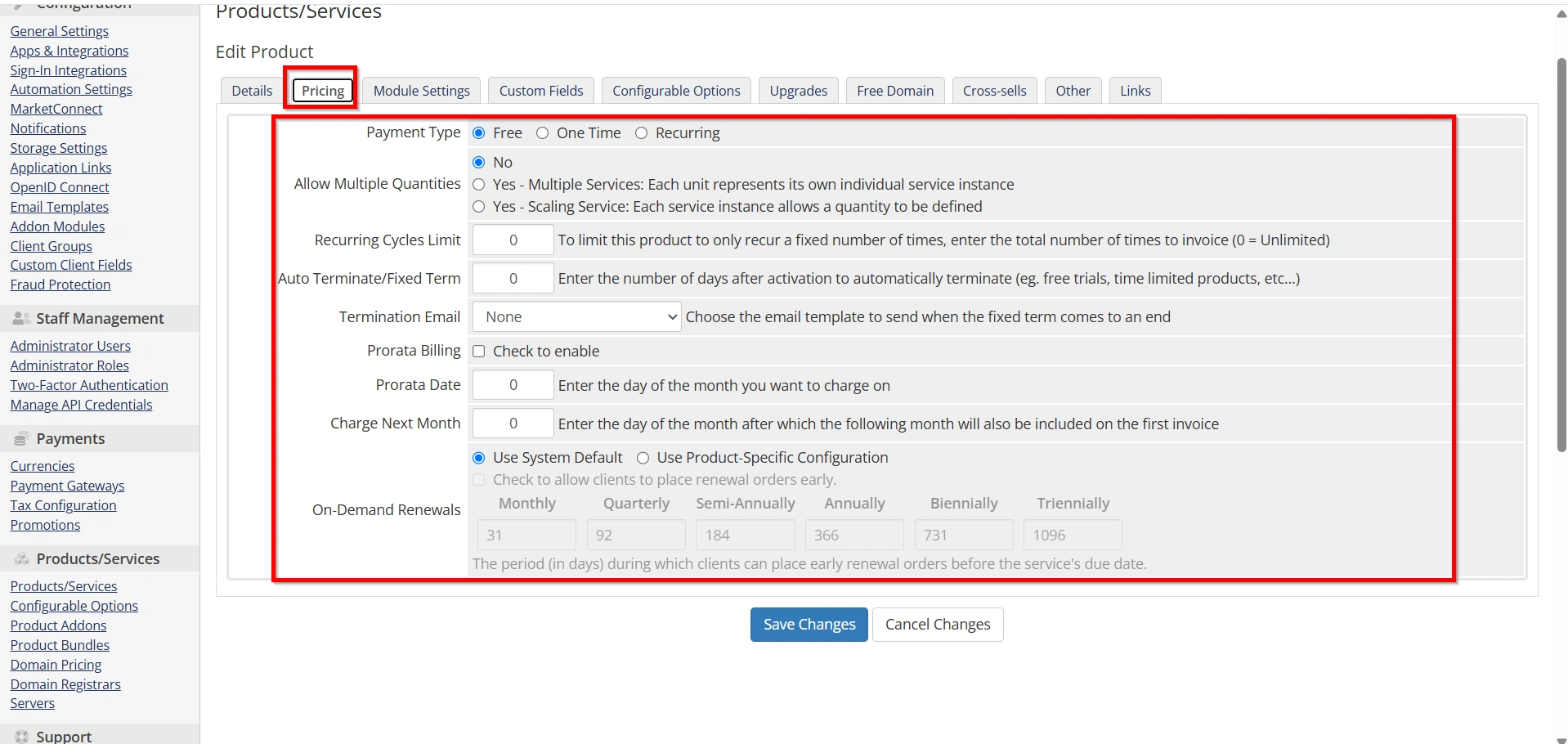
Step 6: Configure Pricing
Open the Pricing tab.
Enable the billing cycles you wish to offer.
Example:
| Billing Cycle | Price |
|---|---|
| Monthly | $19.99 |
| Quarterly | $54.99 |
| Semi-Annually | $99.99 |
| Annually | $179.99 |
| Biennially | Optional |
| Triennially | Optional |
Save your pricing.
Step 7: Configure Module Settings
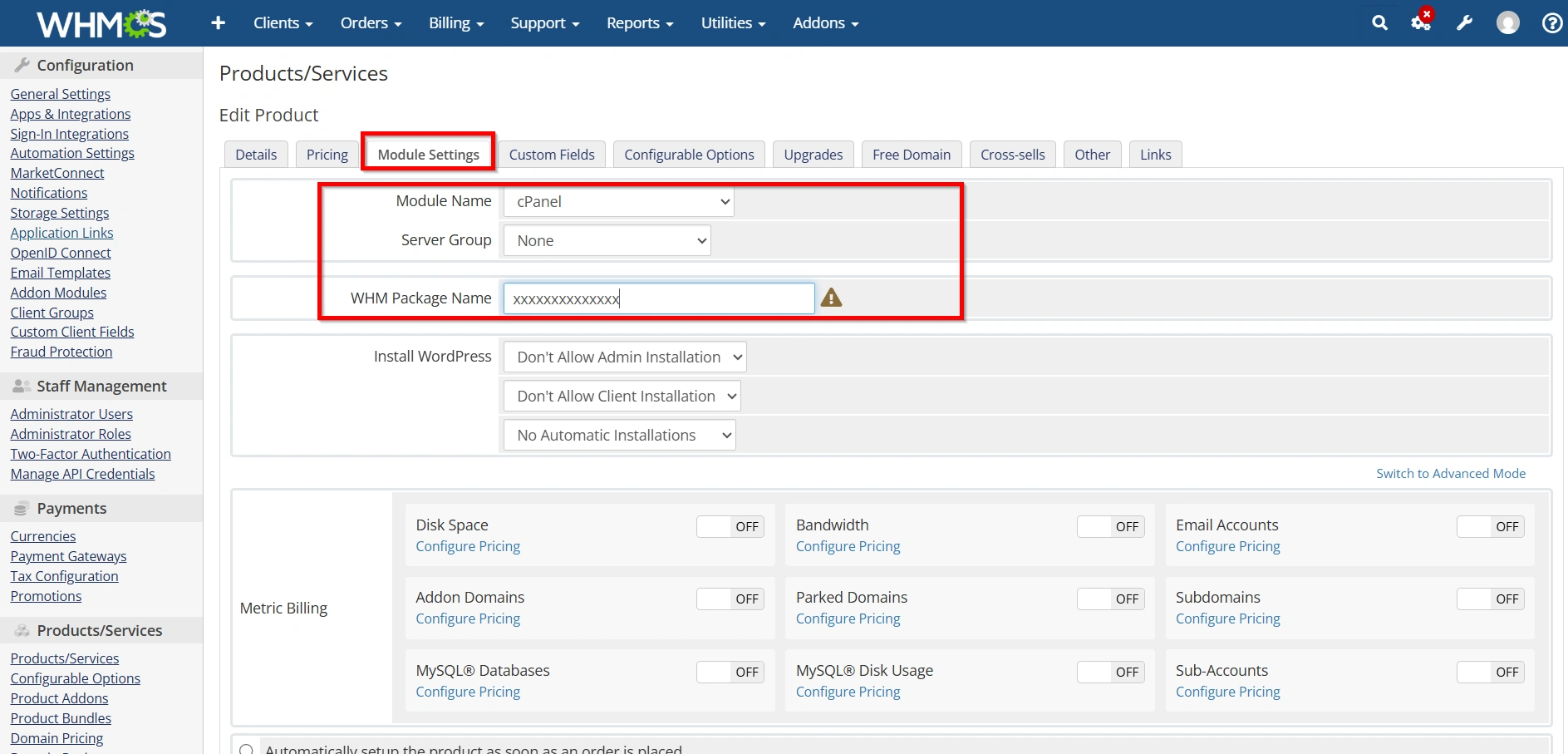
Open the Module Settings tab.
Select your hosting module, for example:
- cPanel
- Plesk
- DirectAdmin
Choose:
- Server Group
- Package Name
The Package Name must exactly match the reseller package created on your hosting server.
Configure options such as:
- Automatically create account
- Dedicated IP (optional)
- CGI Access
- Theme
- Feature List
Step 8: Configure Automation Settings
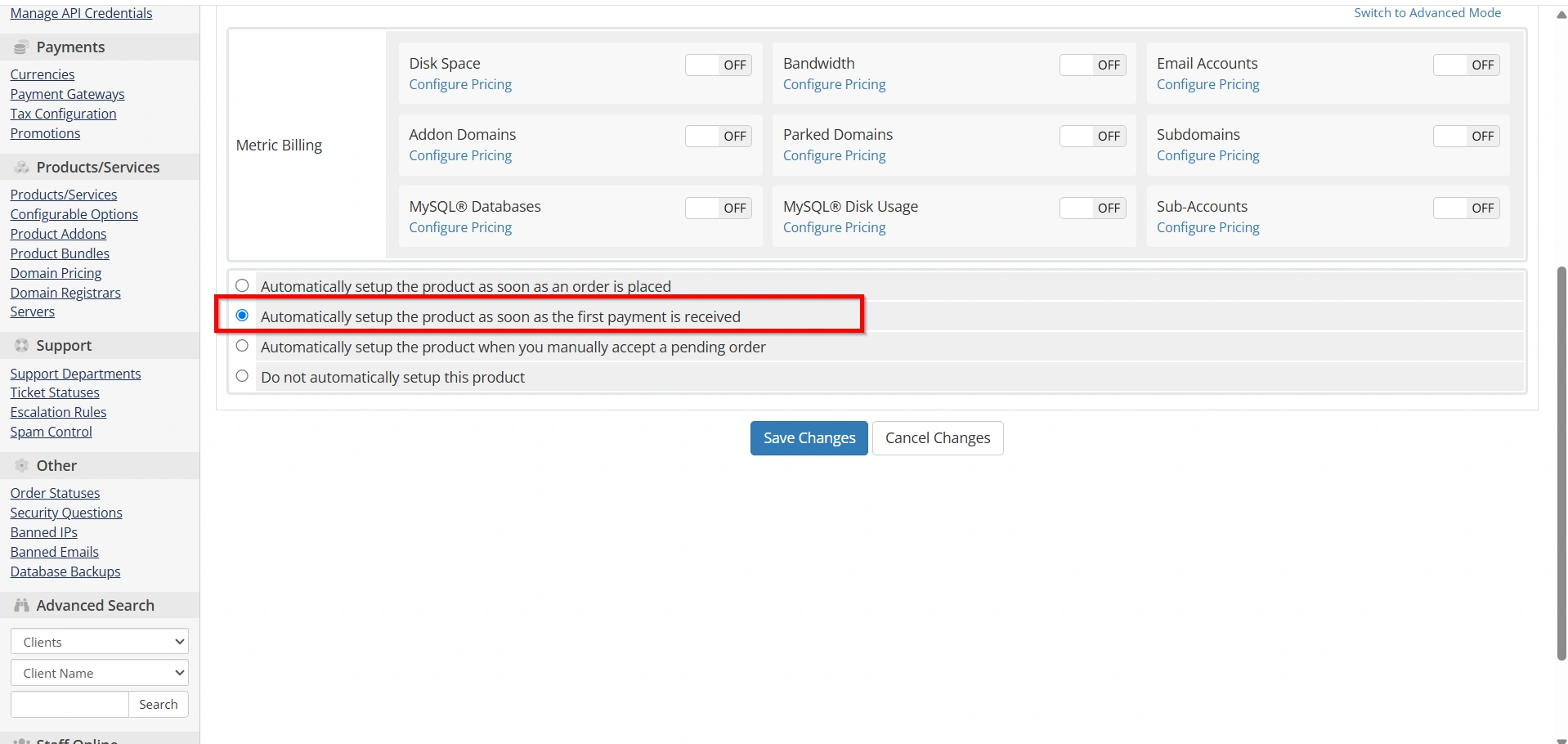
Under Module Settings Enable the Automations
Recommended settings:
- Automatically create the account after first payment
- Suspend overdue accounts
- Unsuspend after payment
- Terminate overdue accounts after your preferred number of days
Automation minimizes manual administration.
Step 9: Save the Product
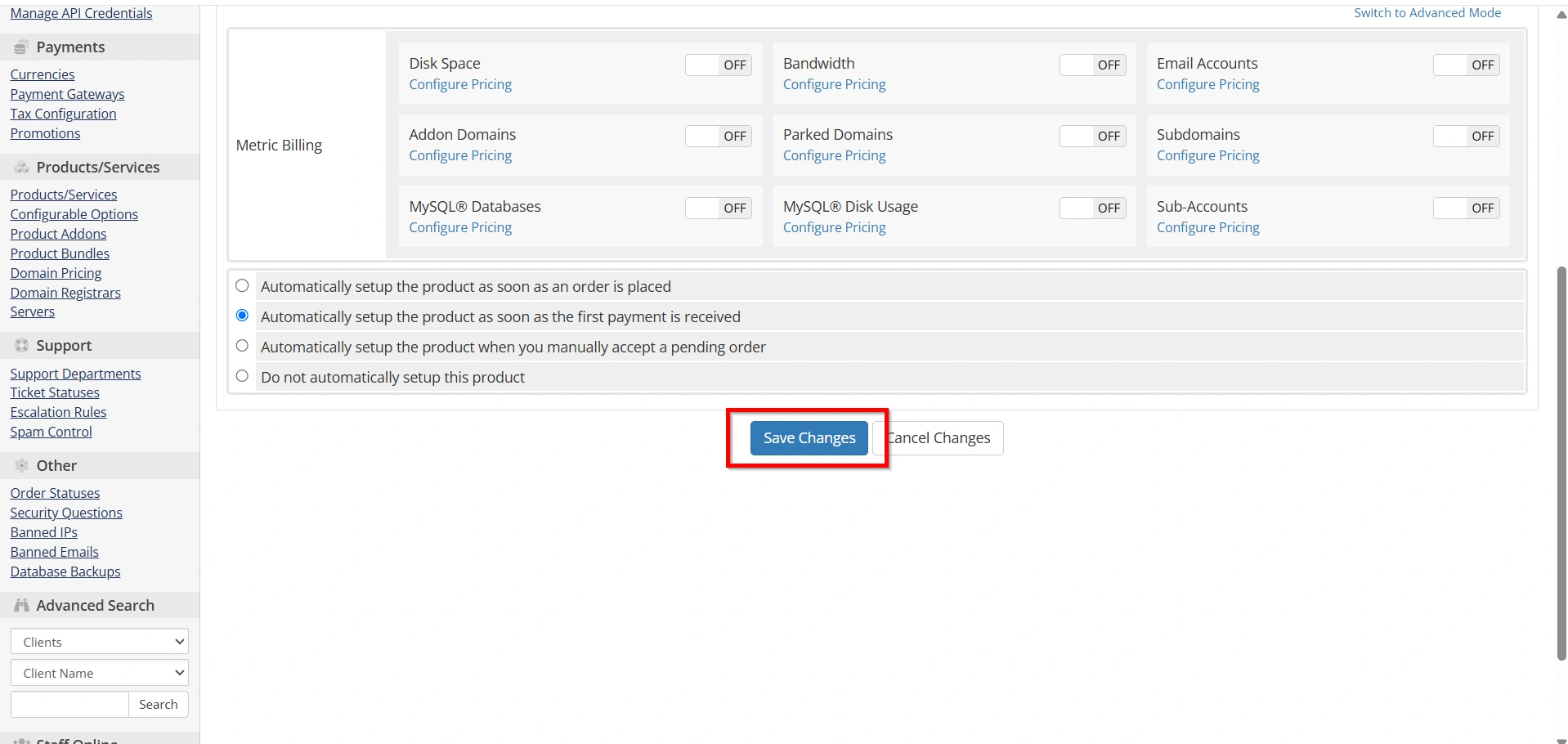
After reviewing all settings:
Click Save Changes.
Your reseller hosting product is now available for ordering.
Step 10: Test the Product
Before offering the product to customers:
- Place a test order
- Accept the order
- Verify automatic account creation
- Check the welcome email
- Confirm billing works correctly
- Verify login credentials
- Test suspension and unsuspension
Testing ensures everything works as expected.
Best Practices
To successfully Set Up a Reseller Hosting Product in WHMCS, follow these best practices:
- Keep pricing updated
- Use descriptive product names
- Configure welcome emails properly
- Test provisioning after any server changes
- Enable automation for billing and account management
- Regularly review reseller packages
- Monitor server resource usage
Conclusion
Learning how to Set Up a Reseller Hosting Product in WHMCS helps you automate reseller hosting sales and simplify customer management. By configuring product details, pricing, module settings, automation, welcome emails, and optional addons, you can provide a seamless ordering experience while reducing manual administrative tasks. Once you Set Up a Reseller Hosting Product in WHMCS, always perform a test order to ensure provisioning, billing, and client notifications work correctly before making the product available to customers.
Related Articles


