Latest Updates
How to Set Up a Support Department in WHMCS
How to Set Up a Support Department in WHMCS Providing timely and organized customer support is essential for any business using WHMCS. Whether you manage web hosting services, domain registrations, or other online products,…
How to Set Up a Support Department in WHMCS
Providing timely and organized customer support is essential for any business using WHMCS. Whether you manage web hosting services, domain registrations, or other online products, having a structured support system helps ensure customer inquiries are handled efficiently. One of the best ways to achieve this is to Set Up a Support Department in WHMCS.
When you Set Up a Support Department in WHMCS, you can categorize support requests into dedicated departments such as Technical Support, Billing, Sales, and Customer Service. This allows tickets to be routed to the appropriate team members, reducing response times and improving customer satisfaction. A well-configured support department structure also helps administrators manage workloads more effectively and maintain a professional support experience.
In this guide, you will learn how to Set Up a Support Department in WHMCS, configure department settings, assign administrators, integrate support email addresses, and optimize your ticket management workflow for better customer support operations.
Why Configure Support Departments?
Before setting up departments, it is important to understand their benefits.
Support departments help you:
- Organize customer inquiries efficiently
- Route tickets to the correct team
- Assign department-specific administrators
- Manage support workload effectively
- Improve response times
- Create dedicated email addresses for different support categories
- Enhance overall customer satisfaction
A properly configured Support Department Setup in WHMCS ensures that every ticket reaches the right team member without delays.
Steps to Set Up a Support Department in WHMCS
Step 1: Log in to WHMCS Admin Area
Log in to your WHMCS administrator dashboard.
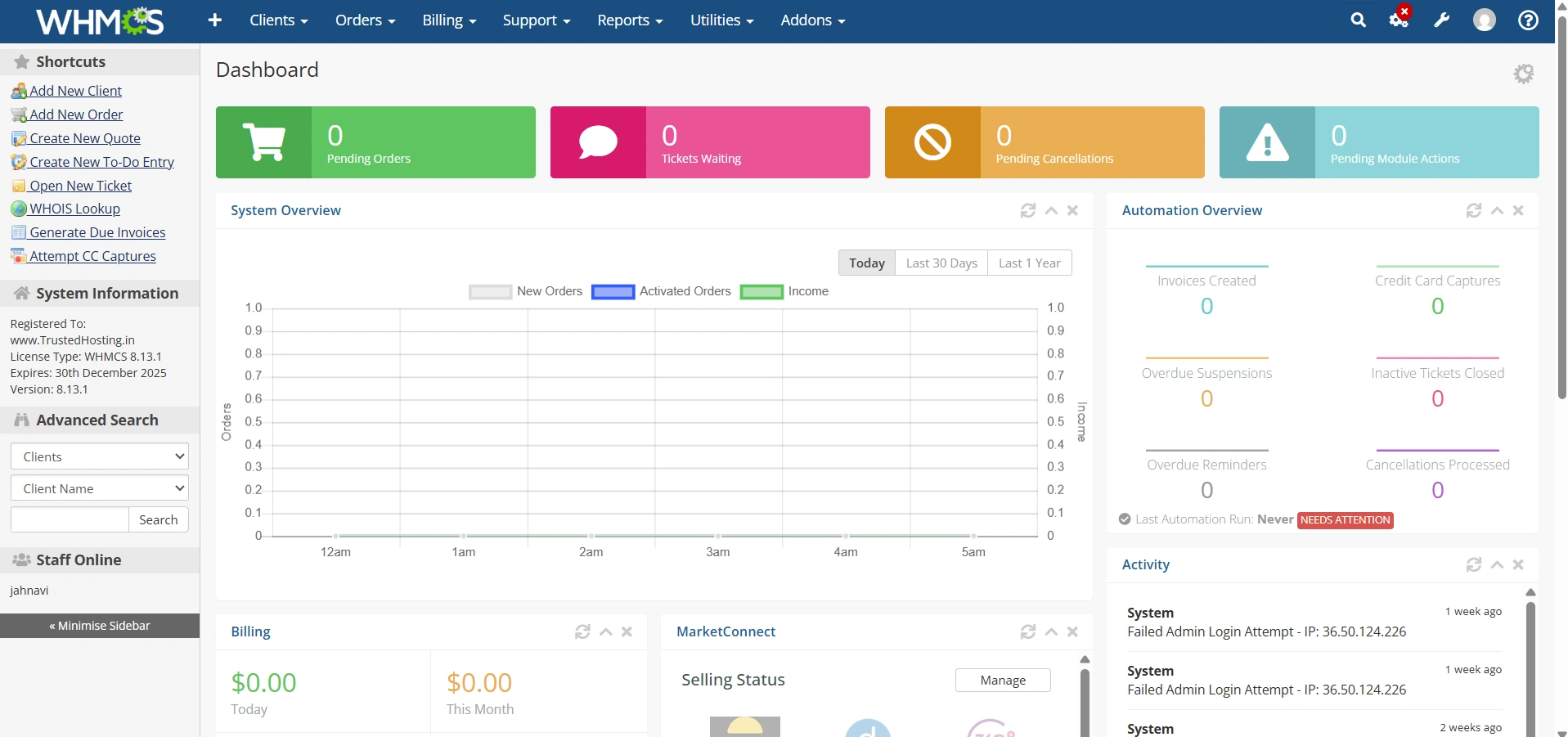
- Navigate to Configuration Icon → System Settings
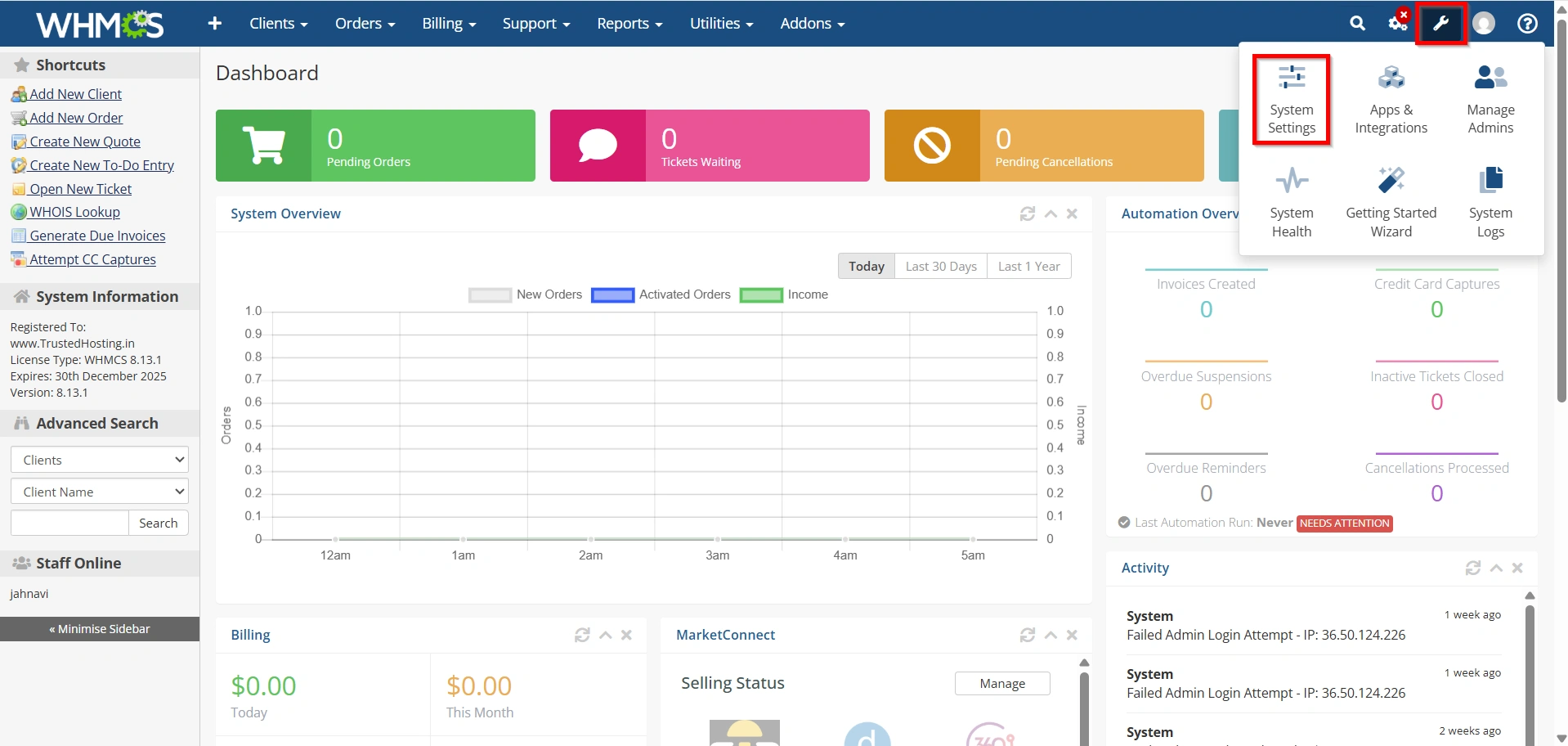
- Under All Settings ,
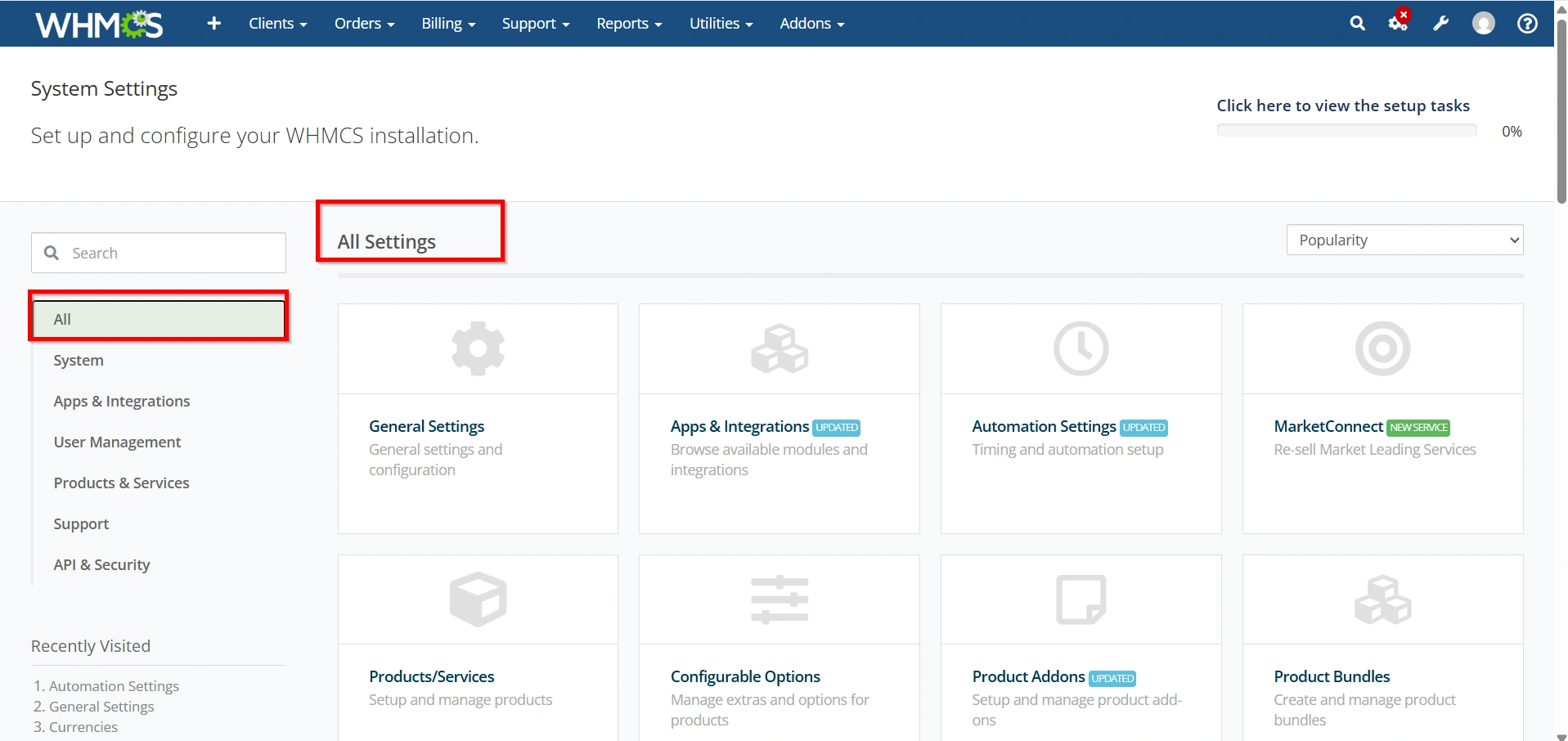
Step 2: Access Support Departments
- Select Support Departments.
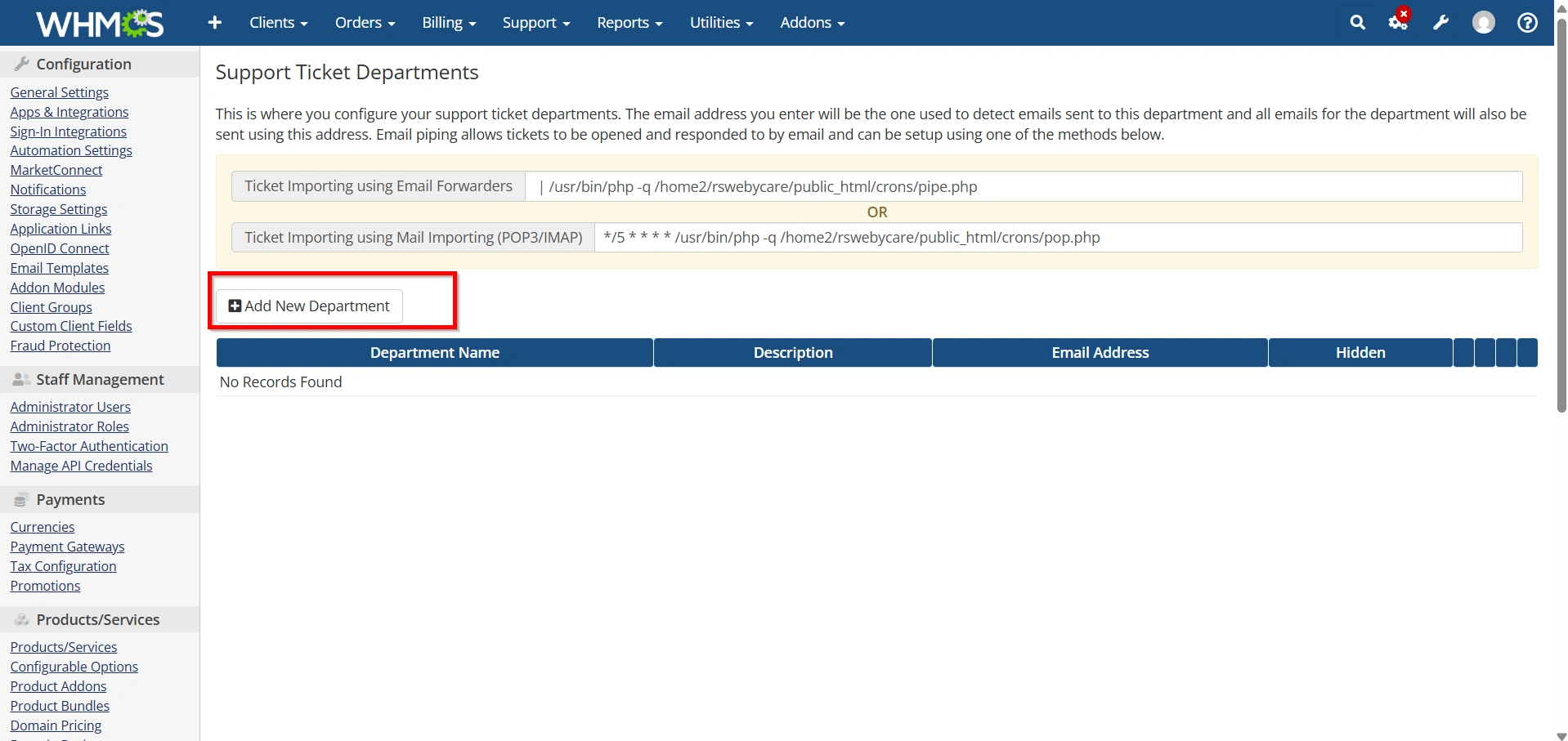
- The Support Departments page will display all existing departments.
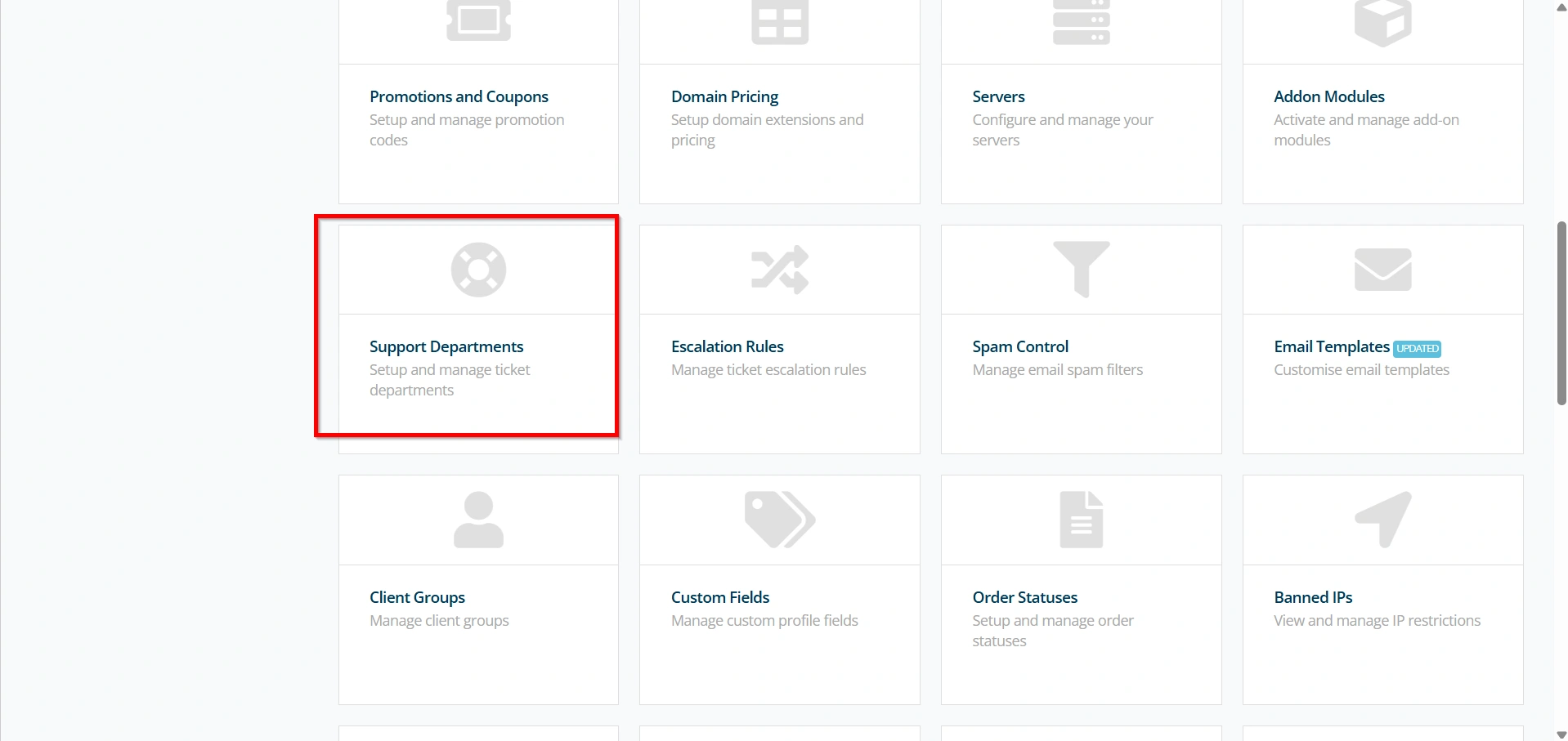
3. Click Add New Department to add a new support department.
This section is where all Support Department Setup in WHMCS configurations are managed.
Step 2: Enter Department Details
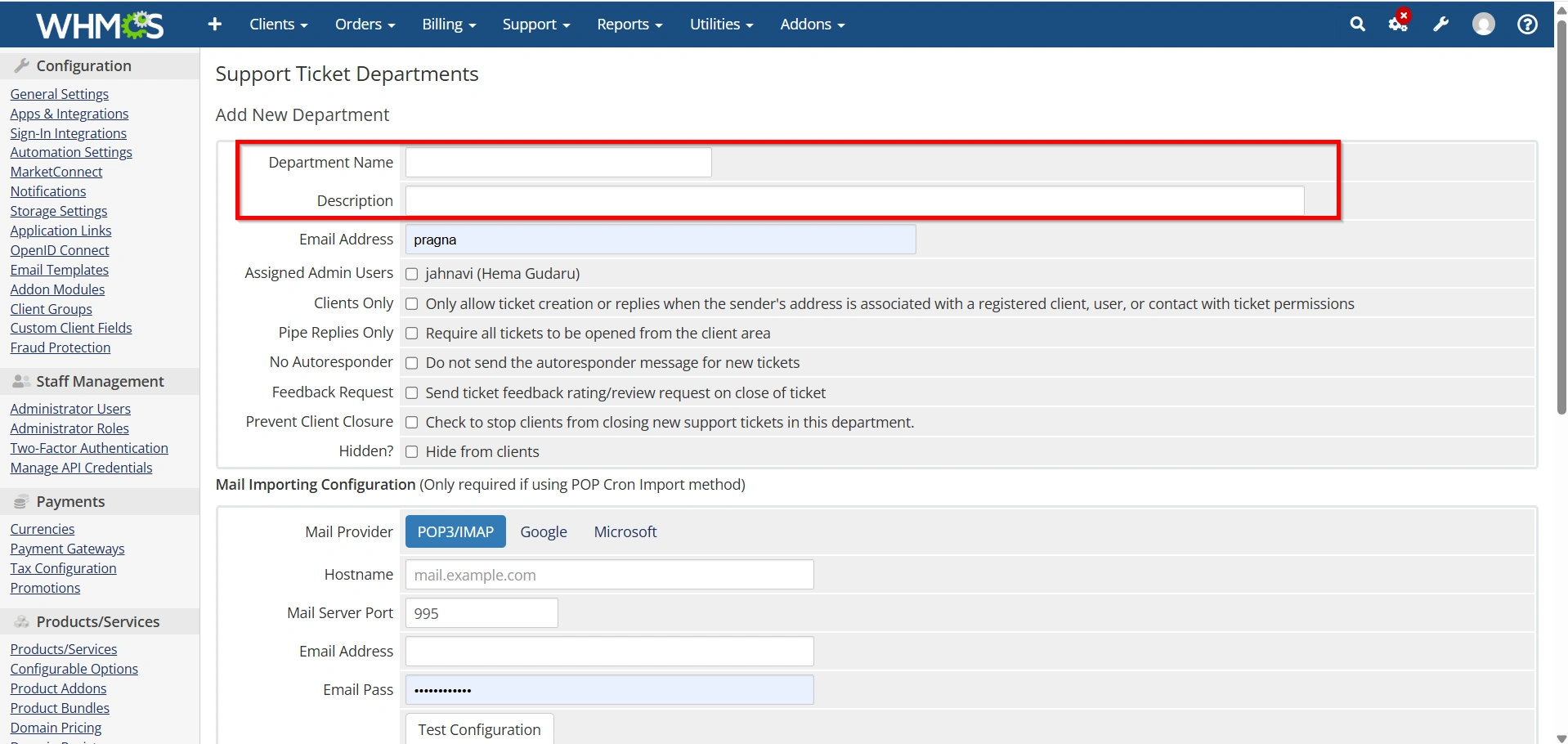
After creating a new department, you will need to provide the basic information.
Configure the following fields:
Department Name
Enter a name that clearly identifies the department.
Examples:
- Technical Support
- Billing Support
- Sales Department
- Customer Service
- Domain Support
Department Description
Provide a brief description explaining the purpose of the department.
Example:
“Contact this department for technical issues related to hosting services.”
A clear description helps clients choose the correct department when submitting tickets.
Step 3: Configure Email Settings
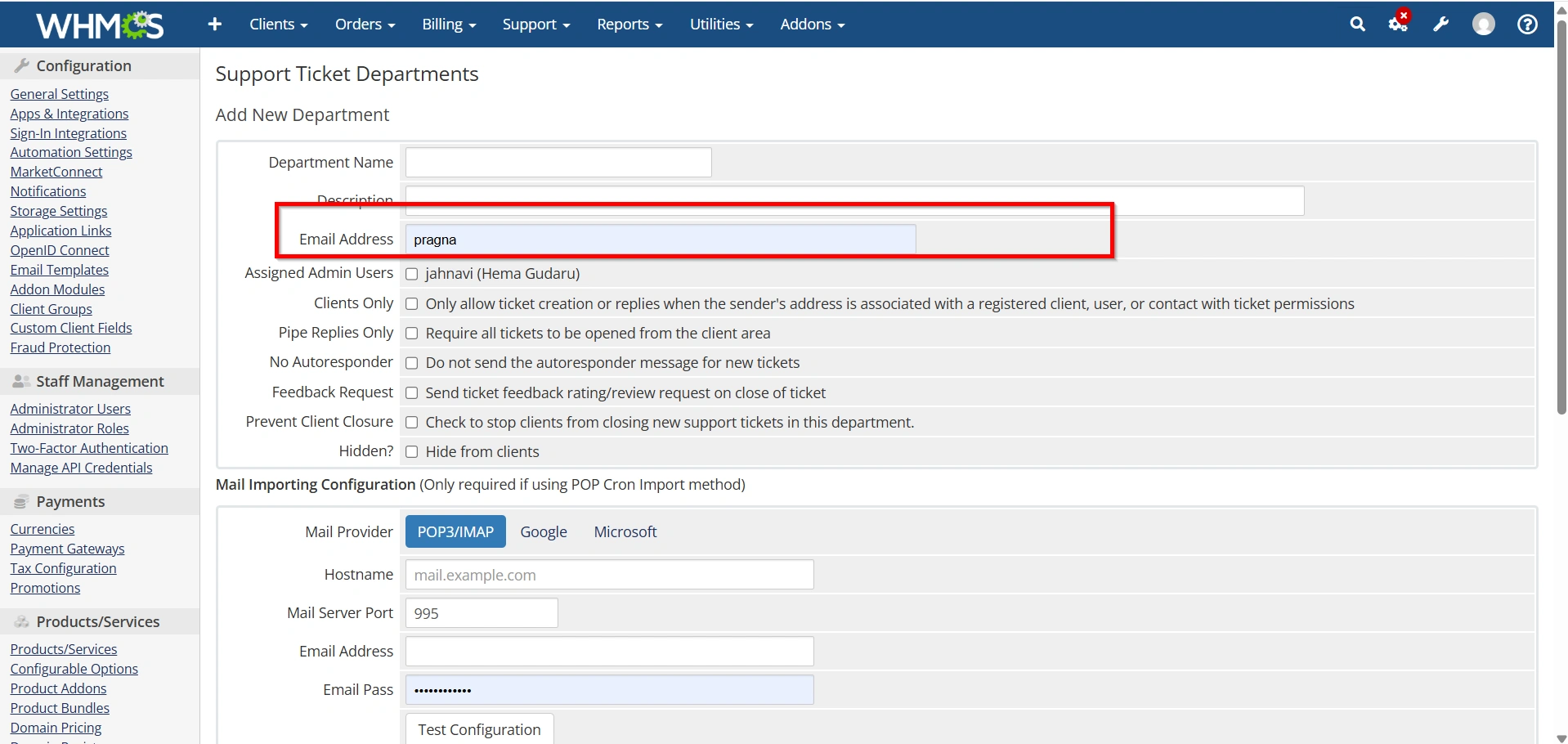
Each support department can have its own email address.
Common examples include:
- support@yourdomain.com
- billing@yourdomain.com
- sales@yourdomain.com
Enter the department email address in the Email field.
When configured correctly, WHMCS can automatically import emails and convert them into support tickets.
This feature streamlines Support Department Setup in WHMCS and ensures no customer inquiry is missed.
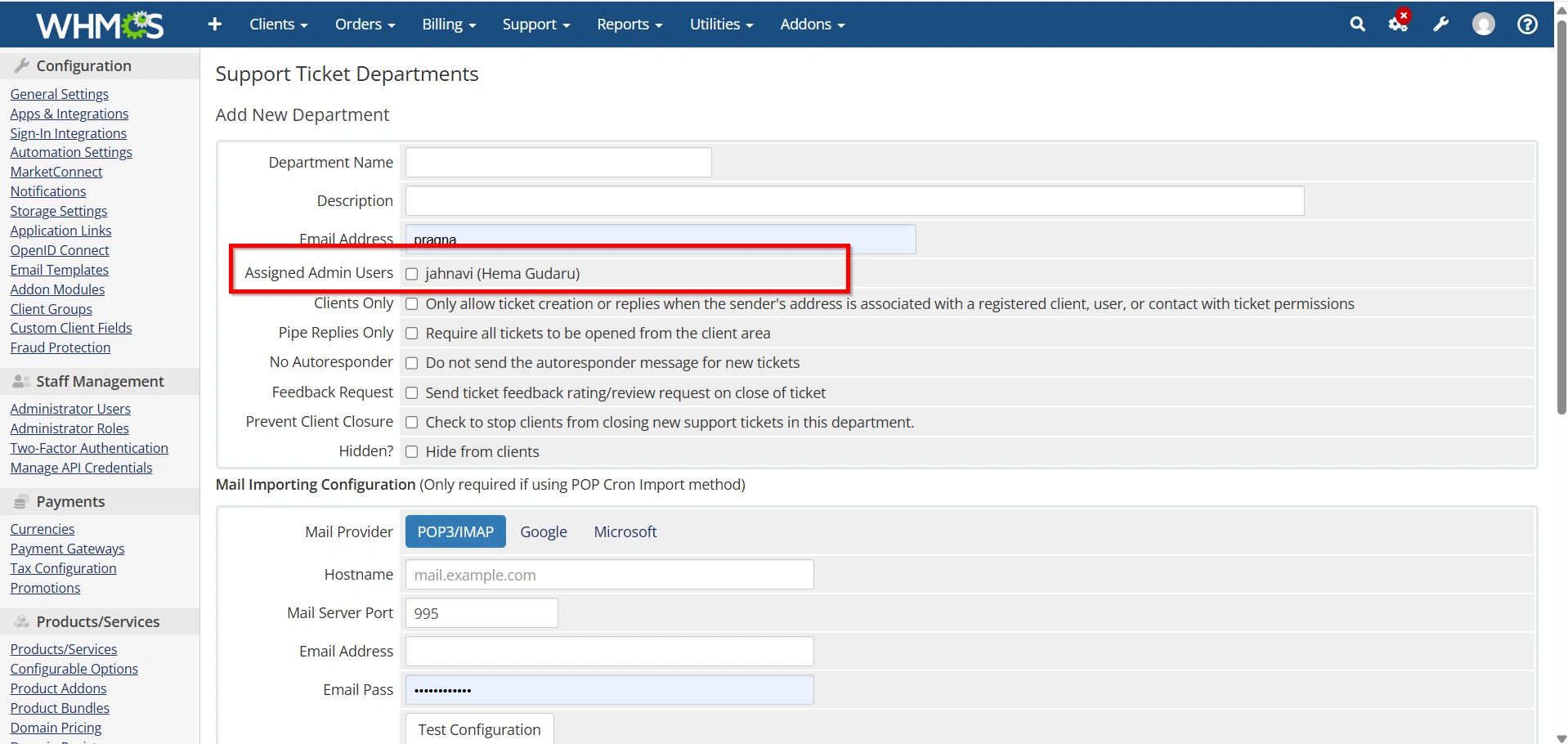
Step 4: Select Department Administrators
WHMCS allows you to restrict department access to specific admin users.
Under the administrator assignment section:
- Select the administrators who should manage this department.
- Grant access only to relevant team members.
3. Add New Department .
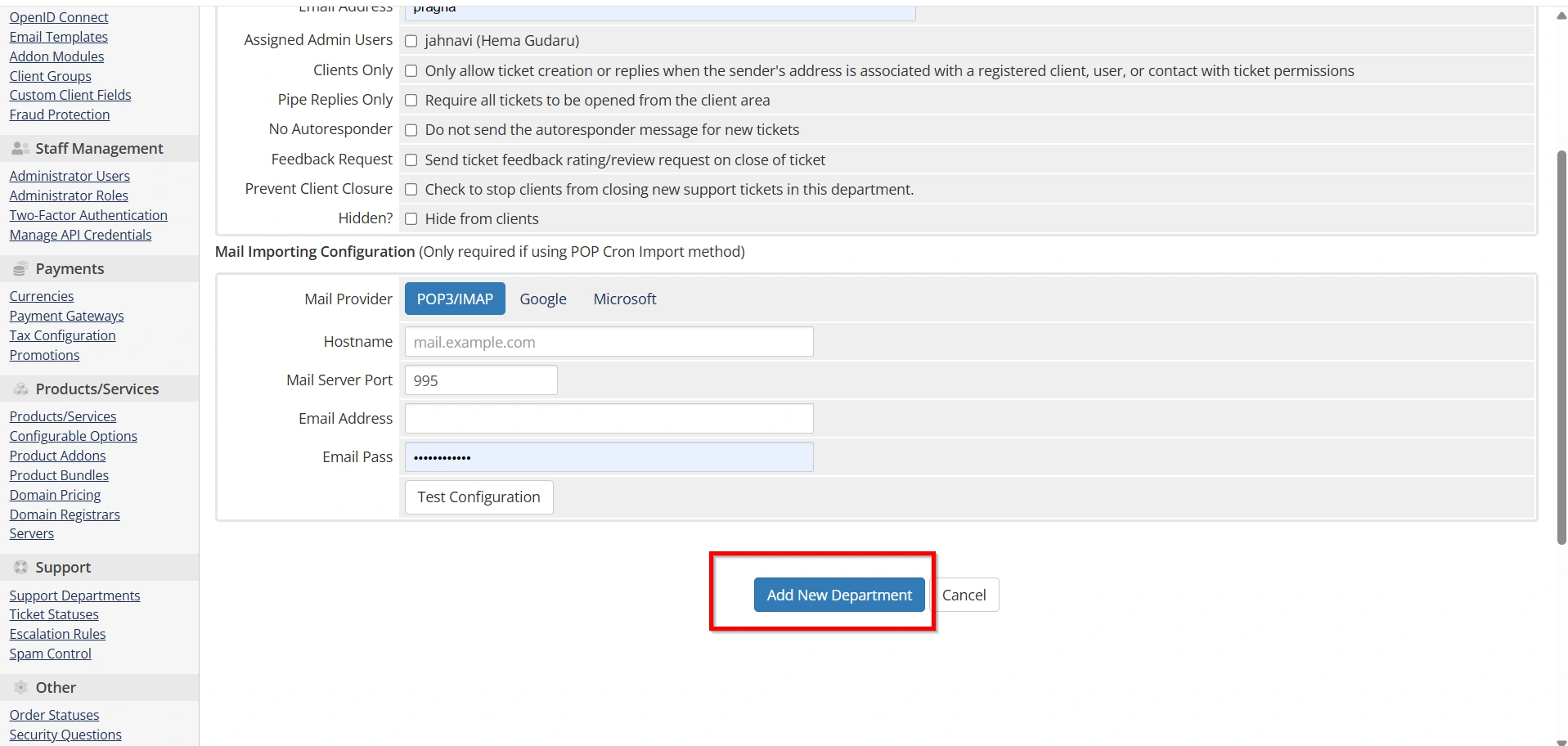
For example:
- Technical staff can access Technical Support.
- Billing staff can access Billing Support.
- Sales representatives can access Sales tickets.
This improves security and ticket management.
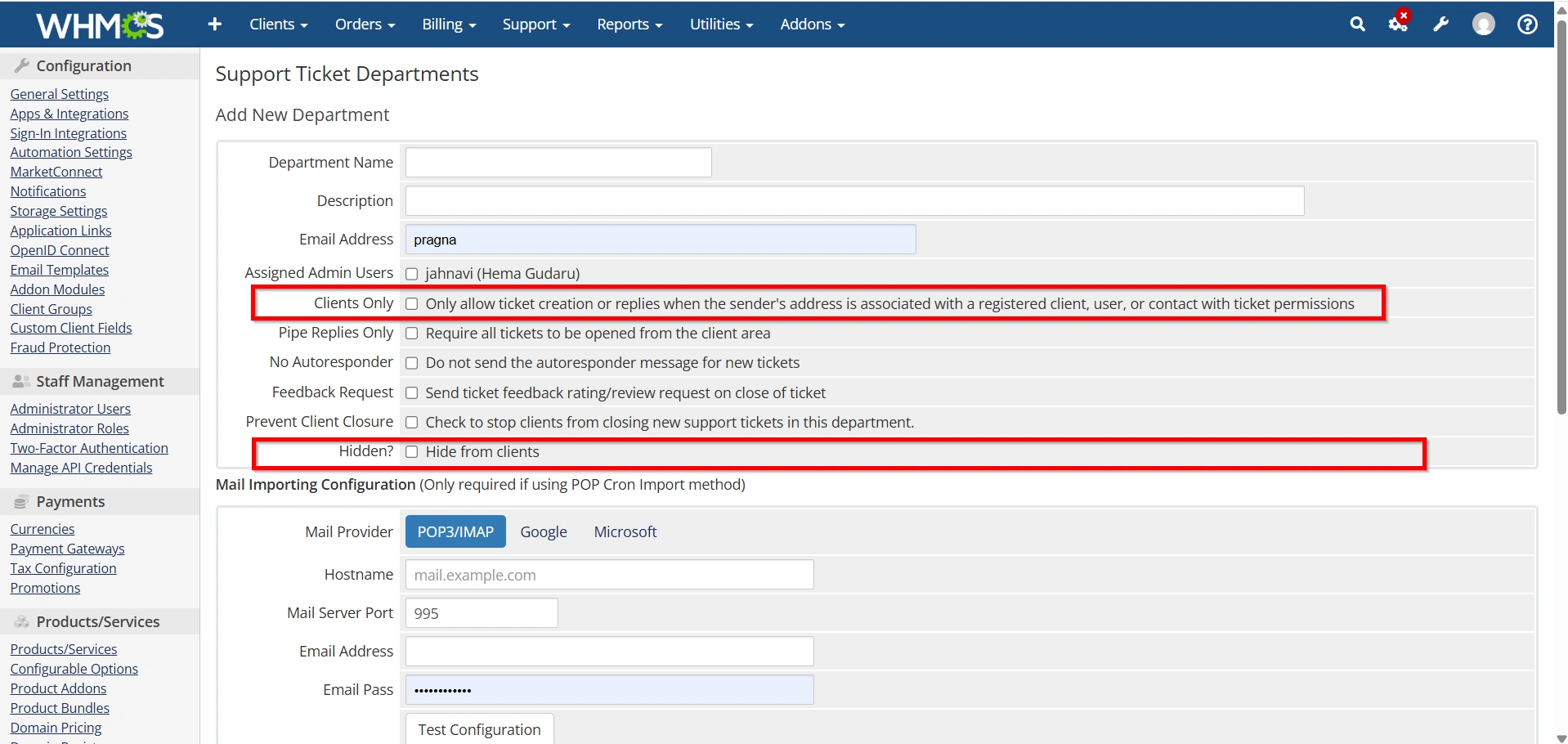
Step 5: Configure Ticket Assignment Settings
WHMCS offers options to control how tickets are handled.
Review settings such as:
Clients Only
Enable this option if only registered clients should be allowed to open tickets.
Hidden Department
Enable this option if you want the department to remain unavailable to clients.
This is useful for:
- Internal departments
- Escalation teams
- Administrative support
No Email Piping
Disable email ticket creation if required.
These options allow you to customize Support Department Setup in WHMCS according to your business needs.
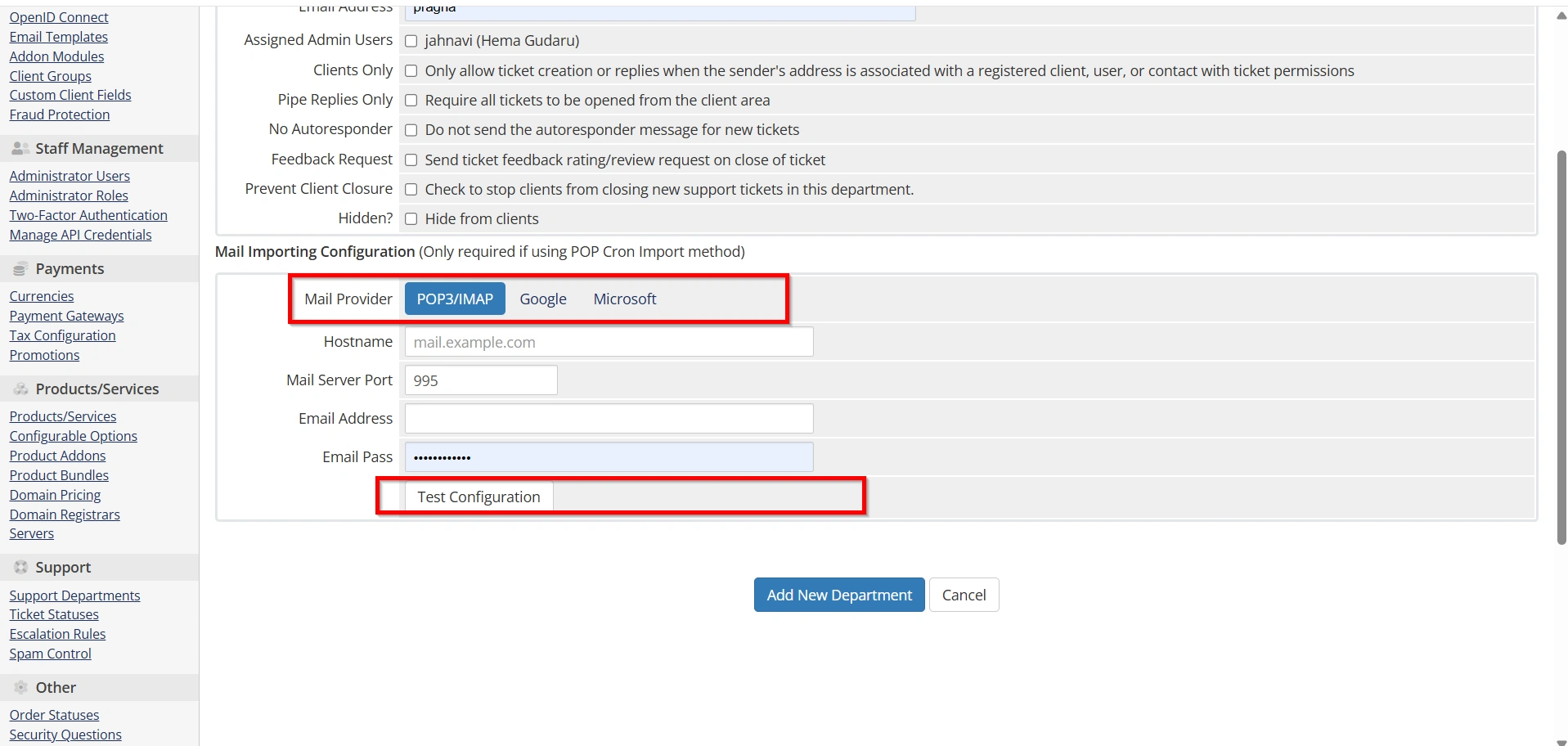
Step 6: Configure Email Importing
WHMCS can automatically convert incoming emails into support tickets.
To enable this feature:
- Configure your support email account.
- Set up email forwarding or email piping.
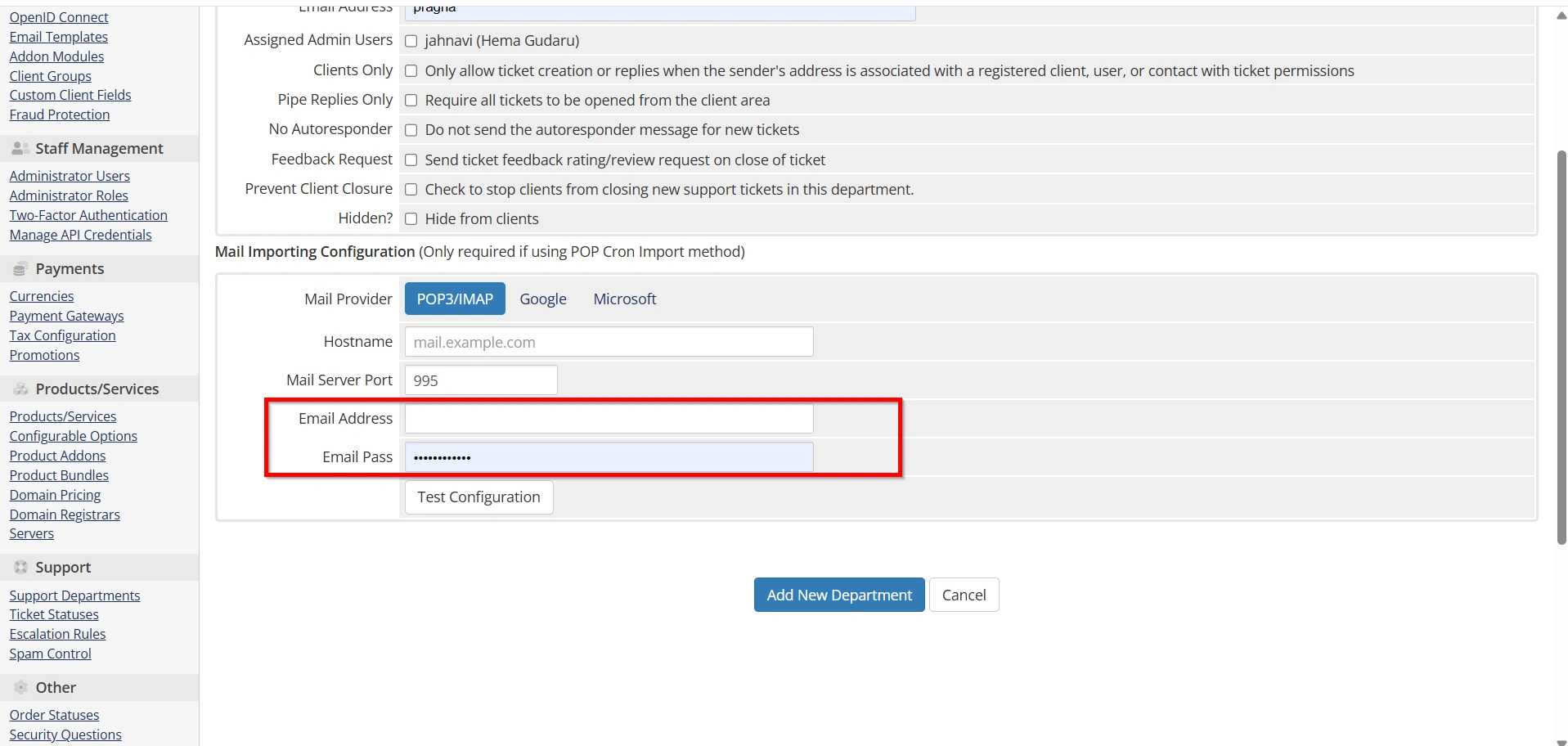
3.Configure POP3 or IMAP importing if supported.
4.Test the connection.
Once configured, emails sent to the department email address will automatically generate tickets.
This automation significantly improves support efficiency.
Step 8: Test the Department
Before going live:
- Submit a test ticket from the client area.
- Send a test email to the department email address.
- Verify ticket creation.
- Confirm administrator visibility.
- Test ticket replies and notifications.
Testing ensures everything is functioning correctly.
Best Practices for Support Department Setup in WHMCS
To maximize efficiency:
- Create separate departments for major support categories.
- Use professional email addresses.
- Assign department-specific administrators.
- Regularly monitor ticket queues.
- Enable automated email importing.
- Test support workflows periodically.
- Archive unused departments.
- Use clear department descriptions.
Following these best practices helps maintain a professional and organized support system.
Conclusion
Learning how to Set Up a Support Department in WHMCS is an important step toward building a professional customer support system. A properly configured department structure improves ticket routing, enhances team productivity, and creates a better experience for clients.
By taking the time to Set Up a Support Department in WHMCS, configure email integration, assign the right administrators, and organize support workflows, you can streamline operations and provide exceptional customer service. Every WHMCS administrator should understand how to Set Up a Support Department in WHMCS to maximize the effectiveness of the built-in support ticket system.
Related Articles


