Latest Updates
How to Set Up Suspension, Unsuspension and Termination Automation in WHMCS
How to Set Up Suspension, Unsuspension and Termination Automation in WHMCS Managing customer hosting accounts manually can become time-consuming as your business grows. WHMCS simplifies this process by providing built-in automation for suspending overdue…
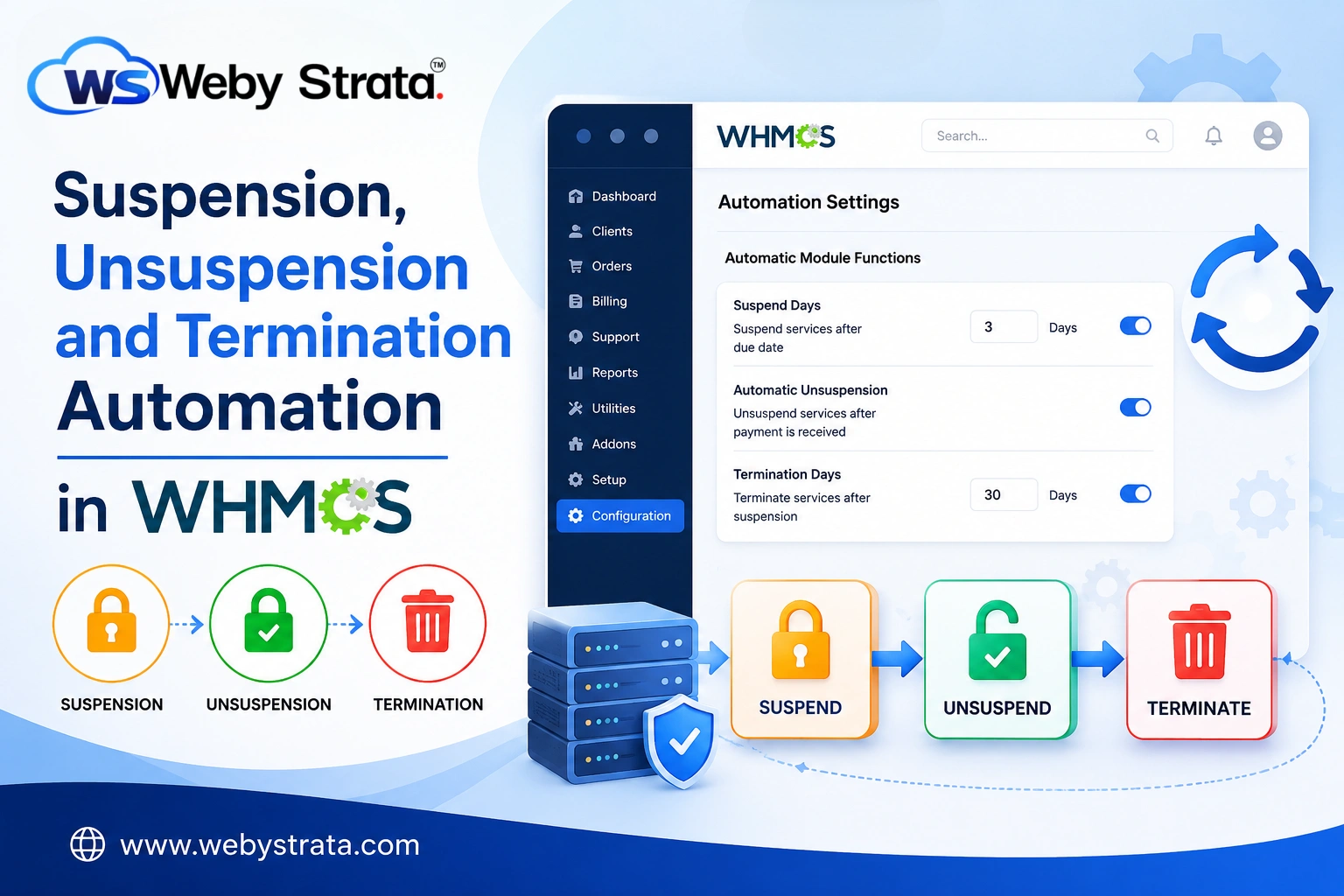
How to Set Up Suspension, Unsuspension and Termination Automation in WHMCS
Managing customer hosting accounts manually can become time-consuming as your business grows. WHMCS simplifies this process by providing built-in automation for suspending overdue services, unsuspending paid accounts, and terminating long-overdue services. When you Set Up Suspension, Unsuspension and Termination Automation in WHMCS, you can ensure that customer accounts are managed consistently without requiring manual intervention.
Automation not only saves valuable administrative time but also improves operational efficiency by enforcing billing policies automatically. Whether you run a small hosting company or manage thousands of customer accounts, learning how to Set Up Suspension, Unsuspension and Termination Automation in WHMCS is an essential step toward a fully automated hosting business.
In this guide, you’ll learn what these automation settings do, why they are important, and how to configure them properly.
What is Suspension, Unsuspension and Termination Automation?
WHMCS includes automation tools that communicate with your hosting control panel, such as cPanel, Plesk, DirectAdmin, or other supported provisioning modules.
These automation tasks perform three important actions:
- Suspend services after invoices remain unpaid.
- Automatically unsuspend services once payment is received.
- Permanently terminate services after a specified number of overdue days.
Each action helps maintain billing discipline while reducing manual workload.
Why Use Suspension, Unsuspension and Termination Automation?
There are several advantages when you Set Up Suspension, Unsuspension and Termination Automation in WHMCS.
Automatic Account Suspension
Customers with overdue invoices can automatically have their hosting account suspended after a defined period.
Benefits include:
- Prevents unpaid customers from using server resources.
- Encourages timely payments.
- Eliminates manual suspension tasks.
Automatic Account Unsuspension
Once payment is completed, WHMCS automatically restores the hosting account.
Benefits include:
- Faster customer service.
- No administrator intervention required.
- Improved customer satisfaction.
- Immediate restoration of website access.
Automatic Account Termination
If an account remains unpaid for an extended period, WHMCS can permanently terminate the hosting account.
Benefits include:
- Frees server resources.
- Removes abandoned accounts.
- Keeps hosting environments clean.
- Reduces unnecessary storage usage.
Prerequisites
Before you Set Up Suspension, Unsuspension and Termination Automation in WHMCS, make sure:
- WHMCS Cron Job is working correctly.
- Your server module (cPanel, Plesk, DirectAdmin, etc.) is configured.
- Products are linked to the correct server.
- Module Commands are functioning.
- Automation Settings are accessible.
How to Set Up Suspension, Unsuspension and Termination Automation in WHMCS
Follow these steps.
Step 1: Log in to WHMCS Admin Area
Access your WHMCS administrator dashboard.
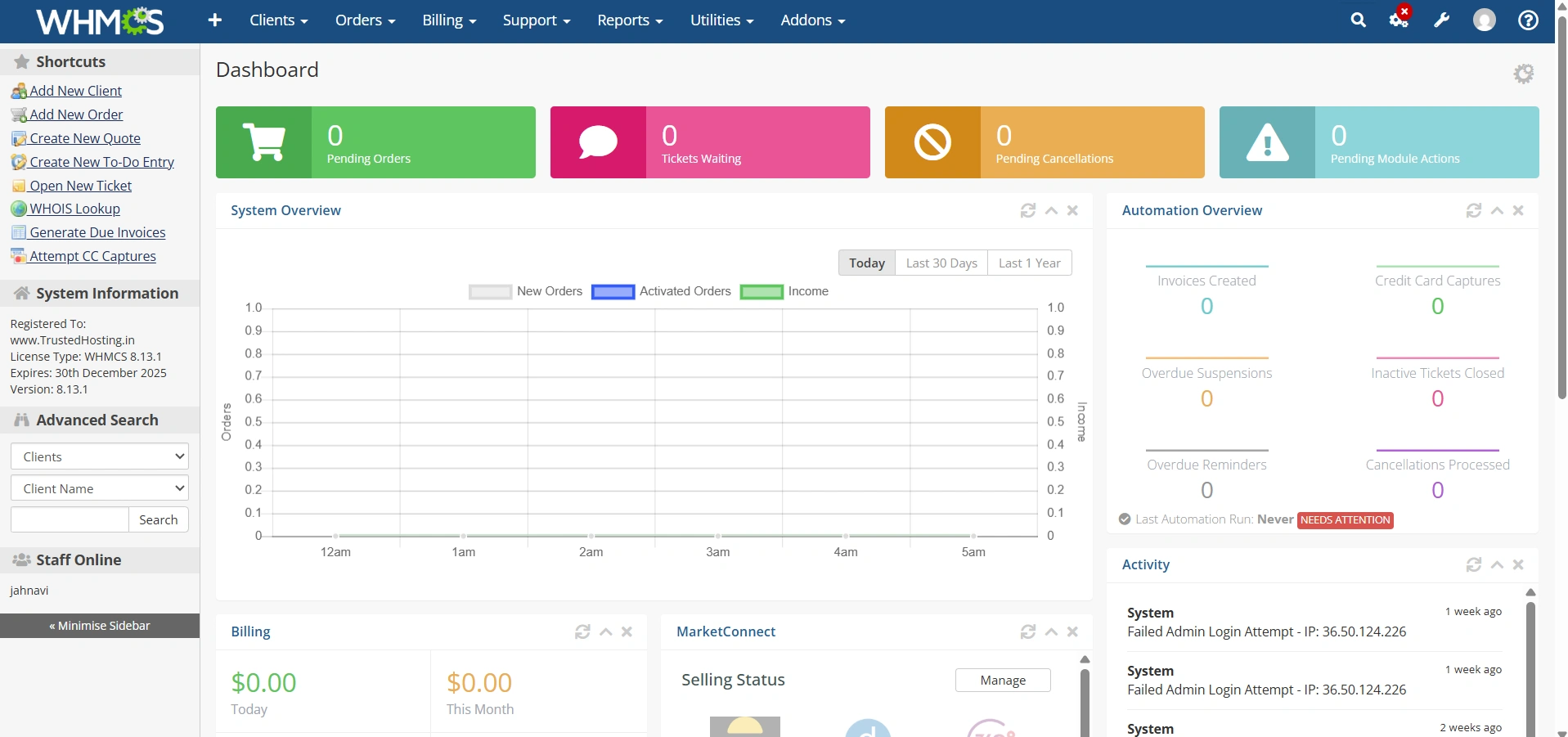
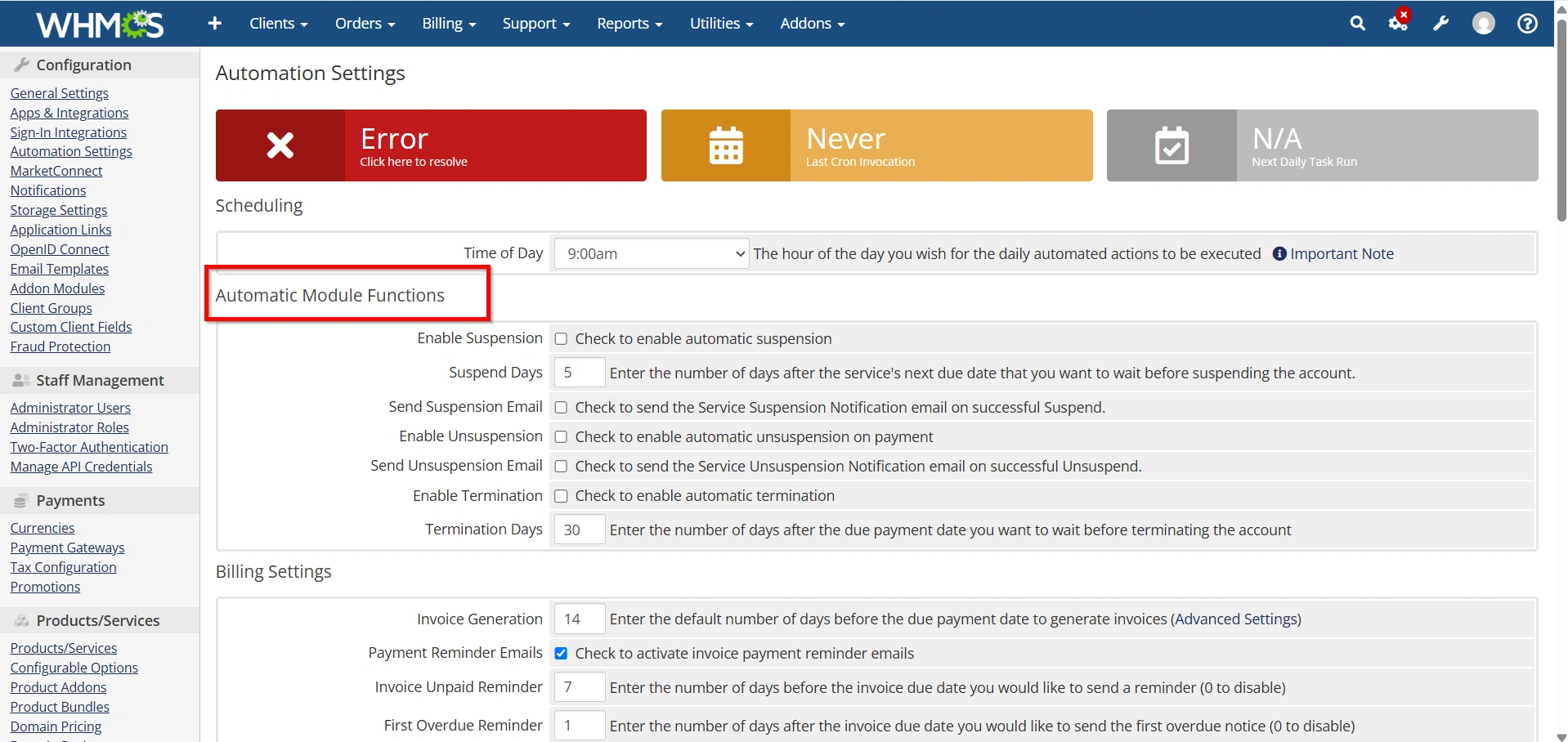
Step 2: Open Automation Settings
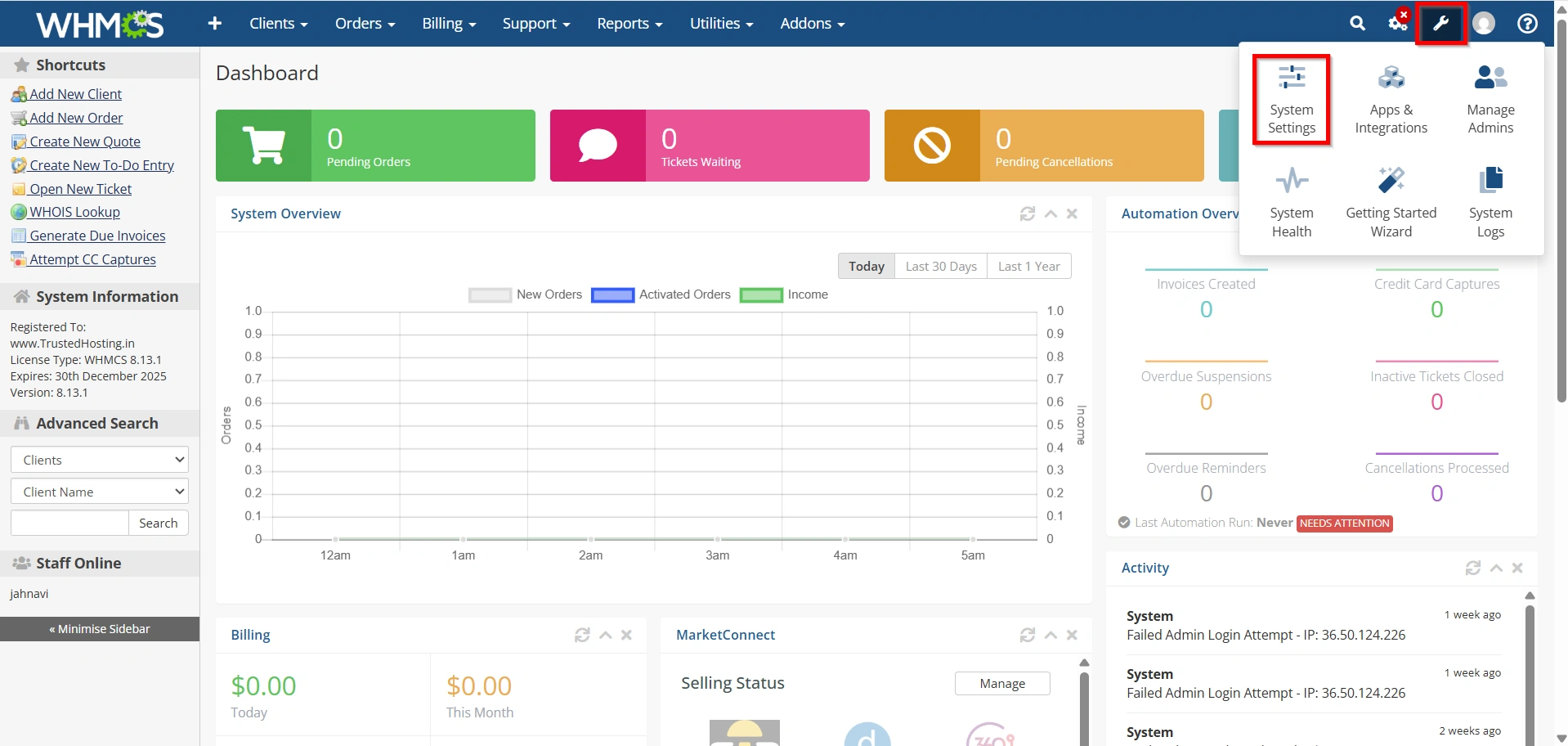
Navigate to:
- Configuration Icon → System Settings
- Select Automation Settings
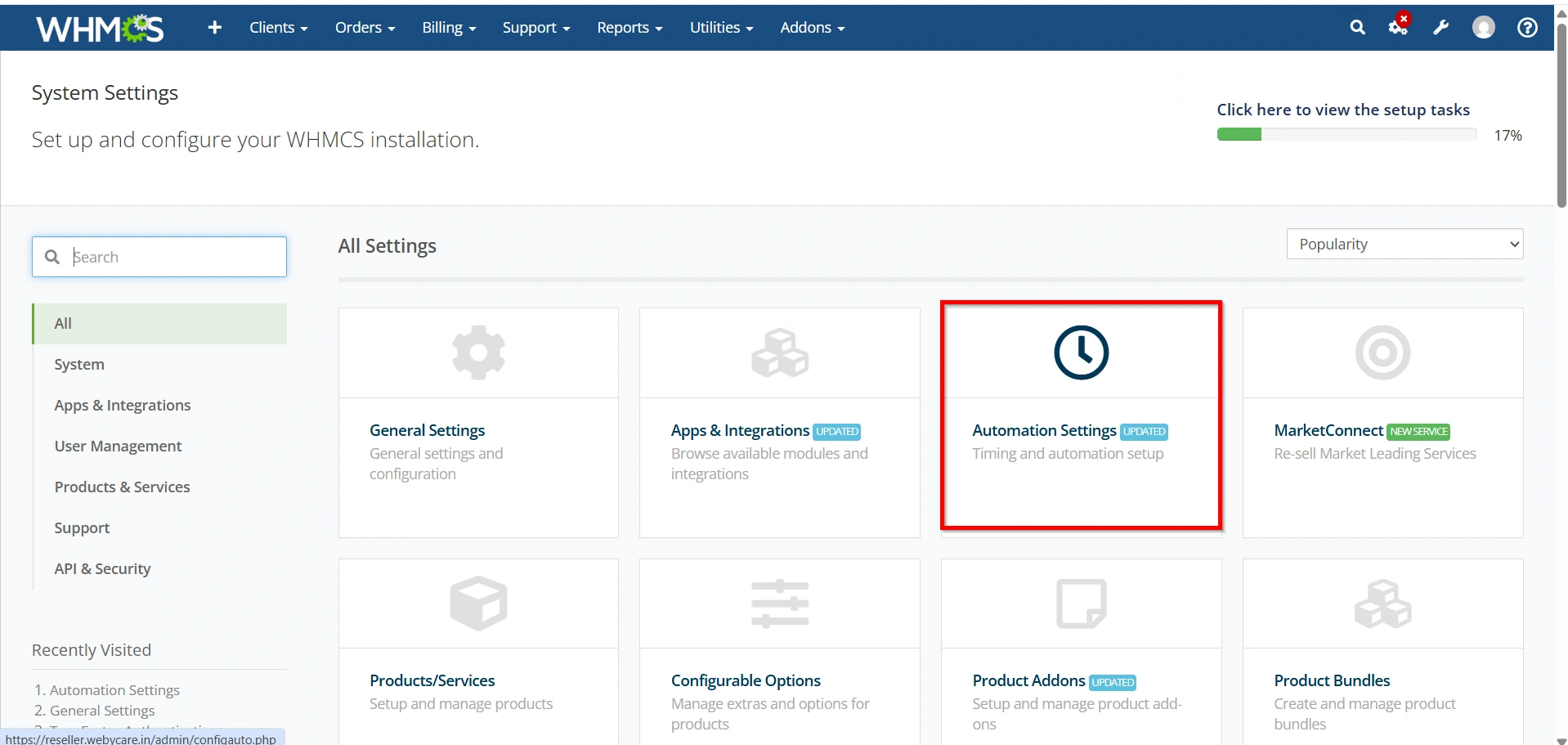
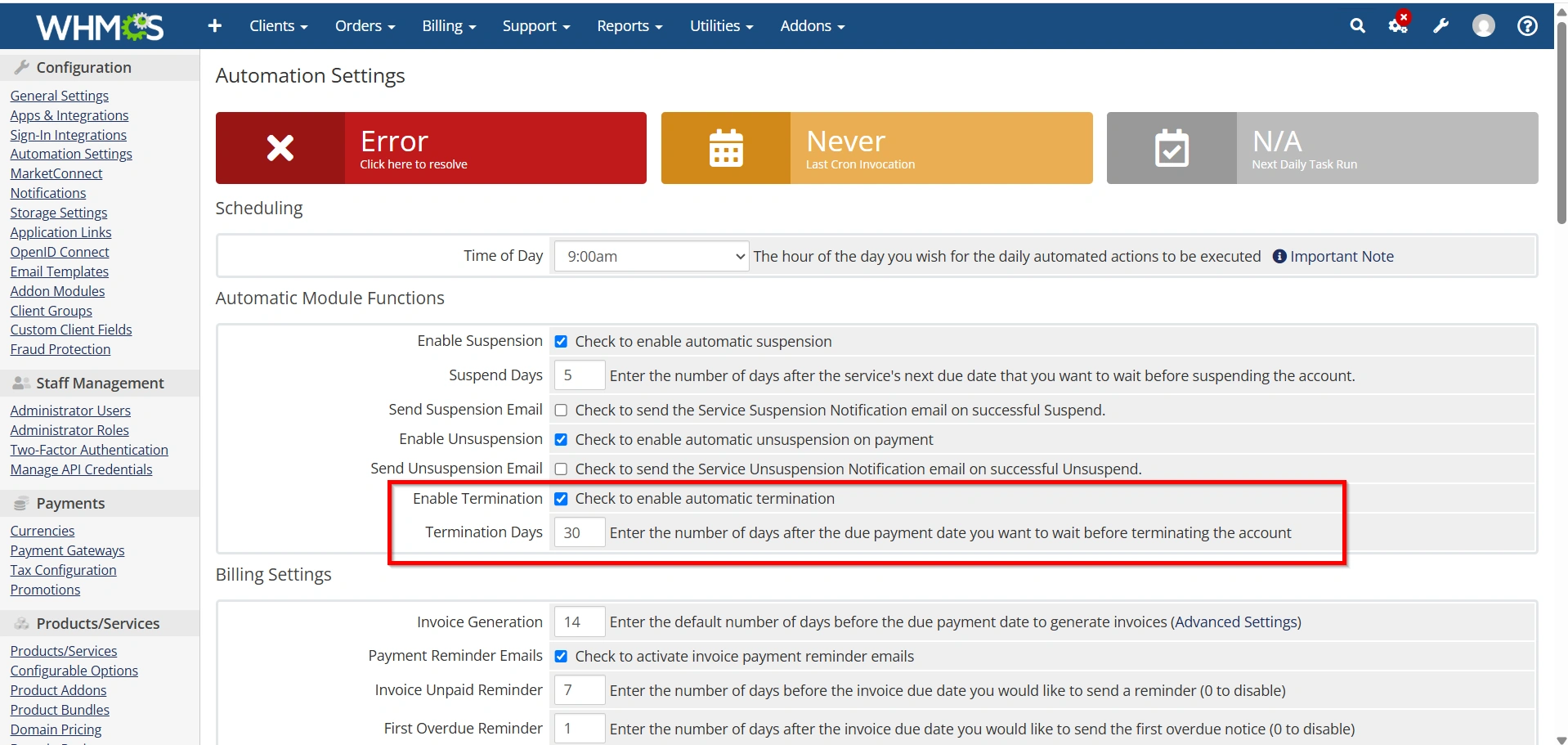
Scroll down until you find the Automatic Module Functions section.
This section controls account suspension, unsuspension, and termination.
Step 3: Configure Automatic Suspension
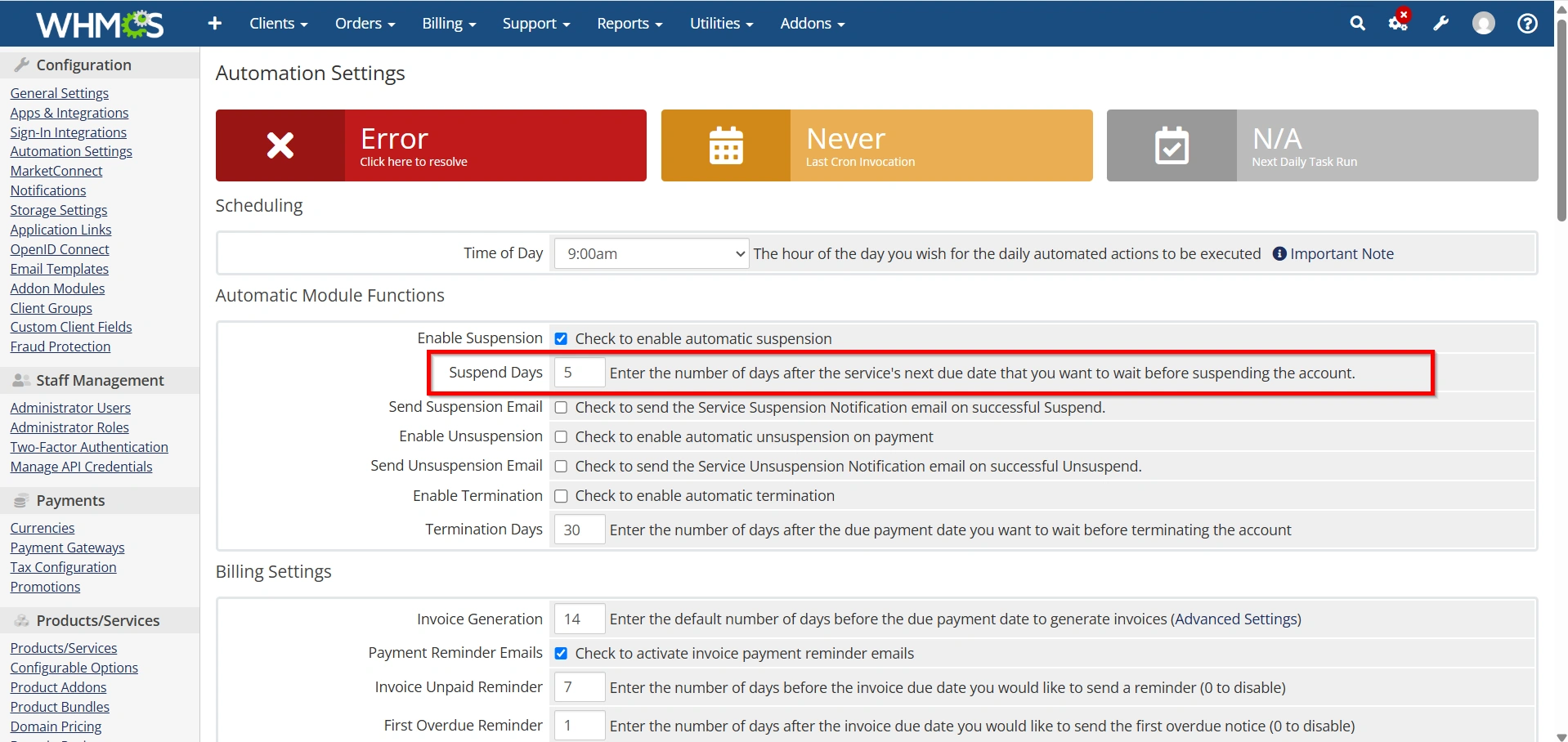
Locate:
Suspend Days
This option determines how many days after the invoice due date WHMCS should suspend the hosting account.
Example:
- Invoice Due Date: June 1
- Suspend Days: 3
The hosting account will be suspended automatically on June 4 if payment has not been received.
Most hosting providers use values between:
- 1 day
- 3 days
- 5 days
- 7 days
depending on their billing policy.
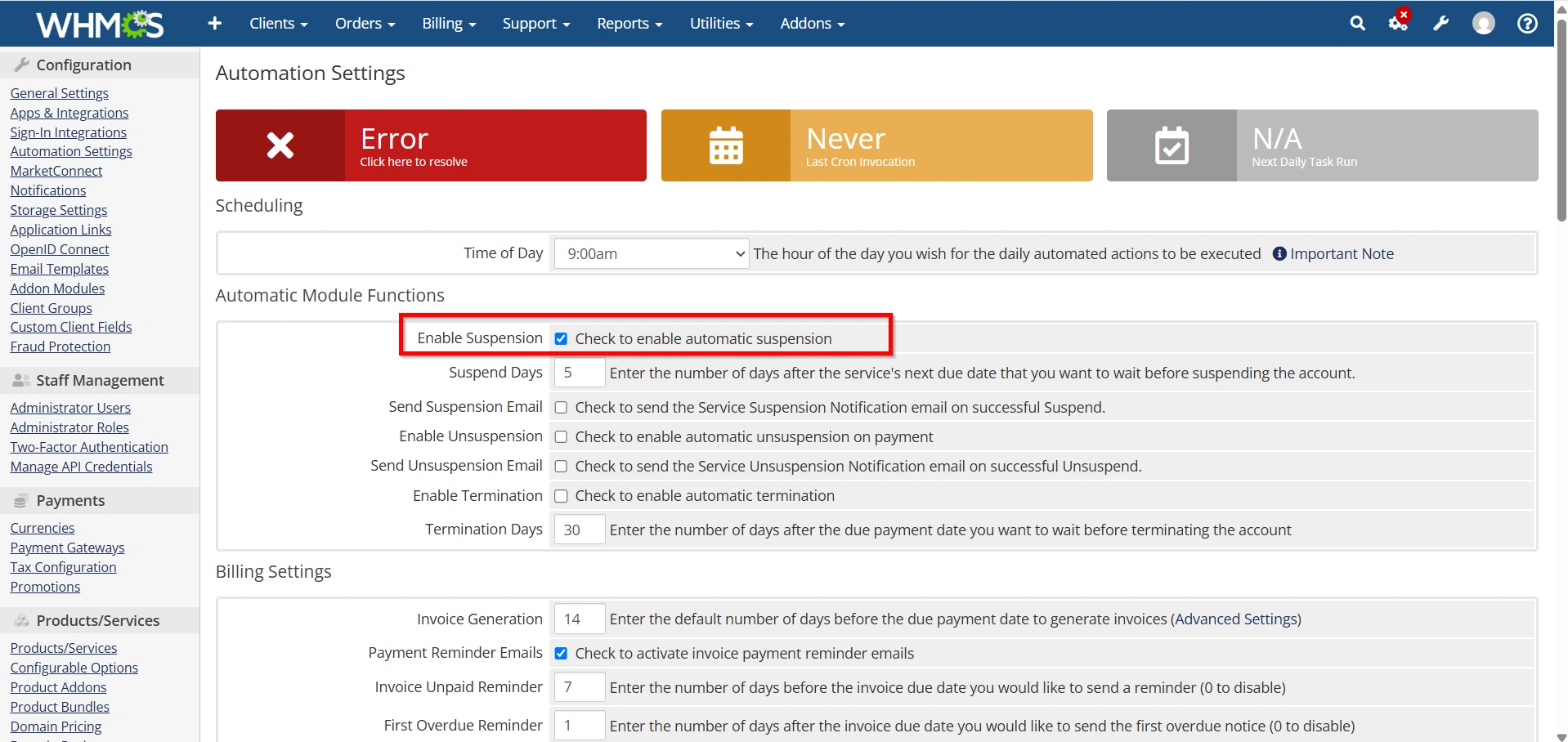
Step 4: Enable Automatic Suspension
Make sure automatic suspension is enabled.
During the daily cron execution, WHMCS checks:
- Overdue invoices
- Active hosting services
- Connected server modules
If conditions match, WHMCS sends a Suspend command to the hosting server.
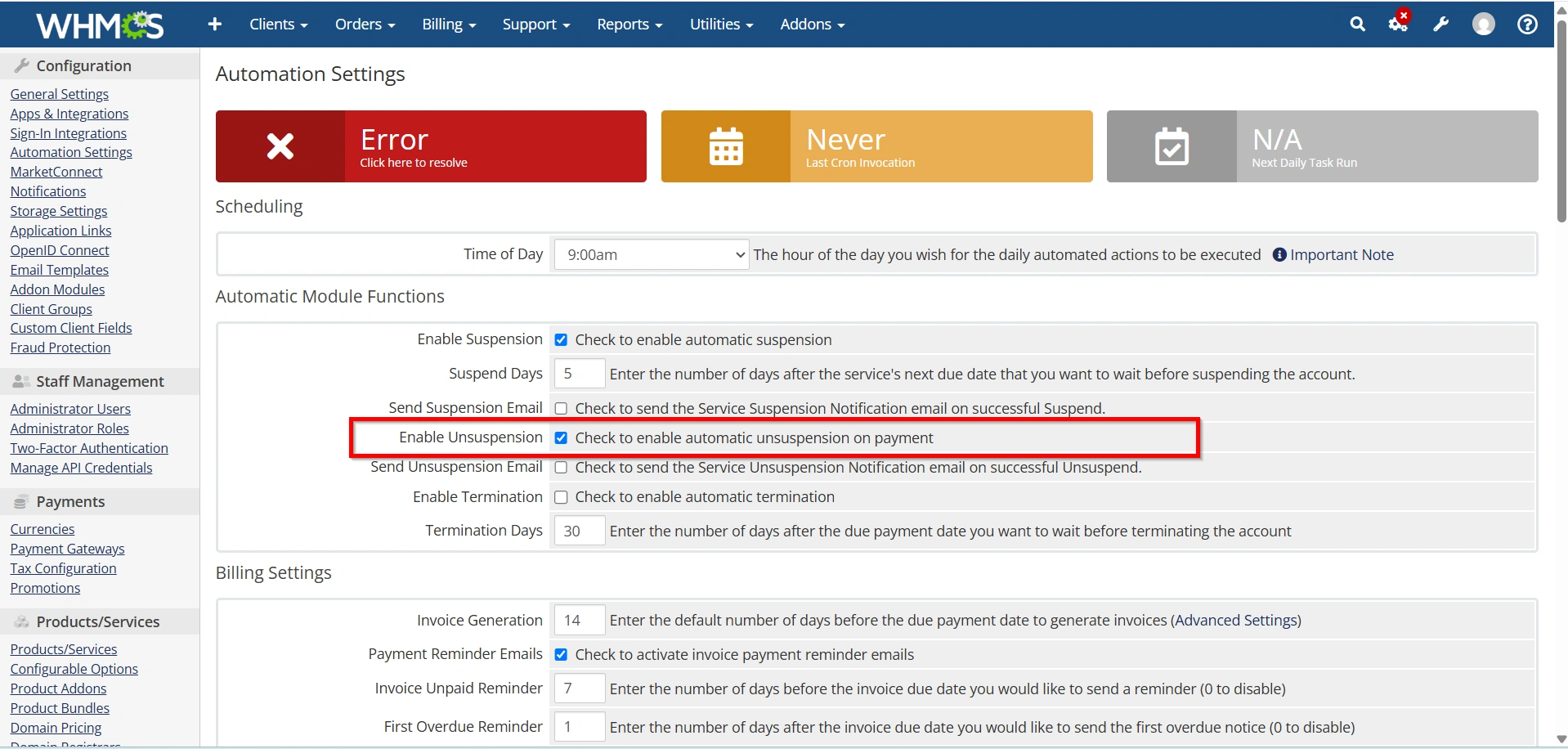
Step 5: Configure Automatic Unsuspension
Enable:
Automatic Unsuspension
This allows WHMCS to automatically restore services after invoice payment.
Workflow:
- Customer pays overdue invoice.
- WHMCS records payment.
- Daily automation checks the account.
- Unsuspend command is sent.
- Website becomes active again.
This removes the need for support tickets requesting account restoration.
Step 6: Configure Automatic Termination
Locate:
Termination Days
Specify how many days after suspension or invoice due date an account should be permanently deleted.
Example:
- Due Date: June 1
- Suspension: June 4
- Termination: June 30
After the configured period, WHMCS sends the Terminate command to the hosting server.
Be cautious because termination permanently deletes hosting data unless backups are available.
Step 7: Save Changes
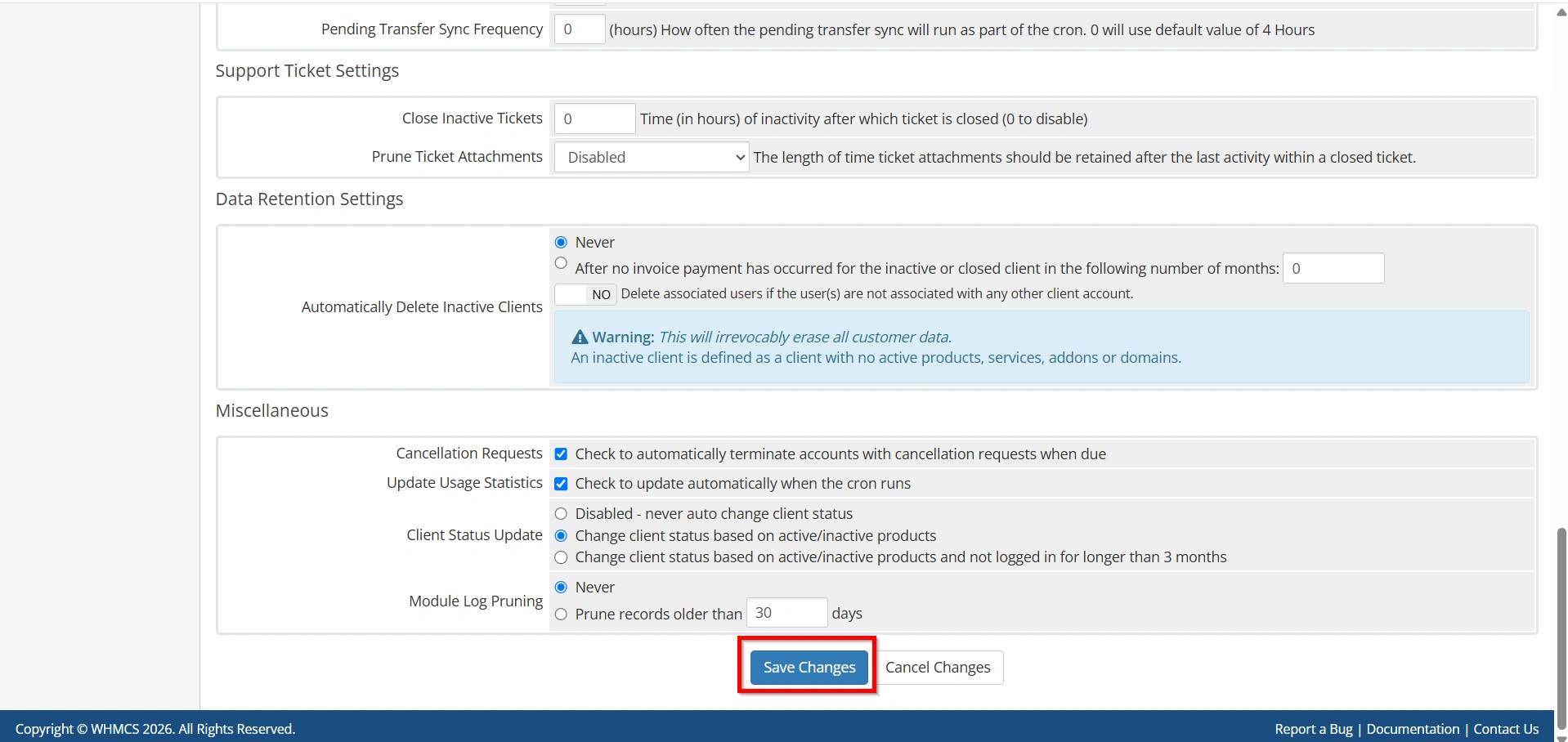
Click:
Save Changes
Your automation settings are now active.
How the Automation Workflow Works
Once you Set Up Suspension, Unsuspension and Termination Automation in WHMCS, the process typically follows this sequence:
- Invoice is generated.
- Customer receives payment reminder.
- Invoice becomes overdue.
- WHMCS suspends the hosting account.
- Customer pays the invoice.
- WHMCS automatically unsuspends the account.
- If payment is never received, WHMCS eventually terminates the hosting service after the configured number of days.
This workflow helps hosting providers enforce billing policies while minimizing manual administration.
Best Practices
When configuring automation, consider these recommendations:
- Always send payment reminders before suspension.
- Allow a reasonable grace period before suspending accounts.
- Test automation using a demo hosting account before applying it to production.
- Verify that your server module supports Suspend, Unsuspend, and Terminate commands.
- Monitor the Automation Status page regularly for errors.
- Keep regular backups before enabling automatic termination.
- Inform customers of your suspension and termination policy in your Terms of Service.
Benefits of Automation in WHMCS
When you Set Up Suspension, Unsuspension and Termination Automation in WHMCS, your hosting business benefits in several ways:
- Reduced manual administrative work.
- Faster account management.
- Consistent billing enforcement.
- Improved customer experience through automatic service restoration.
- Better utilization of server resources.
- Lower operational costs.
- Scalable hosting management for growing businesses.
Conclusion
Learning how to Set Up Suspension, Unsuspension and Termination Automation in WHMCS is an important step toward creating a fully automated hosting environment. By configuring suspension, unsuspension, and termination rules, you can ensure that overdue accounts are handled consistently, paid services are restored without delay, and inactive accounts are removed according to your business policies.
Regularly review your automation settings, test changes in a safe environment, and maintain reliable backups before enabling automatic termination. With the right configuration, WHMCS can significantly reduce administrative overhead while delivering a seamless experience for both administrators and customers.
Related Articles


