Latest Updates
How to Set WordPress to Ignore File Path Using .htaccess
How to Set WordPress to Ignore File Path Using .htaccess WordPress is designed to handle website URLs through its built-in rewrite system. This feature allows you to create SEO-friendly permalinks and organize your content…
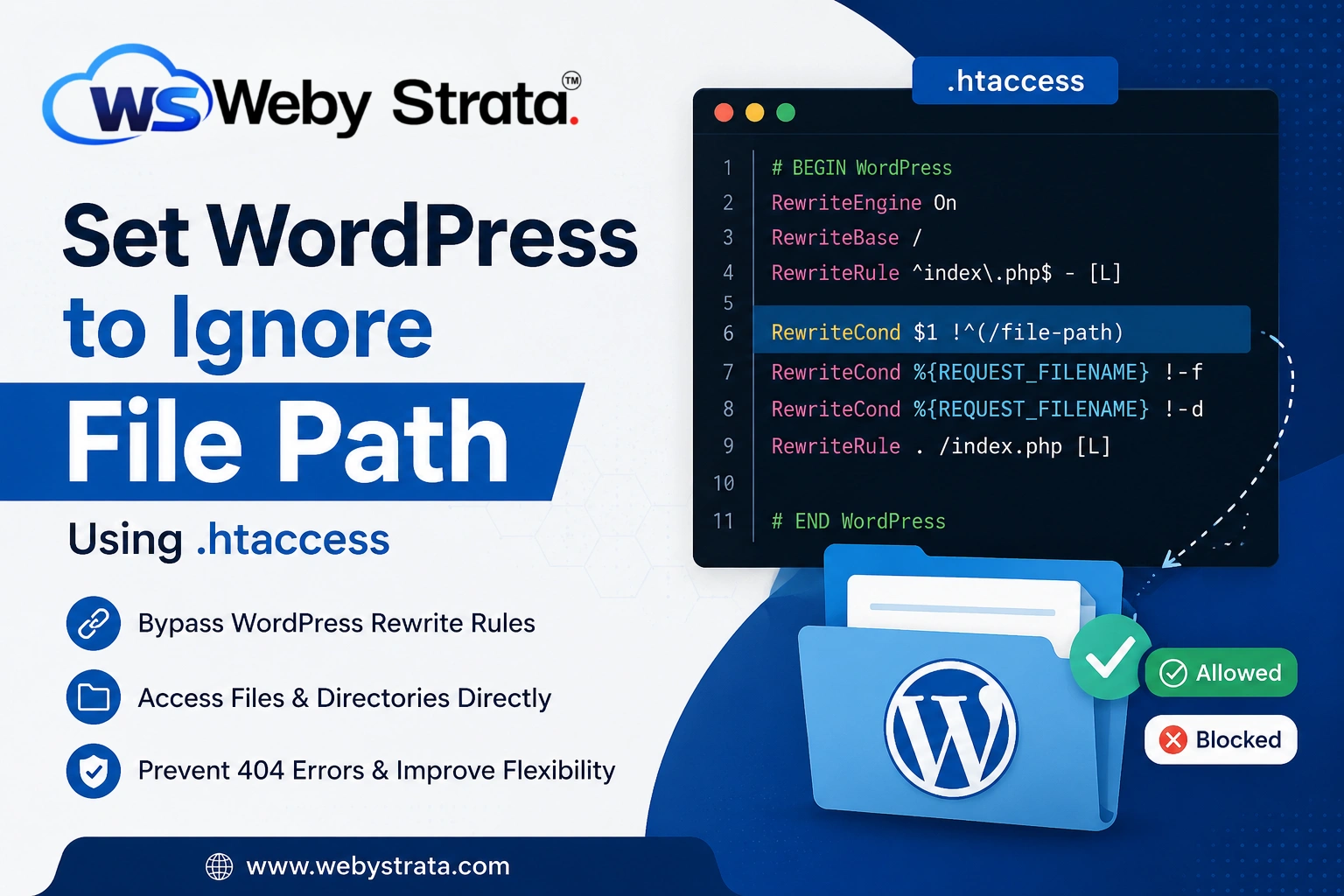
How to Set WordPress to Ignore File Path Using .htaccess
WordPress is designed to handle website URLs through its built-in rewrite system. This feature allows you to create SEO-friendly permalinks and organize your content efficiently. However, there are situations where WordPress may interfere with direct access to files or folders stored in your hosting account.
Many website owners need to Set WordPress to Ignore File Path when hosting files that should be accessed directly from the server instead of being processed through WordPress. This is especially common when using custom HTML pages, application scripts, downloadable resources, or external tools stored within the website directory.
For example, if you upload a standalone HTML landing page to your public_html folder, WordPress may attempt to handle the request through its permalink structure and display a 404 error. When you Set WordPress to Ignore File Path, the web server serves the file directly, ensuring visitors can access it without interruption.
Understanding WordPress Rewrite Rules
WordPress uses the Apache Rewrite Engine to process URL requests. These rules are stored inside the .htaccess file located in the root directory of your WordPress installation.
A default WordPress .htaccess configuration typically looks like this:
# BEGIN WordPress

RewriteEngine On
RewriteBase /
RewriteRule ^index\.php$ - [L]

RewriteCond %{REQUEST_FILENAME} !-f
RewriteCond %{REQUEST_FILENAME} !-d

RewriteRule . /index.php [L]

# END WordPress
These rules tell Apache to check whether the requested URL matches an existing file or directory. If no match is found, WordPress handles the request through the index.php file.
While this behavior is useful for posts, pages, and custom URLs, it can prevent direct access to custom files and folders.
Prerequisites
Before making any changes, ensure that:
- You have access to your hosting account.
- You can access cPanel File Manager, FTP, or SSH.
- You create a backup of the
.htaccessfile. - You know the exact file or directory path you want WordPress to ignore.
Taking a backup is highly recommended because incorrect changes to the .htaccess file can cause website errors.
Steps to Set WordPress to Ignore a File Path
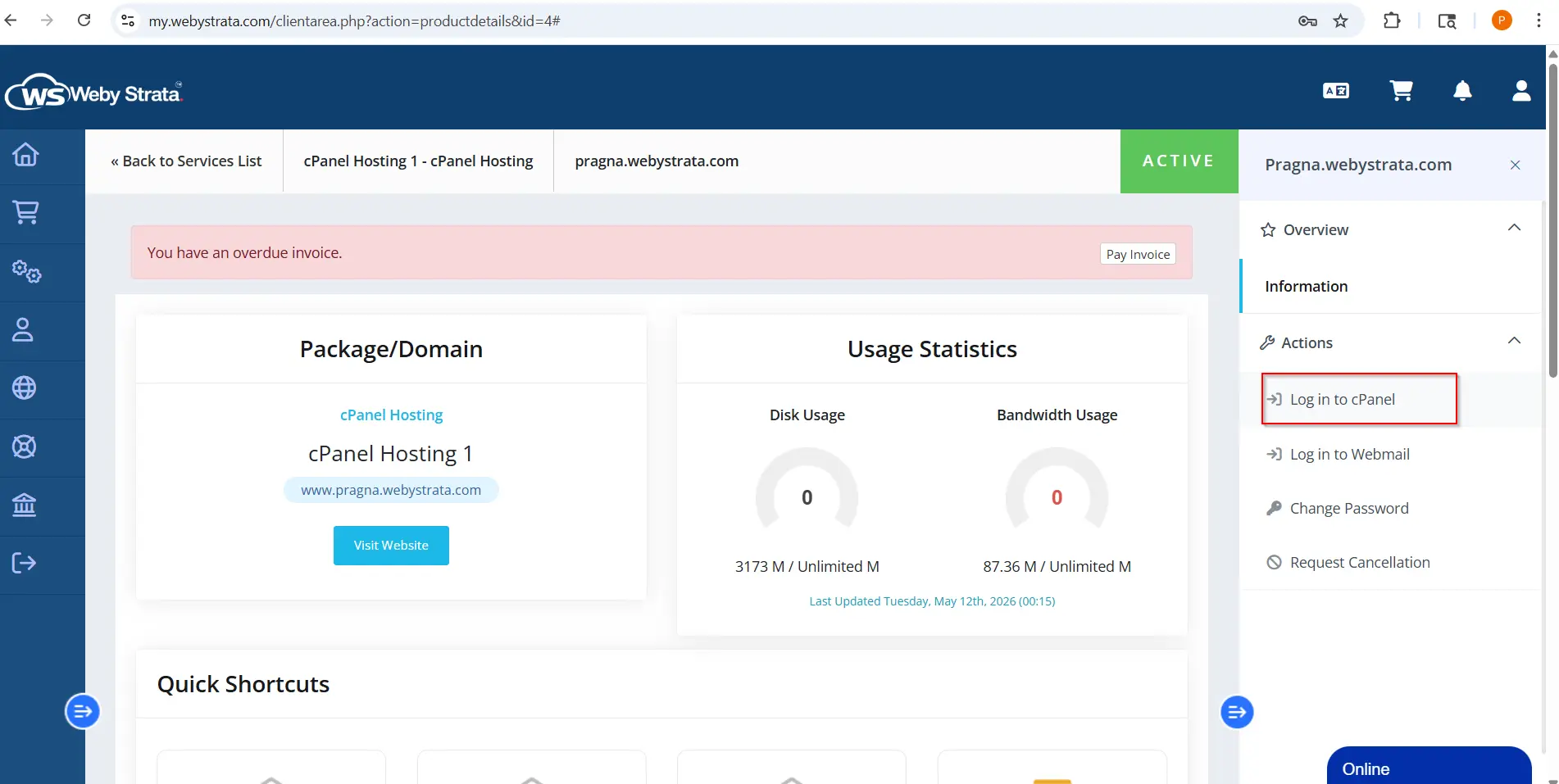
Step 1: Login to cPanel from WebyStrata Client Area
First, visit the WebyStrata website and log in to your client area account using your registered email address and password.
official Website www.webystrata.com
After logging in:
- Go to Services
- Click on My Services
- Select your active hosting service
- Click on Login to cPanel
Step 2: Open File Manager
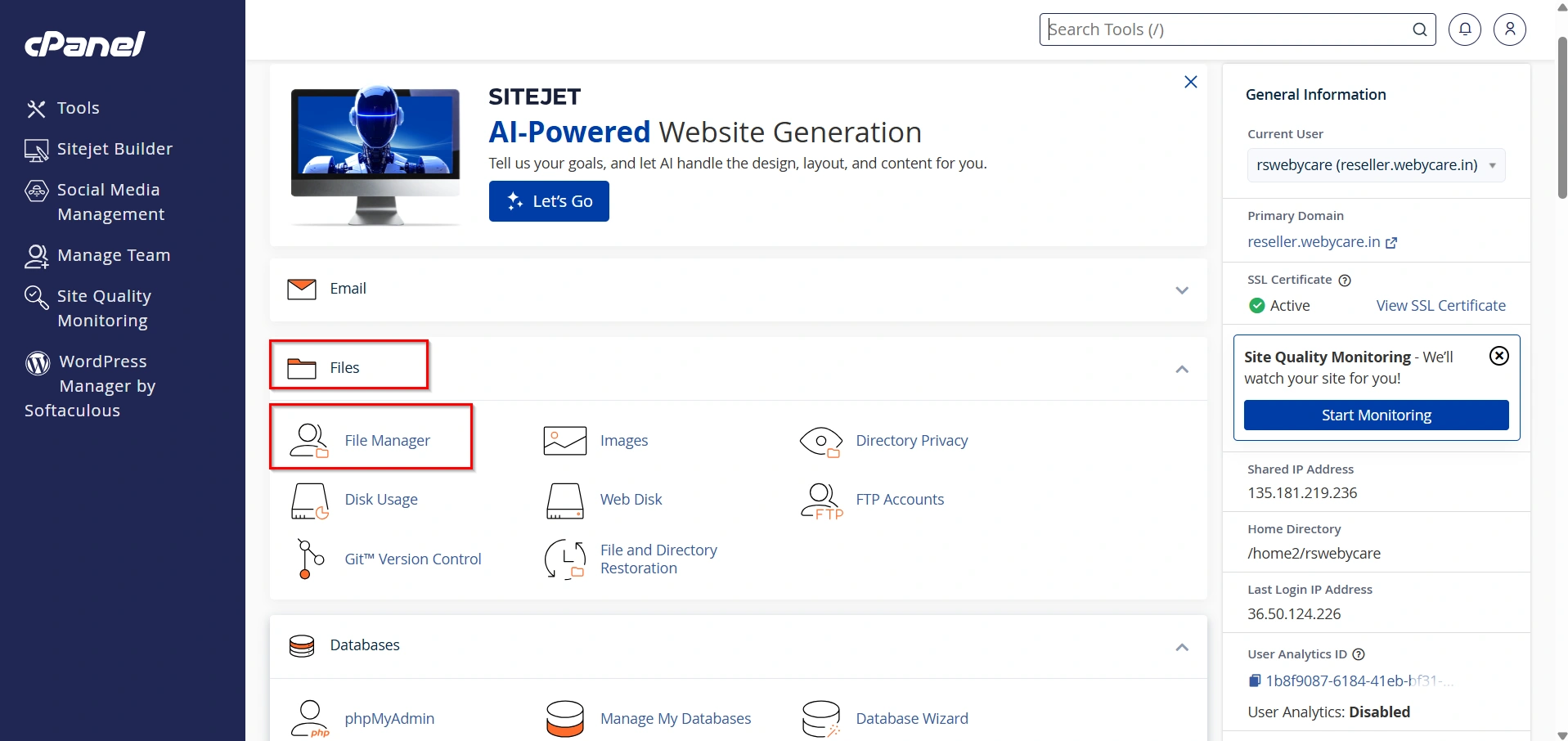
Inside cPanel, navigate to the Files section.
Click File Manager to access your website files.
File Manager allows you to browse, edit, upload, and manage files directly from your browser.
Step 3: Navigate to Your WordPress Directory
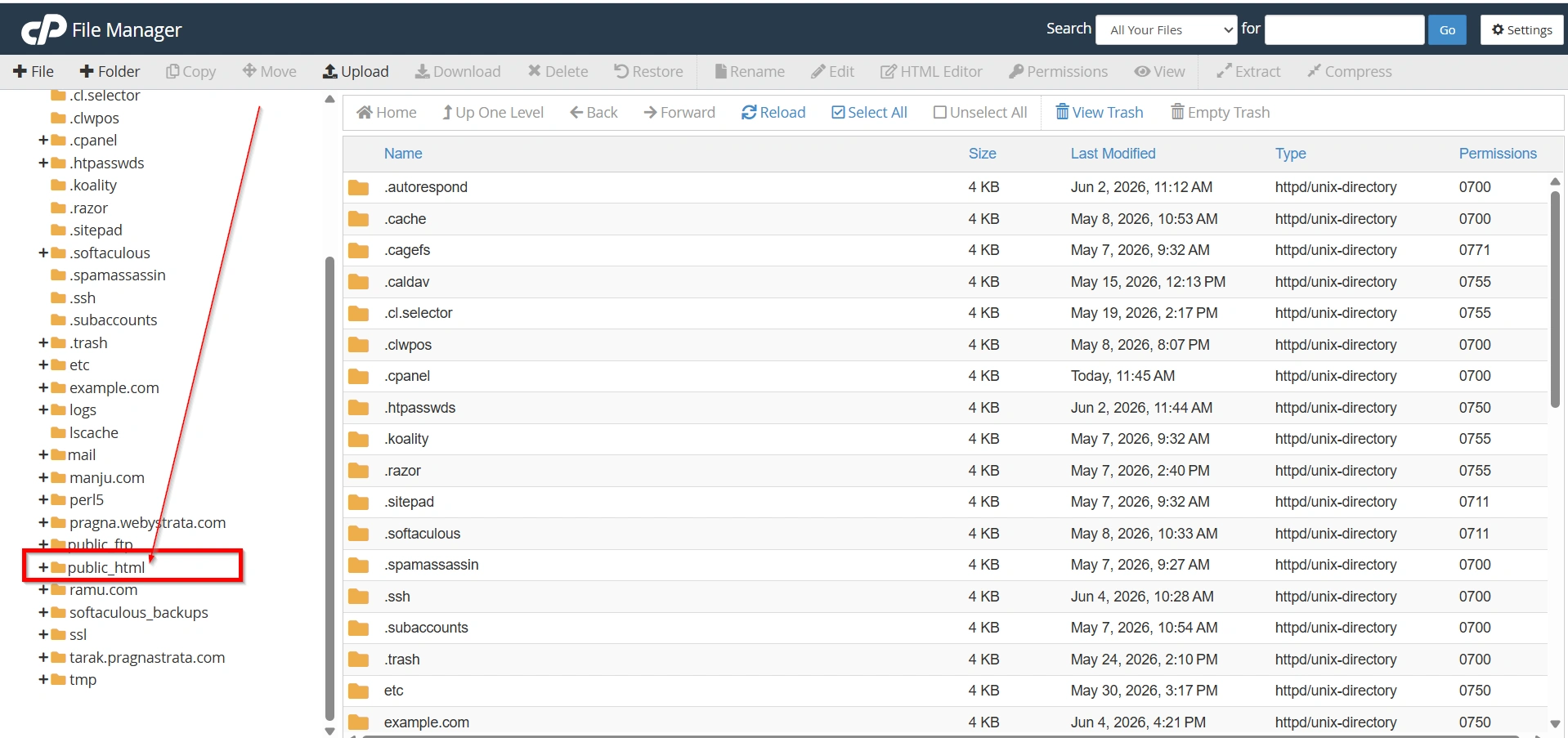
Locate your WordPress installation folder.
In most hosting environments, it is located in:
public_html
or
public_html/your-domain
Open the directory to view all WordPress files.
Step 4: Locate the .htaccess File
Find the .htaccess file in the root directory of your WordPress installation.
If you do not see the file:
- Click Settings in File Manager.
- Enable Show Hidden Files (dotfiles).
- Refresh the directory listing.
Before editing the file, create a backup copy for safety.
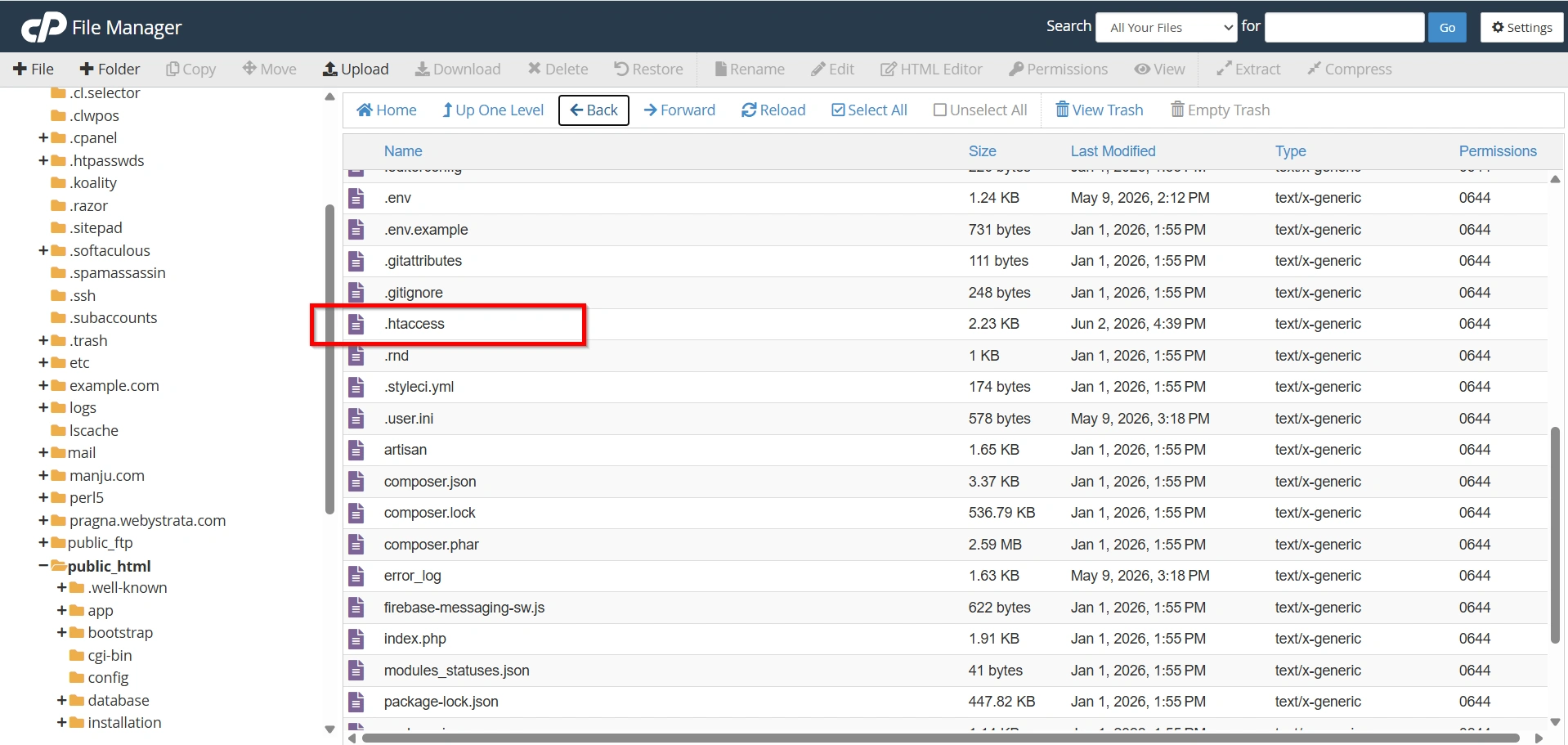
Step 5: Edit the .htaccess File
Select the .htaccess file.
- Click Edit from the top menu or right-click the file and choose Edit.
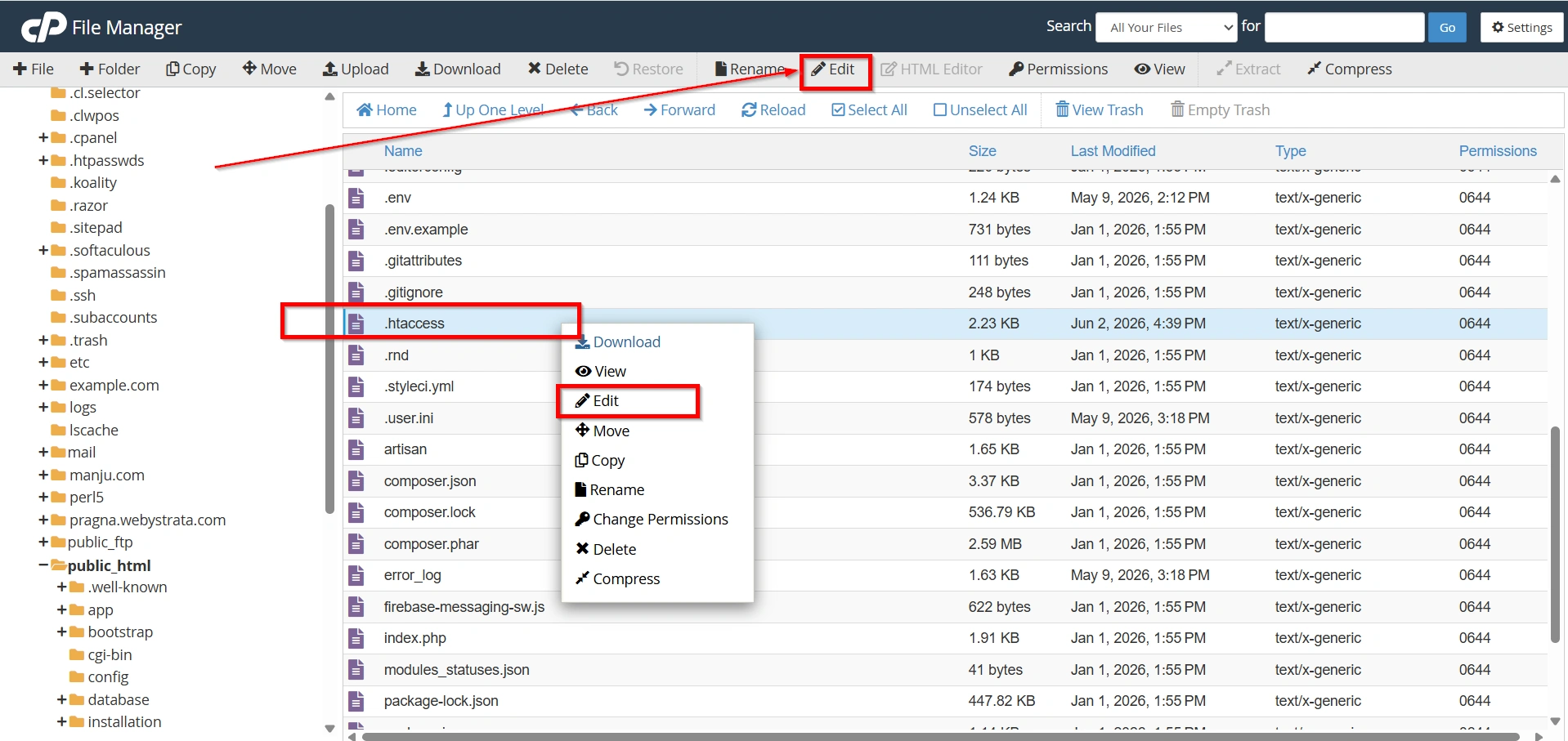
- Again Click Edit
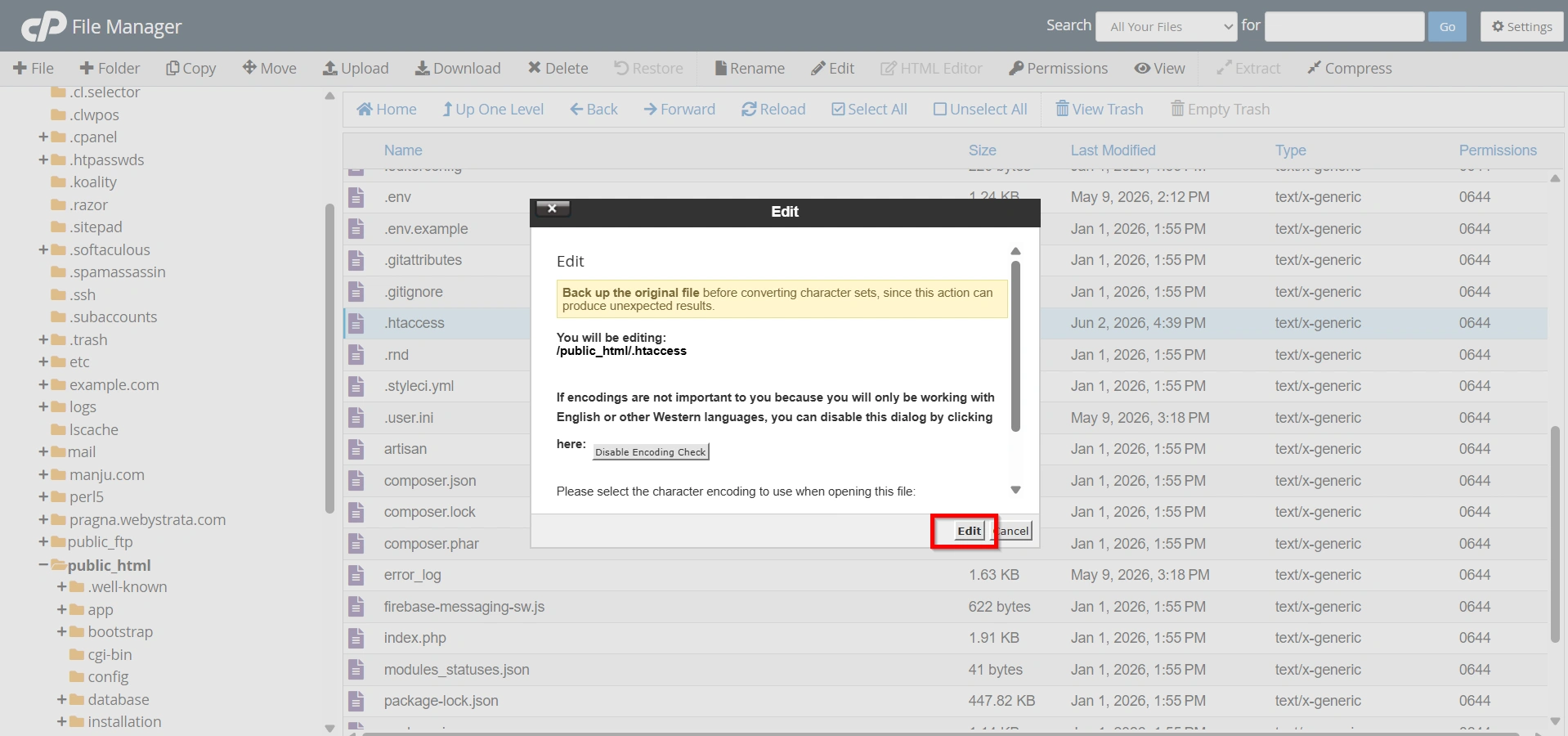
A file editor window will open.
Locate the default WordPress rewrite rules:
# BEGIN WordPress

RewriteEngine On
RewriteBase /
RewriteRule ^index\.php$ - [L]

RewriteCond %{REQUEST_FILENAME} !-f
RewriteCond %{REQUEST_FILENAME} !-d

RewriteRule . /index.php [L]

# END WordPress
Step 6: Add a Rewrite Condition
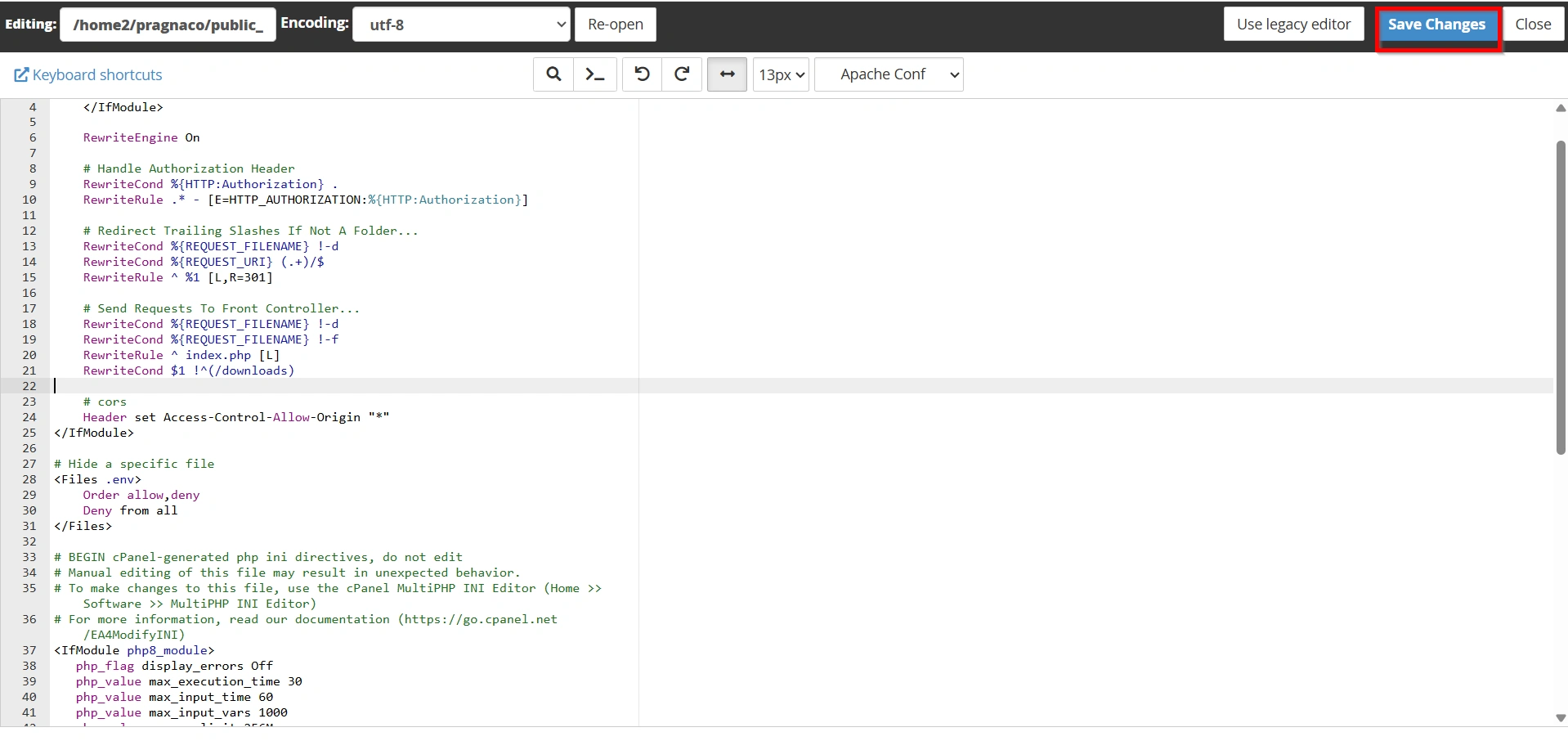
To make WordPress ignore a specific file path, add the following rule above the existing RewriteCond lines:
RewriteCond $1 !^(/file)
Replace file with the actual file or directory you want WordPress to ignore.
For example, to ignore a downloads folder:
RewriteCond $1 !^(/downloads)
To ignore a standalone HTML page:
RewriteCond $1 !^(/landing-page.html)
Your updated configuration may look like this:
# BEGIN WordPress

RewriteEngine On
RewriteBase /
RewriteRule ^index\.php$ - [L]

RewriteCond $1 !^(/landing-page.html)

RewriteCond %{REQUEST_FILENAME} !-f
RewriteCond %{REQUEST_FILENAME} !-d

RewriteRule . /index.php [L]

# END WordPress
This instructs Apache to bypass WordPress rewrite processing for the specified path.
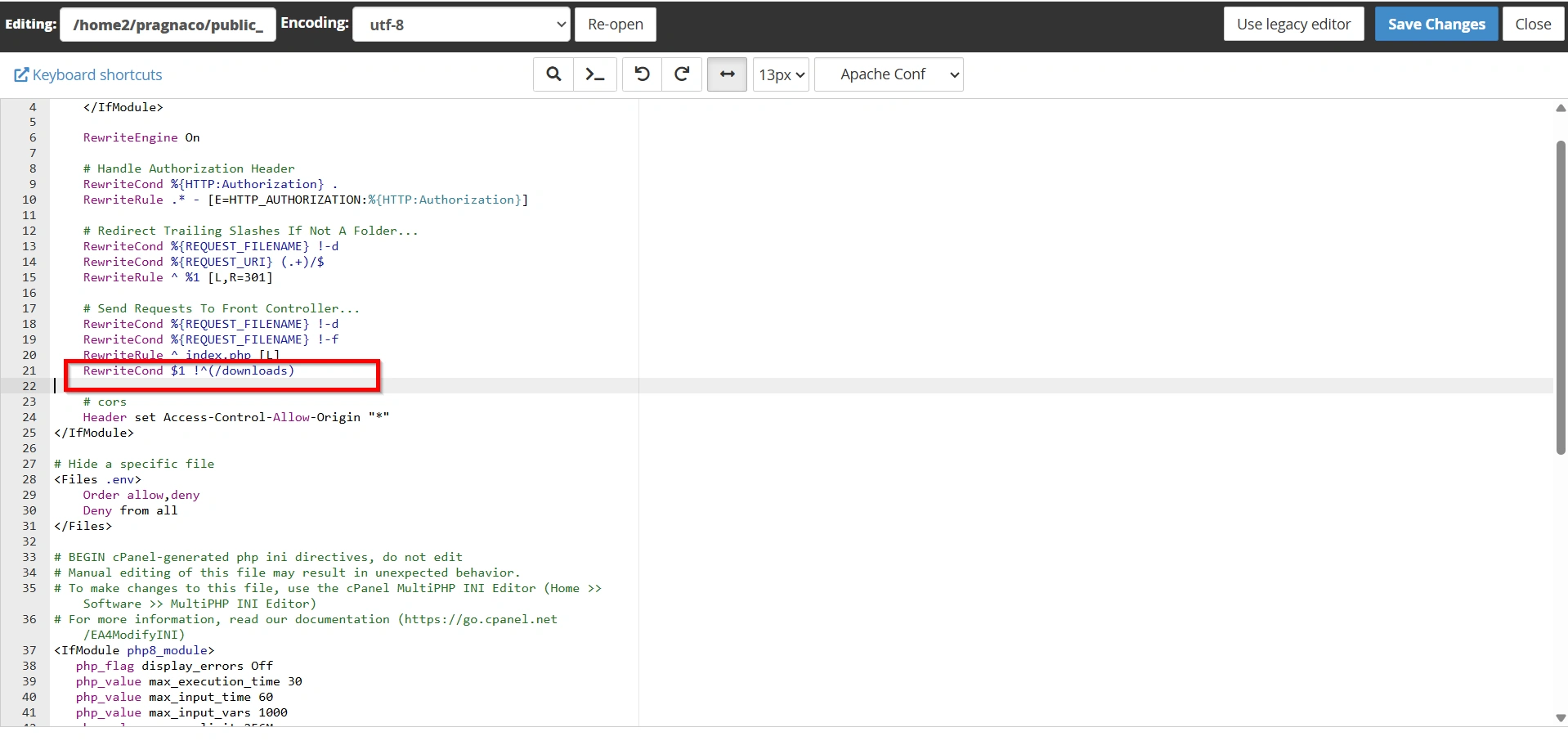
Step 7: Save Your Changes
After adding the rewrite condition, click Save Changes.
If you are using FTP, upload the modified .htaccess file back to the server.
The changes will take effect immediately.
Step 8: Test the File Path
Open your web browser and visit the file directly.
For example:
https://yourdomain.com/landing-page.html
If configured correctly, the file will load directly instead of displaying a WordPress 404 page.
Why Set WordPress to Ignore File Path?
There are several reasons why website owners and developers may want WordPress to ignore certain file paths.
Some common scenarios include:
- Hosting standalone HTML pages
- Running external applications alongside WordPress
- Providing downloadable files
- Creating custom landing pages
- Hosting documentation or help files
- Preventing WordPress from displaying 404 errors
- Accessing directories directly without WordPress interference
When WordPress ignores a file path, visitors can access the file exactly as it exists on the server without any additional processing.
Benefits of Ignoring a File Path
When you set WordPress to ignore a file path, you gain several advantages:
- Prevent unnecessary 404 errors
- Improve access to custom files
- Serve static content efficiently
- Host external applications alongside WordPress
- Reduce WordPress processing overhead
- Improve compatibility with third-party tools
- Simplify website file management
- Provide direct access to downloadable resources
These benefits can be especially useful for developers and website administrators who manage complex hosting environments.
Conclusion
Learning how to Set WordPress to Ignore File Path is a valuable technique for website administrators who need direct access to standalone files and folders. Whether you are hosting HTML pages, downloadable resources, documentation, or custom applications, the ability to Set WordPress to Ignore File Path helps prevent unnecessary 404 errors and improves website flexibility.
By carefully editing the .htaccess file and testing your configuration, you can successfully Set WordPress to Ignore File Path and ensure that specific resources are served directly by the web server rather than being processed by WordPress. This approach improves compatibility, simplifies file management, and provides a better experience for website visitors.
Related Articles


